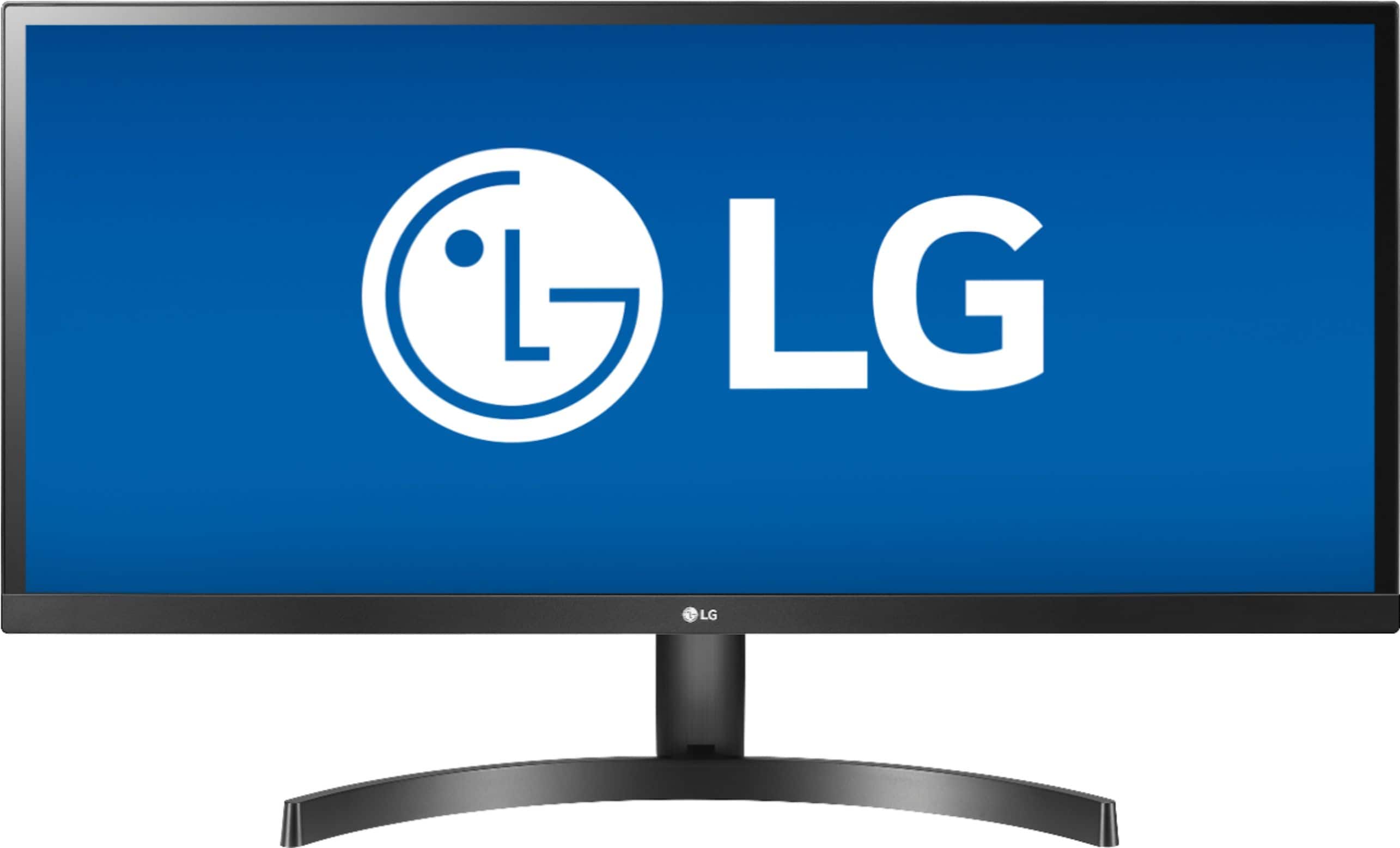
A:AnswerI had a simulator issue when trying to figure out why 1 of the 3 monitors (all this model) was not as clear and crisp as the others. The more I tried to fix the worse the issue became, hence the black/blank screen issue... What solved all problems is Below.
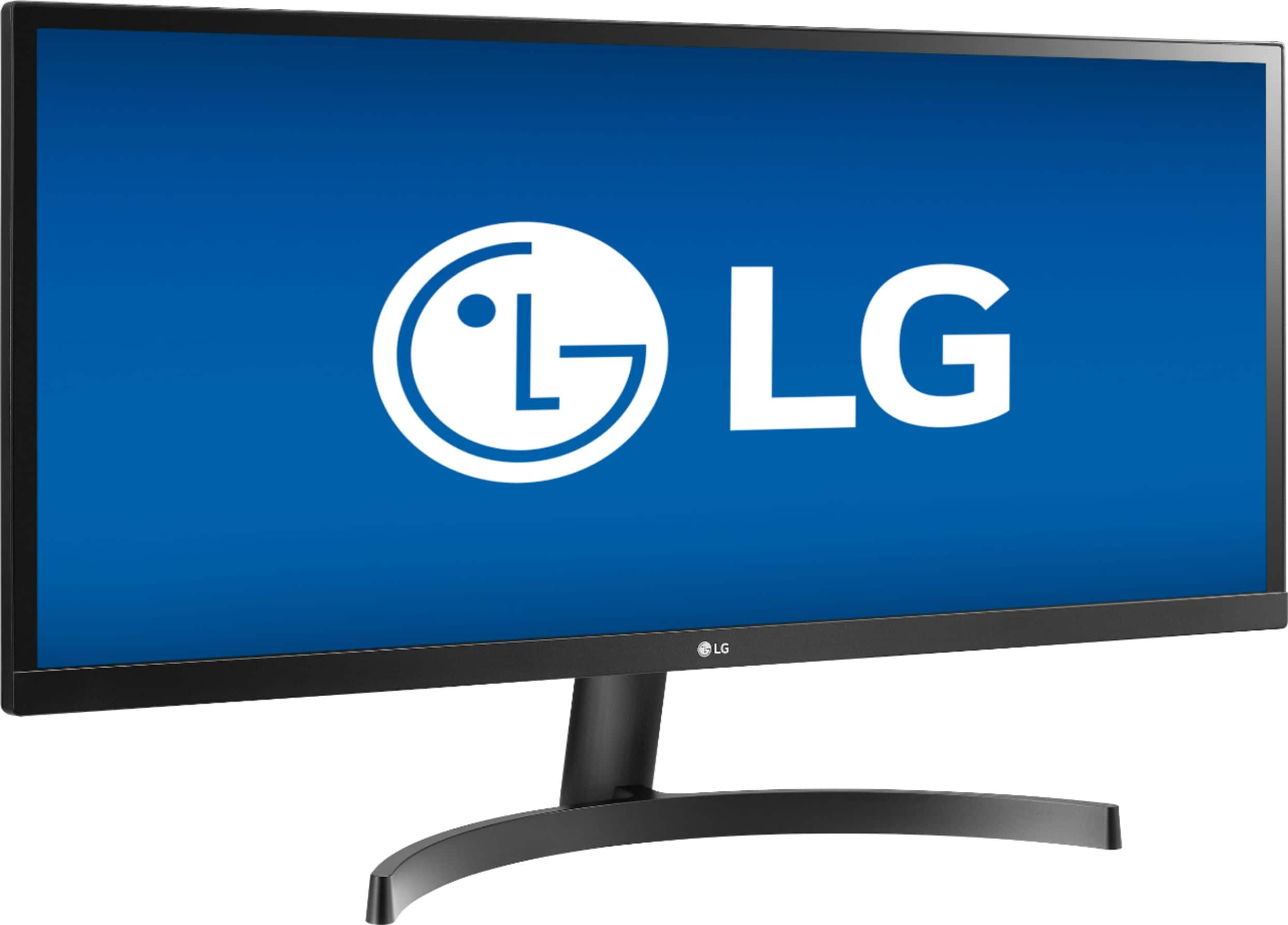
On the monitor Itself using the button below the Lg logo in the middle. I went to the menu settings and clicked on the restore to factory or default settings. Once I did that and it restarted it came up with a screen saying that the monitor was not being used in the correct resolution and MHz configuration. It gave the specs which I can’t remember right now.then it tells you to go to your computer to adjust. When doing the display settings in windows it didn’t have the option for that particular resolution the monitor was calling for. So I had to go into the advanced Display setting. That’s when I realized The computer was trying to run it in 59mhz and not 60mhz that the monitor required. So in the advanced drop down list I was able to choose the correct resolution and MHz combination the monitor wanted. Once I did that it fixed the screen blanking out issues and became perfectly crisp and clear like the rest. At that point I used the lg screen splitting software to adjust the picture to fine tune the contrast and brightness to my liking. (Lg doesn’t send the software with the monitor anymore I just know about it from when I bought the 29” model a few years ago. Takes a min to find but once you do and download it, it’s amazing if you want to split your screens and Unlock the true potential of these monitors. The monitors are great by themselves but that software is what really makes them great and that’s why I now have 6 of them!
A:AnswerYou need a Display port to HDMI adapter from Apple or an aftermarket one. You'll also want to download an aftermarket screen resolution app to get the screen to format properly, otherwise, everything will look "stretched"
A:AnswerYes! Especially if you download the lg screen splitting software. It used to come with the monitors in a disk but doesn’t anymore and they don’t even advertise it. It actually took a little digging to find the download online. But to me it’s the whole reason these monitors are so awesome. The features the software unlocks is amazing!
A:AnswerYes, depending on your mount. If you search any multi monitor desk mount system you will find the universal mounting specs. Just need to make sure your wall mount supports it. If your current mount doesn’t, there are plenty out there that do! I have 6 of these monitors and I have them all on either wall or adjustable multi monitor desk mounts. Need to be careful when looking for mounts, these are extra wide compared to most monitors so it’s tough to find multi screen mounts that will support the width of these monitors. But a single wall mount with an adjustable arm will be no problem finding.
A:AnswerThe monitor comes with an "on Screen Control" function that is user friendly. When I installed the monitor it came up and I saved a shortcut to my desktop.
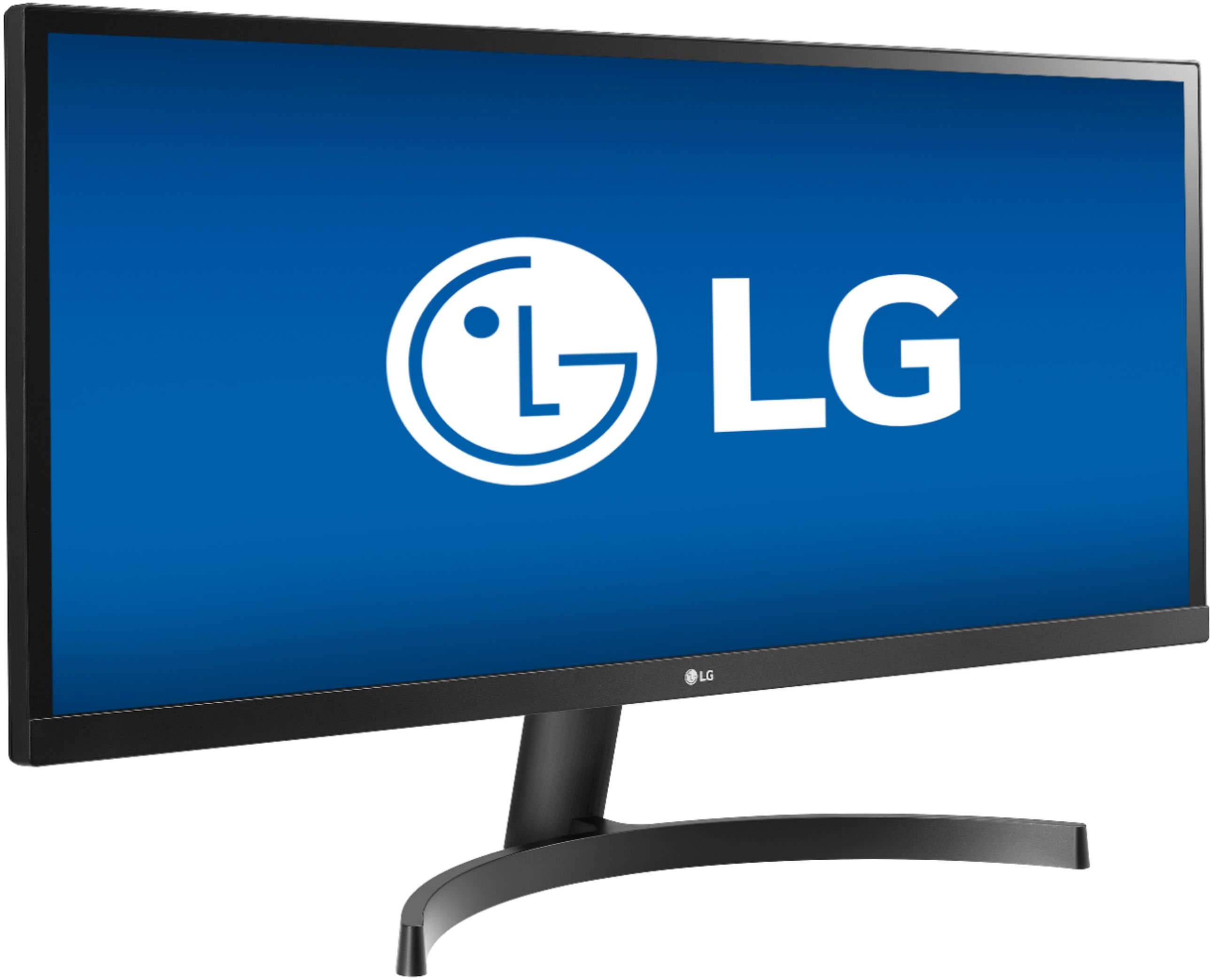
A:AnswerHi Rudi. The "FHD" in the title for the LG 34WL500-B 34" IPS LED UltraWide FHD FreeSync Monitor with HDR means Full HD which is a resolution of 2560 x 1080 (aka 2K). It is not a 4K monitor (i.e. a resolution of 3840 x 2160p)...^IFV
A:AnswerIf your cable box produces HDMI output, you should be able to use this monitor with your cable box, however because the native screen resolution is so wide it will certainly look funny or you might be able to have black bars on the side. You'd be best finding something in a standard aspect ratio of 3:4 instead of 21:9
A:AnswerYes and no.
Yes there's an Application from the download cd called On-Screen Control which will allow you to split the main screen into many different variations. Windows 10 already allows this as well.
Now if you're talking about seeing 2 different screens at the same time from the 2 HDMI's sources, then no.
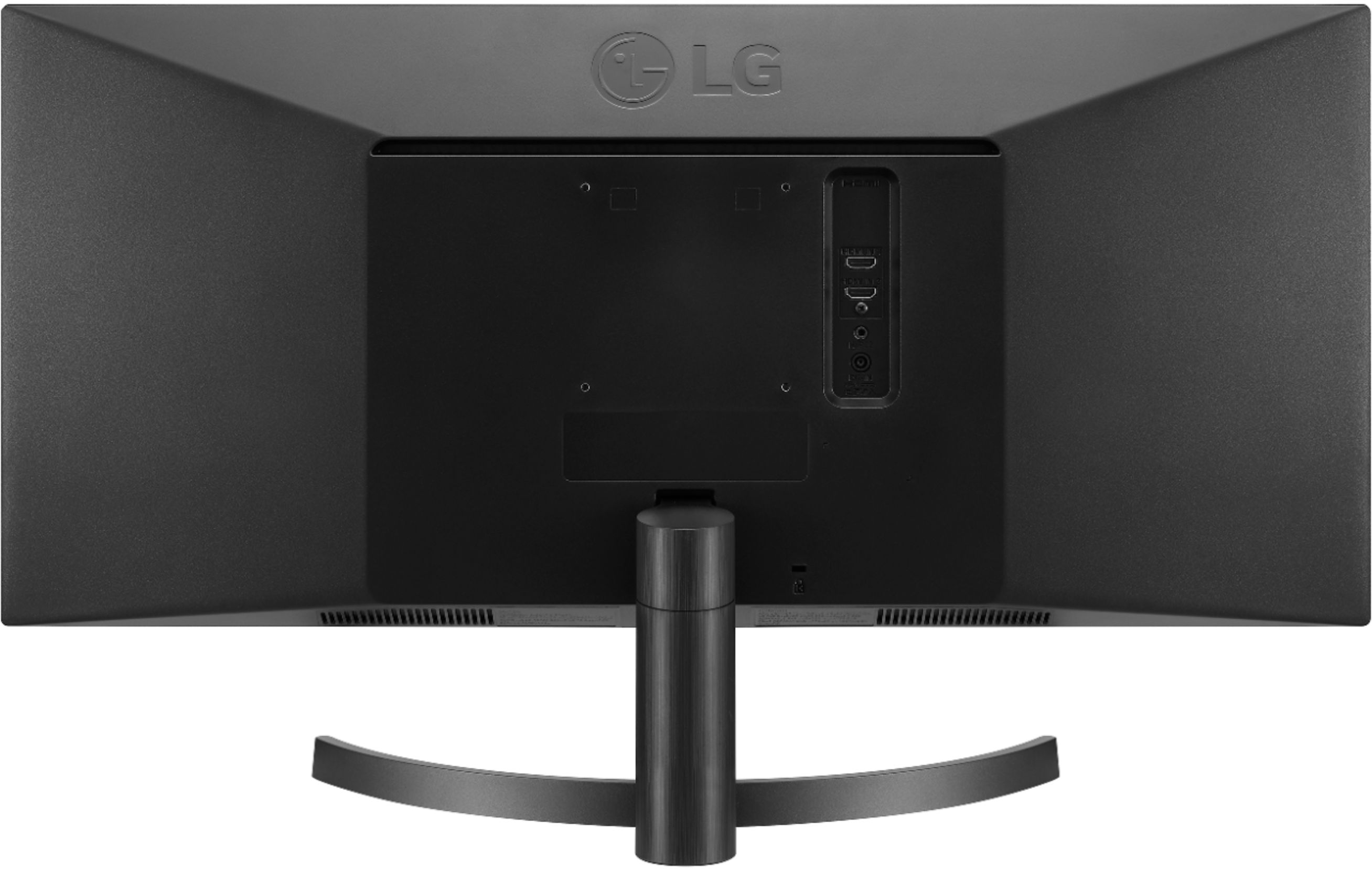
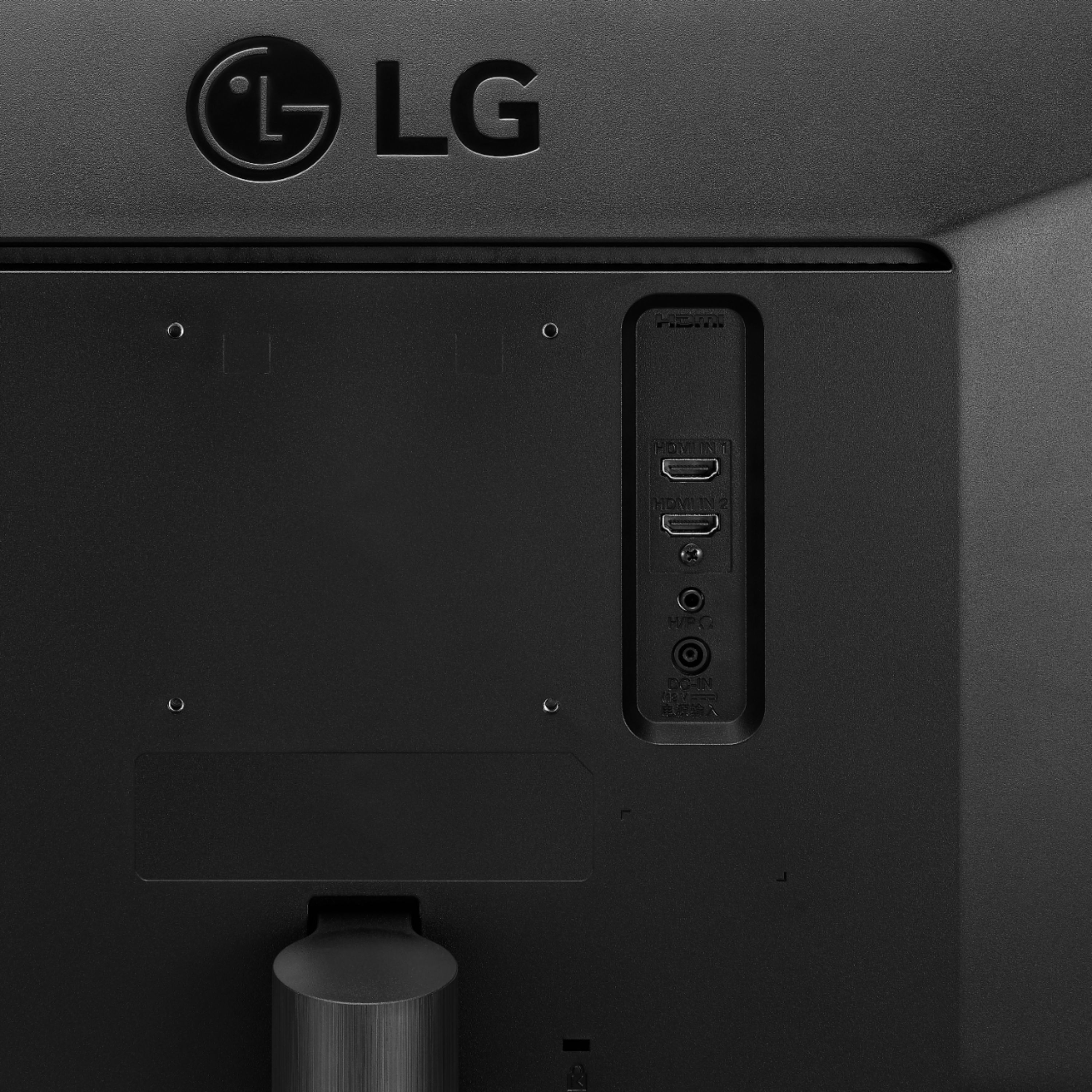
A:AnswerThe LG 34WL500-B 34 Inch 21:9 UltraWide™ 1080p Full HD IPS Monitor with HDR, Model # 34WL500-B has 2 x HDMI input p[orts on it. Depending on what connectivity your Macbook Pro 15" has, you can use an approrpaite cable to make a direct connection to the HDMI ports on the monitor or use an adapter to make the necessary connections...^IFV
A:AnswerThere is a joystick button under the panel where the LG Logo is on the LG 34WL500-B 34 Inch 21:9 UltraWide™ 1080p Full HD IPS Monitor with HDR, Model # 34WL500-B that will turn the monitor On/Off when it is pressed...^IFV
A:Answerno but i did not have any HDMI inputs on my pc either and bought a Plugable brand USB 3.0 to HDMI adapter and it works fine in one of my USB 3.0 ports.
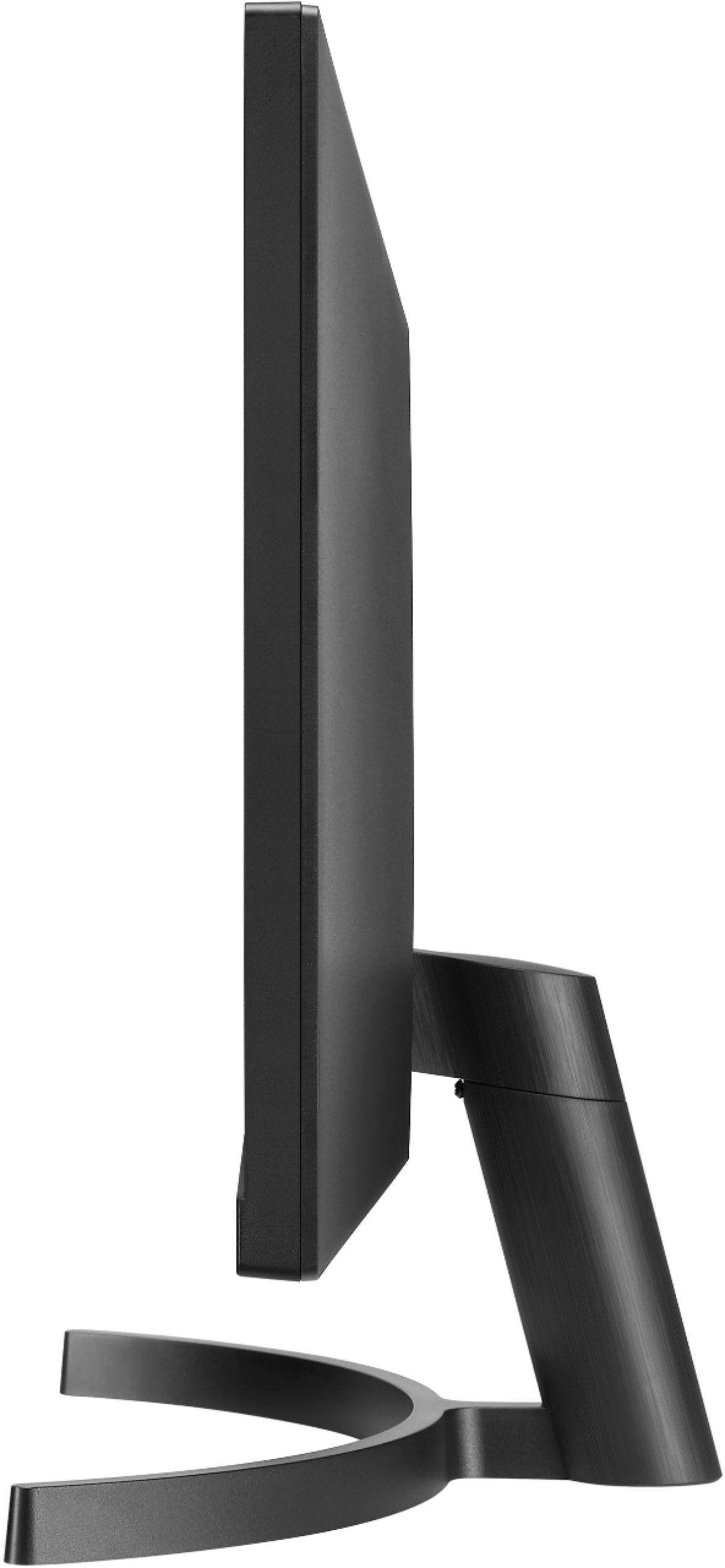
A:AnswerThe LG 34WL500-B 34 Inch 21:9 UltraWide™ 1080p Full HD IPS Monitor with HDR does not come with the stand attached. It has to be assembled then attached to the monitor with the included hardware. So if you prefer to wall mount the monitor, you can just omit the step for attaching the stand. You can always remove the stand after you attach it to the monitor if you decide you would prefer to wall mount it...^IFV