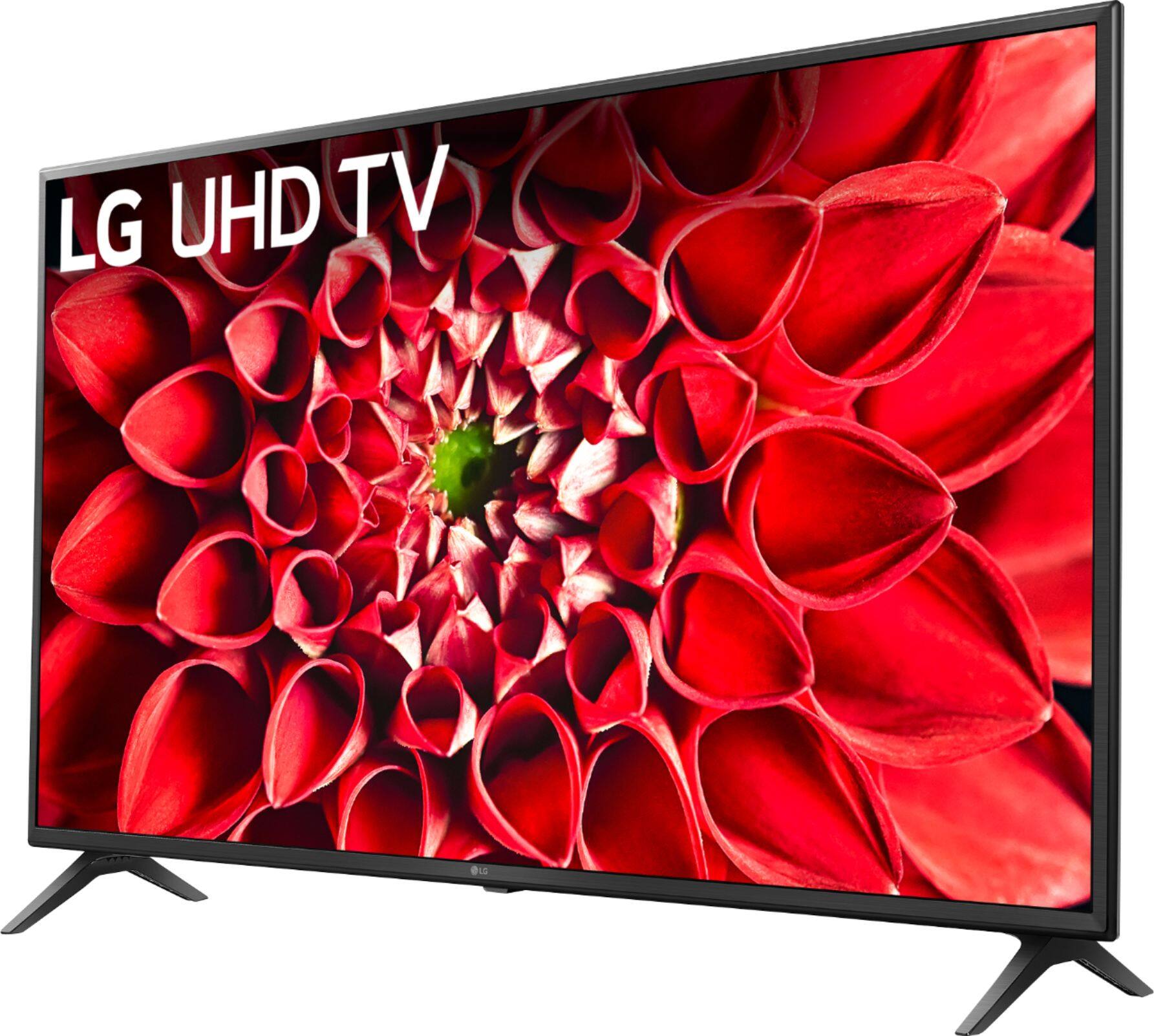
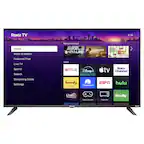
A:AnswerYes, Apple TV+, Prime Video, Netflix and Disney+ are apps in the LG Content Store. For a complete listing of available apps, please visit: https://us.lgappstv.com/main/tvapp. ^Daphane
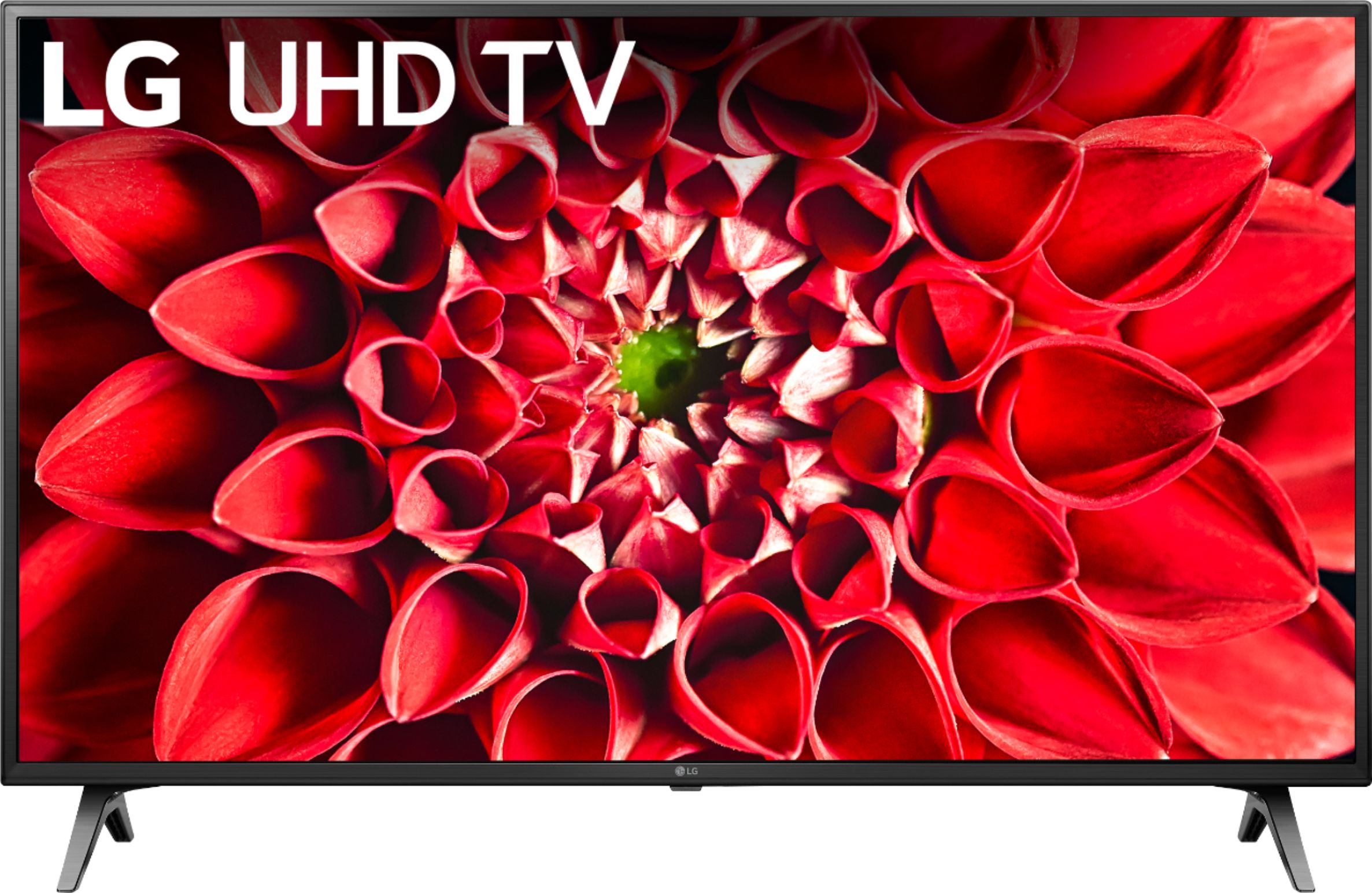
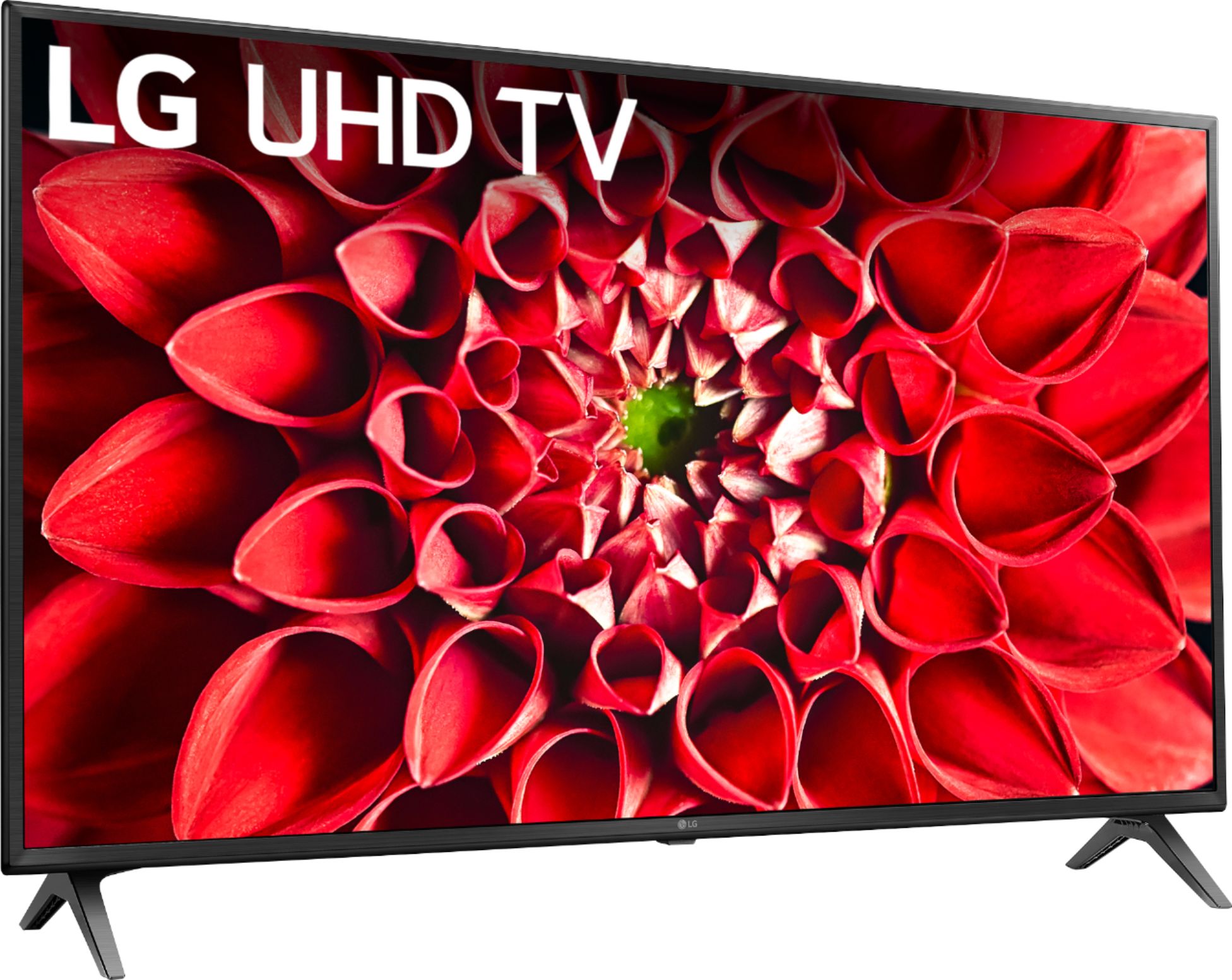
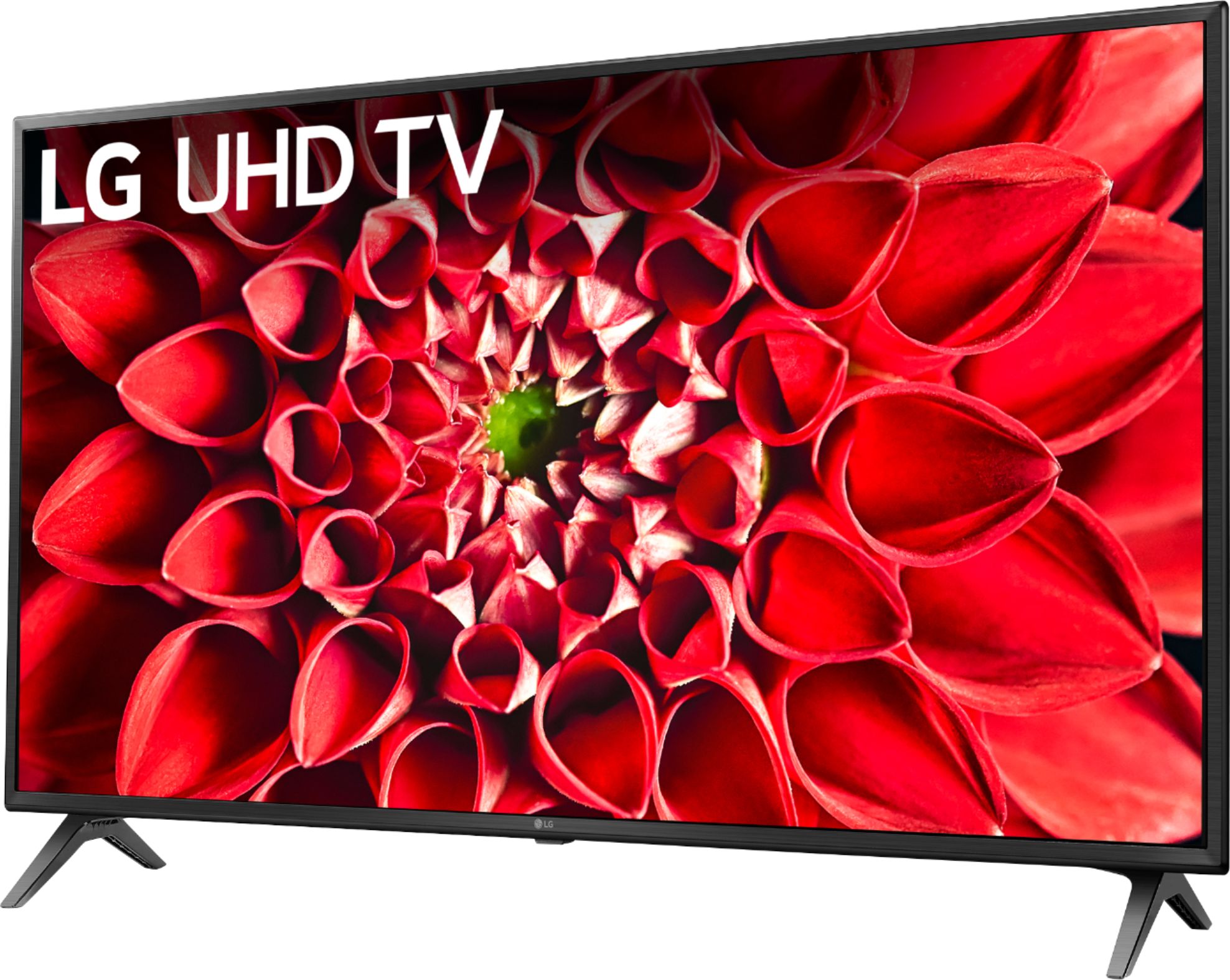
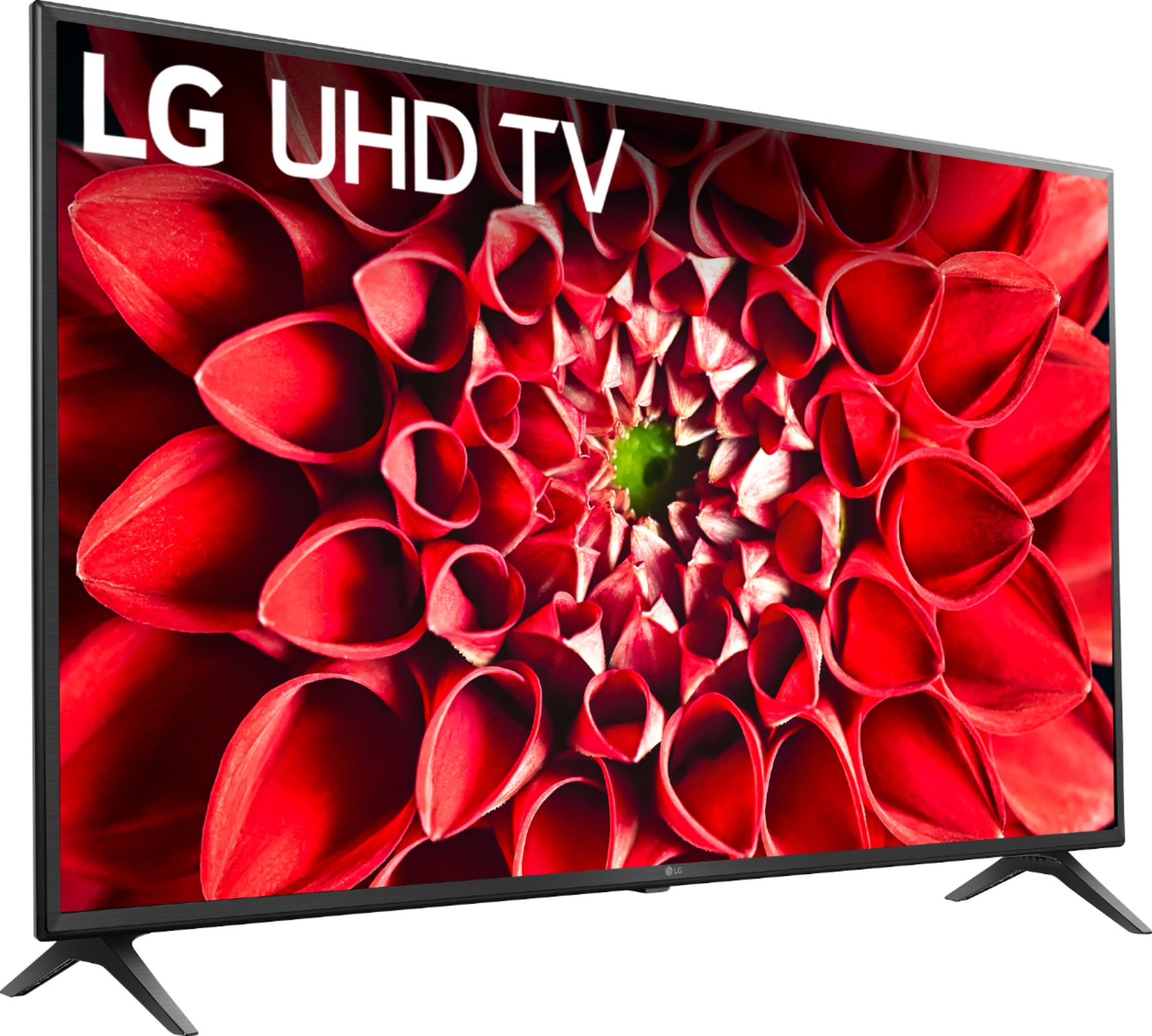
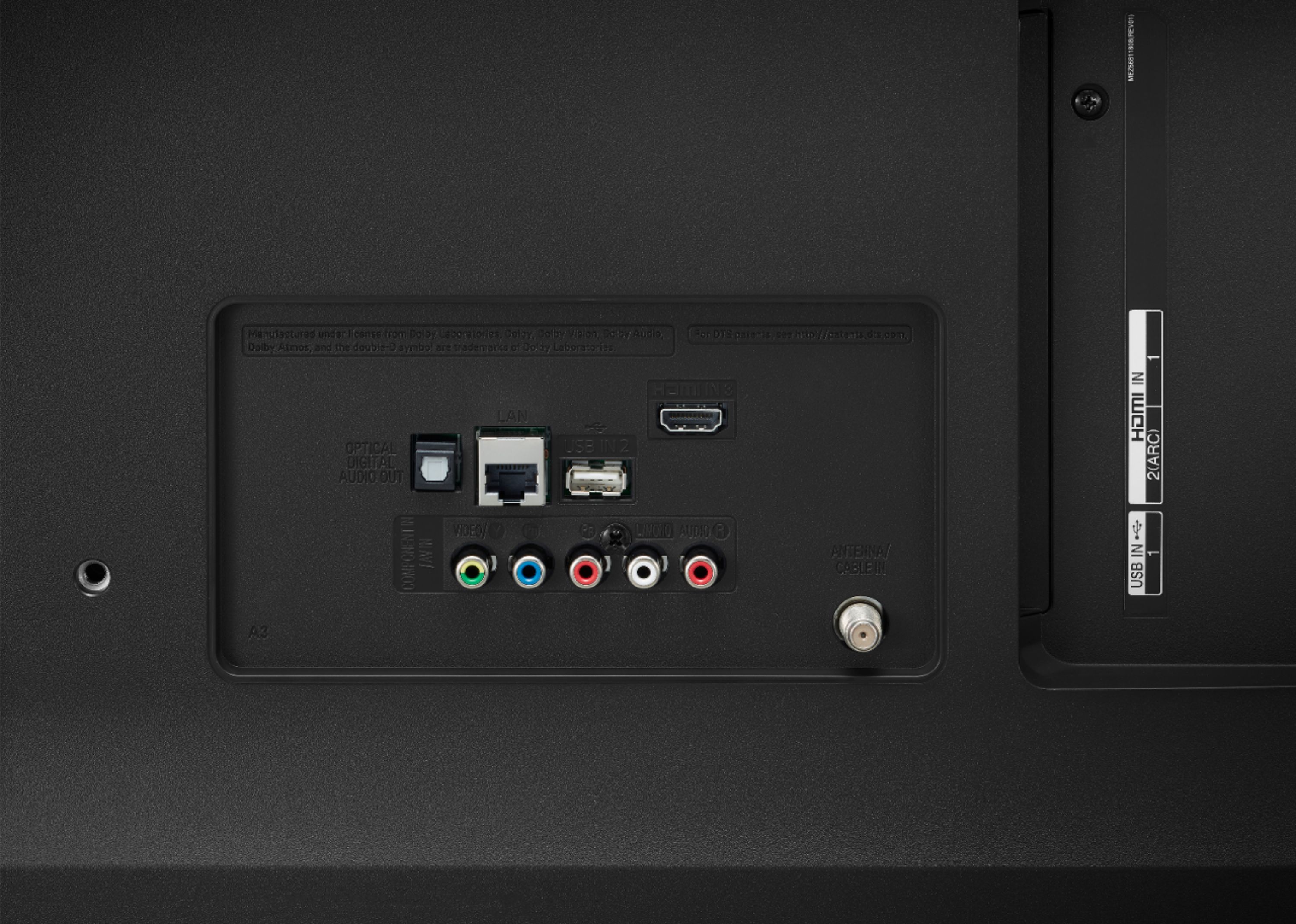
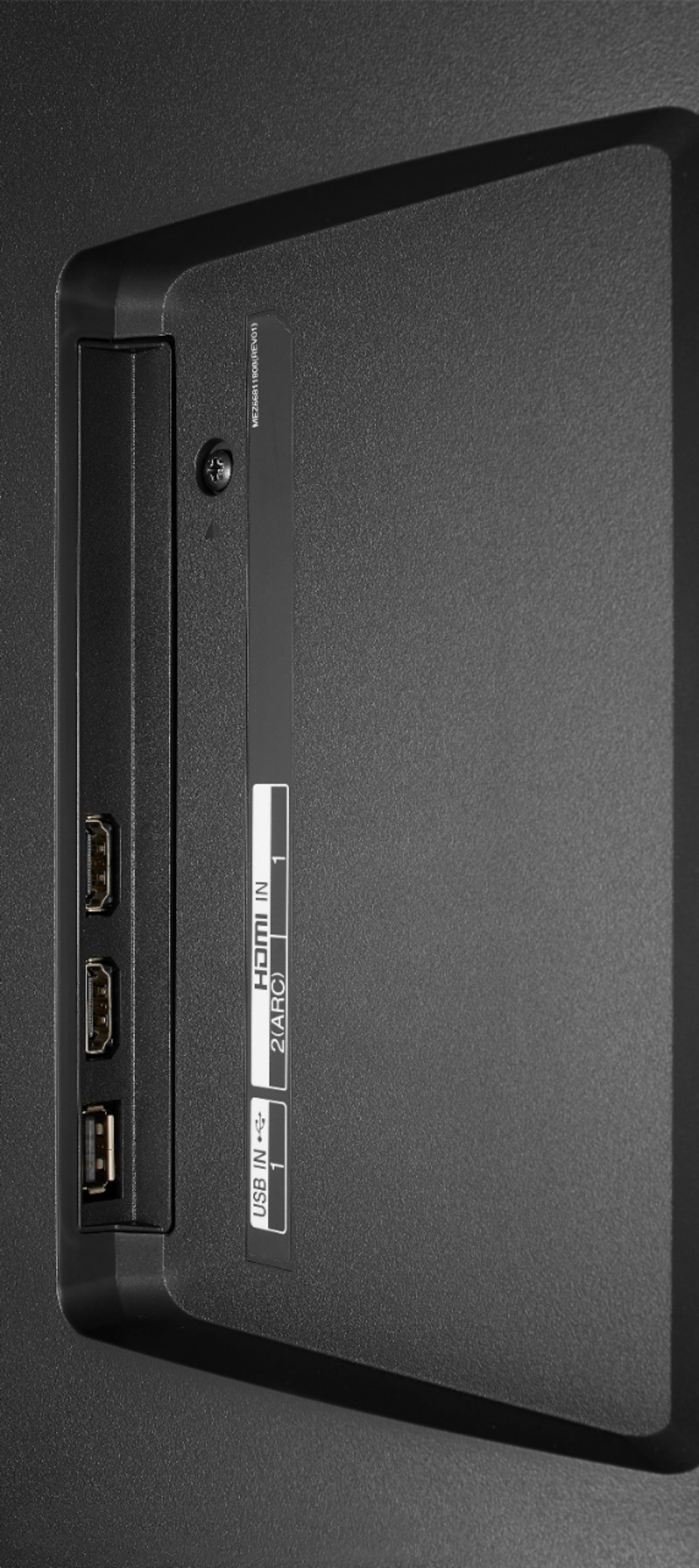
A:AnswerHi Lavender. The LG UHD 70 Series 43 inch 4K HDR Smart LED TV, Model # 43UN7000PUB has three HDMI inputs and they are all HDMI 2.0 ports and all the HDMI ports are HDCP 2.2 compliant...^IFV
A:AnswerThe LG 43 inch Class 4K Smart UHD TV with AI ThinQ® (42.5'' Diag), Model # 43UN7300PUF is a VESA compliant TV that has a VESA Wall Mount Interface Pattern of 200 x 200mm. If your Ergotrom Wall Mount is a VESA compliant mount that supports the VESA Wall Mount Interface Pattern that is supported on the TV, it can be used to mount the TV. You can measure the distances horizontally and vertically between the holes on your Ergotron Wall Mount to see if it will supports the TV or check the installation guide that came with your wall mount. If you are supplying the mount, you can select their Basic TV Mounting - 55" and Smaller In-Home service for $149.99...^IFV
A:AnswerIf you click on the thumbnail image with "+14 images" under the main image for the LG 43" Class UN7000 Series LED 4K UHD Smart webOS TV, Model # 43UN7000PUB on its product information page on the Best Buy site, you can click on the fourth thumbnail image down from the top in the left column to view the ports in the back of the TV. You will see what is referred to as a "Shared Composite/Component Video port" and its associated RCA Stereo Audio Ports (Red/White). The way the shared input works is with modification of the TV's video input circuitry to accommodate both a composite (Red/White/Yellow) and component video source (Red/Green/Blue) connection. However, with this type of shared configuration, you can't plug in both a composite and component video signal source (with associated analog stereo audio) to the TV at the same time...^IFV
A:AnswerI just bought a new lg smart 75” tv and spent so many hours setting it up only to find out that PBS passport can’t be installed!! Shame on LG. this is awful. Back it goes. What a hassle !!
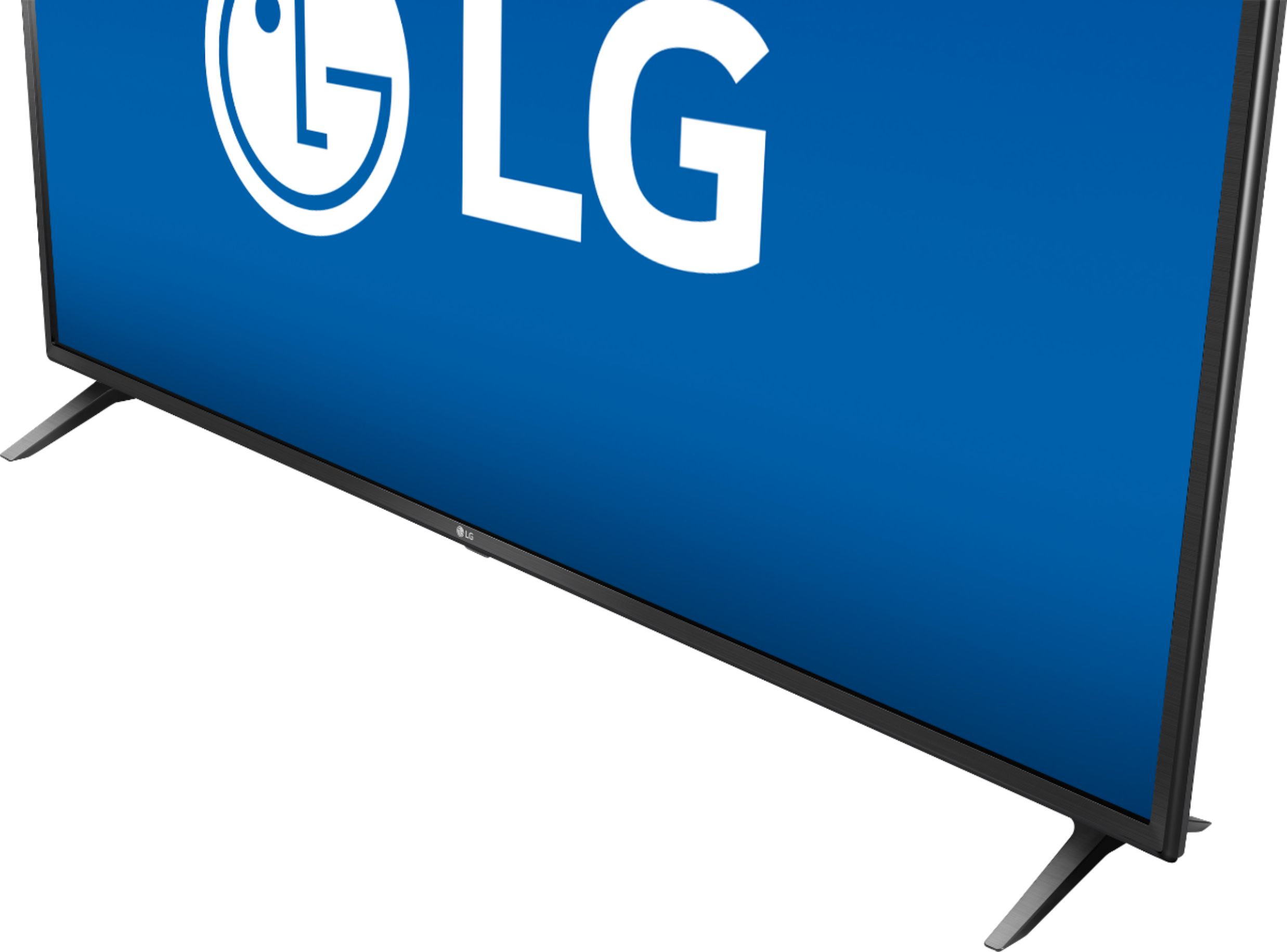
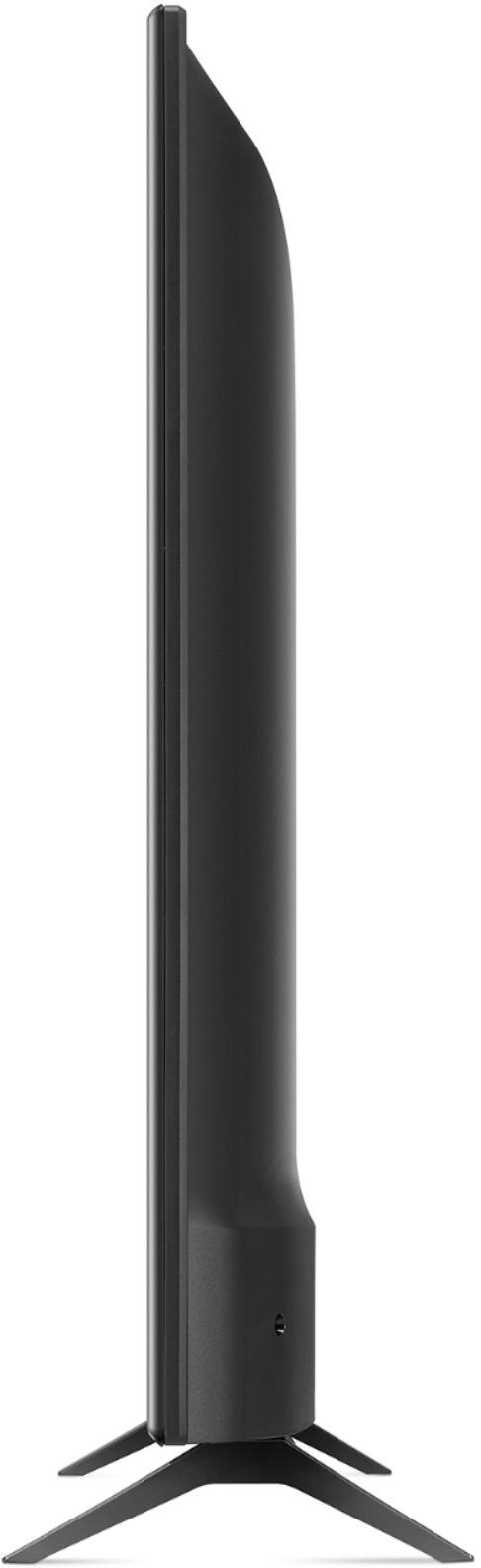
A:AnswerPutting the distance between the legs/feet and the thickness of the feet would be most helpful in the photos that are provided. I need to know if this TV will fit on a small TV console that is only 34.5 inches wide. It sort of sounds like the inner distance between the feet is 33.4 inches so I only have about ½ inch on either end to support this TV. I really wish that TVs were still on a center stand like the 32" Emerson that this 43 " TV would replace.
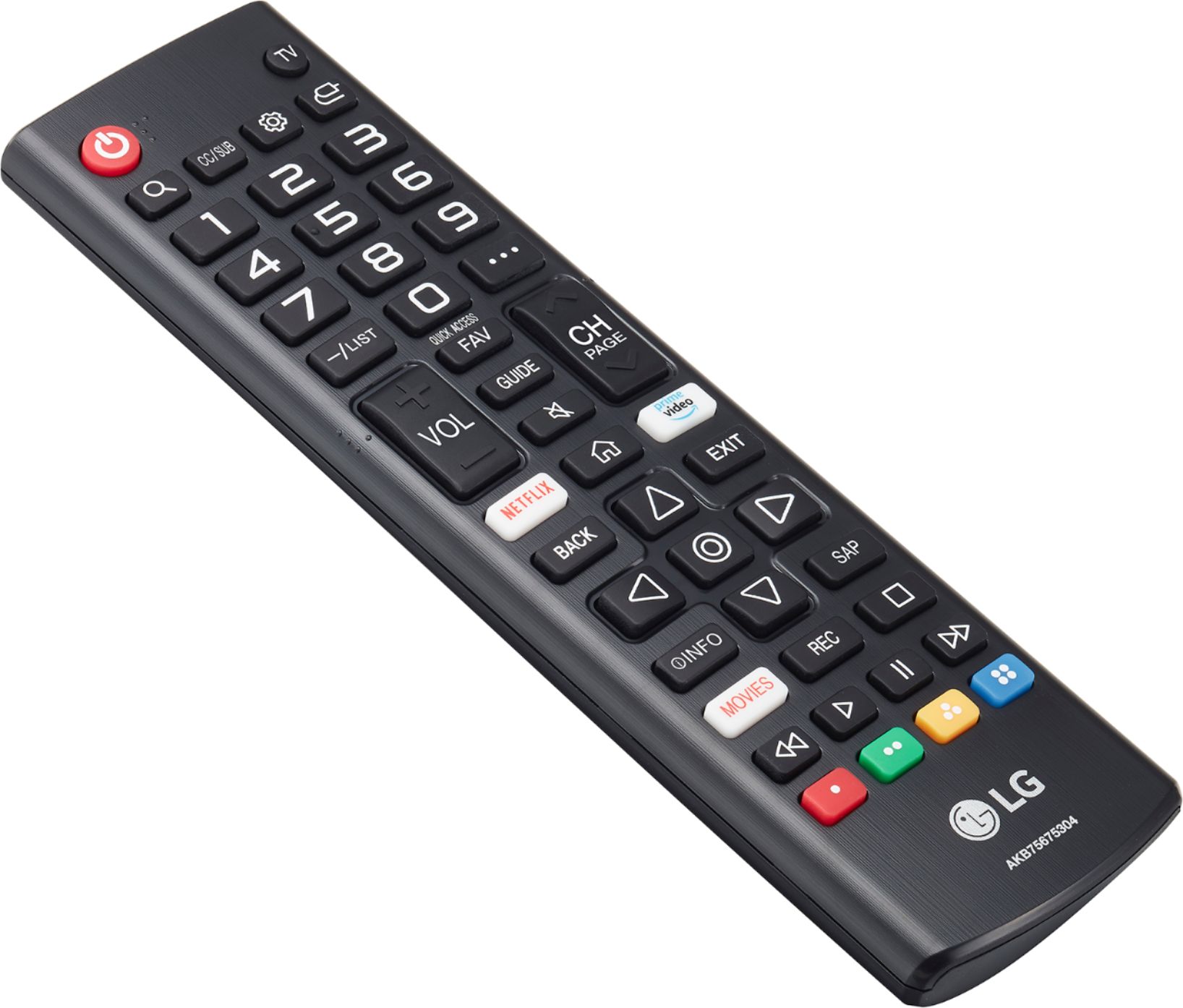
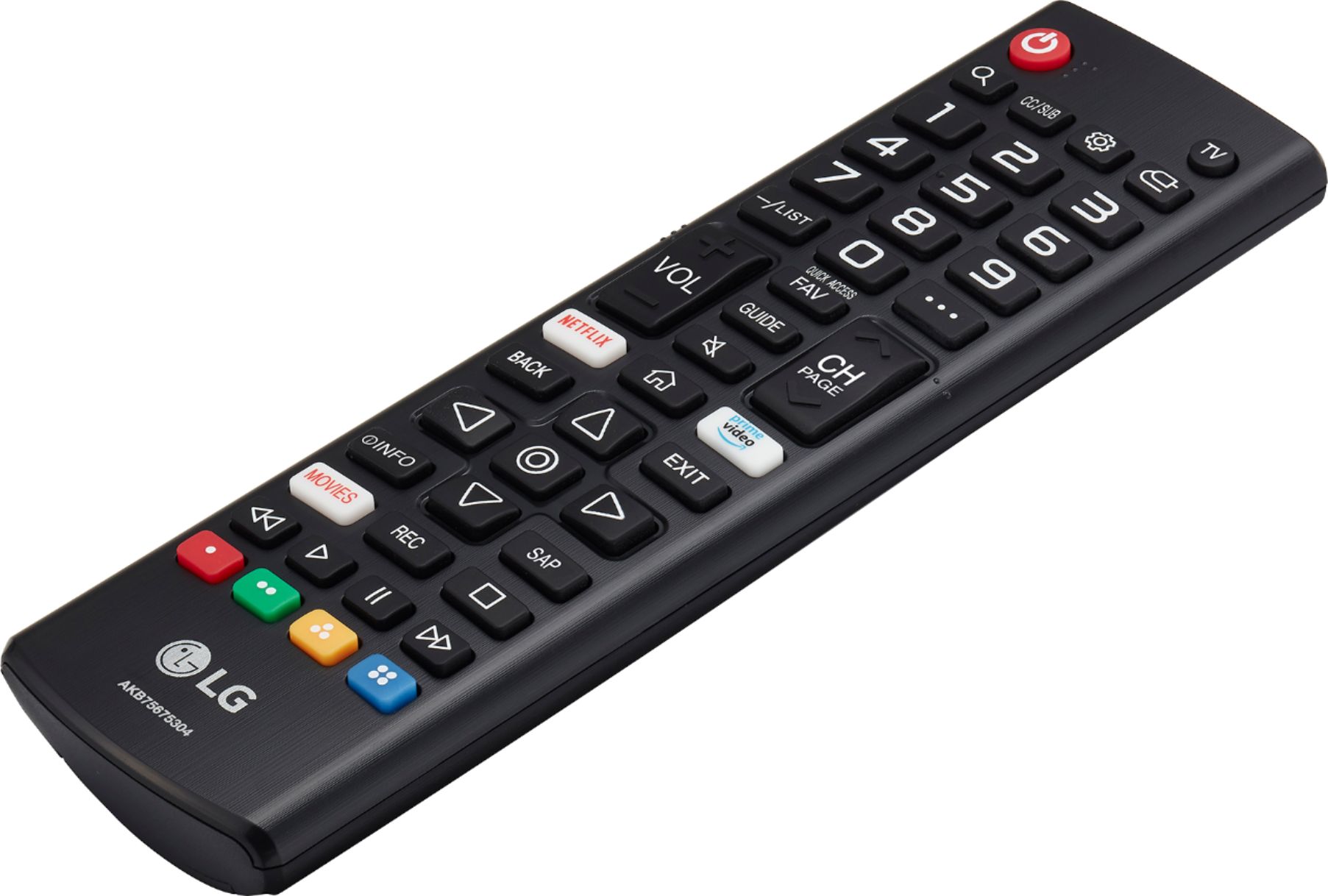
A:AnswerThe LG UHD 70 Series 43 inch 4K HDR Smart LED TV, Model # 43UN7000PUB does work with Google Assistant. You need to register the TV by using the 'Set Up TV for the Google Assistant app'. Press the Home button on the remote control and launch the 'Set Up TV for the Google Assistant app' then follow the setup guide on the TV to complete TV registration. You have to create an LG account from Settings > General > Account Management in the TV or from the LG ThinQ mobile app. Once the TV is properly registered, you need to setup the Google Home app to connect with your Google Assistant and LG ThinQ. Your phone may disconnect from Wi-Fi during setup. LG supports both Direct Action and Conversation Action which have different processes in account linking. Using the Google Assistant App, link both Direct or Conversation Action by opening the Google Assistant app > Select the "Assistant Directory" icon at the top right > Search "LG" > select the action that you would like to link. For Direct Action, select "LG ThinQ" and for Conversation Action, select "LG" > select "Link" > then sign in with the LG account to complete the process. Using the Google Home app to link to Direct Action, open the Google Home app > Select the "Menu" icon at the top left > Select "Home Control" (Note: The Google Home App will automatically switch to the Google Assistant app) > Select the + button at the bottom right to add devices > Select “LG ThinQ” > Sign in with LG account to complete the process. Using GOOGLE HOME device to link CONVERSATION Action, Say “OK Google, talk to LG” to Google Home > Open the Google Home app > Select “Link to LG” in the Discover tap > Sign in with LG account to complete the process.
If you need further assistance, please contact our Support Center at (800) 243-0000 and they will guide you step-by-step through the process...^IFV