A:AnswerHi Jake, Cropping a photo doesn't change it's file size. You'll need to convert the photograph to a different file size which you can easily do using the photo editing software you used to crop the picture. What you'll need to do is "resize". In Windows, simply click onto the three dots in the top right and then click "resize".
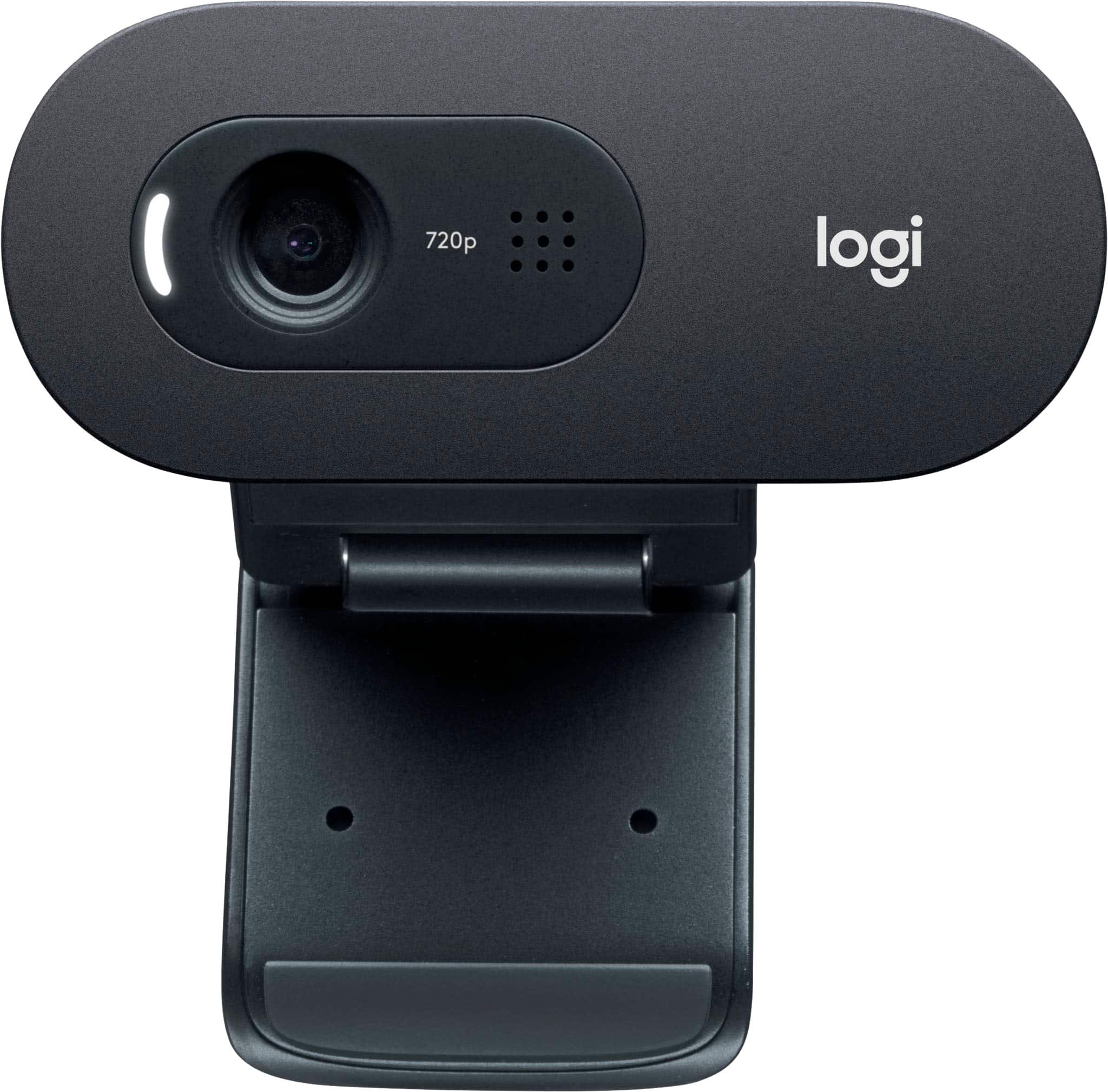
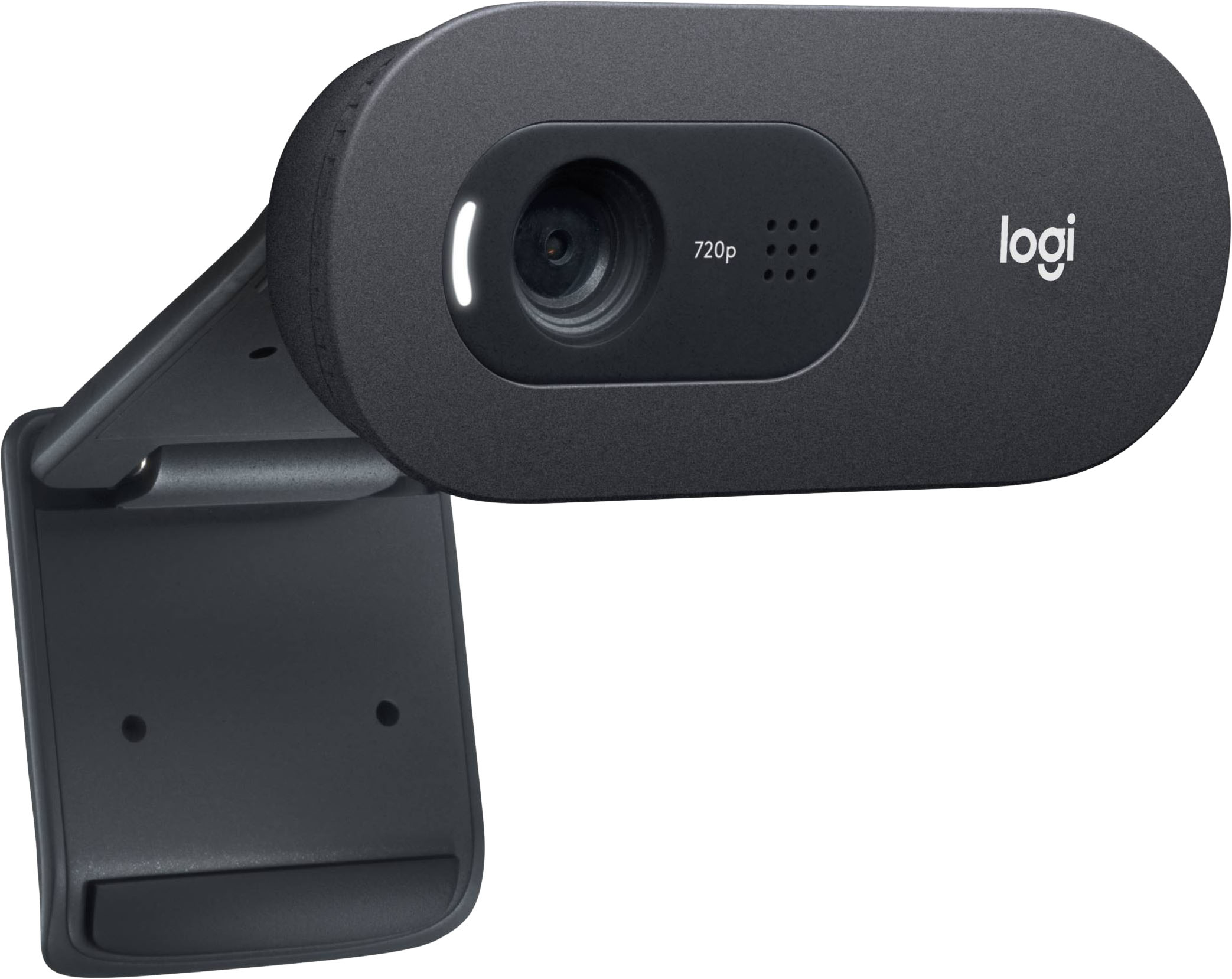
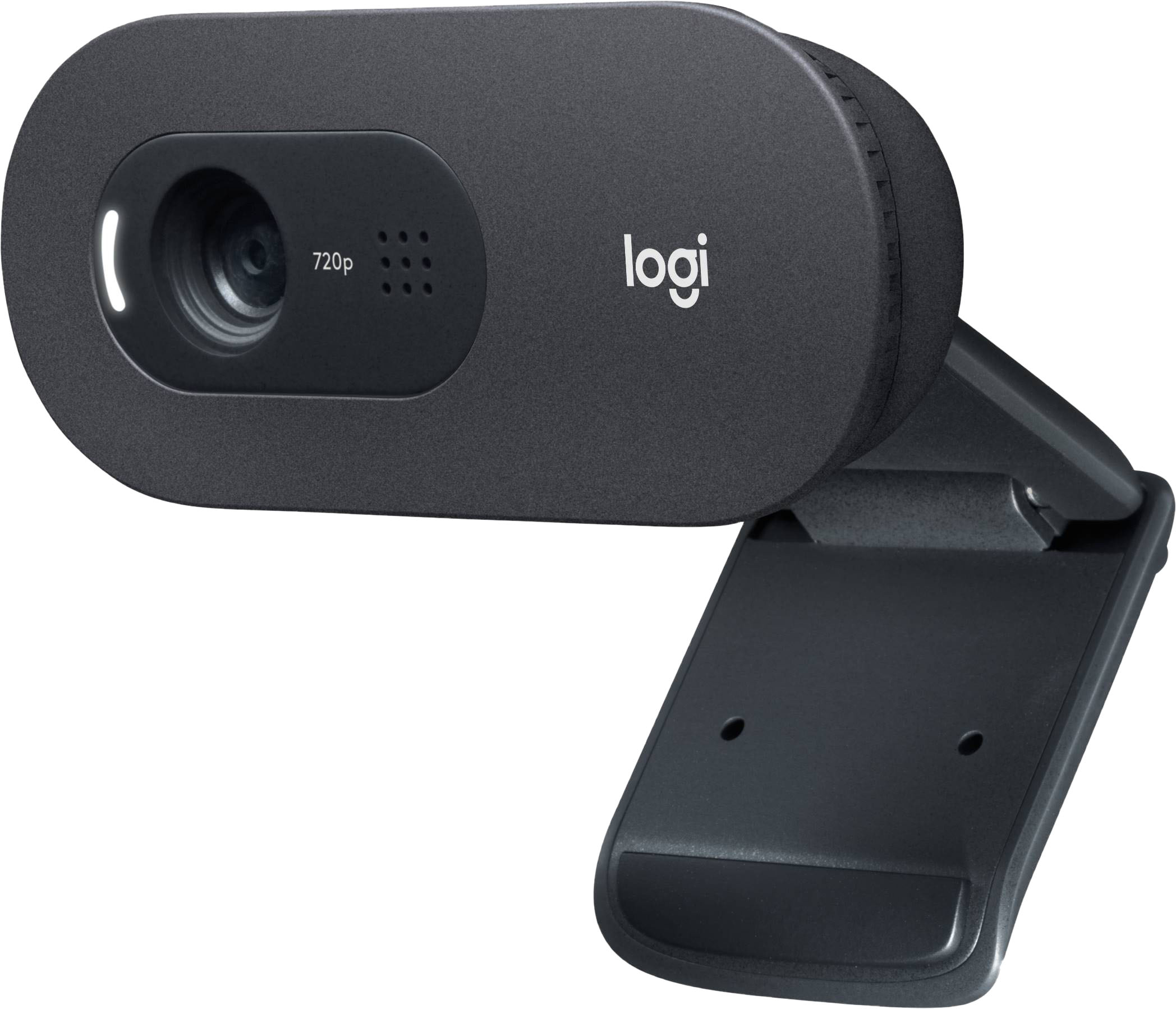
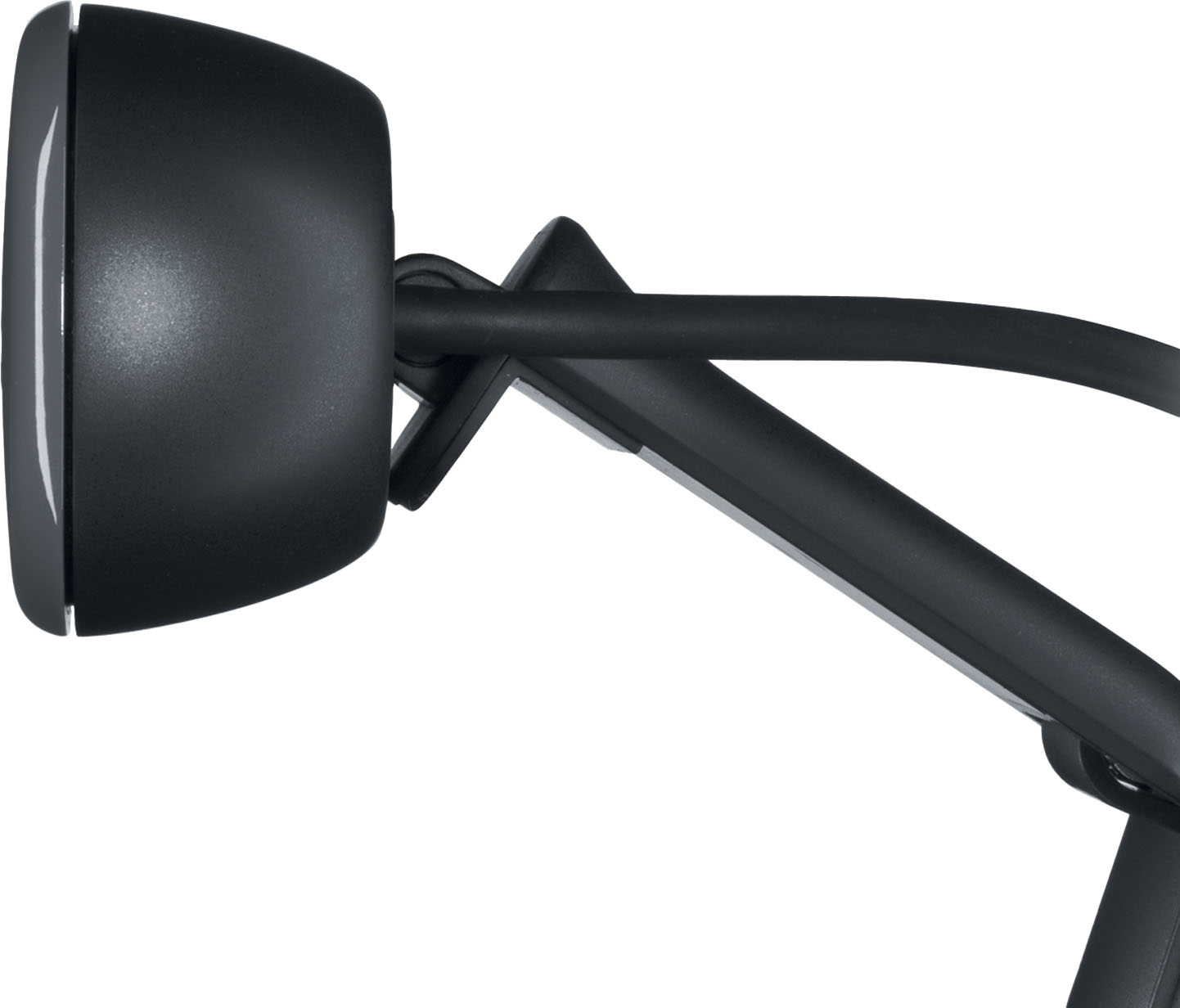
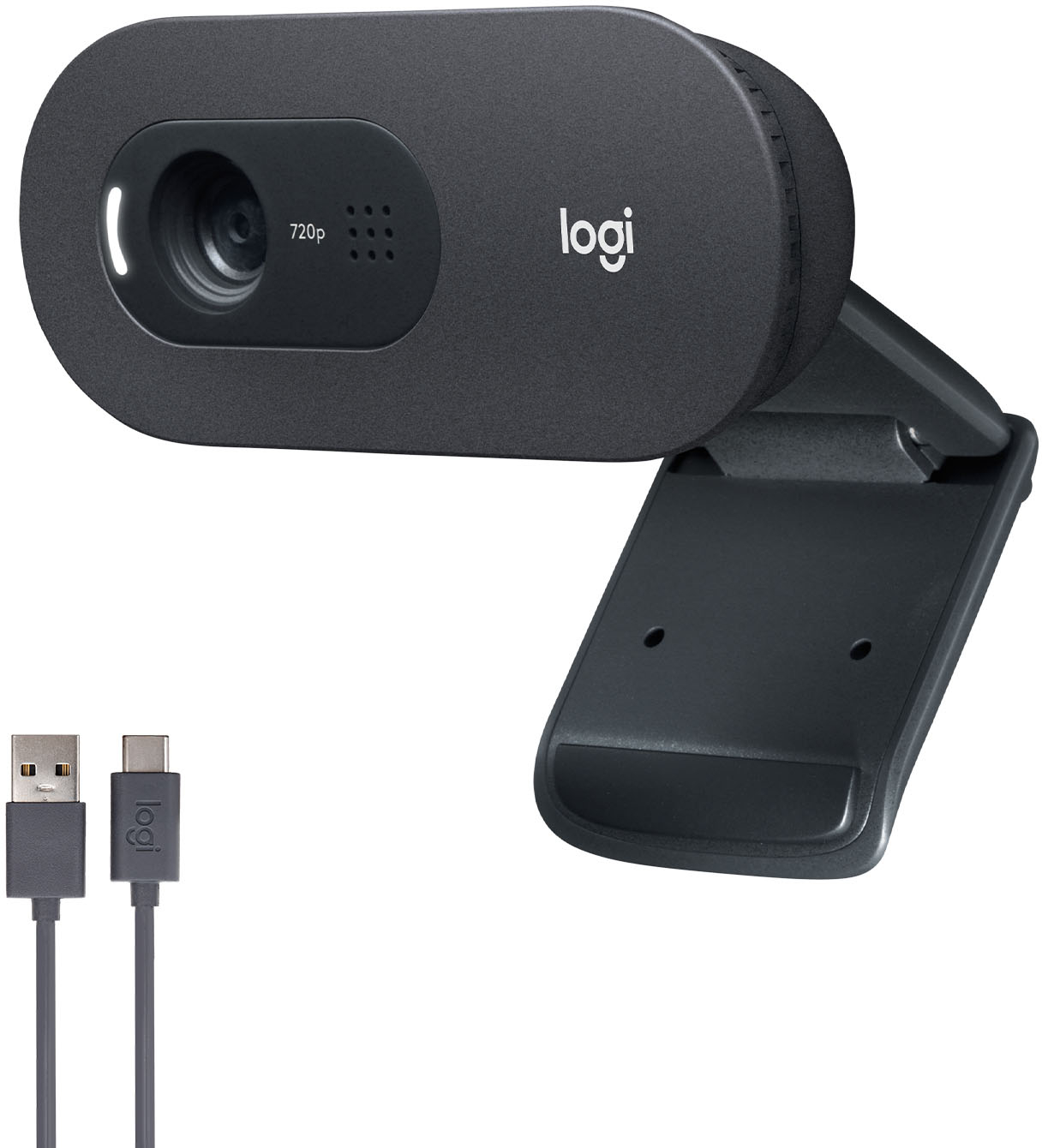
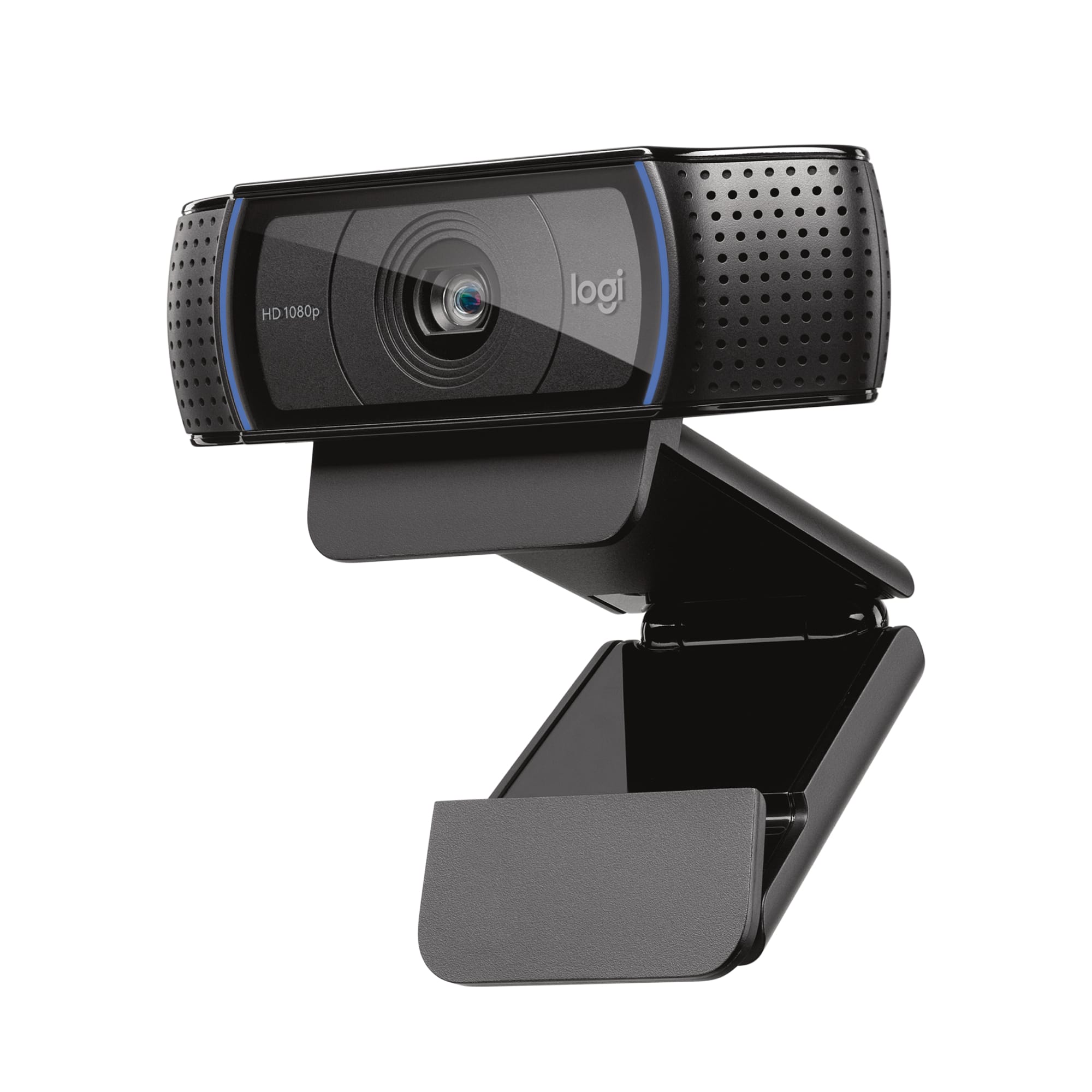
A:AnswerHi Pete! With an extra-long 2 m USB-A cable and universal clip, C505e offers a wide range of versatile mounting possibilities. For support, please refer to: https://prosupport.logi.com/hc/en-us/articles/360055446873 - Will, Logitech.
A:AnswerThere are a couple of things you can try. First would be to make sure your Surface Pro is running the latest version of Windows 10. Then, sometimes if it's plugged into a USB 3.0 port or a USB hub it can run into this issue. If you have a free USB port on your Surface, I would try plugging it directly into that. If neither one of these things work, I would then recommend reaching out to our support team here https://support.logi.com/hc/en-us/requests/new?ticket_form_id=360000621393 for further assistance.
A:AnswerHi Chris, the C505 HD Webcam does not have a zoom option. It has a fixed lens with a Field of View of 60°. The smaller field of view makes the image seem bigger because it doesn't pick up a lot of the surround areas.
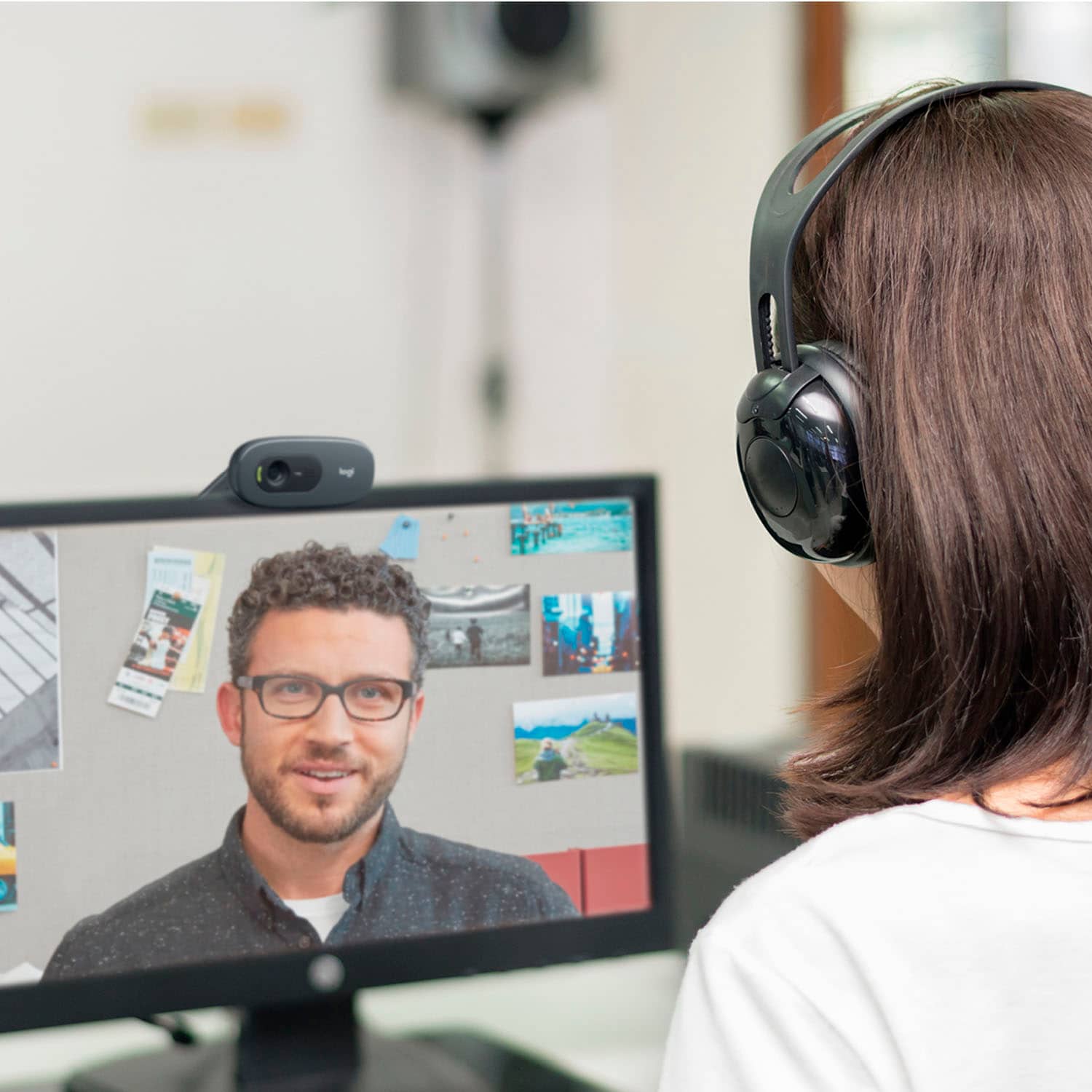
A:AnswerHi Brian, the C505 webcam will work with Windows 7 or later. The webcam is plug and play and your computer should automatically recognize it. You may need to adjust the settings within Zoom to make the C505 your primary video source if you are using the webcam on a device with a built-in webcam.
A:AnswerNo batter is required. Plug into your USB port.
CAMERA
Check your computer settings to make sure your camera is allowed access. If your Camera access is "off" for this device, it will not do anything.If you are using Microsoft Windows 10, select windows key on your keyboard (windows logo) or the windows button in desktop task bar (bottom left with Windows logo), and start typing "camera settings". There will be a header "Settings" with some different options for camera privacy and apps using your camera, etc. Choose one to open the Settings box. Under Camera "Allow access to the camera on this device" you want to see "Camera access for this device is on". If it's not on, click [Change] and turn it on. Under "Allow apps to access your camera", turn it ON. Scroll down to "Choose which Microsoft Store apps can access your camera" and make sure "Camera" app is switched "On". Also select other apps you would use it with (i.e. Xbox, Skype). Scroll down and make sure "Allow desktop apps to access your camera" is set to "ON" if you have items like Zoom, Microsoft Teams, or other applications you would use the camera with.
MICROPHONE
In Settings, in the left side panel, select Microphone under "App permissions" (it's under Camera). Under Microphone "Allow access to the microphone on this device" you want to see "Microphone access for this device is on". If it's not on, click [Change] and turn it on. Under "Allow apps to access your microphone", turn it ON. Scroll down to "Choose which Microsoft Store apps can access your microphone" and make sure "Camera" app is switched "On". Also select other apps you would use it with (i.e. Xbox, Skype). Scroll down and make sure "Allow desktop apps to access your microphone" is set to "ON" if you have items like Zoom, Microsoft Teams, or other applications you would use the camera with.
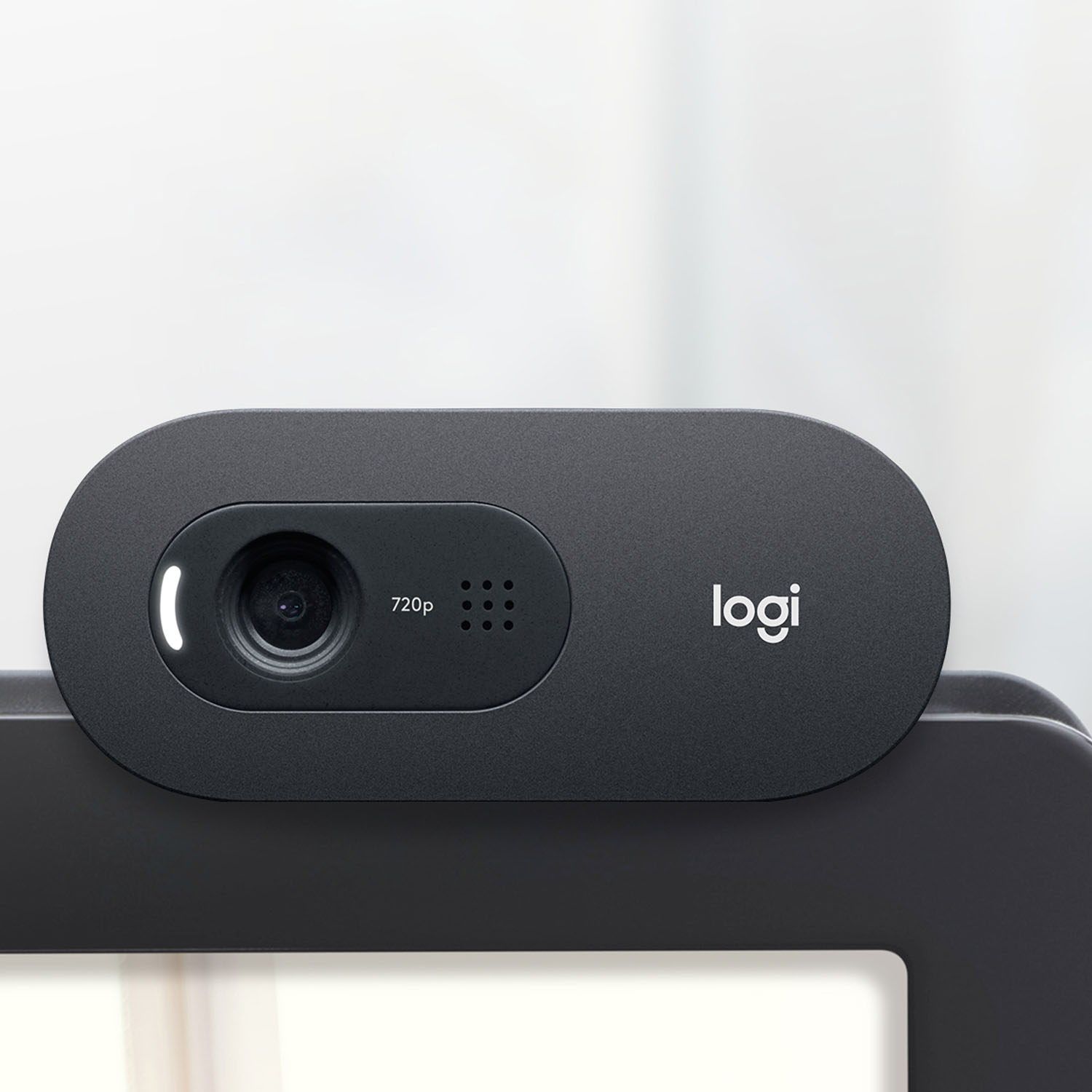
A:AnswerThe design of this camera is not great and if your monitor has even a relatively thin bezel, the camera will cover part of the screen. If you can, I would recommend going for a c920s. They are a little harder to find, but not impossible and you will get a MUCH better product.
A:AnswerHello berfung, the C505 webcam is one of our more standard webcams. It's our easy to use, plug and play webcam. So you won't find the specs you are looking for on this webcam. I've attached a specs list for you to see for yourself. I apologize for the inconvenience. Have a great rest of your day. https://prosupport.logi.com/hc/en-us/articles/360054078194-Specifications-C505e-HD-Webcam