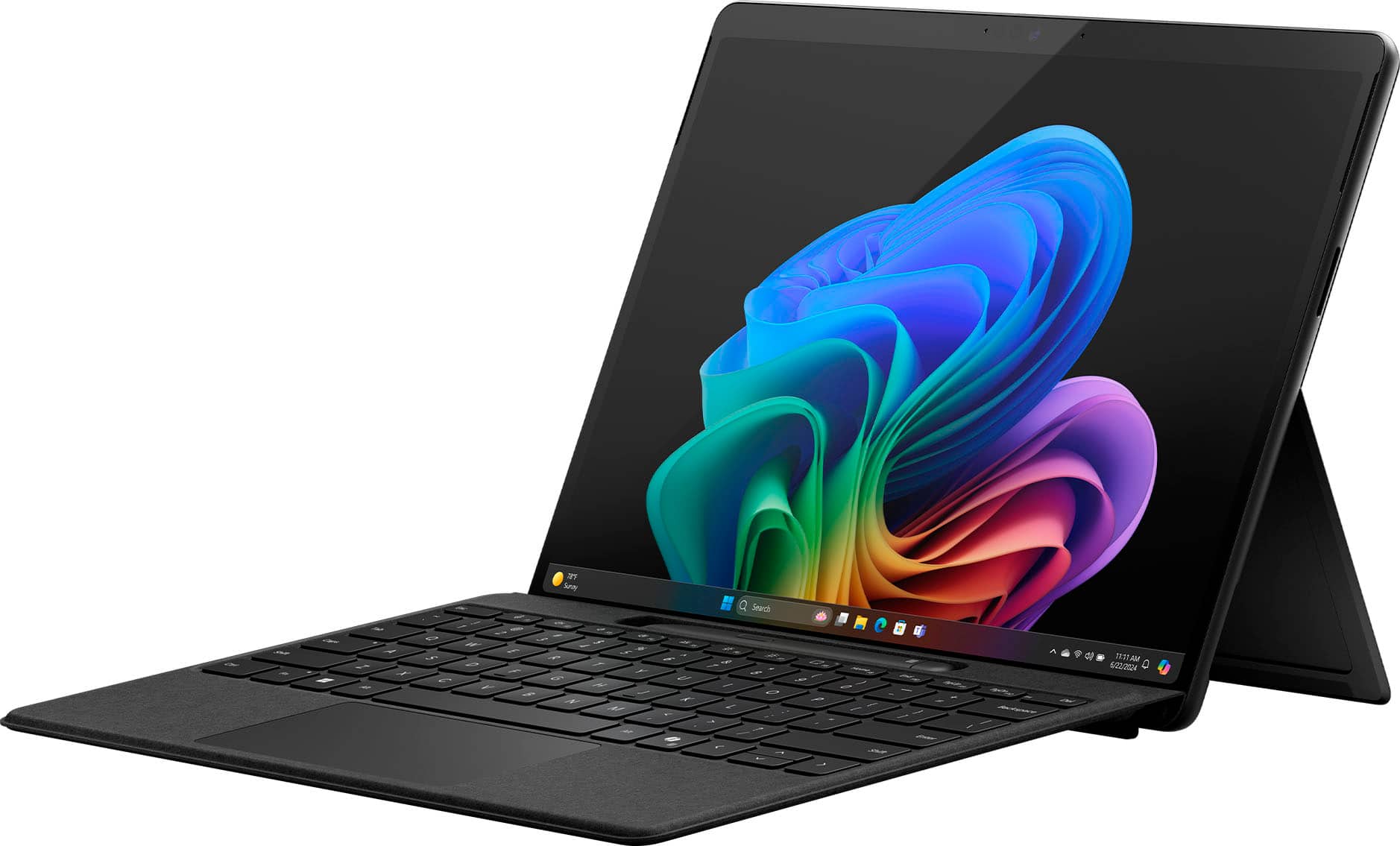
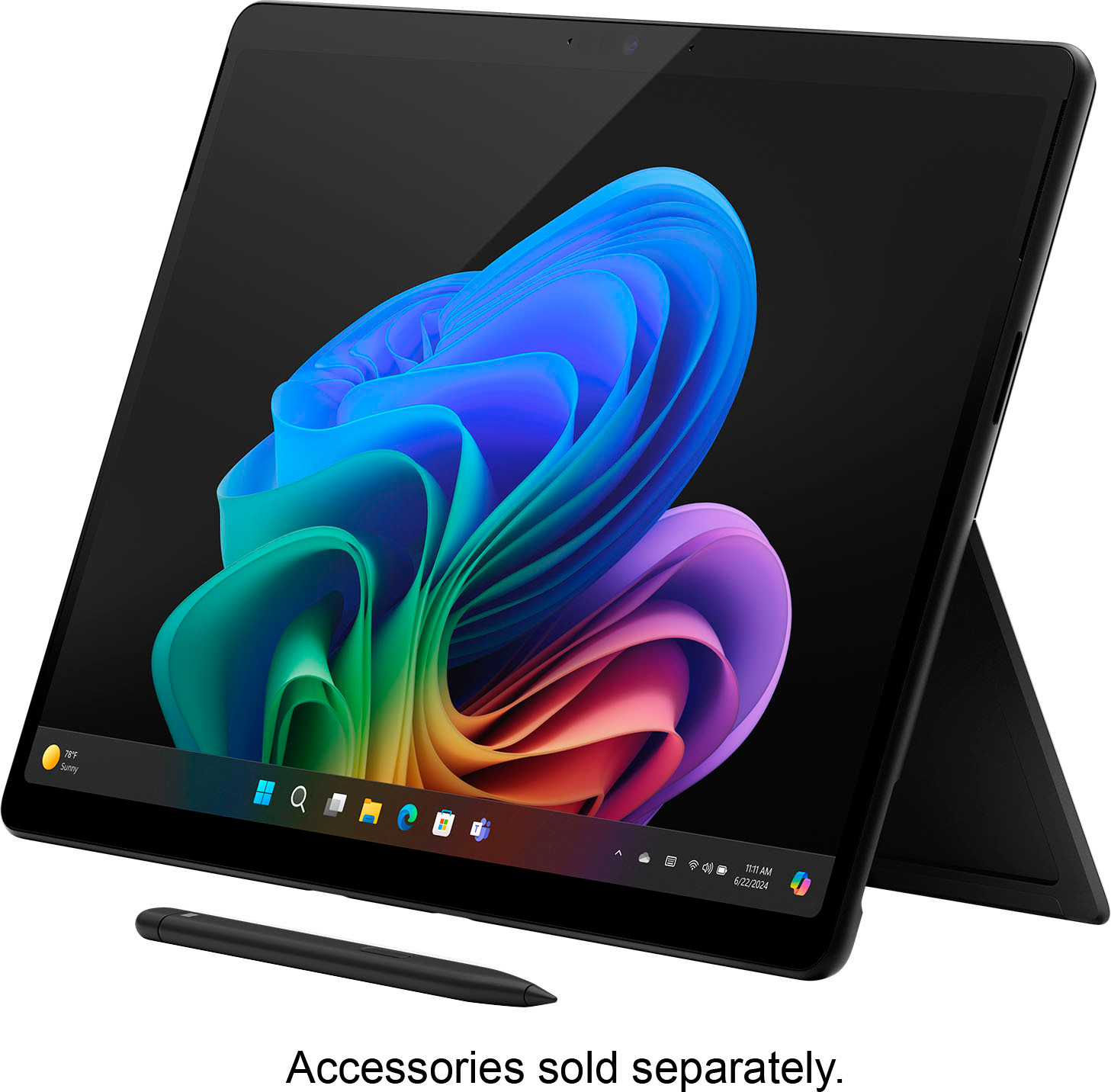
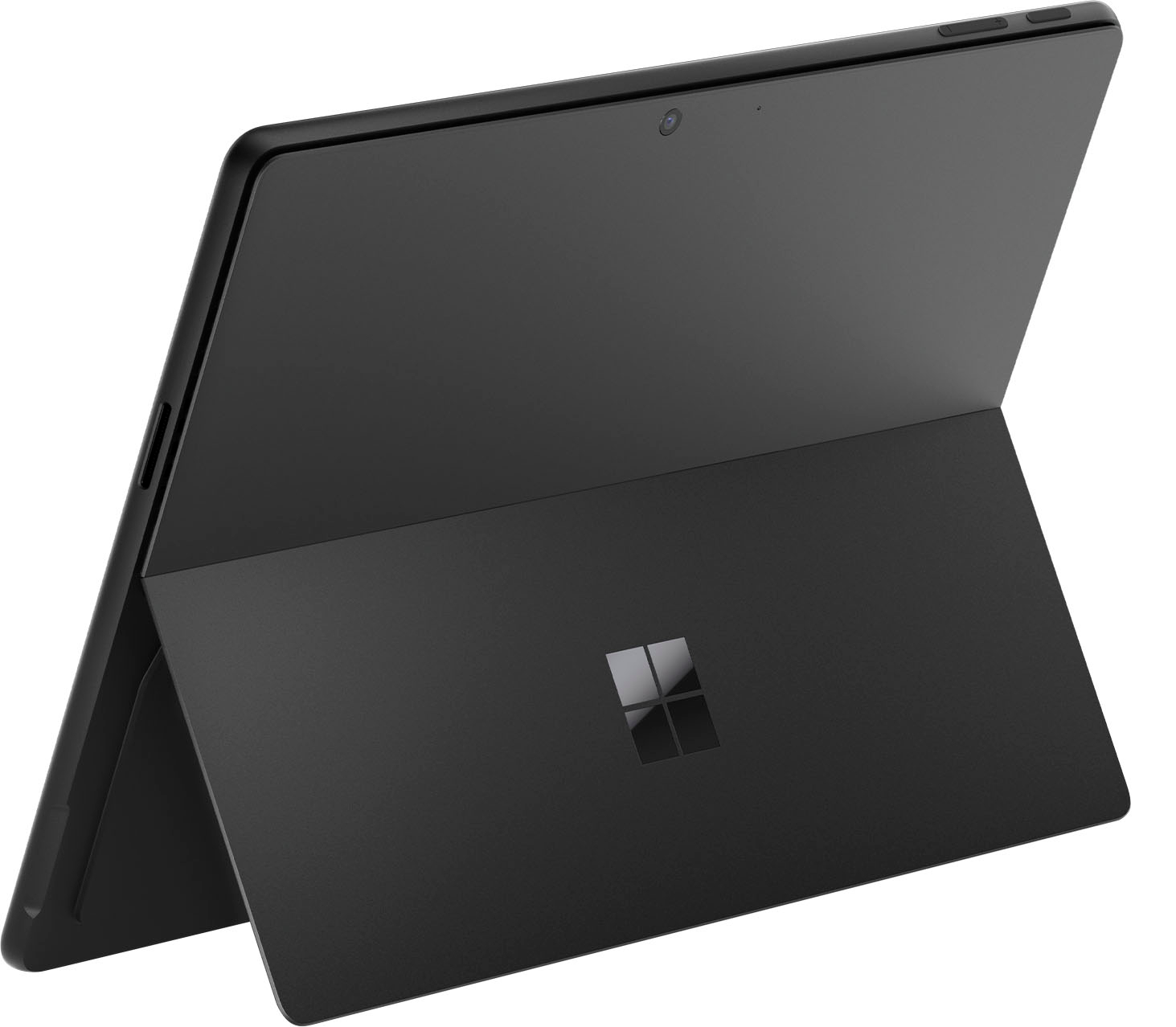
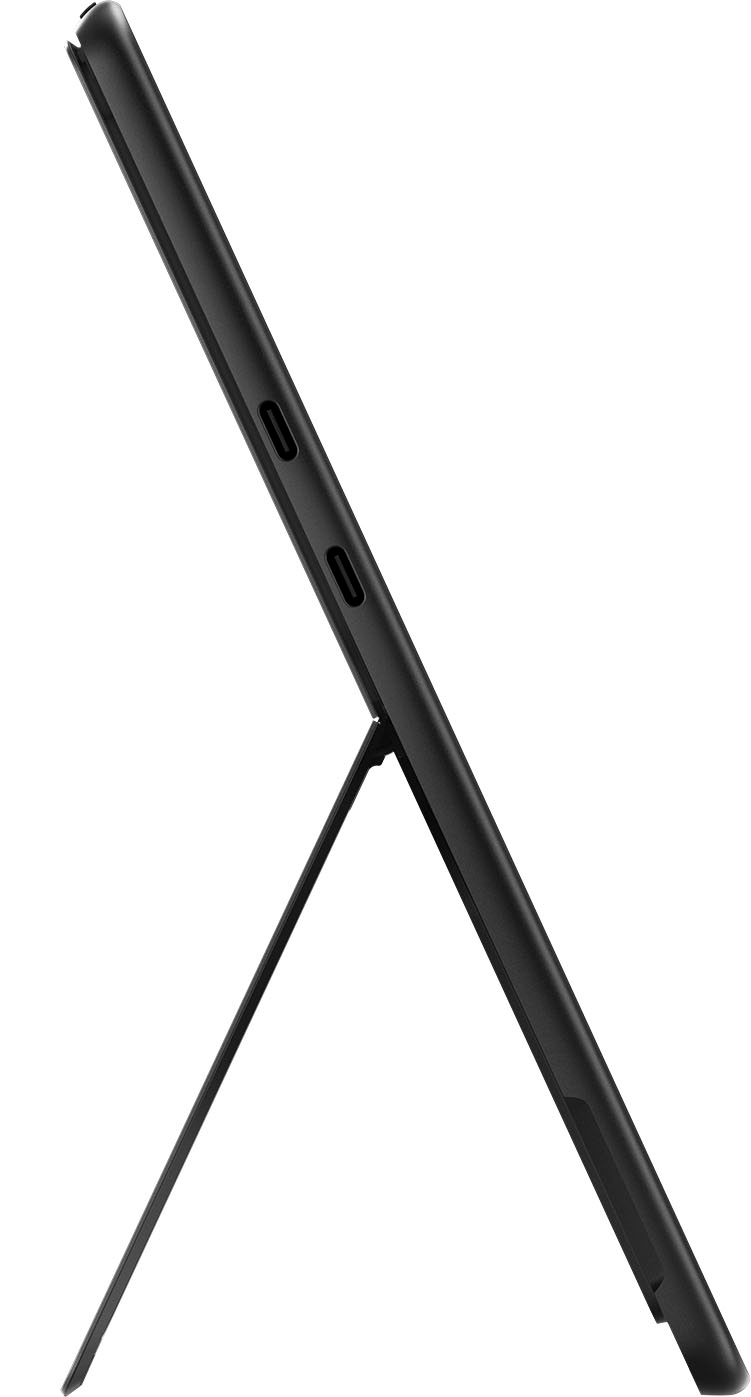
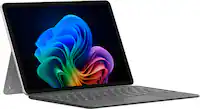
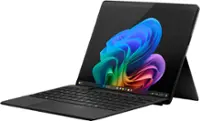
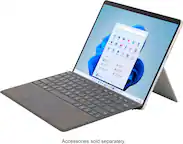
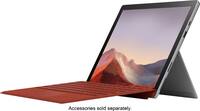
A:AnswerAt the top left edge of the screen there is an on switch. Push that and it turns on. If it doesn't, maybe put the plug in (on the right side) to charge it.
A:AnswerThe speakers are hidden in the top of the screen somewhere. You definitely can hear sound coming from the surface pro and it's fine for someone near the surface to hear it. If I want to have something broadcast to a big group or room then I attach to a stronger external speaker or sound system.
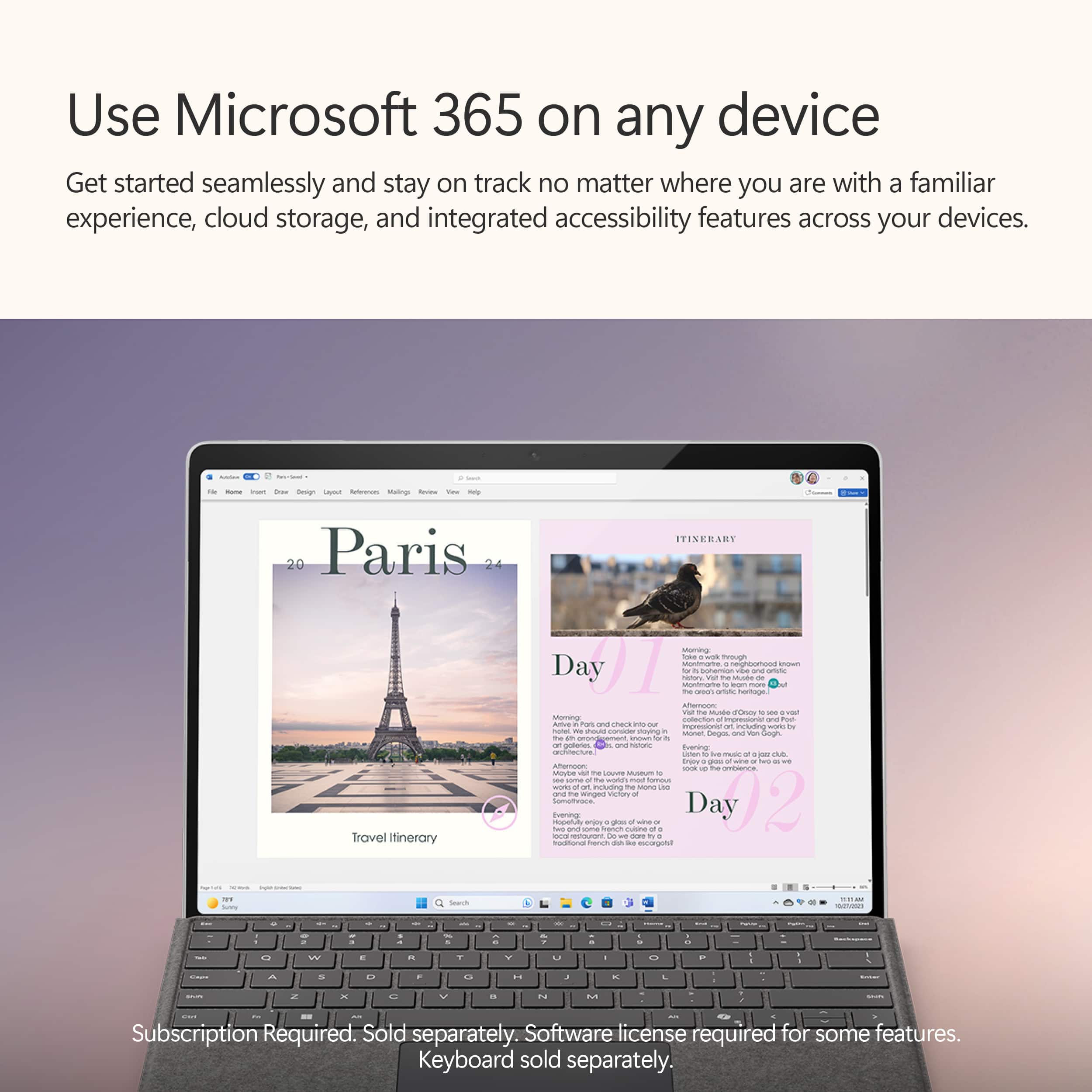
A:AnswerYou usually have a 5 device limit on MS 365. Assuming you haven't hit your limit, yes - you can definitely install on another device. And sync your files and Desktop between both,
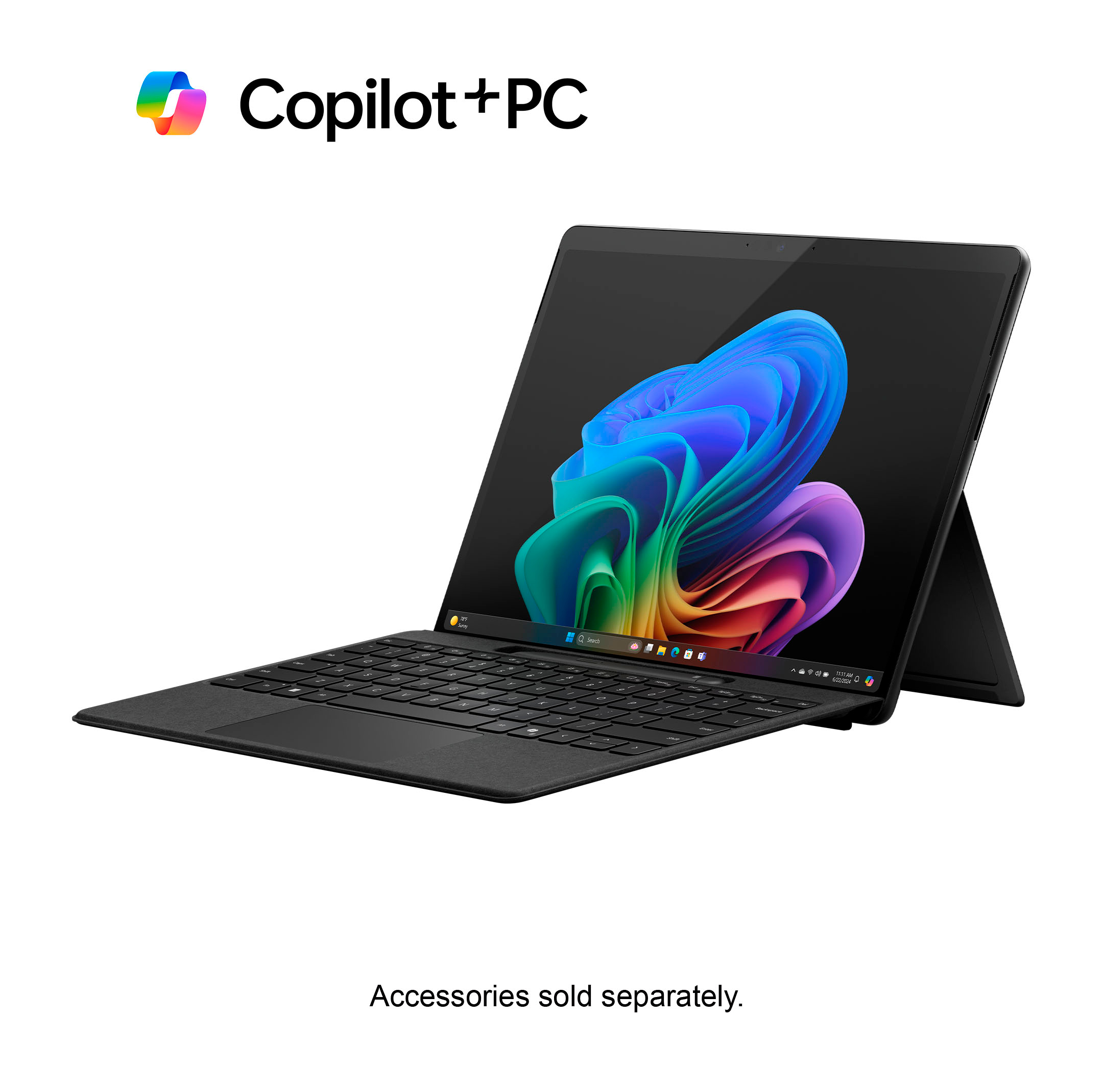
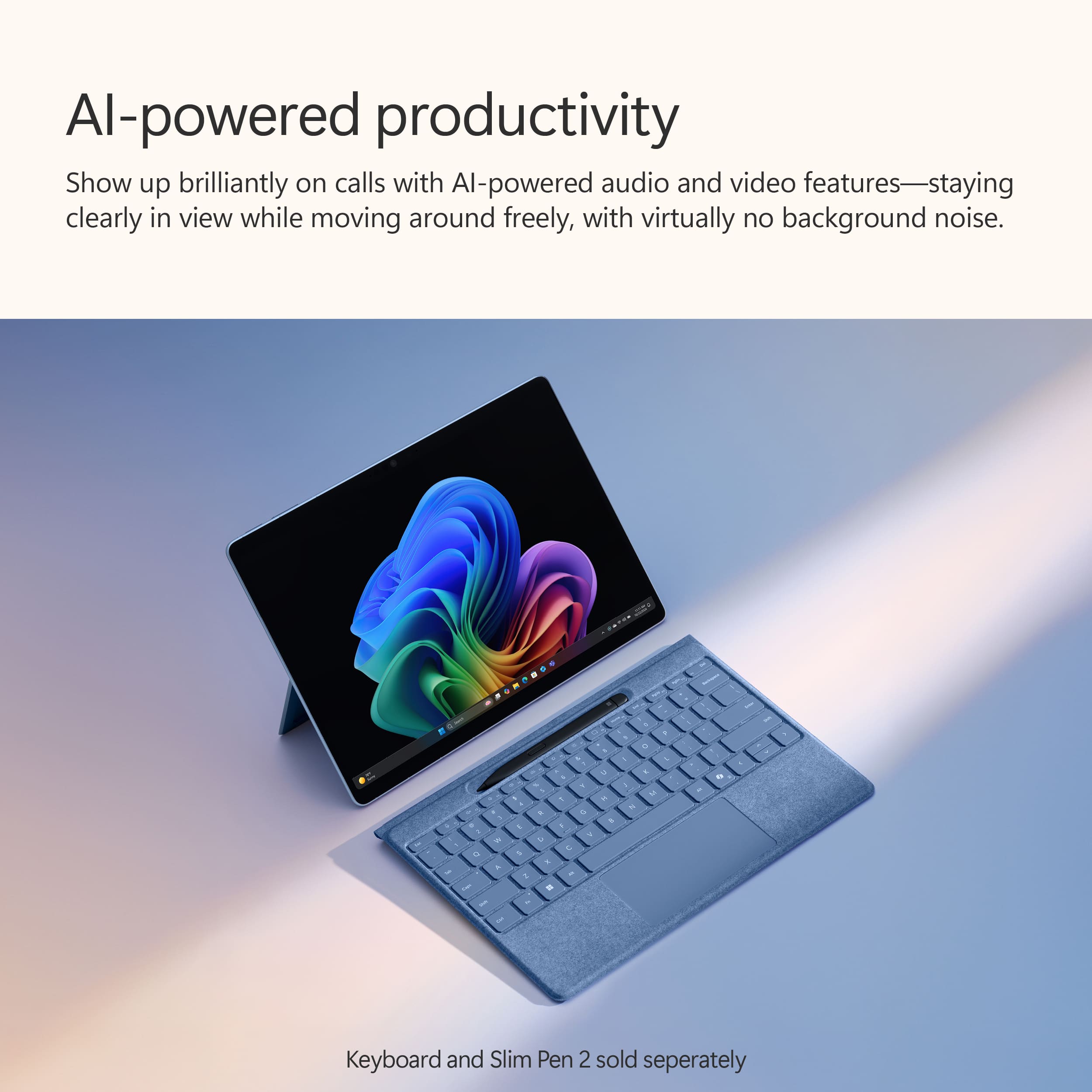
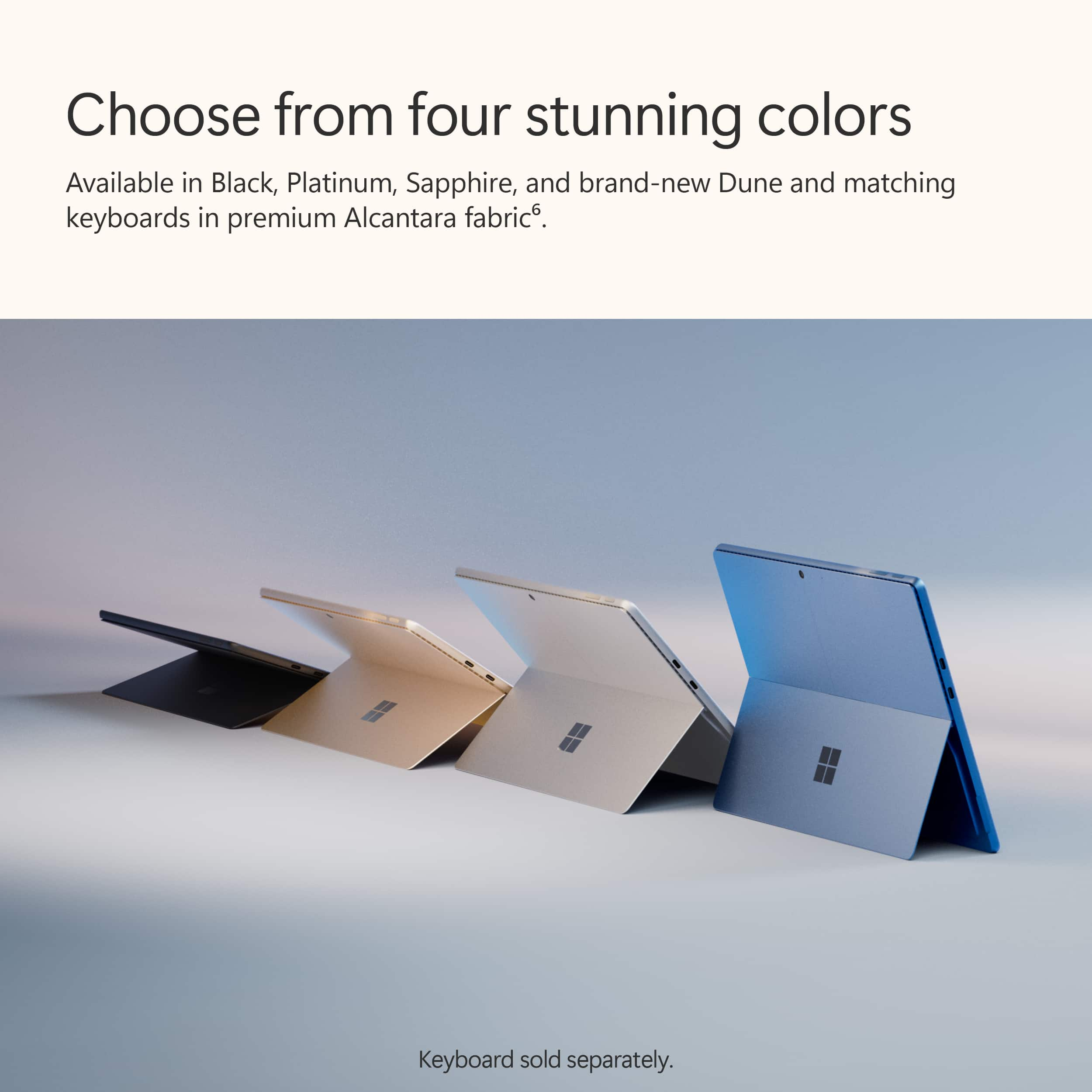
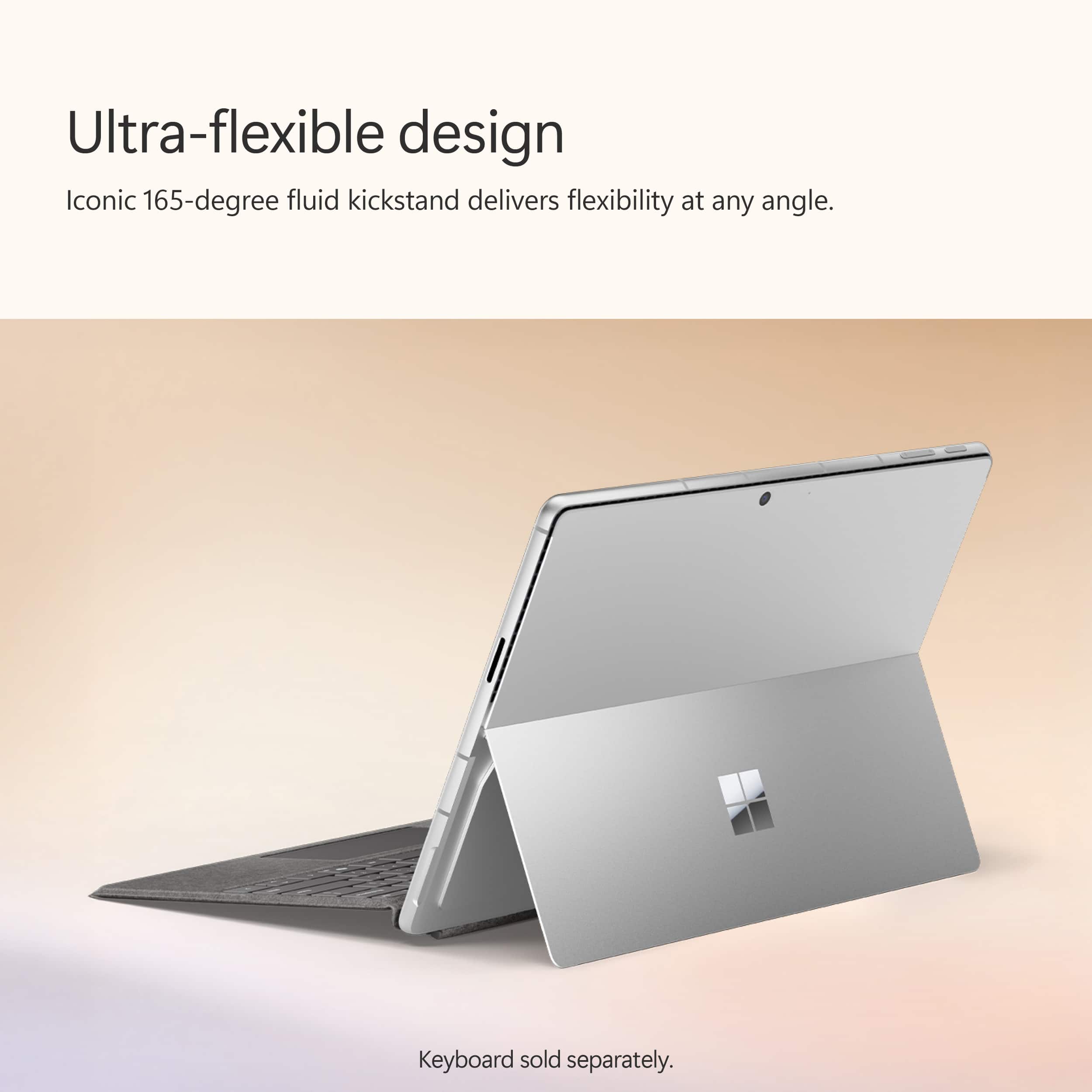
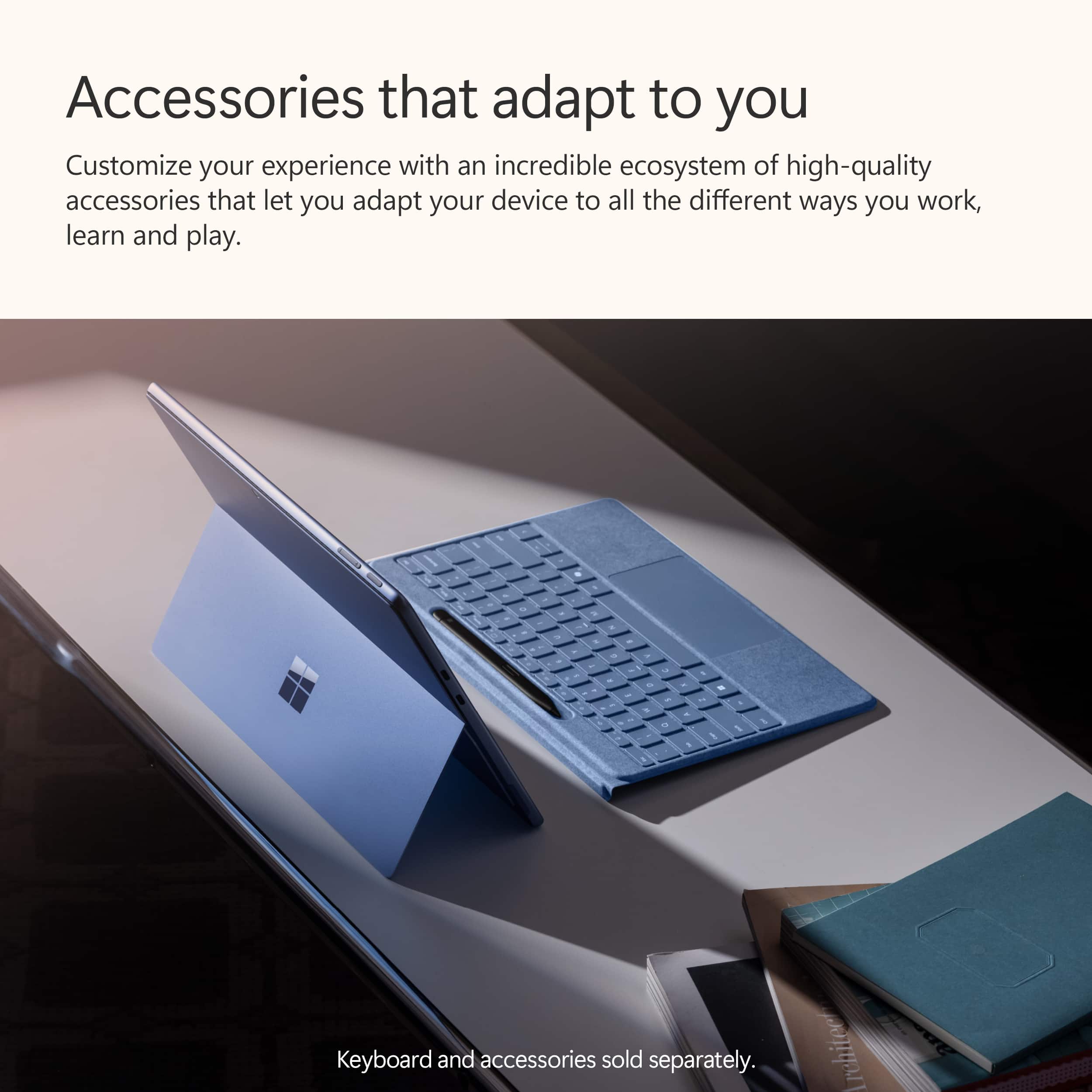
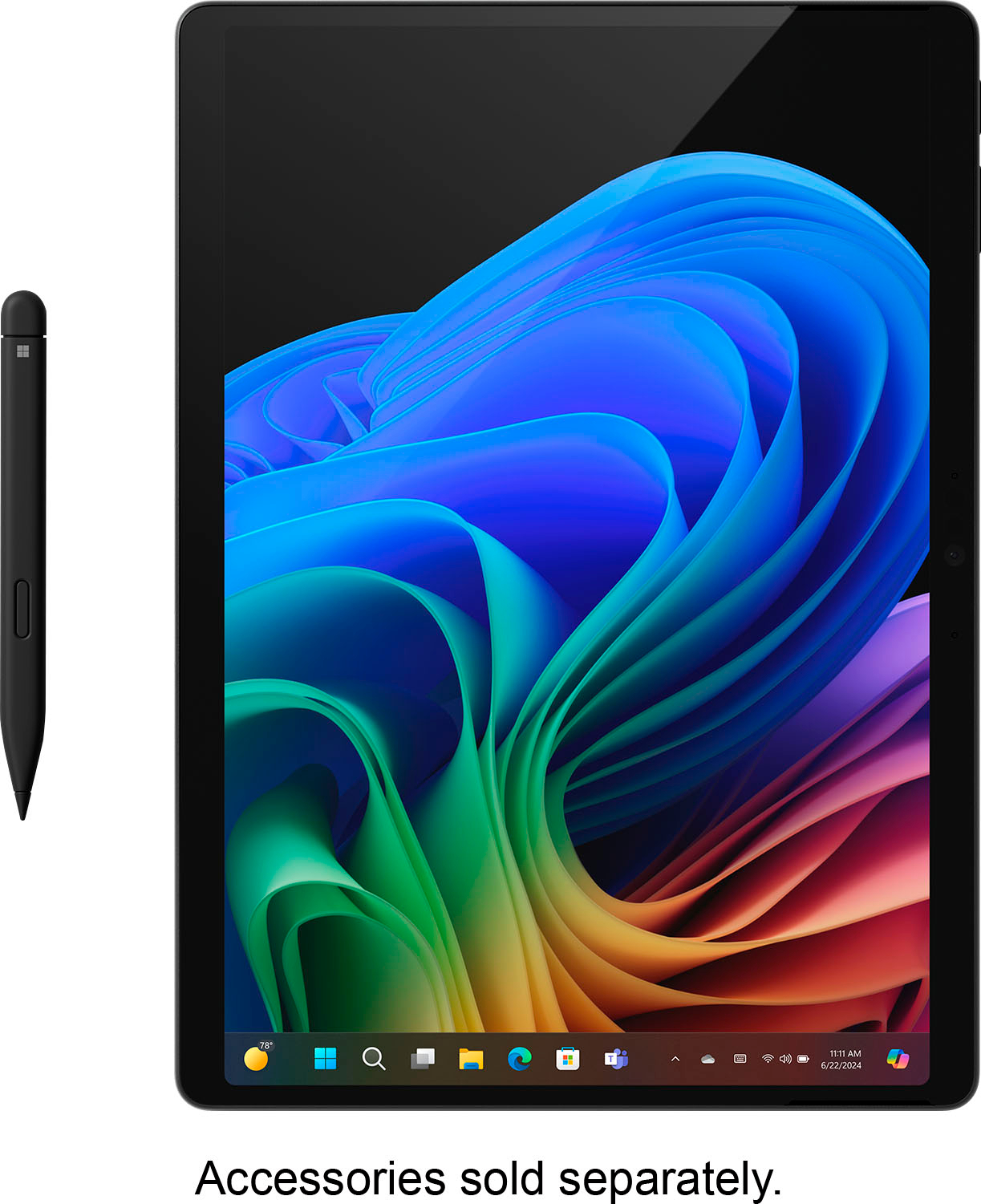
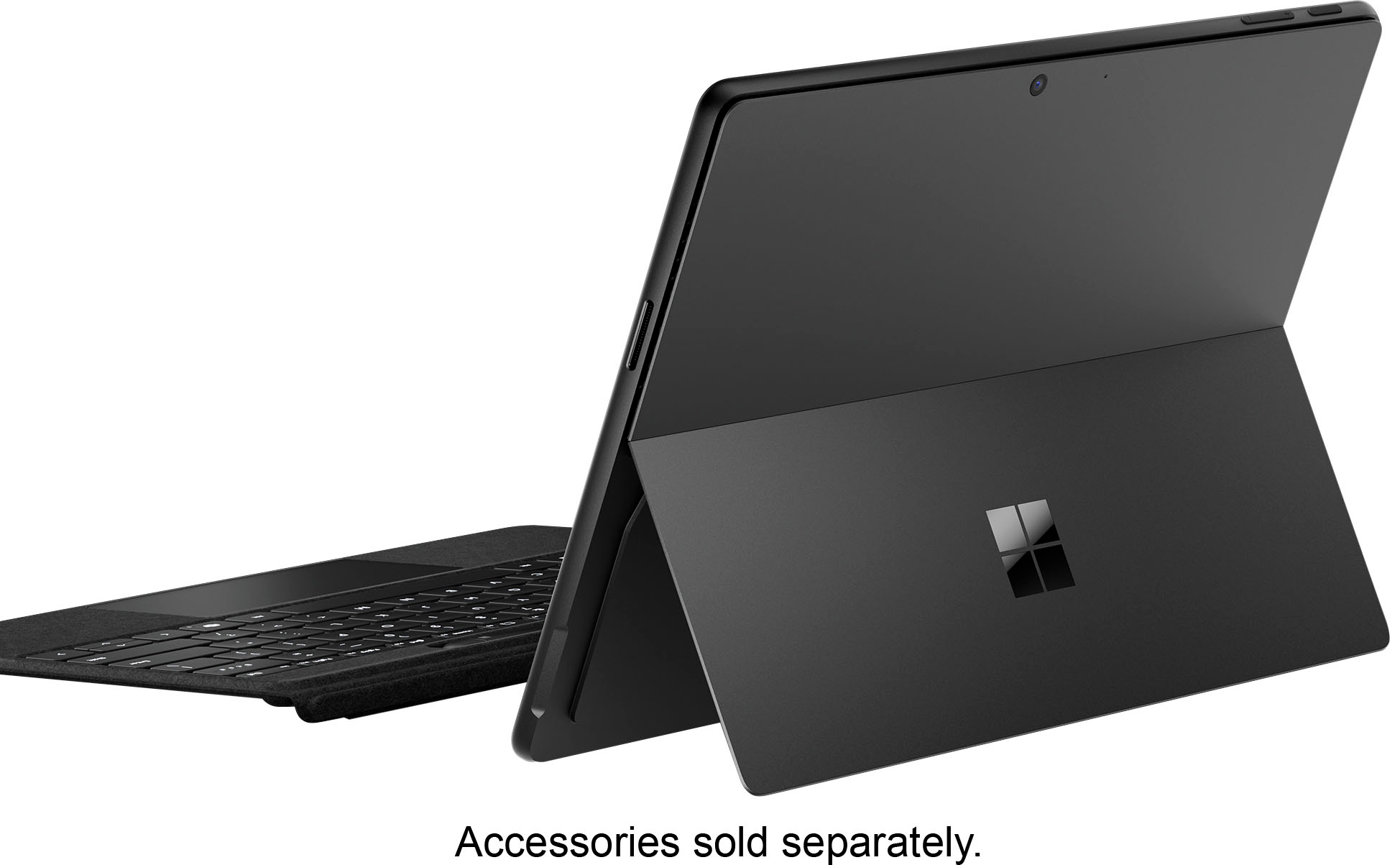
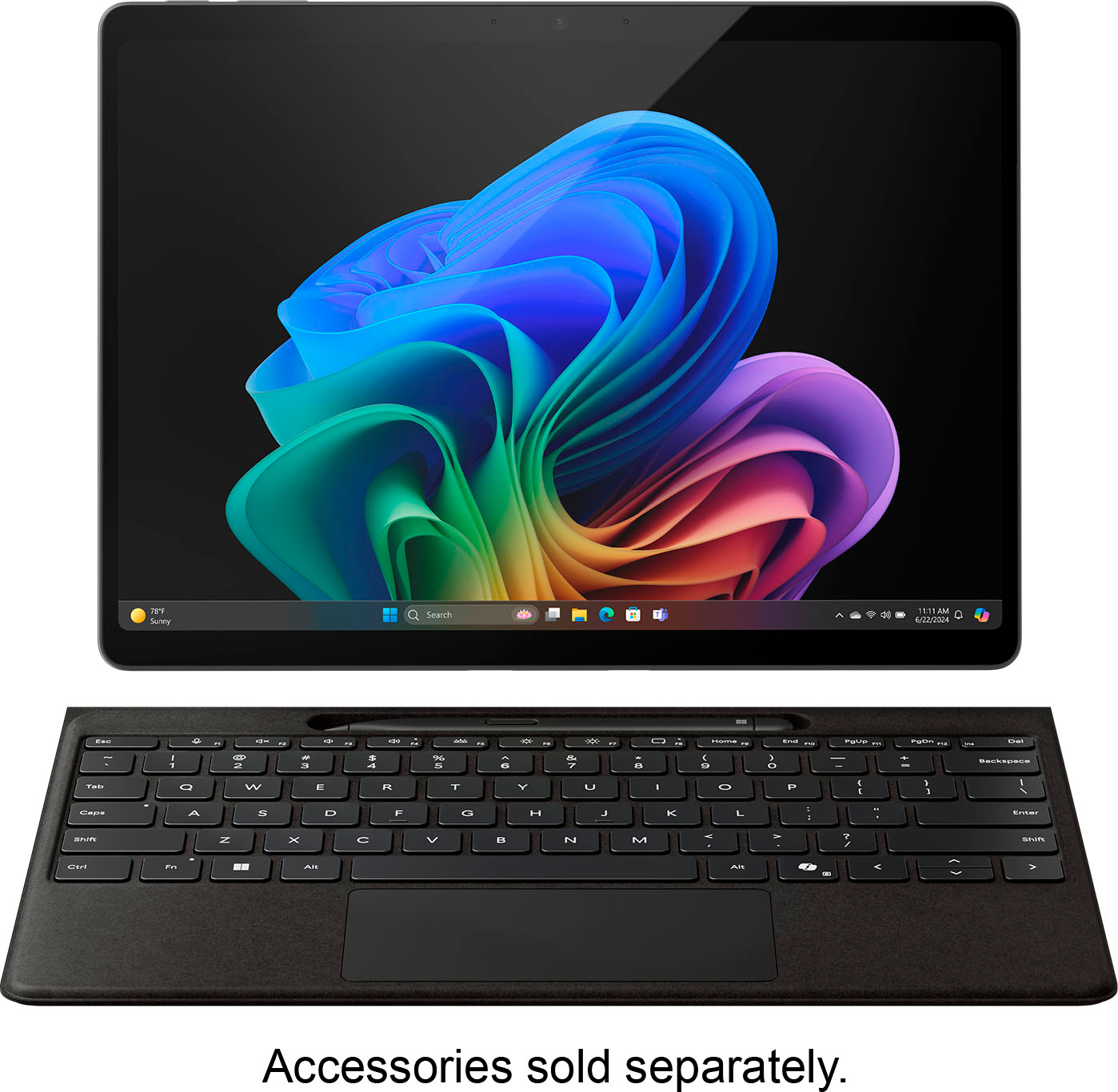
A:AnswerPlease note there are no accessories. I was surprised there was not a keyboard. I assumed there was as it is displayed that way in tbe store where i bought it. Also no mouse. There is a charger.
A:Answeryes. it's native to Windows 11 on any device and will typically install automatically when you search for printers on your network or connect via USB. HP also has driver downloads from their website but requires manual download and installation.