A:Answer Yes, you can exit S Mode on Windows 11 Home without needing to upgrade to Windows 11 Pro. Windows 11 in S Mode is designed for security and performance, exclusively running apps from the Microsoft Store. If you want to install apps from outside the Microsoft Store, you can switch out of S Mode by following these steps12:
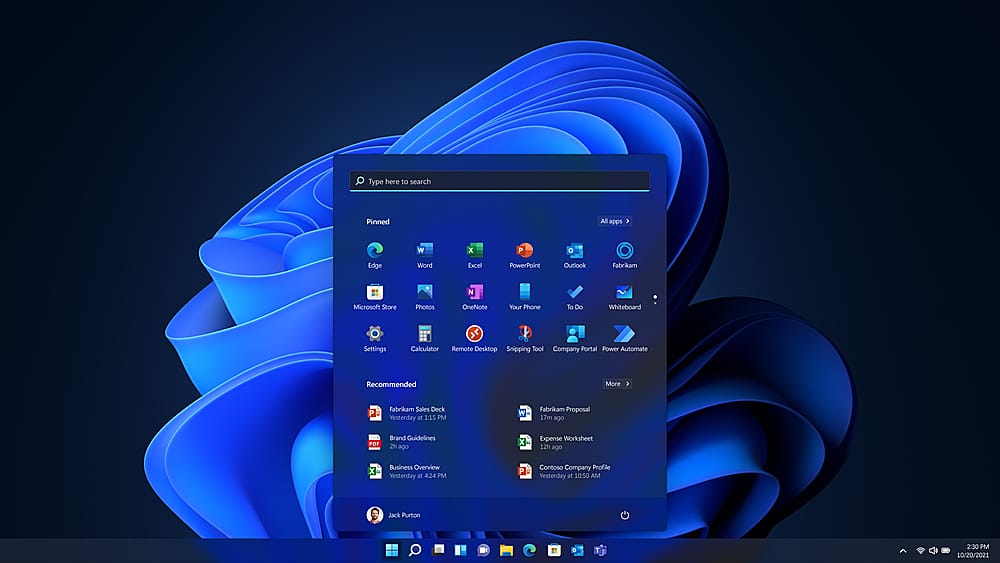
Open Settings: Go to the Start menu and select Settings.
Navigate to Activation: In the Settings menu, select System, then Activation.
Switch Out of S Mode: Under the "Switch to Windows 11 Home" section, click on the "Go to the Store" link. This will open the Microsoft Store to the "Switch out of S Mode" page.
Confirm the Switch: Click the "Get" button on the page and follow the prompts to switch out of S Mode.
Once you switch out of S Mode, you won't be able to go back, but you'll have the freedom to install apps from any source.