Questions & Answers
- Model:
- 500-202-GPPH
- |
- SKU:
- 6571330
Highly rated by customers for: Glow, Battery Life, Design
$15.99Your price for this item is $15.99
Clearance
Comp. Value: $44.99
The comparable value price is $44.99
Page Showing 1-13 of 13 questions
Q: QuestionDoes anyone know where to find the product manual for this? The only thing in the box other than the controller & charging cord was a piece of paper with a QR that was supposed to take you straight to the manual. {Product isnt listed on that site}
Asked by EmiT.
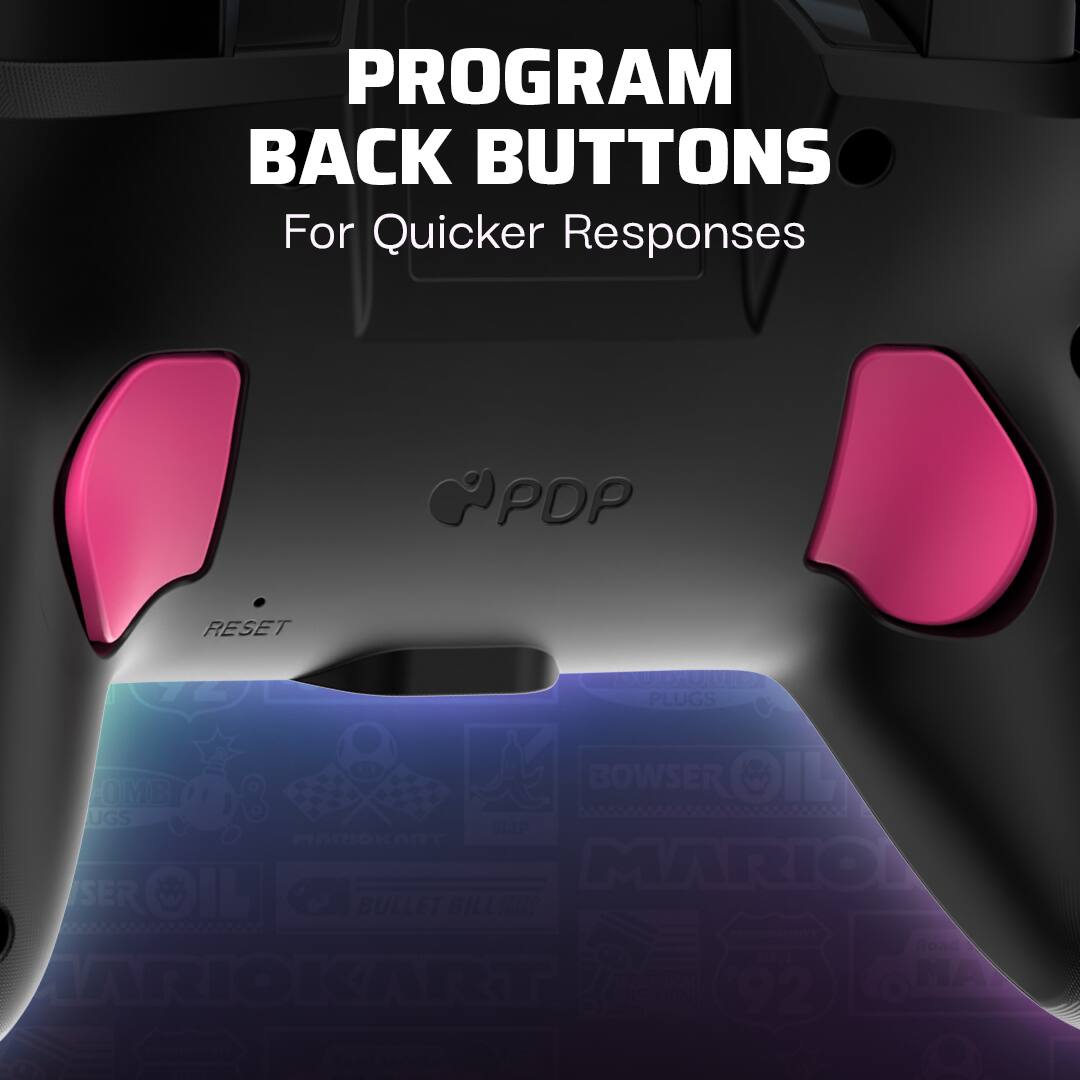
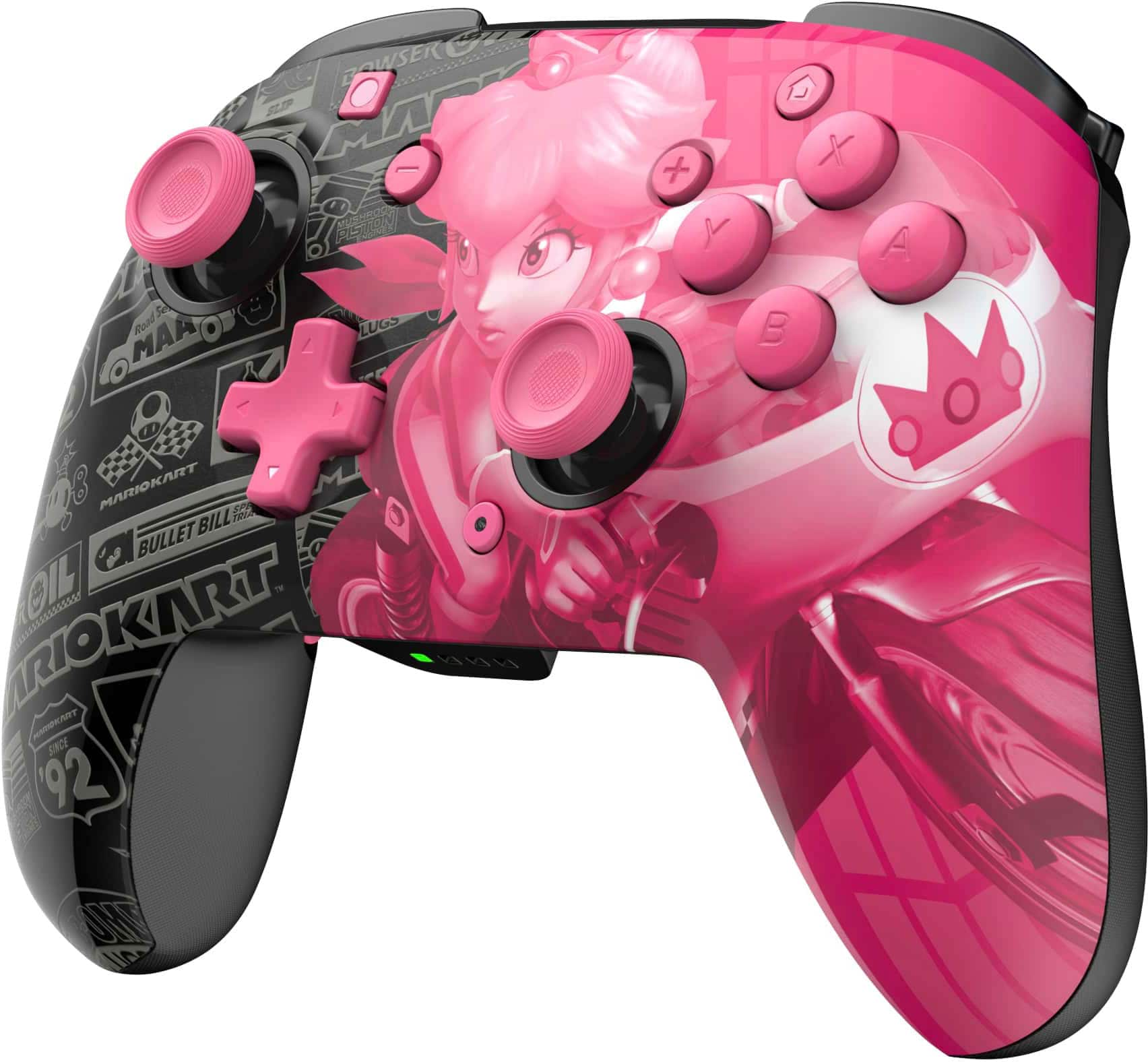
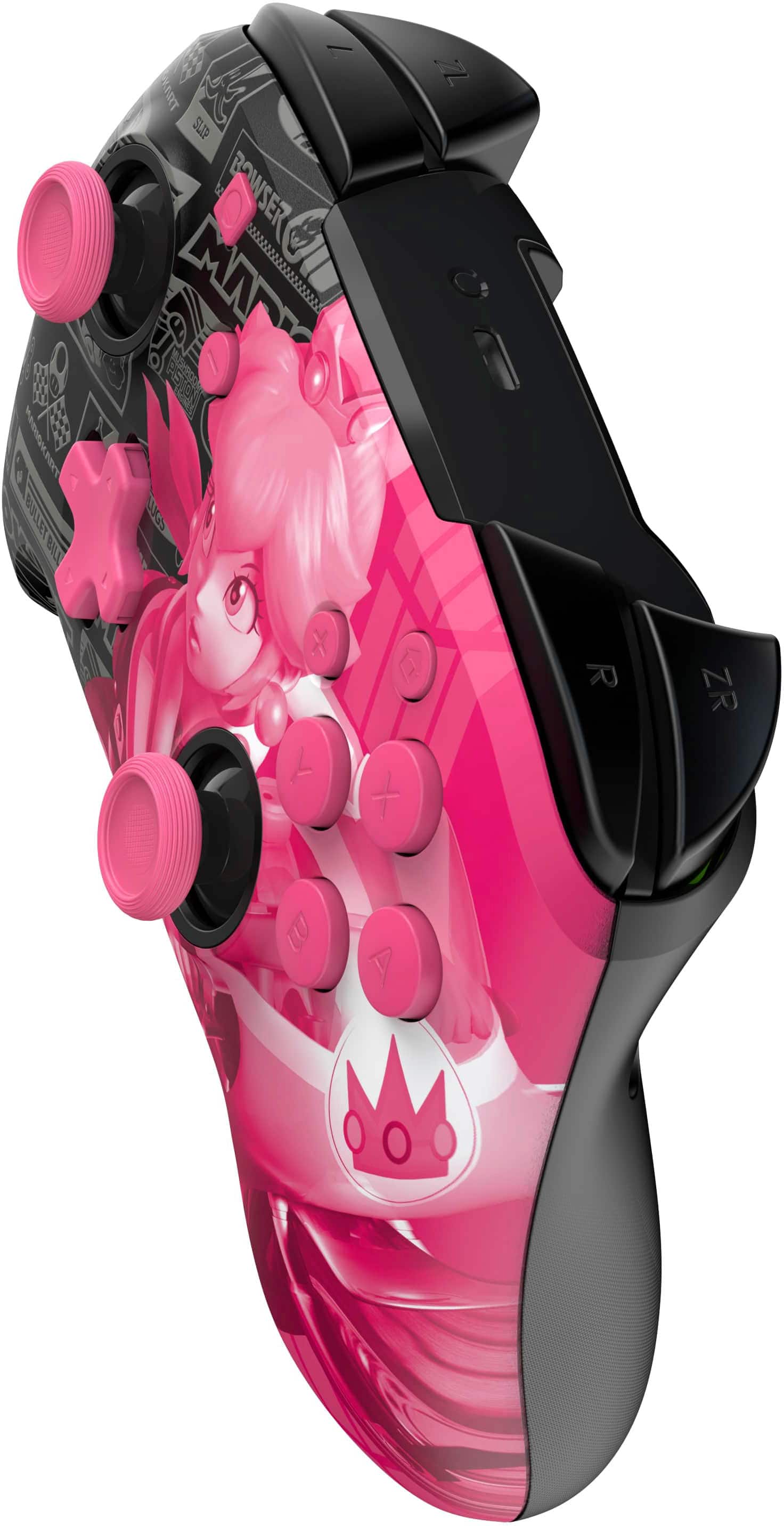
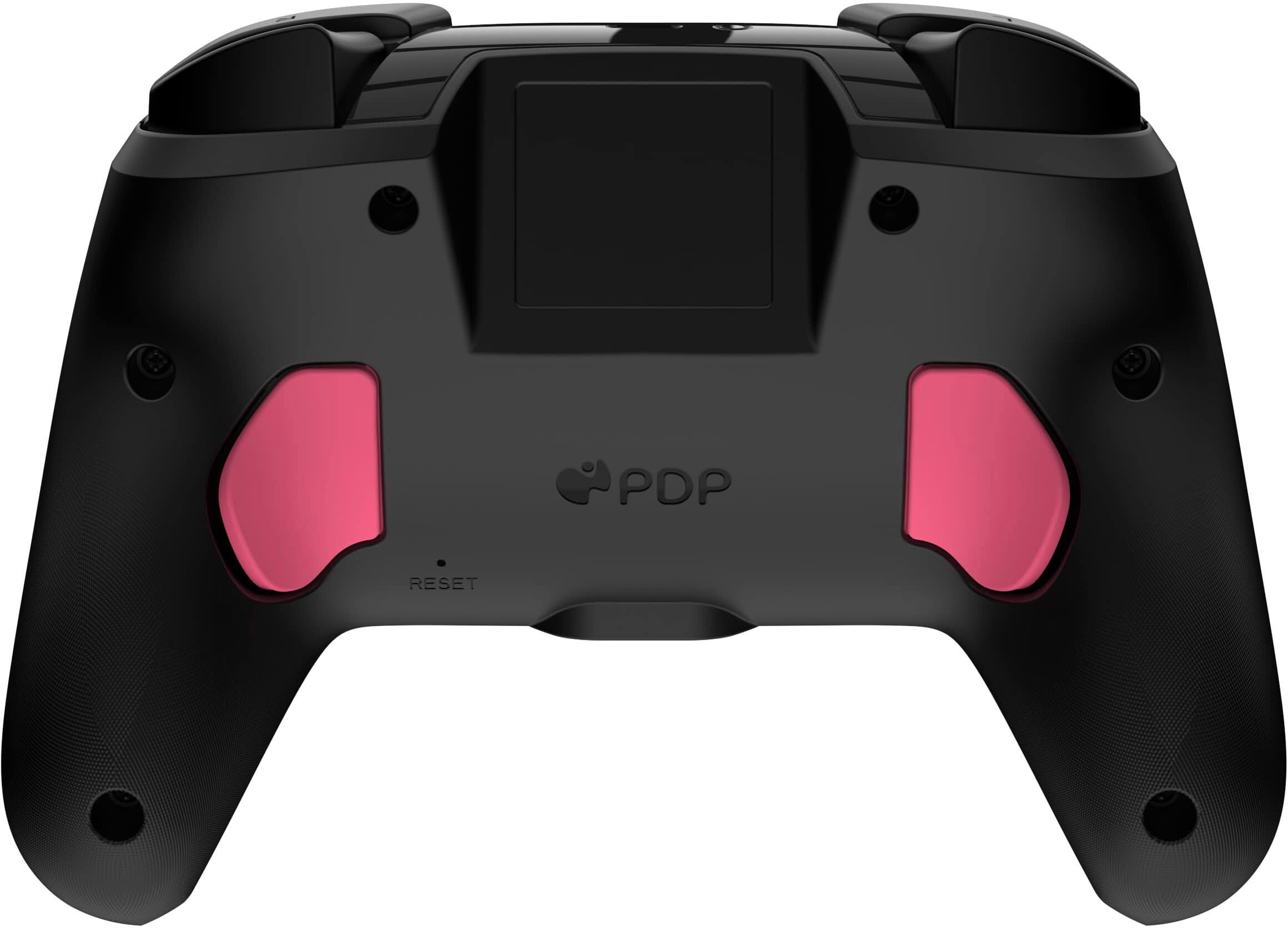
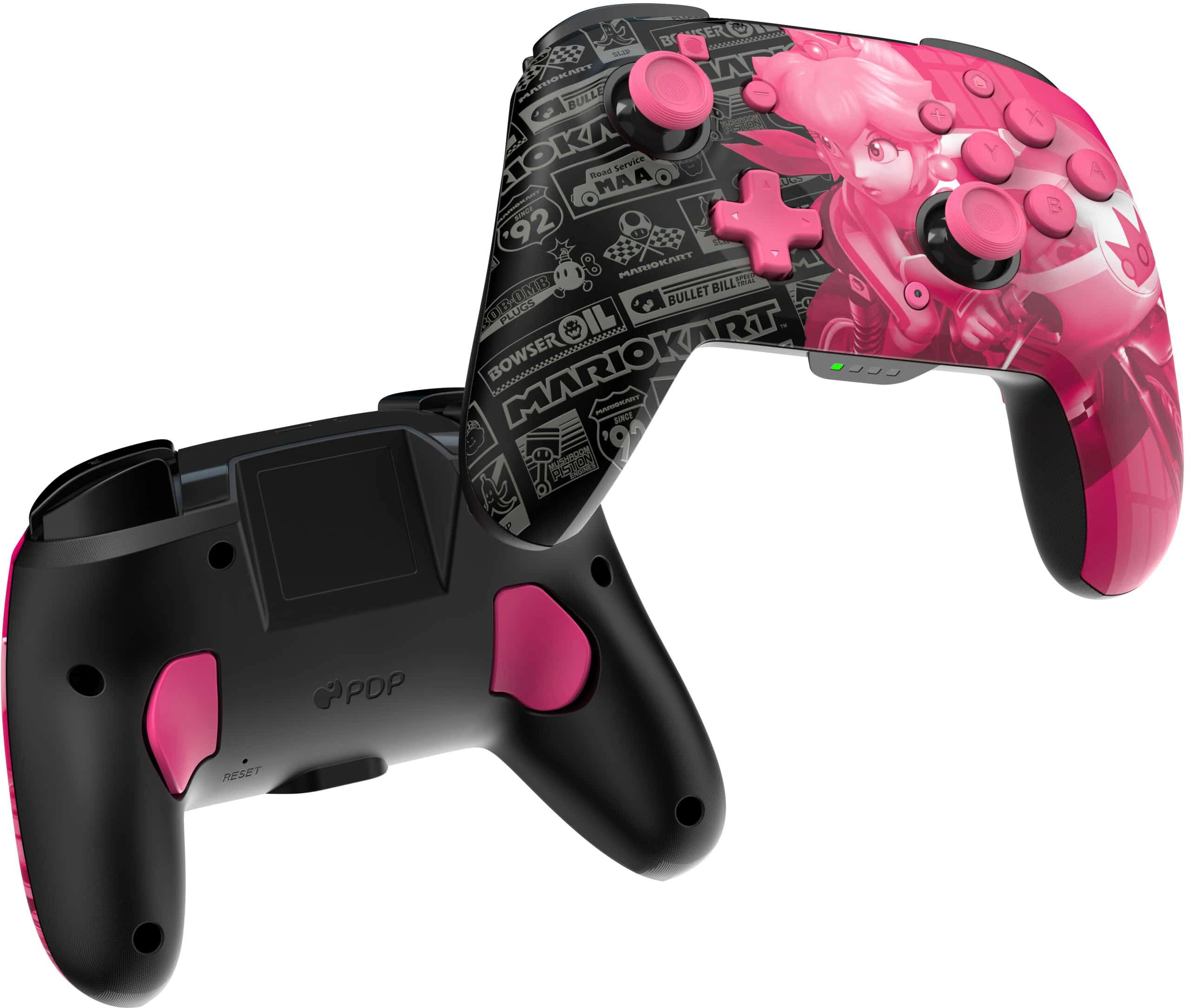
- A:Answer A. To program the back buttons, hold the “function” button and press the button you’d like to map a control to. Once the LED is flashing, press any button on the controller to map that button’s function to the back. The LED will blink quickly 3 times, indicating successful programming. B. To clear a mapped function or disable the back buttons completely, hold down the “function” button and double press any back button. There is a 'wired' version manual that has the same back button functions. Have not yet tested the above because I too have searched for a manual that doesn't exist.
Answered by Anonymous
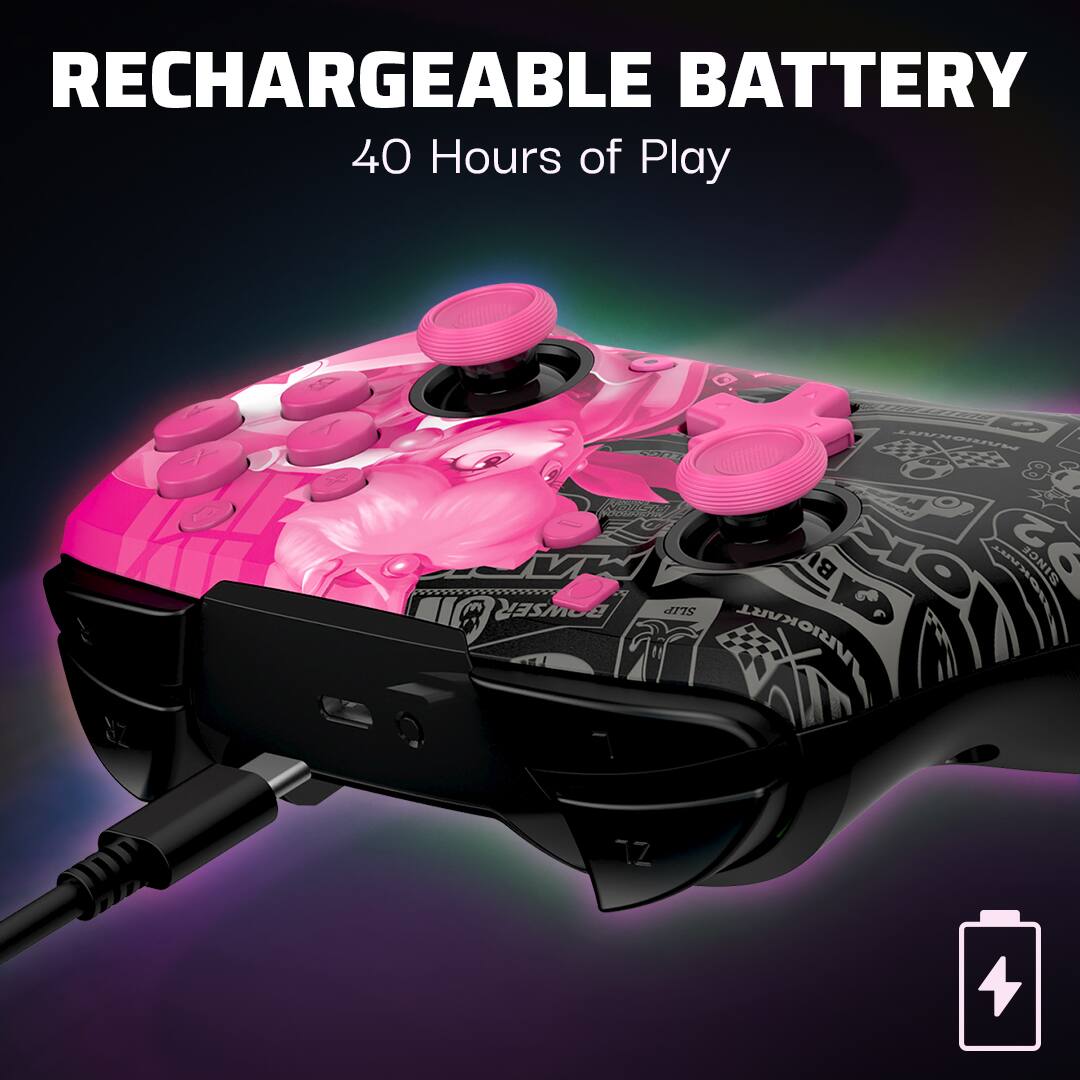
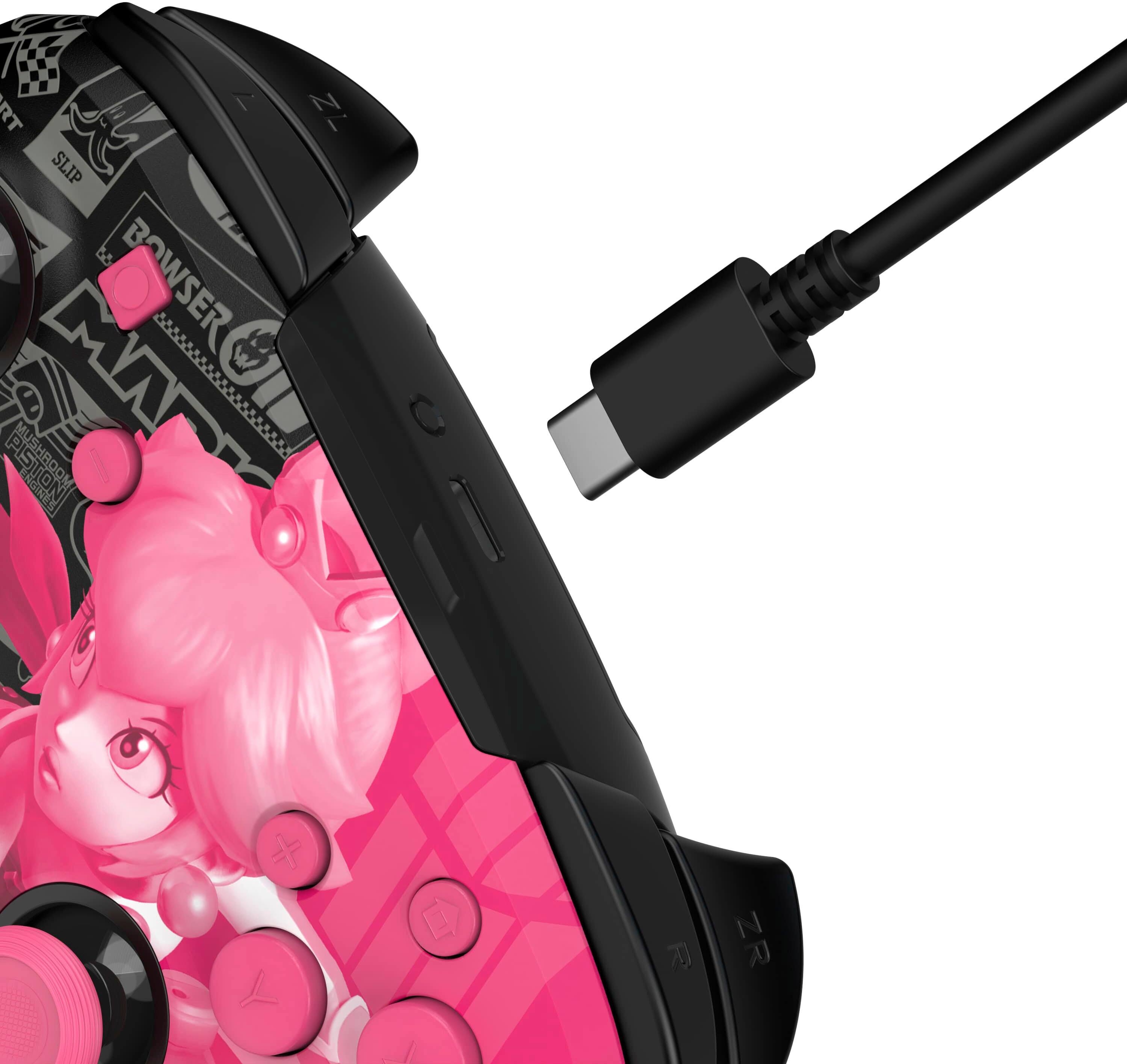
Q: QuestionHow do you charge it up?
Asked by TR4520.
- A:Answer It came with a charging cord that you attach to the game system.
Answered by JessicaB
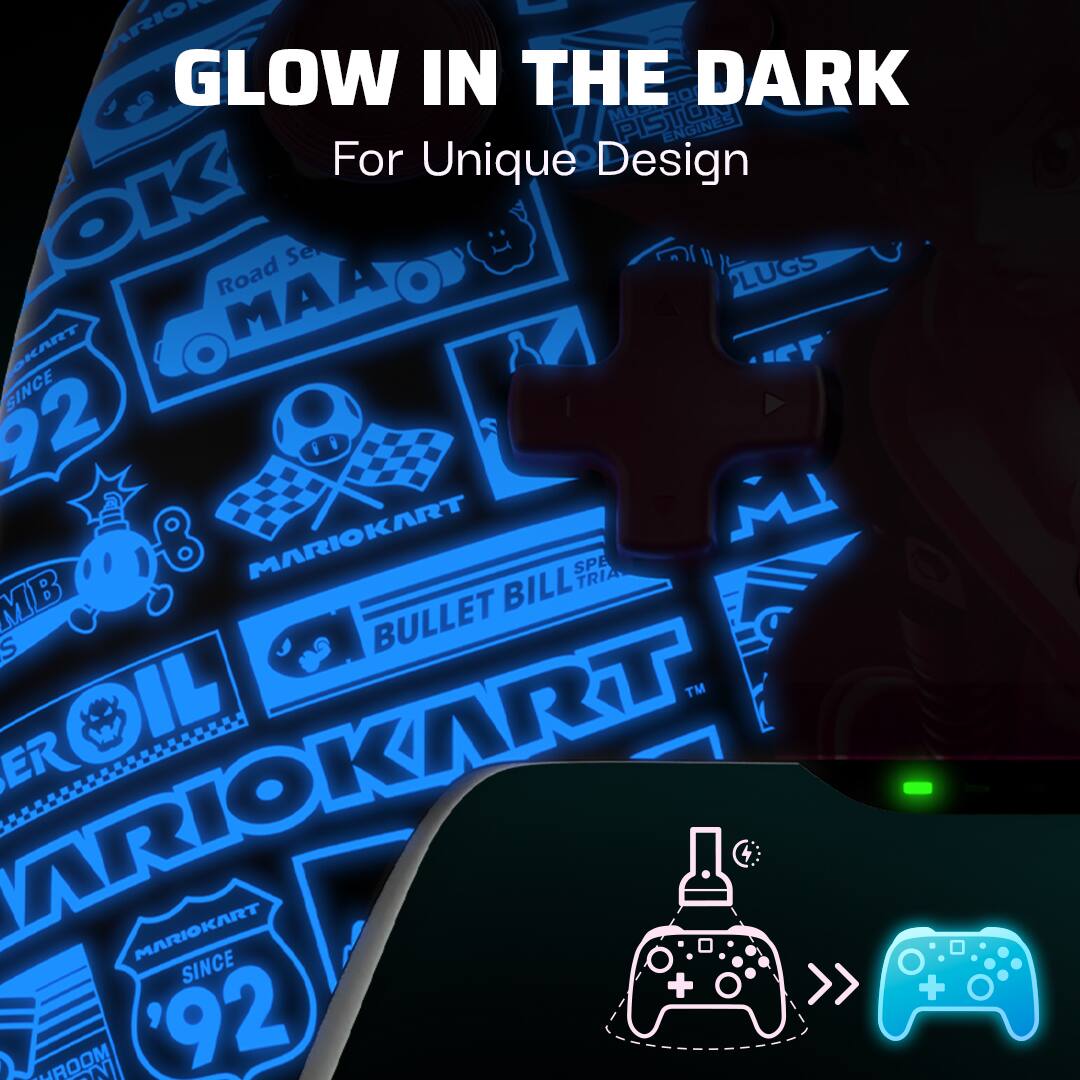
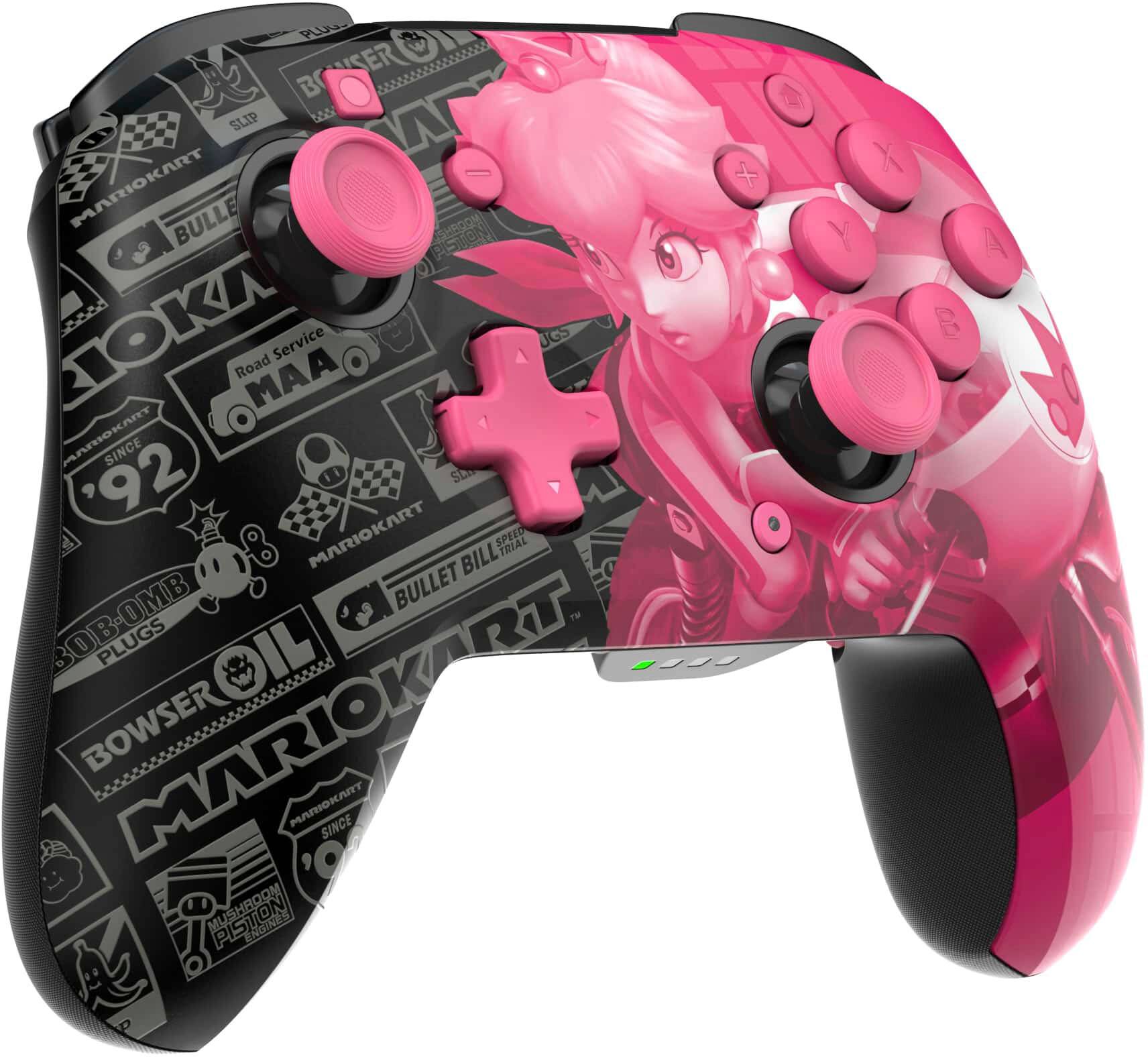
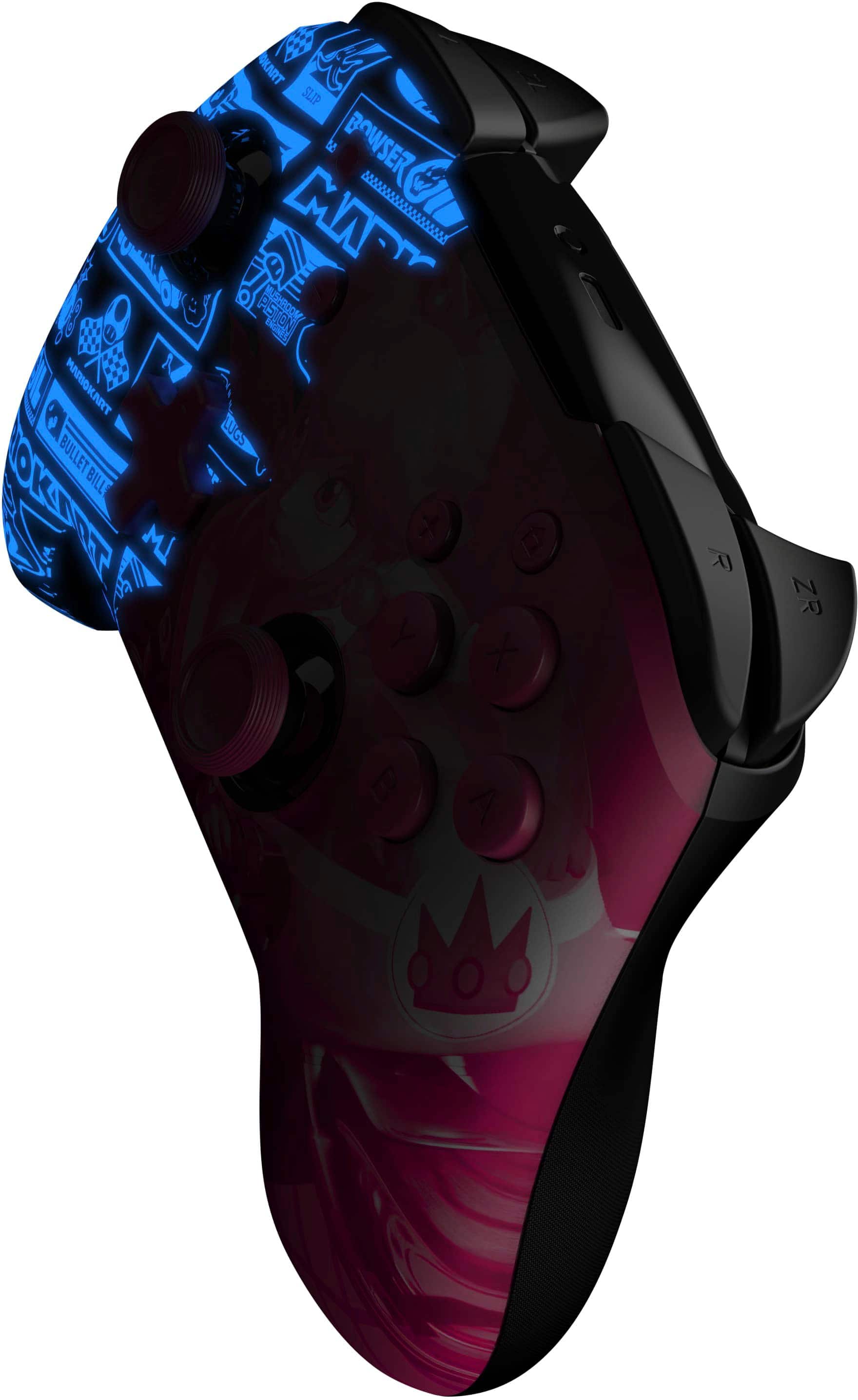
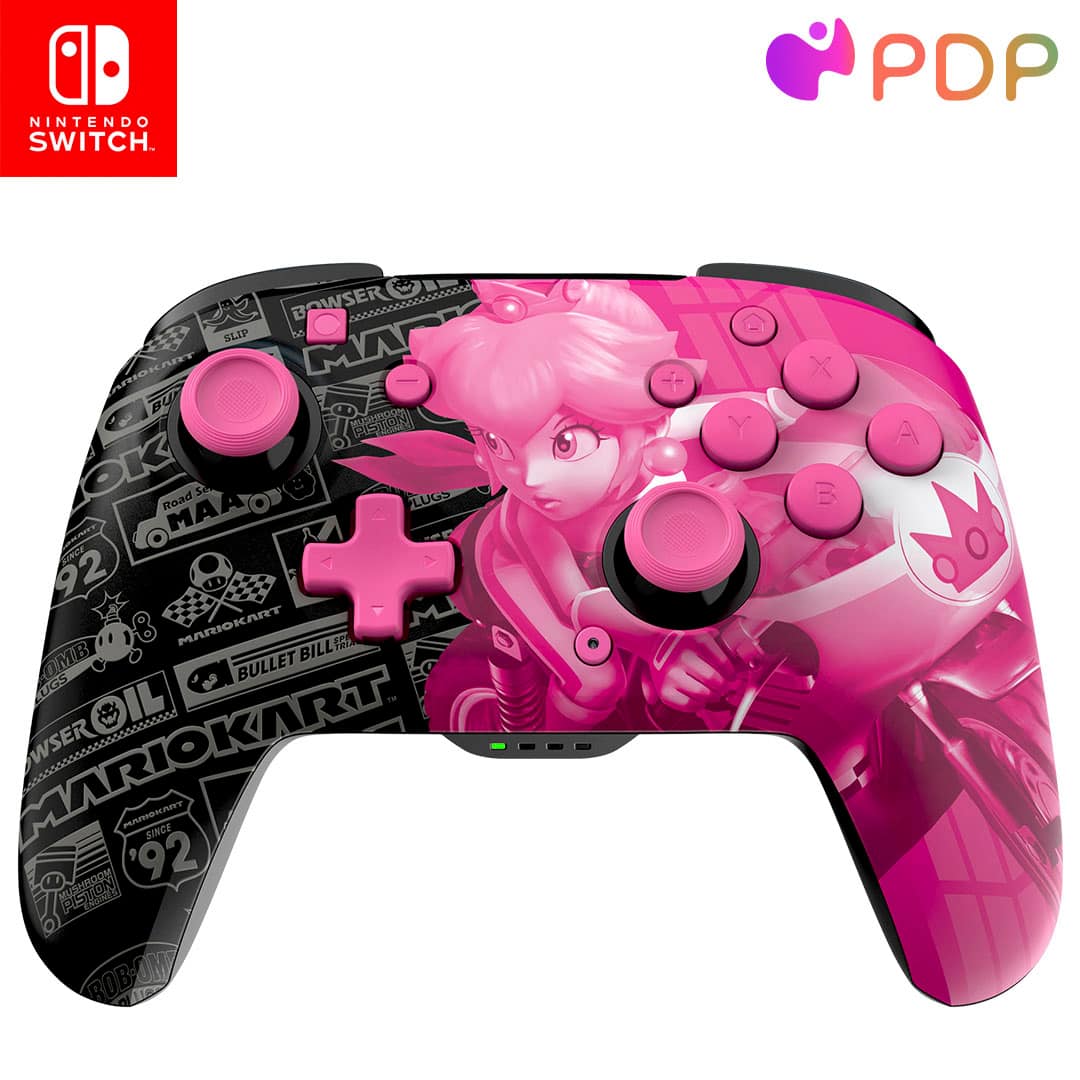
Q: QuestionHow do you get the glowing effect?
Asked by Sissy.
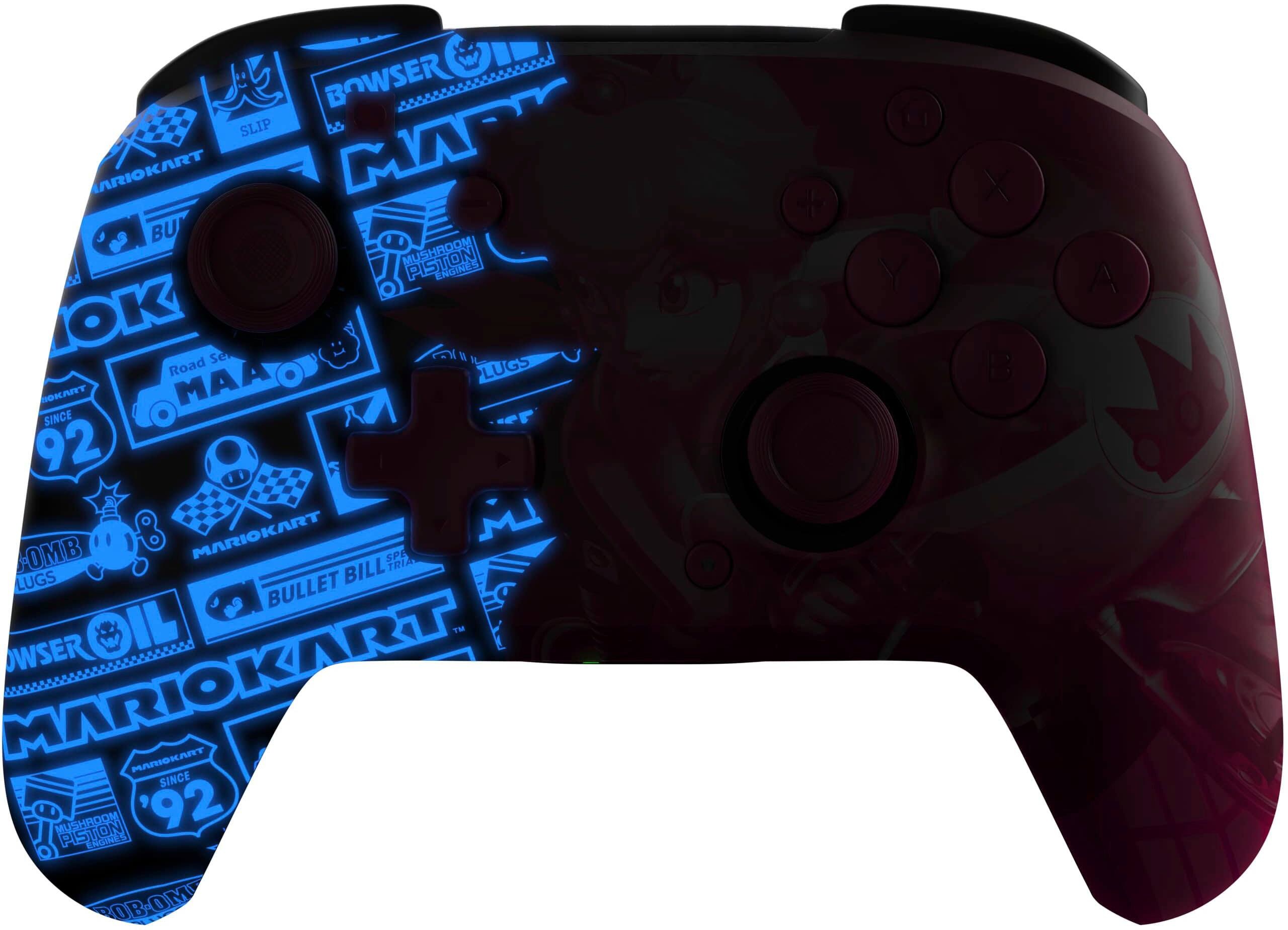
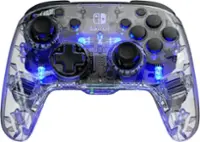
- A:Answer The glow in the dark effect works with light,It doesnt have led lights,More so its based on sunlight
Answered by Anonymous
Q: QuestionDoes this controller have motion controls? Like would I be able to use this controller for super mario galaxy 1?
Asked by nintendogamer78.
- A:Answer No only nintendo switch pro controllers or joycons are motion controlled.
Answered by AllenP
Q: QuestionDoes this support amiibos?
Asked by Anonymous.
- A:Answer No it doesn’t,It doesnt have the amiibo reader,Only the joycons and nintendo pro controller do
Answered by Anonymous
Q: QuestionIt won't connect
Asked by Alex.
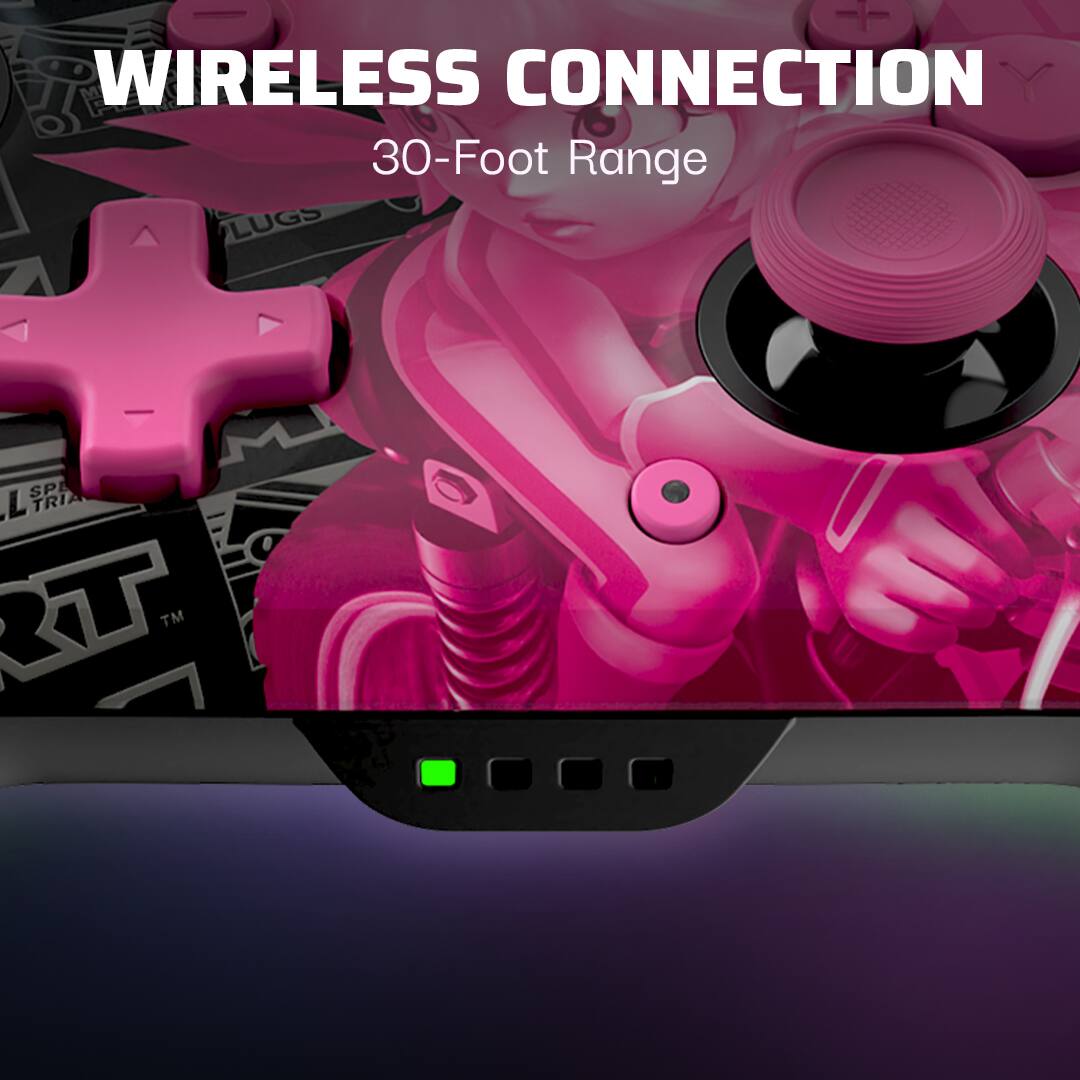
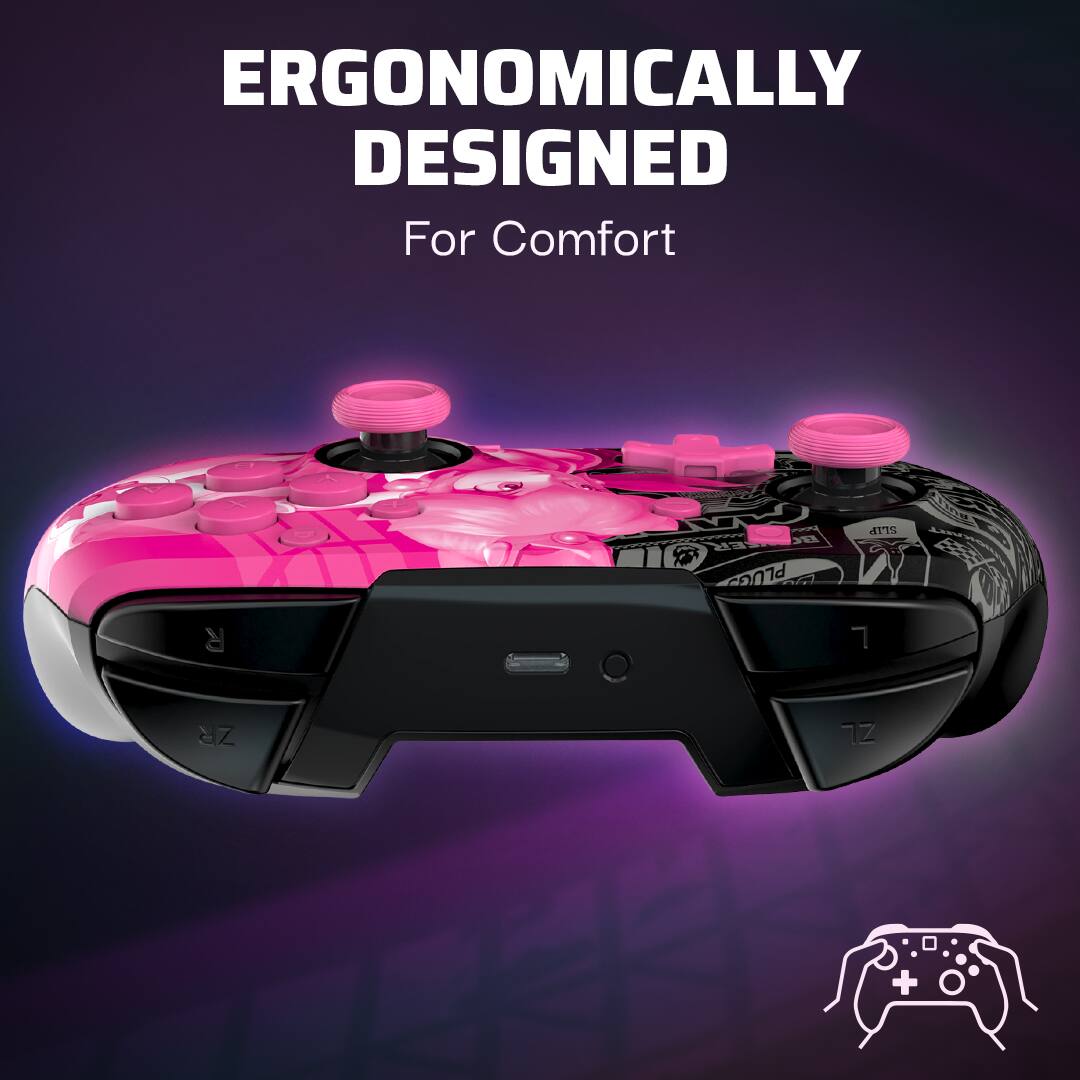
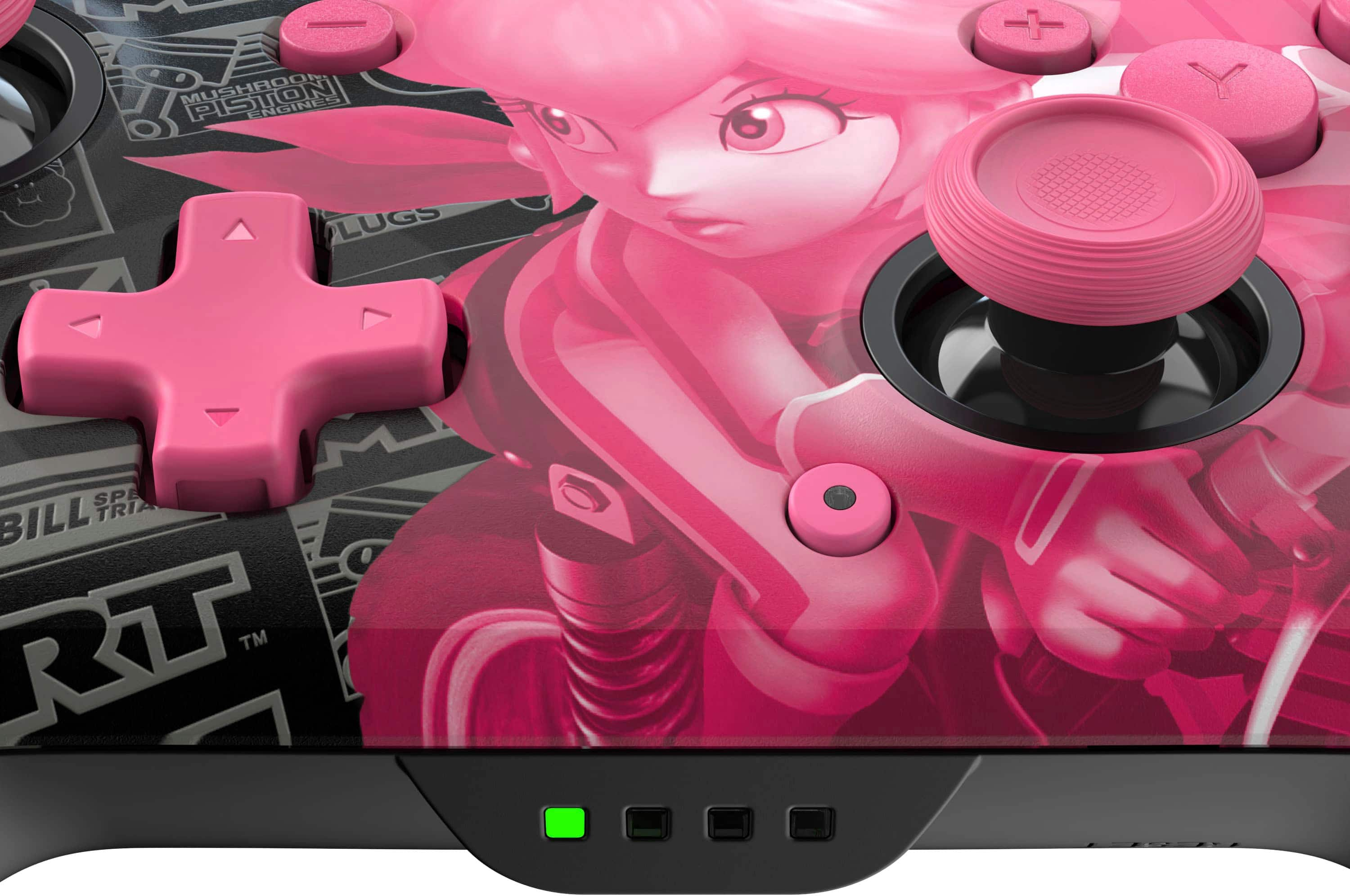
- A:Answer Where the charging port is,There is a small button,Hold it for a few seconds,The controller’s lights will start to wave back and forth symbolizing its ready to pair,in the switch all you have to do is go to controllers(The little joycon symbol) and hit “change grip/order” from there it’ll auto connect
Answered by Anonymous
Q: QuestionDoes this controller come with a headphone jack?
Asked by Headphone.
- A:Answer No it does not, but you can use bluetooth AirPods. We do it..
Answered by AnswerMiser
Q: QuestionDoes this controller have rumble? I’m assuming not but just thought I’d check!
Asked by Pnort2024.
- A:Answer Yes it is great!
Answered by ReneeM
Q: QuestionDoes this have gyro control?
Asked by Motokeen.
This question was asked about the related product: PDP - REMATCH GLOW Wireless Controller For Nintendo Switch, Nintendo Switch - OLED Model - Link Hero
- A:Answer Yes
Answered by IsmaelG
Q: QuestionCan this controller be connected to PC (Windows 11) and iOS devices?
Asked by SharonF.
This question was asked about the related product: PDP - REMATCH GLOW Wireless Controller For Nintendo Switch, Nintendo Switch - OLED Model - Link Hero
- A:Answer PC Devices: Yes, the wireless connection works with Windows 11 if your computer has Bluetooth compatibility. I don't know for sure about Mac/iOS devices. PC Wireless Connection Instructions: 1. Fully charge the controller. 2. Open the system tray and right-click the Bluetooth icon. Select "Add Bluetooth Device". 3. Click the + icon that reads "Add Bluetooth or other device." 4. Click "Bluetooth" to confirm. 5. Press the small "Sync" button at the top of the controller, near the charger port, until indicator lights begin flashing (see picture). 6. The pro controller should now show up in the list of available Bluetooth devices on your computer. Click it and press "pair." You may have calibration issues when you first pair the device. To help combat this, you can do the following: 1. Open the Control Panel on your computer (you should be able to find this by typing "Control Panel" in the search bar) 2. Under "Hardware and Sound", click "View Devices and Printers". 3. The pro controller should show up under the list of devices. Right click on it and select "Game controller settings". 4. Click "Properties". 5. Click the "Settings" tab, then click "Calibrate" and follow the onscreen instructions for the calibration wizard. 6. The onscreen instructions may be confusing, depending on the controller you have paired and the system you're using. If they refer to the "D-Pad" they mean the Left control stick. If they refer to "X Rotation" or "Y Rotation" they mean the Right control stick.
Answered by ErienneM
Page 1, Showing 1-13 of 13 questions
Top Rated
- $79.99Your price for this item is $79.99
- $19.99Your price for this item is $19.99
- $76.99Your price for this item is $76.99$79.99The comparable value for this item is $79.99
- $329.99Your price for this item is $329.99$399.99The comparable value for this item is $399.99
- $119.99Your price for this item is $119.99
- $199.99Your price for this item is $199.99
- $74.00Your price for this item is $74.00
- $99.99Your price for this item is $99.99$149.99The comparable value for this item is $149.99
PDP - RIFFMASTER Wireless Guitar Controller For Xbox Series X|S, Xbox One & Windows 10/11 PC - Black$99.99Your price for this item is $99.99$149.99The comparable value for this item is $149.99- $19.99Your price for this item is $19.99$29.99The comparable value for this item is $29.99
- $51.99Your price for this item is $51.99$74.99The comparable value for this item is $74.99
- $189.99Your price for this item is $189.99
- $99.99Your price for this item is $99.99
- $209.99Your price for this item is $209.99
- $269.99Your price for this item is $269.99$329.99The comparable value for this item is $329.99
- $219.99Your price for this item is $219.99
- $54.99Your price for this item is $54.99$69.99The comparable value for this item is $69.99