A:AnswerIf you use the att tv or now app, you can download it to your Samsung tv. If you have a digital hardware box, you can just connect it directly to the Samsung tv.
A:AnswerHi! To mount the 50" TU8000 you will need 4 M8 Screws, 20-22 mm in length, and 1.25mm pitch. If you are using screws longer than the suggested size you will need spacers. ^Tim
A:AnswerHi! The One Remote will allow you to control a wide range of devices once set up. Using the remote, press Home and navigate to sources. Select Universal Remote. Add your device, once the setup is complete you can now control the volume of your external device with the TV remote. ^Tim
A:AnswerHi AngieouthFlorida! Yes, the 50TU8000 features the ability to connect to the internet via Wi-Fi to access your smart features and streaming content. ^Tim
A:AnswerHi Publican! You can use both TV and Bluetooth device audio simultaneously on the TU8000. When this function is active, you can also set the volume of the Bluetooth headphones higher than the volume of the TV speaker. First, make sure your Bluetooth device is paired. Press HOME on your TU8000 remote. Then go to Settings > General > Accessibility > Multi-output Audio. Find the device you'd like to pair. ^Gina
A:AnswerHi there! You can use both TV and Bluetooth device audio simultaneously on the TU8000. When this function is active, you can set the volume of the Bluetooth headphones higher than the volume of the TV speaker. First, make sure your Bluetooth headphones are paired. Press HOME on your TU8000 remote. Then go to Settings > General > Accessibility > Multi-output Audio. Find the device you'd like to pair. Check out some Bluetooth compatible headphones here: https://www.bestbuy.com/site/searchpage.jsp?_dyncharset=UTF-8&id=pcat17071&iht=y&keys=keys&ks=960&list=n&qp=features_facet%3DFeatures~Bluetooth%20Built-In&sc=Global&st=bluetooth%20headphones&type=page&usc=All%20Categories ^Gina
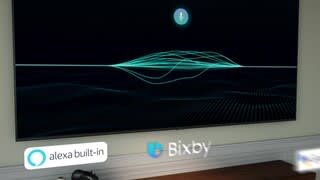
A:AnswerRJD611- Using your remote - from home screen click on settings, General, Voice Assist should come up in the options and you will then able to select on or off. ^Cris
A:AnswerHey Doajeff - Yes, on page 123 in the e-manual it shows compatible formats and MKV is one of them so plug that external hard drive in and enjoy .^Jason
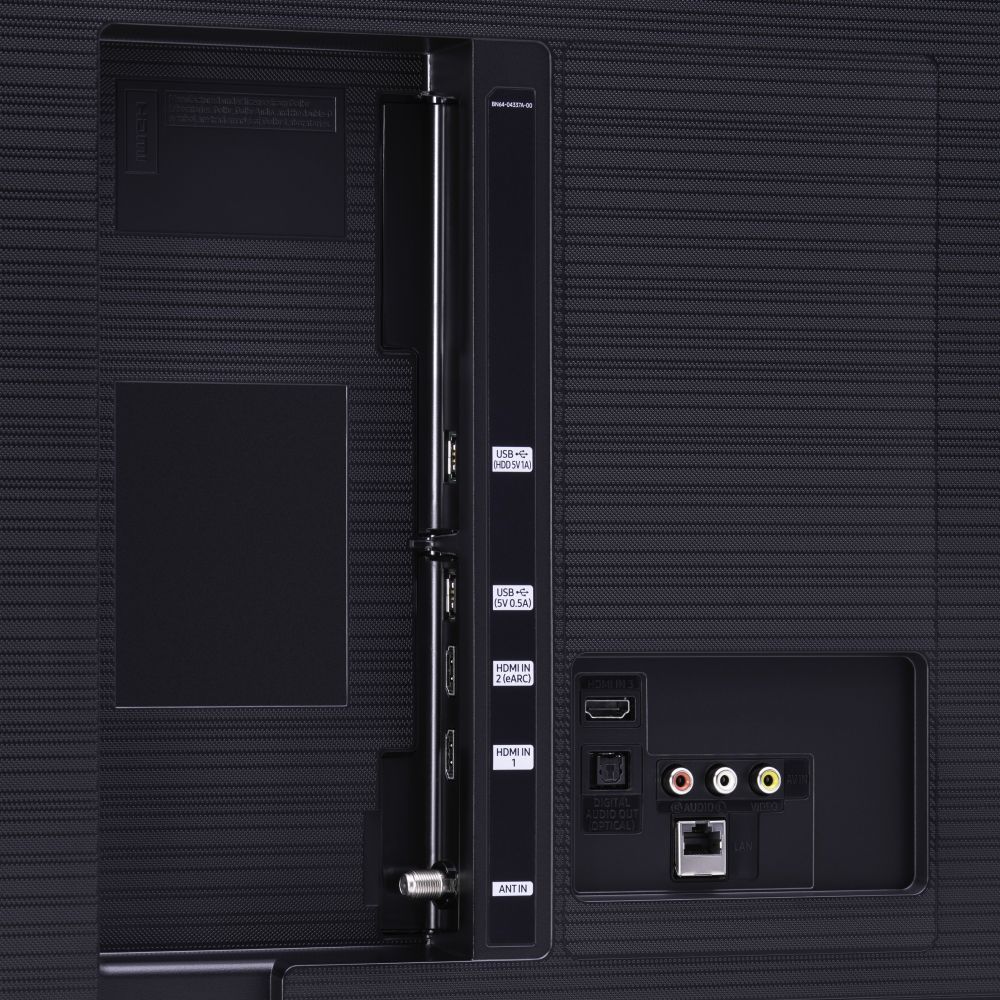
A:AnswerJeff, you will not need a One Connect Cable on the TU8000 as it is not supported on this model. The TV comes with a power cable - if you need any additional cables (HDMI/Optical) to connect external devices, check out some options here: https://www.bestbuy.com/site/searchpage.jsp?_dyncharset=UTF-8&id=pcat17071&iht=y&keys=keys&ks=960&list=n&qp=cabletype_facet%3DCable%20Type~HDMI%5Econnectortype_facet%3DConnector%20Type~HDMI%20Type%20A&sc=Global&st=cables&type=page&usc=All%20Categories ^Gina
A:AnswerHey Remote, the TU8000 utilizes our OneRemote. The sleek and slim OneRemote automatically detects and controls all compatible connected devices and allows you to access your favorite streaming platforms easier with hot keys. ^Gina
A:AnswerTigerlily, yes you can. Our TVs have an auto-recognition feature, which will recognize your TV as a PC and will use your PC's processing. ^Gina
A:AnswerBill, the DirecTV remote is compatible with all Samsung 2020 models. You can also utilize your One Remote included with the TU8000 as it will work with all connected devices. ^Gina