A:AnswerHi NorthernExposure,
The operating temperature on the CU7000 is between 50˚F to 104˚F. Operating humidity is between 10% - 80%. Storage temperature ranges between -4˚F to 103˚F. Conditions falling outside these ranges may lead to serious damage to your TV.
I hope this helps!
~Samsung Advisor
A:AnswerHi Netters,
Please know that many of the buttons on your remote have multiple functions. For example, the Volume button is moved UP/DOWN to adjust the volume, and to MUTE the sound; you need to PRESS it in. If that same button is pressed for more than 1 second, the Accessibility Shortcuts appear. You can find more information regarding the remote on pages 22-24 of the full user manual.
To set up local channels, please follow these steps:
1) Make sure your Antenna or Cable box is set up, and then connect it to the TV vis the ANT IN.
2) Go to Source> TV
3) Press Setting> All Settings> Broadcasting> Auto Program
4) Start to begin Auto-Programming, and then select either Air, Cable, or Both
5) Your TV will begin to scan for channels. After it's done, select Close to finish
I hope this helps! If you need more help, please call us at 1-800-SAMSUNG, 8 AM - 12 AM EST, seven days a week. Our LiveChat agents are also available by clicking on the ‘Support’ link on our website.
~ Samsung Advisor
A:AnswerHi Zack,
Please ensure that you are running the latest Software update. Go to Settings> Support> Software Update. If you continue to have issues, please give us a call at 1-800-SAMSUNG, 8AM - 12AM EST, 7 days a week.
~Samsung Advisor
A:AnswerHi wcon,
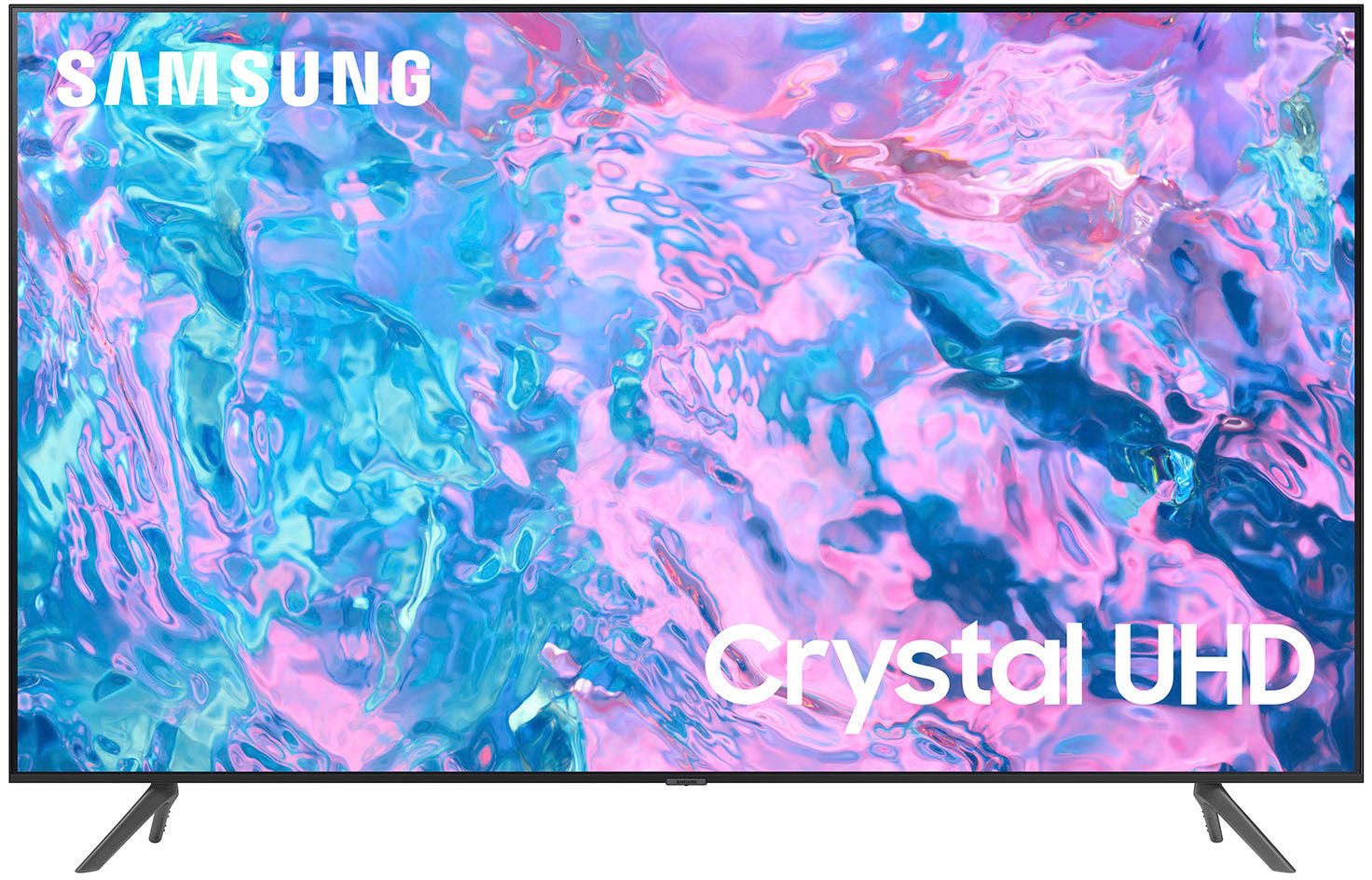
The CU7000 has a built-in tuner allowing you to connect to an external antenna to access local channels that you can control through the provided Samsung TV remote.
~Samsung Advisor

A:AnswerHi Rockaos,
Thank you for sharing your experience with low volume. There are several volume features you can adjust, which may improve your audio experience.
1) Auto Volume automatically adjusts the sound to a certain level when changing channels or switching to another external input. Go to Settings > All Settings> Sound > Expert Settings > Auto Volume.
2) Adaptive Sound automatically adjusts to a specific volume level while watching TV. The TV analyzes your volume usage history by time period to automatically adjust the volume when you use an app or switch to an external input source. Go to Settings> All Settings> Sound> Sound Mode> Adaptive Sound.
3) Several Sound Modes are likewise available to meet your personal preferences: Home > Settings > All Settings> Sound > Sound Mode.
Also, some sources have their own volume control, which might need to be set higher. Please check the volume control of the external device (cable box or satellite box, DVD, Blu-ray, etc.) connected to your TV. Also, check the cable connection between an external device and the TV and then try the cable connection again.
I hope this helps!
~Samsung Advisor
A:AnswerHi Marissa,
For darker scenes, I recommend Dynamic Picture Mode, which makes pictures brighter and clearer in bright viewing environments. Go to Settings > All Settings> Picture > Picture Mode > Dynamic.
Or you can manually adjust the Brightness by pressing the HOME button on your remote, then navigating to Settings > All Settings> Picture > Expert Settings.
You may also want to disable Power Saving Mode, which automatically adjusts the brightness to reduce the TV’s power consumption. Go to Settings > All Settings> General > Eco Solution> Power Saving Mode.
I hope this helps!
~Samsung Advisor
A:AnswerHi Eggroll,
The CU7000 Series does not have PIP (or split-screen). Split-screen capability to view two different content side-by-side is available starting from our CU8000 Series and up using our Multi View feature.
For example, you can view media from different sources, such as an app, Blu-ray player, or game console, on the main left screen while also mirroring your phone to the smaller screen. Multi-View provides you with endless possibilities for splitting screens and viewing several types of content at the same time.
~Samsung Advisor
A:AnswerHi Opal19,
You will need an RCA to HDMI converter like this one. https://www.bestbuy.com/site/insignia-rca-to-hdmi-converter-black/6134312.p?skuId=6134312.
~Samsung Advisor
A:AnswerHi Shmaya,
1. Yes, you can screen share from your Android or Apple device to the CU7000 TV.
2. You can wall mount the 55" CU7000 TV with an external wall mount compatible with a VESA Map of 200x200mm.
3. Yes, the CU7000 TV does have an internet browser built-in.
I hope this helps!
~Samsung Advisor