A:AnswerHi Steve,
Yes! The Samsung DU7200 offers a built-in app store with hundreds of apps available for download, including YouTube and Peacock.
~Samsung Advisor
A:AnswerHi emmy,
To best assist you, please reach out to us at 1-800-SAMSUNG, 8 AM – 12 AM EST, 7 days a week, or Chat with us on Samsung.com: https://www.samsung.com/us/support/contact/
~ Samsung Advisor
A:AnswerHi,
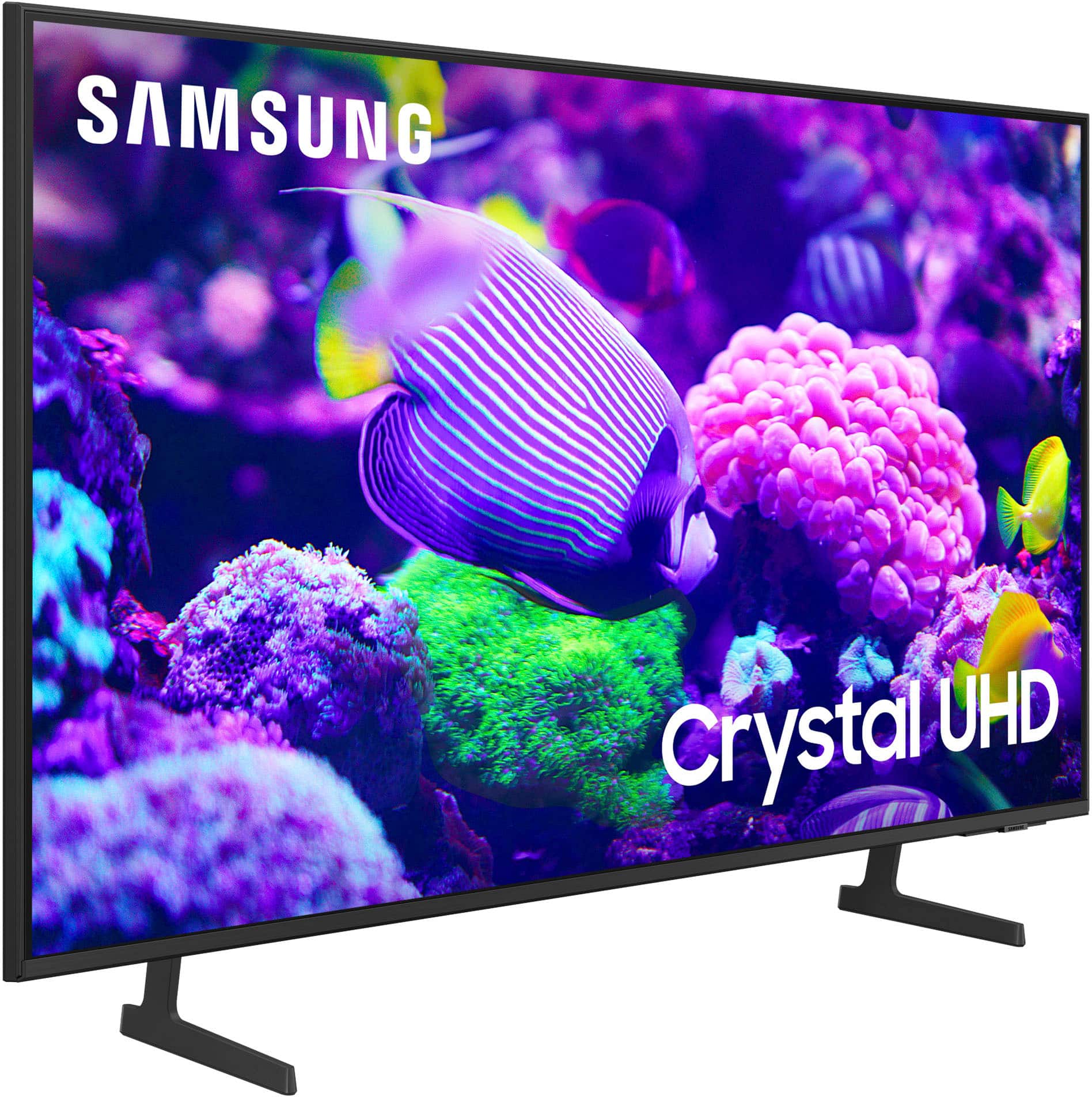
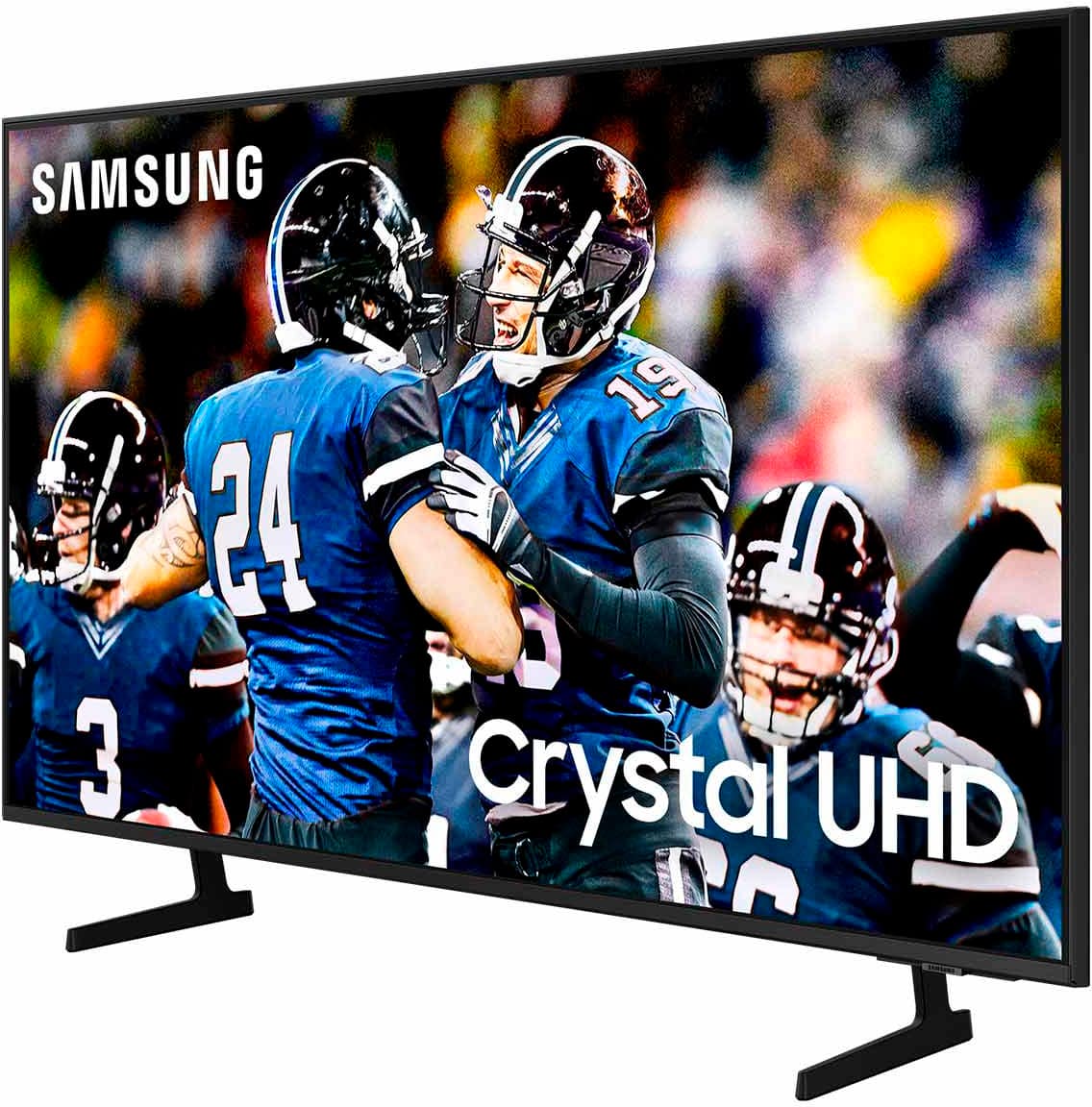
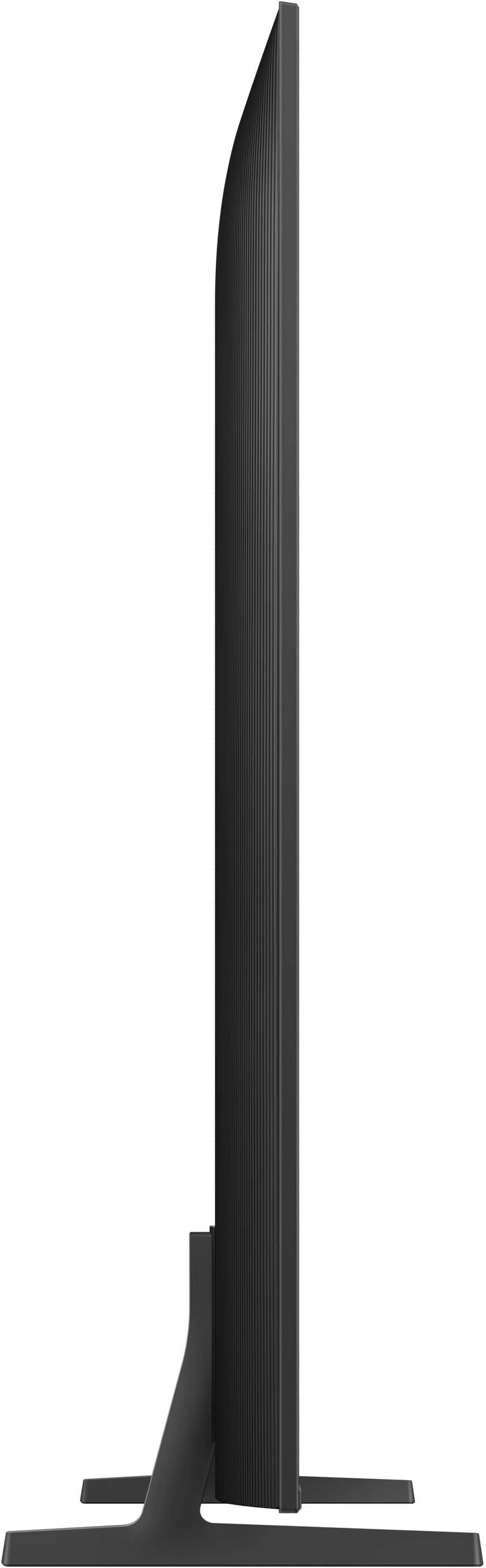
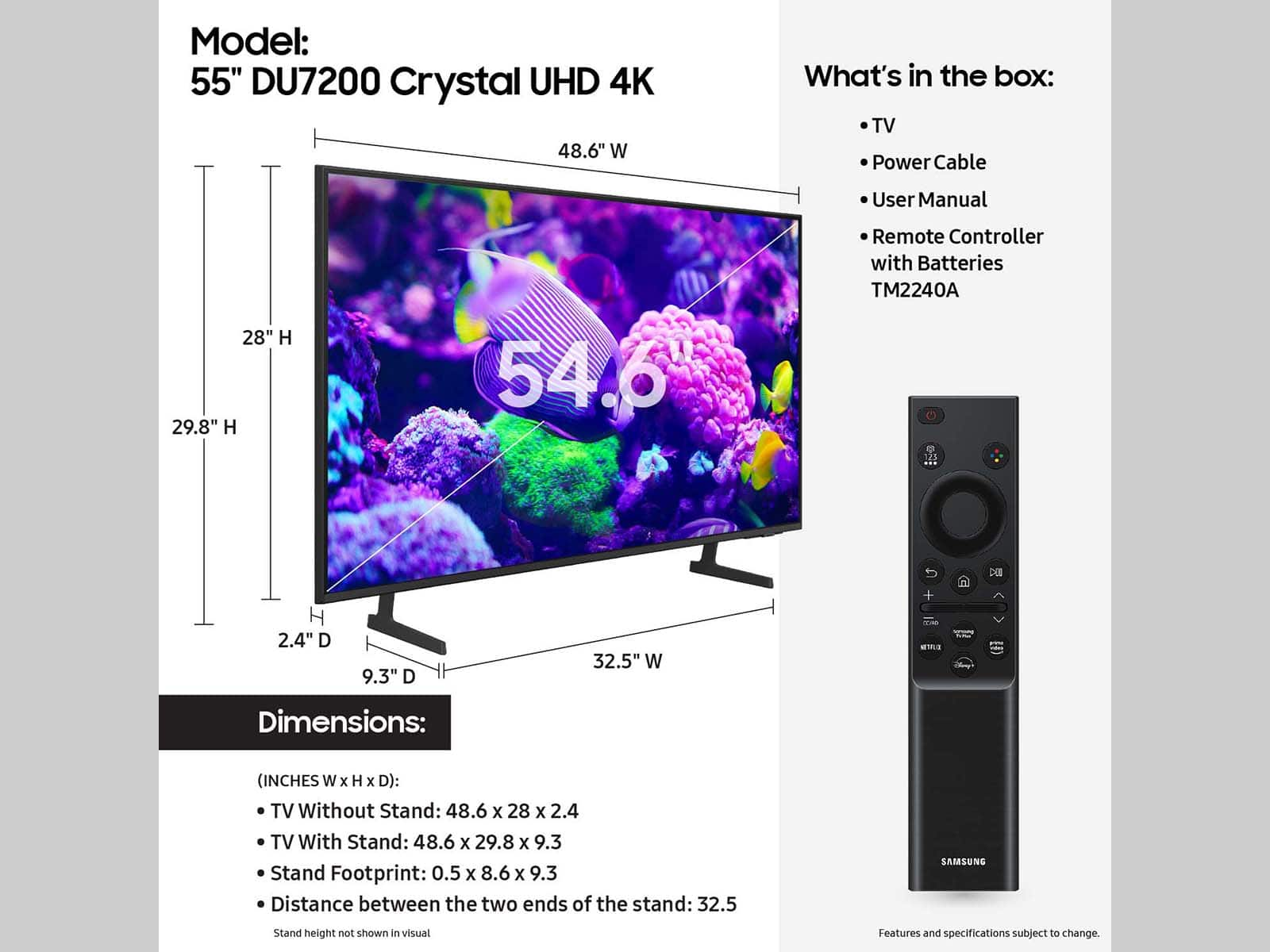
The stand on the 55" DU7200 TV can be adjusted to sit at either 32.5" or 10" apart. As long as your cabinet is not enclosed, you should be fine.
~Samsung Advisor
A:AnswerHi Buck,
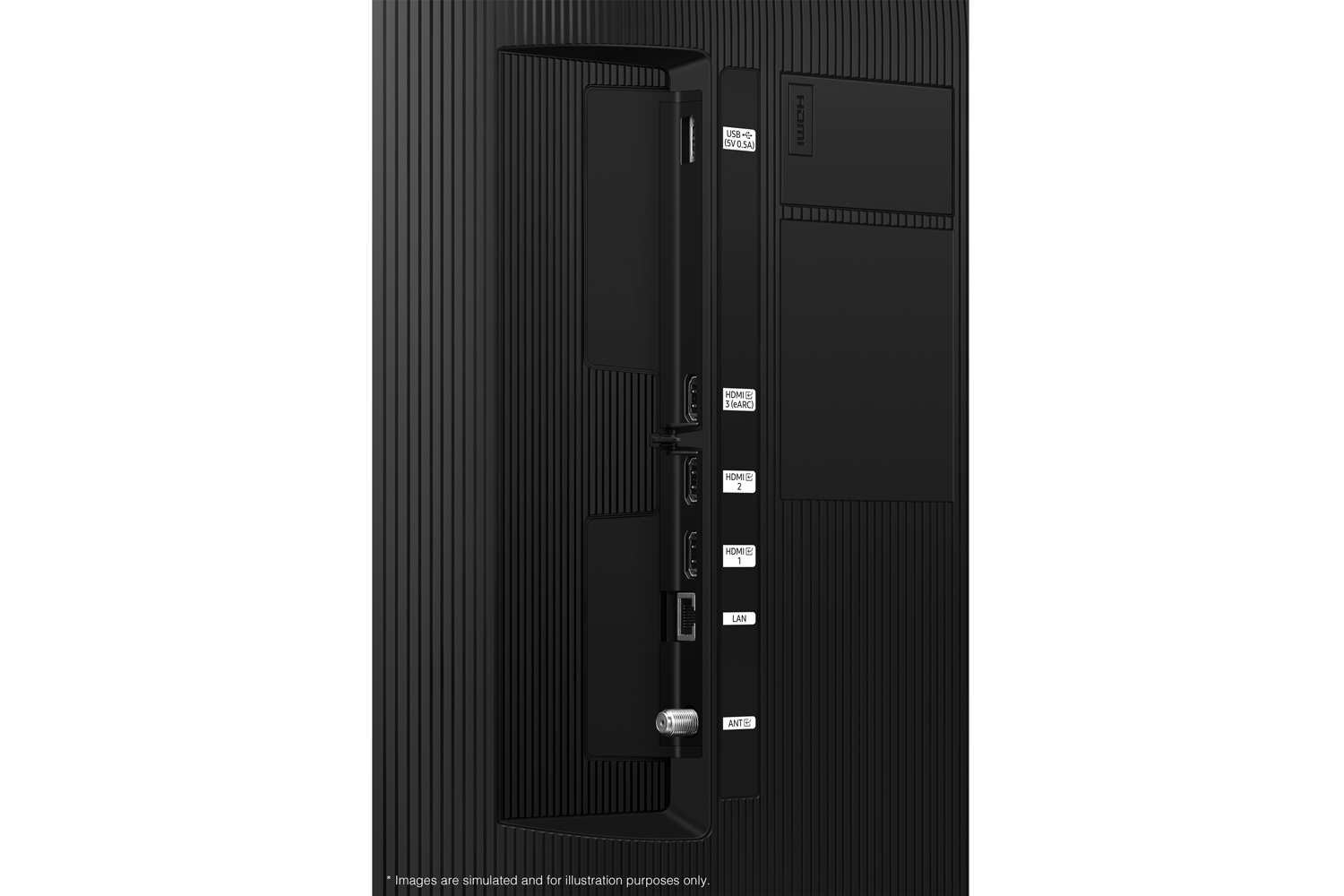
There is not a connection available on the DU7200 TV to connect corded headphones. You can connect Bluetooth headphones and turn off the TV speakers.
I hope this helps!
~Samsung Advisor
A:AnswerHi there,
You will not be able to record directly on this TV. You will need to use an OTA (over the air) DVR like one of these: https://www.bestbuy.com/site/searchpage.jsp?id=pcat17071&st=over+the+air+dvr
~Samsung Advisor
A:AnswerHi,
The DU7200 features 20-watt, 2-Channel audio with Dolby Digital Plus and Object Tracking Sound Lite (OTS Lite), giving you immersive 3D surround sound with strategically placed dynamic speakers that move the sound around you.
~Samsung Advisor
A:AnswerHi JR49,
Yes, you are correct! The DU7200 TV offers Dual Bluetooth Audio, allowing you to connect up to two pairs of Bluetooth audio devices.
~Samsung Advisor
A:AnswerHi,
To fix the brightness on the DU7200 TV, you will use your remote and go to Settings > All Settings> Picture > Expert Settings.
~Samsung Advisor
A:AnswerHI jabirdman,
Please try these troubleshooting steps for your blank screen issue:
1. Press the Home button on the remote.
If the menu appears, the TV is powered on but is either not on the correct source or not receiving a signal. If the menu does not appear, the TV may be having power issues.
Check the red standby light, a little red light at the edge of the TV that you aim the remote at. In normal use, the red standby light is on when the TV is off (indicating the TV is on standby), and the red standby light is off when the TV is in use (or doesn't have power).
2. Confirm that the TV is set to the same source as the external device.
For instance, if your cable box is connected to HDMI 1, set the TV source to HDMI 1.
If the TV is set to the correct source, but there is still no image, unplug and reconnect the AV connections one cable at a time from both ends of each cable. If there's any damage to the cable, it will need to be replaced.
After reconnecting the external device, please turn it off and back on.
3. Test the HDMI cable.
The test is designed for HDMI cords less than 6 feet long and may not give accurate results on longer cords.
To perform the test, make sure the TV's source is still on the HDMI setting for the cable you want to test, and then navigate to Settings > Support > Self Diagnosis > Signal Information > HDMI Cable Test > Start Test. If the test says the cable is bad, replace the cable. Service is not required.
4. Test different external devices.
The final thing to rule out is the external device you're using. Try connecting a different device or using a different source port.
If the TV can display a picture in any other setup, then you've ruled the TV out as the cause of the issue. Keep trying various setups until you identify the device or cable that is not working and troubleshoot or replace it.
The TV will need service if the issue persists after these steps. Please contact us so that we can better investigate your issue and assist you with a solution or replacement. You can contact us for further help at 1-800-SAMSUNG, 8 AM - 12 AM EST, seven days a week. Our LiveChat agents are also available by clicking on the ‘Support’ link on our website.
~Samsung Advisor
A:AnswerHi Matt,
This greatly depends on your environmental conditions. Be sure to contact an authorized Samsung service center for information if you intend to install your TV in a location with heavy dust, high or low temperatures, high humidity, etc. The operating temperature is between 50˚F to 104˚F. Operating humidity is between 10% - 80%. Storage temperature ranges between -4˚F to 103˚F. Conditions falling outside these ranges may lead to serious damage to your TV.
~Samsung Advisor