A:AnswerHi Deb - Please give us the opportunity to better assist with this by reaching Samsung Support at: 1-800-SAMSUNG, 8AM - 12AM EST, 7 days a week, or Chat with us on Samsung.com: https://www.samsung.com/us/support/contact/
~ Samsung Specialist
A:AnswerPlease give us the opportunity to better assist with this by reaching Samsung Support at: 1-800-SAMSUNG, 8AM - 12AM EST, 7 days a week, or Chat with us on Samsung.com: https://www.samsung.com/us/support/contact/
~ Samsung Specialist
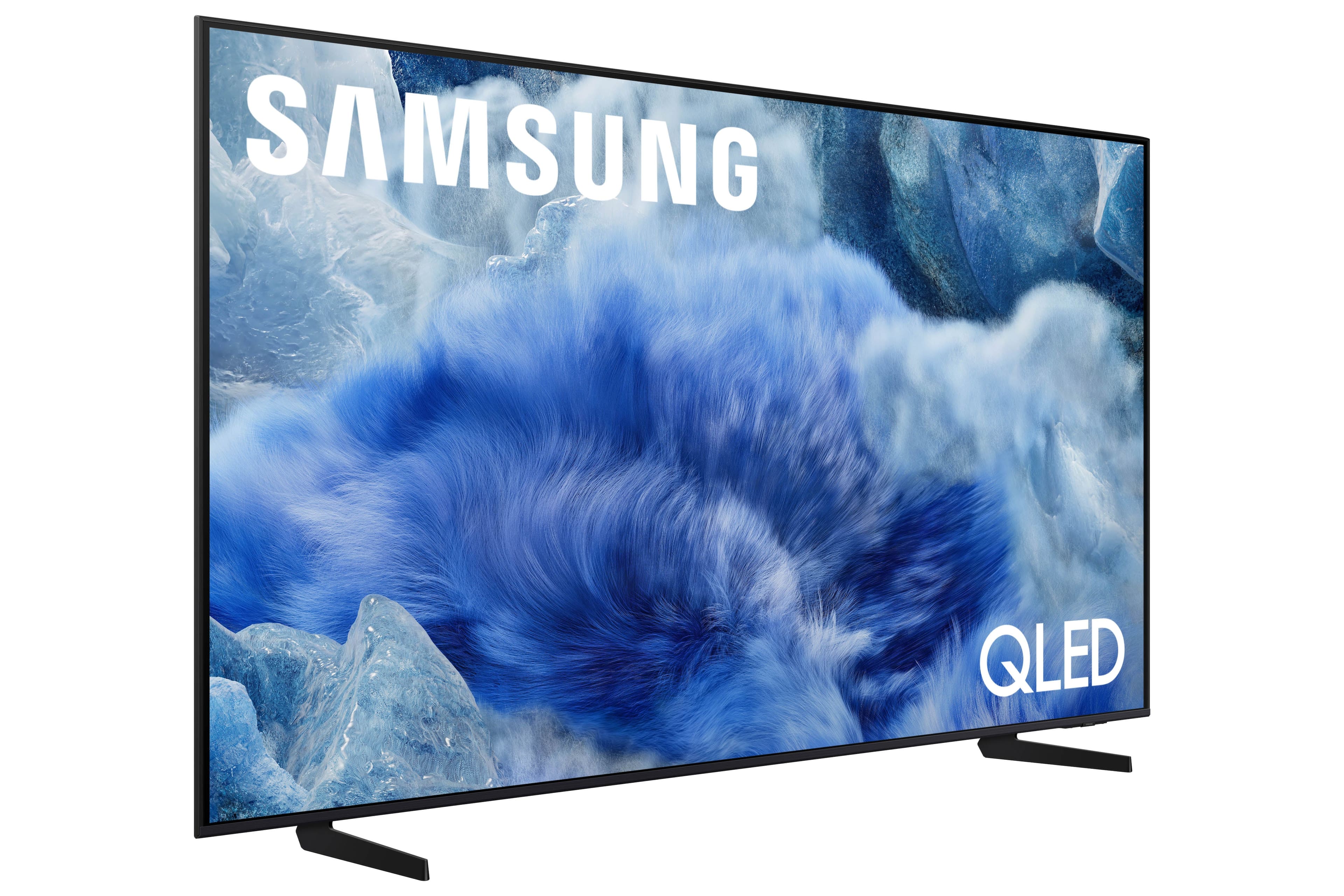
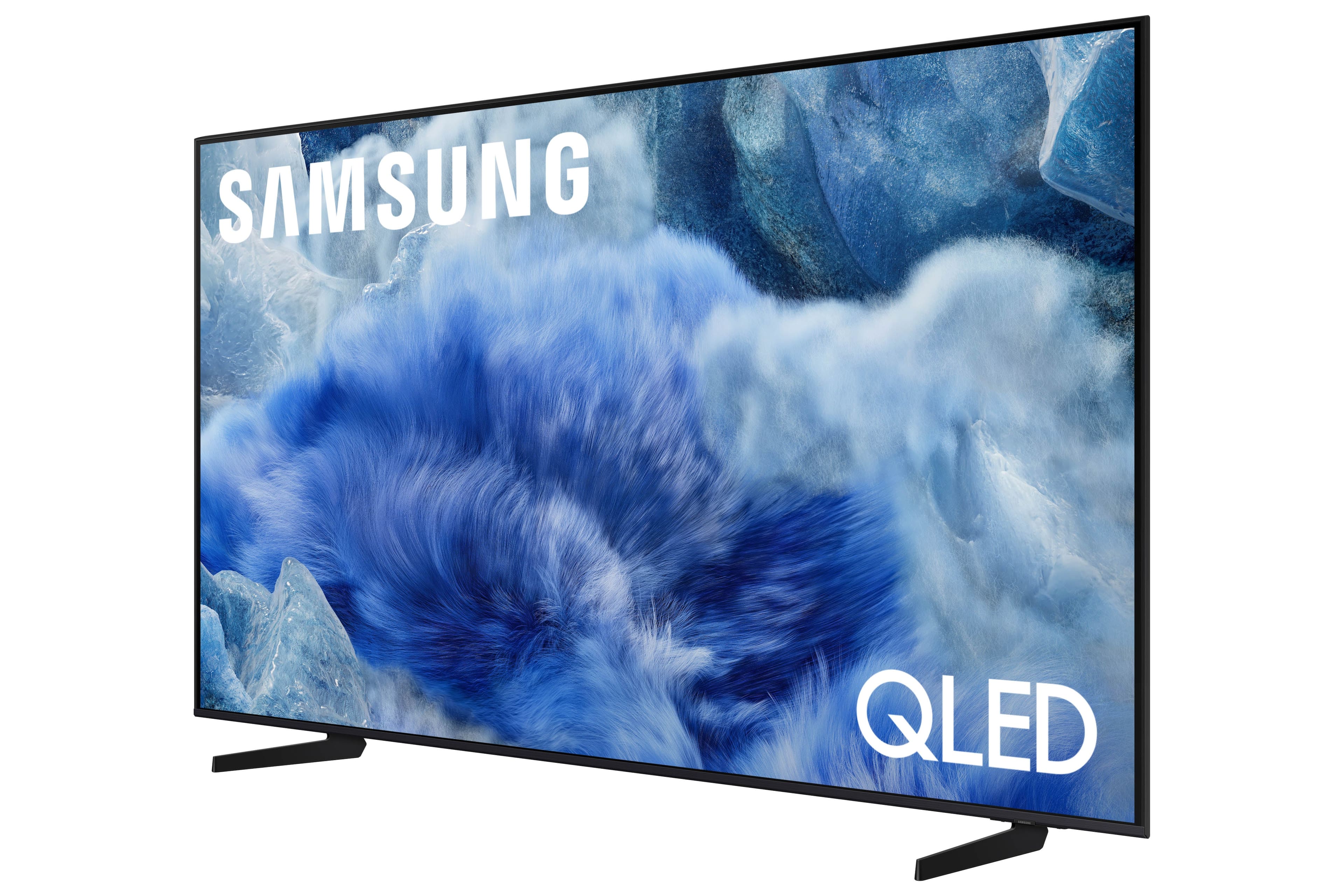
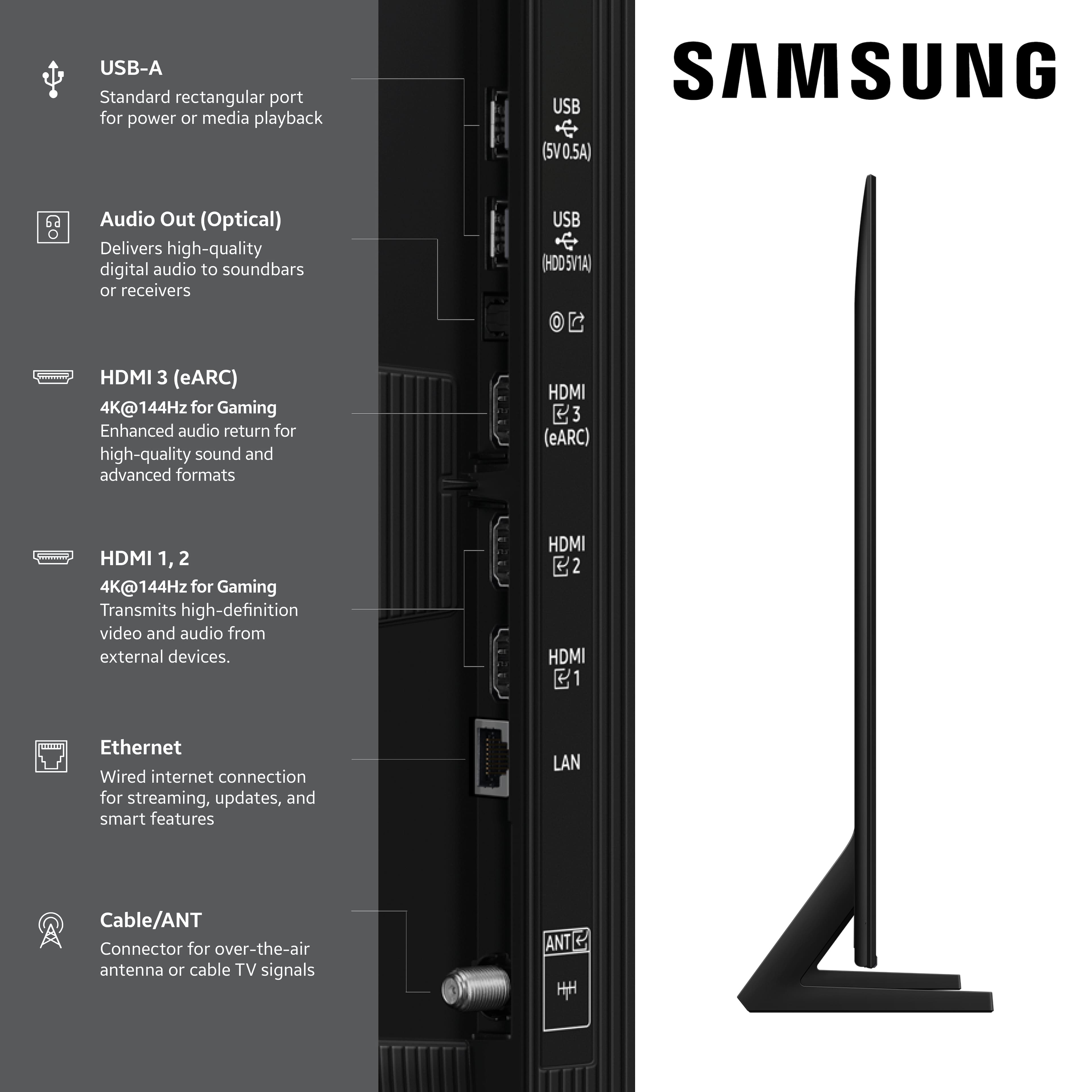
A:AnswerAll 4 HDMI ports on the 55" Q8F are capable of Auto Low Latency Mode (ALLM), Dynamic Metadata (HDR10+), Variable Refresh Rate (VRR), and 4K@120Hz (up to 144Hz for PCs). eARC support can further be found in HDMI port 3.
~ Samsung Specialist
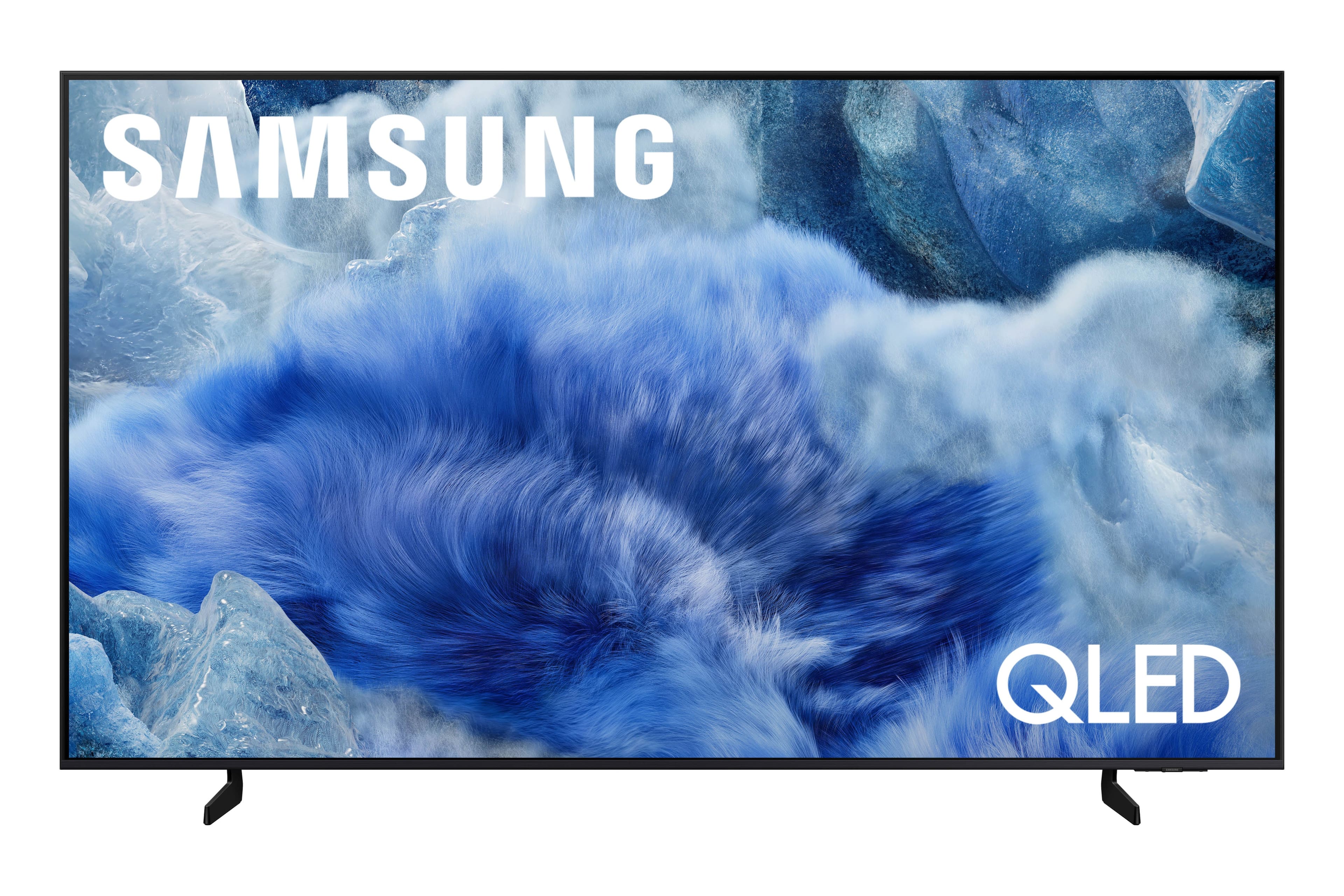
A:AnswerRuss - The Q8F offers Dual LED backlighting to deliver vivid images with improved contrast, off-axis viewing, and color accuracy. Starting with our QN70F Series, you gain Wide Viewing Angle, as well as Adaptive Picture technology to optimize your picture with a lighting system that automatically senses, reacts, and adjusts to the brightness of the space you're in. And beginning with our S85F OLED, you’ll get Ultra Viewing Angle with Anti-Reflection technology to provide you with wider viewing angles, enhanced color, and minimized glare to help you enjoy shows without distractions.
~ Samsung Specialist
A:AnswerPlease give us the opportunity to better assist with this by reaching Samsung Support at: 1-800-SAMSUNG, 8AM - 12AM EST, 7 days a week, or Chat with us on Samsung.com: https://www.samsung.com/us/support/contact/
~ Samsung Specialist
A:AnswerHi Tracy,
Features such as Relumino Mode begin with our QN80F Series and above: https://www.bestbuy.com/product/samsung-55-class-qn80f-series-neo-qled-mini-led-4k-uhd-samsungvision-ai-smart-tizen-tv-2025/J3ZYG2FHC9
~Samsung Advisor
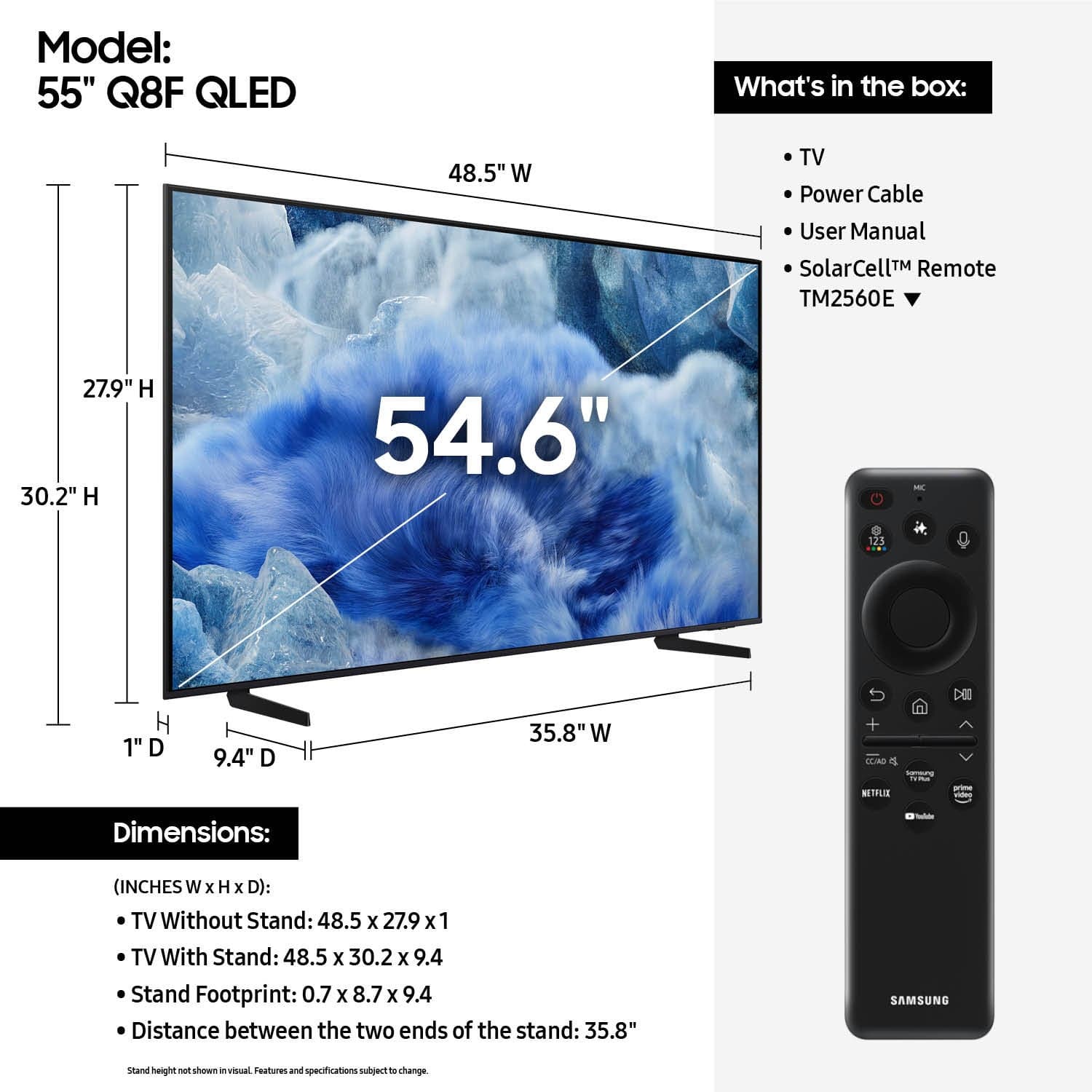
A:AnswerSnowynorth - You can find these measurements on this model’s product page – just click Specifications and scroll down to Box Dimension: https://www.bestbuy.com/product/samsung-55-class-q8f-series-qled-4k-uhd-samsungvision-ai-smart-tizen-tv-2025/J3ZYGXCFQT
~ Samsung Specialist
A:AnswerTo locate the storage amount available to be used for Apps, please follow these steps: Home > left directional key > Home > Apps > App Settings.
~ Samsung Specialist