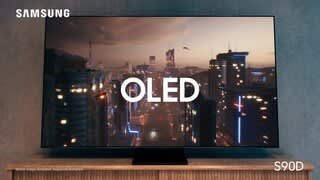
A:AnswerYes, a Bose CineMate sound bar would work with a Samsung S90D TV, most likely by using a digital optical cable connection.
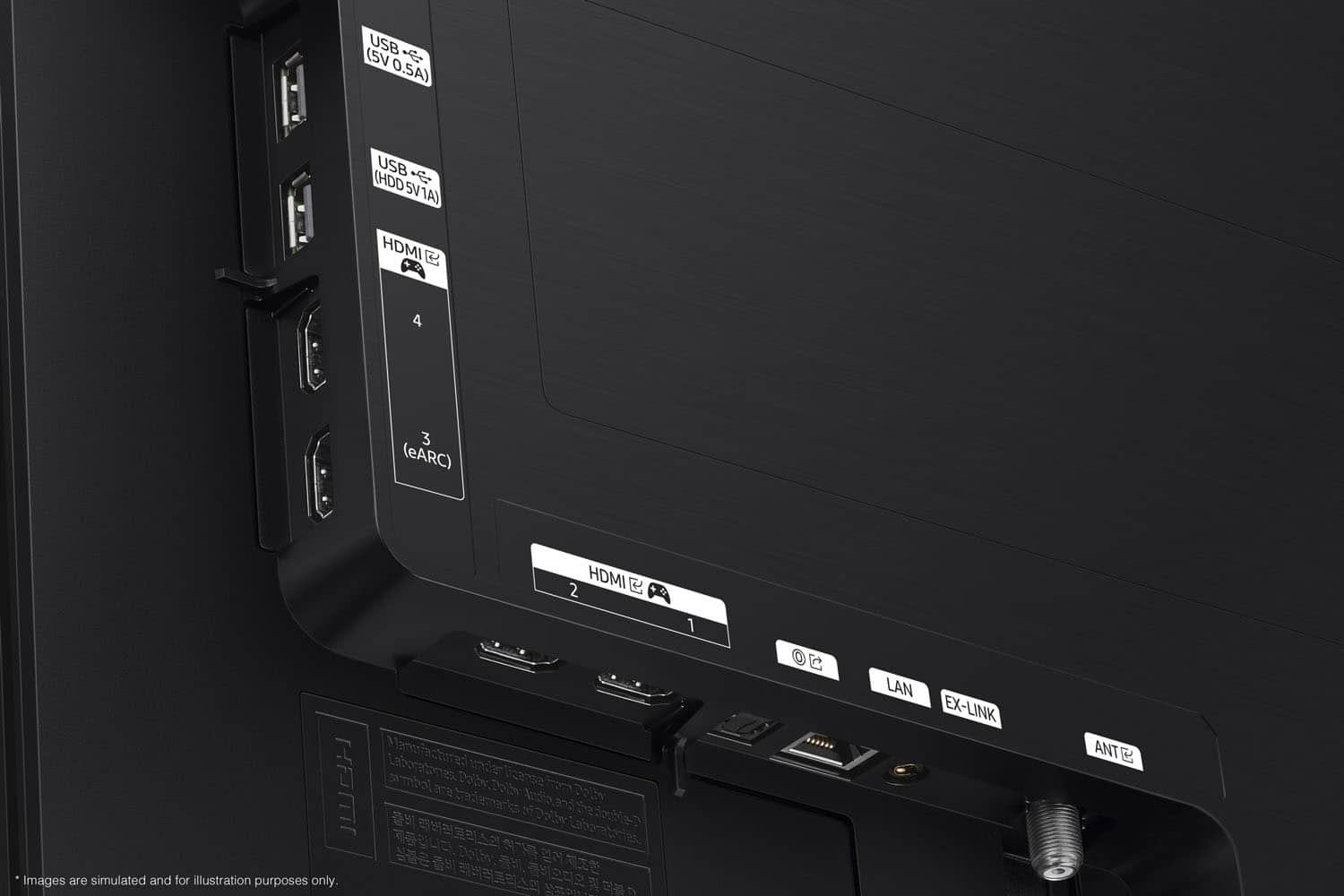
The Samsung S90D TV is a modern smart TV equipped with multiple audio output options, including HDMI eARC and a digital optical audio out port. Most Bose CineMate systems (which are often older models) feature a digital audio input (optical).
A:AnswerRufus - Please give us the opportunity to better assist with this by reaching Samsung Support at: 1-800-SAMSUNG, 8AM - 12AM EST, 7 days a week, or Chat with us on Samsung.com: https://www.samsung.com/us/support/contact/
~ Samsung Specialist
A:AnswerI have a TiVo Bolt over the air and the this TV works with it. My outdoor antenna is connected to the Tivo Bolt and then an HDMI cable from the Bolt to the TV.
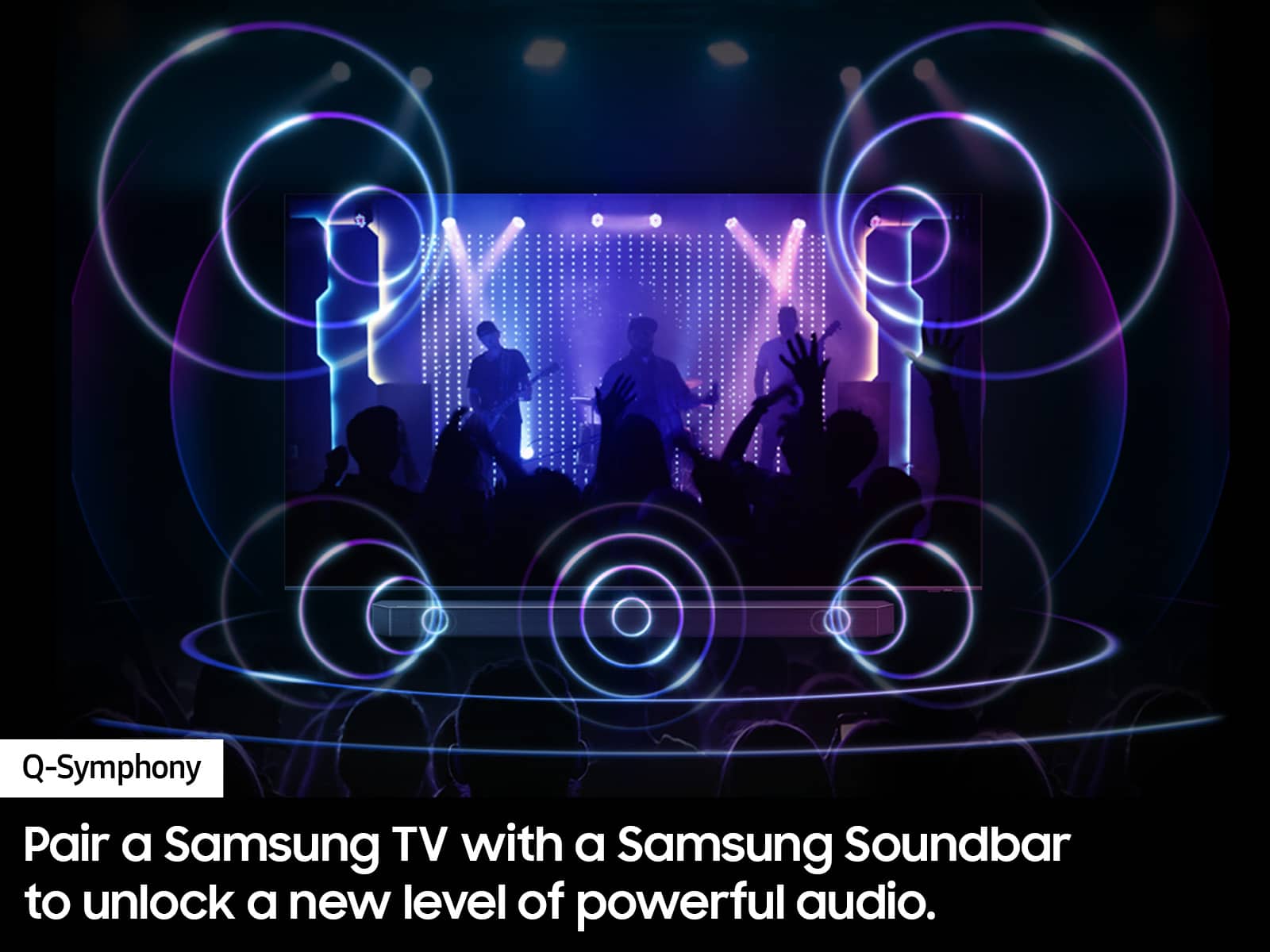
A:AnswerThe HW-S800D Soundbar would be a great addition to Samsung's S90D TV. With 330-Watt, 3.1.2 Channel audio, and Adaptive Sound, your audio is analyzed in real time to pull out the most important audio based on the type of content. And with Q-Symphony, our S-Series Soundbar will synchronize with the speakers of your TV for an immersive 3D sound experience.
~ Samsung Specialist
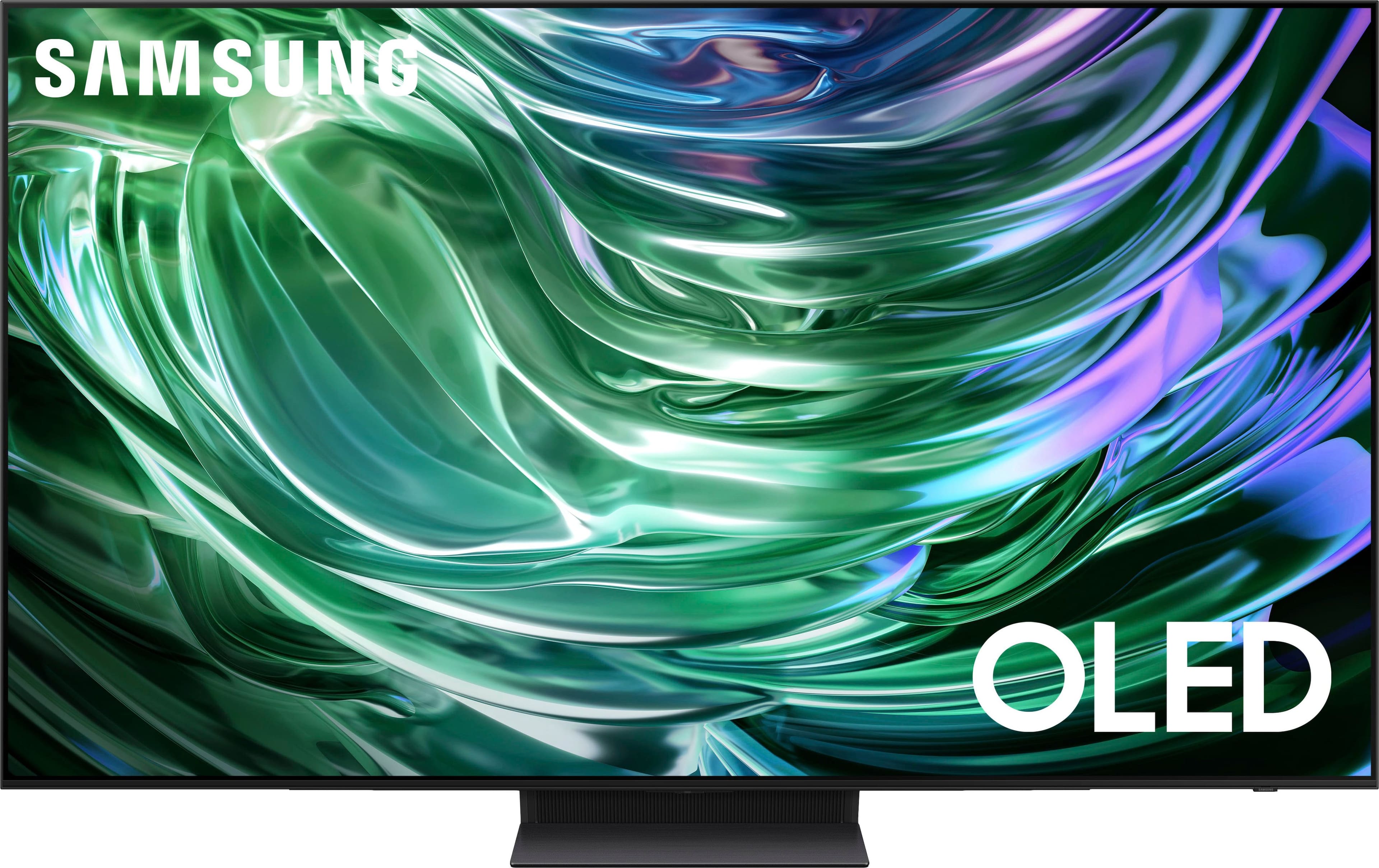
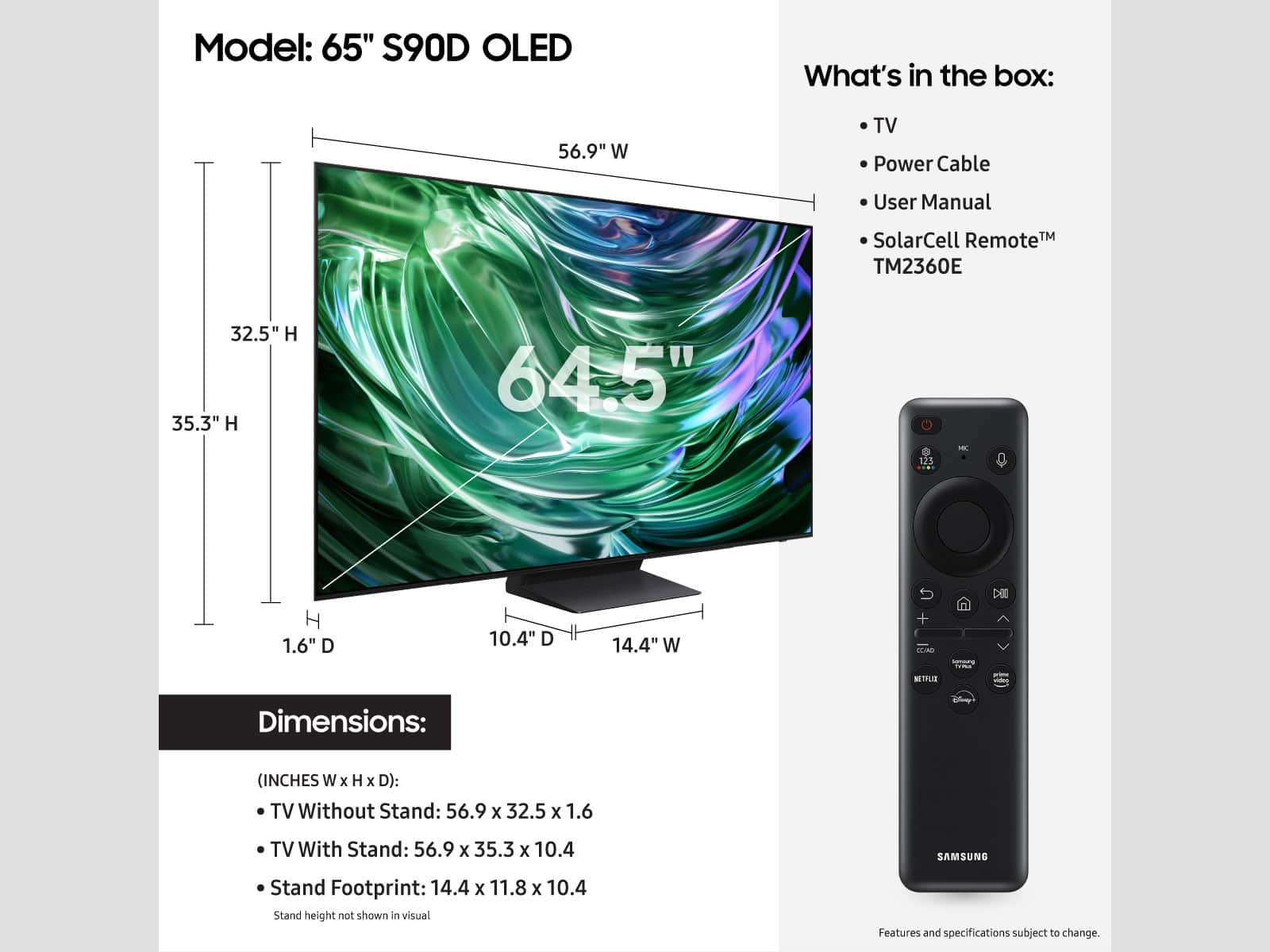
A:AnswerTerrie - You can find these measurements on this model’s product page – just click Specifications and scroll down to Dimensions: https://www.bestbuy.com/site/samsung-65-class-s90d-series-oled-4k-uhd-smart-tizen-tv-2024/6576598.p?skuId=6576598
~ Samsung Specialist

A:AnswerIceman - Please give us the opportunity to better assist with this by reaching Samsung Support at: 1-800-SAMSUNG, 8AM - 12AM EST, 7 days a week, or Chat with us on Samsung.com: https://www.samsung.com/us/support/contact/
~ Samsung Specialist
A:AnswerHi Tv,
If your TV has a black screen even when it's on, it's quite possible it could be your external device and not your TV. Please try these troubleshooting steps for your blank screen issue:
1. Check the One Connect cable for damage and solid connection. Disconnect and firmly reconnect the One Connect cable at both ends.
Note: If the One Connect cable is bent, broken, kinked, pinched, or has a heavy object on top of it, it can cause an issue. The cable needs to be replaced if damaged.
2. Disconnect the One Connect Box (either by disconnecting its power cord, or the One Connect cable) to see if the TV displays an error message.
If you see anything (like a message or picture) on the TV after disconnecting the One Connect Box, the One Connect Box needs to be replaced.
If the TV is plugged into a wall outlet, turned on, and disconnected from the One Connect Box, but no message appears, your TV will need service.
3. Press the Home button on the remote. If the menu does not appear, the TV may be having power issues.
Check the red standby light, a little red light at the edge of the TV that you aim the remote at. In normal use, the red standby light is on when the TV is off (indicating the TV is on standby), and the red standby light is off when the TV is in use (or doesn't have power).
4. Confirm the TV is set to the same source as the external device.
For instance, if your cable box is connected to HDMI 1, set the TV source to HDMI 1.
If the TV is set to the correct source, but there is still no image, unplug and reconnect the AV connections one cable at a time, from both ends of each cable. If there's any damage to the cable, it will need to be replaced.
After you've reconnected the external device, turn it off and then back on.
5. Run HDMI Troubleshooting. Using HDMI Troubleshooting, you can check the connection to HDMI cables and external devices (takes approximately 2 minutes). Menu > Connected Devices > Connection Guide > Video Device > HDMI Troubleshooting
6. Test different external devices. The final thing to rule out is the external device you're using. Try connecting a different device or using a different source port. If you were unable to test the cable in the previous step, then try swapping the cable, too. If the TV can display a picture in any other setup, then you've ruled the TV out as the cause of the issue. Keep trying various setups until you identify the device or cable that is not working and troubleshoot or replace it.
If the issue persists after these steps, the TV may need service. So we can better investigate your issue and assist you towards a solution or replacement, please call us at 1-800-SAMSUNG, 8AM - 12AM EST, 7 days a week.

~Samsung Advisor
A:AnswerSunspa - You can find these measurements on this model’s product page – just click Specifications and scroll down to Dimensions: https://www.bestbuy.com/site/samsung-65-class-s90d-series-oled-4k-uhd-smart-tizen-tv-2024/6576598.p?skuId=6576598

~ Samsung Specialist