A:AnswerHi Jean,
The CU7000 TV is backed by a 1-year limited manufacturer's warranty, including authorized repair for manufacturer defect, if purchased brand-new directly from an authorized seller. You can see the full details of your warranty here: https://www.samsung.com/us/support/service/warranty/UN75CU7000FXZA
~Samsung Advisor
A:AnswerHi there,
You have a few options:
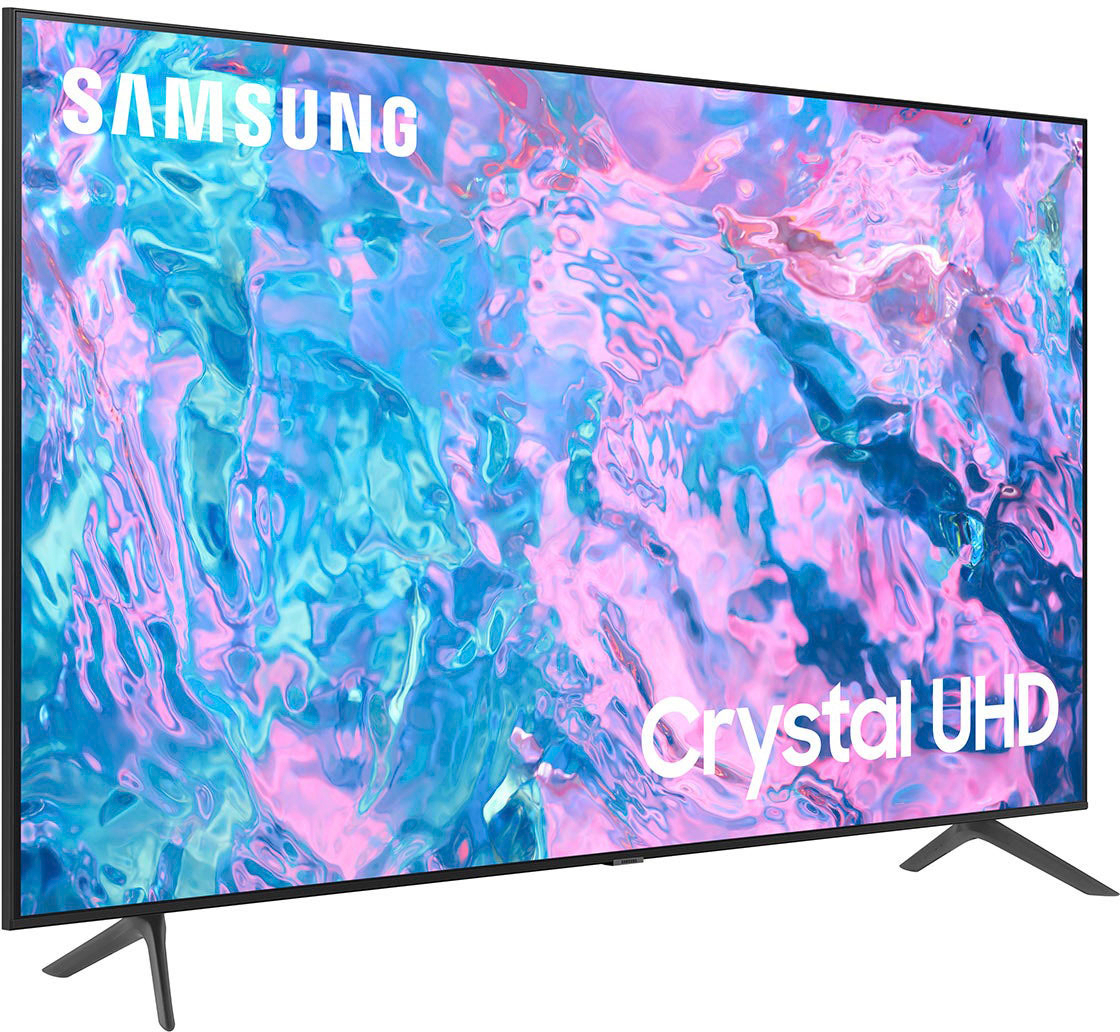
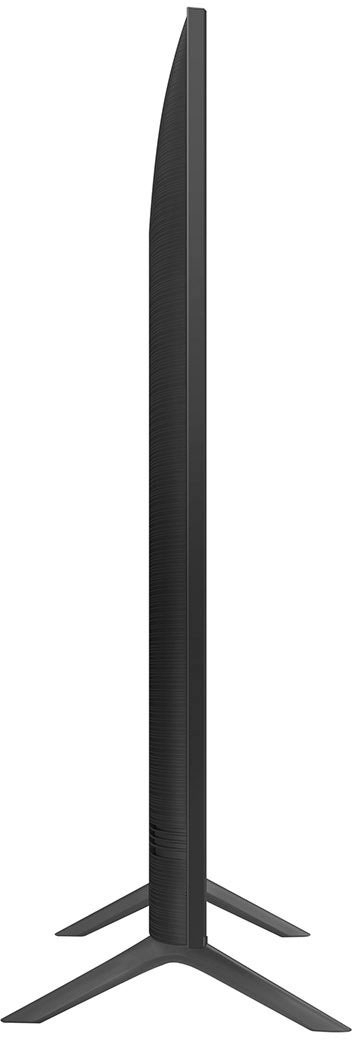
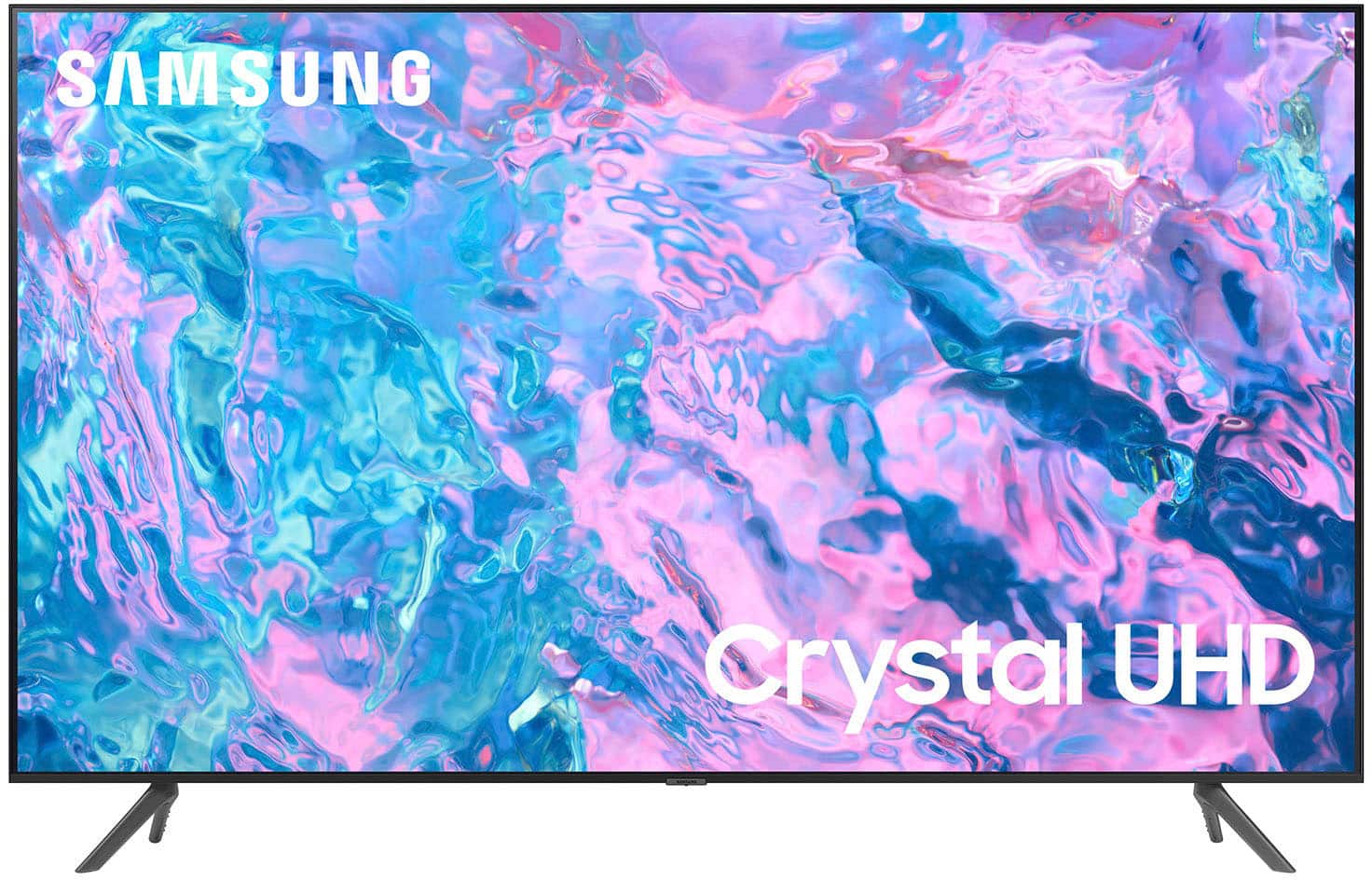
The 70" CU7000 TV stand is 53.4" apart. However, that may be cutting it close with a 54" stand.
You could upgrade to the 85" CU8000, and the feet are adjustable at widths of 56.2 &
44.5in.
Or you can go with the 65" CU7000 TV, which has feet that are 46.7" apart.
I hope this helps!
~Samsung Advisor
A:AnswerHi Mel,
So that we can better understand your question, please reach out to Samsung Support at 1-800-SAMSUNG, 8 AM – 12 AM EST, 7 days a week, or Chat with us on Samsung.com: https://www.samsung.com/us/support/contact/
~ Samsung Advisor
A:AnswerHi Mercy,
So that we can better understand and assist with this, please reach out to Samsung Support at 1-800-SAMSUNG, 8 AM – 12 AM EST, 7 days a week, or Chat with us on Samsung.com: https://www.samsung.com/us/support/contact/
~ Samsung Advisor
A:AnswerHi Muks,
Please ensure you are running the latest Firmware Update. Go to Settings> Support> Software Update. Next, let's try running a cold boot on your TV. To do so, hold down the Power button on the Samsung TV remote until the TV turns off and then on again. This should take about 5 seconds.
If you continue to have issues, please call us at 1-800-SAMSUNG, 8 AM - 12 AM EST, seven days a week. LiveChat with an agent, as well as manuals, software, and warranty info, can be found at the ‘Support’ link on our Samsung website.
~ Samsung Advisor
A:AnswerHi GeminiQueen,
If the colors on your TV are correct but just a little too dark or bright, you can try adjusting Picture Modes, Contrast, Brightness, or Sharpness settings.
For darker scenes, I recommend Dynamic Picture Mode, which makes pictures brighter and clearer in bright viewing environments. Go to Settings > All Settings> Picture > Picture Mode > Dynamic.
Or you can manually adjust the Brightness by pressing the HOME button on your remote, then navigating to Settings > All Settings> Picture > Expert Settings.
You may also want to disable Power Saving Mode, which automatically adjusts the brightness to reduce the TV’s power consumption. Go to Settings > All Settings> General > Eco Solution> Power Saving Mode.
~Samsung Advisor
A:AnswerHi steve,
For more information on installation services, please contact your local Best Buy or visit
https://www.bestbuy.com/site/tv-home-theater-services/tv-mounting-packages/pcmcat748300648009.c?id=pcmcat748300648009#1
~Samsung Advisor