A:AnswerHi GreenTeaDrinker,
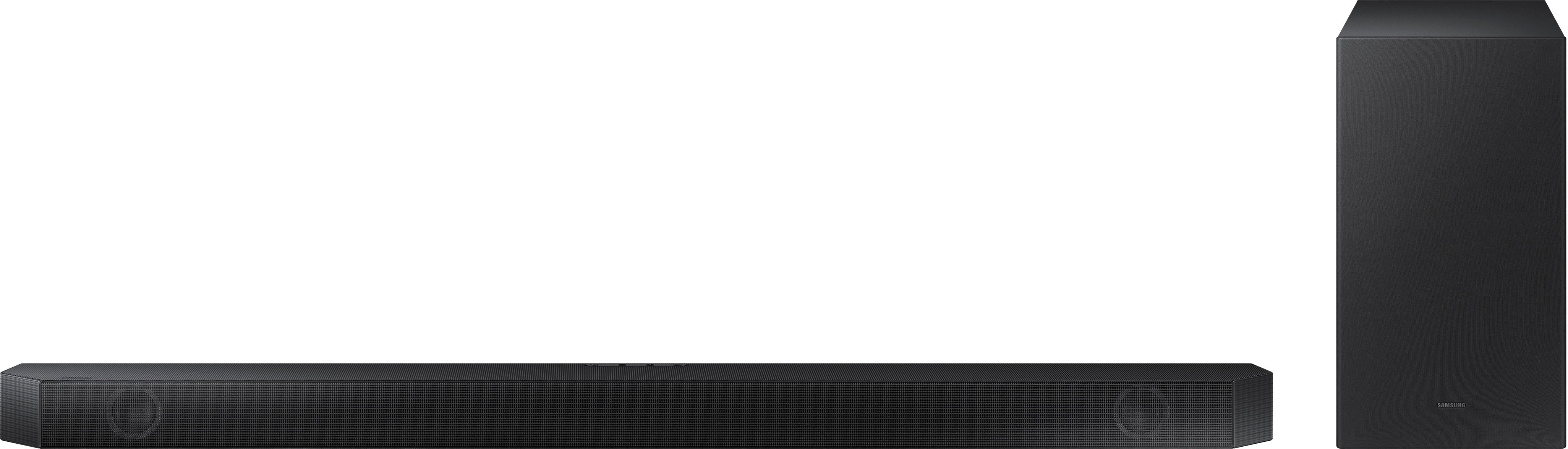
The HW-Q600B Soundbar has a digital LED display on the front right side of the soundbar which shows you the volume level, what input you are on, and when you change any settings as well. This will go off after a few seconds when not in use.
~Samsung Solutions
A:AnswerHi There,
Sometimes there are new firmware updates after the product has been manufactured but before you take it home form a store or have it shipped to you.
^Andrew
A:AnswerHi Chaslet,
Select SYNC by pressing the SOUND CONTROL button (which looks like a gear). Then set the audio delay between 0~300 milliseconds by using the Up/Down buttons to correct any delays you are experiencing.
If you are using a Samsung TV from 2020, 2021, 2022, or 2023 then it will have a feature called Audio Pass-Through. You can utilize this feature on your Samsung TV to correct your audio-sync issue.
On your TV go to: Settings > Audio > Expert Settings > Digital Audio Output Format > Pass-Through.
~Samsung Solutions
A:AnswerHi Seaqueen75,
For step-by-step troubleshooting, please call Samsung Customer Support at 1-800-SAMSUNG (ask for Soundbars), available 8 AM – 12 AM EST, 7 days a week.
LiveChat with an agent by clicking the ‘Support’ link on the Samsung website.
~Samsung Solutions
A:AnswerNo the type of TV you have will govern whether or not you can use Alexa to control your devices. My Samsung TV is compatible with Alexa so I can have Alexa turn the TV and aatched soundbar off and on.
A:AnswerHello Jose,
First, try doing a soft reset, unplug the soundbar from the outlet for roughly 30 seconds and then plug it back in.
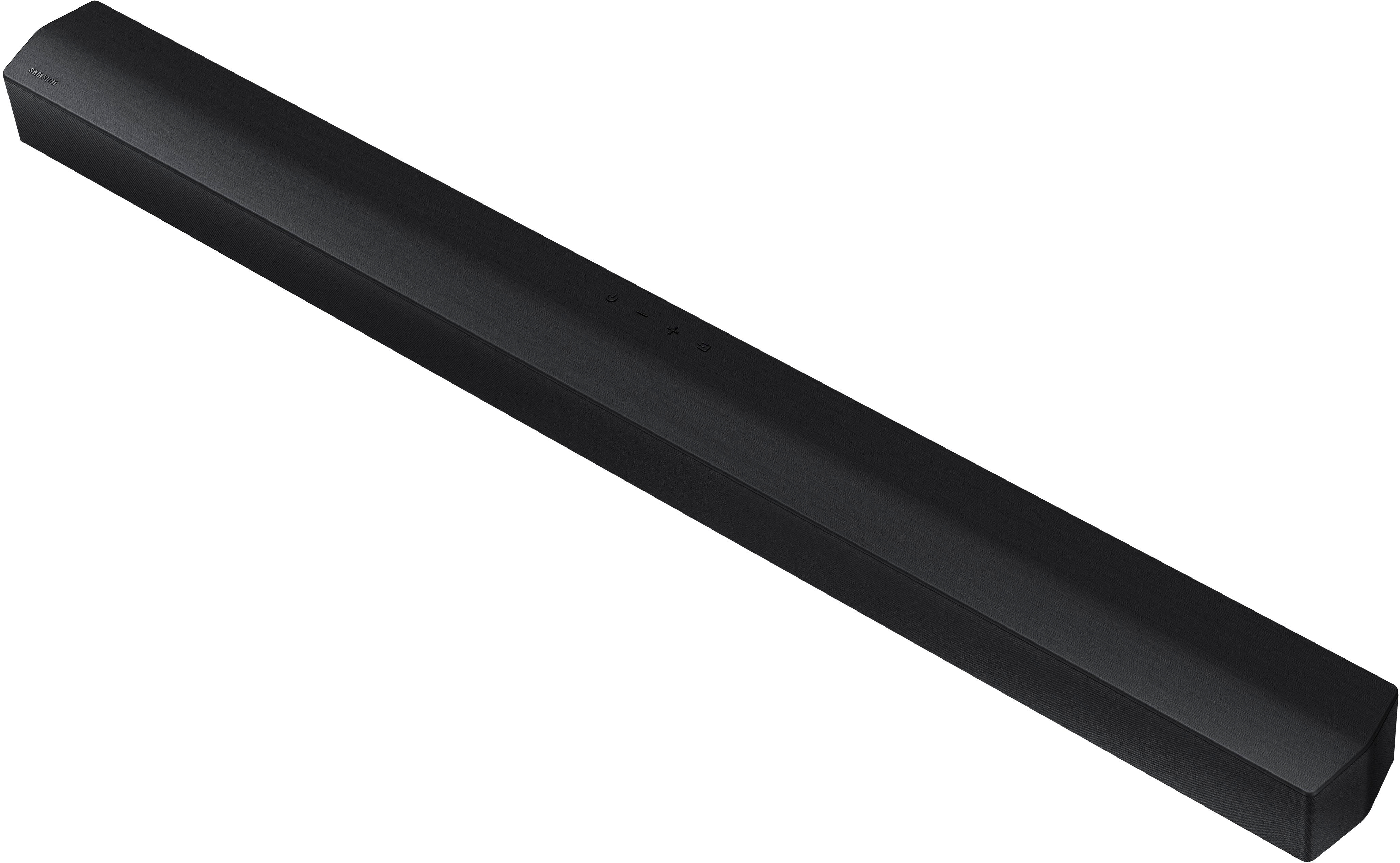
Next, with the Soundbar on, press the + & - (Volume UP/DOWN) buttons on the body at the same time for at least 5 seconds. “INIT OK” appears on the display and then the Soundbar is reset.
If you are still having issues with your Soundbar, please call us at 1-800-SAMSUNG (ask for Soundbars), available 8 AM – 12 AM EST, 7 days a week.
LiveChat with an agent by clicking the ‘Support’ link on the Samsung website.
~Samsung Solutions
A:AnswerHi Andy,
Follow the steps below on setting up your TV remote when using your Soundbar on Optical.
1) Use the TV remote to navigate to Settings, select Sound, and then select Sound Output on your Samsung TV.
2) Select your Samsung soundbar, and then select Close. Now you can use your TV remote to adjust volume and mute the soundbar. The soundbar should also turn on and off with the TV.
Other manufacturers’ remotes may have to be enabled on your soundbar. First, turn Off the Soundbar. Once powered off, push up and hold the WOOFER button for 5 seconds. Each time you push the WOOFER button up and hold it for 5 seconds, the mode switches in the following order: “OFF-TV REMOTE” (Default mode), “SAMSUNG-TV REMOTE”, “ALL-TV REMOTE”. Please also make sure your speaker settings on the TV are set to External Speaker.
I would also check to make sure that your Soundbar is up to date. You can download the firmware directly from Samsung’s website by clicking “Support” in the top right corner. Then go to “Manuals & Software” > “TVs & Home Theater” > “Home Theater” > “Sound Bars”. From there, you can select the HW-Q600B under Q Series.
Download the update and install it via USB thumb stick to your soundbar. If you need additional help, there are how-to instructions on this page. Please know that Samsung Customer Service is here to assist as well.
If your problem persists then try a hard reset. With the Soundbar on, press the + & - (Volume UP/DOWN) buttons on the body at the same time for at least 5 seconds. “INIT OK” appears on the display and then the Soundbar is reset.