A:Answerjkay,
It all has to do with vertical screen resolution - the more lines, the clearer the image on the screen will be. The size of the screen also matters. When you put 1080 lines on a 32 inch screen versus a 65 inch screen, the lines will be closer or thinner on the smaller screen, and the image will appear much clearer on the small screen when viewing both from the same point. Larger screens with the highest amount of lines are best when viewing across a large room and a 32 inch screen is typically best for small rooms.
Get a tv with the most lines, 4K is becoming the standard and offers the best image quality at present time.
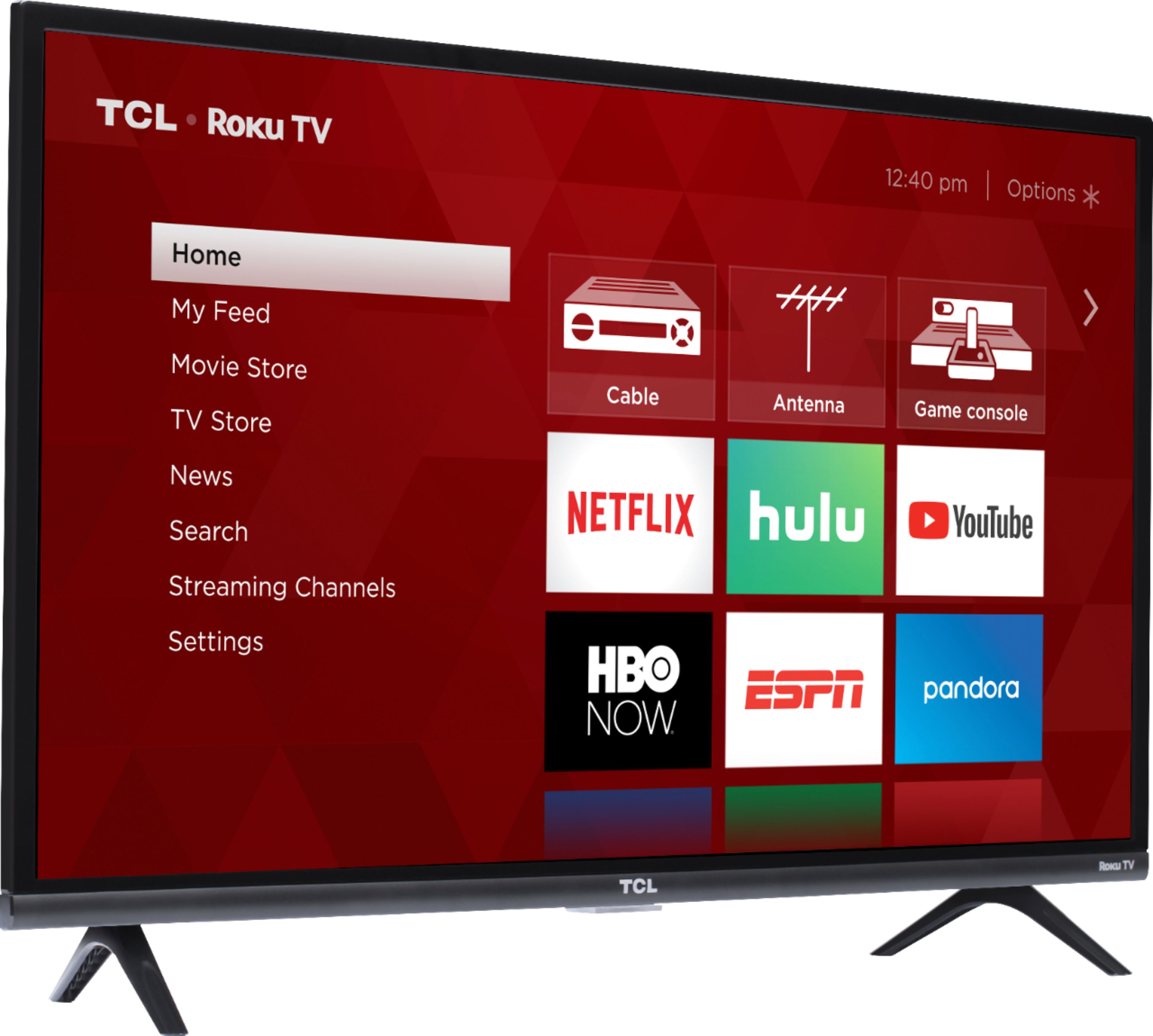
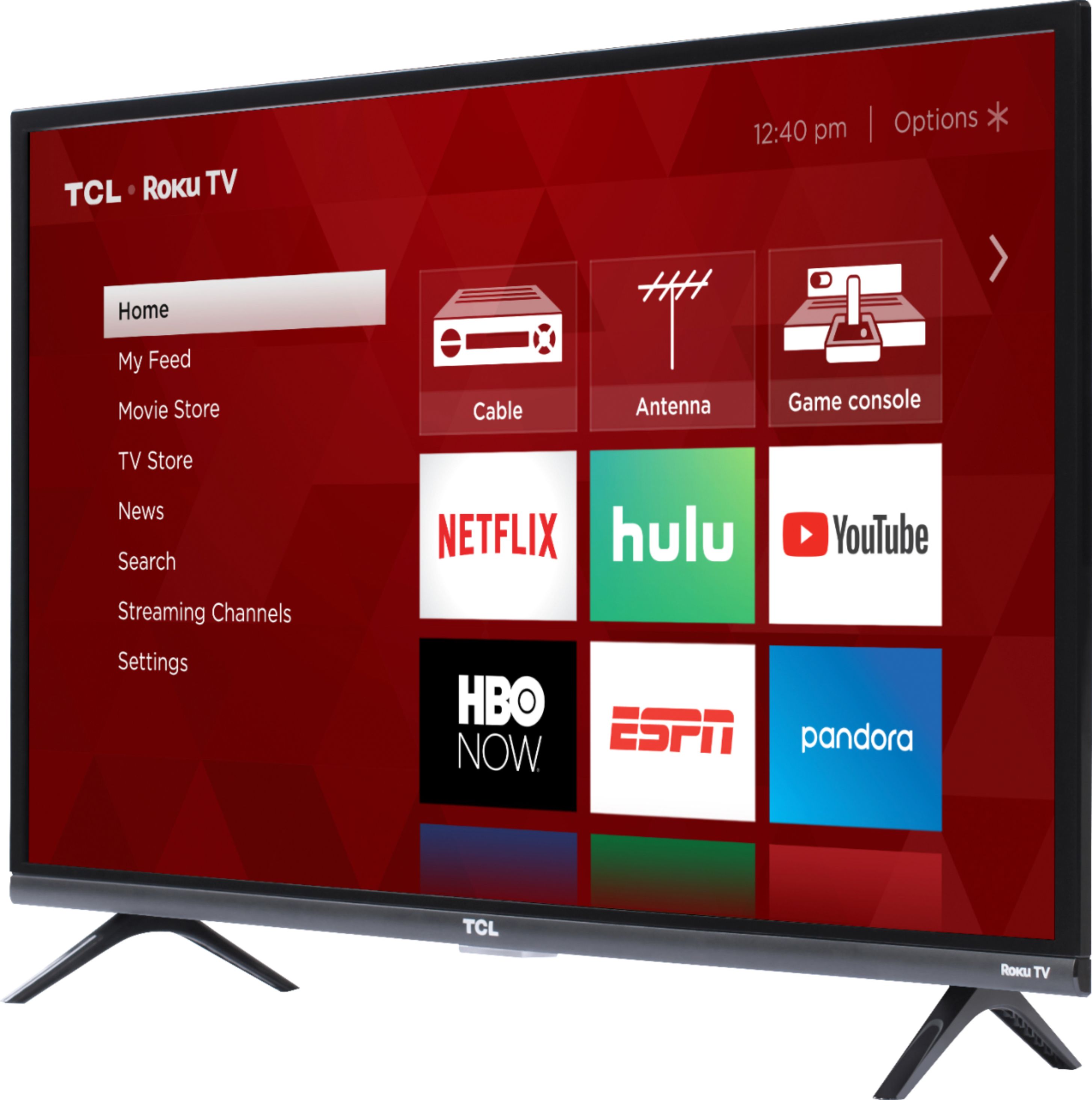
A:AnswerIn order to use the smart features of this TCL Roku TV, you would need to complete the guided setup. This includes connecting to the Internet via WiFi, creating or signing into a Roku account (completely free), and activating the TV (completely free). However, if you just want to use this TV as a traditional TV by connecting external devices through the various inputs and not use the smart features, you can elect to not connect this TV to the Internet at start up. Hope this helps! Thank you, TCL Customer Support
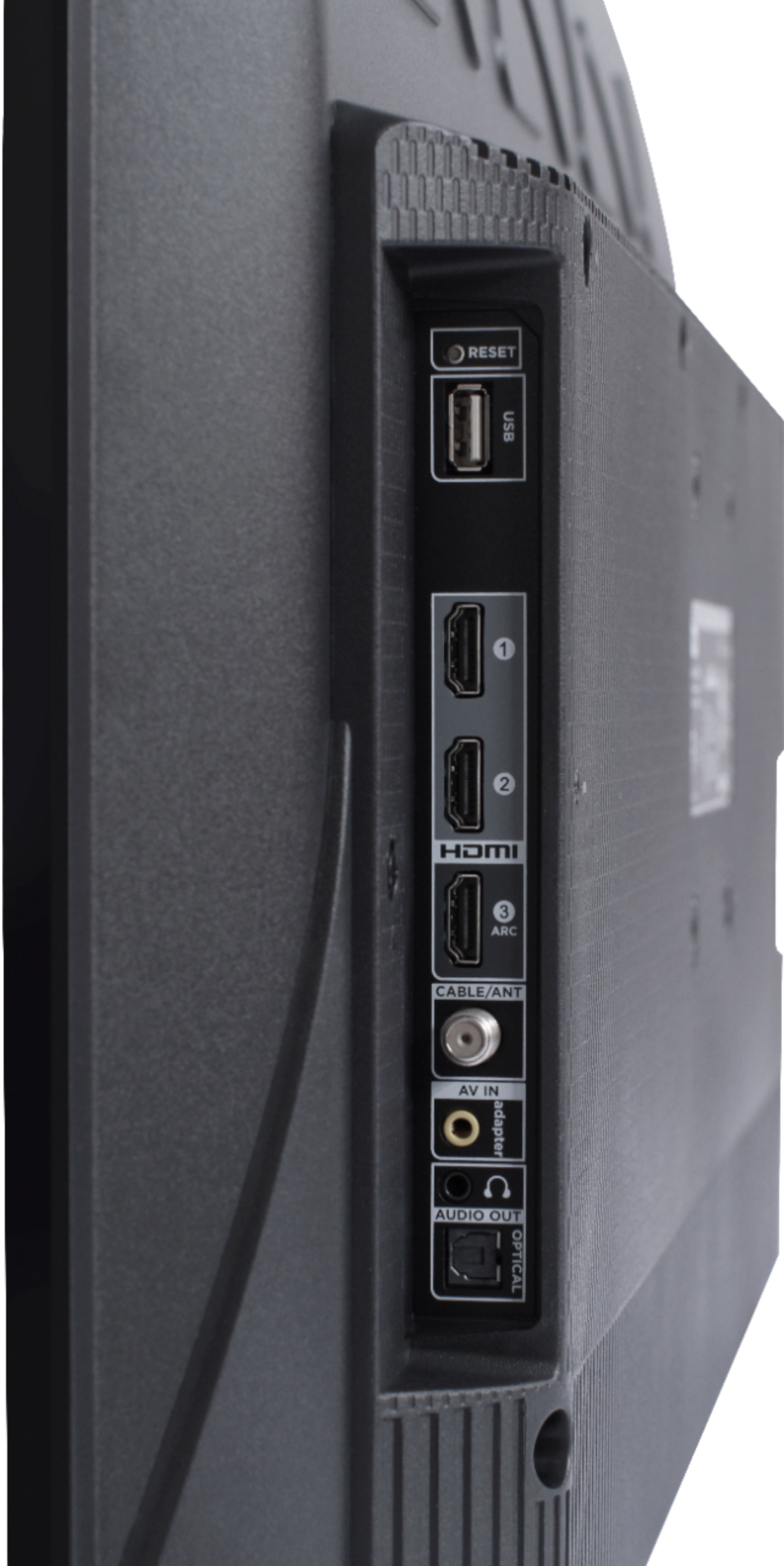
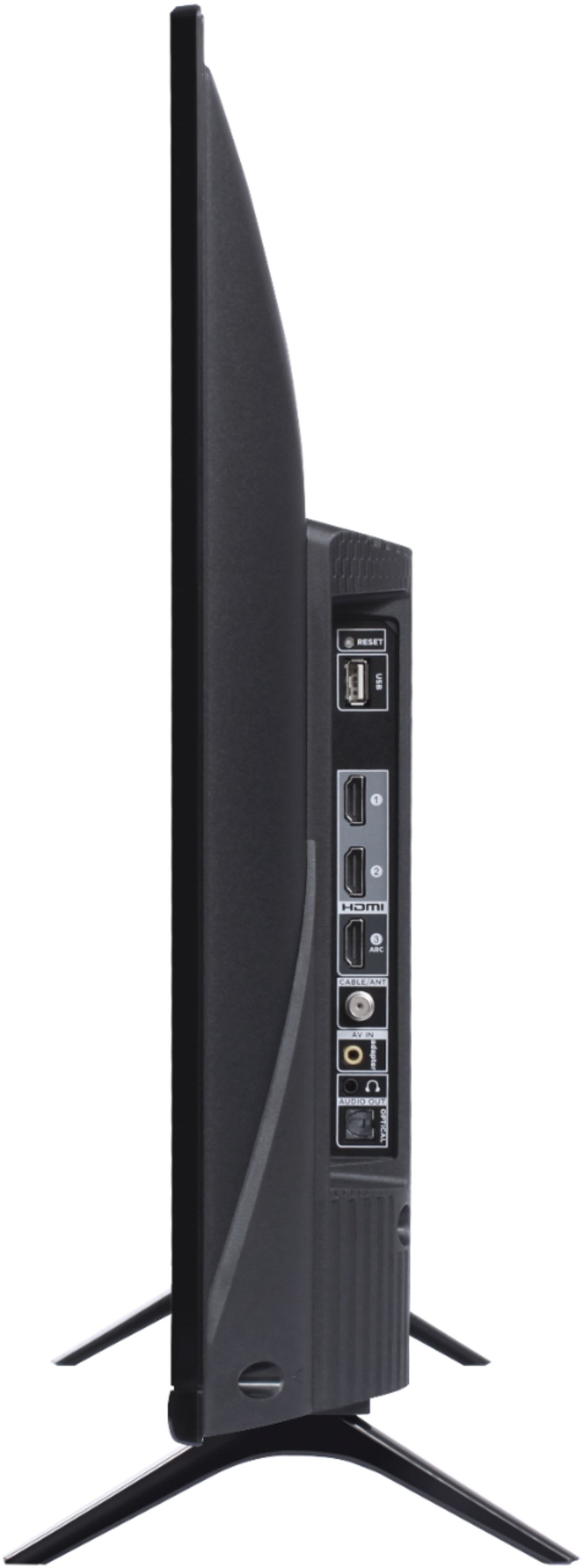
A:AnswerYes. We have ours set up with an HDMI cable to a laptop and it displays clearly as the main monitor. We are also using a wireless keyboard/mouse so allows the laptop remains closed and actually fits under the tv and is out of the way... pretty slick setup.
A:AnswerTo access the smart features you must connect your TV to the Internet, create a Roku account, and activate your TV. Creating a Roku account and activating your TV is completely free. There is no subscription fee to use the Roku operating system. Thank you, TCL Customer Support
A:AnswerYou can download the free Roku app on your smart phone or tablet to use voice search, voice control, and experience private listening. To enjoy private listening you simply click private listening in the app, and attach headphones to your smart phone or tablet. Or you can use the 3.5 mm headphone jack in the back of the TV to connect standard headphones/Bluetooth headphones with a transmitter. Hope this helps. Thank you, TCL Customer Support
A:AnswerIf you’ve had a Roku device previously and you have a Roku Account, once you begin the setup, the apps you have loaded on a previous Roku device will automatically load to the new Roku device. I would recommend creating a Roku account.
A:AnswerI experienced this as well. Prime Video recently did an update to the application, but unfortunately the update didn't take for installed versions of the app. So here's how you fix it:
1) Highlight the Prime Video app on your TCL TV
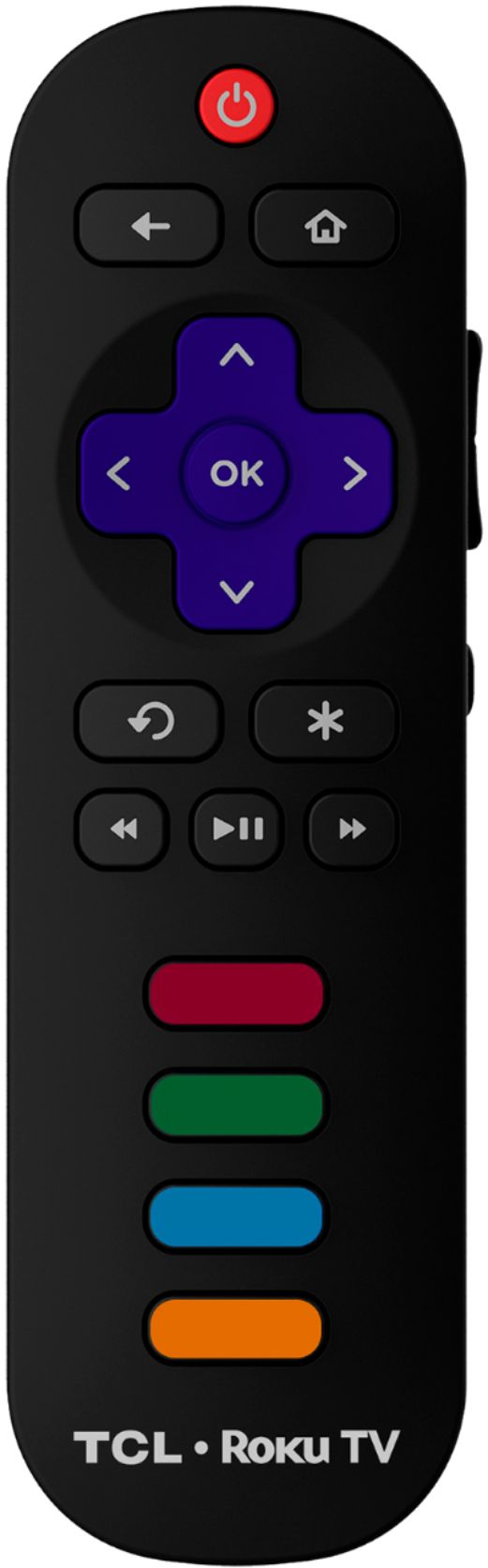
2) Press the * button on your remote
3) Choose to Uninstall the app
4) Go back to the Channel store and reinstall.
5) You should be good to go from there! Best of luck!
A:AnswerNo; TCL has 1, 3, 4, 5 & 6 series displays, with 1 being the most basic (720p), 3 being a "smart" display & 1080p, and 4-6 being 4K, and nicer picture and features as it goes up.
That said; this is a 32" display. I really wouldn't benefit from anything "better." It's a good display for the size.
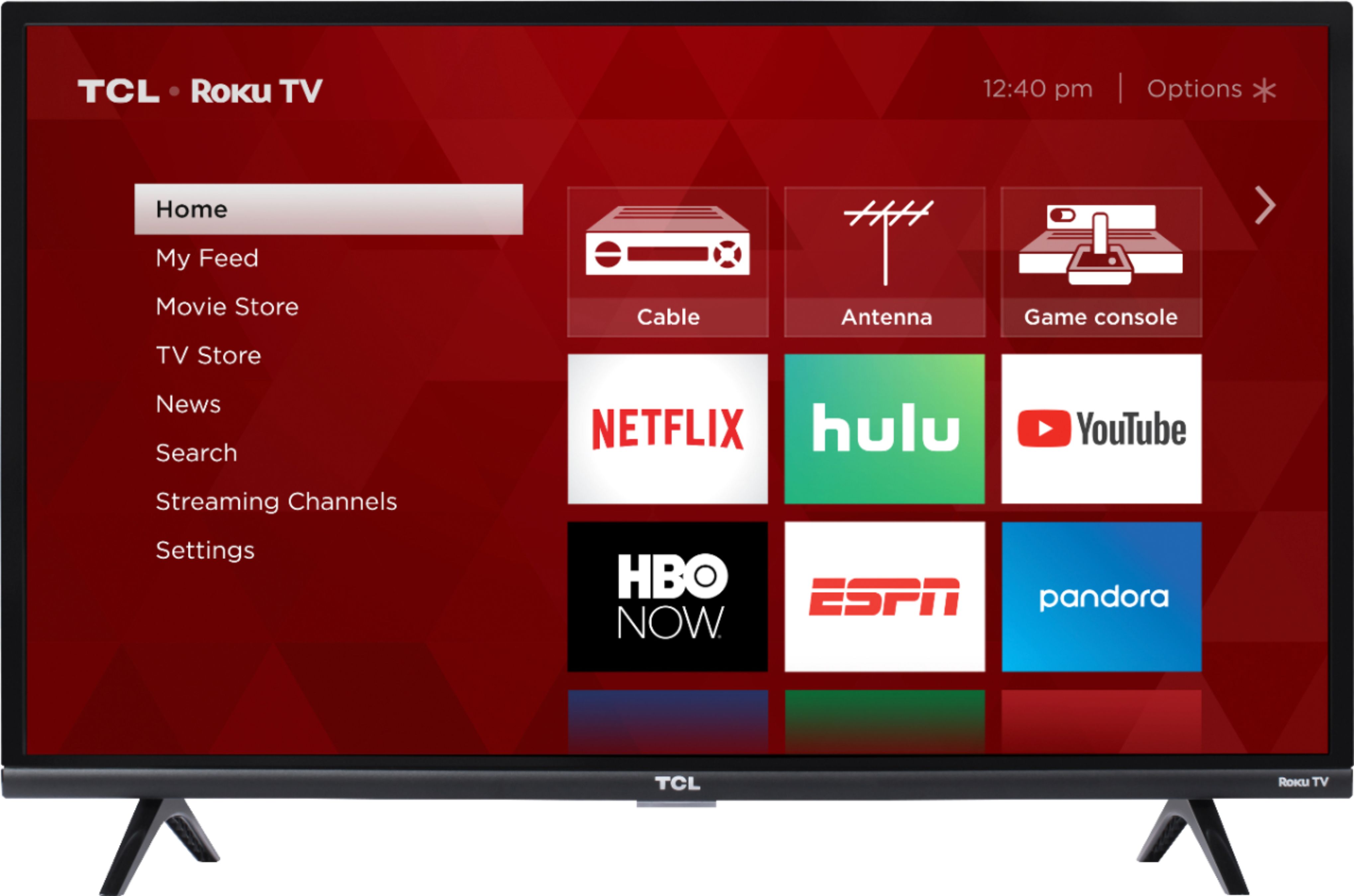
A:AnswerRoku connects to your WiFi and you use apps to watch tv. Some are free, some not. It also works as a regular TV. The tuner should, like any TV, connect into the back of it. The TV has an app box to select what source you want, so literally you click that and you’re on the antenna, and can easily switch back to Roku. It’s very easy to set up, and the instructions are straight forward and easy to understand. I’d recommend this tv.
A:AnswerIn order to do this you would go to Home>Settings>System>Power>Power on>Select the HDMI port that you would like your TV to power on to. Hope this helps! Thank you, TCL Customer Support
A:AnswerConnecting external devices, like a cable box, does not alter how you access the smart features and streaming channels on your TV. You would simply need to go to the Home screen on your TV by pressing the Home button on the remote, and navigate to the input or streaming channel/app that you want to use. Hope this helps! Thank you, TCL Customer Support
A:AnswerAbsolutely! Our TCL Roku TVs have access to Roku's streaming channel store. You would simply need to download the Spectrum streaming channel from the channel store. Thank you, TCL Customer Support
A:AnswerYou can download the free Roku app on your smart phone or tablet to use voice search, voice control, and experience private listening. To enjoy private listening you simply click private listening in the app, and attach headphones to your smart phone or tablet. Or you can use the 3.5 mm headphone jack in the back of the TV to connect standard headphones/Bluetooth headphones with a transmitter. Hope this helps! Thank you, TCL Customer Support