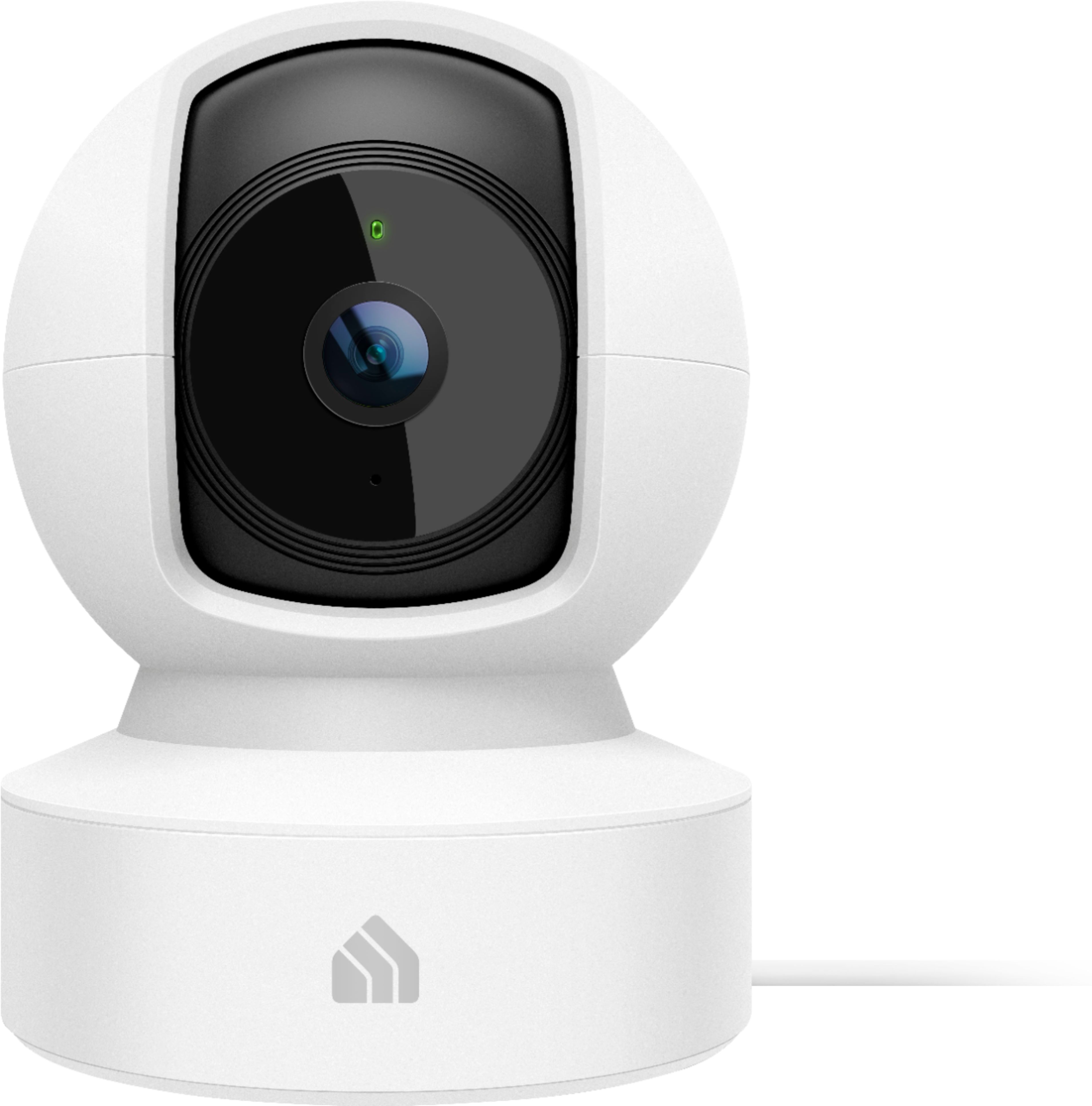
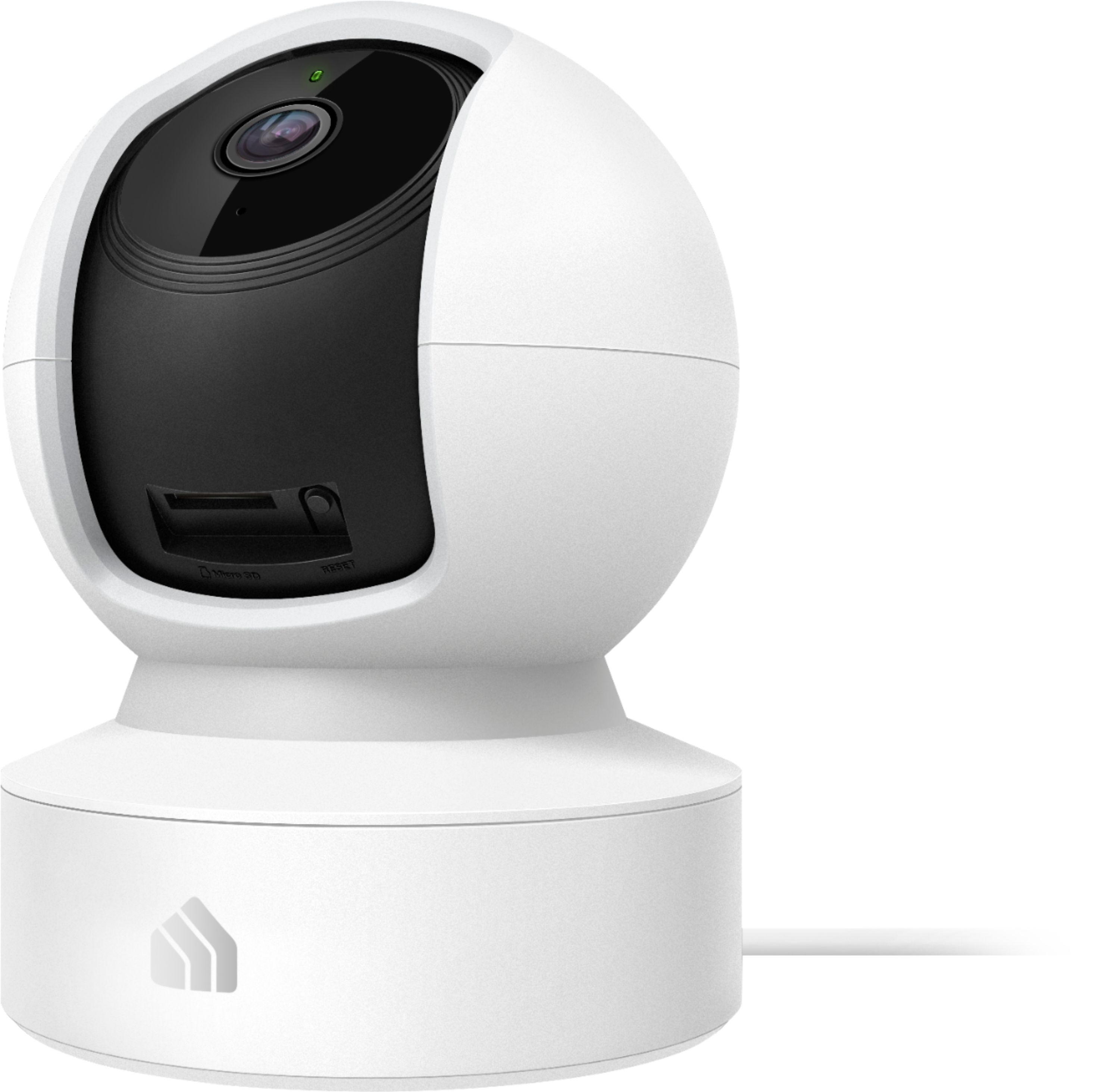
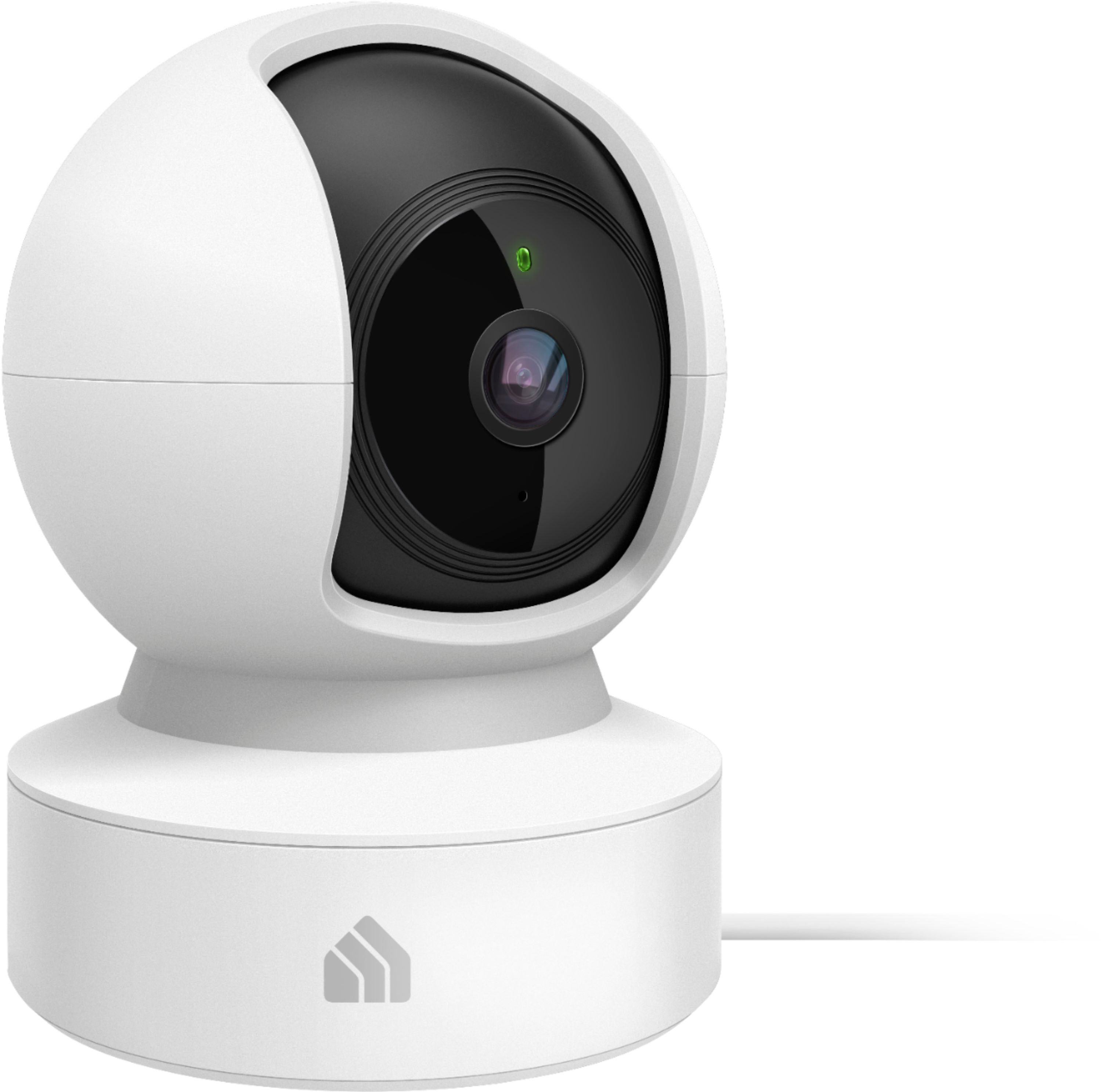
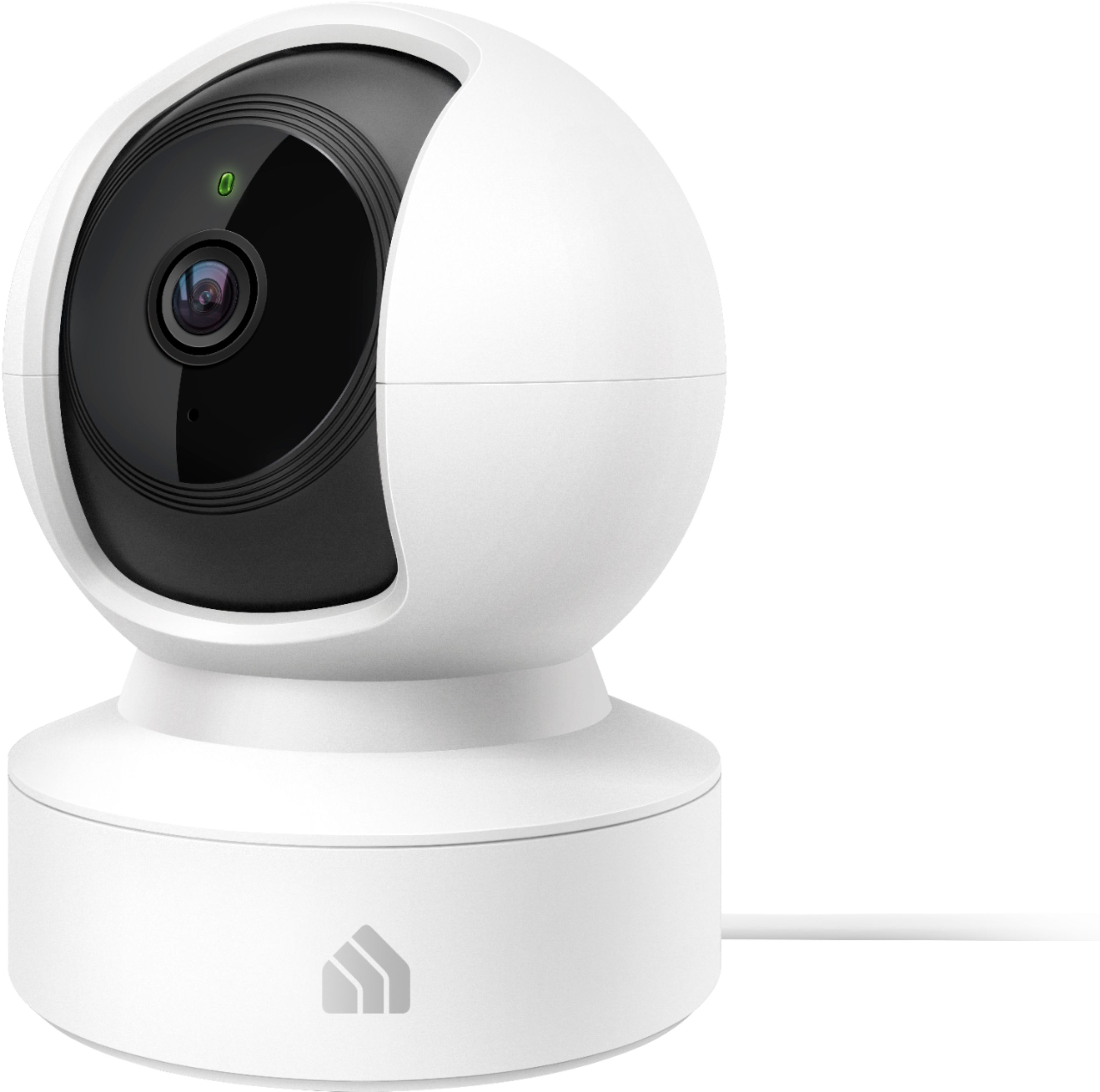
A:AnswerI have not been able to find the Kasa app in the Windows store, not sure if available on an Apple. I use the Kasa app on my Iphone and it works great! I have not been able to find a way to view on my PC
A:AnswerYes, depending on your desired scenario you can:
1. Assign both cameras to the same Kasa account, then sign both iPhones into the same Kasa account to view both cameras.
2. Create two separate Kasa accounts -- one for each iPhone -- then associate one Kasa camera to each Kasa account per phone.
A:AnswerHi! For night vision it may be. The reflective properties of the glass will distort the camera image at night if the Night Vision infrared LEDs are enabled on the camera. To avoid this, it is recommended to disable the Night Vision feature and to simply ensure the monitored area has adequate ambient lighting for the camera to pick up a clear picture.
A:AnswerIt would have to connected to WiFi at nursing home . If nursing home would allow it then yes you could mine works fine over several hundred miles. The pan function will always pan toward sound I.e. tv,radio etc.
A:AnswerHi! In order for the date and time stamps to be accurate, the camera must be connected to a WiFi network that has Internet access so it can keep the location and time zone information up to date.
A:AnswerThere are 4 different FOV points you can switch between on the live footage screen, you can basically choose 4 main points you want to monitor easily without having to use pan/tilt manually
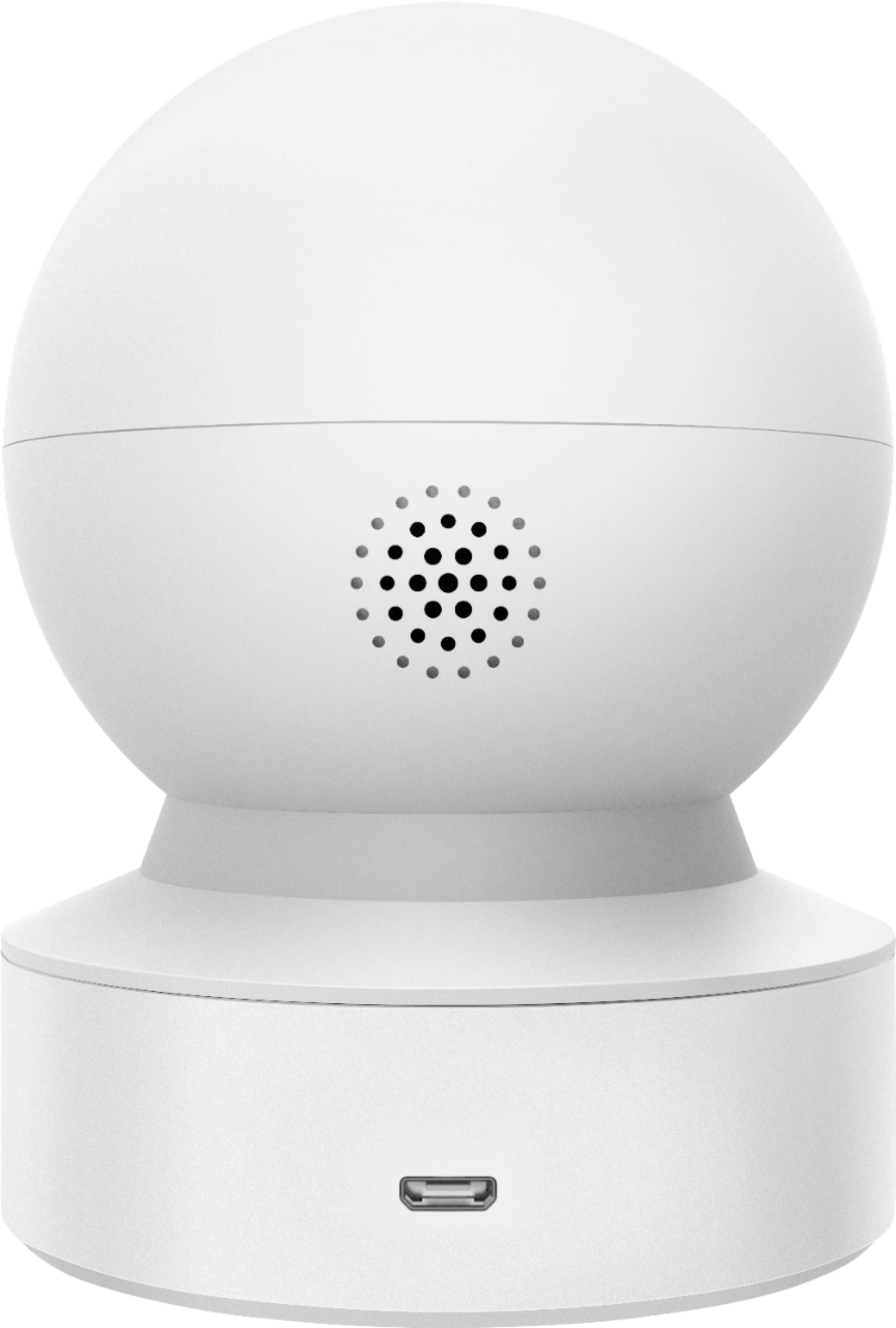
A:AnswerThe Kasa Spot does not support management or streaming to a Windows PC. The cameras can be viewed via the Kasa app or supported video integration services such as Alexa (i.e. Echo Show, FireTV) and Google Casting (i.e., Chromecast).
A:AnswerThe Kasa camera connects to your existing network via 2.4GHz WiFi. If your Internet service provider is currently supplying Internet to your WiFi router, you can simply connect the camera to your WiFi network via the Kasa app and enjoy its features.
A:AnswerThe Kasa Spot pan and Tilt camera does not connect to other cameras - it connects to your existing WiFi network via the 2.4GHz WiFi band. You can theoretically connect as many cameras as your router is capable of supporting.
A:AnswerKasa cameras require the Kasa app for installation and use. The Kasa app is compatible with smartphones running Android 5.0 or later and iOS 10.0 or later.