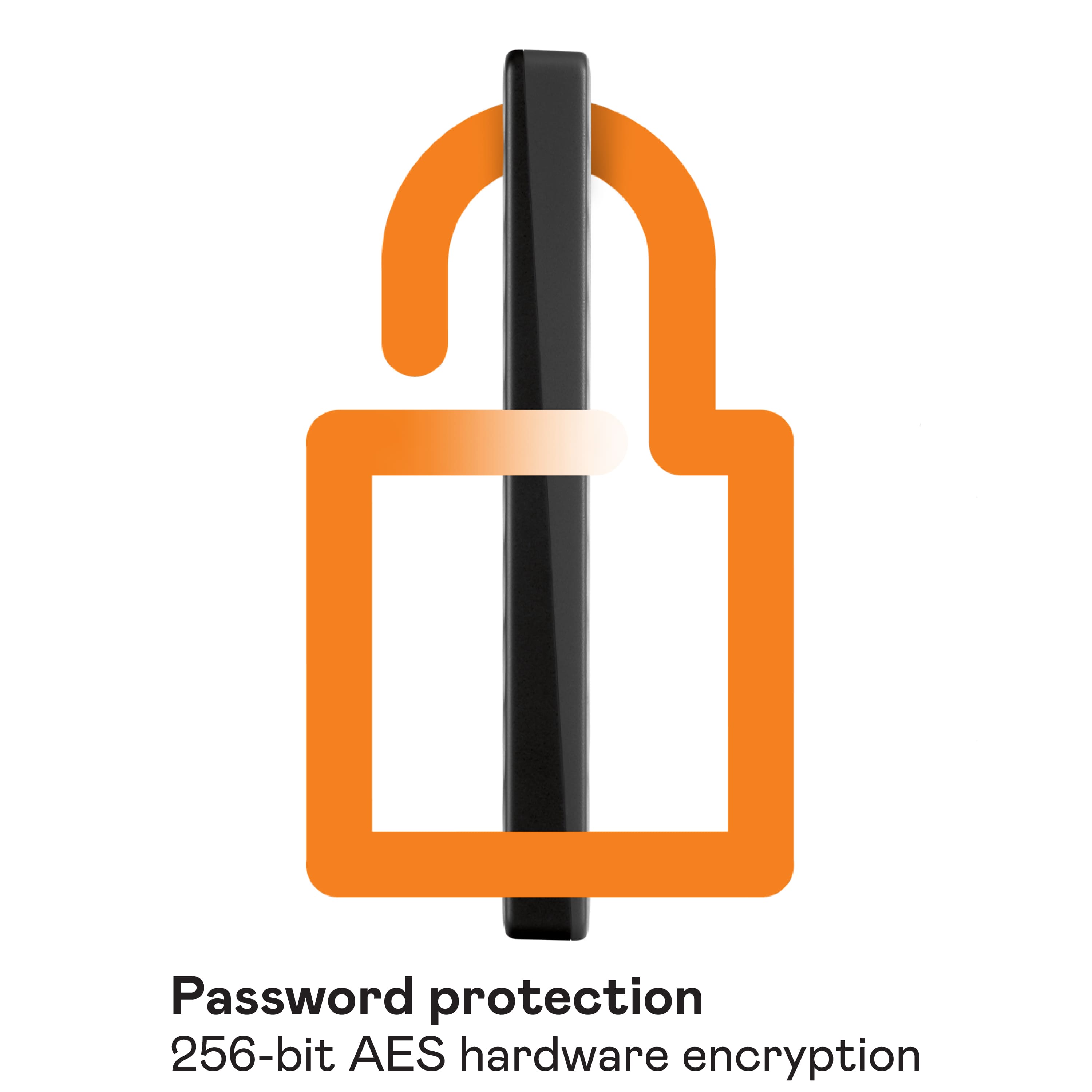
A:AnswerYou can, it gives you more security. I usually go unencrypted myself but, I'm not dealing with highly sensitive material just studio applications.
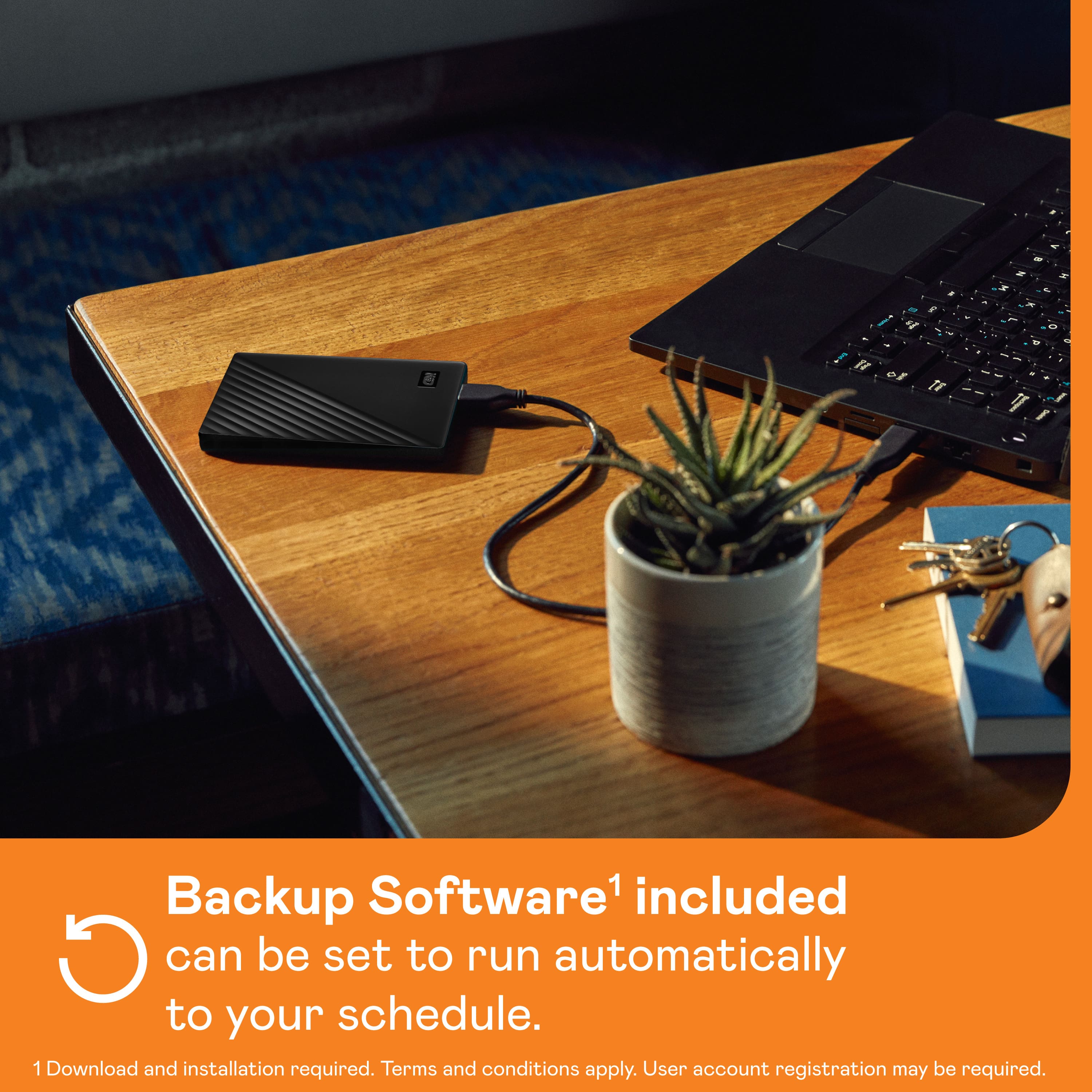
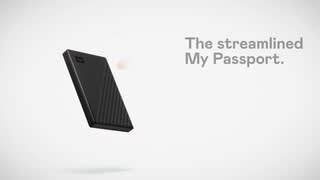
A:AnswerIt should work. It comes with WD backup software but you don’t have to use it. I would suggest doing direct copy and paste from your Vista machine. The files should be readable on pretty much any modern computer. I have done this to put old data like you’re describing onto a Linux machine and it worked great! Good luck!
A:AnswerOn the packaging it indicates it works with Mac via the software that comes with it. It also indicates that with a reformatting it will work with Apple Time machine. I bought it to use with an older Mac. I haven't implemented it yet. Hope this helps.
A:AnswerIt depends on the "size" of the photos. By "size", I mean the data in each photo. Without getting too complicated, I will point to the fact that photos I have taken on my phone are about 3 MB each.
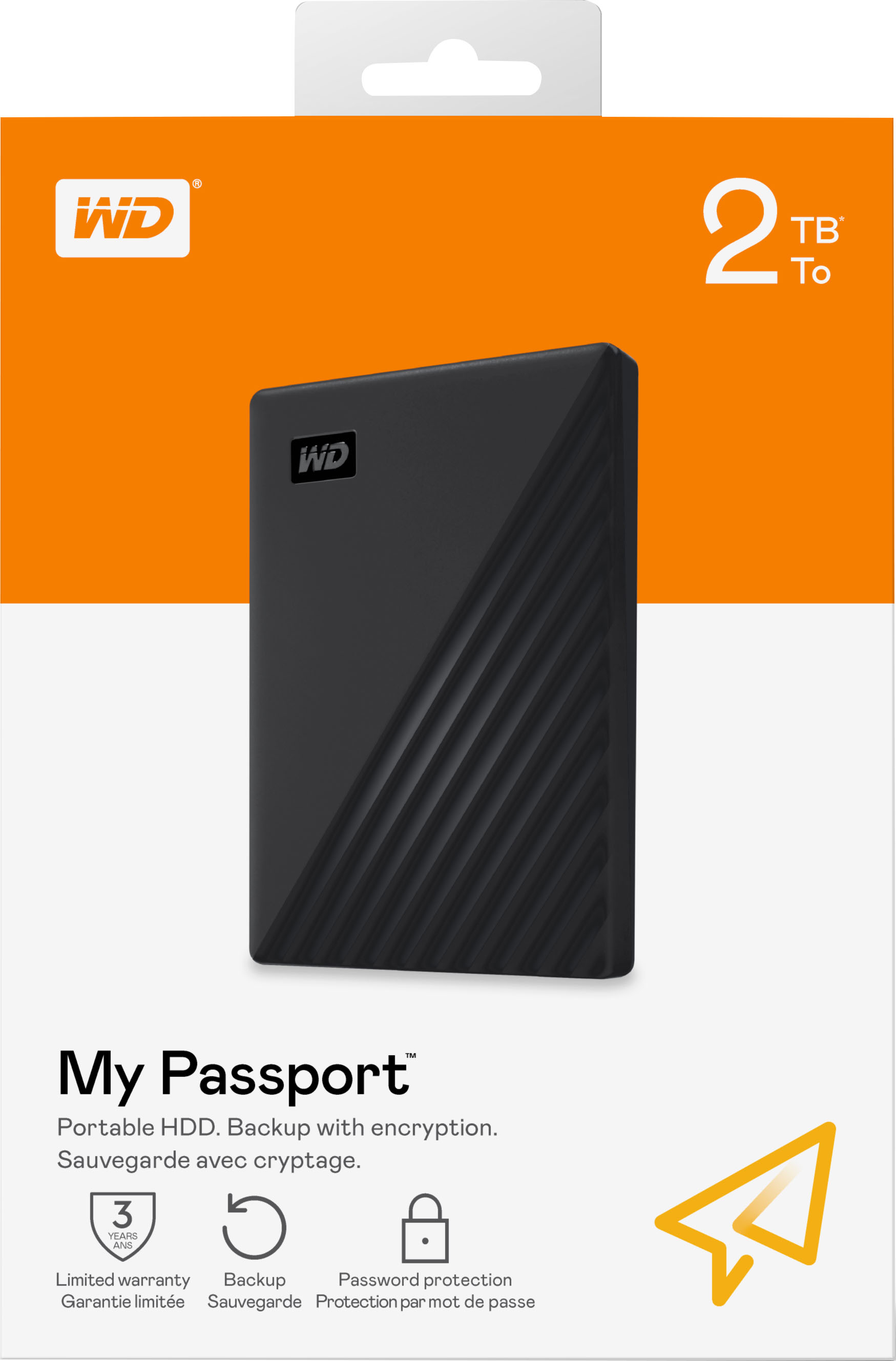
The 2 TB Hard Drive contains space for 2 Terabytes of data.
2 TB = 2,000,000 MB
This means that I would be able to store about 666,667 photos, if the size of each photo was 3 MB
[2,000,,000 MB divided by 3 MB/photo = 666,666.6667
Of course if the photos are larger, then you would be able to store fewer pictures.
And videos take up much more space than photos).
Bottom Line is that 2 Terabytes (the size of this hard drive) is a lot of space. It's 2,000 gigs of space where data can be stored.
Hope this helps.
A:AnswerHi Richard, The WD My Passport external hard drive comes pre-formatted with NTFS for Windows computer. The hard drive can be reformatted in a supported filesystem HSF+J for Mac OS. Please refer to the link for more information. Reformatting Required for Mac OS Compatibility: https://support-en.wd.com/app/answers/detail/a_id/3879 To know more about the drive refer below link: http://products.wdc.com/library/AAG/ENG/4078-705155.pdf Need Help? Please see our "'Contact Us" page for information
A:AnswerHi MamaJ1960, This question can be better addressed over the call. This way we can provide you best customer support. Need Help? Please contact us at: Phone: (https://t.co/4tEu1E0hVa) Email: (https://t.co/5bQq1l63Dn)
A:AnswerHello BPPelota, Please be informed that the WD My Passport drive is a device tested and designed for Windows and Mac computers for seamless operation. However, you can refer to the mentioned link for more information about the password protection: https://support-en.wd.com/app/answers/detail/a_id/4817 .To know more about the drive please refer to the link: http://products.wdc.com/library/AAG/ENG/4078-705155.pdf -Need Help? Please see our "'Contact Us" page for information.
A:AnswerHi VVvvbbbb, Please be informed that the WD My Passport external portable drive comes preformatted in NTFS format for Windows OS, However, you can reformat the drive with macOS supported HFS+J file system or both macOS and Windows supported exFAT file system by using this link: "Reformatting Required for Mac OS Compatibility" https://support-en.wd.com/app/answers/detail/a_id/3879 -Need Help? Please see our "'Contact Us" page for information.
A:AnswerHi lucy, Please be informed that the WD My Passport drive is a plug and play External Portable Hard Drive. Please know that once you transfer photos on the My Passport drive, it will act as a primary backup and you can anytime access the photos from the drive. Need Help? Please see our "'Contact Us" page for information
A:AnswerHi Rob, The WD My Passport external hard drive comes pre-formatted for Windows computer. The hard drive can be reformatted in a supported filesystem for Mac OS. Please refer to the link mentioned below for more information. Reformatting Required for Mac OS Compatibility: https://support-en.wd.com/app/answers/detail/a_id/3879 To know more about the drive refer below link: http://products.wdc.com/library/AAG/ENG/4078-705155.pdf Need Help? Please see our "'Contact Us" page for information
A:AnswerI use the File Explorer to open the directory. Can see everything that is on/saved to this item. Just like you would do to see what is on your "C" drive