Customer Ratings & Reviews

- Model:
- B0CJM1GNFQ
- SKU:
- 11821427
Rating by feature
- Value
Rating 4.8 out of 5 stars
- Quality
Rating 4.8 out of 5 stars
- Ease of Use
Rating 4.8 out of 5 stars
Hood while it lasted.
||Posted . Owned for 8 months when reviewed.This reviewer received promo considerations or sweepstakes entry for writing a review.Was good while it worked. After about 4 months it stopped working
No, I would not recommend this to a friendBrand response from Amazon Devices Customer Support
Posted .Hello, Vtyler. I'm sorry to hear that you're having issues with your Fire TV Stick 4K. I have a few recommendations to try and get your device back up and running.
1. Check the HDMI input. Make sure the device is plugged in and try plugging it into a different HDMI port.
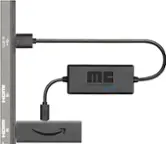
2. Use a direct power source. Ensure you're using the power adapter that came with your device and plugging it directly into a wall outlet.
If you have any questions or need assistance, I recommend calling Amazon customer service, available 24/7, for help with the device. You can reach them at 1-888-280-4331. I hope that helps. Have a great day!
Fire Stick
||Posted . Owned for 1 month when reviewed.This reviewer received promo considerations or sweepstakes entry for writing a review.I’m disappointed because the fire sticks did not sync easily to the internet.
No, I would not recommend this to a friendBrand response from Amazon Devices Customer Support
Posted .I am sorry you are having this issue with your Fire TV Stick 4K. Let's make sure you're using the included power adapter, and that the adapter is plugged into the Fire TV Stick (and not the TV). Some TVs feature powered USB ports, but they are not recommended for use with Fire TV Stick.
Physical objects can block your Wi-Fi signal. We recommend using the HDMI extender or adapter included with your Fire TV Stick. It optimizes the physical location of your device and can improve Wi-Fi connectivity.
Disconnect the Fire TV device from the HDMI port then plug it back in. Try replacing your HDMI cable with a new one.
Restart your Fire TV device and any home network devices like modems or routers.
To restart or power cycle your modem and router, unplug the power adapter on each for several minutes.
Reconnect power to your modem first.
When the modem is connected to your Internet service again, plug in your router.
Restart other connected devices after your router and modem have fully restarted.
Also, check for any potential router firmware updates. If these steps do not help and you are still experiencing issues, you can reach out to Amazon Customer Support 24/7 at 1-888-280-4331. Thank you for your feedback. I hope this information is useful.
Dead on arrival
||Posted . Owned for less than 1 week when reviewed.This reviewer received promo considerations or sweepstakes entry for writing a review.Returned it as it was dead in the box. No fixes would work had to return it!
No, I would not recommend this to a friendOwner
||Posted . Owned for 3 weeks when reviewed.This reviewer received promo considerations or sweepstakes entry for writing a review.Wont work! Sales was great, just gave me wrong unit.
No, I would not recommend this to a friendBrand response from Amazon Devices Customer Support
Posted .Hello JoeM, seems as if your Amazon Fire TV Stick streaming device is not working for you and you were given the wrong unit. If you are within your return period you are able to exchange through the same channel of purchase and receive the correct device you wanted, which can give you a better experience with the device. Hope this helps and solves your case. Have an amazing day!
Firestick
||Posted . Owned for 2 weeks when reviewed.This reviewer received promo considerations or sweepstakes entry for writing a review.It didn’t connect to my internet and I’ve tried multiple times
No, I would not recommend this to a friendBrand response from Amazon Devices Customer Support
Posted .Hello PreciousM! Thank you for taking the time to review your experience and provide feedback. I am terribly sorry you are having trouble getting your Fire Stick connected to your internet. There are a number of ways to troubleshoot this and we would love the opportunity to work through it with you further to see if we can resolve your issue. Please reach out to Amazon Customer Support at 888.280.4331 for further assistance with this. I hope we can help and that you have a terrific day!
Fire junk
||Posted . Owned for 3 weeks when reviewed.This reviewer received promo considerations or sweepstakes entry for writing a review.Not a fan. Horrible to use. Perfer roku. Wouldnt recommended to anyone.
No, I would not recommend this to a friendnot happy with fire stick
||Posted . Owned for 3 weeks when reviewed.This reviewer received promo considerations or sweepstakes entry for writing a review.It's new and has Update issue, app store choice are limited
No, I would not recommend this to a friendBrand response from Amazon Devices Customer Support
Posted .I am sorry to hear about the issues you are experiencing with the Fire TV Stick 4K. Here are some troubleshooting steps to try to help resolve the issue with updating. 1. Check that your Fire TV device is connected to the Internet. 2. Go to Settings, and then select Network. 3. Press Play/Pause on your remote to test your connection. If your device has connectivity issues, restart your home networks devices, such as your modem or router. 4. Unplug your Fire TV device. Wait one minute and then plug your device back in. 5. Confirm that your Fire TV device has enough available storage to download the update (at least 500 MB): Go to Settings on your Fire TV. Select My Fire TV or Device & Software. Select About. Select Storage. Tip: To increase your available storage, uninstall apps by going to Settings on your device. If these steps do not help, and you are still having functionality issues you can call Amazon customer service, available 24/7 for assistance on the device. You can reach them at 1-888-280-4331. I hope this information is helpful, thank you!
Poor
||Posted . Owned for 3 weeks when reviewed.This reviewer received promo considerations or sweepstakes entry for writing a review.Does a lot of buffering unless I'm within one room of my router
No, I would not recommend this to a friendBrand response from Amazon Devices Customer Support
Posted .Hello Mike,
I am sorry to hear of the issues you are having with your Fire TV 4K Stick. Here are some other troubleshooting steps to consider: Make sure that your Fire device is within range of your wireless router and has a good connection. Check that your Fire device is away from any devices that cause interference (such as microwaves, baby monitors, or other electronic devices).
If you have several devices connected to your Wi-Fi network, try removing some of them to reduce congestion.
If you have a dual-band router: The network name (or SSID) is different for both the 2.4 GHz and 5 GHz band. If using a 2.4 GHz network, channels 1, 6, and 11 are the best channels to use with your Echo device.
Connect your Fire device to the 5 GHz band of your router (if available).
Restart your Fire device and your Internet router and/or modem. If these steps don't work, you can reach Amazon Customer support 24/7 to assist with your device. You can reach them at 1-888-280-4331. I hope this information helps, have a great day!
Bad software
||Posted . Owned for 3 weeks when reviewed.This reviewer received promo considerations or sweepstakes entry for writing a review.Full screen auto play ads she on my TV everyone I go to use the Firestick
No, I would not recommend this to a friendTax
||Posted . Owned for 1 month when reviewed.This reviewer received promo considerations or sweepstakes entry for writing a review.A lot of monthly fees. Majority of access is asking monthly fee
No, I would not recommend this to a friendOver priced
||Posted . Owned for 1 week when reviewed.This reviewer received promo considerations or sweepstakes entry for writing a review.Found online much chePer. The customer seevice was horrible
No, I would not recommend this to a friend- Pros mentioned:Ease of use, Overall performance, Price
Firestick
Posted .This reviewer received promo considerations or sweepstakes entry for writing a review.Good quality and price was excellent. Easy for you to use.
I would recommend this to a friend - Pros mentioned:Ease of use
Great Product
Posted .This reviewer received promo considerations or sweepstakes entry for writing a review.Great product was very easy to setup this replaced an older firestick that quit working.
I would recommend this to a friend - Pros mentioned:Overall performance
Excellent
Posted .This reviewer received promo considerations or sweepstakes entry for writing a review.Excellent excellent excellent excellent excellent excellent
I would recommend this to a friend - Pros mentioned:Overall performance
Firestick
Posted .This reviewer received promo considerations or sweepstakes entry for writing a review.Great for everyday use. I have one in every room of my house.
I would recommend this to a friend - Pros mentioned:Overall performance
Good quality
Posted .This reviewer received promo considerations or sweepstakes entry for writing a review.This is high quality fire stick to convert your tv to smart tv.
I would recommend this to a friend - Pros mentioned:Ease of use
Great deal, Best Buy takes care of you
Posted .This reviewer received promo considerations or sweepstakes entry for writing a review.Excellent product! I would buy again, it works right out of the box, and it is simple enough for my grandma to use!
I would recommend this to a friend Great Gizmo
Posted .This reviewer received promo considerations or sweepstakes entry for writing a review.As a registered "geezer" I was able to get this great device up and running. I like the increased program options. I like the commercial-free programs. It good for additional sports events
I would recommend this to a friend- Pros mentioned:Ease of use
TLane
Posted .This reviewer received promo considerations or sweepstakes entry for writing a review.Found fire stick pretty much all i expected. Easy setup and lots of channels.
I would recommend this to a friend Fire TV stick is the best
Posted .This reviewer received promo considerations or sweepstakes entry for writing a review.Is a very good product I would recommend Best buy to anyone I know.
I would recommend this to a friend