Customer Ratings & Reviews
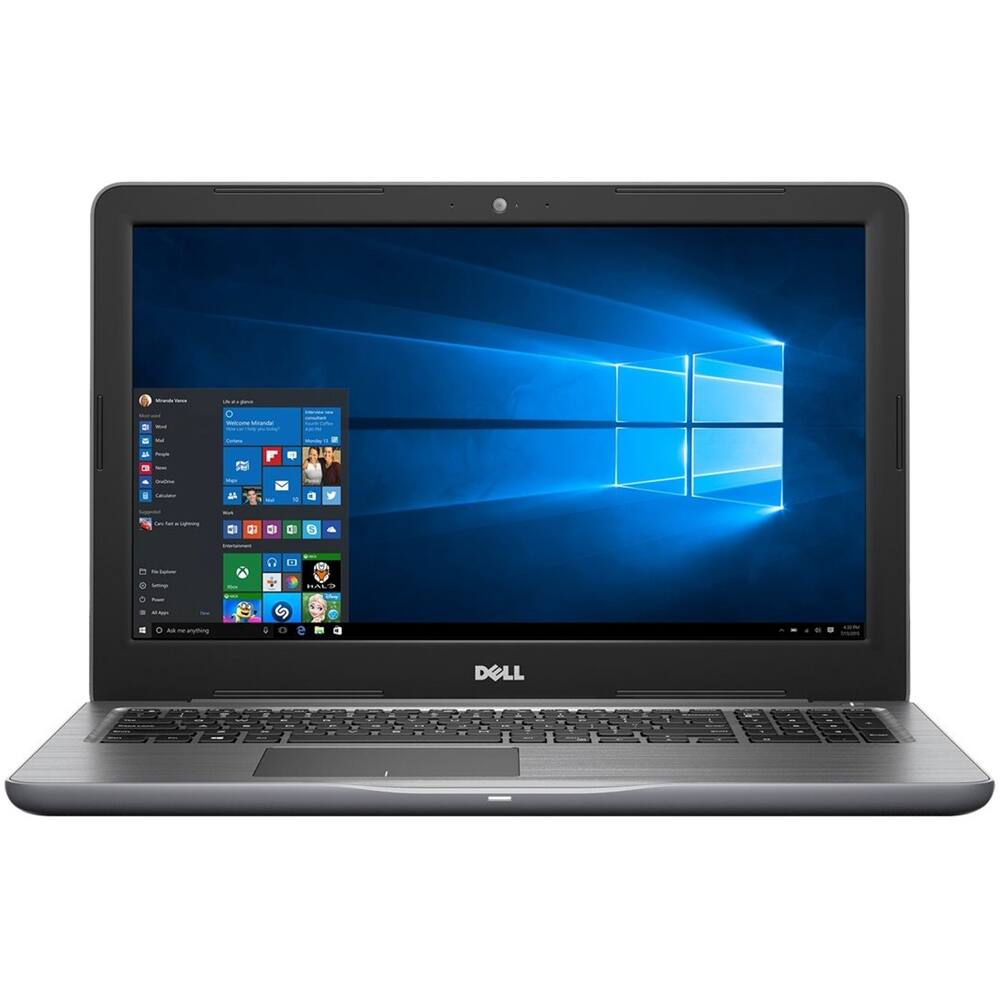
- Model:
- BBY-4G6XRFX
- SKU:
- 5824611
to a friend
- Pros mentioned:Good speed
Dell delivers again
||Posted .This reviewer received promo considerations or sweepstakes entry for writing a review.As a long-time user of Dell laptops, I am pleased to say my new purchase gave me what I was looking for with easy use and good speed.
I would recommend this to a friend - Pros mentioned:College suitability, Good speed, Sufficient memory
Good laptop for the price.
||Posted .This reviewer received promo considerations or sweepstakes entry for writing a review.Fast and lots of memory. Does everything my daughter needs it to. Should work good for college.
I would recommend this to a friend - Cons mentioned:Graphics
Wouldn't buy again!
||Posted .This reviewer received promo considerations or sweepstakes entry for writing a review.The laptop works just fine and is fast however, seems very poor on graphics side. The colors are not vibrant like I would like for them to be.
No, I would not recommend this to a friendBrand response from YourDellTeam
Posted .Hi deb01 - Thanks for your review. Perhaps adjusting the adaptive screen brightness on your computer could help. Here are the steps for adjusting your screen brightness: Windows can adjust the brightness of the display based on how much light is reaching the system's ambient light sensor. This feature is referred to as 'adaptive brightness' and it can be disabled in Windows. Here are some steps to adjust this feature:
1. In the Search box, type Settings.
2. Touch or click Settings (Modern application).
3. Touch or click System.
4. On the Display screen find the Adjust my screen brightness automatically option.
5. Touch or click the slider to toggle the option on or off.
6. Touch or click Apply.
7. Close the System window.
You can read the full article here - http://dell.to/2vjtPzg. - Bryan
What I expected
||Posted .This reviewer received promo considerations or sweepstakes entry for writing a review.Good laptop, just what I expected. Overall good quality and a good deal
I would recommend this to a friend