Customer Ratings & Reviews

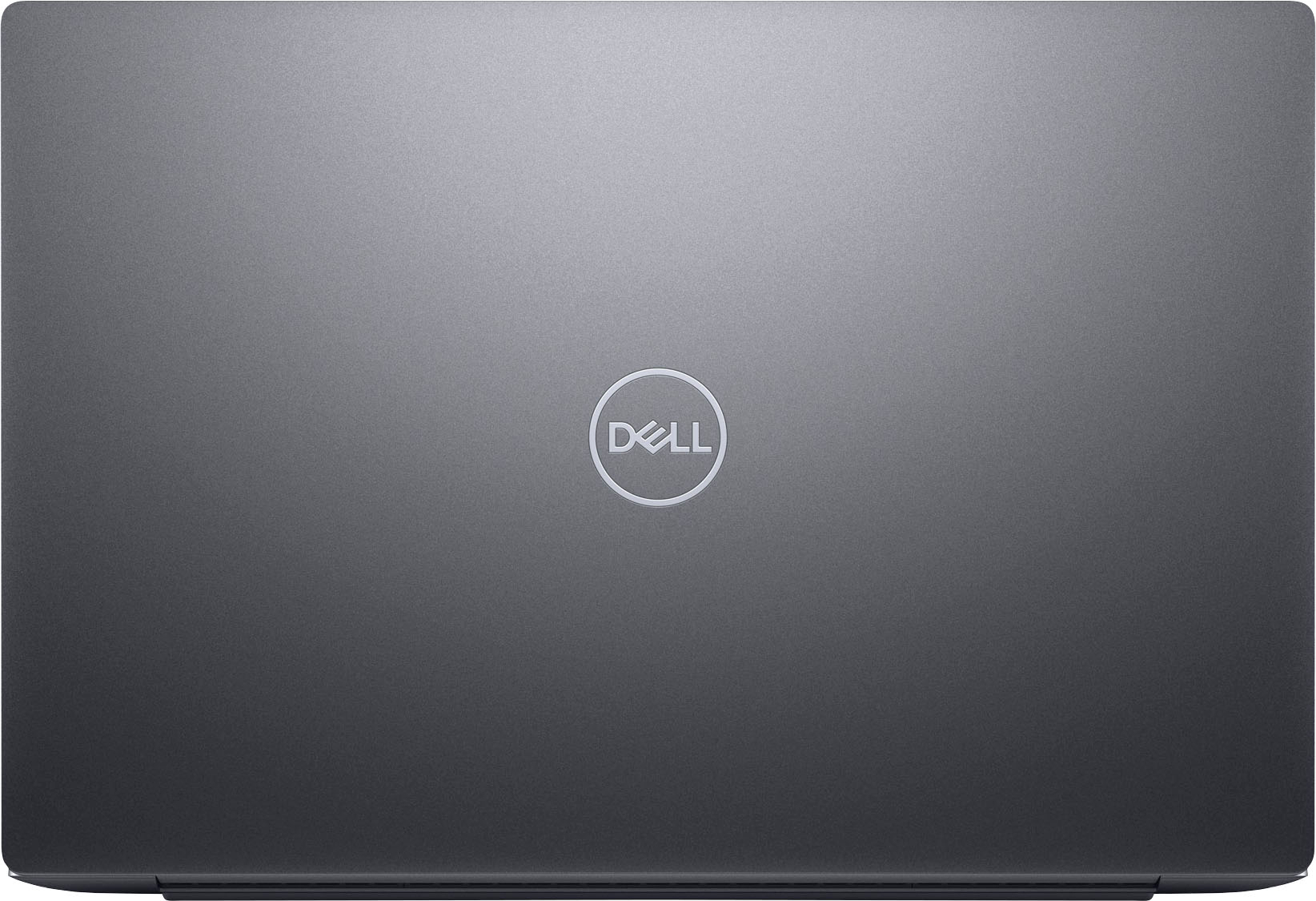




- Model:
- XPS9320-7523BLK-PUS
- SKU:
- 6518256
Rating by feature
- Battery Life
Rating 3.5 out of 5 stars
- Speed
Rating 4.6 out of 5 stars
- Display
Rating 4.8 out of 5 stars
Customers are saying
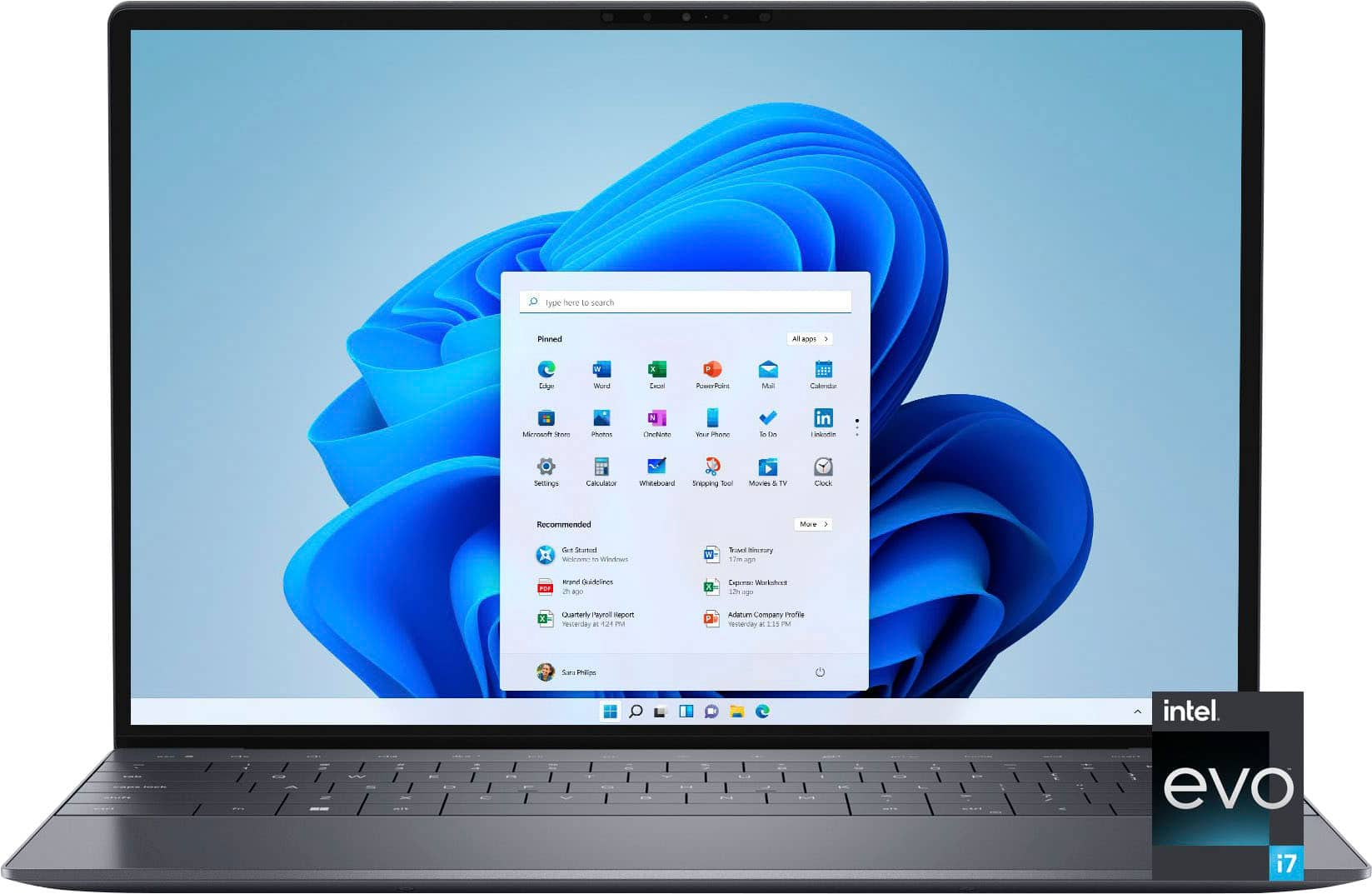
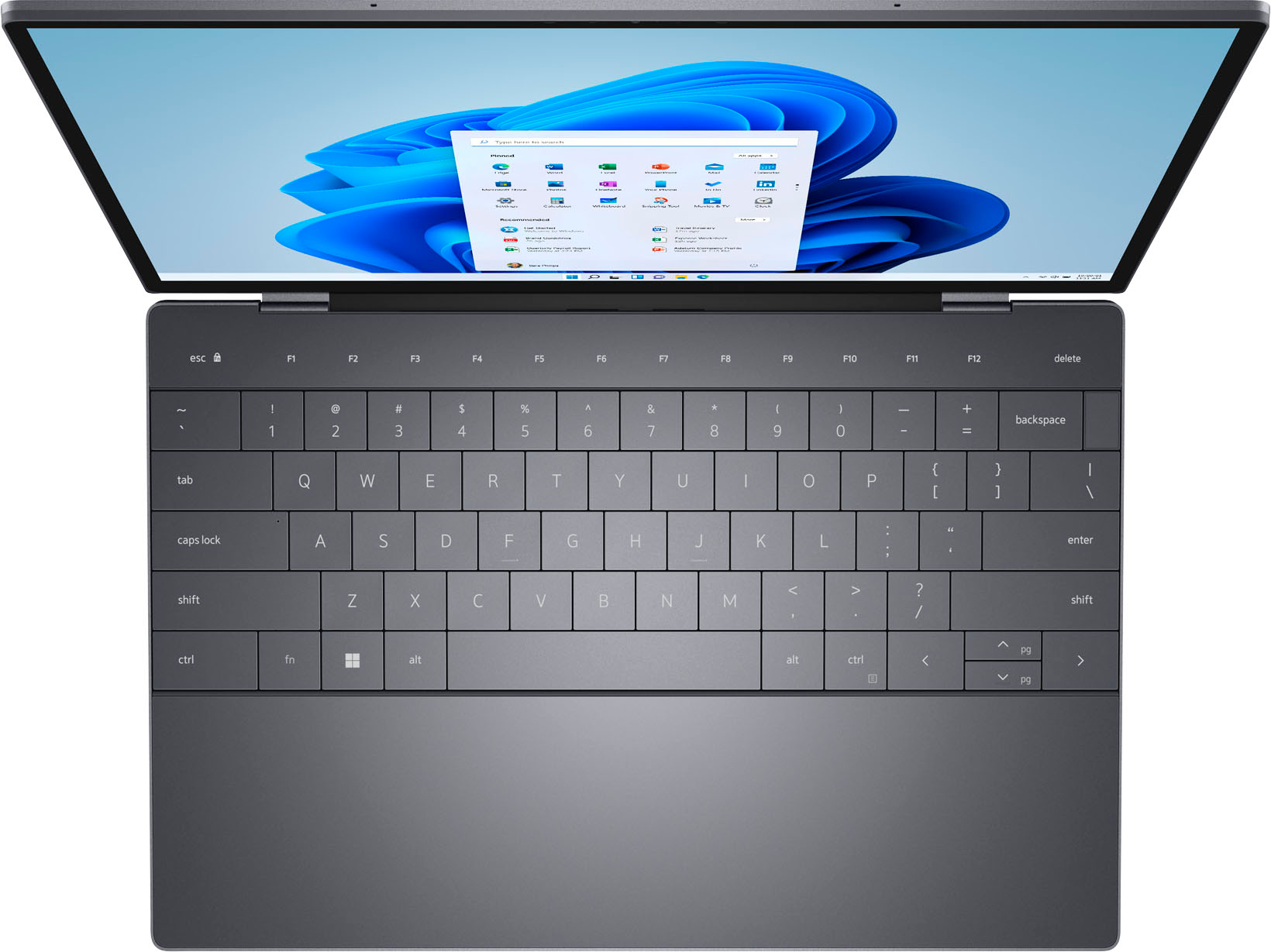
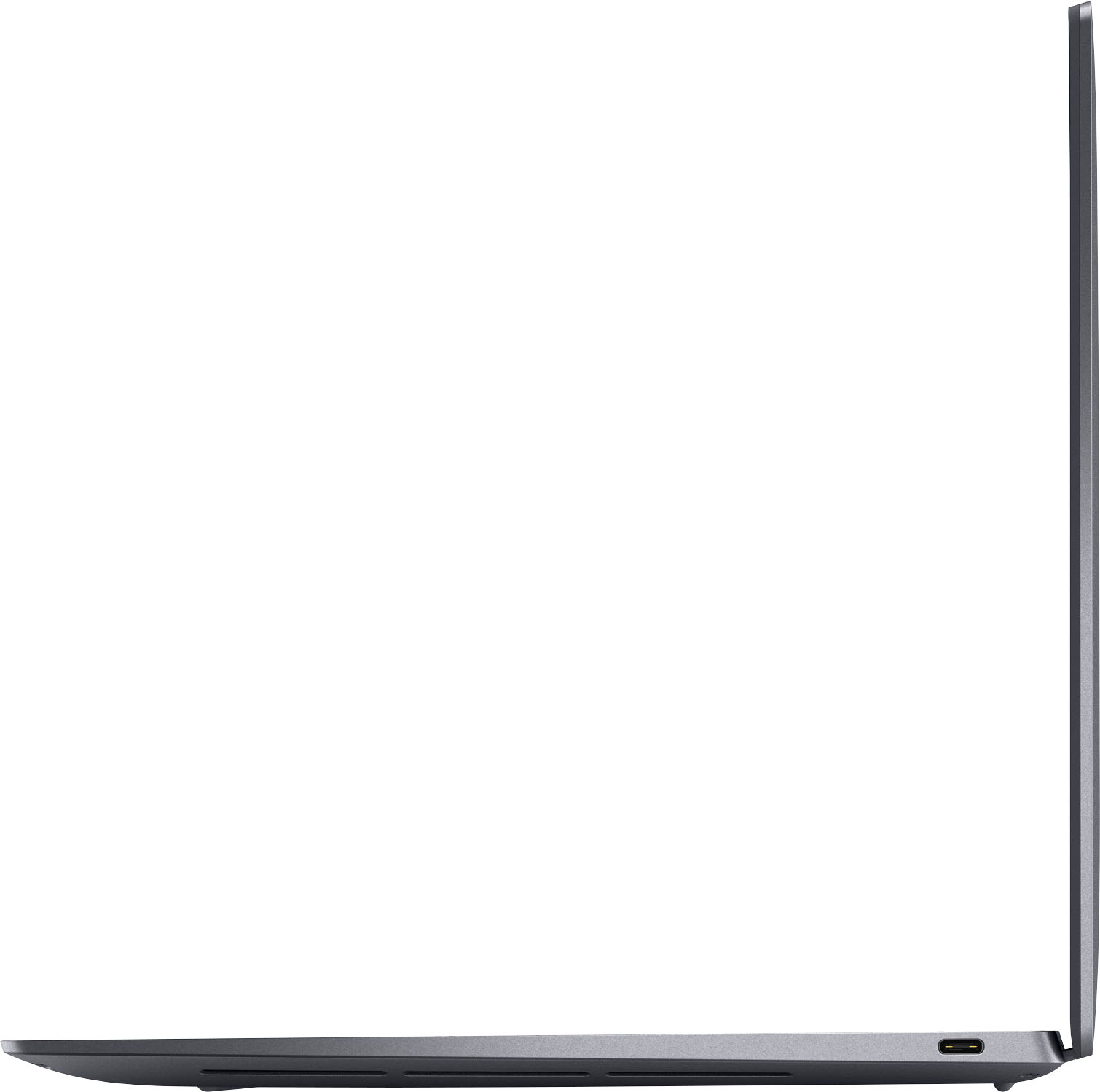
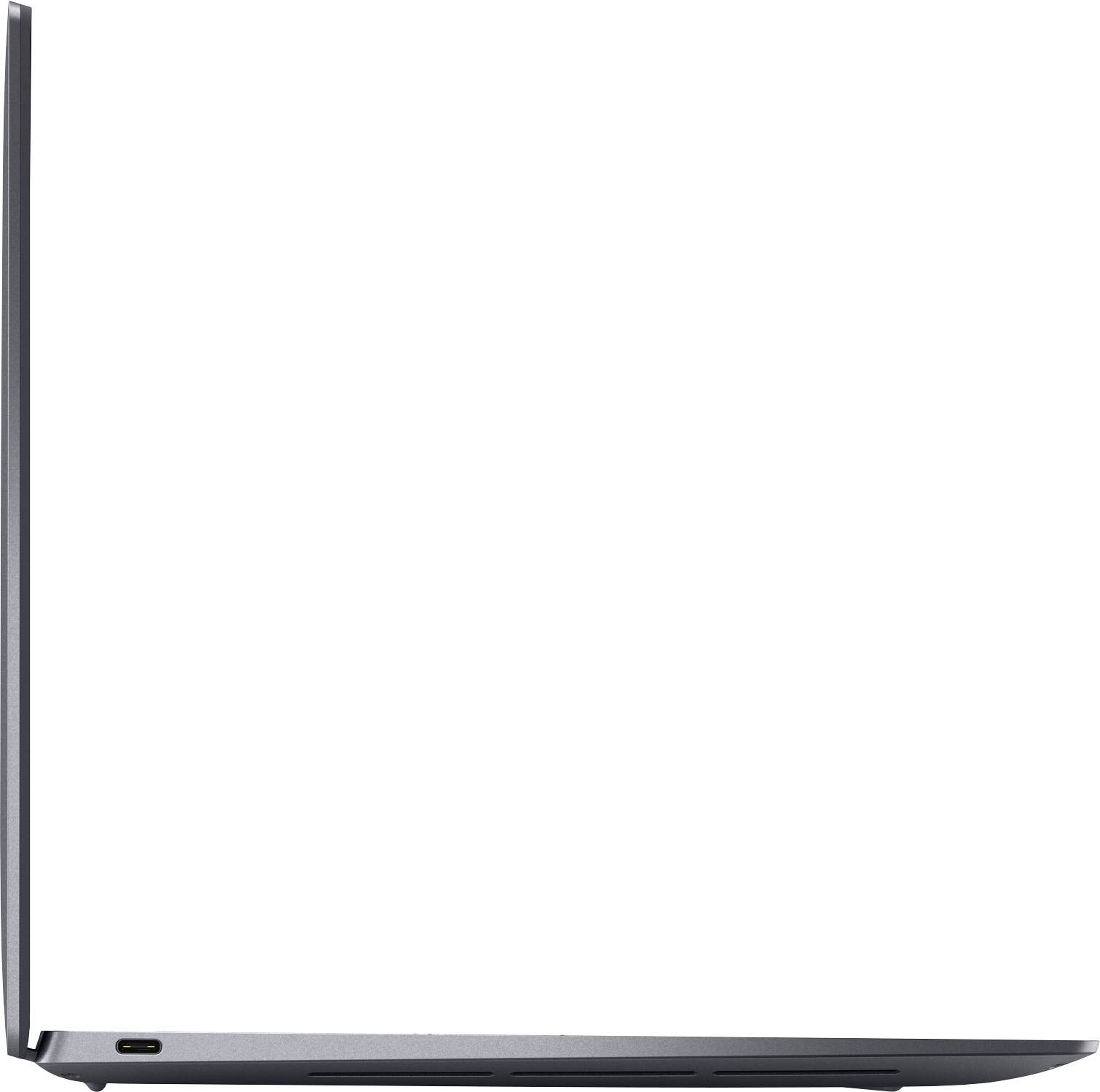
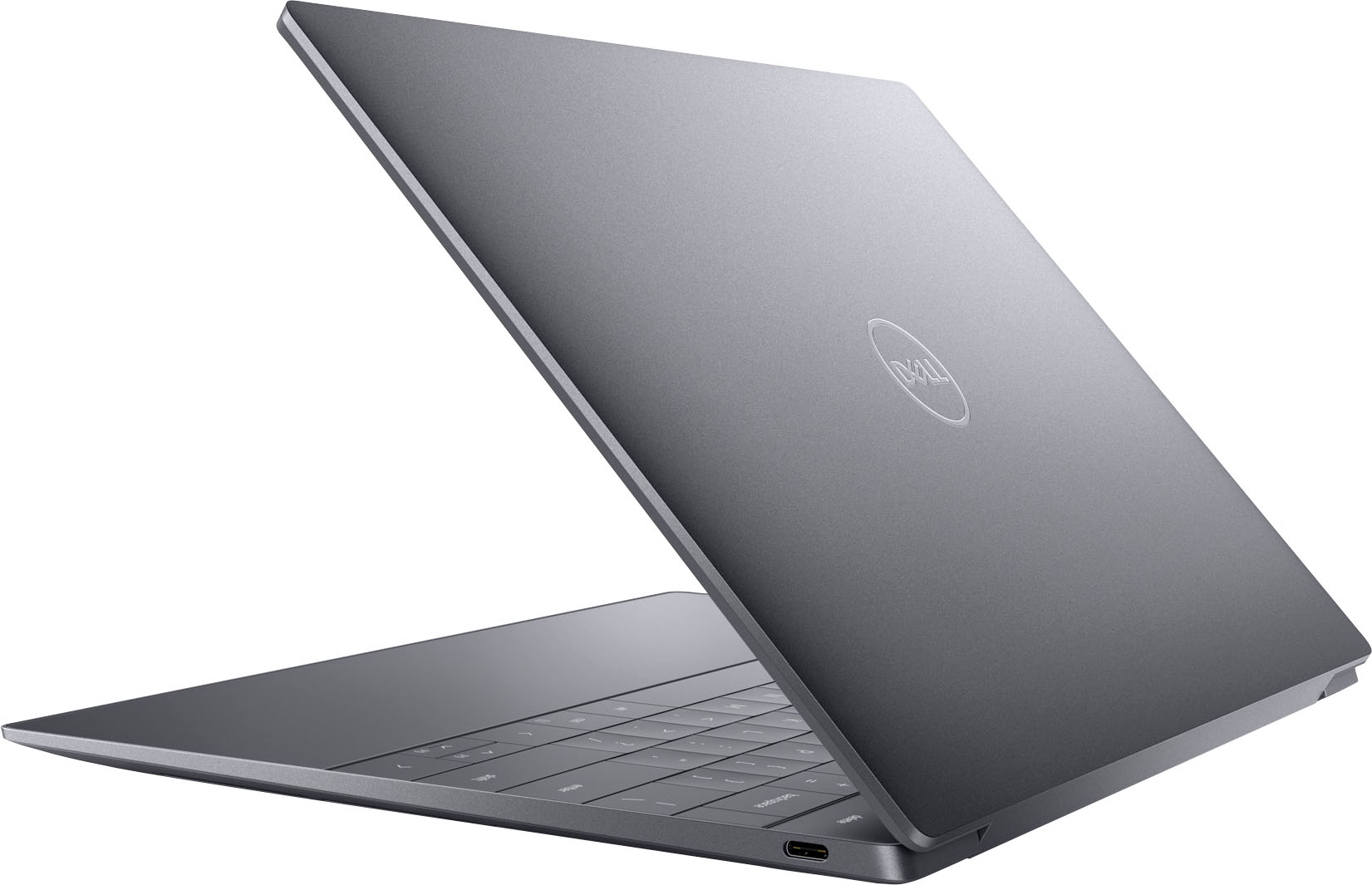
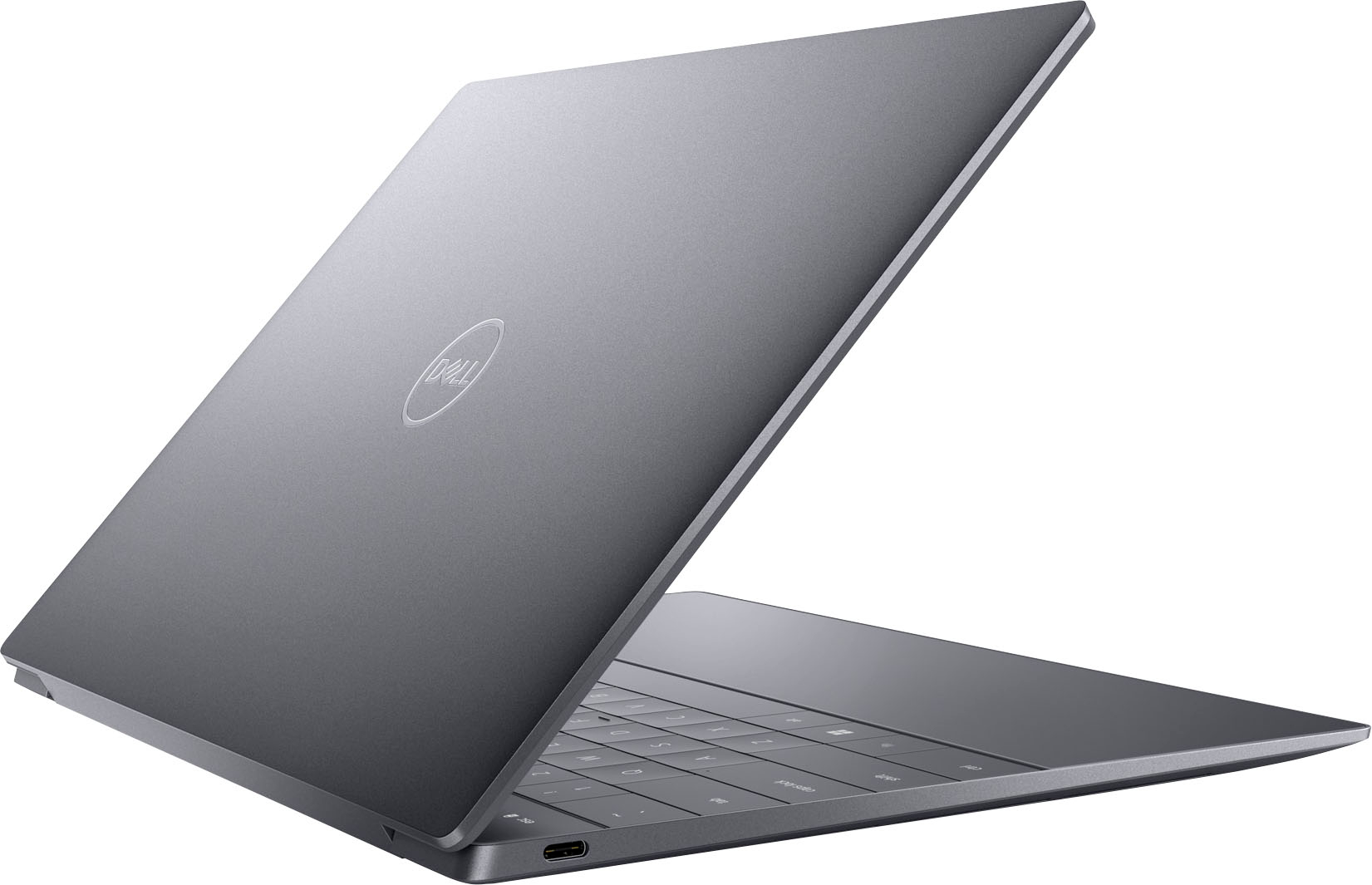
Customers value the XPS 13 Plus's stunning OLED display, high-quality keyboard and trackpad, and sleek design. Many appreciate its powerful performance thanks to ample RAM and fast storage, along with its portability and lightweight nature. However, a significant drawback reported by customers is the less-than-stellar battery life. Concerns were also raised regarding the device's tendency to overheat during use.
This summary was generated by AI based on customer reviews.
- Pros mentioned:Processor speed
This things a beast
||Posted . Owned for 1 week when reviewed.This reviewer received promo considerations or sweepstakes entry for writing a review.Love this computer, amazing graphics and unbelievably fast, I highly recommend
I would recommend this to a friend Nice laptop with poor battery life
||Posted . Owned for 1 month when reviewed.This reviewer received promo considerations or sweepstakes entry for writing a review.This laptop is beautifully made. Probably the most gool looking laptop around. Very responsive. My only issue is with battery life. You'd be lucky to get 4 hours per charge. That is mostly due to the bright 4K screen. Everything else is on spot. The reason for my 3 stars is that, i think a laptop should give a user at least 8 hours.
I would recommend this to a friendBrand response from YourDellTeam
Posted .Hey Regi,
We appreciate you taking the time to leave a review of your XPS 13 Touchscreen Laptop. We are sorry to hear that you are experiencing an issue with the performance of your battery. That is not the type of feedback we like to hear from our customers. We have noted the details of your statement and will use them to improve current and future products. Below I have provided troubleshooting steps to help resolve your issue.
Here are the steps to help improve the battery performance of your laptop:
1. On the notification area of the taskbar, right-click the Battery icon.
2. On the options list, click Power Options.
3. Select a power plan on the battery meter, such as Power Saver or Balanced. Windows 10 has a built-in 'Battery Saver' mode that can be activated to extend your system's battery life. The Battery Saver mode will monitor and limit background activity and other features such as push notifications. You do have the option to enable or disable this mode within settings or within advanced Battery Saver settings, you can customize the mode to best suit your needs.
a) Click on the Action Center icon in the taskbar and select the tile for Battery Saver.
b) If running Cortana, type Battery Saver into the search box and select from the results.
Within the Battery Saver settings page, you will be able to turn on and off the feature and customize the feature to best meet your needs.
c) Turn the Battery Saver On or Off.
d) Additional settings are available via the Battery use and Battery saver settings links.
e) Battery use shows further info on apps and their power usage.
f) Battery Saver Settings screen allows you to customize further the Battery Saver feature.
How to Improve the Performance of a Dell Laptop Battery: http://dell.to/2vfXWf4
Should you need further assistance; we recommend that you contact Dell directly with the information below.
Chat or call: https://bit.ly/DellSupportTeam
Phone number to Dell: 1-800-624-9896.
Best,
Summer@Dell
Dell xps
||Posted .This reviewer received promo considerations or sweepstakes entry for writing a review.Terrible laptop for the price just get a Mac. Fans constantly run , touchpad is crap, laptop stays hot. Really dissatisfied with dell on the new xps.
No, I would not recommend this to a friendBrand response from YourDellTeam
Posted .Greetings StephenG,
We appreciate you taking the time to leave us your review. We are sorry to hear that you are encountering overheating issues with your XPS 13 touch screen laptop. Feedback like yours helps us improve our future products and services. Below I have provided troubleshooting instructions with the full article that can help resolve this issue.
Here are the steps to help resolve your overheating issue:
1. Inspect and clean the air vents and fans.
2. Restart the computer.
3. Update the BIOS and Chipset driver.
4. Download and install Microsoft Windows updates.
5. Run a hardware diagnostic test.
6. Use Dell Power Manager to manage thermal performance.
7. Improve efficiency to reduce heat.
8. Perform a Windows System Restore.
9. Restore the computer to factory settings.
How to Troubleshoot Overheating, Shutdown, or Thermal Issue on a Dell Computer: https://dell.to/3oAEYsV
We recommend that you contact Dell directly with the information below if you need further assistance.
Chat or call: https://bit.ly/DellSupportTeam
Phone number to Dell: 1-800-624-9896.
Best,
Summer@Dell
Simple, premium laptop with a little bit of bloatw
||Posted . Owned for 1 month when reviewed.This reviewer received promo considerations or sweepstakes entry for writing a review.great laptop, works great without much issue, running it with an egpu with only minor issues that are mostly easy to resolve.
I would recommend this to a friendNot Worth It
||Posted . Owned for 1 week when reviewed.This reviewer received promo considerations or sweepstakes entry for writing a review.This is a beautiful computer but very flimsy and not worth the money. If you are looking for a business computer continue your search.
No, I would not recommend this to a friendBrand response from YourDellTeam
Posted .Hello MsP2021,
Thank you very much for your valued feedback. We are sorry to hear that you are not 100% satisfied with your Dell XPS 9320 computer because it feels flimsy and not well made. We will share your review with our quality team, so future improvements can be made.
If you come across any questions or have concerns about this product, please don’t hesitate to contact Dell Support Team at the information provided below.
Best,
Katarina@Dell
Should you need further assistance, you can contact Dell directly with the information below.
Chat or call: https://bit.ly/DellSupportTeam
Phone number to Dell: 1-800-624-9896
Dell XPS 13+ a Great Product
||Posted . Owned for 1 month when reviewed.This reviewer received promo considerations or sweepstakes entry for writing a review.I have been buying XPS 13 everytime there is an upgrade and this is one of the best upgrade
I would recommend this to a friendFirst Dell
||Posted .This reviewer received promo considerations or sweepstakes entry for writing a review.Worked great, until it didn’t. Had to return, after only four days of use, due to sound issues. Meaning, there was no sound. But, Best Buy handled it well enough. I’m expecting a replacement. Hopefully, I’ll receive one that works for more than a week.
No, I would not recommend this to a friendBrand response from YourDellTeam
Posted .Hi Valued Customer,
We would like to thank you for taking the time to provide us with your feedback. We apologize for the issues you have come across with your new Dell XPS 9320 computer because its audio was not working.
We are happy to know you're receiving a replacement that should make things better for you and ensure the quality Dell always intends to deliver.
If you come across any questions or have concerns about this product, please don’t hesitate to contact Dell Support Team at the information provided below.
Best,
Katarina@Dell
Should you need further assistance, you can contact Dell directly with the information below.
Chat or call: https://bit.ly/DellSupportTeam
Phone number to Dell 1-800-624-9896
New laptop
||Posted . Owned for 3 weeks when reviewed.This reviewer received promo considerations or sweepstakes entry for writing a review.Laptop has all the bells and whistles that I need to accomplish my work.
I would recommend this to a friendMy Laptop
||Posted . Owned for 2 weeks when reviewed.This reviewer received promo considerations or sweepstakes entry for writing a review.Light, convenient & works great with my software. The price was right too.
I would recommend this to a friendUnbelievably robust
||Posted .This reviewer received promo considerations or sweepstakes entry for writing a review.Best laptop ever! And so cool! at this price this is the best!
I would recommend this to a friend- Cons mentioned:Battery life, Heat
Runs hot - and barely
Posted .This reviewer received promo considerations or sweepstakes entry for writing a review.Dell continues to struggle with QA failures on this beautiful disaster of a disappointment. The unit I picked up had issues from the moment I first turned it on. The second the power starts, the fans kick on and never stop running. At first I thought it was just because of set up and updates - and these things come with a not insignificant number of pending updates - but that didn't seem to be the case. The OLED display has some pretty egregious light bleeding issues at the top of the screen considering how much this laptop costs, by the way. After several restarts to address multiple update failures I stuck to just browsing the web for an hour while waiting for the laptop to charge a bit. It was fully dead out of the box, and in the couple hours I spent fiddling with updates, the laptop only got to 20%. After an hour of doing nothing but reading troubleshooting guides online, the laptop got up to about 23% power. The fans never once stopped running, and the laptop was so warm you'd think I was trying to edit 4K video in premier. I don't do much gaming - this was only for photo editing - but I do occasionally play The Sims 4. The thermal throttling thing on this laptop is so bad just loading the game brough the laptop to a shuddering halt. I tried loading up the Support Assist app, but after trying to start up for a while it recommended to me that I restart my laptop and try again. I went through that song and dance three times before I finally gave up and just completely reset the entire laptop. No change. Back in the box it goes. Apparently if you get a unit that works, they work fine. But Dell has an unfortunate tendency to fail often and fail hard on these higher-end devices. Something to keep in mind if you're not in the mood to play musical laptops until you get one that works.
No, I would not recommend this to a friendBrand response from YourDellTeam
Posted .Hey There Sendian82,
Thank you for taking the time to leave a review of your Dell XPS 13 touch screen laptop. We are sorry to hear that you are experiencing an issue with your fans running and your system overheating. That is not the type of feedback we like to hear from our customers, or the type of product Dell intends to deliver. Below I have provided troubleshooting steps to help resolve your issue.
Here are the steps to help resolve your overheating issue:
1. Inspect and clean the air vents and fans.
2. Restart the computer.
3. Update the BIOS and Chipset driver.
4. Download and install Microsoft Windows updates.
5. Run a hardware diagnostic test.
6. Use Dell Power Manager to manage thermal performance.
7. Improve efficiency to reduce heat.
8. Perform a Windows System Restore.
9. Restore the computer to factory settings.
How to Troubleshoot Overheating, Shutdown, or Thermal Issue on a Dell Computer: https://dell.to/3oAEYsV
Should you need further assistance; we recommend that you contact Dell directly with the information below.
Chat or call: https://bit.ly/DellSupportTeam
Phone number to Dell: 1-800-624-9896.
Sincerely,
Summer@Dell
Badpurchase
||Posted . Owned for 1 month when reviewed.This reviewer received promo considerations or sweepstakes entry for writing a review.Dry disappointed in this item. Worked well for about a week and then did not start up.
No, I would not recommend this to a friendBrand response from YourDellTeam
Posted .Dear Valued Customer,
We would like to thank you for your review. We apologize for the issues you have come across with your XPS 9320 because it doesn’t power on.
I have provided a link to help resolve the booting issue. On that page, you can choose between, no power, no post, no boot, or no video. Once you choose you can find the options to help troubleshoot and resolve that issue. We would also suggest making sure all your drivers and downloads are up to date on your PC. I have also given you a link below to the Drivers and Downloads page for your computer.
Resolve Boot Up Issues: https://dell.to/3sdfce6
Drivers and Downloads page: https://dell.to/3Pw5S1x
After utilizing the troubleshooting options provided, if the problem is not resolved, please contact our support team for further guidance here: 1-800-624-9896.
Best,
Katarina@Dell
Should you need further assistance, you can contact Dell directly with the information below.
Chat or call: https://bit.ly/DellSupportTeam
Phone number to Dell: 1-800-624-9896
Dell
||Posted . Owned for less than 1 week when reviewed.This reviewer received promo considerations or sweepstakes entry for writing a review.Maybe a lemon-cursor disappears max sound is garbled
No, I would not recommend this to a friendBrand response from YourDellTeam
Posted .Hi Gizmo,
We value your feedback and want to thank you for taking the time to leave a review of your Dell XPS 13 plus. We are sorry to hear that you are experiencing an issue with your cursor and the audio on your device. That is not the type of feedback we like to hear from our customers. Below I have provided steps on troubleshooting your audio.
Here are the steps to help resolve your audio issue:
1. Check the audio ports for damage and clean ports.
2. Restart your computer.
3. Check the microphone connection. (external microphone only)
4. Set the default recording device and check the microphone volume.
5. Check the settings in voice communication apps.
6. Run Microsoft Sound Troubleshooter.
7. Troubleshoot Bluetooth devices. (Bluetooth speakers or headphones)
8. Reinstall or Update the chipset driver, audio driver, and BIOS.
9. Run a hardware diagnostic test.
10. Download and install Microsoft Windows updates.
11. Perform Windows System Restore.
12. Restore your computer to factory defaults.
How to Troubleshoot Audio or Sound Recording Issues: https://dell.to/3p73Us3
Should you need further assistance; we recommend that you contact Dell directly with the information below.
Chat or call: https://bit.ly/DellSupportTeam
Phone number to Dell: 1-800-624-9896.
Regards,
Summer@Dell
Portable power
Posted .This reviewer received promo considerations or sweepstakes entry for writing a review.I’ve enjoyed using the Laptop a lot, I came from a MacBook Pro, which I really enjoyed as well, but it was just a little too big for me to carry around all day. This laptop has been super powerful, lightweight, and an easy transition. It has a fingerprint scanner and facial recognition to unlock the device which is very usefull. And it also has a gorgeous OLED screen. Overall, I’m super satisfied with my purchase, and I would 100% buy again
I would recommend this to a friendGreat Laptop
Posted .This reviewer received promo considerations or sweepstakes entry for writing a review.easy to setup, lightweight, reasonable price, works perfectly
I would recommend this to a friendClin. Professor CV Surgery
Posted .This reviewer received promo considerations or sweepstakes entry for writing a review.This is an excellent machine. Although I am largely an Apple user this laptop has been an excellent addition.
I would recommend this to a friendBusiness Upgrade
Posted .This reviewer received promo considerations or sweepstakes entry for writing a review.This machine is a great purchase. Rins some high applications without hesitation.
I would recommend this to a friendFantastic Laptop
Posted .This reviewer received promo considerations or sweepstakes entry for writing a review.Awesome!! Will meet all your computing needs and then some!
I would recommend this to a friend- Pros mentioned:Oled display, Processor speed
Disappointed
Posted .This reviewer received promo considerations or sweepstakes entry for writing a review.Laptop wasn’t working properly after 2 months. Wouldn’t shut off. Would get a blue screen when shutting it off. Beautiful laptop, fast, and beautiful display. Giving it two stars because of the issues it had.
No, I would not recommend this to a friendBrand response from YourDellTeam
Posted .Hello Mardep,
We would like to thank you for taking the time to provide us with your feedback. We apologize for the issues you have come across with your Dell XPS 9320 computer because you experienced blue screen errors and it was not shutting off properly. This is certainly not the experience that we like to hear from our customers. We appreciate your feedback and will use it to help improve our current and future products.
Below I have provided steps to help troubleshoot and resolve the blue screen errors issue and the full article link.
1. At the desktop, click the Search the web and Windows box and type ""problem reports"".
2. Select View all problem reports to view a list of errors that have occurred on your computer and possible solutions for them, such as updating drivers, flashing your system BIOS, or checking for updates to the software.
3. Under the Source column, look for Windows and under Summary, look for Shut down unexpectedly.
4. Right-click the line item and select Check for a solution.
We'd also suggest checking to make sure that your software and drivers are up to date. I have provided a link to the Drivers and Downloads Page here: https://dell.to/3Pw5S1x
You can refer to the full article here:
How to Troubleshoot Blue Screen or STOP Error Code on a Dell Computer: https://dell.to/3gwFbd8
Below I have also provided troubleshooting steps with the full article that can help resolve the issue with shutting off:
Please refer to the following steps:
1. Search for Windows Error Codes.
2. Run a Computer Diagnostic.
3. Run Routine System Maintenance.
4. Update Drivers and BIOS.
5. Check Air Vents.
6. Check Safe Mode Symptoms.
7. Update Windows.
8. Uninstall, Reinstall and Update Software.
9. Look for Multiple Anti-Virus Programs.
10. Check for Malware.
11. Use System Restore.
12. Factory Install or Reinstall Microsoft Windows.
The full article can be found here: https://dell.to/3ryn5wJ
If the issues with your XPS computer are still not resolved after utilizing the troubleshooting options above, please contact the Dell Support Team at 1-800-624-9896 for further guidance.
Best,
Katarina@Dell
Should you need further assistance, you can contact Dell directly with the information below.
Chat or call: https://bit.ly/DellSupportTeam
Phone number to Dell: 1-800-624-9896
- Cons mentioned:Battery life
Blue screen hell
Posted .This reviewer received promo considerations or sweepstakes entry for writing a review.2-3 hour battery life, camera doesn't work, frequent bluescreens... this has been a $2000 waste of time and money. 8+ hours with Dell's offshore chat customer support, complete system and window resets, and off it goes in a package to Dell's service center... not the best outcome for a college student with mission-critical computer needs. This will be the last Dell we purchase... don't let it be the first one you buy.
No, I would not recommend this to a friendBrand response from YourDellTeam
Posted .Dear Lahontan,
Thank you for taking the time to leave a review. We apologize for the battery performance issues, blue screen crashes and your camera not working properly with your XPS 13. It's important for us to hear about inconsistencies in our products for consideration of future development. Below I have provided steps with the full articles that can help you improve the battery performance of your laptop and also a link for blue screen crashes and your camera.
Here are the steps to help improve the battery performance of your laptop:
1. On the notification area of the taskbar, right-click the Battery icon.
2. On the options list, click Power Options.
3. Select a power plan on the battery meter, such as Power Saver or Balanced. Windows 10 has a built-in 'Battery Saver' mode that can be activated to extend your system's battery life. The Battery Saver mode will monitor and limit background activity and other features such as push notifications. You do have the option to enable or disable this mode within settings or within advanced Battery Saver settings, you can customize the mode to best suit your needs.
a) Click on the Action Center icon in the taskbar and select the tile for Battery Saver.
b) If running Cortana, type Battery Saver into the search box and select from the results.
Within the Battery Saver settings page, you will be able to turn on and off the feature and customize the feature to best meet your needs.
c) Turn the Battery Saver On or Off.
d) Additional settings are available via the Battery use and Battery saver settings links.
e) Battery use shows further info on apps and their power usage.
f) Battery Saver Settings screen allows you to customize further the Battery Saver feature.
How to Improve the Performance of a Dell Laptop Battery: http://dell.to/2vfXWf4r blue screen crashes and your camera.
Bluescreen Troubleshooting Link: http://dell.to/2u98Cct
Webcam Troubleshooting Link: https://dell.to/3ORdZF1
If you still experience any issues after you have finished troubleshooting your laptop using the steps above, please reach out to us at: https://bit.ly/DellSupportTeam
Sincerely,
Summer@Dell
Should you need further assistance; you can contact Dell directly with the information below.
Chat or call: https://bit.ly/DellSupportTeam
Phone number to Dell: 1-800-624-9896