Customer Ratings & Reviews
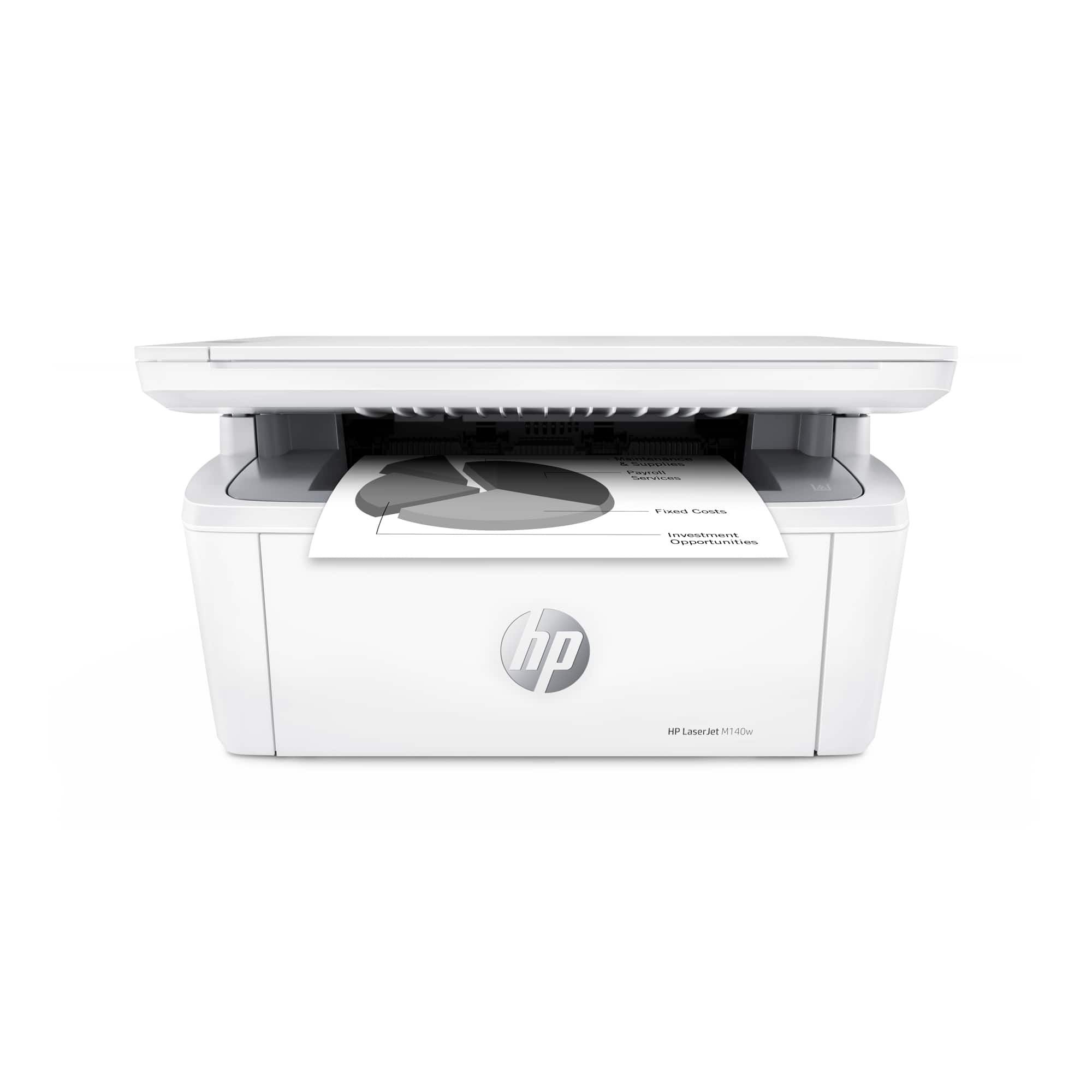
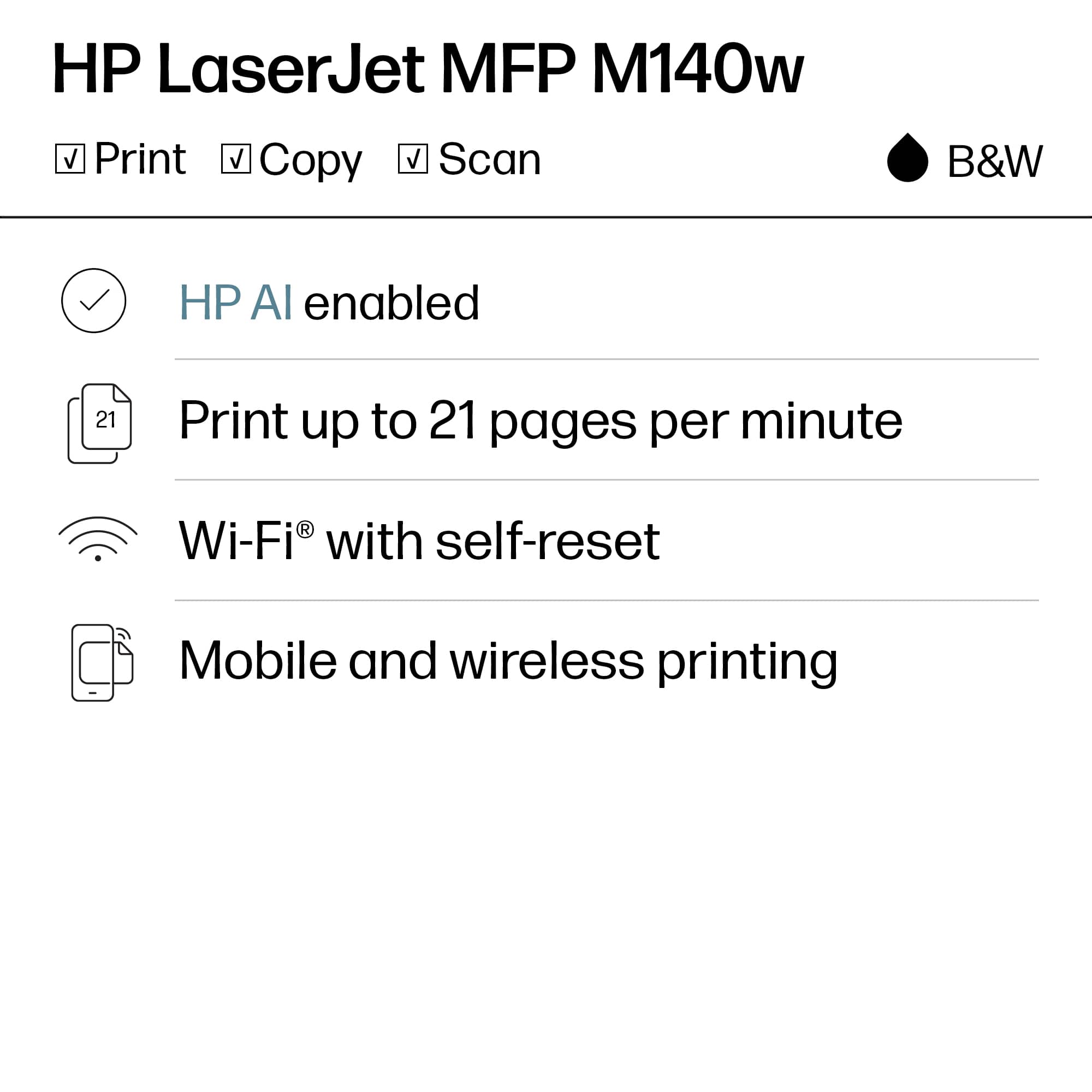



- Model:
- M140W/7MD72F#BGJ
- SKU:
- 10757630
Rating by feature
- Value
Rating 4.5 out of 5 stars
- Quality
Rating 4.5 out of 5 stars
- Ease of Use
Rating 4.4 out of 5 stars
WiFi Printer
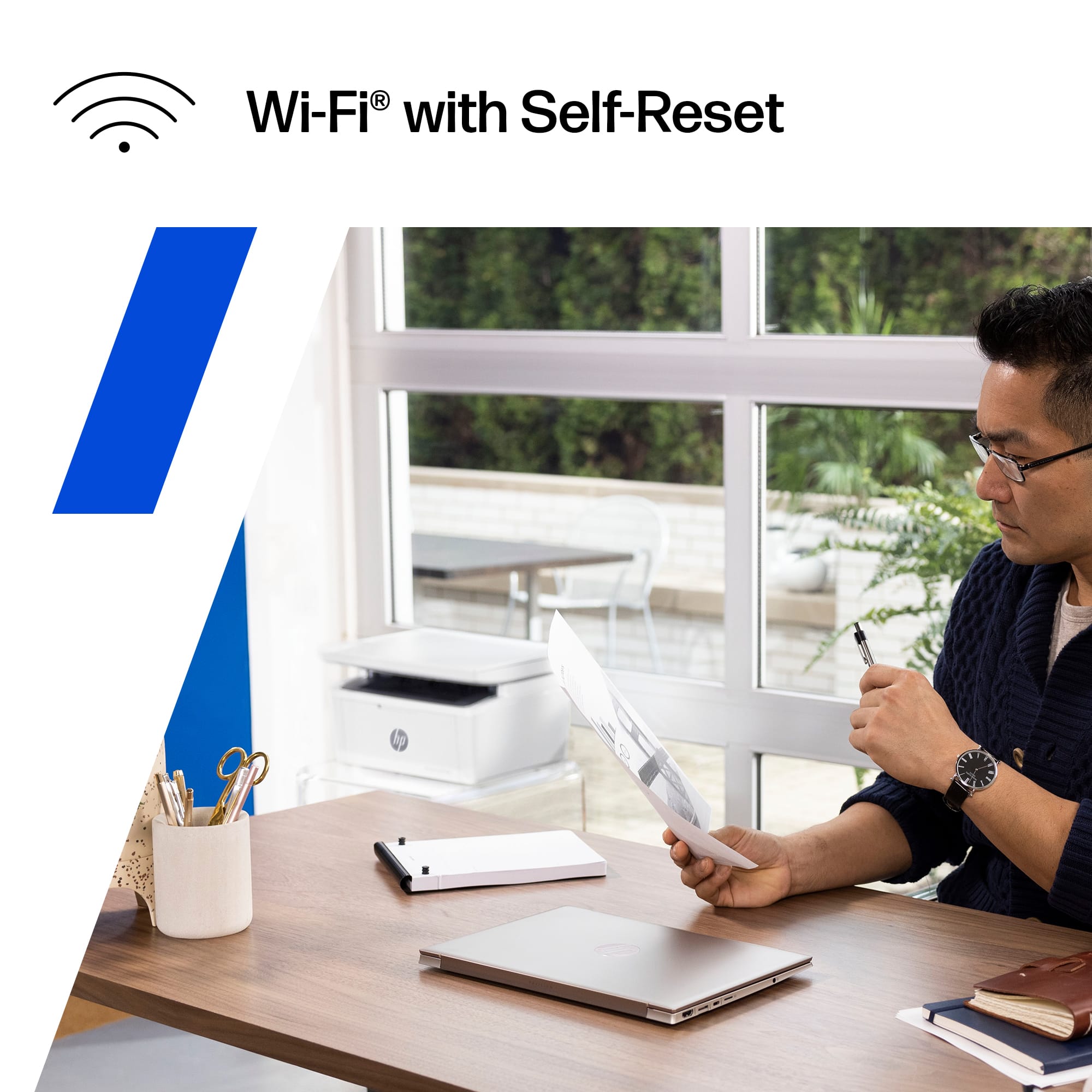
||Posted . Owned for 1 month when reviewed.This reviewer received promo considerations or sweepstakes entry for writing a review.Very good printer, I was able to print out on WiFi.
I would recommend this to a friendA huge disappointment
||Posted . Owned for 3 months when reviewed.This reviewer received promo considerations or sweepstakes entry for writing a review.Had trouble connecting to Wi-Fi. Geek squad got it working and ran 1 copy. I ran 1 copy and it has not worked since. An expensive lesson on HP printers and computers. It is still not working.
No, I would not recommend this to a friendMay gave to return it and buy a $better$ printer
||Posted . Owned for 3 weeks when reviewed.This reviewer received promo considerations or sweepstakes entry for writing a review.Extremely difficult to configure/connect to my HP laptop
No, I would not recommend this to a friendDo not buy
||Posted . Owned for 3 weeks when reviewed.This reviewer received promo considerations or sweepstakes entry for writing a review.Paperweight. Had to get rid of it because it wouldn’t connect to my computer. 0/10
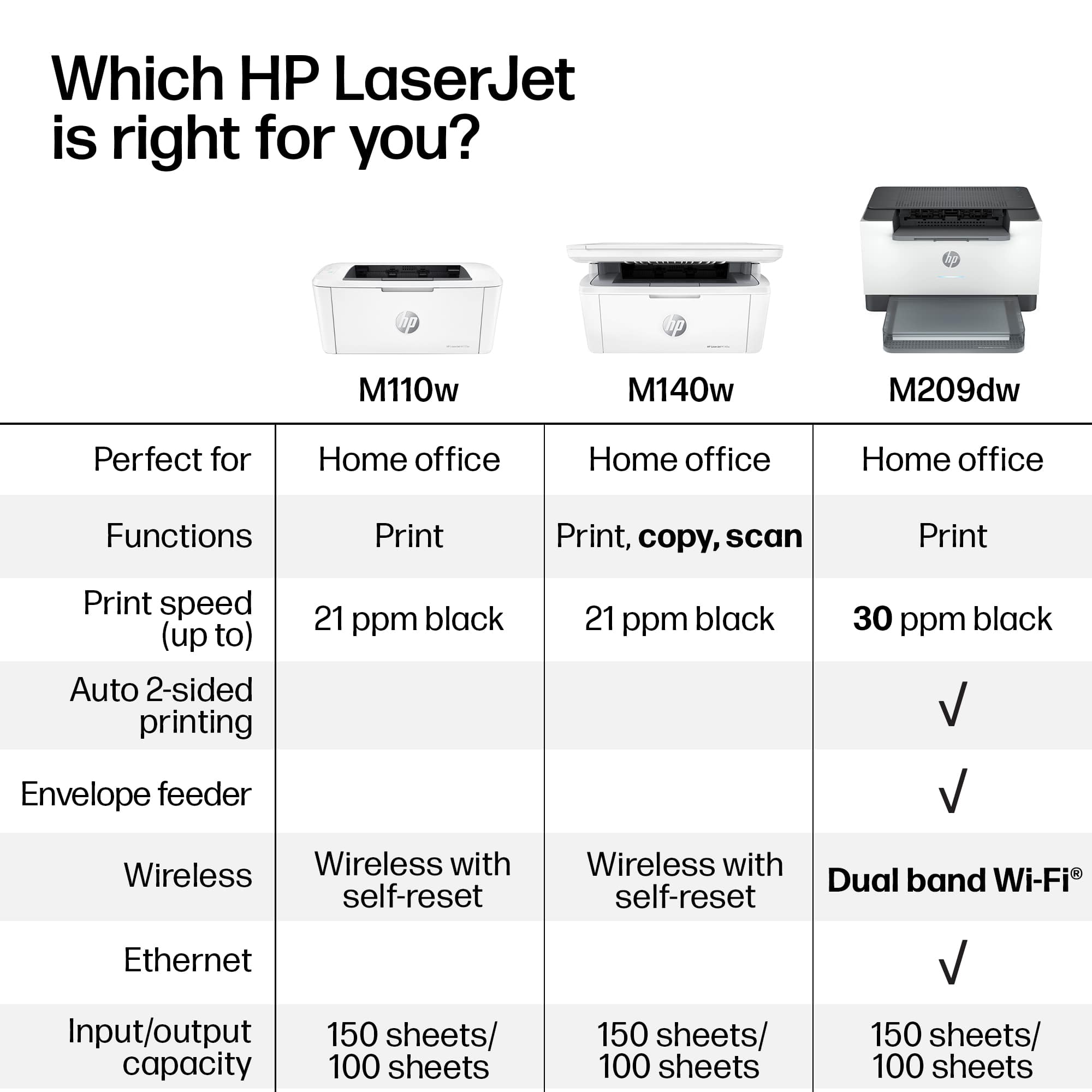
No, I would not recommend this to a friendHP Laser Jet M140w printer.
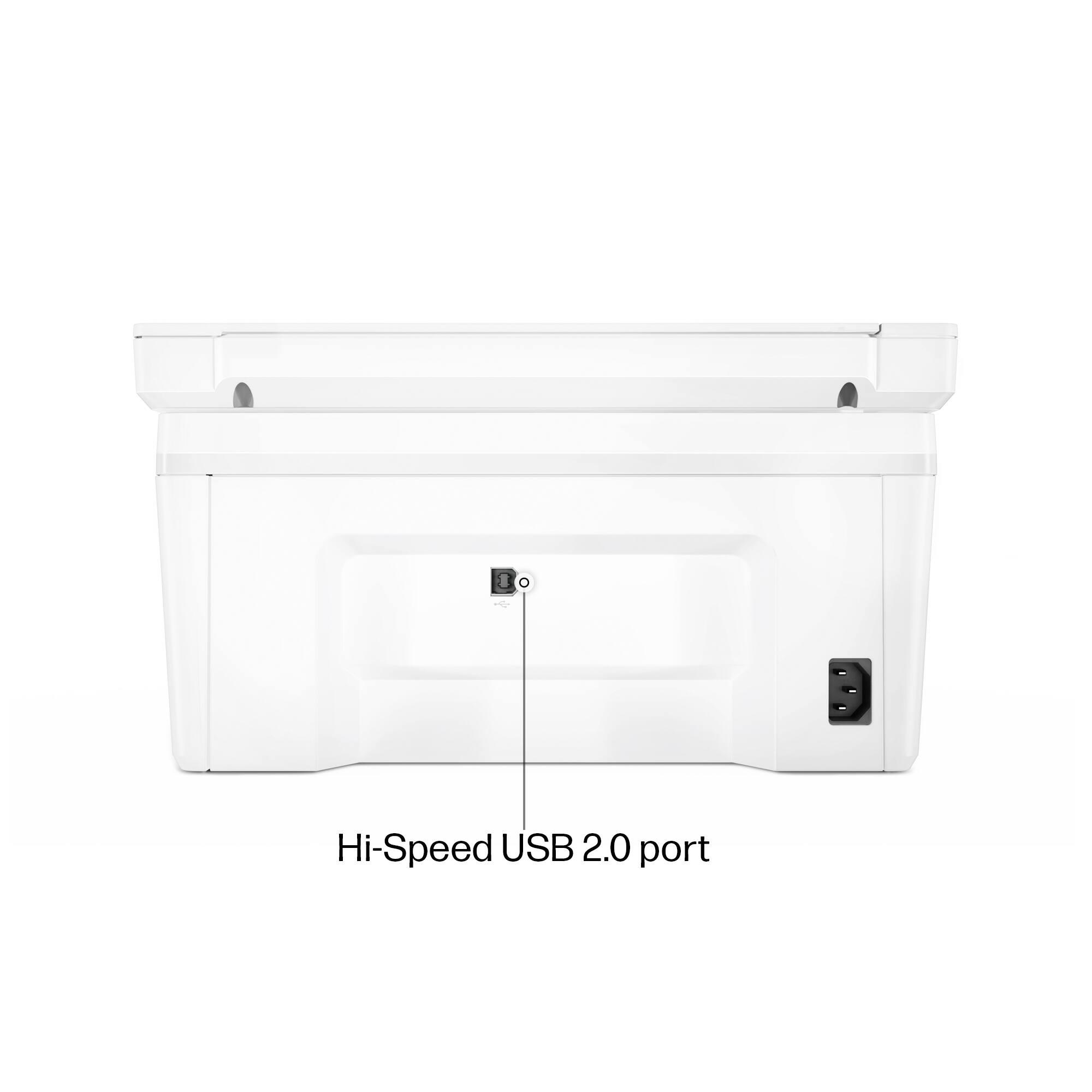
||Posted . Owned for 3 weeks when reviewed.This reviewer received promo considerations or sweepstakes entry for writing a review.This printer will not work on a 5 ghz wifi network. It must have a wired connection to a computer to work. I did not know this prior to the purchase and apparently I am unable to switch my wifi to 2.4.
No, I would not recommend this to a friendSome improvement needed!
||Posted . Owned for 1 month when reviewed.This reviewer received promo considerations or sweepstakes entry for writing a review.I was unhappy with the set up because when the technician felt all was well, without checking it out, it was not okay. When I attempted to try copying something from the computer, it would not work. So we did a WiFi connection over the phone. Again I was not allowed to try it and when he hung up on me I did try and the paper got stuck. My husband unstuck it. The $79.00 charge was not necessary since it di not work properly. We also paid $79.00 for the Geeks to tell us our first computer was broken and could not be fixed. This whole experience was frustrating and I was unhappy.
I would recommend this to a friendPrinter Review
||Posted . Owned for 1 month when reviewed.This reviewer received promo considerations or sweepstakes entry for writing a review.decent product but often hard to operate efficiently
No, I would not recommend this to a friend
Great easy to use all-in-one printer!
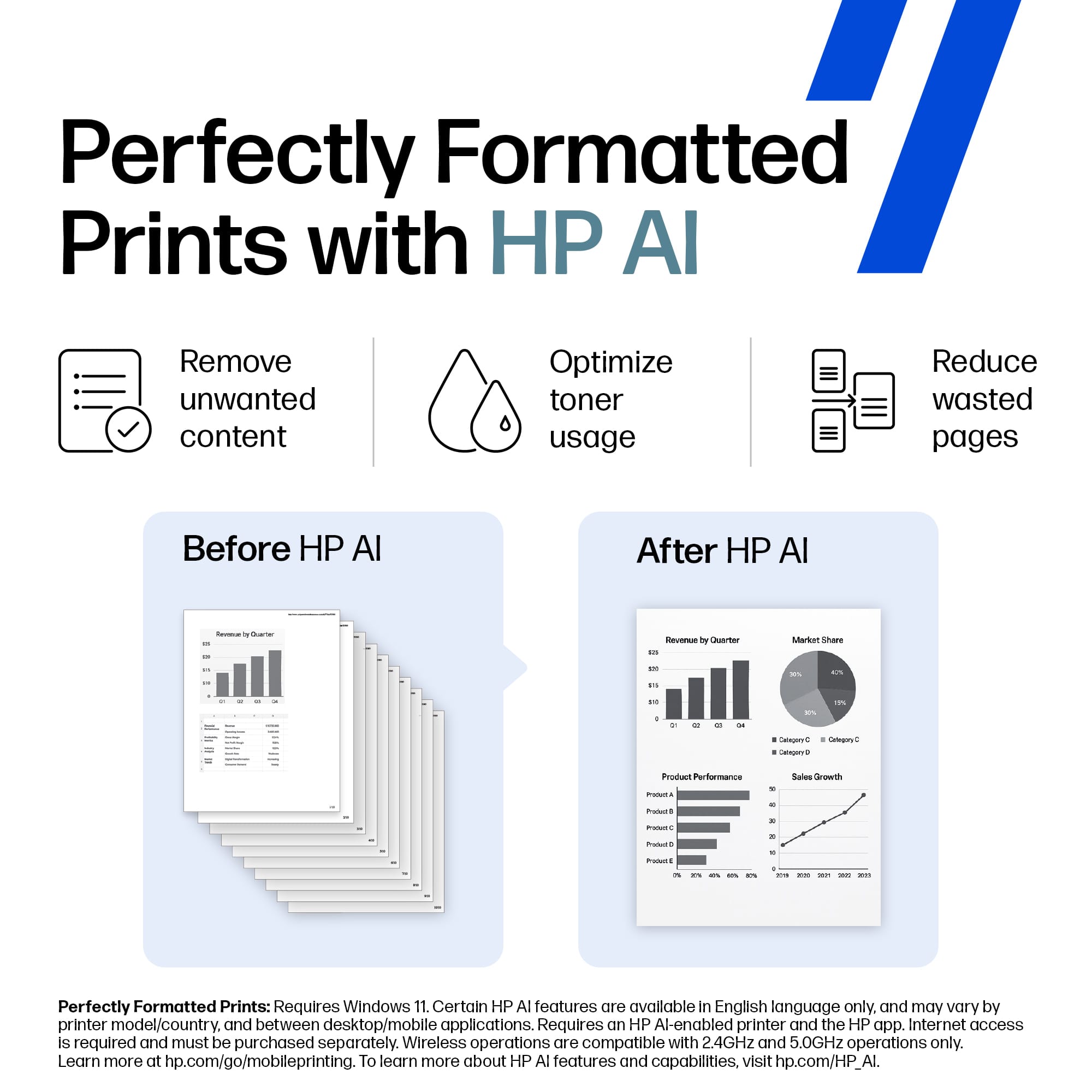
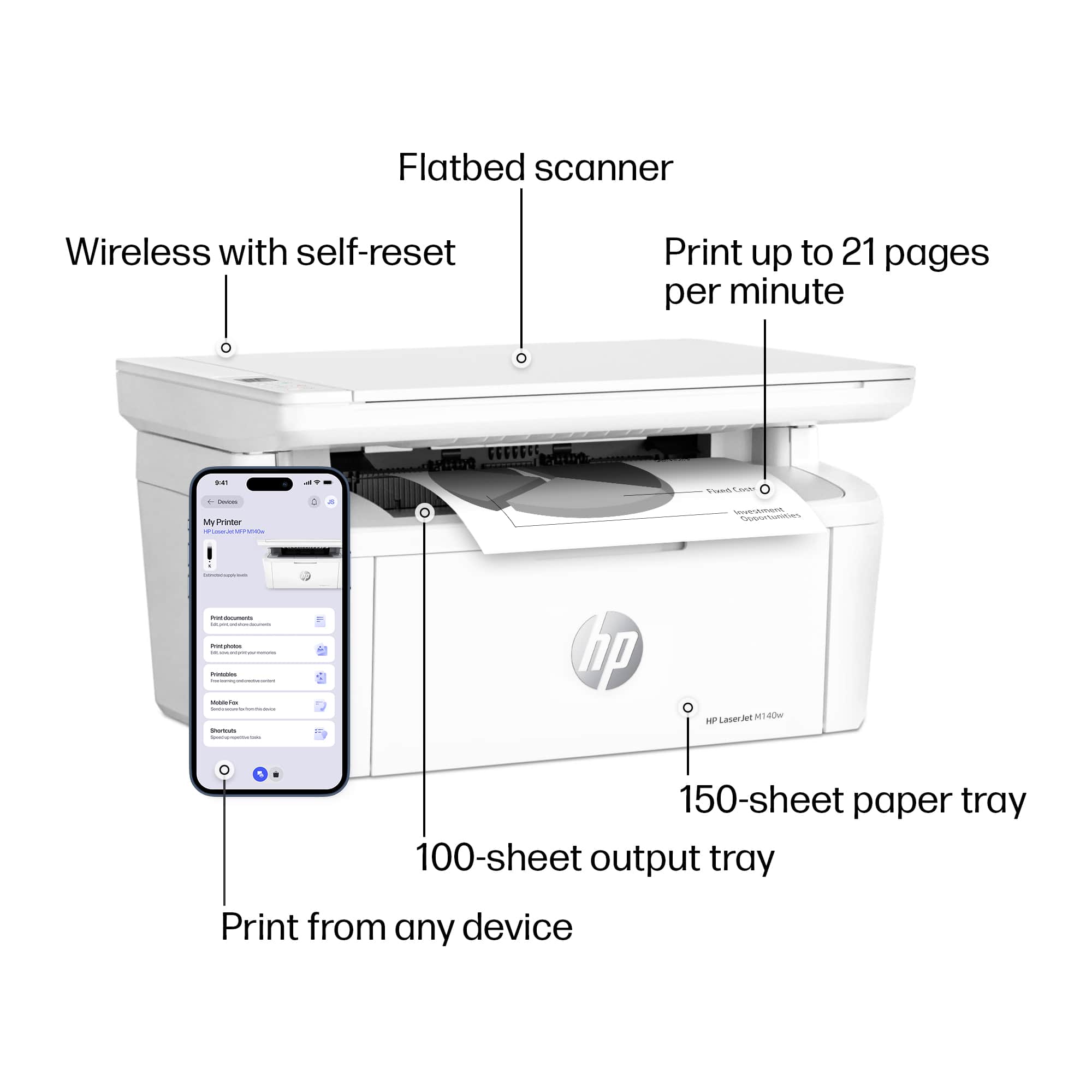
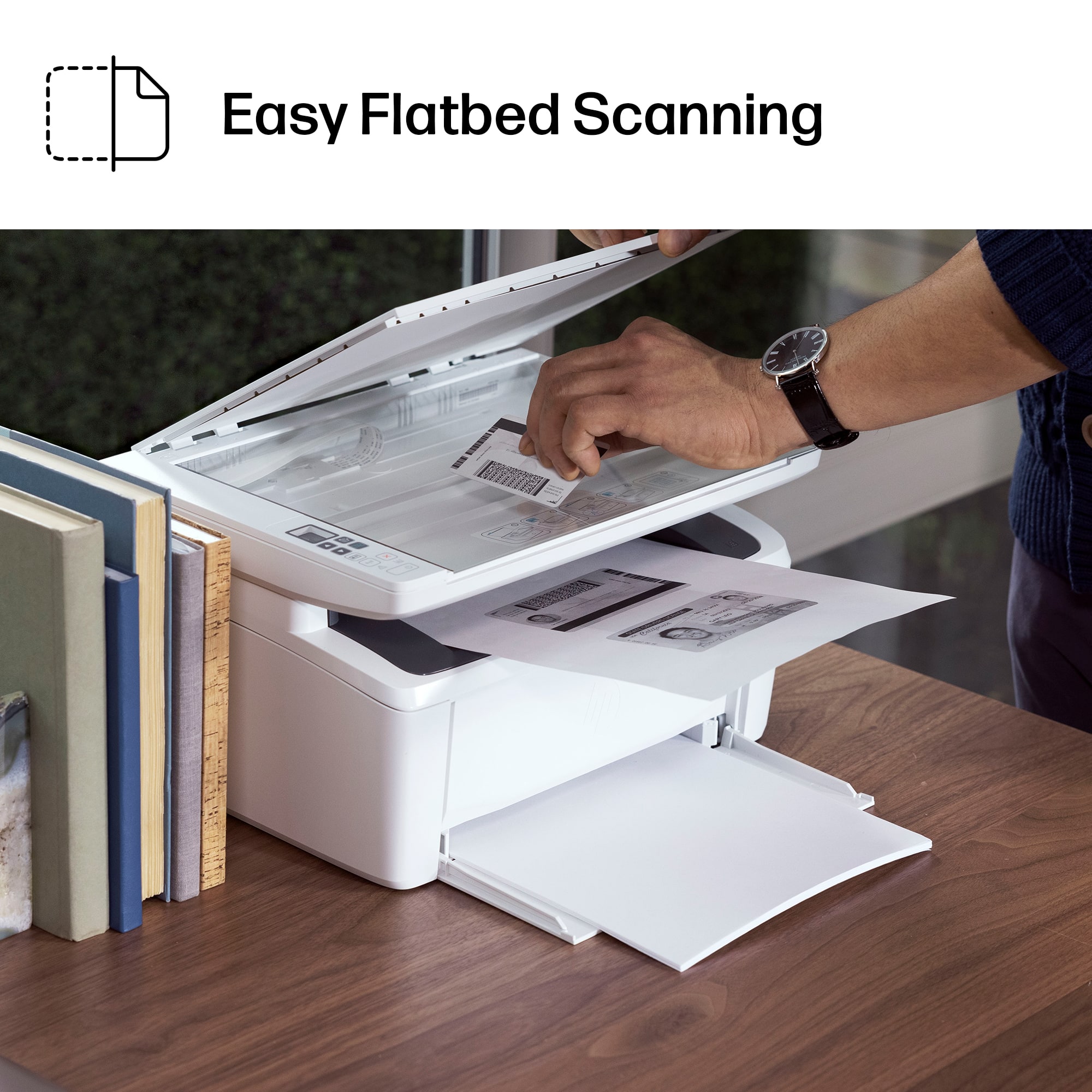
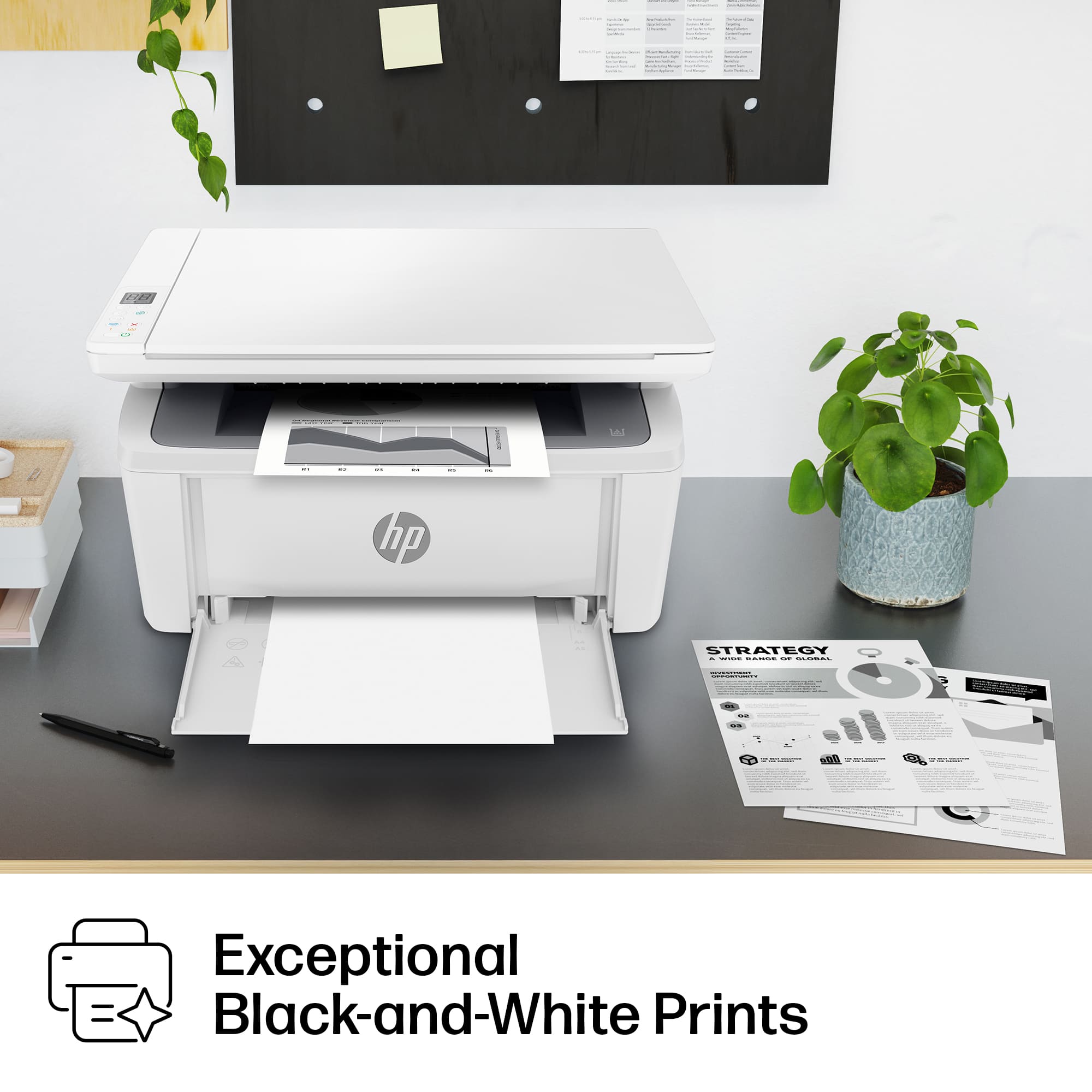
|Posted .This reviewer received promo considerations or sweepstakes entry for writing a review.This printer is a great simple and easy to use all in one that's perfect for the small home office or small office needs. Setup is as easy as unboxing it, plugging it in and using the HP Smart app to set it up with an Android or iOS phone or tablet and even your PC. My Windows machine found it right away and added it without any special downloads, however, with the HP Smart app you get more control over your printer and easier use of the scanner. For speed, this printer is fairly quick though I did notice a slight delay as compared to another HP LaserJet that I have but it's quick once it get's going. Prints are crisp and fine which make documents easy to read and because it's a BW printer it's very economical to print with. I love the HP Smart app as it has all kinds of templates and projects that I didn't even know of until setting this printer up, like coloring pages for the kids or calendars, all with a few clicks in the app from your phone or tablet, it's amazing. The controls are very basic so making copies and scans is an easy task with little effort and with the app scans are easier than ever. I do like the ID copy/scan feature as it makes getting both side in one print a snap. The paper tray is easy to use and makes it easy to keep the printer footprint small though I really which HP could come up with a design to keep the footprint super small like this and have the paper tray underneath the printer to minimize the amount of space it takes up when you have paper loaded. As for the four star rating, I'd recommend this printer but think it's fair to point out that the paper tray once loaded does make it harder to find a spot on a desk or shelf that's already crowded. The printer works great but is a little bit on the noisy side compared to the other LaserJet I have though it is tolerable and is only noisy while jobs are actually printing. Outside of those two things, I think this printer is great and is one I have setup in my gaming room because it's small and will see only occasional use when I'm using the computer for email or other tasks outside of games.
I would recommend this to a friendPoor instructions on connecting to wifi
||Posted . Owned for 5 months when reviewed.This reviewer received promo considerations or sweepstakes entry for writing a review.Very difficult to re-establish wifi connection and then reconnect to computer. Hours spent.
No, I would not recommend this to a friendSTOP- DON'T DO IT!
||Posted .This reviewer received promo considerations or sweepstakes entry for writing a review.This printer makes me want to kill myself. It worked great for 3 weeks (just past the return date) . Now, every single day it has an issue, wont connect to the internet, won't scan, can't print. It's so so bad. Please do yourself a favor and pick something different. This is like burning $200.
No, I would not recommend this to a friendM140w
||Posted . Owned for 1 month when reviewed.This reviewer received promo considerations or sweepstakes entry for writing a review.I would give it a zero if possible. Already wasted too much of my life trying to set this up and I have a degree in electrical engineering.
No, I would not recommend this to a friendWon't feed paper
||Posted . Owned for 3 months when reviewed.This reviewer received promo considerations or sweepstakes entry for writing a review.Print quality ok, if you can get it to print. WILL NOT FEED PAPER. I have spent more time on hold with customer support than I have using the printer. Give this one a pass.
No, I would not recommend this to a friendPoor printer for wireless printing without interne
||Posted . Owned for 3 weeks when reviewed.This reviewer received promo considerations or sweepstakes entry for writing a review.This printer requires internet service to print wireless. It isn’t compatible with 5G service. Stay away if you need wireless printing with no internet.
No, I would not recommend this to a friendHp printer
||Posted . Owned for 1 month when reviewed.This reviewer received promo considerations or sweepstakes entry for writing a review.Bought this and it doesn’t print and keeps going offline
No, I would not recommend this to a friendHp Guy
||Posted . Owned for 1 month when reviewed.This reviewer received promo considerations or sweepstakes entry for writing a review.Printer ok but found hard to get operating instructions
I would recommend this to a friendWorst printer I ever had
||Posted . Owned for 3 months when reviewed.This reviewer received promo considerations or sweepstakes entry for writing a review.The ink cartridge didn’t last for even 200 pages. HP customer support is worse than torture. Called them couple times, couldn’t speak to a live person. Started a chat conversation with HP customer support. The “agent” ended the session after wasting my time asking usesless questions for about 20 minutes.
No, I would not recommend this to a friendEasy Setup and Great quality
|Posted .This reviewer received promo considerations or sweepstakes entry for writing a review.This HP Laser Jet all in one printer far exceeds what I expected! The HP smart printer app was helpful to get us up and printing, it was so easy and quick to set up. The instructions were clear and helpful, we were up and running within 10 minutes. Being able to have the HP Laser Jet printer connected to our home network is great for the whole family. I love being able to print, scan, and copy with this compact quiet machine. This HP Laser Jet printer does a phenomenal job and has excellent quality in printing. My daughter used the HP Laser Jet to print black and white coloring pages she designed and printed on card stock and was thrilled with the results. The scanning feature works better than expected. It has definitely been great to scan in some old paper photos to preserve the memories for my family and friends. The HP Laser Jet makes great black and white copies as well. The HP Laser Jet printer takes up very little room on my desk and I really do find this to be a great value and quality printer for anyone looking for an all-in-one home office printer.
I would recommend this to a friendDon't buy this printer!
||Posted . Owned for 4 months when reviewed.This reviewer received promo considerations or sweepstakes entry for writing a review.I HATE this printer! Everything about it is a pain. The control panel is unintelligible even if you have the instructions beside you all the time. It can always find a reason not to print. I'd like to take it back to Best Buy and dump it on them I dislike it that much. It takes at least 10 secs. to turn the thing off then back on again to try to get it to print.
No, I would not recommend this to a friendGreat value for a simple home user like me
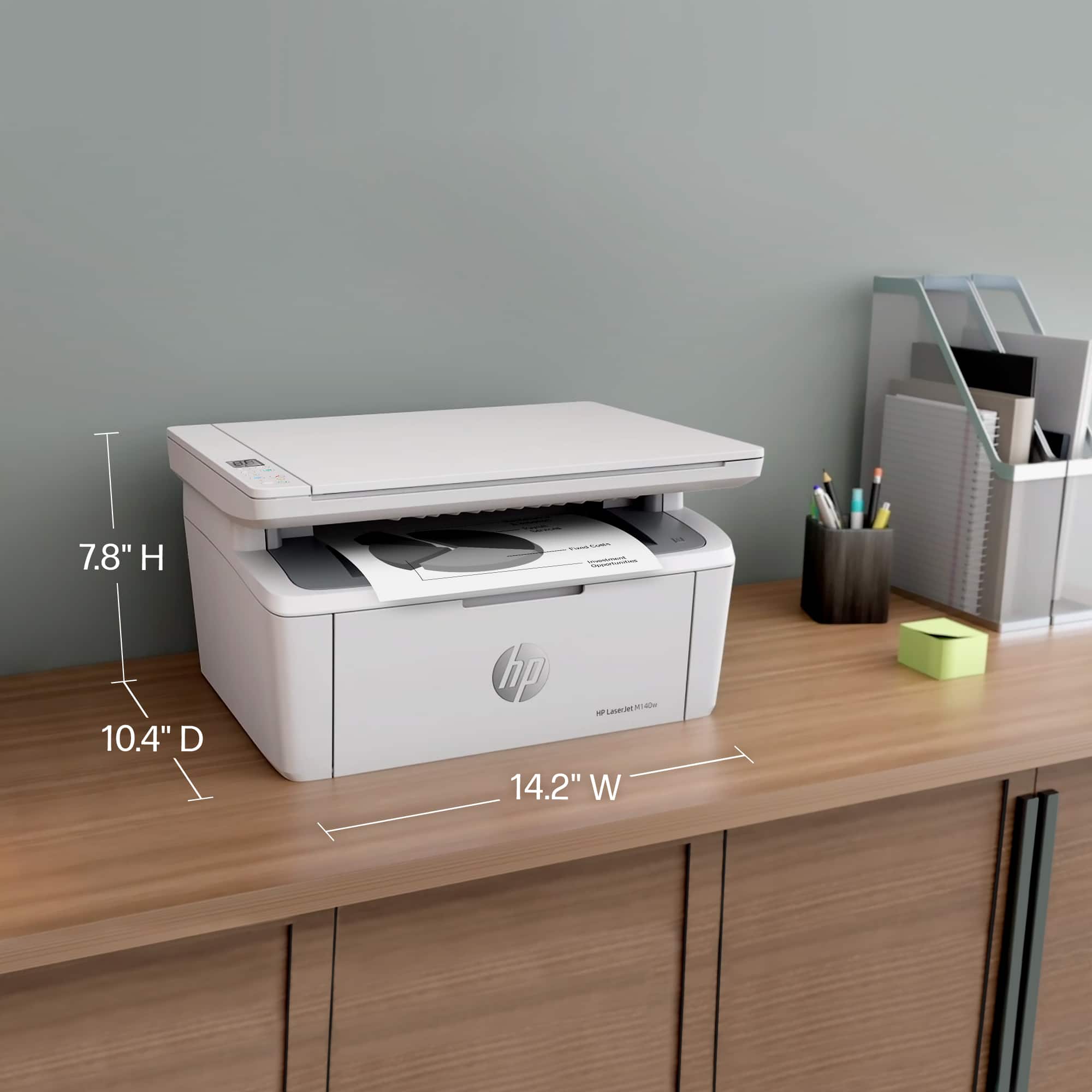
|Posted .This reviewer received promo considerations or sweepstakes entry for writing a review.The first thing I liked was the form factor. This was the whole reason I selected this. I had a much larger (like 2 or 3 times) Canon Multifunction on the side table near the dining table that worked great, but was just so BIG. I have a nice personal color laser printer at the office if I really HAVE to print color. But at home I rarely, maybe four or five times a year, need to print something. So I really did not want something that was so large and unnecessary. This is so much smaller, I love how inconspicuous it is comparatively. First thing I did NOT like - no small indents on the bottom for fingers to go. So it's a pain to pick up and set down since there is no way to grab it. You have to tilt it on whatever surface it's on, and then get fingers underneath it. Granted, this is small, not heavy, so it's not a big dealbreaker in the decision-making process - but it IS an annoyance. Second thing I didn't like, but again, is a necessity with this form factor - no paper tray. IF you want this tucked away in its small form factor, you can't have paper in it. To load paper you pull down the front flap which then becomes the tray to slide paper in. There is nothing precluding you from leaving the paper there unless you want a neat look. The paper capacity is pretty small - again, a reality of the form factor. For me, it's great, since I rarely print, so neither of these issues for me is at all a consideration. I've had wireless printers that were an absolute nightmare to set up on the wireless network - necessitating a USB connection initially, certain utilities downloaded from the web to run and program them. Nightmares. I far prefer being able to program on the unit itself. This one has neither option but requires you to install an app on a smart device in order to set it up or download the app to the computer. Way better option than some of the other ways I've dealt with in the past. I don't print from a phone, so I went with the PC option. I installed the software, saw it had a 4.7 rating out of 5 with a million ratings, so at least I had hopes it wouldn't be a dumpster fire. First thing I loved about the app - the normal gunk - personalized things, advertising, analytics, all three options are DISABLED by default when you go to do a custom install. It found the printer right away, pulled my Wi-Fi password from the Surface Pro I was setting it up with, and got the process going. It wanted me to press and release the flashing blue Wi-Fi button - I did, and it disconnected me in the app. The button then said "Try again" so I tried again. This time it asked me to select the wireless network and put in the wireless key. I did so on my 6 GHz network since it offered that as an option. Unable to connect. Tried again with the standard 2.4 GHz network selected. That one finally worked. Went through the final things about setting up an account, and once I verified the email address, and then it wanted a mobile number. I refuse to give my mobile number out to companies like this, and fortunately you are able to continue past that and leave it blank without any issues. Once that's done it returns you back to the HP app you used. The next thing the install does is try to upsell you to the instant ink delivery for a subscription. Then you can select for it to auto update itself or not. It sends a test page (not the MS test page but its own HP one) and prints it out. Printer is noisy, not as bad as some, but actually is louder than the larger Canon. I'm guessing that's due to the size and compact nature, not as much room to bury sounds in. Printed quickly though. Then I tried to print this review - and it wouldn't. I got an error, "Printer busy." Printer was sitting idle after initial setup and printing of the test page. Lights on the display all green. So I got into the HP Smart program, went to the status, and it shows that it's busy there as well. When I finally got to a full status page, it says it's printing a document. But it isn't. It printed a document already and completed. So I power cycled the printer to try again. Not a great start. When I turned it back on, this time it flashed the power light and the orange exclamation point at me. Eventually the exclamation point went away. Status on the page showed ready so I tried printing this review again. I figured it should print quickly - only 4300 characters long at this point, no graphics. Spooled in a second, started printing within 5, and completed in less than 10 seconds. Not bad, and certainly will suit my needs well. I didn't use the Canon multifunction unit's scanner since I've found that for the things I'd want to scan, the quality is generally not good enough. I almost never scan documents, but photos and such, so I have an actual standalone scanner I use for things. But I wanted to test this out, so first I fed their test print into it. The scanner defaults to a 300 DPI output, with selectable options for 150, 300, or 600. I can save it as a PDF or a JPG with low, medium, or high compression. I see no option in the software to use this as a copy machine though, scan something, and have it print a copy. You can set the defaults for it, but can't initiate it. Makes sense as if you're going to be using it as a copier, you would be on the physical device itself. And there IS a copy button on the top of the printer with all the other buttons. Pressing it twice got me a copy, printing of what I placed in the scanner. I tried to print a photo - normal scanned photo in JPG format. It printed pretty quickly, and considering it's a scan of a photo from 1981 or so, and was dark and grainy to start, I was impressed for how the black and white print turned out. I have no standalone scanning software, so I don't know if this would support a standard twain type of scanning software. The scanning software I do have was paired with the scanners, so only worked with them. But for my home needs, since I'd likely never actually scan with this, not an issue for me. Digging into their HP Smart software some to get at printer properties, I found a page that showed me to look for a PIN inside the printer near the printer cartridge for the setup there. Found the label on the left side when you've opened it. And this is where things got weird. It said it needed that pin for the next page, but the next page never ASKED for it. Then there is a settings page that talks about security, and has text entry lines for password and confirmation. I tried that, set it up, and then when it nagged me to log in, it failed. The setup said "use any username when you type in the password," which was what I tried. I used admin which is what it defaults to, no go. Tried a few other names, all failed. Tried no name, failed. I exited and re-opened the HP Smart program, and it prompted me for a password WITHOUT any username prompt, a password field only, and entering it THERE got me into the printer settings in the HP Smart program again. But that page to set the password still is asking for a password. It also says "To disable the administrative password, leave the fields blank." But trying to do that does NOT work. It just says "Entry is Invalid" when you clear it out and try to save it as blank. And no matter what I can NOT now get it to try to check the firmware because that is right below this security page, and no matter what I do, it seems to try to apply new password settings when I click on the "Check Now" button, as if I was trying to click the "APPLY" button on the bottom of the page to apply settings for the password. Finally after exiting the app yet again and restarting it a few times, then going back into the page, advanced, system settings, administration, and putting in the password (twice, which is annoying, you have to type it AND confirm it even though this is not to change it), I finally got to the point where I could check for updates. But I can find no place yet to reset it to a blank password despite this page claiming it can do so by simply applying it when the password field is blank. I also see that despite telling the install routine to install updates automatically, here it's UNchecked. I checked it, applied, exited, came back in, and it's again unchecked. So, I honestly don't know if it will auto check for updates or not. There are none pending on it right now anyway... Digging deeper I found ways in the app to create shortcuts, which will include scanning to cloud storage and emailing the scans to yourself. Handy options to program a quick button for. All told I'm very happy with this as a printer, although the software clearly frustrated me. I wanted the quickness and sharpness of a laser printer to replace the still new Canon laser printer I wanted to downsize from. This fills every need I had in that respect. MUCH smaller footprint, good quality, quick. Printer itself is worth 5 stars, but overall, I'm giving 4 stars due to the irritations with the software.
I would recommend this to a friendHP online support terrible
||Posted . Owned for 3 weeks when reviewed.This reviewer received promo considerations or sweepstakes entry for writing a review.Problems with unit turning off. First thing their support line tech tried to do was sell me an extended warranty
No, I would not recommend this to a friend