Customer Ratings & Reviews
- Model:
- JVAW76
- SKU:
- 6465110
Rating by feature
- Value
Rating 3.8 out of 5 stars
- Quality
Rating 4.0 out of 5 stars
- Ease of Use
Rating 4.1 out of 5 stars
Customers are saying
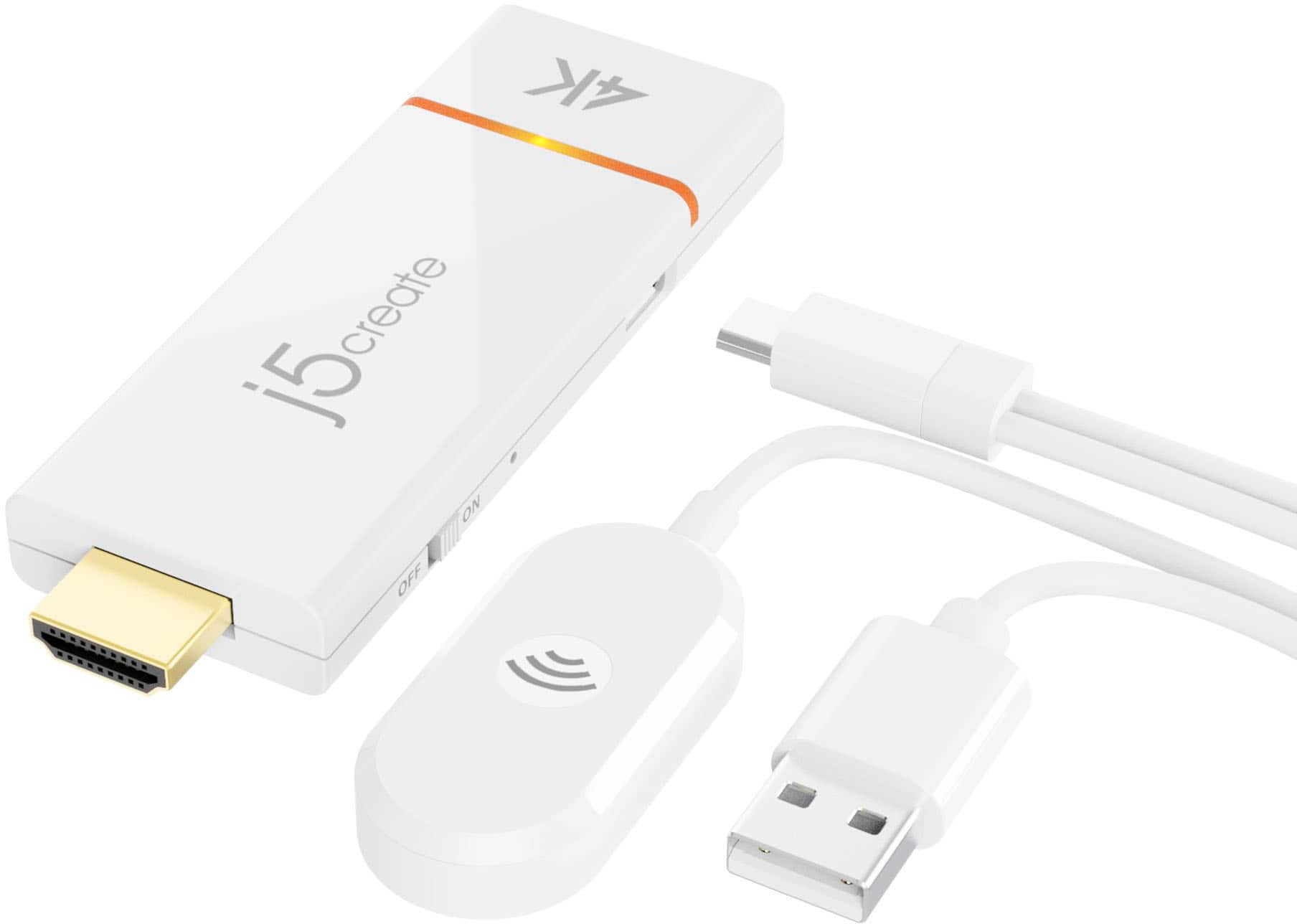
Customers are delighted by the ScreenCast 4K Wireless Display Adapter's ease of use, overall performance, and simple setup. Users appreciate the easy screen mirroring capabilities and the high-quality resolution offered by the device. However, some customers have reported issues with connectivity, compatibility with certain apps, lag, and occasional signal drops. Additionally, a few users have noted concerns regarding the audio quality.
This summary was generated by AI based on customer reviews.
Not reliable and expensive
||Posted . Owned for 1 month when reviewed.This reviewer received promo considerations or sweepstakes entry for writing a review.Sort of works, but suffers from constant interuptions. Audio and video constantly getcout if synchronization and require and irritating reset of the devices.
No, I would not recommend this to a friendBrand response from J5create Team
Posted .Ensure the ScreenCast 4K Wireless Display Adapter is with-in the 50 ft in an open environment. Make sure that there are minimal obstructions and electronic devices between the ScreenCast adapter and the source device to reduce signal interference. If your Wi-Fi router supports both 2.4GHz and 5GHz bands, connect your source device and the ScreenCast adapter to the 5GHz band. The 5GHz band is typically less congested and can provide better performance. Check if your Wi-Fi router supports Quality of Service (QoS) settings. You can prioritize video and audio streaming traffic over other internet activities to improve the experience. Ensure that other devices on your network are not heavily using bandwidth during streaming. Network congestion can lead to interruptions.

no
||Posted . Owned for 2 months when reviewed.This reviewer received promo considerations or sweepstakes entry for writing a review.I didn't like this item and I would not recommend it. Not only was it confusing for me to figure out. But I couldnt use it with my own wifi for some reason!!!
No, I would not recommend this to a friendBrand response from J5create Team
Posted .In order to narrow down the exact issue you are experiencing, we recommend contacting the Technical Support Team. Their information can be found on our website under the "Support" tab. Thank you.
love itttt
||Posted . Owned for 3 weeks when reviewed.This reviewer received promo considerations or sweepstakes entry for writing a review.love it , had trouble install it because Im old school , but my nephew set it up , now I can screen cast my loptop to my 75" tv anytime i want too woo hooo
I would recommend this to a friendDidn’t work
||Posted . Owned for 1 year when reviewed.This reviewer received promo considerations or sweepstakes entry for writing a review.Didn’t work at all, hopefully I just got a dud and it’s not all of them
No, I would not recommend this to a friendBrand response from J5create Team
Posted .I apologize for the experience you have had with your ScreenCast 4K Wireless Display Adapter. The product comes with a 2 year warranty that allows you to replace a defective product for a working one. Our customer support team can assist you with the warranty process. To contact our customer support team please visit the j5create website then click on the "SUPPORT" tab at the top right of the webpage. Thank you.
Unit not worth buying poor support
||Posted . Owned for 1 month when reviewed.This reviewer received promo considerations or sweepstakes entry for writing a review.Having trouble getting unit to work spend almost 3 hrs with geek squad on phone still won’t work now going to BB story next week
No, I would not recommend this to a friendBrand response from J5create Team
Posted .Please contact our j5create Technical Support Team, so that they can get more information from you; in order to narrow down the exact issue you are experiencing. Their information can be found on our website under the "Support" tab and a specialist will be ready to assist you, thank you.
Could not make this product work
||Posted . Owned for 3 weeks when reviewed.This reviewer received promo considerations or sweepstakes entry for writing a review.Item did not work. The internet website link did not work. Was unable to retrieve the password to make this product work.
No, I would not recommend this to a friendBrand response from J5create Team
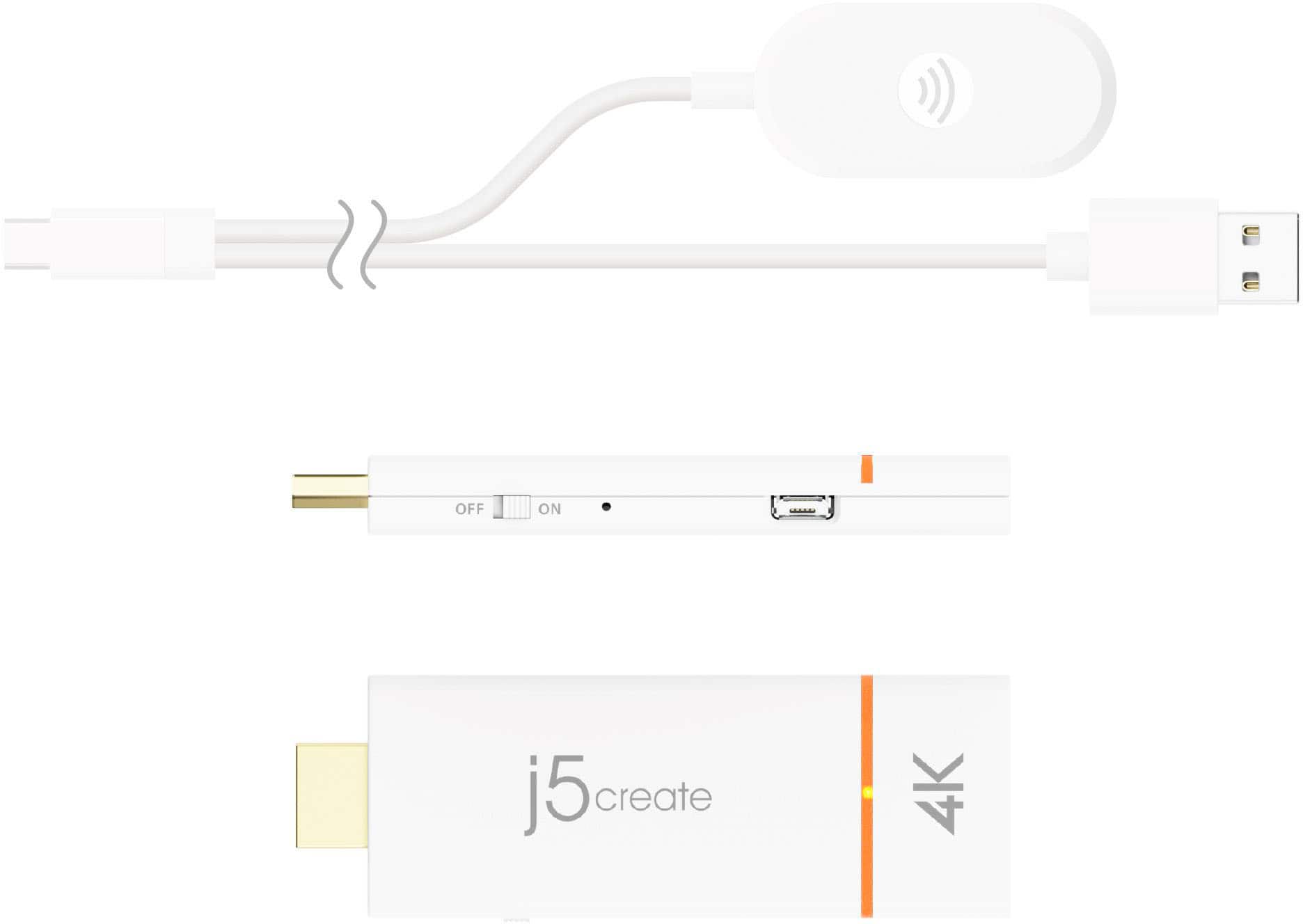
Posted .Plug the HDMI connector into an available HDMI port on the TV/display. Plug the USB connector into an available USB Type-A port on your TV or a USB power adapter. *If a USB port is not available on your TV, you can connect it into a wall outlet using a USB power adapter. Turn on your TV to power up the ScreenCast. Select your TV's input/source until you see the setup screen. *If your TV screen remains black, your TV may not be supplying enough power. In this case, please plug the USB cord into a USB power adapter and connect it to an outlet. ** Feel free to contact j5create Technical Support if you require further assistance. Their information can be found on our website under the "Support" tab. Thank you.
Junk
||Posted . Owned for 1 month when reviewed.This reviewer received promo considerations or sweepstakes entry for writing a review.It's junk. Couldn't even make the dam thing work. Now they won't return.
No, I would not recommend this to a friendBrand response from J5create Team
Posted .Plug the HDMI connector into an available HDMI port on the TV/display. Plug the USB connector into an available USB Type-A port on your TV. Turn on your TV to power up the ScreenCast. Select your TV's input/source until you see the setup screen. *If your TV screen remains black, your TV may not be supplying enough power. In this case, please plug the USB cord into a USB power adapter and connect it to an outlet. If those steps did not work, please contact our Support Team by Live Chat or email, so they may be able to help with troubleshooting. Their information can be found on our website under the "Support" tab. Our phone support will temporarily be unavailable due to COVID situations. Cordially, j5.
Not for me
||Posted . Owned for 3 weeks when reviewed.This reviewer received promo considerations or sweepstakes entry for writing a review.Used wifi to mirror the screen, not allowing me to remain online
No, I would not recommend this to a friendBrand response from J5create Team
Posted .Please contact our Technical Support Team, so that they can get more information from you. Their information can be found on our website under the "Support" tab.
- Pros mentioned:ResolutionCons mentioned:Connectivity

Mirrorcasting without spending a ton on hardware.
|Posted .This reviewer received promo considerations or sweepstakes entry for writing a review.j5create ScreenCast 4K was a very mixed bag for me. While there are many things I would praise about it, there are some faults as well. I appreciate the price point as this is a better option than say using a Roku as a PC/Android/iOS mirror cast. I also like that it has dual-band Wifi with 2.4/5.0 bands and that the wireless dongle can be placed where you want it. So let’s start off by talking about the setup is for this device. Once out of the box they give you nearly everything you need to hook it up. You will need a TV with a USB port or a USB wall outlet as j5create does not provide. Once plugged into the TV they give you a set of instructions to follow to connect your Wifi. Finding the password was difficult on the screen but it is there is a super small font. Using 5.0ghz I started just using it as a real-world test. Using a friend Dell Inspiron laptop I wirelessly connected with no issues and it supports the 4K@30fps. Great enough and fast enough for videos to say the least but nothing more. Once I used my own laptop the Asus ROG M16 it just wouldn’t connect at all. Even with me changing the resolutions of the laptop. I will say that the iOS screen mirroring works fine as well but it seems to just keep default 4K@30 at all times. You can’t play music through AirPlay as they as you to just Screen mirroring instead. You can also control the volume through an Android/iOS device volume keys. No issues with Android devices that I had around, just simply mirrored everything. If you ask me; This device is good especially if you don’t want to be in the ecosystem of Roku/Google/Apple’s Airplay. It’s just a streaming video device that’s wireless with no strange logins or account making. Latency was also to me was pretty average but it’s a wireless device in HDMI so I’m pretty impressed. Also great if you don’t want to connect an HDMI each and everything time to your PC. But saying that means your mileage may vary especially with the PC side of things I can’t get my own laptop to connect. It is better than using a Roku as a wireless streaming video device. If updates can be applied I’m sure it can be a better device.
I would recommend this to a friendBrand response from J5create Team
Posted .You should be able to connect your laptop by opening your "Presentation Display Mode" (Windows key + P), then select "Connect to a wireless display". You should see ScreenCast's device name. ** If you require further assistance; please contact the j5create Technical Support team by Live Chat or Email and we will be glad to further assist you. Our phone support will temporarily be unavailable due to COVID situation. Their information can be found on our website under the "Support" tab. Thank you for taking the time to write your feedback on the JVAW76. It's much appreciated.
Great for business or light home use
|Posted .This reviewer received promo considerations or sweepstakes entry for writing a review.In the package you get a hdmi dongle and receiver with usb cable. Plug the usb cable into open port on tv and hdmi dongle into an open hdmi port. Screen casting to it is fairly simple and works exactly as described in the included manual. The problem is that you are limited to only 30hz refresh rate which is horrendously slow for anything other than presenting. Trying to use this as an extra wireless monitor will only end in frustration. You can mirror your phone to it as well on your TV but I found this more gimmicking than practical. I tried to play a video on my phone and mirror it to the tv but the audio was very lagging and not in sync. As long as you know what you are getting into it, this product does what advertises. Don't think you are going to add another pc gaming monitor wirelessly and make it useful. I found the creator's to be very accurate and up front about what the limitations of this device are.
I would recommend this to a friendBrand response from J5create Team
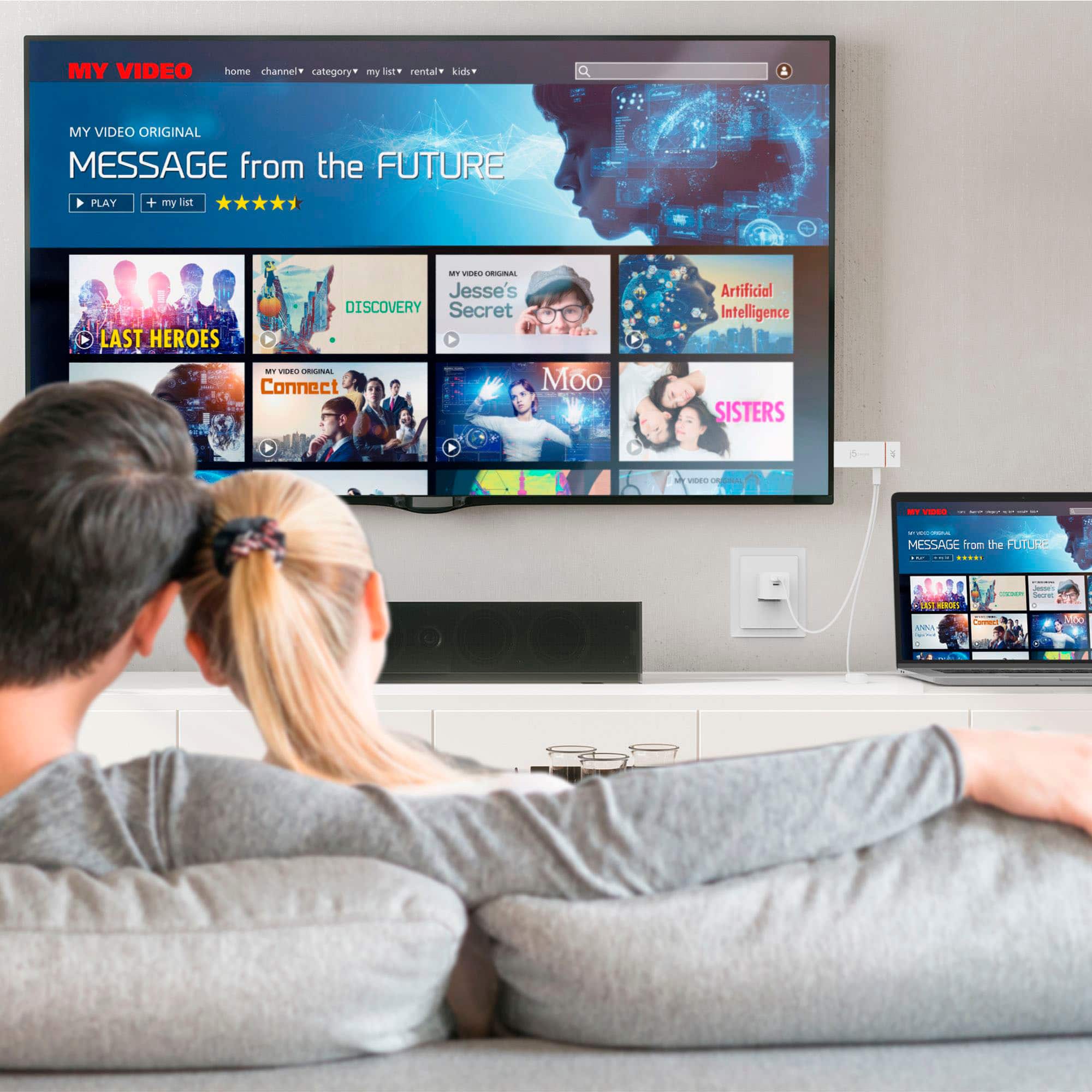
Posted .Cast video directly from your phone, tablet, or laptop to a TV and enjoy the entertainment you love in up to 4K. Wirelessly share content from your mobile device to your HDTV. Native support for AirPlay, Miracast, & Chromecast (Google Cast). Thank you for your review, mibeal. Cheers!
- Cons mentioned:Compatibility
Great under the right conditions
|Posted .This reviewer received promo considerations or sweepstakes entry for writing a review.When all the variables are favorable, the J5create works as it should with very few hiccups. But, when you do experience issues, it can be difficult to find the problem. Setup was fairly straightforward and the device was ready to cast within 5 minutes. The directions seemed a bit confusing at first, but once you get going, everything falls in place. My first test was a Samsung laptop using my home’s wifi. Connecting was quick and easy, but the image and audio were consistently delayed/pixelated. I attempted to watch a Youtube video and make a zoom call. It was unusable. I tested my wifi speed and was getting more than enough to handle the request. I’ve used this machine before for these types of scenarios and had no qualms, but here, I couldn’t create a stable, usable environment, Next, I used a Note 20 Ultra 5G. Once again, connecting was seamless. Using the same wifi network, the image was much more stable. Following all the test measures from above, everything worked great. Videos in full screen played with no problems. Zoom call had no issues. Satisfactory performance. Lastly, I used a laptop connected directly to my router through ethernet. Again, connected instantly, and mirroring the Android experience, it met all expectations and worked as described. I assume this is most likely the optimal setting for using this device. One thing to note in all of the tests, there was never a disconnection. There may have been excessive lag in the first test, but the connection never dropped. Without getting into all the technical reasons why, I will say your experience may vary using wifi for both devices. There could be many issues with my first test, but I couldn’t pinpoint the issues through all my investigating. But, once you find your best scenario for using, the connection is dependable, therefore I would recommend the J5. create
I would recommend this to a friendBrand response from J5create Team
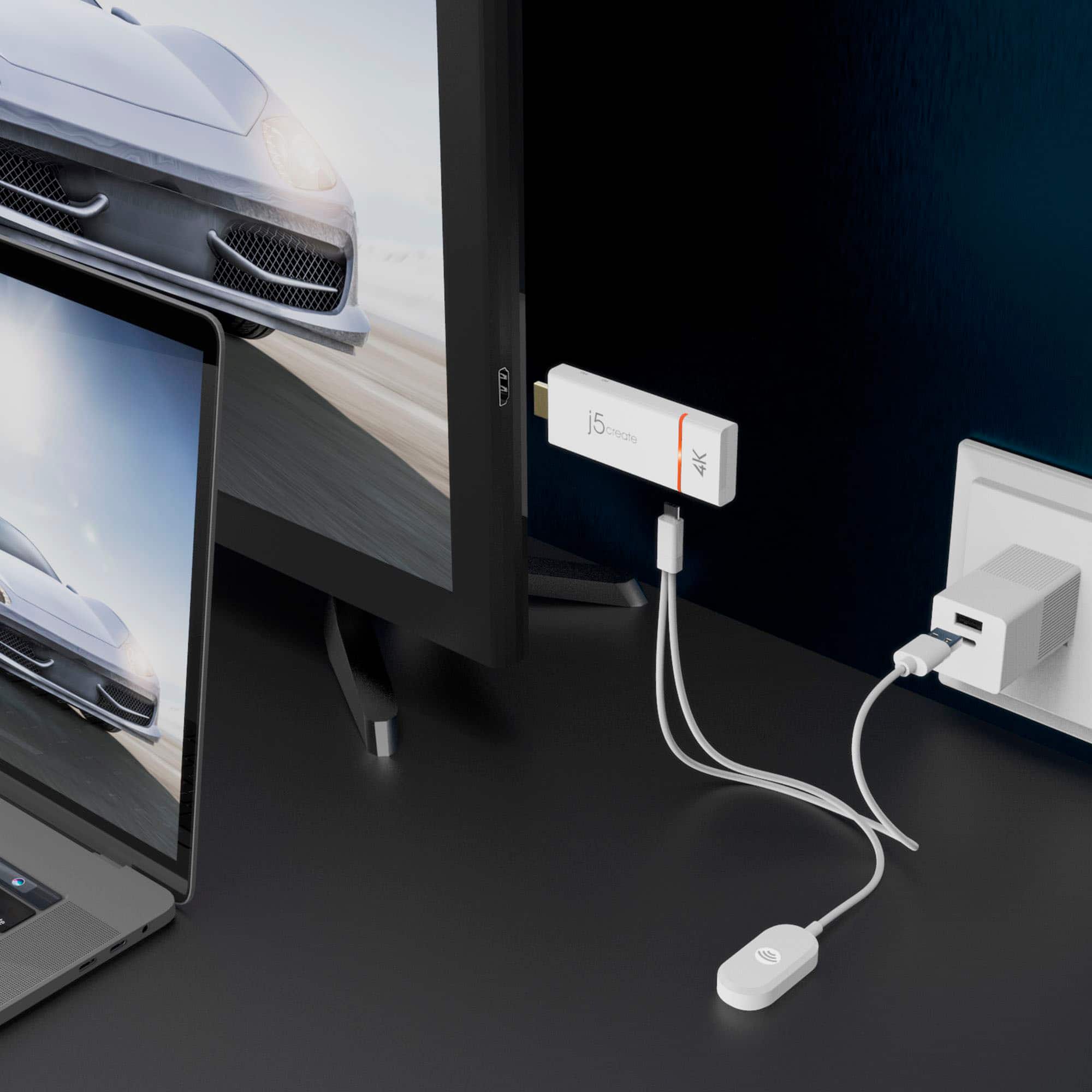
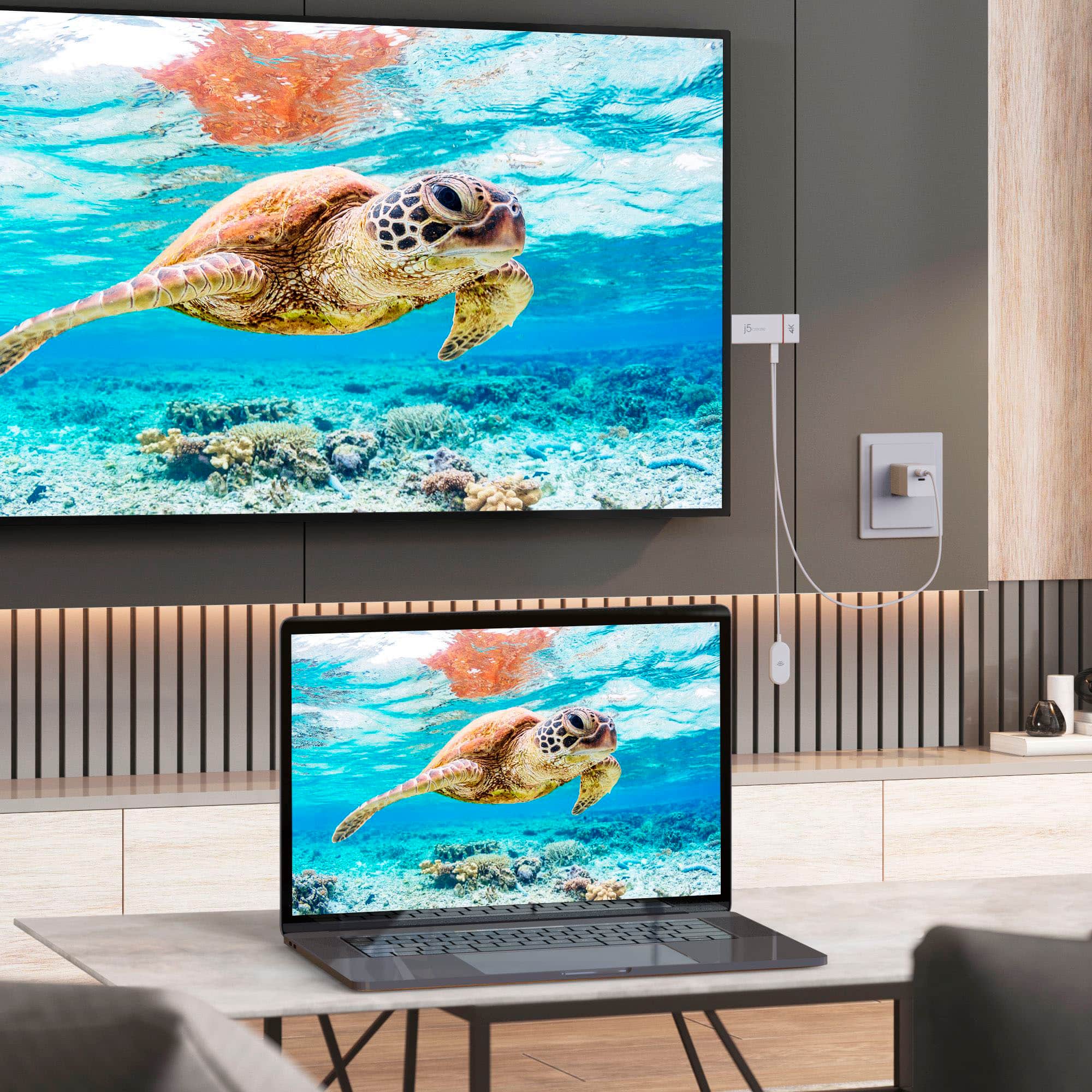
Posted .Wirelessly display content from a phone, tablet, or laptop onto a bigger screen with the ScreenCast 4K Wireless Display Adapter. With its support of multiple wireless display standards (Miracast, AirPlay, and Chromecast), this wireless display adapter is compatible with devices and TVs you already own, including Windows, macOS, iOS, Android and other cast compatible laptops, tablets, and mobile phones. Thank you for your review on the JVAW76. Enjoy, JKhan.
Disconnect issues
||Posted . Owned for 1 month when reviewed.This reviewer received promo considerations or sweepstakes entry for writing a review.Not happy with it at all. Disconnects during PowerPoint presentations all the time. Have a call in for technical support but not very hopeful.
No, I would not recommend this to a friendBrand response from J5create Team
Posted .Please test by re-pairing the unit. Connect both units to a power adapter and stack them on top of each other. (They must be stacked on top of one another to pair). * In order to do that they have to be literally touching one another. This is because they use NFC (Near-Field Communication) to pair.
Once both units are on, press and hold the pair button on the back of the device (you may need a needle to push the button that is inside the hole) until both units’ lights are blinking. They will both flash red or orange, and finally green when they have been paired. ** Feel free to contact j5create Technical Support if you require further assistance. Their information can be found on our website under the "Support" tab. Thank you.
- Pros mentioned:Ease of use, Resolution
Very impressive
|Posted .This reviewer received promo considerations or sweepstakes entry for writing a review.This is actually pretty impressive. Was simple to set up and get working. I’m currently using a Samsung Zfold3 and connecting it to 32” 4K monitor at home to test it. Just connect using SmartView and whatever is on my phone magically appears on the screen. Being a photographer, this is just fantastic for showing my photos on a larger screen. I’m looking forward to trying it out on my fiancés 55 inch TV so her dad can get a better look at my wildlife photos that he has a tough time seeing on a phone screen or even a laptop. Much easier than lugging around a laptop and having to set it up. Since I copy my better pics from my PC to my phone anyway, just plug the Screencast in and I’m ready to go. Very cool
I would recommend this to a friend Handy Little Device
|Posted .This reviewer received promo considerations or sweepstakes entry for writing a review.The instructions could be better, but if you read everything you will get it connected. The Password is a little obscure because its placement is on the instructions and the numbers you need are on the screen interface but very small. I found the on line help at their website as the best place to fill in you gaps of information. The interface used for entering your SSID and password is a bit odd. It could have been better. Website is especially helpful if you want to reboot the device to use on a different Wi-Fi. I use an Arris Surboard Max Wi-Fi 6 Mesh for my router. It offers both 2.4 and 5 GHz bands. At one location I was getting over 500mps on 5 GHz (using Speedtest.net on my I phone XR) and the j5 connected at 5 GHz. On another TV at another location the J5 would switch between the 2.4 and 5 Ghz connection with Speedtest.net showed my I phone getting 300-400mbs in that area. I say this because using these streaming devices challenges any router and a good solid connection is required. Using 2 different TV’s in 2 different locations in my home, I found my saved videos paying off my phone to be a little jittery with sound that would stop and start with the video. This was worse with videos with a lot of fast movement. Also the TV display was in the aspect of my I phone screen. In other words if your home video was recorded with your I Phone in landscape position the video will pay back in that orientation. If it was recorded in vertical (portrait) position it will pay back in that orientation. Rotating your I phone will not change it on playback. This seems to be an Apple issue and happens not with just this device. However, using the same I phone playing You Tube videos it was a whole different result. Videos would fill the screen on phone rotation or if full screen was selected on You Tube. The video was not jittery and the sound was great with very slight drop outs. Picture was as good as the source. Using a Windows 10 laptop the whole thing got even better! Video and sound were awesome. No complaints. It was easy to connect to the j5 using the Windows Key and P key to bring up a side menu with your choices. Everything worked as would be expected. In addition, Netflix playing on my laptop WOULD play through the j5. I also discovered that you can connect your device to the “setup Wi-Fi” of the j5 and broadcast to it from your device. In essence no Local Wi-Fi is needed to cast unless you need Wi-Fi for content. This would be useful if you are distant from any Wi-Fi connection but want to project on a TV. CONCLUSION: A handy little device once you get past the set-up. I was a little disappointed with the performance from my I Phone, but actually it was no different than when using some other external streaming devices so I can’t blame the j5. You Tube videos worked well in full screen mode. The computer connection using Win 10 was great. It worked reliably and provided a great picture with good sound. I would recommend this device for someone that does not have streaming built into their TV and wants to bring the ability to Mirror to their older TV. Keep in mind this device is also listed to work with Android and Chrome devices although I could not test those.
Brand response from J5create Team
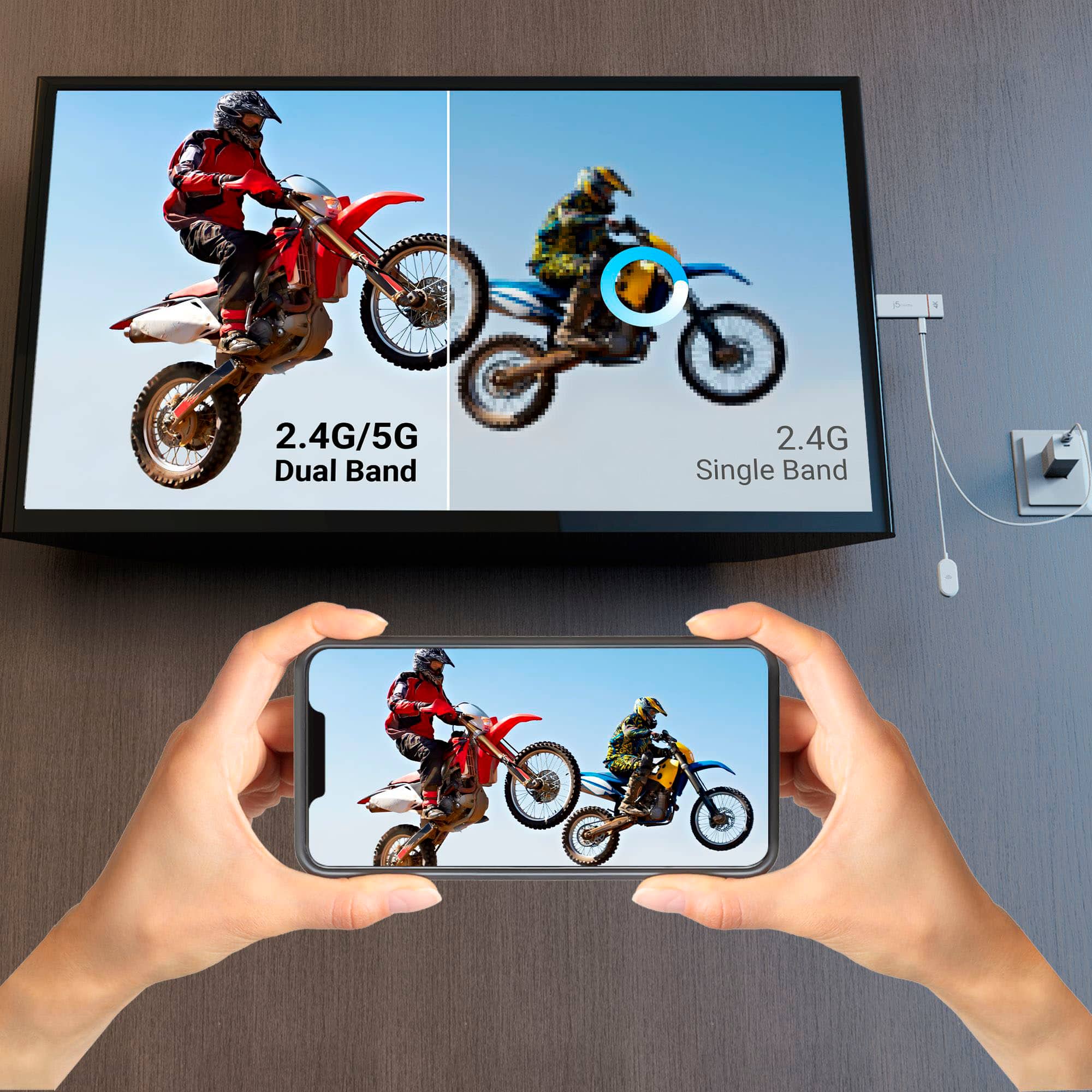
Posted .Cast video directly from your phone, tablet, or laptop to a TV and enjoy the entertainment you love in up to 4K. Dual-band (2.4G & 5G) ensures a faster wireless performance and smooth streaming experience, even with multiple devices connected to your network.
Learn more: https://j5create.com/screencast/ Thank you for your feedback on the JVAW76. Enjoy!
- Pros mentioned:Setup
Portable & Handy
|Posted .This reviewer received promo considerations or sweepstakes entry for writing a review.Great device to screen cast from any device. Setup is straight forward. My only complaint is that the refresh rate is capped at 30hz. So I don't know if I'd want to watch or view anything in 4k at such a low refresh rate.
- Cons mentioned:Lag
Great for device mirroring
|Posted .This reviewer received promo considerations or sweepstakes entry for writing a review.Works as advertised for device mirroring. Even works for launching DEX on Samsung devices. Setup was pretty straightforward how every I do wish the network name and password with a bit more prevalent on the initial launch screen. Took me a bit to notice where it was on the screen and the font itself is rather small. Once everything is up an running though it is very snappy with very minimal lag and no audio sync issues. Just keep in mind that this is for casting devices and not a wireless HDMI kit.
I would recommend this to a friend Great for travel or guest rooms!
|Posted .This reviewer received promo considerations or sweepstakes entry for writing a review.This device is one of the best travel items to have. I travel frequently for work and hotels usually lock their TVs down so streaming isn’t always available, but this allows you to cast your computer’s screen to the TV it is hooked up to. It supports almost all modes of casting: Airplay for Apple users, ChromeCast for Android users, and Miracast for PC users. Set up is easy, you plug the HDMI port into the TV. If your TV has a USB port, you can use that, but if not, it just needs USB for power, so plug it into one of the thousands of USB blocks we most likely have laying around. Mine is plugged into the TV at this rate and it works just fine. The Setup was a little confusing at first. Would have helped if I could have referred to the directions but I lost them so, if that happens; THINGS TO KNOW: **The password for connecting to the device’s wifi is on the screen. Power it on and it will tell you the SSID and password. I would have appreciated that being more noticeable but, figured it out! **Easiest to set up using a laptop, I used my surface pro to get in and configure The only time you really need to be going in there is to run a firmware update and connect the actual transceiver to the wifi network. After that, there’s other settings and what not in there but the defaults are fine. Check the J5’s website for when firmware updates drop. I don’t know if it auto updates. Once that setup process is complete. I have tested both Miracast from my surface and Google Cast via my Pixel 6 Pro. And there is some latency and lag, but it’s only going to be a problem if you try to play video games with it. The hz that this transmits is unknown, as I looked at the website and it was not listed. Overall if you want to use this to duplicate your computer or phone screen while traveling or have a guest room with a TV in it, the guests will surely appreciate it!
I would recommend this to a friendA perfect way to connect your phone to a TV
|Posted .This reviewer received promo considerations or sweepstakes entry for writing a review.The j5create - ScreenCast 4K HDMI™ Wireless Display – White was a little stressful at first while trying to set it up. The initial setup went smoothly step by step, until I reached the “How to Mirror Your Device” instructions. I could not find a quick settings menu to drag down on my phone needed to initiate the casting process. I had to go on the Website for support and there I read that “Not all tablets/smartphones/Windows® laptops support Miracast™. Please check your device's specifications or the manufacturer of the device you are trying to cast to for Miracast™ compatibility.” I searched my phone and found no Miracast function, so I changed phones to a newer model and found a screen cast icon on the pull down menu. As before, each step went according to instructions and this time tapping the Cast icon took me to settings for screen casting connection. Tapping cast to record or play transmitted my phone screen to my TV screen. It did not fit the full screen though due to aspect ratio differences. Support tells me to make internal adjustments inside my settings. The picture and sound is the same as it is when watching from cable or digital air waves. The j5create - ScreenCast 4K HDMI™ Wireless Display – White enables me to cast my phone apps on my TV which is more enjoyable than watching on a small screen.
I would recommend this to a friendBrand response from J5create Team
Posted .Cast video directly from your phone, tablet, or laptop to a TV and enjoy the entertainment you love in up to 4K. Just plug in the adapter, power, and connect to the ScreenCast 4K (Wireless transmission distance of up to 50 ft./15m in an open environment) to start casting. Thank you for your review and rating. Have a great day!
- Pros mentioned:Ease of use
Perfect option, for those that need it
|Posted .This reviewer received promo considerations or sweepstakes entry for writing a review.Very simple to use, very simple to setup. Connect to TV, Connect to power... and follow the onscreen setup. Step #1 for me as an iOS user, was to attach the device to my home wifi. After it was on the screen, I had to go my WiFi settings on my phone, and connect directly to the ScreenCast.. Then I scanned the QR code, and I was then able to enter my WiFi settings for home. I was then able to cast my MacBook, my iPhone, my iPad, all to the screen. Very quick response with minimal lag (I have had other devices that were a good 1-2 seconds lagged). The picture quality is very good, no noticeable degradation. My only nit pick on this, as I am not sure on it's Miracast support. I have a Peloton bike, that I was hoping I could cast the screen to this. And well it is not showing up on the Peloton option list. I have confirmed that Peloton uses Miracast, and this should work... but it isn't. I haven't been able to determine if this is an issue with the Peloton software, or this device. But for Apple Products... this is a great option. Ultimately this will be setup on one of the TV's that are not smart, so we can cast or devices to it.
I would recommend this to a friendBrand response from J5create Team
Posted .It looks like the Peloton bike USB-C port will only support Data and not "DisplayPort Alt Mode" for video out. We're glad to hear the device works with your Apple products. Thank you for your review and enjoy!
- Pros mentioned:Overall performance
Responsive, High-Quality Casting Experience
Posted .This reviewer received promo considerations or sweepstakes entry for writing a review.Great product! I needed to screencast my laptop desktop to a larger monitor while already using a second display, and this worked perfectly.
I would recommend this to a friend