Customer Ratings & Reviews
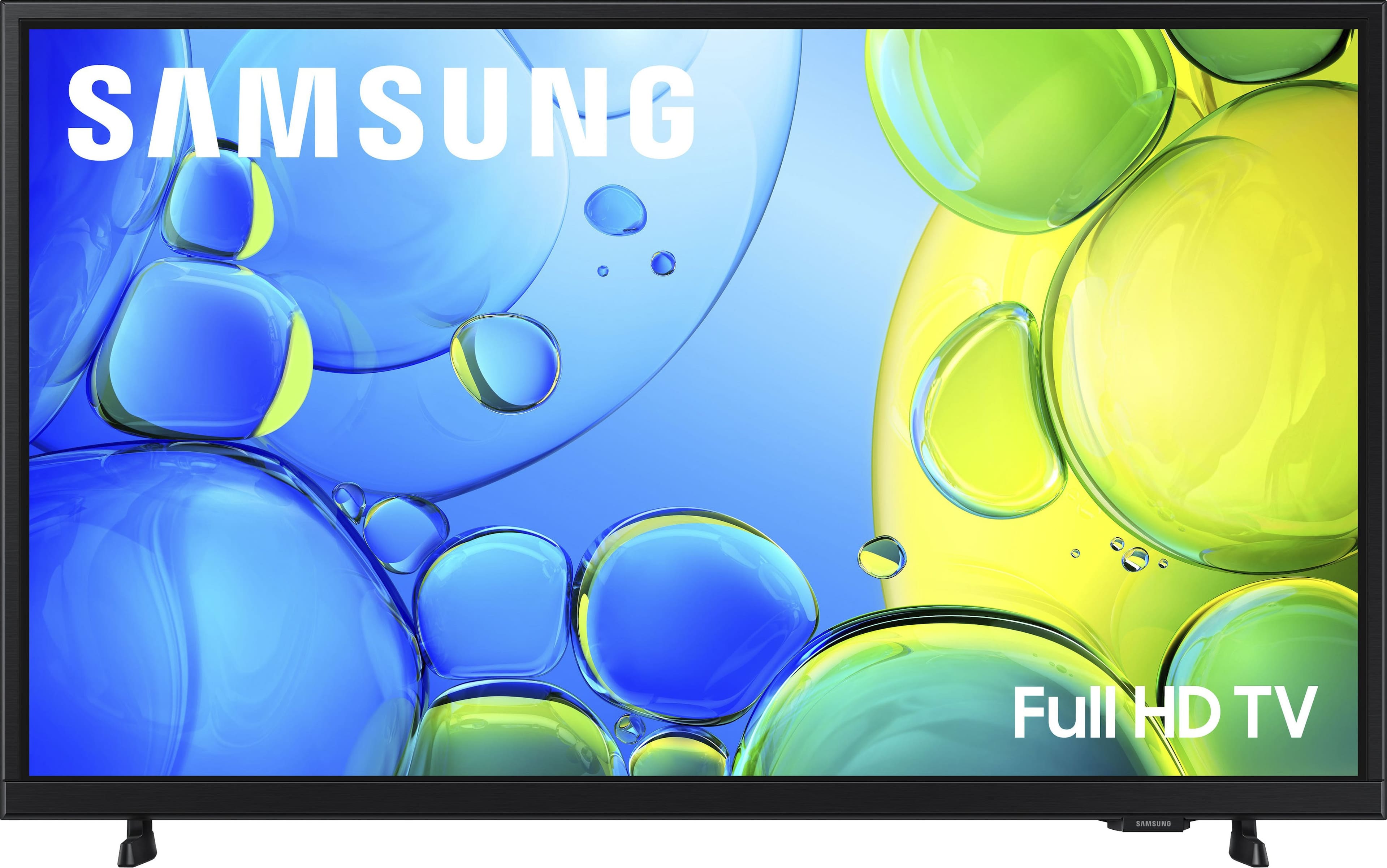
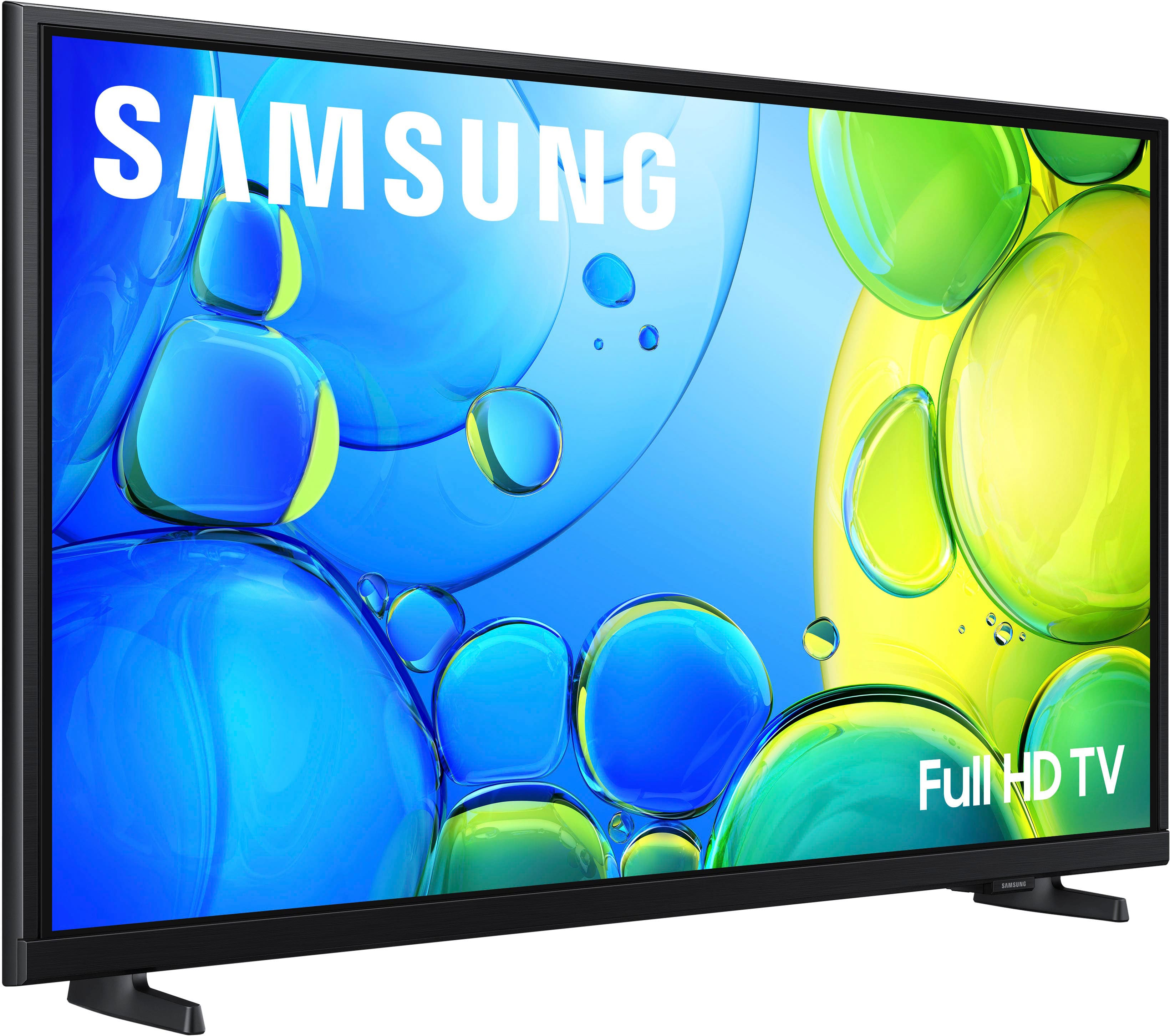
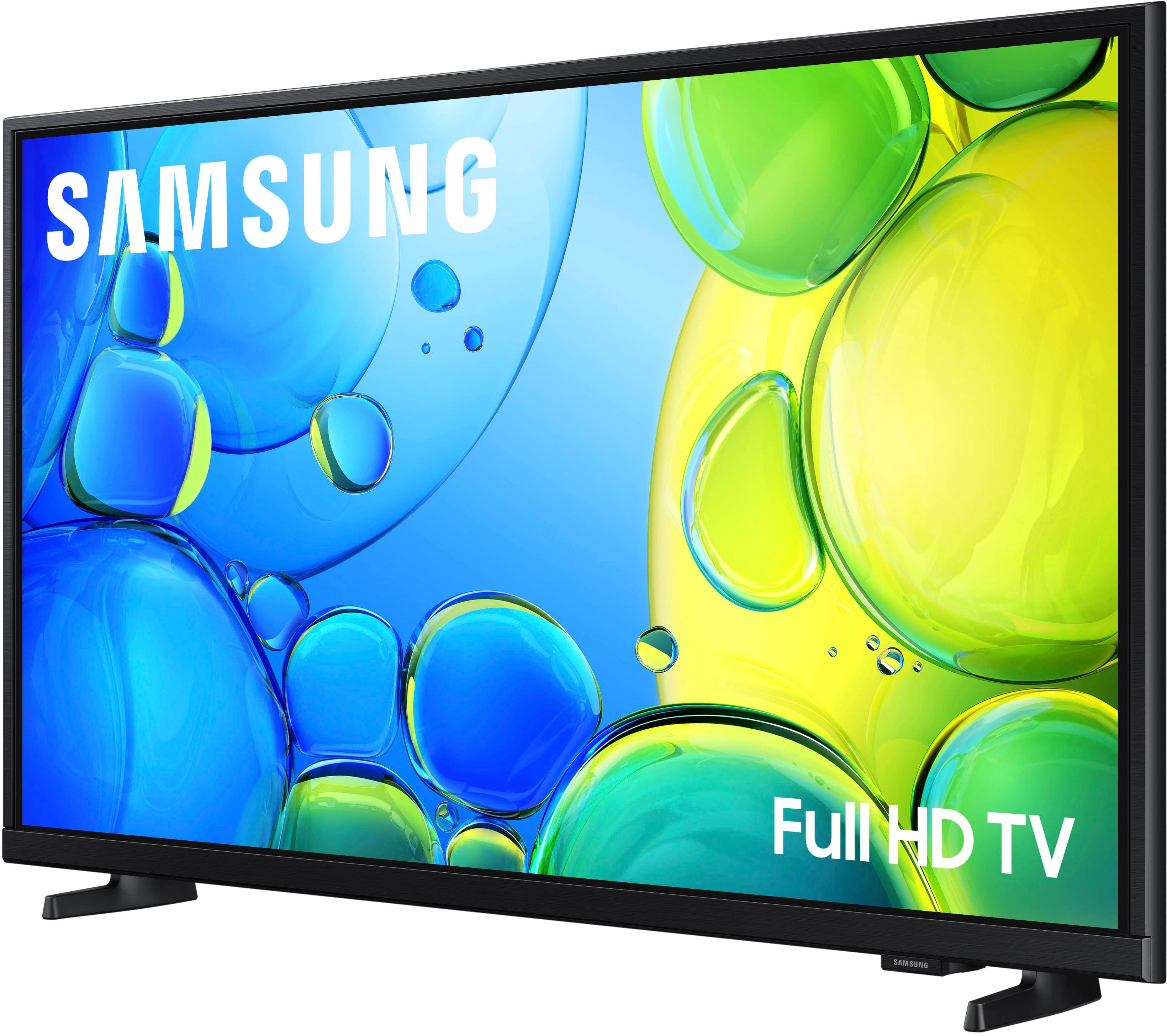


- Model:
- UN40F6000FFXZA
- SKU:
- 10517922
Rating by feature
- Picture Quality
Rating 4.7 out of 5 stars
- Sound Quality
Rating 4.5 out of 5 stars
- Brightness
Rating 4.7 out of 5 stars
Love it
||Posted .This reviewer received promo considerations or sweepstakes entry for writing a review.Great recommendation. Nice video quality for a great price
I would recommend this to a friendVoice quality is bad
||Posted .This reviewer received promo considerations or sweepstakes entry for writing a review.Tv is fine other than the voice quality needs majoy improvement , thinking of returning and going through the hassle
No, I would not recommend this to a friendBrand response from Samsung
Posted .Hi MichelleS,
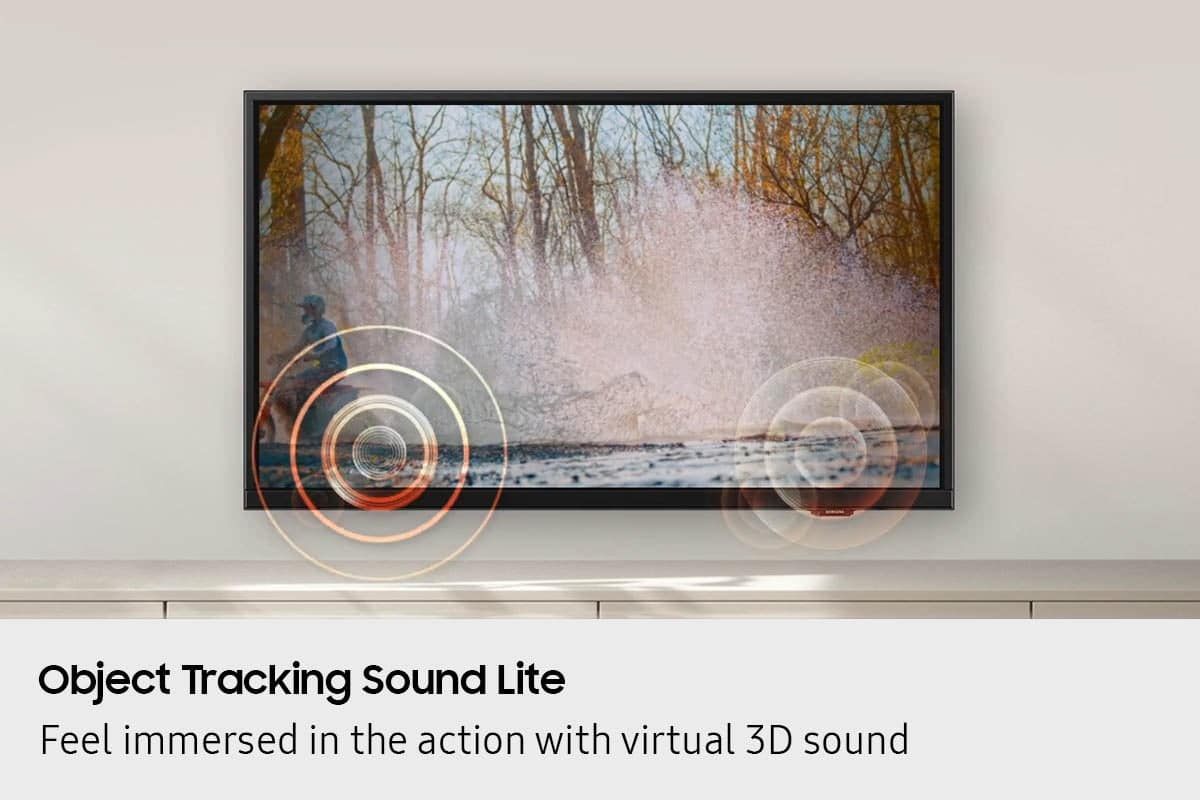
Thank you for purchasing Samsung’s F6000F TV and for sharing your feedback on the sound quality. To ensure you’re experiencing the best possible audio, we first recommend checking that your TV is running the latest firmware. To do this, navigate to: Home > left directional key > Settings > Support > Software Update
If the sound still doesn’t meet your expectations, there are a few settings you can try adjusting:
Go to: Settings > All Settings > Sound > Sound Mode
• Standard: Balanced sound without emphasis on any one range
• Optimized: Enhanced effects and spacious sound
• Amplify: Boosts mid and high tones to make dialogue clearer
You can also explore Expert Settings to fine-tune options such as Balance, Equalizer, Auto Volume, and more to match your personal preferences.
If you're considering expanding your setup, Samsung’s Q- and S-Series Soundbars (like the HW-xxx) support Q-Symphony, a feature that synchronizes your TV and soundbar speakers for an immersive 3D audio experience.
For further help adjusting your sound settings or finding the right soundbar for your space, feel free to reach Samsung Support at 1-800-SAMSUNG (8AM – 12AM EST, 7 days a week) or visit the Support link on our website for:
• LiveChat
• Manuals, Software, & Warranty Info
~Samsung Advisor
Review
||Posted . Owned for 1 month when reviewed.This reviewer received promo considerations or sweepstakes entry for writing a review.This TV was substandard. Best Buy would not return it after two weeks even though we had the receipt. I will not buy from Best Buy again.
No, I would not recommend this to a friendBrand response from Samsung
Posted .Hi MorgenB,
We appreciate your feedback on the F6000F TV. If you have any questions or need help, we’re always here. Call 1-800-SAMSUNG from 8AM – 9PM EST Mon – Fri, 8AM – 6PM Sat – Sun, or connect with a LiveChat agent anytime by selecting ‘Support’ on our website.
~ Samsung Advisor
Great service
||Posted .This reviewer received promo considerations or sweepstakes entry for writing a review.Great service in the TV department! Friendly and knowledgeable employees
I would recommend this to a friend- Cons mentioned:User interface
Sucker tv
||Posted . Owned for 3 weeks when reviewed.This reviewer received promo considerations or sweepstakes entry for writing a review.This TV home page sucks you can't change it to your liking the text option is a joke give me a lesser known brand.
No, I would not recommend this to a friendBrand response from Samsung
Posted .Hi AnthonyN,
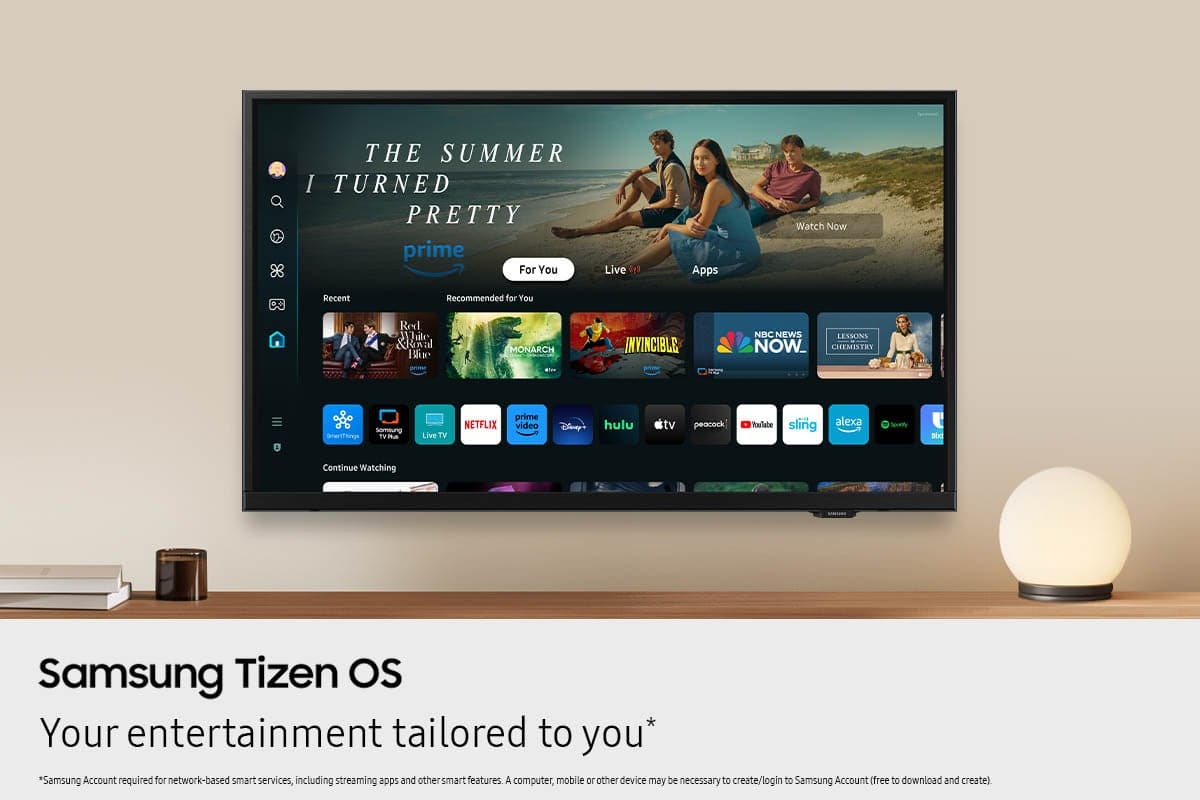
While your F6000F TV may default to Samsung TV Plus at startup, you can customize what happens when the TV powers on. Go to: Settings > All Settings > Advanced Features > Start Screen Option, then enable or disable:
• Start with Smart Hub Home
• Autorun Multi View Casting
• Autorun Multi View Mirroring
If you need help adjusting these options, feel free to reach out to Samsung Support at 1-800-SAMSUNG, 8AM – 12AM EST, 7 days a week. LiveChat agents are also available on our website under ‘Support’.
~ Samsung Advisor
Open box with excellent rating missing power cord
||Posted .This reviewer received promo considerations or sweepstakes entry for writing a review.The TV is a 5 star, but I was not happy with Best Buy. We bought an open box item that was shipped to us rated in excellent condition. When we received it the power cord was missing and the only option Best Buy gave us was to return it and purchase a new TV (no extra discount). These are cords that can be bought. I don't understand why they would not have offered a gift card or something, We ended up buying a cord.
I would recommend this to a friendBrand response from Samsung
Posted .Hi RoxanneT,
We appreciate your feedback on purchasing an open-box TV. Should you ever have questions or need help, Samsung is here for you. Just give us a call at 1-800-SAMSUNG, 8AM - 12AM EST, 7 days a week. Our LiveChat agents are also available by clicking on the ‘Support’ link on our website.
~Samsung Advisor
- Cons mentioned:Remote control
Too slow
||Posted .This reviewer received promo considerations or sweepstakes entry for writing a review.It isn't what I thought it seems cheap remote sucks
No, I would not recommend this to a friendBrand response from Samsung
Posted .Moose,
We appreciate your feedback regarding response time. For optimal performance, please ensure your TV is running the latest firmware. You can check this by going to: Home > left directional key > Settings > Support > Software Update
To further optimize performance, try running Device Care, which checks memory, clears unused cached data, and closes background apps: Home > left directional key > Settings > Support > Device Care > Start Device Care
If issues continue, please reach Samsung Support at 1-800-SAMSUNG, available 8AM – 12AM EST, 7 days a week.
LiveChat is also available via the ‘Support’ link on our website.
~ Samsung Specialist
Would buy again
||Posted . Owned for 3 weeks when reviewed.This reviewer received promo considerations or sweepstakes entry for writing a review.Very good and great price great smart tv easy to setup
I would recommend this to a friendKids room.
||Posted . Owned for 3 weeks when reviewed.This reviewer received promo considerations or sweepstakes entry for writing a review.It looks great in my son's room. We got it for him for play video games. And able to watch t v
I would recommend this to a friendSamsug 40" Class F6000F
||Posted . Owned for 3 weeks when reviewed.This reviewer received promo considerations or sweepstakes entry for writing a review.Samsung products are good, This one is more technical, which is good for Technical people.
I would recommend this to a friend- Cons mentioned:Responsiveness
Slow, buggy trash.
||Posted .This reviewer received promo considerations or sweepstakes entry for writing a review.This tv really sucks, I guess you get what you pay for. Even with the Samsung smart stuff disabled this tv is painfully slow. It takes forever to do anything simple like change channels or open a streaming app. It also frequently freezes and has to be restarted. I am done with Samsung
No, I would not recommend this to a friendBrand response from Samsung
Posted .Hi CameronH,
We appreciate your feedback regarding response time. For optimal performance, please ensure your F6000F TV is running the latest firmware. You can check this by going to: Home > left directional key > Settings > Support > Software Update
To further optimize performance, try running Device Care, which checks memory, clears unused cached data, and closes background apps: Home > left directional key > Settings > Support > Device Care > Start Device Care
If issues continue, please reach Samsung Support at 1-800-SAMSUNG, available 8AM – 12AM EST, 7 days a week.
LiveChat is also available via the ‘Support’ link on our website.
~ Samsung Advisor
Happy with Samsung TV.
||Posted . Owned for 1 month when reviewed.This reviewer received promo considerations or sweepstakes entry for writing a review.Quality for the money! Easy to set up for immediate use.
I would recommend this to a friendSpend the extra money and avoid this headache
||Posted .This reviewer received promo considerations or sweepstakes entry for writing a review.I want to start with the disclaimer - I only buy Samsung TVs because I have had great experiences with them. Until I purchased this one. This TV is incredibly slow. At times it gives you the same frustration of dealing with a laggy old computer. Samsung suggests "freeing up space and updating firmware" but this thing has been laggy right out of the box. I definitely regret not trying this thing out sooner after I bought it. Had I still been in the return window, this thing would for sure be going back. Spend the extra $100 and avoid this thing. Theres no reason a brand new 2025 model TV should be this slow. It feels like a punishment for buying the entry level model.
No, I would not recommend this to a friendBrand response from Samsung
Posted .Hi ToMM,
We appreciate your feedback on the F6000F TV. Please keep an eye out for firmware updates that may improve performance. We recommend enabling Auto Updates. To do so, go to Settings> Support> Software Update> Auto Update.
You may also want to run a cold boot on your TV. With the TV powered on, press and hold the Power button on your remote for 5+ seconds until the TV restarts. This helps refresh the system.
I hope these suggestions help. If you have any other questions, feel free to call us at 1-800-SAMSUNG between 8AM - 12AM EST, any day of the week. You can also reach our LiveChat team by selecting the ‘Support’ link on our website.
~ Samsung Advisor
love it!
||Posted . Owned for 1 month when reviewed.This reviewer received promo considerations or sweepstakes entry for writing a review.Very nice and I love Samsung tv’s because I was able to easily set it up!
I would recommend this to a friendSuperb TV with instant response
||Posted .This reviewer received promo considerations or sweepstakes entry for writing a review.Great TV that comes on instantly fully loaded. Easy access to favorite streaming programs.
I would recommend this to a friendPerfect
||Posted . Owned for 2 weeks when reviewed.This reviewer received promo considerations or sweepstakes entry for writing a review.I needed a television for my guest bedroom. This is the perfect size.
I would recommend this to a friendSamsung TV review
||Posted . Owned for 3 weeks when reviewed.This reviewer received promo considerations or sweepstakes entry for writing a review.Great television for the garage! Ability to cast and easy streaming.
I would recommend this to a friendRemote design is a pain.
||Posted . Owned for 1 month when reviewed.This reviewer received promo considerations or sweepstakes entry for writing a review.The remote control will drive you crazy. It is not your standard Samsung remote. Maybe it’s an old design???
No, I would not recommend this to a friendBrand response from Samsung
Posted .Hi Happy,
We appreciate you sharing your experience. To help you get the most from your TV and remote functions, you can download the full e-Manual and more by visiting Samsung’s website then navigating to: Support > Manual & Software > TVs & Home Theater. From there, you can search for and select your F6000F TV model to view or download the available guides.
The e-Manual & Remote Control Guide are also conveniently built into your TV: Settings > Support > Open User guide.
For additional guidance, your TV also includes Accessibility features designed to assist with navigation and remote use.
• Learn Menu Screen provides audio guidance for on-screen menus by announcing the name and function of each item as you scroll – without making any changes. This is especially helpful for users who are visually impaired or new to Smart TV menus. Enable via: Settings > All Settings > General & Privacy > Accessibility > Learn Menu Screen. To exit, press the Return key twice.
• Learn TV Remote helps users become familiar with the layout and function of each button on the Samsung remote. Pressing a button (other than Power) will prompt the TV to announce its name and purpose, again without affecting TV operation. Enable via: Settings > All Settings > General & Privacy > Accessibility > Learn TV Remote. To exit, press the Return key twice.
If you’d like more assistance with these features, please reach Samsung Support at 1-800-SAMSUNG, available 8AM – 12AM EST, 7 days a week. LiveChat agents are also available through the ‘Support’ link on our website.
~ Samsung Specialist
The smart feature is why I purchased
||Posted . Owned for 3 weeks when reviewed.This reviewer received promo considerations or sweepstakes entry for writing a review.Looks and works great for my needs, fits perfectly in my bedroom in my RV
I would recommend this to a friendLast time purchase
||Posted .This reviewer received promo considerations or sweepstakes entry for writing a review.The tv has issues with color and staying off when you turn it off. I scheduled a service appointment with Geek Squad. They canceled the appointment with no explanation.
No, I would not recommend this to a friendBrand response from Samsung
Posted .Hi PaulaL,
Thanks for sharing your experience. If your TV is powering on by itself, there are a few settings and external triggers to review:
1. Power On with Mobile – Your TV may be connected to the SmartThings app or other networked devices. To stop wake signals, turn this feature off: Settings > All Settings > Connection > Network > Expert Settings > Power On with Mobile = Off
2. Check for Active Timers – Go to Settings > All Settings > General & Privacy > System Manager > Time > Timer Settings, then disable any On Timers or Sleep Timers
3. Anynet+ (HDMI-CEC) – If your TV is connected to external HDMI devices, one of them may be triggering power-on behavior. To disable this feature: Settings > All Settings > General & Privacy > External Device Manager > Anynet+ (HDMI-CEC) = Off
4. Software Update – Make sure your TV is up to date: Settings > Support > Software Update > Update Now
If you’ve ruled out all the above and your TV still powers on unexpectedly, try unplugging it for 30 seconds. Should the issue continue, please call Samsung Support at 1-800-SAMSUNG, 8AM – 12AM EST, 7 days a week. LiveChat agents are also available by clicking the ‘Support’ link on our website.
~ Samsung Advisor