Customer Ratings & Reviews
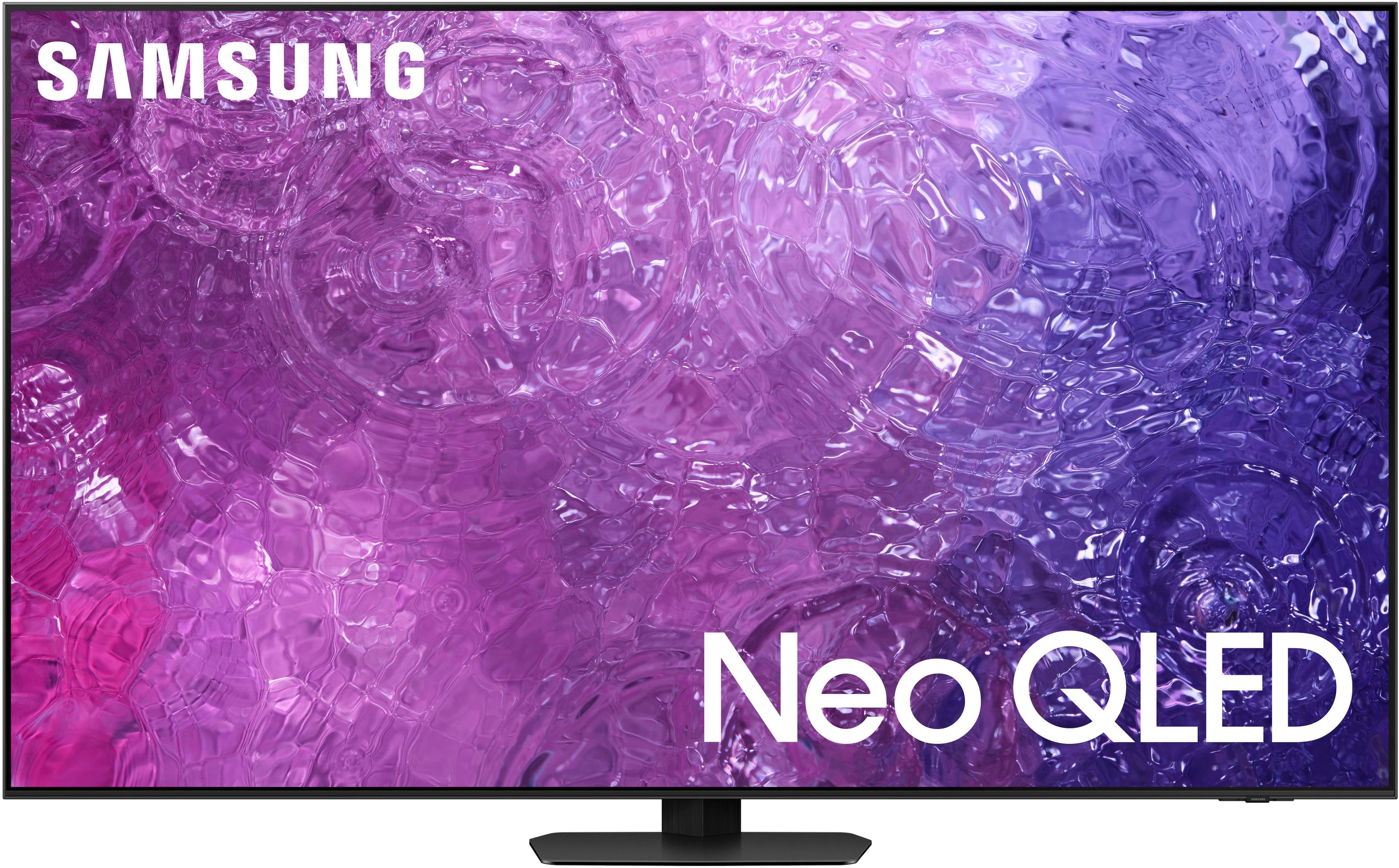
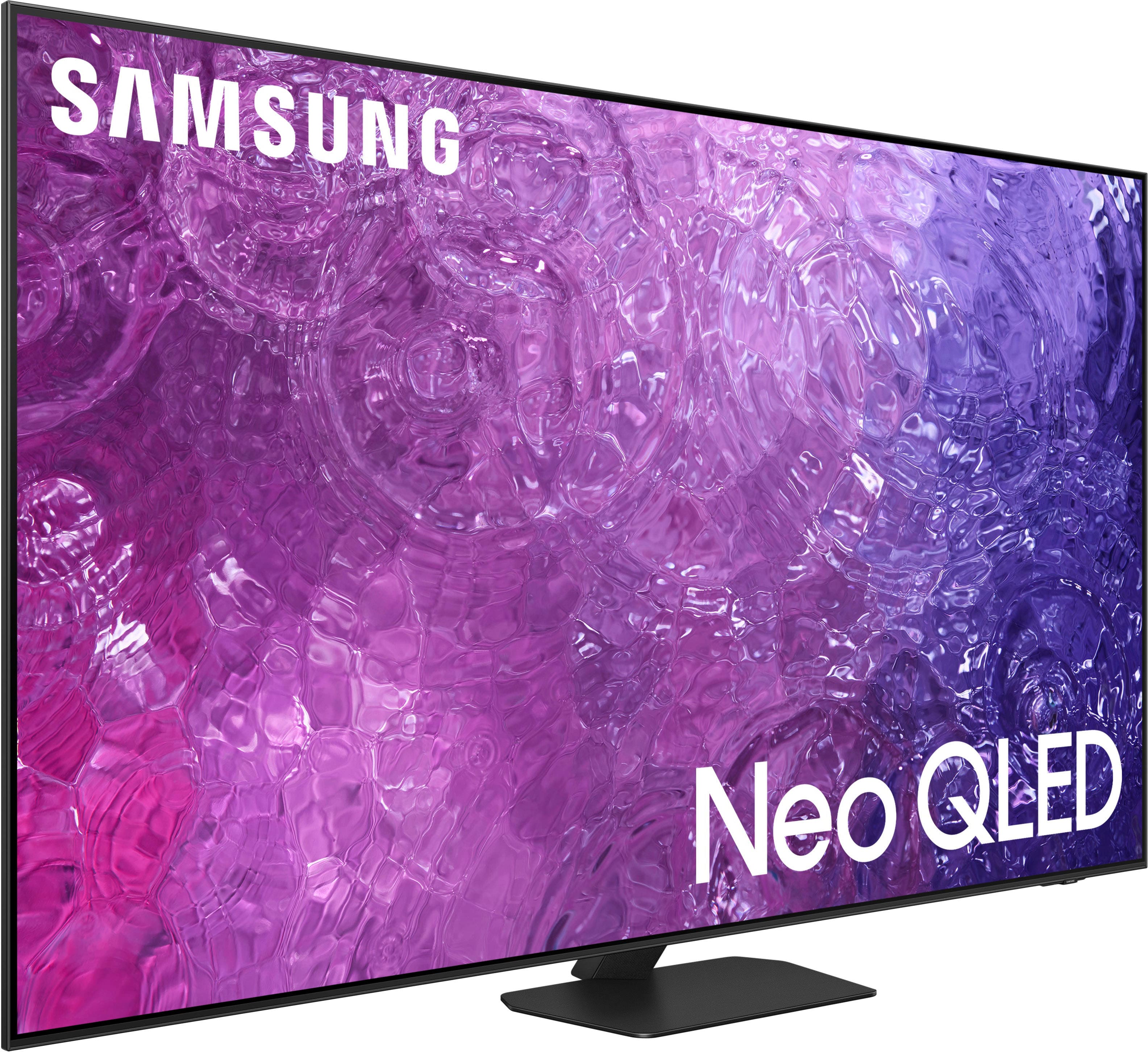
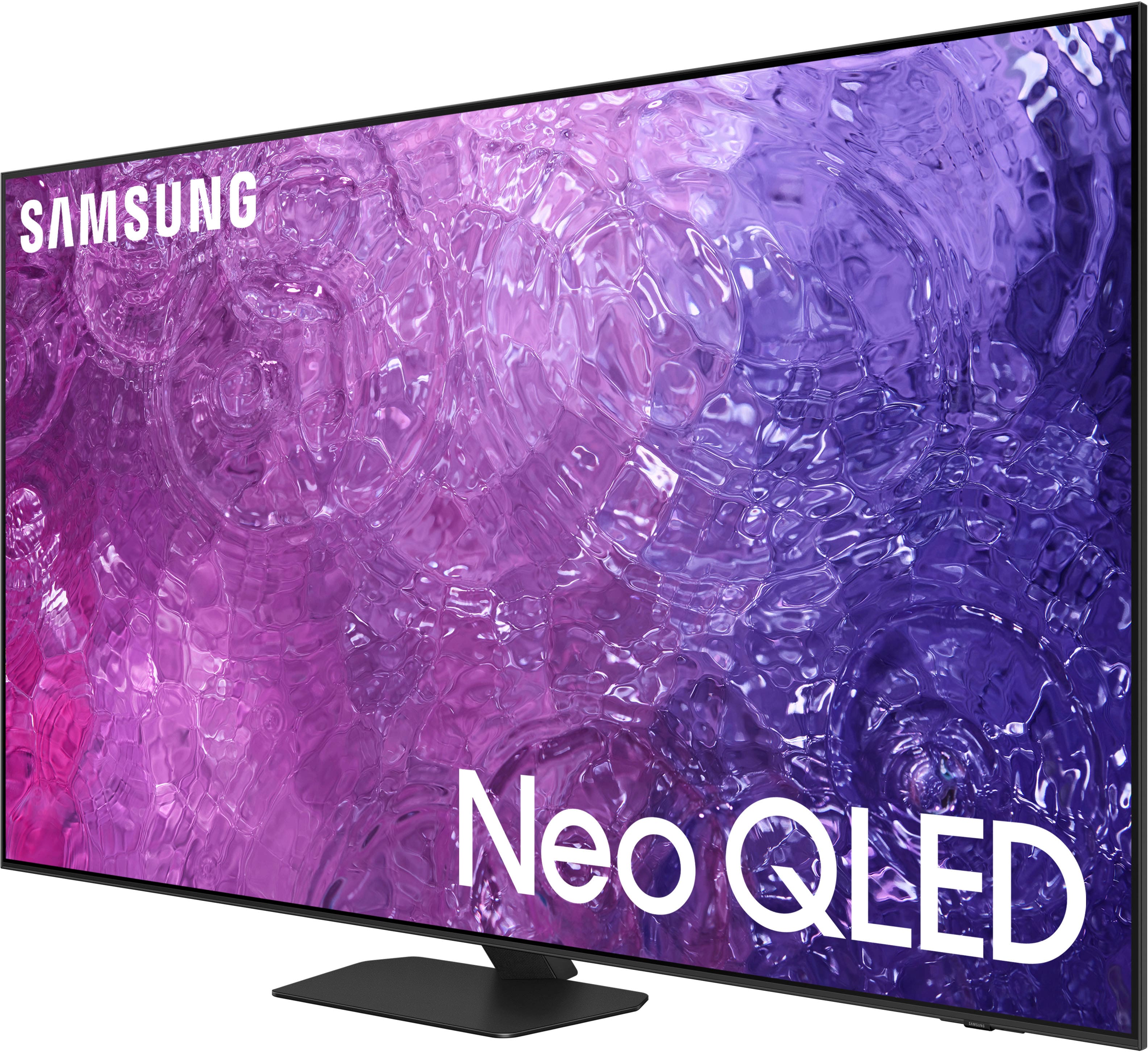
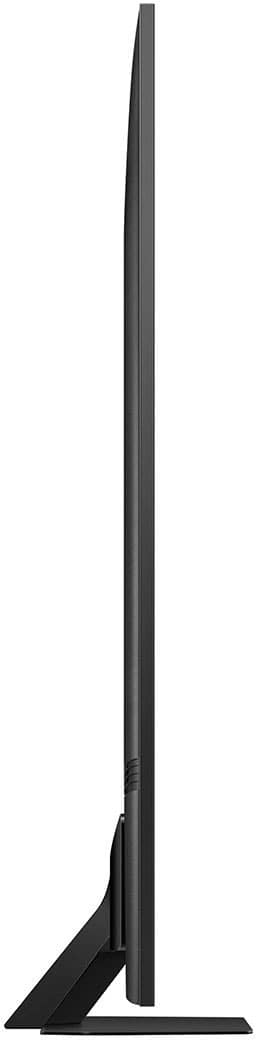




- Model:
- QN55QN90CAFXZA
- SKU:
- 6533836
Rating by feature
- Picture Quality
Rating 4.9 out of 5 stars
- Sound Quality
Rating 4.5 out of 5 stars
- Brightness
Rating 4.8 out of 5 stars
Customers are saying
Customers have good things to say about the 55" Class QN90C Neo QLED 4K UHD Smart Tizen TV (2023), especially regarding its outstanding picture quality, great color clarity, and ease of use. Many find the remote control intuitive and the setup process simple. Some customers mentioned the perfect refresh rate for gaming and consider it an awesome TV for the price, while a few others expressed concerns about the operating system and the stand's stability.
This summary was generated by AI based on customer reviews.
- Pros mentioned:Ease of use, Picture quality
Phenomenal buy!
||Posted . Owned for 3 months when reviewed.This reviewer received promo considerations or sweepstakes entry for writing a review.The picture is super crisp and is great for both gaming and streaming. One of the best tvs I've ever had in my life. Refresh rate is perfect for gaming. I will be purchasing another for my bedroom set up soon. Works well with other samsung products. Can be controlled through Samsung smart things app and is super intuitive to navigate. I would highly recommend this product.
I would recommend this to a friend - Pros mentioned:Picture quality, Remote control

Beautiful TV
|Posted . Owned for 2 months when reviewed.This reviewer received promo considerations or sweepstakes entry for writing a review.Stunning&vivid picture quality, even older films/clips as it’s AI will upscale the picture. Along with voice commands, you won’t want any other brand besides Samsung. Super bright, even while being halfway up. Bought mine for my bedroom open box, got it for ~$800 and was spotless&new (this varies for every one, I got lucky!) love my QLED, super upgrade from my previous 1080p TV. Samsung’s remote is unique, being type c chargeable and having a solar panel on the back. Comes with Samsung TV Plus, pretty much a built in antenna with a couple hundred channels, 24/7. Super smart by having all the apps you’ll need, source detection, screen mirroring, a gaming menu where it can stream games online no console needed. Very pretty ambient standby art&landscape modes as well. The ability to multitask too, amazing! Paired it with a Q60B soundbar, super slim and packs a 5 channel punch without taking much room. Will continue to recommend Samsung over competitors!
I would recommend this to a friend - Pros mentioned:Color
A great TV but Geek squad needed
||Posted . Owned for 3 weeks when reviewed.This reviewer received promo considerations or sweepstakes entry for writing a review.The Samsung TV was really great but it has a very complicated user interface The Geek squad saved the day with their installation and training they provided to me The TV has wonderful color and very good side view and capabilities. With an outside balcony view on the left, interior lights on and a dining table to the right I'm able to sit at the dining table andThe Samsung TV was really great but it has a very complicated user interface The Geek squad saved the day with their installation and training they provided to me The TV has wonderful color and very good side view and capabilities. With an outside balcony view on the left, interior lights on and a dining table to the right I'm able to sit at the dining table and easily view the screen at an angle even in this environment. The problem is that the TV user interface UI is very complicated. I will use the calibration tools to adjust the TV for my environment when I get the time. The remote control is not as easy to use as the Firestick remote and I plan to set it up later. Adding my streaming channels was a chore. The Geek squad training provided was invaluable. They were also able to use the existing mounting saving me time and cost for a new one. I highly recommend using the Geek squad for installation, setup and familiarization with the TV
I would recommend this to a friend - Pros mentioned:Ease of use, Picture quality, Remote control
Thumbs Up
||Posted . Owned for 3 weeks when reviewed.This reviewer received promo considerations or sweepstakes entry for writing a review.Great TV. Picture quality is wonderful. I have windows in my living room and choose the QLED over OLED because of this lighting. Very happy with remote and the ease to switched between streaming and live TV.
I would recommend this to a friend - Pros mentioned:Picture quality
My New Samsung TV
||Posted . Owned for 4 months when reviewed.This reviewer received promo considerations or sweepstakes entry for writing a review.Excellent Purchase - Highly Recommend! I recently purchased a Samsung TV from Best Buy, and I couldn’t be happier with my choice! The picture quality is stunning, with vibrant colors and sharp resolution that make watching movies and shows a truly immersive experience. The sound quality is surprisingly good for built-in speakers, but it also pairs seamlessly with my soundbar for a theater-like setup. The smart features are intuitive and easy to use, with quick access to all my favorite streaming apps. The setup was straightforward, and the remote control is sleek and user-friendly. The TV’s design is slim and modern, fitting perfectly in my living room. Best Buy’s service was also top-notch, from helpful in-store staff to the smooth delivery process. I highly recommend this Samsung TV for anyone looking for quality, performance, and a great viewing experience!
I would recommend this to a friend - Pros mentioned:Picture quality
Best TV I’ve ever had.
||Posted . Owned for 1.5 years when reviewed.This reviewer received promo considerations or sweepstakes entry for writing a review.Best tv I’ve ever had. I use to buy only SONY RGB TVs,Beautiful picture, very smart seems to know what area of tv I want to go to. Very satisfied.oh and with the additional sound bar from Samsung the sound is excellent!
I would recommend this to a friend - Pros mentioned:Color, Picture quality
Excellent Choice
||Posted . Owned for 1 week when reviewed.This reviewer received promo considerations or sweepstakes entry for writing a review.Excellent TV with beautiful image quality. Though many people online are raving about Hisense and TCL, Samsung is still the way to go! Very bright TV and I have to turn down the brightness very slow at night.
I would recommend this to a friend - Pros mentioned:Color
Excellent Flat Panel Easy to Wall Mount!
||Posted . Owned for less than 1 week when reviewed.This reviewer received promo considerations or sweepstakes entry for writing a review.Picked this model as a Samsung Warranty Replace for a dead QN95B One Connect Box! Seems to have deeper black levels and better off angle viewing! Out of the box I reduced Color level from 25 back to 15 for movie and film maker modes! Very Happy with this model and hope it lasts longer! Just a note to those Windows PC streamers out there: Select Settings/Connected Devices and Edit the name of your PC HDMI port to "Home Theater System". This will bring back all your Picture Modes like Movie and Film Maker!
I would recommend this to a friend - Pros mentioned:Picture qualityCons mentioned:Operating system
Sprroach
||Posted . Owned for 3 weeks when reviewed.This reviewer received promo considerations or sweepstakes entry for writing a review.This is a replacement for my QN90A, so newer updated systems and great picture quality. Tizen is a tad slow compared to my first tv, but other systems are operating in peak efficiency. Set up is a breeze!
I would recommend this to a friend - Pros mentioned:Picture quality
Amazing tv
||Posted . Owned for 1 month when reviewed.This reviewer received promo considerations or sweepstakes entry for writing a review.I had an old tv and I decided that it was time to get a new one. My coworker said to look into a QLED because the picture is amazing and the price is reasonable. Well he wasn’t wrong. I love the new tv and I can’t wait to watch movies in 4K!!!
I would recommend this to a friend - Pros mentioned:Color, Picture quality
Great qled tv
||Posted . Owned for 1 month when reviewed.This reviewer received promo considerations or sweepstakes entry for writing a review.Tv has great picture especially in bright rooms. Decided to go with qled vs oled. The price was great. I recommend soundbar.
I would recommend this to a friend - Pros mentioned:Picture quality
55 QN90C
||Posted . Owned for 2 weeks when reviewed.This reviewer received promo considerations or sweepstakes entry for writing a review.I love this. Movies look great and I also have my desktop hooked up for some 4k 120hz gaming. Eye popping colors and I'm not worried about burn in. I was able to set this up by myself
I would recommend this to a friend - Pros mentioned:Picture quality, Setup
Great TV!
||Posted . Owned for 1 month when reviewed.This reviewer received promo considerations or sweepstakes entry for writing a review.Love this TV! Very easy to set up. Love the navigation and the ease of changing to my connected devices. The picture quality is excellent! Very happy with this TV.
I would recommend this to a friend - Pros mentioned:Picture quality
BIG EASY TV
||Posted . Owned for 1.5 years when reviewed.This reviewer received promo considerations or sweepstakes entry for writing a review.Excellent picture quality, it can handle almost any room lighting whether bright or subdued lighting. The unit is thin ,so it doesn't look huge on the wall. It actually make you feel like the whole wall is a TV ,perhaps it's because it's very thin and it doesn't look like something big is hanging from wall High recommendation.
I would recommend this to a friend - Pros mentioned:Picture quality
Wow, What a Picture
||Posted . Owned for 3 weeks when reviewed.This reviewer received promo considerations or sweepstakes entry for writing a review.Just WOW! What a wonderful TV. This was my Christmas present to myself this year and what a present. I got the lastest and greatest TV I could afford at Best Buy. Went with a much bigger screen than I have had in the past. I paired it with the Samsung Sound bar also. The colors are so vibrant and full, almost like being right there with them. Now I can enjoy television the way it supposed to be enjoyed.
I would recommend this to a friend - Pros mentioned:Picture quality
Great TV at a great price.
||Posted . Owned for 1 month when reviewed.This reviewer received promo considerations or sweepstakes entry for writing a review.First time owning a Samsung TV after my Sony Bravia was struck by lightning. I knew I wanted either a Samsung, Sony or LG & Sabrina at Best Buy was very helpful in explaining the various brands and models. I’ve had my new Samsung QN90C for a month now and I’m very happy with my purchase. All the reviews about the excellent picture quality are true. Can’t go wrong with a Samsung TV!
I would recommend this to a friend - Pros mentioned:Color, Picture quality
Awesome TV
||Posted . Owned for 2 weeks when reviewed.This reviewer received promo considerations or sweepstakes entry for writing a review.I love the QN90C. I has an excellent picture, great brightness and good black levels. I also like the IPS panel due to no rainbow affect. Great out of the bix!
I would recommend this to a friend - Pros mentioned:Picture quality
Good choice
||Posted . Owned for 1 month when reviewed.This reviewer received promo considerations or sweepstakes entry for writing a review.Great picture, especially in my living room where light streams in late afternoon. Not challenging to learn to use. I did a lot of research and am happy with this choice,
I would recommend this to a friend - Pros mentioned:Picture quality
Best In House
||Posted . Owned for 3 weeks when reviewed.This reviewer received promo considerations or sweepstakes entry for writing a review.What can I say? Compared to every other TV in my home, it’s big and beautiful. Every thing I wanted and more. This is my third Samsung television, and, while they’ve all been great, this one is not only the largest, but it also has the best picture quality. The sound quality is also quite good.
I would recommend this to a friend - Pros mentioned:Picture quality
Tv
||Posted . Owned for 1 month when reviewed.This reviewer received promo considerations or sweepstakes entry for writing a review.Great size great picture good reception Geek squad deliver the TV and program the whole thing with no problems, very friendly and answered all my questions
I would recommend this to a friend