Customer Ratings & Reviews
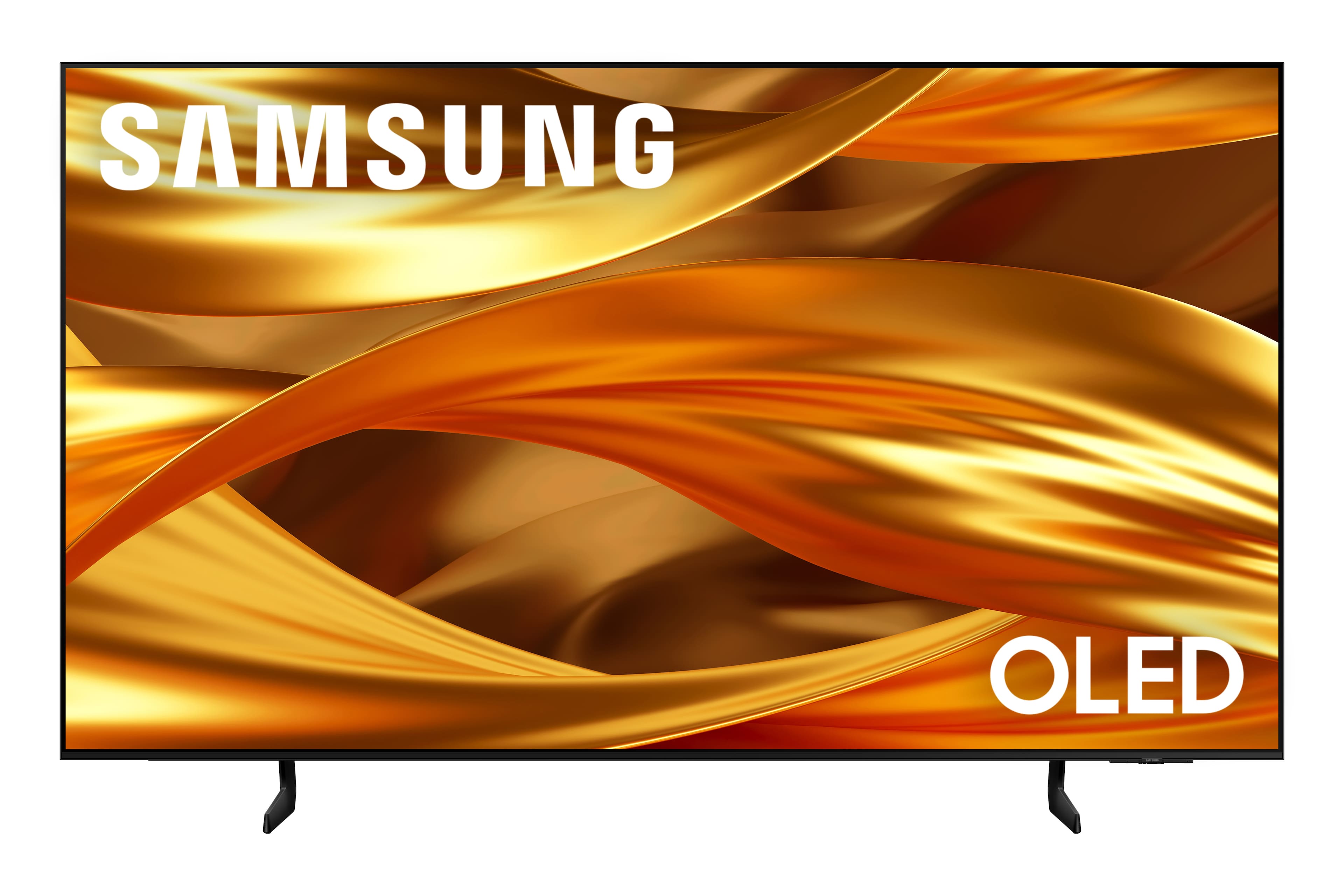
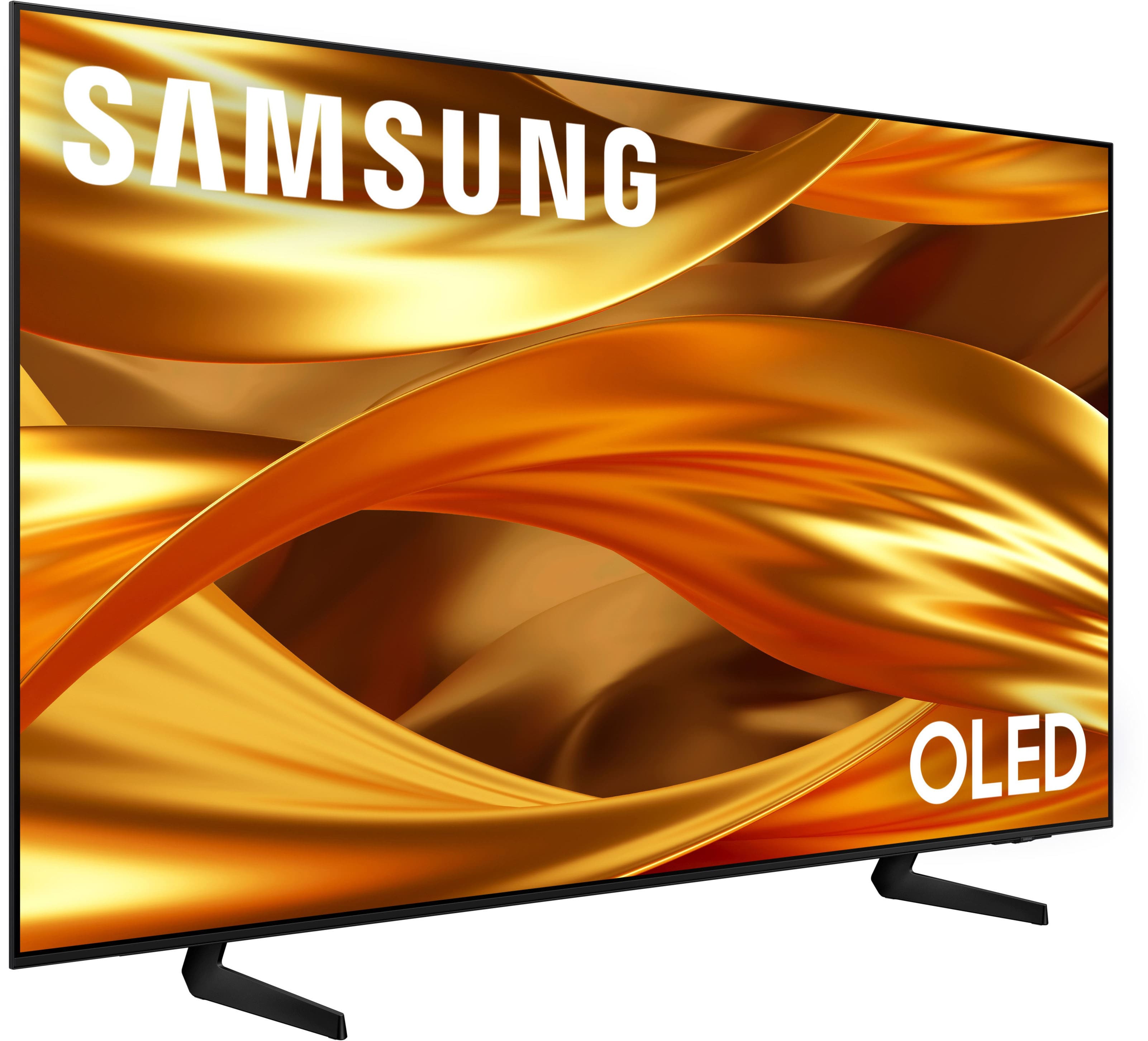
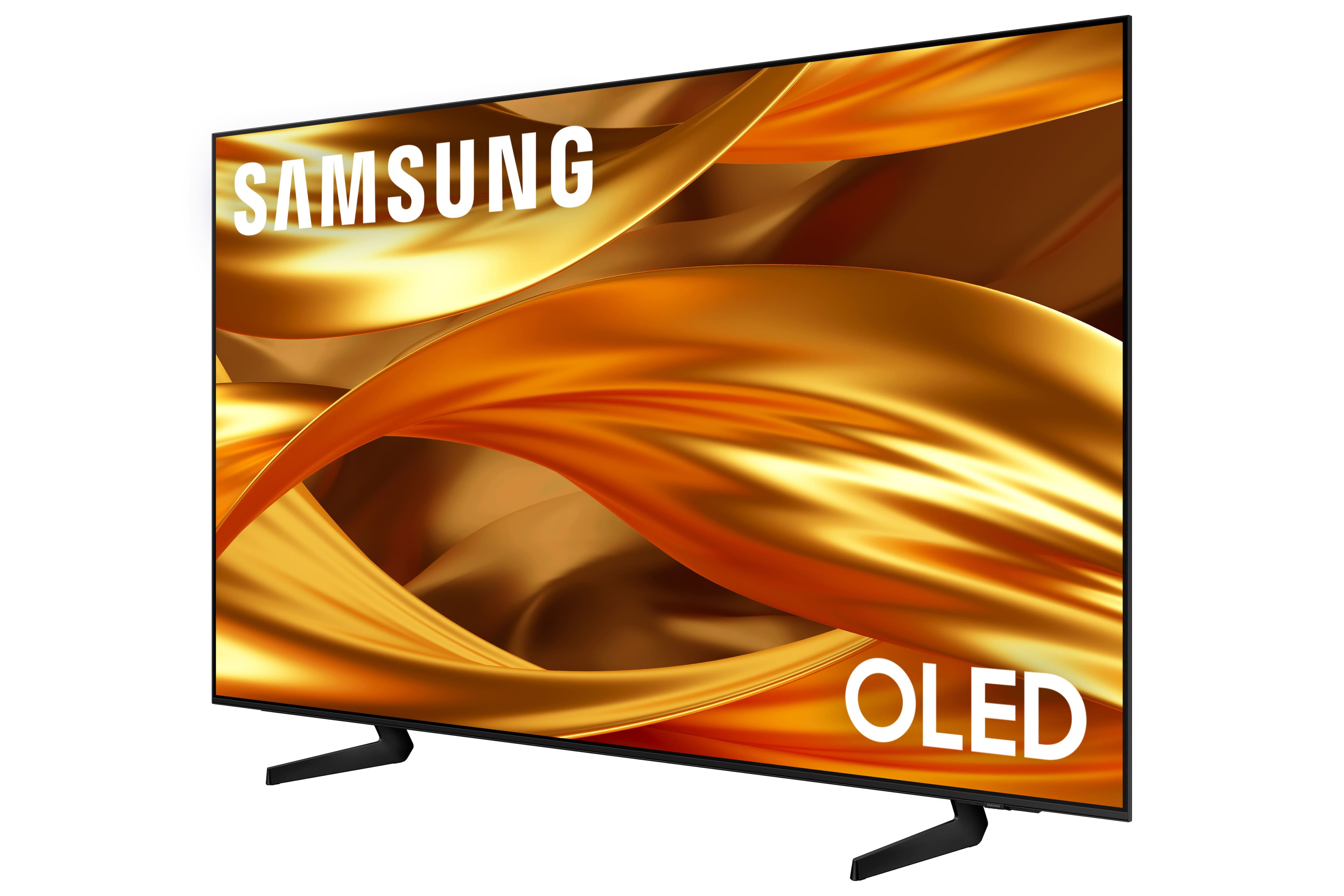
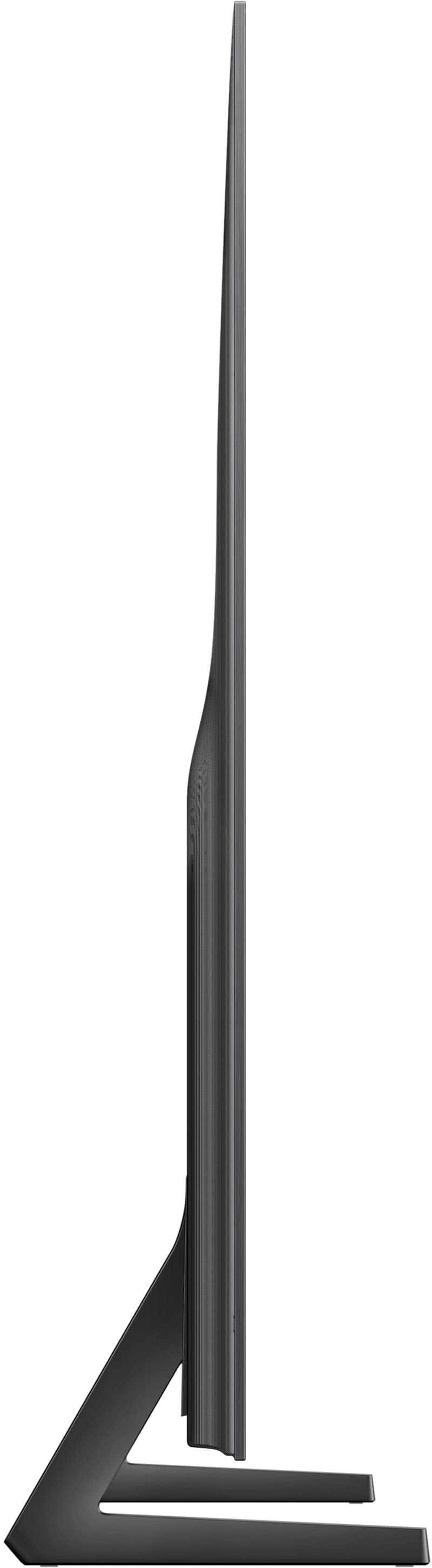


- Model:
- QN65S84FAEXZA
- SKU:
- 6643538
Rating by feature
- Picture Quality
Rating 4.9 out of 5 stars
- Sound Quality
Rating 4.6 out of 5 stars
- Brightness
Rating 4.8 out of 5 stars
Customers are saying
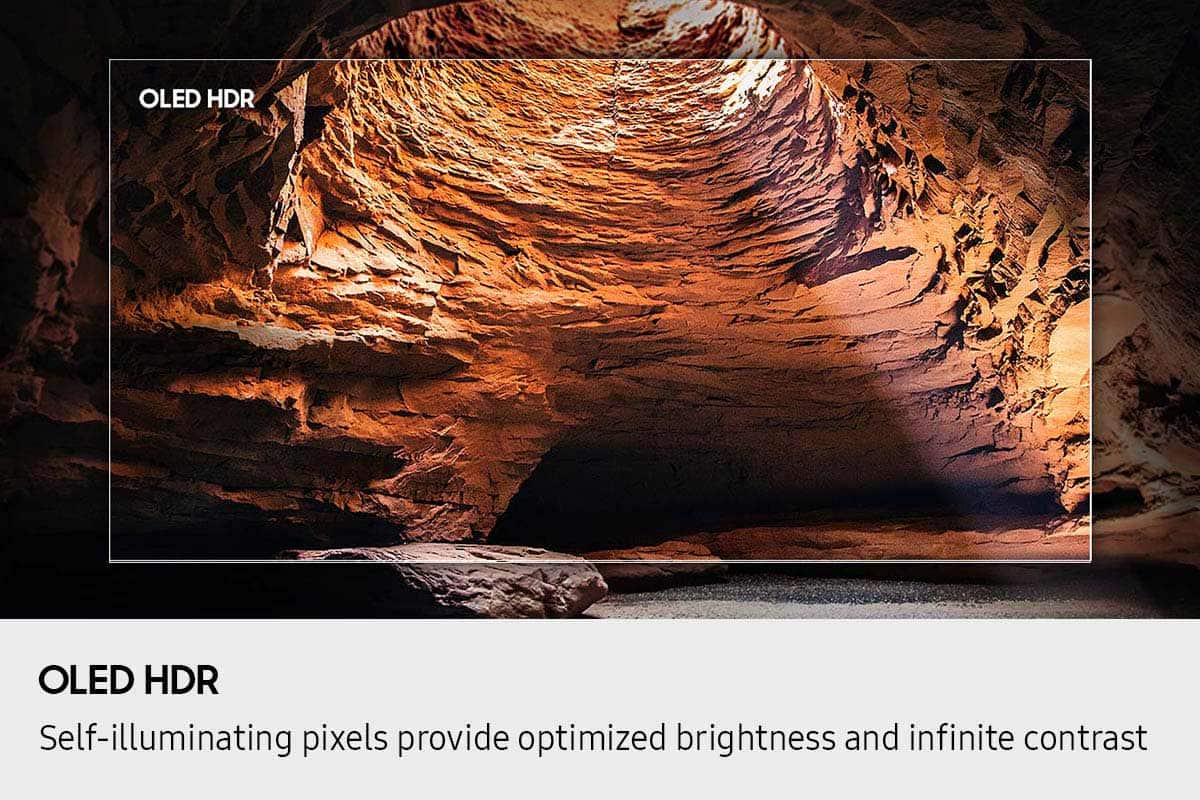
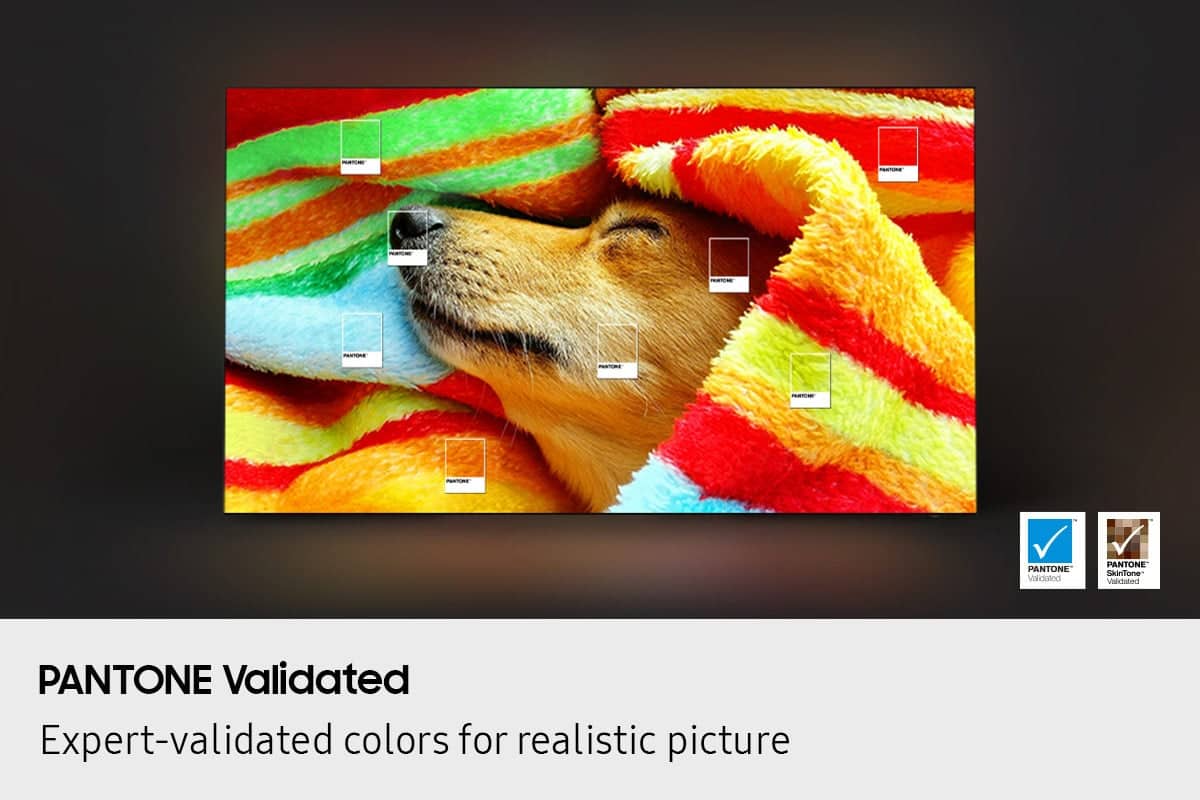
Customers recognize the 65" Class S84F OLED 4K UHD Vision AI Smart Tizen TV (2025) for its phenomenal picture and OLED quality, with users noting the deep blacks and great brightness. The TV's design is considered elegant, and the refresh rate is appreciated, especially for gaming. However, some customers have experienced issues with the speed and smoothness of the operating system and have expressed concerns about the remote control.
This summary was generated by AI based on customer reviews.
Samsung oled
||Posted . Owned for 2 weeks when reviewed.This reviewer received promo considerations or sweepstakes entry for writing a review.It’s a nice tv, but I’m not wowed by it. There’s a few adds that can not be removed from the main screen. Can be slow to switch from apps.
No, I would not recommend this to a friendBrand response from Samsung
Posted .ShannonJ,
We appreciate your feedback regarding response time. For optimal performance, please ensure your TV is running the latest firmware. You can check this by going to: Home > left directional key > Settings > Support > Software Update
To further optimize performance, try running Device Care, which checks memory, clears unused cached data, and closes background apps: Home > left directional key > Settings > Support > Device Care > Start Device Care
If issues continue, please reach Samsung Support at 1-800-SAMSUNG, available 8AM – 12AM EST, 7 days a week.
LiveChat is also available via the ‘Support’ link on our website.
~ Samsung Specialist
A cessibility shortcut menu will NOT GO AWAY
||Posted . Owned for 1 month when reviewed.This reviewer received promo considerations or sweepstakes entry for writing a review.i've tried every steps possible I've unpaired everything in the house. I've reconnected the TV. I've reset the TV for whatever reason you're reset is pretty wimpy… And we are continually now after replacing the TV getting the accessibility shortcut pop-up.! make this stop
No, I would not recommend this to a friendBrand response from Samsung
Posted .paddymac,
Thank you for sharing your concerns. If your TV is announcing everything you do, the Voice Guide feature is likely turned on. This is an accessibility function designed to assist users who are visually impaired, and it may have been activated accidentally by holding down the Volume button on your remote.
To turn off Voice Guide, go to: Home > left directional key > Settings > All Settings > General & Privacy > Accessibility > Voice Guide Settings > Voice Guide = OFF
If there's anything else we can assist with, please don't hesitate to contact us at 1-800-SAMSUNG, 8AM – 12AM EST, 7 days a week. LiveChat agents are also available through the ‘Support’ link on our website.
~ Samsung Specialist
Way too much total black
||Posted .This reviewer received promo considerations or sweepstakes entry for writing a review.This television has great features and was a great price, HOWEVER, the blacks and dark blues are so dark the gradients disappear. BLACK, you cannot believe this is intentional, there are no ways to adjust the picture so it doesnt look like contras is out of control. Gaming resolution is amazing, not like movie and tv, gaming has gradients of black. Why?
No, I would not recommend this to a friendBrand response from Samsung
Posted .Ricco,
We appreciate your input on the picture quality of Samsung’s S84F TV. If the image isn’t meeting your expectations, there are several adjustments you can make to improve your viewing experience.
First, please ensure your TV is running the latest firmware, as updates may include important picture quality enhancements. Go to: Home > Left directional button > Settings > Support > Software Update > Update Now
Then, select a Picture Mode that best fits your environment: Home > Home > left directional key > Settings > All Settings > Picture > Picture Mode
1. Standard – Default mode for general viewing
2. Dynamic – Brighter and clearer in well-lit rooms
3. Eco – Optimized for energy saving
4. Movie – Best for watching in dark environments
5. Filmmaker Mode – Preserves content exactly as intended by creators
You can also enhance your experience by enabling AI Mode, which automatically adjusts picture and sound based on your surroundings and usage patterns: Settings > All Settings > Advanced Features > AI Mode Settings > AI Mode
If these adjustments don’t improve your picture quality, feel free to contact Samsung Customer Support at 1-800-SAMSUNG, available 8AM – 12AM EST, 7 days a week. You can also LiveChat with an agent or find helpful guides by visiting the ‘Support’ section of our website.
~ Samsung Specialist
Inferior picture quality
||Posted .This reviewer received promo considerations or sweepstakes entry for writing a review.The picture quality is not nearly as good as Samsungs that we have had in the past.
No, I would not recommend this to a friendBrand response from Samsung
Posted .SherrilC,
We appreciate your input on the picture quality of Samsung’s S84F TV. If the image isn’t meeting your expectations, there are several adjustments you can make to improve your viewing experience.
First, please ensure your TV is running the latest firmware, as updates may include important picture quality enhancements. Go to: Home > Left directional button > Settings > Support > Software Update > Update Now
Then, select a Picture Mode that best fits your environment: Home > Home > left directional key > Settings > All Settings > Picture > Picture Mode
1. Standard – Default mode for general viewing
2. Dynamic – Brighter and clearer in well-lit rooms
3. Eco – Optimized for energy saving
4. Movie – Best for watching in dark environments
5. Filmmaker Mode – Preserves content exactly as intended by creators
You can also enhance your experience by enabling AI Mode, which automatically adjusts picture and sound based on your surroundings and usage patterns: Settings > All Settings > Advanced Features > AI Mode Settings > AI Mode
If these adjustments don’t improve your picture quality, feel free to contact Samsung Customer Support at 1-800-SAMSUNG, available 8AM – 12AM EST, 7 days a week. You can also LiveChat with an agent or find helpful guides by visiting the ‘Support’ section of our website.
~ Samsung Specialist
- Cons mentioned:Connectivity
Samsung
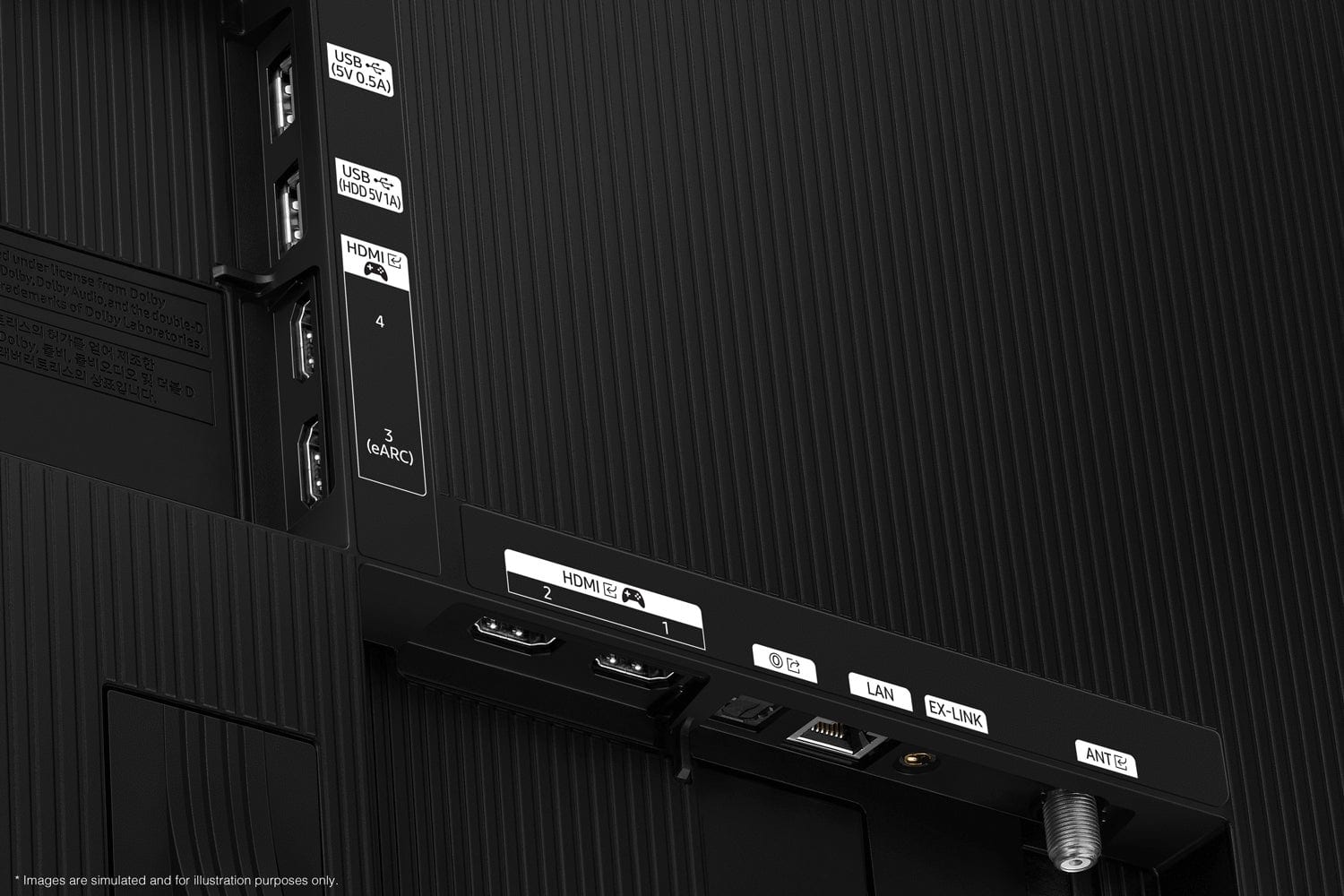
||Posted .This reviewer received promo considerations or sweepstakes entry for writing a review.Terrible. Won't stay connected to wireless internet. Won't load apps supposedly comes with. Can't add apps not supported. Won't connect to my speakers
No, I would not recommend this to a friendBrand response from Samsung
Posted .EllenS,
We’re sorry to hear you’re experiencing issues with your TV. We’d appreciate the opportunity to gather more details so we can better isolate the issue and work toward a resolution. You can reach us at 1-800-SAMSUNG, available daily from 8AM - 12AM EST. You can also chat with a LiveChat agent by clicking the ‘Support’ link on our website for:
• Live Chat
• Manuals, Software, & Warranty Info
• Creating a Service ticket
~ Samsung Specialist
Loyal Samsung buyer with regrets on this purchase
||Posted . Owned for 3 weeks when reviewed.This reviewer received promo considerations or sweepstakes entry for writing a review.I thought I'd like this tv way more. It keeps turning on all by itself and i can't stop it.
No, I would not recommend this to a friend- Pros mentioned:Picture quality
Great tv, horrible staff
||Posted .This reviewer received promo considerations or sweepstakes entry for writing a review.This review is not becuase of the tv, the tv is great, this is for the best buy staff that helped me when I went for pick up. I don't think I'll ever buy from best buy again.
I would recommend this to a friendBrand response from Samsung
Posted .DanielL,
Please know that you're leaving a review and 1-star rating for the S84F TV, but we’re sorry to hear of your experience with Best Buy, nonetheless. You may want to consider providing your feedback directly to the Best Buy store where the purchase was made.
If you have questions about the TV itself, Samsung is here to help. You can reach us at 1-800-SAMSUNG, 8AM – 12AM EST, 7 days a week. LiveChat agents are also available by clicking the ‘Support’ link on our website.
~ Samsung Specialist
4k quality good regular 1080p very bad.
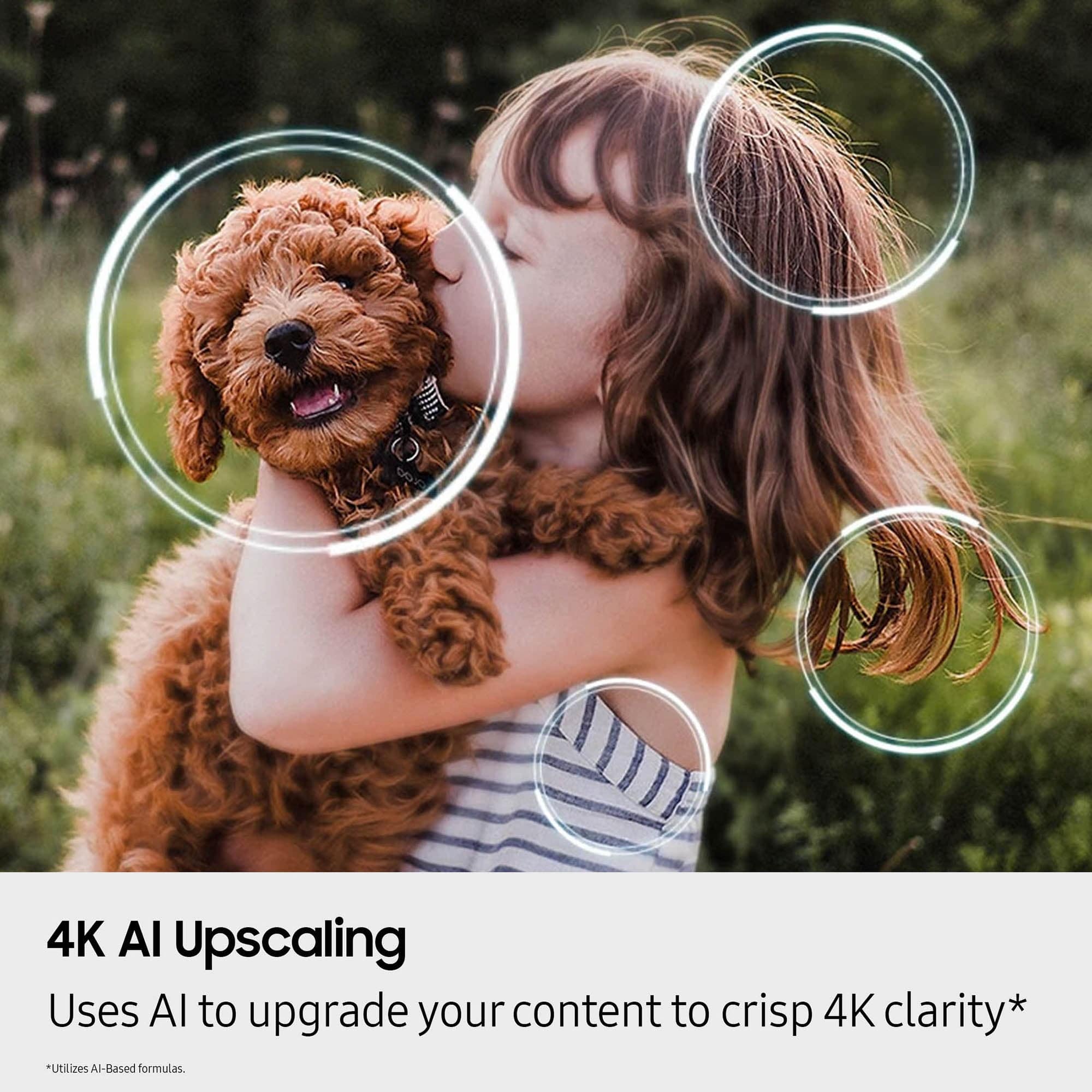
||Posted . Owned for 2 weeks when reviewed.This reviewer received promo considerations or sweepstakes entry for writing a review.Tv was pretty good but non 4k images were really bad quality. Not sure what’s going on or why but good not get it to show nicely. 4k quality good regular 1080p very bad.
No, I would not recommend this to a friendBrand response from Samsung
Posted .StanY,
Thank you for sharing your thoughts on your Samsung S84F TV’s image quality. Your TV is designed to upscale content to the best possible quality based on the resolution of the source. In general, the closer your content is to native 4K, the sharper and more detailed it will appear on screen.
Here are some tips to help improve picture clarity and overall upscaling performance:
1. Use HDMI cables for the best high-definition signal.
2. If you’re using an analog cable or satellite box, consider upgrading to a digital box for better signal quality.
3. Change the output resolution of connected devices (like a cable box, streaming device, or IPTV box) to UHD or HD, if supported.
4. Go to Settings > All Settings > Picture > Expert Settings to fine-tune options like Sharpness, Brightness, Contrast, and Color.
5. Select a Picture Mode that fits your environment: Settings > All Settings > Picture > Picture Mode – try Dynamic, Movie, or Filmmaker Mode.
6. Explore Picture Clarity Settings under Expert Settings for added detail enhancement. Use Auto or Custom to adjust Judder Reduction, LED Clear Motion, and Noise Reduction.
7. Enable AI Mode, which automatically analyzes the content and your environment to deliver optimized picture and sound. Go to: Settings > All Settings > Advanced Features > AI Mode Settings
8. Ensure your TV is running the latest firmware to benefit from performance improvements and the latest enhancements: Settings > Support > Software Update > Update Now
If you’d like personalized help fine-tuning these settings, please reach out to Samsung Support at 1-800-SAMSUNG, available 8AM – 12AM EST, 7 days a week. You can also LiveChat with an agent or find helpful guides by visiting the ‘Support’ section of our website.
~ Samsung Specialist
Picture is disappointing
||Posted . Owned for 1 week when reviewed.This reviewer received promo considerations or sweepstakes entry for writing a review.Not thrilled with this TV to me the pictures slightly fuzzy and the colors just seem more muted and darker than what I’m used to Best Buy is going to come and see if they can adjust the settings but disappointed overall with this TV
No, I would not recommend this to a friendBrand response from Samsung
Posted .DianneN,
We appreciate your input on the picture quality of Samsung’s S84F TV. If the image isn’t meeting your expectations, there are several adjustments you can make to improve your viewing experience.
First, please ensure your TV is running the latest firmware, as updates may include important picture quality enhancements. Go to: Home > Left directional button > Settings > Support > Software Update > Update Now
Then, select a Picture Mode that best fits your environment: Home > Home > left directional key > Settings > All Settings > Picture > Picture Mode
1. Standard – Default mode for general viewing
2. Dynamic – Brighter and clearer in well-lit rooms
3. Eco – Optimized for energy saving
4. Movie – Best for watching in dark environments
5. Filmmaker Mode – Preserves content exactly as intended by creators
You can also enhance your experience by enabling AI Mode, which automatically adjusts picture and sound based on your surroundings and usage patterns: Settings > All Settings > Advanced Features > AI Mode Settings > AI Mode
If these adjustments don’t improve your picture quality, feel free to contact Samsung Customer Support at 1-800-SAMSUNG, available 8AM – 12AM EST, 7 days a week. You can also LiveChat with an agent or find helpful guides by visiting the ‘Support’ section of our website.
~ Samsung Specialist
Get what tou pay for…
||Posted . Owned for 2 weeks when reviewed.This reviewer received promo considerations or sweepstakes entry for writing a review.Looked like a great television online and with no display or reviews, I took a chance…and lost. Good 4k picture but regular HD was not good, poor upscaling. Spend a little more and get much more.
No, I would not recommend this to a friendBrand response from Samsung
Posted .Ted5,
Thank you for sharing your thoughts on your Samsung S84F TV’s image quality. Your TV is designed to upscale content to the best possible quality based on the resolution of the source. In general, the closer your content is to native 4K, the sharper and more detailed it will appear on screen.
Here are some tips to help improve picture clarity and overall upscaling performance:
1. Use HDMI cables for the best high-definition signal.
2. If you’re using an analog cable or satellite box, consider upgrading to a digital box for better signal quality.
3. Change the output resolution of connected devices (like a cable box, streaming device, or IPTV box) to UHD or HD, if supported.
4. Go to Settings > All Settings > Picture > Expert Settings to fine-tune options like Sharpness, Brightness, Contrast, and Color.
5. Select a Picture Mode that fits your environment: Settings > All Settings > Picture > Picture Mode – try Dynamic, Movie, or Filmmaker Mode.
6. Explore Picture Clarity Settings under Expert Settings for added detail enhancement. Use Auto or Custom to adjust Judder Reduction, LED Clear Motion, and Noise Reduction.
7. Enable AI Mode, which automatically analyzes the content and your environment to deliver optimized picture and sound. Go to: Settings > All Settings > Advanced Features > AI Mode Settings
8. Ensure your TV is running the latest firmware to benefit from performance improvements and the latest enhancements: Settings > Support > Software Update > Update Now
If you’d like personalized help fine-tuning these settings, please reach out to Samsung Support at 1-800-SAMSUNG, available daily from 8AM - 12AM EST. You can also visit the Samsung website and click on ‘Support’ for:
• Live Chat
• Manuals, Software, & Warranty Info
~ Samsung Specialist
Don’t buy
||Posted . Owned for 3 months when reviewed.This reviewer received promo considerations or sweepstakes entry for writing a review.I see now why it was on sale. Some days the volume will work and the screen is black and some days the screen will turn on but the volume won’t work. It will glitch randomly and has all sorts of technical issues.
No, I would not recommend this to a friendBrand response from Samsung
Posted .Hi Michael,
We appreciate you taking the time to let us know about your experience with your S84F TV. So that we can better troubleshoot this issue and provide steps towards a solution, please contact Samsung Support at 1-800-SAMSUNG, 8AM – 12AM EST, 7 days a week, or visit our website for LiveChat.
~ Samsung Specialist
- Pros mentioned:Design, Oled quality, Performance
Best TV I’ve Owned — Incredible Picture!
Posted .This reviewer received promo considerations or sweepstakes entry for writing a review.Absolutely stunning! The Samsung 65" S84F OLED 4K UHD delivers breathtaking picture quality with rich, true-to-life colors and deep blacks that make every movie, show, and game pop. Vision AI optimizes every scene, and the Tizen smart platform is fast, intuitive, and packed with all the apps I use daily. Whether you’re streaming, gaming, or watching live TV, this set elevates the experience. Sleek design and immersive performance make it a standout — worth every penny!
I would recommend this to a friend oled Smart Tv
||Posted .This reviewer received promo considerations or sweepstakes entry for writing a review.I read that oleds can suffer from "Burn in". I pause things way to often to risk buying something that might be damaged by that habit. Best buy returned without hassle. Thank you. Tony D.
No, I would not recommend this to a friendBrand response from Samsung
Posted .TonyD,
We're sorry to hear that your experience with the S90F TV led to a return. Your feedback matters to us and will be shared with our product team.
If you decide to explore Samsung TVs again in the future, we’re always here to support you - whether it’s setup, features, or troubleshooting. Reach us anytime at 1-800-SAMSUNG (8AM – 12AM EST, 7 days a week), or visit the ‘Support’ section of our website for LiveChat, manuals, and more.
~ Samsung Specialist
I'm returning it immediately because it's junk
||Posted .This reviewer received promo considerations or sweepstakes entry for writing a review.I must have got a bad one because the picture is way too dark no matter what settings I try. I went to the store to compare it and yep, the one I got is bad. I'm returning it for a Bravia and will never buy a Samsung again. Don't they have quality control? Apparently not. Thanks for a horrible experience.
No, I would not recommend this to a friendBrand response from Samsung
Posted .Hi Dontbuysamsung,
We’re sorry to hear you’re not fully satisfied with the picture quality on your Samsung S84 TV. If the image appears too dark, we suggest disabling certain energy-saving features, which can automatically adjust brightness and affect how the screen looks.
You may also want to check if energy saving or AI settings are enabled.
• For energy settings, go to: Settings > All Settings > General & Privacy > Power and Energy Saving
• For AI settings, go to: Settings > All Settings > Advanced Features > AI Mode Settings
You can also adjust the Picture Mode to better suit your environment: Settings > All Settings > Picture > Picture Mode
• Standard – Default mode for general viewing
• Dynamic – Brighter and clearer, ideal for well-lit rooms
• Movie – Best for dark room viewing
• Eco – Energy-saving mode
• Filmmaker Mode – Preserves content as intended by creators
To fine-tune brightness, go to: Home > left directional key > Settings > All Settings > Picture > Expert Settings, then adjust the Brightness level (0–50) to your preference.
Lastly, please make sure your TV is running the latest firmware: Home > Home > left directional key > Settings > Support > Software Update > Update Now
We hope these tips help improve your viewing experience. If you need further support, feel free to contact us at 1-800-SAMSUNG, 8AM – 12AM EST, 7 days a week. LiveChat is also available via the ‘Support’ link on our website.
~ Samsung Advisor
Screen saver
||Posted . Owned for 4 months when reviewed.This reviewer received promo considerations or sweepstakes entry for writing a review.Goes into screen save mode every 2 minutes. There is no fix.
No, I would not recommend this to a friendTV PAINGS
||Posted . Owned for 2 weeks when reviewed.This reviewer received promo considerations or sweepstakes entry for writing a review.THE TV KEEPS COMING ON BY ITSELF. THE MUTE BUTTON KEEPS COMING ON BY ITSELF. THE SOUND EVEN WITH SPEAKERS SUCK. NOT TOO PLEASED WITH THIS ITEM
No, I would not recommend this to a friendBrand response from Samsung
Posted .EPPY242,
Thanks for sharing. Please note this "on" feature you’re seeing is called Daily Board. It uses motion detection or voice commands to show useful info like the weather and connected device status when the TV screen is off. To turn it off, press the 123/Quick Settings button on your remote, go to Settings > All Settings > Advanced Features > Daily Board, then switch off any enabled options.
To ensure you're getting the latest sound performance improvements, we recommend checking for any available firmware updates: Home > left directional key > Settings > Support > Software Update
If the sound still doesn’t meet your expectations after updating, there are several settings that can be customized to better suit your preferences:
• Sound Mode & Expert Settings: Choose from preset Sound Modes or manually adjust bass, treble, and balance to better suit your preferences. Go to: Home > left directional key > Settings > All Settings > Sound > Sound Mode or Expert Settings
• AI Mode: Enable AI Mode to let your TV intelligently optimize sound based on your environment and content. This includes features like:
o Adaptive Sound: Analyzes room acoustics and content in real time
o Adaptive Volume: Maintains a consistent volume level over time
o Active Voice Amplifier: Enhances dialogue when ambient noise is detected
• Auto Volume: Helps stabilize volume when switching channels or input sources: Settings > Sound > Expert Settings > Auto Volume > On
If you're looking to enhance your overall audio experience, consider adding a Samsung S- or Q-Series Soundbar (such as the HW-S800D). These models feature Q-Symphony, which allows the TV and soundbar speakers to work together for an immersive, 3D audio experience.
For help with sound adjustments or choosing a soundbar to complement your setup, please contact us at 1-800-SAMSUNG, 8 AM – 12 AM EST, 7 days a week. Or visit us on the Samsung website and click on the ‘Support’ link for:
• LiveChat
• Manuals, Software, & Warranty Info
~ Samsung Specialist
No TV to review
||Posted . Owned for 2 weeks when reviewed.This reviewer received promo considerations or sweepstakes entry for writing a review.You can't review something you haven't received! It would be nice if Best Buy would deliver when scheduled.
No, I would not recommend this to a friendBrand response from Samsung
Posted .JamesZ,
We’re sorry to hear you haven’t received your TV yet. For delivery-related concerns, we recommend following up directly with Best Buy for assistance. We hope the issue is resolved quickly.
Once you receive your TV, if you have any questions about setup or usage, please contact Samsung Support at 1-800-SAMSUNG, 8AM – 12AM EST, 7 days a week. LiveChat agents are also available via the ‘Support’ link on our website.
~ Samsung Specialist
Late installer
||Posted .This reviewer received promo considerations or sweepstakes entry for writing a review.The geek squad was 2 hours late . He had a different time than i had.
No, I would not recommend this to a friendBrand response from Samsung
Posted .VincentG,
It appears your 1-star review for the Samsung S84F TV is based on your experience with Best Buy, and we’re sorry to hear that. We recommend contacting the store directly to share your feedback.
If you need help with the TV itself, Samsung Support is available at 1-800-SAMSUNG, 8AM – 12AM EST, 7 days a week, or via LiveChat under the ‘Support’ section of our website.
~ Samsung Specialist
Pictur quality poor
||Posted .This reviewer received promo considerations or sweepstakes entry for writing a review.Dont really care for picture quality was better on display at store
No, I would not recommend this to a friendBrand response from Samsung
Posted .Mandy,
We appreciate your input on the picture quality of Samsung’s S84F TV. If the image isn’t meeting your expectations, there are several adjustments you can make to improve your viewing experience.
First, please ensure your TV is running the latest firmware, as updates may include important picture quality enhancements. Go to: Home > Left directional button > Settings > Support > Software Update > Update Now
Then, select a Picture Mode that best fits your environment: Home > Home > left directional key > Settings > All Settings > Picture > Picture Mode
1. Standard – Default mode for general viewing
2. Dynamic – Brighter and clearer in well-lit rooms
3. Eco – Optimized for energy saving
4. Movie – Best for watching in dark environments
5. Filmmaker Mode – Preserves content exactly as intended by creators
You can also enhance your experience by enabling AI Mode, which automatically adjusts picture and sound based on your surroundings and usage patterns: Settings > All Settings > Advanced Features > AI Mode Settings > AI Mode
If these adjustments don’t improve your picture quality, feel free to contact Samsung Customer Support at 1-800-SAMSUNG, available 8AM – 12AM EST, 7 days a week. You can also LiveChat with an agent or find helpful guides by visiting the ‘Support’ section of our website.
~ Samsung Specialist
- Pros mentioned:Oled quality
An outstanding 65-inch television
Posted .This reviewer received promo considerations or sweepstakes entry for writing a review.The Samsung OLED tv is a marvel. Since the room is relatively dark, the picture is outstanding. There's supposed to be a concern about picture burn-in, but Samsung has an automatic picture shutdown if a single image is shown for more than a few seconds - a good feature for OLED's. I especially like the blacked out black. If I have one regret it's that I didn't get a 75-inch screen instead of the 65.
I would recommend this to a friend