
Optimizing Windows 10 for PC gaming.
Whether you're a veteran PC gamer or just starting out, here are some tips to optimize your Windows 10 operating system, software and hardware for better gaming performance.
Whether you're a veteran PC gamer or just starting out, here are some tips to optimize your Windows 10 operating system, software and hardware for better gaming performance.
While your system will often try to update itself automatically, it’s always a good idea to ensure that you have the latest version of the following:
Type "check for updates" in your Windows 10 search bar (usually found in the bottom left corner of your screen), click on "Check for updates" and you'll see if any can be run. You can also choose to start scheduled updates immediately.
The most important driver to update will be for your video card, and the process varies by manufacturer. In most cases, you’ll have an app in your task bar for either NVIDIA or AMD near the clock in the bottom right corner of your screen. You also might have to click the Up arrow in the task bar to open a box of icons. If you click on the icon for your video card app, there should be an option for updating. You can also visit the manufacturer’s website, as they'll likely have a page that can auto-detect whether your driver is up to date or not.
For antivirus and internet security software, you can usually find the appropriate software icon in your task bar. Click to open it and check for any available updates.
Some games automatically update when you run them. For those that don’t, you may need to check for support within the official website for the game.
Game Mode is designed to automatically determine if you’re running a game. If turned on, it will modify settings to optimize your experience, including preventing Windows Update from running an installation and providing more stable frame rates for compatible games.
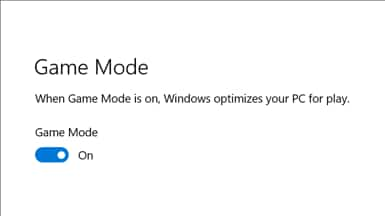
To enable Game Mode, type "game mode settings" in your Windows 10 search bar, click on "Game Mode settings" and turn Game Mode on. For most systems, it’s fine to leave this setting at "On" all the time.
Typically, when one of these modes is enabled in your security software, all notifications will be hidden, and scans will not run when you're playing games, watching videos or running full-screen presentations.
Each manufacturer provides a different way to enable this. Some software may automatically detect the appropriate app, while others need you to click on the software icon in the task bar and then enable the mode within the settings. Consult your software’s support website for complete instructions.
Also, while you’re in your security software settings, run a system scan for malicious software. Even though your software scans your PC automatically, it never hurts to run a manual scan on occasion to make sure your system is clear of malware that could slow things down.
If you’re playing multiplayer games online, it's a good idea to test your internet performance with the Geek Squad broadband speed test. You'll typically need at least 6–10 Mbps (megabits per second) for online gaming. However, if multiple devices in your home are using the internet at the same time, you'll need even higher speeds.
You can check with your provider for options to upgrade your internet package, or you can try updating an outdated modem to help increase your speed. Another good option is to take advantage of our free In-Home Consultation. An Advisor will come to your home and give you recommendations for improving your internet speed.
If your game is designed to work with the Xbox app, you could get features like:
By going to Xbox.com, you are leaving BestBuy.com and entering a site hosted and operated by Microsoft. Please review their Privacy Policy. Different terms and conditions may apply.
Upgrading an older hard drive to an internal solid-state drive (SSD) will speed up load times and gaming software. Other hardware options include adding more system memory (RAM) and upgrading to a more powerful video card.
Shop PC components