Victrola - Bluetooth Stereo Turntable - Navy Velvet
- Key Specs
- Drive Type: Belt drive
- Operation Type: Semi-automatic (Automatic turntables move the tonearm into position to begin playing a record and remove it when the record is finished, typically with a single push of a button. Semi-automatic turntables require user interaction to place the tonearm inititally, but will automatically remove it after playback. Manual turntables require the user to place and remove the tonearm as needed.)
- Cartridge Type Included: Not included (Phono cartridges translate the grooves in a record into electrical signals to produce sound. There are two main types: moving magnet (MM) and moving coil (MC). Generally, MM cartridges have a robust design and high output levels. MC cartridges have an inverse design of MM that is lightweight and more precise, but usually require a preamp to boost their lower output signals.)
- Audio Only Outputs: 1 x Phono
- Network Connector(s): 1 x 3.5mm mono in
- Wireless Connectivity: Bluetooth (The manner in which a device sends data to another device over a short distance without the use of wires or cables.)
- General
- Product Name: Bluetooth Stereo Turntable
- Brand: Victrola
- Model Number: VSC-550BT-NVV
- Color: Navy Velvet
- Audio
- Drive Type: Belt drive
- Operation Type: Semi-automatic (Automatic turntables move the tonearm into position to begin playing a record and remove it when the record is finished, typically with a single push of a button. Semi-automatic turntables require user interaction to place the tonearm inititally, but will automatically remove it after playback. Manual turntables require the user to place and remove the tonearm as needed.)
- Playable Record Speeds: 78, 33 1/3, 45
- Turntable Motor Type: AC
- Speed Variation: 78rpm, 33.3rpm, 45rpm (The variance in platter revolutions per minute (RPM), typically asserted as +/- RPM. The smaller the variation in speed, the cleaner the sound and the fewer noticeable differences in pitch.)
- Cartridge & Tonearm
- Cartridge Type Included: Not included (Phono cartridges translate the grooves in a record into electrical signals to produce sound. There are two main types: moving magnet (MM) and moving coil (MC). Generally, MM cartridges have a robust design and high output levels. MC cartridges have an inverse design of MM that is lightweight and more precise, but usually require a preamp to boost their lower output signals.)
- Outputs
- Audio Only Outputs: 1 x Phono
- Speaker Connection Type: RCA
- Headphone Jack: true (The device features an interface that allows for the connection of headphones.)
- Inputs
- Network Connector(s): 1 x 3.5mm mono in
- Connectivity
- Wireless Connectivity: Bluetooth (The manner in which a device sends data to another device over a short distance without the use of wires or cables.)
- Dimensions
- Product Height: 5 inches (The out of box height of the item. Height is measured as the vertical distance from the bottom of the item to the top as it would be primarily used or placed.)
- Product Width: 13.9 inches (The out of box width of the item. Width is measured as the horizontal distance from one side of the item to the other as it would be primarily used or placed.)
- Product Depth: 10.1 inches (The out of box depth of the item. Depth is measured as the distance from the front of the item to the back as it would be primarily used or placed.)
- Product Weight: 6 pounds (The out of box weight of the item.)
- Included
- Cable(s) Included: None
- Speaker(s) Included: true
- Speaker Type(s) Included: Speaker
- Warranty
- Manufacturer's Warranty - Parts: 1 year
- Manufacturer's Warranty - Labor: 90 days
- Other
- UPC: 816203018311
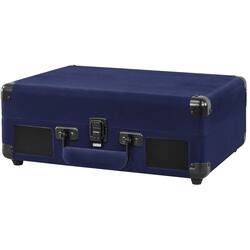
Enjoy a modernized version of retro listening with this Victrola portable record player. In addition to a 3-speed turntable, it's equipped with Bluetooth technology for wireless streaming from your smartphone and an auxiliary input for other devices. This Victrola portable record player is designed like a suitcase with an easy-carry handle for convenient transport.
- Belt-driven system: Enjoy superior sound thanks to the belt drive, which reduces vibration.
- Stereo sound: Enjoy sound as it was meant to be heard in full stereo.
- Plays 78, 33-1/3 and 45 rpm: Keep your music going with the speeds this turntable offers.
- Bluetooth connectivity: Enjoy seamless wireless connectivity with Bluetooth.
- Built-in speakers: Offer dynamic sound for all your favorite records.
- RCA output: For easy connectivity. A headphone jack enables private listening.
Whats Included
- Victrola Bluetooth Stereo Turntable
Q: What is the warranty on the turntable?
A: The manufacturer's warranty for labor on this turntable is 1 year.
Q: How many speeds does the turntable play?
A: This turntable plays three speeds.
Q: Can I connect external speakers to the turntable?
A: This Victrola Bluetooth suitcase record player has built-in stereo speakers and an RCA aux-in port for connecting to external speakers.
Q: Does the turntable come with a cartridge?
A: This turntable does not include a cartridge.
Q: What type of speakers are included?
A: This record player includes speaker type speakers.
Q: Does it play 331/3, 45’s & 78’s ?
A: Yes it plays all those speeds of records. I am happy with this purchase . my wife just needed something simple to olay some old goodies. Its not a boom box but the speakers are reasonable to enjoy your music.
A: You do not need separate speakers. It has great sound with the built in speakers.
Q: Is there a way of transferring records to my computer or phone?
A: You can dub records into a computer. Connect the line out jacks on the back panel of the record player, or the headphone jack on the record player, to the line in or mic jack on your computer. Using the Sound settings in Windows 10, set your computer's recording input to Stereo Input. Disable your computer's built-in microphone if any. You use the Voice Recorder app in Windows 10 to dub your records into the digital realm. After using this method to dub records into your computer, you could connect your phone via USB to your computer and copy your recordings onto your phone. Your recordings of your records will be located in a subdirectory labeled Sound recordings inside your Documents directory in File Explorer.