Logitech - MX Master 4 for Mac - Wireless Laser Ergonomic Mouse with Advanced Performance Haptic Feedback - Wireless - Space Black
Customers are saying
Customers admire the exceptional portability and ideal size of this keyboard and mouse, which users find perfectly suited for their laptops. Many reviewers highlight the reliable connectivity and impressive battery life as key contributors to the device's strong overall performance. Additionally, users appreciate the comfortable design, productive shortcut buttons, and satisfying haptic feedback. The silent click feature is also frequently praised for providing a quiet and pleasant user experience.
Color
Space BlackMastered for Mac
With matching Apple finishes, Logi Options+ functions for macOS, USB-C charging while you work (cable not included), MX Master 4 for Mac makes for a perfect fit with your Apple setup.¹
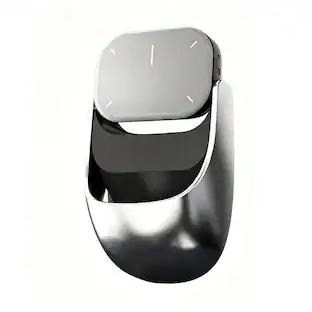
Precision you can feel with the Haptic Sense Panel
Customizable haptic feedback on specific actions, shortcuts, notifications enhancing productivity on this wireless Bluetooth mouse.¹
Effortlessly access favorite tools with Actions Ring on this MX Series mouse
A dynamic, customizable overlay adapts to each app, placing most used filters, adjustments, and shortcuts at your cursor.
Ultra-fast scrolling
Scroll 1,000 lines per second and stop on a pixel with the MagSpeed scroll wheel—Logitech’s fastest, quietest, and most precise scrolling experience.
Ergonomic mouse designed for comfort
MX Master 4 for Mac keeps you in flow with a natural tilt, intuitive buttons, and a thumb scroll wheel that reduces hand stress for fluid navigation.
Quiet Clicks
Quiet Clicks on MX Master 4 for Mac reduce noise and distractions, offering a soft, satisfying feel with 90% less click noise—perfect for focused workflows.³
MX + Adobe Creative Cloud
Get a complimentary 1-month Adobe Creative Cloud subscription with your purchase of MX Master 4 for Mac.
Designed for a positive future
Plastic parts include recycled plastic - 54% Space Black; 48% White Silver; 100% recycled cobalt in the battery; Built to last with improved stain resistance.⁴
1-month of Adobe Creative Cloud on us (a value of $59.99)*
Pair two of the world’s top creative tools. Buy one MX Master 4 and claim your free 1-month Adobe Creative Cloud membership. *Value calculated based on Adobe Creative Cloud All Apps monthly value of $59.99 valid on Adobe.com on Sept 12, 2024. Terms & Conditions apply.¹ ² ³
¹ Terms and Conditions: Offer starts on October 2024, and expires on October 31st, 2026. Offer available worldwide to customers who purchase the Logitech MX Master 4 who are new or existing Adobe customers. When you purchase an MX Master 4 you receive a complimentary 1-month membership of Adobe Creative Cloud All apps when you go to logi.com/adobe-offer offer page and follow the redemption steps.
² Limit: 1 subscribing customer per product. At the end of the trial period, if you provided a payment method, your subscription would automatically renew, and you will be charged the then-current subscription rate unless you elect to change or cancel your subscription.For Creative Cloud All apps, the current subscription rate is US$89.99/mo or US$659.88/yr (annual, prepaid) (plus applicable taxes/VAT/GST).Cancellations can be made through Customer Support or https://account.adobe.com/plans
³ Valid only for eligible persons who are 18+. Residents or persons in embargoed countries or countries subject to U.S. or local export restrictions are not eligible. Offer and prices are subject to change. Offer may not be assigned, exchanged, sold, transferred, combined, or redeemed for cash or other goods and services not expressly stated here as included. Subject to availability where the recipient resides. Additional terms may apply. VOID WHERE PROHIBITED OR RESTRICTED BY LAW.
⁴ The purchase of an MX Master 4 includes 1 months of Adobe Creative Cloud All Apps membership. Terms and conditions apply.
⁵ Requires Logi Options+ app, available for recent versions of Windows and macOS
⁶ Battery life may vary based on user and computing conditions
- Lighting TypeNoneMaximum Sensitivity8000 dots per inchNumber of Buttons (Total)8Connection TypeWireless
Reviews
Rating 4.7 out of 5 stars with 549 reviews
- Portability (61)
- Size (40)
- Overall Performance (36)
- Connectivity (28)
- Battery Life (26)
Customer Images
The vast majority of our reviews come from verified purchases. Reviews from customers may include My Best Buy members, employees, and Tech Insider Network members (as tagged). Select reviewers may receive discounted products, promotional considerations or entries into drawings for honest, helpful reviews.

Compare similar products
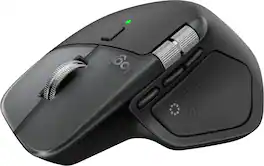
MX Master 4 for Mac Wireless Ergonomic Mouse with Advanced Performance Haptic Feedback

The Logitech MX Master 4 brings immersive control and precision you can feel with haptic feedback. Experience haptic feedback on specific actions, shortcuts, notifications like switching desktops, slider adjustments and more. Customize vibration intensity in Logi Options+. With Actions Ring shortcuts and MX Master 4, save up to 33% of your time by accessing tools and filters at your cursor, reducing repetitive movements by up to 63%. Experience uninterrupted performance with 2X more powerful connectivity, powered by an advanced radio chip, optimized antenna placement, and a new USB-C dongle.

Logitech MX Master 3S Bluetooth Edition – productivity and precision mouse. With Quiet Clicks and 8K DPI any-surface tracking for more feel and performance.

The Logitech MX Master 4 brings immersive control and precision you can feel with haptic feedback. Experience haptic feedback on specific actions, shortcuts, notifications like switching desktops, slider adjustments and more. Customize vibration intensity in Logi Options+. With Actions Ring shortcuts and MX Master 4, save up to 33% of your time by accessing tools and filters at your cursor, reducing repetitive movements by up to 63%. Experience uninterrupted performance with 2X more powerful connectivity, powered by an advanced radio chip, optimized antenna placement, and a new USB-C dongle.
| Pros for Logitech - MX Master 4 for Mac - Wireless Laser Ergonomic Mouse with Advanced Performance Haptic Feedback - Wireless - Space Black | |||
|---|---|---|---|
| Overall Performance, Connectivity, Battery Life, Portability, Size | Ergonomics, Overall Performance, Button Functionality, Haptic Feedback, Battery Life | Ergonomics, Overall Performance, Button Functionality, Connectivity, Battery Life | Ergonomics, Overall Performance, Haptic Feedback, Connectivity, Battery Life |
| Cons for Logitech - MX Master 4 for Mac - Wireless Laser Ergonomic Mouse with Advanced Performance Haptic Feedback - Wireless - Space Black | |||
| There were no cons for this product— | Weight, Size | There were no cons for this product— | Size, Weight |
Specs
Customers often buy these together
Computer Keyboards
![g) FS F4 F3 esc F2 F1 A $ % # 6 ! 4 5 ~ 3 1 2 R T W E Q tab F G S D lock A caps V C X Z shift H command option control F6 & 7 Y H B logi 44 F9 FB F7 * ( ) 9 0 8 I O U K L J < N M 1.0% r FI3 FQ2 Fl F10 fn + delete - = - 3 I { / P [ ] A return : I ; shift ? > I control option command 2 10 300 3 F PS F1 page clear home up page 7 end down Q P F F8 = I 8 9 4 5 1 2 0 F9 * 1 + 6 3 enter](https://pisces.bbystatic.com/image2/BestBuy_US/images/products/6578/6578481_sd.jpg;maxHeight=232;maxWidth=233?format=webp)
Logitech - MX Keys S for Mac Advanced Full-size Wireless Scissor Keyboard with Backlit keys for MacBook, iMac, iPad - Space Gray
Top Deal$119.99The price was $129.99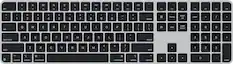
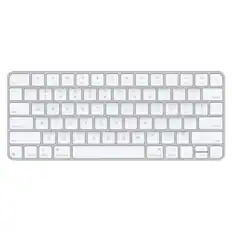
Magic Keyboard with Touch ID and Numeric Keypad for Mac models with Apple silicon (USB-C) - Black Keys
$179.99The price was $199.99![esc ~ ! 1 tab caps lock shift ctrl F2 Fl # 2 3 Q W A S Z start opt L F3 $ 4 E D X alt cmd3 ) FS F4 A % 5 6 R T F G V C logi 44 HI & F9 FID FB F7 F6 * ) - - & 0 8 9 7 O P U I Y K L H J > < N M 1 B PM + = { [ : I ; ? I alt cmd D 2 4 300 3 1 F12 . * page I insert home up clear backspace 8 9 + 7 page A pg up end down home } I delete ] / 6 4 5 4 enter 2 3 enter 1 dn Pg end shift = 0 del ins etrl fn opt](https://pisces.bbystatic.com/image2/BestBuy_US/images/products/6539/6539505_sd.jpg;maxHeight=232;maxWidth=233?format=webp)
Logitech - MX Keys S Universal Full-size Wireless Scissor Keyboard for PC and Mac with Backlit keys - Black
Top Deal$119.99The price was $129.99
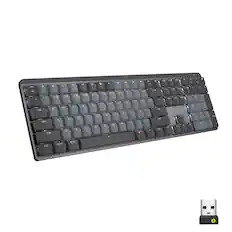
![logi esc 1 F1 2 F2 3 F3 F4 F5 F6 F7 F8 x F9 NI F10 x F11 F12 ins del ~ ! 1 2 # 3 $ 4 % 5 ^ 6 & 7 8 ( 9 ) 0 e - + = backspace tab Q W E R T Y U I O P { [ } ] I / caps lock A S D F G H J - K L : ; " enter shift Z X C V B N M < > ? / shift ctrl fn L start opt H alt cmd alt cmd ctrl opt](https://pisces.bbystatic.com/image2/BestBuy_US/images/products/6478/6478163_sd.jpg;maxHeight=232;maxWidth=233?format=webp)
![The text on the image is a list of keys on a keyboard. Here is the grouped and corrected text:
1. Function keys: F1, F2, F3, F4, F5, F6, F7, F8, F9, F10, F11, F12
2. Numeric keys: 1, 2, 3, 4, 5, 6, 7, 8, 9, 0, -, =, +, (, )
3. Modifier keys: shift, control, option, command, caps lock, and return
4. Navigation keys: arrow keys (up, down, left, and right), and home and end keys
5. Punctuation keys: [, ], |, /, and ;
6. Numeric keypad keys: 7, 8, 9, *, -, and =
7. Other keys: tab, Q, W, E, R, T, Y, U, I, O, P, J, K, L, and Z
This list includes all the keys on a standard keyboard, grouped by their functions and types.](https://pisces.bbystatic.com/image2/BestBuy_US/images/products/eba31cb9-2606-42ab-9643-ed4280533545.jpg;maxHeight=232;maxWidth=233?format=webp)
Mouse Pads



Laptop Docking Stations
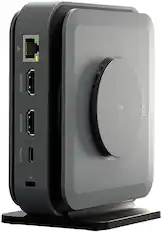
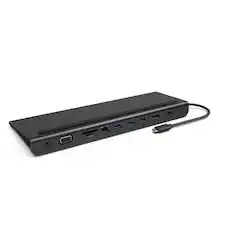
j5create - USB-C Dual 4K HDMI Docking Station with 15W Wireless Charging - Space Gray
$124.99The price was $129.99
Customers ultimately bought
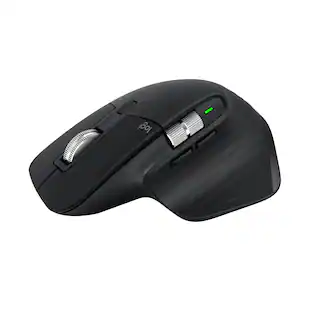 Top Deal$89.99The price was $99.99
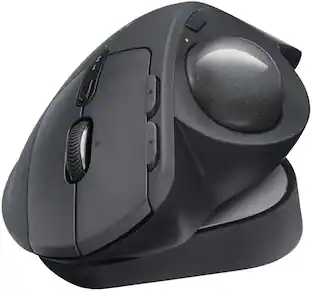 Top Deal$109.99The price was $119.99
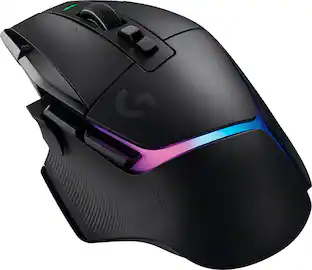 $127.99The price was $159.99


Explore tech essentials Sponsored
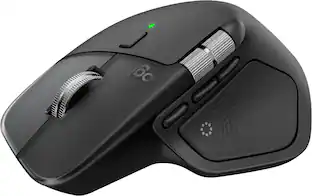
 Top Deal$59.99The price was $69.99


Discover related products
 $49.99The price was $59.99
 $69.99The price was $99.99