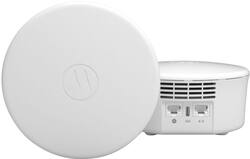
Motorola - AX1800 Mesh WiFi Router/Extender - 2 pack - White
Model: MH7602-10
SKU: 6482078
This item is no longer available in new condition. See similar items below
- Key Specs
- Wi-Fi Range: 2000 square feet (The device will provide a Wi-Fi connection to this approximate area.)
- Wi-Fi Mesh System: true (A single wireless network consisting of a main router (connected directly to a modem) that connects to a series of satellite modules or nodes placed around the home. Routers with this capability promote stronger, faster wireless signals as well as increase Wi-Fi coverage by reducing interference and eliminating dead zones.)
- Number of Wi-Fi Satellites Included: 2 (Quantity of Wi-Fi satellite modules/nodes for a Wi-Fi Mesh System that come with the product.)
- Number Of LAN Ports: 2 (Number of devices able to be connected to the Local Area Network (LAN). LAN ports allow wired connections to other networking devices (wireless access points, range extenders, etc.) in order to share the internet connection received through a WAN port.)
- Wi-Fi Speed: 1 gigabits per second (The maximum rate at which data is transferred between a network device and wireless router.)
- General
- Brand: Motorola
- Model Number: MH7602-10
- Product Name: AX1800 Mesh WiFi Router/Extender - 2 pack
- Color: White
- Security
- Firewall Type: SPI (The method the firewall uses to filter and process data to increase network security, primarily by blocking malicious traffic requests while allowing legitimate traffic through.)
- Network
- Ethernet Standard: 10/100/1000 (Each standard is a variation of the IEEE 802.3 set of computer networking technologies known as Ethernet. New versions evolved to include higher bandwidth, different physical media, and other new and improved features. Standards are often denoted by speeds (in Megabits per second). For example, a 10/100/1000 Ethernet port transmits at 10 Mbps, 100 Mbps, and 1000 Mbps (1 Gbps).)
- Frequency Band: 5.0 GHz (Bands may be grouped into categories such as low- and high-band VHF (Very High Frequency), low- and high-band UHF (Ultra High Frequency), or certain frequency channels (measured in MHz or GHz). Generally, higher frequencies transmit information faster but have shorter range than lower frequencies.)
- Wireless Networking Standard: Wi-Fi 6 (The wireless networking standard used by the device. Each iteration of the standard developed by the Wi-Fi Alliance corresponds to an existing IEEE 802.11 protocol; for example, standard 802.11ac (or AC) is termed Wi-Fi 5. Refers specifically to the standard the device is designed to use, but ultimately determines product interoperability and backward compatibility including previous versions.)
- Wireless Standard: AC, AX, N (The wireless networking protocol used by the device. Each iteration of the protocol is based on the 802.11 standard developed by the Institute of Electrical and Electronics Engineers (IEEE) Standards Association. Denoted by letters following 802.11 (802.11a, 802.11ac, etc.), each version, published in alphabetical order, encompasses all previous versions.)
- Wi-Fi Range: 2000 square feet (The device will provide a Wi-Fi connection to this approximate area.)
- Wi-Fi Mesh System: true (A single wireless network consisting of a main router (connected directly to a modem) that connects to a series of satellite modules or nodes placed around the home. Routers with this capability promote stronger, faster wireless signals as well as increase Wi-Fi coverage by reducing interference and eliminating dead zones.)
- Number of Wi-Fi Satellites Included: 2 (Quantity of Wi-Fi satellite modules/nodes for a Wi-Fi Mesh System that come with the product.)
- Number of Wi-Fi Satellites Supported: 2 (Maximum quantity of Wi-Fi satellite modules/nodes that are able to be connected to the main router in a Wi-Fi Mesh System.)
- Certifications Listings & Approvals
- ENERGY STAR Certified: false (Devices carrying the ENERGY STAR service mark, such as computer products and peripherals, kitchen appliances, and other products, generally use 20% to 30% less energy than required by federal standards.)
- Features
- Integrated Modem: false
- Wireless: true
- Ports
- Port Type(s): Other (USB 2.0 connects external drives, gaming controllers, smartphones, MP3 players and other accessories.USB 3.0 transfers data faster than USB 2.0, but only when used with USB 3.0 devices.USB Type-C provides fast speeds and versatile power, featuring connectors with identical ends that plug in upside down or right side up. Adapters allow for video as well as backward compatibility.Thunderbolt provides ultra-high bandwidth for fast data transfer between devices featuring a Thunderbolt or MiniDisplayPort connection.HDMI allows you to connect a projector or display HD media on your HDTV or monitor.Media card slots allow you to transfer photos from your digital camera or camcorder.)
- Number Of LAN Ports: 2 (Number of devices able to be connected to the Local Area Network (LAN). LAN ports allow wired connections to other networking devices (wireless access points, range extenders, etc.) in order to share the internet connection received through a WAN port.)
- Speed
- Wired Speed: 850 megabits per second (The maximum rate at which data is transferred between a network device and router using an Ethernet cable.)
- Wi-Fi Speed: 1 gigabits per second (The maximum rate at which data is transferred between a network device and wireless router.)
- Compatibility
- System Requirements: Internet service, AC power, Smart device (iOS or Android) with web browser (The software that a product must have for it to be able to integrate with another product.)
- Dimensions
- Product Height: 3.3 inches (The out of box height of the item. Height is measured as the vertical distance from the bottom of the item to the top as it would be primarily used or placed.)
- Product Length: 12.8 inches (The out of box length of the item. Length is measured as the longest dimension of the item.)
- Product Width: 8.5 inches (The out of box width of the item. Width is measured as the horizontal distance from one side of the item to the other as it would be primarily used or placed.)
- Product Weight: 2.91 pounds (The out of box weight of the item.)
- Warranty
- Warranty - Parts: 2 years
- Warranty - Labor: 2 years
- Other
- UPC: 855631006835
The value-packed MH7600 AX Mesh WiFi System creates blazing-fast WiFi coverage and seamless roaming for premium and affordable connectivity. Effortlessly protect your life online with built-in network security including automatic firmware upgrades, malware scans, new device alerts, and ad blocking.
- True Gigabit speed: Blazing-fast AX1800 speeds up to 1 Gigabit for over 200 devices with next-generation WiFi 6 technology.
- No more buffering: Delivers fast, reliable WiFi to all your devices for uninterrupted streaming, gaming, and video conferencing. Features a 1 Gigabit Ethernet port for fast wired connections.
- Expandable mesh coverage: This device covers areas up to 2,000 sqft. Easily extend coverage up to 5,000 sqft by adding additional MH7601 devices to your mesh network.
- Powerful app with parental controls: Easily set up and manage your WiFi with the motosync app. Share guest network, run speed tests, track data usage, and more. Create family profiles to filter content and monitor usage.
- Auto security and privacy: Keep your network and data safe with advanced security, including: auto firmware upgrades, malware scans, new device alerts, and adblocking.
- Tons of support: Comes with a 2-year warranty and free support from our US-based technicians.
Whats Included
- 1 Router, 1 Extender, 2 AC Adapters, 1 Ethernet Cable, Quick Start Guide
Q: Will this help my wi work faster
A: I replaced my WiFi5 router with the Motorola AX1800 WiFi6 router. After connecting this device, I doubled my internet speed. I was totally amazed at the increase in speed.
A: undefined
People also viewed
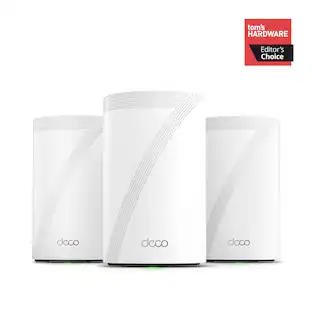
TP-Link - Deco 7 Pro BE11000 Tri-Band Wi-Fi 7 Whole Home Mesh Router System - Deco BE65 Pro (3-pack)
$399.99The price was $599.99 $259.99The price was $399.99


Today's top picks
 $479.99The price was $729.99
 $69.99The price was $129.99
 $199.99The price was $249.99
 $49.99The price was $62.99