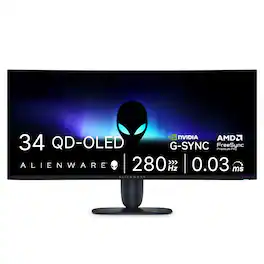
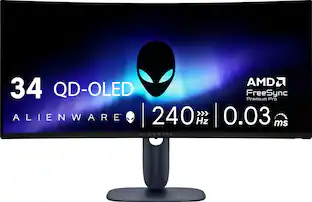
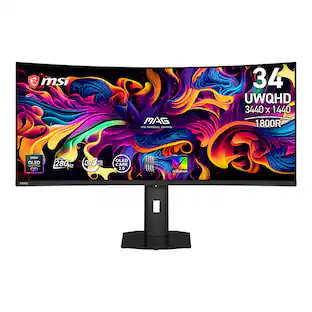
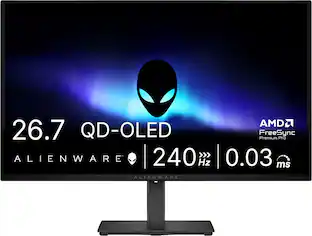
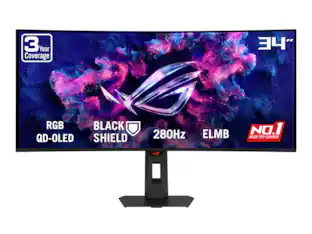
Alienware - 34" UWQHD QD-OLED 280Hz .03ms FreeSync Premium Pro and G-SYNC Compatible Curved Gaming Monitor w/HDR (HDMI, DisplayPort) - Black
About this product
Dive into ultrawide immersion with the AW3426DW, featuring QD-OLED Penta Tandem technology and RGB stripe subpixels for vibrant, true-to-life colour performance.
Highlights
Features
ULTRAWIDE IMMERSION MEETS NEXT-GEN QD-OLED TECHNOLOGY
Discover the brilliance of QD-OLED Penta Tandem with a 21:9 ultrawide display, 1800R curve, and 1300 nits peak brightness. New RGB stripe subpixel layout delivers improved text clarity and vivid colours.
INCREDIBLE HDR WITH DOLBY VISION
An infinite contrast ratio, Dolby Vision, and VESA DisplayHDR True Black 500 produce greater visual depth and a stunning range of dark to light colours in every scene.
SEAMLESS SYNC
NVIDIA G-SYNC Compatible, AMD FreeSync Premium Pro, and VESA AdaptiveSync enhance gaming with tear-free graphics
ICONIC DESIGN MADE FOR GAMING
Made in the Alienware 30 design language, this monitor features AlienFX lighting, 360-degree ventilation, and simple cable management for a sleek and organised setup.
LONG-LASTING DISPLAY HEALTH
An enhanced anti-burn-in AI algorithm coupled with an anti-burn-in graphite sheet protects your screen from unwanted burn-in and is backed by a 3-year warranty.
Specifications
- Refresh Rate280HzMaximum Resolution3440 x 1440Response Time0.03 millisecondsSynchronization TechnologyG-SYNC Compatible (NVIDIA Adaptive Sync), FreeSync Premium Pro (AMD Adaptive Sync)Screen Size34 inches
Reviews
Rating 4.9 out of 5 stars with 25 reviews
4.9Customer Images
The vast majority of our reviews come from verified purchases. Reviews from customers may include My Best Buy members, employees, and Tech Insider Network members (as tagged). Select reviewers may receive discounted products, promotional considerations or entries into drawings for honest, helpful reviews.

- Rated 4 out of 5 stars
Quality issues
The monitor itself is solid, but the quality control is terrible. I’ve had to replace this one three times, the last exchange was at a different store. I’m not sure if my local Best Buy just got a bad batch, but the first two units both had peeling/delamination on the top-left corner of the panel. Big thanks to the Best Buy team for handling the exchanges well and without any hassle. I’ve attached a photo of the defect. From what I’ve seen, Alienware has had issues with panel peeling or delamination before. If you’re considering this monitor, I’d strongly recommend getting the extended warranty and carefully inspecting the panel as soon as you get it.
Posted by lgcalwgari
- Rated 5 out of 5 stars
Fantastic Gaming and Productivity Monitor
The AW3426DW is a fantastic monitor. The 280 Hz refresh is butter smooth. Black is true black. Colors are deep and vibrant. Dolby Vision looks fantastic with games like Gears of War: E-Day and streaming movies such as Black Panther Wakanda Forever from Disney Plus. And the new pixel layout does an amazing job addressing the color fringing issues inherent with the older AW3423DWF and AW3425DW QD-OLED monitors. I have been running Alienware monitors for play and work for years. Unpacking & Setup: Alienware made the unpacking and setup experience simple and fast. The monitor stand, cables, and documents were on top. The monitor stand assembly is a two-step process: 1) connect the monitor arm to the stand, and 2) tighten the captive screw in the stand’s base to the monitor arm. Then, just attach the base to the back of the monitor and lift the entire assembly out of the box. That’s it! The monitor is now ready to be placed on your desk and connected to your computer or laptop. It took longer to type this paragraph than it did to get the monitor connected to the stand and placed on my table. Anecdotally, I have set up a lot of monitors in my time. None of them have ever been this simple or effortless. Alienware deserves a lot of credit for making the process as simple as possible. The setup for my desk took a little more effort because my AW3426DW was replacing an arm-mounted AW3425DW. The AW3426DW shares the same 100 x 100 VESA mounting arrangement as its two older cousins. And the AW3426DW ships with the correct M4 x 10mm screws. Just remove the monitor stand from the back of the monitor and you will find the four black-painted screws. See my included photo. Mounting the monitor on the arm was a two-person job. The monitor itself is deceptively light. And it can be easily handled by a single person. The size, however, is what makes this a two-person job. The AW3426DW ships with four cables: power, USB A to USB B, HDMI Ultra Certified cable, and a DVI cable. Including the correct cables takes all the guess work out of the setup and the connectivity to my equipment. Finally, no setup is complete without at least one issue. For this setup, the AW3426DW defaulted to Esport Mode – 25”. This mode forces the usable monitor space into a 25” monitor with black bars to either side of the active display area. At that moment I had no idea this mode existed. I forced a monitor reset using the On-Screen monitor controls display to resolve the issue. I mention this just in case this happens to you. It is not broken. It is just a misconfigured setting. Gaming: This is what we are here for; the gaming experience! PC gaming was fantastic. I started with a night of Mechwarrior Online with my gaming group. I normally keep the monitor at the default 75% brightness and 75% contrast for gaming. I also kept the default Dolby Vision and Windows HDR for my first few matches. For the most part, the screen was brighter, colors were richer, and the overall smoothness of gameplay surprised me. I normally have a slight jitter to my screen when panning from left to right in this game. Jitter is no longer an issue for me at 280 Hz. Color saturation and contrast were also excellent in both HDR and SDR gaming. Alienware increased the screen brightness from the older AW3425DW’s 250 nits to 300 nits. The brighter screen probably has a lot to do with the improved visual performance of the AW3426DW. Call of Duty Black Ops 7 was equally fast and smooth. The variable refresh kept the screen smooth and tear-free. Explosions, animations, costumes, and maps were rich and colorful. There was no jitter or color blur. And latency was near zero. Overall, the visual and gameplay response was excellent! My performance, on the other hand, cannot keep up with the aim bots and map hacks that have taken over the game. Gears of War: E-Day, in Dolby Vision, looked incredible on the PC. The game, overall, aims for a 60 FPS performance. My RTX 4070 achieved a steady 65 FPS at 240 Hz refresh. The game opens with a sunny day, gleaming cityscape, colorful flowers, and clean and pressed uniforms that all looked amazing. Then the game quickly moves to the familiar war-torn, red light emitting from cracks in the earth, hellscape that we all know and love about the Gears world. The overall gaming experience was butter smooth, richly colored, and tear free. I found the experience so immersive that I completely forgot that I was playing on a tiny 34-inch, 1440p monitor. Honestly, I could not have asked for a better gaming experience. Console Mode: This is where things get a bit wonky. The AW3426DW has a native screen resolution of 3440 x 1440 at 60 Hz, 240 Hz, and 280 Hz. Any other refresh rate will automatically force the monitor into a lower resolution. Which is what my Xbox Series X did when I plugged it into the second HDMI port on the AW3426DW. The Xbox pushes 1080p, 1440p, and 4K. Well, this is not a 4K monitor, so that’s out. The Xbox will support 1440p at both 60 Hz and 120 Hz. 60 Hz gives me a headache. That leaves 1440p at 120 Hz. 120 Hz resets the screen resolution to 2560 x 1440. Call of Duty: Black Ops 7, “The Chubby” Edition, was playable. But everything was horizontally portly and vertically challenged. The soldiers from Gears of War, believe it or not, had grotesquely large heads and overly broad shoulders. And that’s saying something for Gears. Dropping the resolution to 1080p at 120 Hz gave me the same experience but with a poorer image quality. I could have switched the monitor to Esport Mode – 25”, but I didn’t get this monitor for ultra-competitive esports. I got this monitor for the size! In the end, I chose to retire the Xbox and focus exclusively on PC gaming and, shudder, work. Work: Yes, let’s talk about the boring things that pay the bills. My primary business software is MS Edge, MS Office applications, MS Teams, and Visio. The color fringing and slightly fuzzy text of the older AW3425DW are improved with the newer AW3426DW. Color fringing is still present but not noticeable. And color fringing simply does not exist with full motion video or still images. The width of the monitor is a real productivity booster. I can place two MS Word documents side by side, a Word document and a web page next to each other, a Teams video and a OneNote page on the same screen, and the screen provides me with ample real estate to get the most from large spreadsheets. Better yet, I can run my laptop’s screen and my AW3426DW in extended monitor mode at the same time by running an HDMI cable from my laptops HDMI out to the monitor’s second HDMI input. This really maximizes my screen usage on a desk with limited space. Final thoughts: The new QD-OLED pixel geometry does an excellent job of addressing the color fringing and text issues of the older DW series monitors. Increasing the brightness and screen refresh and adding Dolby Vision really take the older AW3425DW to that next level. New features were added to the monitor’s menu system like esports, console mode, and “Personalize” which allows the specific monitor functions to be mapped directly to the monitor’s joystick controller. Gaming is excellent! The AW3426DW is also excellent for the kind of mixed media environment found with office work. Overall, I am impressed with the performance of the AW3426DW.
Posted by ITJim
- Rated 5 out of 5 stars
Once You Go Ultrawide, You Never Go Back!
I've had the Alienware 34" Ultrawide QD-OLED gaming monitor for about a week now, and so far, I absolutely love it! First off, there is SO much screen real estate! I've used dual-monitor setups for years, and having one giant ultrawide screen instead of two separate monitors is fantastic. Everything feels seamless, and I love not having a bezel separating my workspace anymore. Whether I'm working, browsing the web, or creating designs, having all that extra room makes multitasking so much easier. The QD-OLED display is absolutely gorgeous! The colors really pop, and the true blacks are something you have to experience to appreciate. Once you've spent time using an OLED display, it's hard to imagine going back to anything else. The contrast, vibrant colors, and overall image quality are outstanding. I also really like the curvature of the screen. It's not overly aggressive, but it's just enough to make everything feel more immersive and naturally draw your eyes toward the center. This is especially noticeable during gaming sessions. The monitor also offers plenty of height, tilt, and swivel adjustments. I have a monitor riser on my desk, and I was able to get the height and viewing angle exactly where I wanted them. Now, let's talk about gaming, because this is where this monitor really shines! With a 280Hz refresh rate and an incredibly fast 0.03ms response time, the Alienware is built for fast-paced gaming. I play a lot of racing games and first-person shooters, and this monitor really changes the experience. The ultrawide 21:9 aspect ratio gives you so much more horizontal viewing space in supported PC games, making everything feel more immersive. I actually had to remind myself to breathe while playing Forza! The picture is so crisp, the colors are stunning, and the cars and environments look incredibly realistic. Between the curvature of the screen and the additional viewing space, it really feels like you're sitting in the middle of the action. I also spent some time playing Rocket League on my PC, and experiencing it in ultrawide was awesome! Being able to see more of the arena without black bars on either side makes a huge difference. I did experience some screen tearing and visual glitches during testing, although I suspect my PC's graphics card or display settings may be contributing to that. My NVIDIA RTX 4060 Ti might not be able to take full advantage of everything this monitor offers, especially at higher frame rates. Either way, the ultrawide experience itself was fantastic. One thing worth mentioning is console compatibility. I have this monitor connected to both my gaming PC and Xbox, and unfortunately, Xbox doesn't support the ultrawide 21:9 aspect ratio. Instead, you get black bars down the left and right sides of the screen. This is NOT the monitor's fault, but rather a limitation of the console. You can absolutely still play Xbox games on it, and the image quality looks fantastic, but you're not taking advantage of the entire display. Personally, I prefer my Alienware 32-inch curved monitor for Xbox gaming, and I'll be sticking with that for console use. The HDR performance is also excellent, with a peak brightness of up to 1,300 nits. Between the HDR capabilities and those beautiful OLED blacks, movies and games look incredible. Dark scenes have fantastic depth, while brighter areas really stand out. This is easily one of my favorite things about the display. Another feature I really like is AlienVision. This gives you several gaming-focused display options, including customizable crosshairs that can be displayed in the center of the screen. For FPS games, it's a pretty neat feature! Having that crosshair visible makes it easier to keep your eyes focused on the center of the screen, and I can definitely see it being useful during competitive gaming sessions. There's also a good selection of connectivity options, including two HDMI 2.1 ports, a DisplayPort 1.4 connection, USB-A, USB-B, and USB-C with up to 15W charging. Having multiple video inputs is particularly convenient since I use the monitor with both my PC and Xbox. Setup was incredibly easy. The stand clips right into the back of the monitor, and the base attaches using a bolt with a built-in ring for hand tightening. No tools required! If you prefer using a monitor arm or wall mount, the display also supports a standard 100 x 100mm VESA mount. I would definitely recommend spending some time exploring the monitor's settings using the small joystick located underneath the center of the screen. There are plenty of options to customize the picture to your liking, and it's worth making sure you're getting the most out of the OLED panel. I also found that checking the display settings on my PC was important, especially when configuring the resolution, refresh rate, and HDR. Outside of gaming, this monitor has been fantastic for productivity and creative work. I create images and designs for a couple of businesses I run, and having such a large, vibrant display makes working on those projects much more enjoyable. The 3440 x 1440 UWQHD resolution provides plenty of detail, and the OLED panel makes it easier to appreciate colors, contrast, and the finer details in my designs. It's also great having multiple windows open side by side without constantly switching between them. Overall, I am absolutely loving the Alienware 34" Ultrawide QD-OLED monitor! The picture quality is phenomenal, the additional screen real estate is fantastic for productivity, and PC gaming feels like a completely different experience. The combination of the ultrawide display, OLED technology, 280Hz refresh rate, and fast response time makes this one seriously impressive monitor. While I wouldn't necessarily recommend it as my first choice for someone who primarily games on Xbox, I think it's an excellent option for PC gamers and anyone looking to replace a dual-monitor setup with one beautiful, seamless display. For me, this monitor has found its home as my primary PC gaming and productivity display, while my Alienware 32-inch curved monitor will continue handling Xbox duties. After a week of use, I couldn't be happier with the experience. Alienware really knocked it out of the park with this one!
Posted by RogueWave
- Rated 5 out of 5 stars
Excellent picture quality and blazing fast
I use this monitor solely for gaming, and for that purpose, it has performed admirably. I use it with both my gaming PC and Series X console. I initially ran into some screen tearing in the first game, which surprised me since the monitor is is G-Sync compatible and I have an Nvidia RTX4080 GPU. Enabling V-sync in the game settings resolved it. The console can only support a max refresh of 120 Hz but the PC allows me to take full advantage of the monitor’s much higher refresh rate which goes up to 280 Hz. Response time in extreme mode is an impressive .03 ms. Image quality and color reproduction are excellent with or without HDR, although I prefer HDR. With Dolby Vision HDR enabled, colors on the display look more lush and vivid with deep uniform blacks. Enabling HDR makes dark scenes really stand out without being overly dark or washed out looking. Lighting, reflections and particle effects all look fantastic and gameplay is smooth and clean looking regardless of how fast the action is taking place onscreen. I mostly play racing games, so the alienvision overlay feature isn’t a necessity for me, but it’s nice to know it’s there for the rare occasions I do play shooters. There is also an eSports mode if needed. The monitor has a two-piece stand that is easy to assemble and attach to the display while still in the box. No tools are required. Edge to edge, the curved display is 32 inches wide and the base is 10.5 inches wide and 9 inches deep. There is approximately 8.5 inches of clearance beneath the bottom edge of the bezel. With the stand attached the display can rise, lower, tilt and swivel. It is also VESA mountable (100 x 100). Ports include two HDMI, one USB type B upstream, DisplayPort, one USB type A downstream and one powered USB C downstream charging port. Power to the USB C port can be disabled in the monitor settings. All video ports and the upstream USB port are on the back and face downward which can make them a little tricky to access with the monitor upright. The downstream USB ports are on the bottom of the bezel and thankfully are much easier to access. Decorative lighting is kept to a minimum, consisting of a single illuminated Alienware logo on the rear that is subtle and out of sight unless behind the monitor. So far, I am impressed with the gaming capability of the monitor. It’s a great quality display and lightning fast. I haven’t experienced any further screen tearing nor other performance issues since fine-tuning the display settings. The widescreen aspect ratio isn’t everyone’s cup of tea but I’ve gotten used to racing in 21:9 to the extent that it’s ironically the 4:3 ratio that looks odd to me now. Things can look a little stretched for the uninitiated, but it’s not extreme. I got accustomed to it quickly and it doesn’t distract at all from my gameplay.
Posted by JMan
- Rated 5 out of 5 stars
Amazing Picture and Colors
The best thing about this monitor is how the display looks. Colors are bright. Blacks are truly black. Everything just seems a little sharper and clearer than my previous VA monitor. Especially with HDR enabled. Viewing angles are also fantastic. It has a sharp 3440x 1440 resolution. While not quite 2k, it feels much sharper than the 1920x1200 resolution I am most used to using. The monitor is curved with a 1800R radius. I find this curve to be very comfortable. It’s not too much or too little. The menus are very clean, logical and easy to use. I recently tried a 35” monitor with a terrible interface. This made me appreciate how good this Alienware monitor’s menu structure is. The menu allows easy access to turning HDR on and off, access different modes and create custom modes. The monitor has several USB ports on the back that you can plug accessories into – a webcam, a printer, a mouse, etc. They can also charge a phone if needed. You will need to turn that function on in the menu. The stand has adjustable height, swivel, tilt, and even some rotation. It will not allow a 90-degree rotation. If you would like to use it vertically, you would need a separate mounting arm. I like that it uses a weighted square base vs widespread legs. I find this solution cleaner and more useful. When windows updates, it will download the monitor drivers. When PC reboots, you get a notification to install the Alienware Command Center. This software sees what games you play and gives you presets for the best experience. It also lets you control other aspects of the monitor and create your own presets. The monitor has 3 GPU input ports. Two HDMI and one Display Port. I am currently using 1 HDMI and the DP. I originally had the DP connected to my RTX 5070 with the cable I used on my previous monitor. However, this caused an issue. When watching videos on MSN, the monitor would go blank for 30 – 60 seconds. After some research, I found out the DP cable cannot handle the 280 Hz refresh rate this monitor can achieve. The solution was using the HDMI cable that came with the monitor. The DP is connected to a small PC I have for burning DVD’s on a rare occasion. The last thing to note is, being OLED, screen burn-in is something you need to think about. There is a category in the settings called OLED PANEL MAINTENEANCE. Under that category is a function called PIXEL REFRESH. There was an onscreen guide when I first set the monitor up that recommended running this once a week. It takes about 8 minutes. The screen goes blank for about 8 minutes and then turns off. It's easy enough to do if you remember. All-in-all, I think this monitor is great and worth every penny.
Posted by Rob R
Featured products
SponsoredCompare similar products

Dive into ultrawide immersion with the AW3426DW, featuring QD-OLED Penta Tandem technology and RGB stripe subpixels for vibrant, true-to-life colour performance.
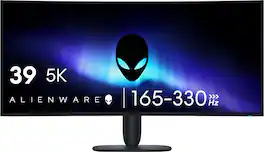
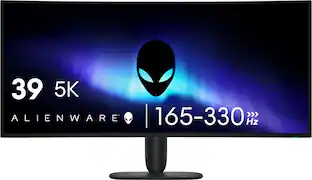
OLED immersion perfected in 5K. Witness the revolution of display technology with the Dell's first 39-inch 5K monitor with advanced RGB stripe tandem OLED technology, featuring incredible color purity, superb brightness, and the deepest blacks, even in well-lit rooms.

Alienware 34 240Hz QD-OLED Gaming Monitor - AW3425DW. Meet unmatched immersion with an ultrawide 34" QD-OLED, delivering greater speed and a striking new design.
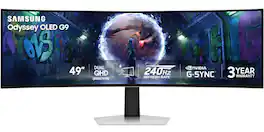
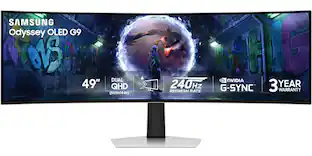
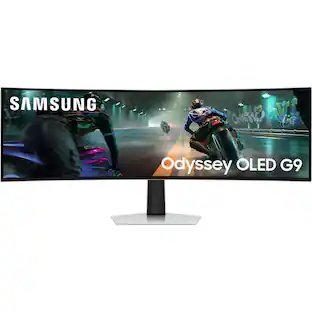
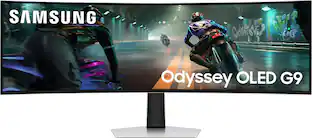
Samsung’s 49" Odyssey OLED G9 Dual QHD Curved Gaming Monitor takes gaming to new heights. Content springs to life with a wider color spectrum and vibrant images on a 5120 x 1440 resolution screen. OLED technology delivers near instant reaction time with 0.03ms (GtG) and a 240Hz refresh rate. G-Sync compatibility keeps the GPU and panel in perfect sync, which reduces choppiness, screen lag, and image tearing. The wide 32:9 screen in Dual QHD resolution and 110 PPI provides an unparalleled level of clarity. OLED Glare Free technology significantly reduces glare from external sources for a distraction-free presentation. OLED Safeguard automatically adjusts brightness, reduces heat, and dims during breaks. Deep Black Levels depict truer black and dark colors on screen for supreme depth in every game. The ergonomic height-adjustable stand with tilting enables the ideal angles during game play. HDMI 2.1, Micro HDMI, DisplayPort, USB-C Upstream and Downstream ports provide increased flexibility and reduce cable clutter. CoreSync & Core Lighting+ add color and enhance the screen’s surroundings for an immersive experience. Picture-in-Picture and Picture-by-Picture makes multitasking easy and efficient. 3-Year Warranty.
| Pros for Alienware - 34" UWQHD QD-OLED 280Hz .03ms FreeSync Premium Pro and G-SYNC Compatible Curved Gaming Monitor w/HDR (HDMI, DisplayPort) - Black | |||
|---|---|---|---|
| There were no pros for this product— | There were no pros for this product— | Refresh Rate, Color Quality, HDR Performance | Refresh Rate, Overall Performance, Screen Size, OLED Quality, Resolution |
| Cons for Alienware - 34" UWQHD QD-OLED 280Hz .03ms FreeSync Premium Pro and G-SYNC Compatible Curved Gaming Monitor w/HDR (HDMI, DisplayPort) - Black | |||
| There were no cons for this product— | There were no cons for this product— | Speakers, Connectivity | Speakers, Connectivity, Glare, Port Selection |
Specs
Questions & Answers
Is there a way to connect a surround speaker to this gaming monitor? I notice it does not have a headphone jack input.
Answered by YourDellTeamIf you're using a PC Connect your surround speaker system directly to the PC: USB speakers → connect to a USB port on the PC. 3.5 mm speakers → connect to the PC's audio-out jack. AV receiver/soundbar → connect via HDMI, optical (if available), or USB depending on the equipment. If you're using a game console (Xbox or PlayStation) Since the monitor doesn't provide audio output: Connect the console directly to a soundbar or AV receiver if it has HDMI pass-through. Alternatively, use a soundbar/receiver with eARC/ARC support connected to a TV instead of the monitor. Some gaming headsets can connect directly to the console via USB or wireless adapter.
I just purchased one of these tonight and I’m assembling and wiring it now. I picked this up as an upgrade for my 23 model of the same series. It has been a significantly more positive experience. I would like to share my thoughts to prospective customers
Answered by YourDellTeamThank you for taking the time to share your experience with the new Alienware 34" UWQHD QD-OLED monitor. We're thrilled to hear that your upgrade from the 2023 model has been such a positive one. Enjoy your new setup!
Customers often buy these together
Computer Keyboards
Monitor Stands
More recommended items
Monitor and Video Cables
Computer Speakers
Mice
Cables and Adapters
Mouse Pads
Customers ultimately bought
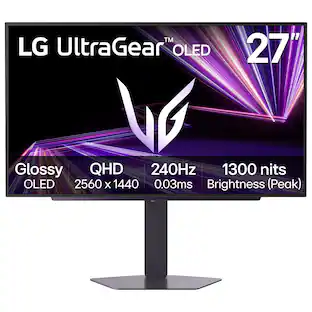
LG UltraGear 27" QHD Glossy OLED 240Hz Gaming Monitor 0.03ms NVIDIA G-SYNC AMD FreeSync Premium Pro DisplayHDR TrueBlack400
Black Friday Deal$349.99$34999The price was $499.99Samsung 49" Odyssey OLED G9 (G93SD) Dual-QHD 240Hz 0.03ms G-Sync Compatible Curved Glare Free Gaming Monitor
Black Friday Deal$949.99$94999The price was $1,699.99Samsung 49" Odyssey OLED G9 (G91SD) Dual QHD 144Hz 0.03ms G-Sync Compatible Curved Gaming Monitor
Black Friday Deal$749.99$74999The price was $1,299.99
Explore tech essentials Sponsored
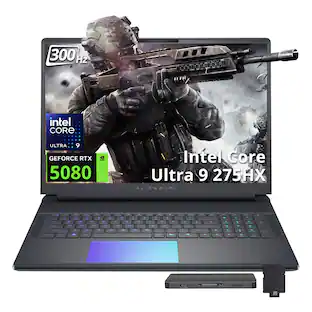
Dell Alienware 18 18" Gaming Laptop,Intel Ultra 9 275HX,GeForce RTX 5080,64GB DDR5,2TB SSD+1TB Dock Set,Win 11 Pro
Reviews coming soon
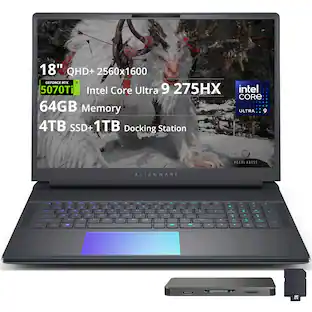
$5,149.00$5,14900The price was $7,649.00Dell Alienware 18 18" QHD+ 300Hz Gaming Laptop,Intel Ultra 9 275HX,RTX 5070 Ti,64GB,2TB SSD+1TB Dock, Win 11 Pro
Reviews coming soon
$4,929.00$4,92900The price was $7,049.00Dell Alienware 18 18" Gaming Laptop,Intel Ultra 9 275HX,GeForce RTX 5080,32GB DDR5,1TB SSD+1TB Dock Set,Win 11 Pro
Reviews coming soon
$4,399.00$4,39900The price was $6,759.00Dell Alienware 18 18" QHD+ 300Hz Gaming Laptop,Intel Ultra 9 275HX,RTX 5070 Ti,64GB,4TB SSD+1TB Dock, Win 11 Pro
Reviews coming soon
$5,269.00$5,26900The price was $7,529.00Dell Alienware 15 15.3" Gaming Laptop,AMD Ryzen 5 220,32GB DDR5,1TB SSD+1TB Dock Set,GeForce RTX 4050,Win 11
Reviews coming soon
$1,549.00$1,54900Dell Alienware 15 15.3" Gaming Laptop,AMD Ryzen 5 220,32GB DDR5,1TB SSD+1TB Dock Set,GeForce RTX 4050,Win 11 Pro
Reviews coming soon
$1,549.00$1,54900The price was $2,219.00Dell Alienware 15.3" Gaming Laptop,AMD Ryzen 5 220,32GB DDR5,1TB SSD+1TB Dock Set,GeForce RTX 4050,Win 11 Pro
Reviews coming soon
$1,599.00$1,59900
Discover related products
Apple 10.2-Inch iPad with Wi-Fi - 32GB
$169.99$16999The price was $329.99Seagate BarraCuda 8TB SATA III 6 Gb/s 3.5" Internal HDD
$249.99$24999The price was $296.99Apple 10.2-Inch iPad (8th Generation) (2020) Wi-Fi + Cellular - 32GB
Reviews coming soon
$129.00$12900The price was $154.99Arozzi Alzare Neo Duo Gas Spring Dual Monitor Arm – Adjustable Dual Monitor Holder –
Reviews coming soon
$89.99$8999The price was $119.99Apple 12.9-Inch iPad Pro with Wi-Fi - 128GB
$549.99$54999The price was $1,099.99MXZ Gaming PC Computer,AMD Ryzen 5 3500X,RX 6500XT,8GB DDR4, NVME M2 500GB,Windows 11 Pro Ready to Use
Reviews coming soon
$659.00$65900
Keep exploring
ASUS ROG Strix OLED XG32UCWMG 32" 4K 240Hz 0.03ms OLED FreeSync/G-Sync
$1,053.88$1,05388The price was $1,129.99ZZA 32" Curved FHD (1920 x 1080) Gaming Monitor, 180 Hz, Borderless
Reviews coming soon
$179.99$17999The price was $579.99ASUS ROG Strix 32" 4K OLED Gaming Monitor - 4K@165Hz, 0.03ms, G-SYNC, USB-C, HDMI 2.1
Reviews coming soon
$824.99$82499The price was $979.32LG 45" UltraGear OLED WQHD Curved Gaming Monitor 45GX900A-B
$1,299.99$1,29999The price was $1,349.99ASUS ROG Strix 34" QHD 2K 1440p 280Hz G-Sync HDR500 0.03ms USB-C OLED Curved Gaming Monitor XG34WCDMS
Reviews coming soon
$787.49$78749The price was $971.99


![USC F1 F2 F3 F4 F5 F6 F7 F8 F9 F10 F11 F12 prt SC scr lk pause HH PE PM M5 1 ! 2 @ 3 # 4 $ 5 % 6 ^ 7 & 8 * 9 ( 0 ) - + ins home pg up num / MG tab Q W E R T Y U I O P [ { ] } \ del end pg dn 7 8 9 + EM caps A S D F G H J K L : - enter C 1 2 3 4 5 6 > M2 shift Z X C V B N M - / ? shift 1 2 3 M1 ctri alt alt fn ctrl 0 ins del enter](https://pisces.bbystatic.com/image2/BestBuy_US/images/products/db34a04d-e8cb-4a6c-b0e8-8cb5450ca606.jpg;maxHeight=232;maxWidth=233?format=webp)


![esc F1 F2 F3 F4 F5 F6 prts SC F7 scrlk FB F9 F10 F11 F12 1 1 | 2 @ 3 # 4 $ 5 % 6 A 7 & 8 9 I 0 I - ee I + ins home pg up 5 tab Q W E R T Y U I 0 P [ { ] } / | del 2 end a pg dn 4 caps A S D F G H I L : - enter 5 shift Z X V B N M < > / ? shift ctrl alt fn ctrl C](https://pisces.bbystatic.com/image2/BestBuy_US/images/products/97c3efd0-824e-43aa-bed2-9dc76c040024.jpg;maxHeight=232;maxWidth=233?format=webp)

![esc 1 2 3 4 5 6 7 8 9 0 - = tab Q W E R T Y U I O P [ ] \ caps lock A S D F G H J K L ; ' shift Z X C V B N M , . / ctrl fn opt cmd start alt end home pg up pg dn del backspace 1 2 3 4 5 6 7 8 9 0 - =](https://pisces.bbystatic.com/image2/BestBuy_US/images/products/6554/6554353_sd.jpg;maxHeight=232;maxWidth=233?format=webp)
![esc ! i 1 tab caps lock shift F1 2 Q A aas E4 F3 F2 $ % # 4 5 3 E R W F S D X C Z FS A 6 T G V F6 & 7 Y H B 17 * 8 U J N logi HI FI0 P9 FB ) - ( - 9 0 o P I K L > < M I P + = { [ A : I : ? I alt cmd3 2 0 3 10% 1 F12 page home up backspace ins page I delete end down } ] / enter shift ctrl fn opt^= Q I * / clear 8 9 + 7 pg up home 5 6 4 , 4 2 3 enter 1 dn pg end = 0 del ins ctrl start opt alt cmd](https://pisces.bbystatic.com/image2/BestBuy_US/images/products/6571/6571662_sd.jpg;maxHeight=232;maxWidth=233?format=webp)
![G
F1
F2
F3
F4
F5
F6
F7
F8
F9
F10
F11
F12
KEEP PLAYING KEEPPLATING V.E.R.P KEEP-PLAYING
1
!
2
3 #
4 $
5 %
6
7 &
8
*
9
)
O
-
=
+
DEL
TAB
Q
W
E
R
T
Y
U
I
O
P
[
{
]
}
I
PRNT
CAPS
A
S
D
F
G
H
J
K
L
:
"
PG
SHIFT
Z
X
C
V
N
M
V
/
?
SHIFT
PG
CTRL
ALT
ALT
FN
CTRL](https://pisces.bbystatic.com/image2/BestBuy_US/images/products/4bb8384a-39ad-4ca8-858c-10b24735271f.jpg;maxHeight=232;maxWidth=233?format=webp)