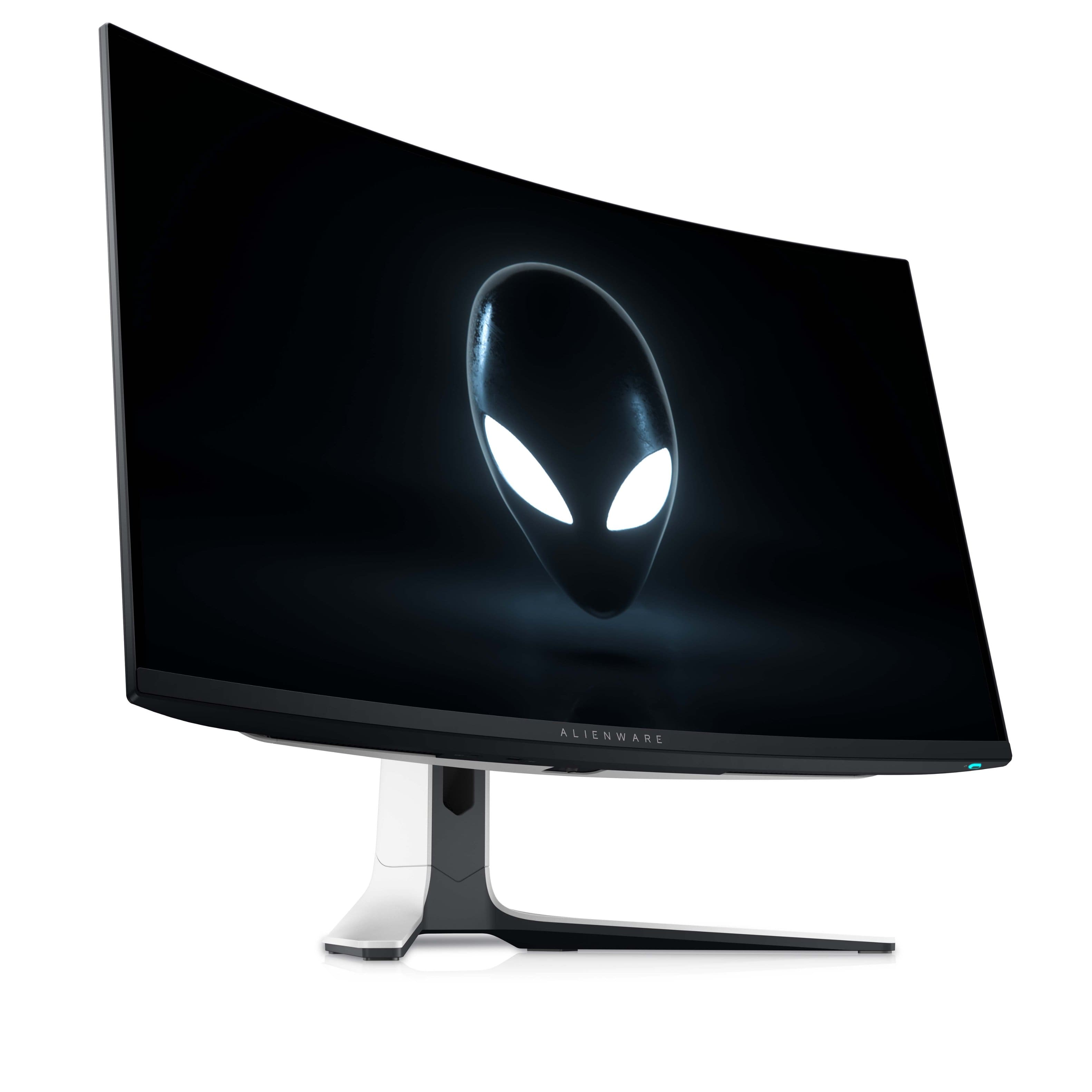
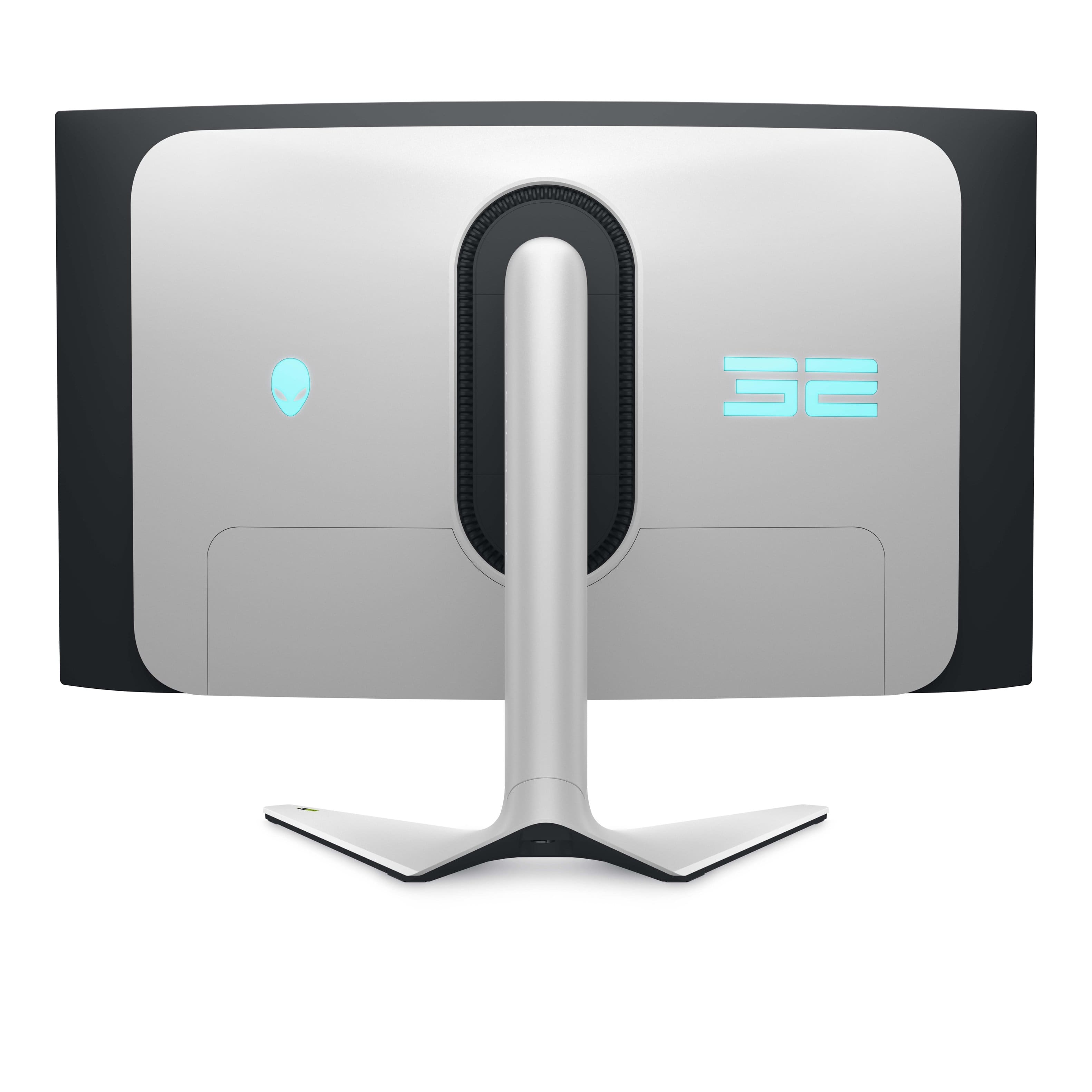
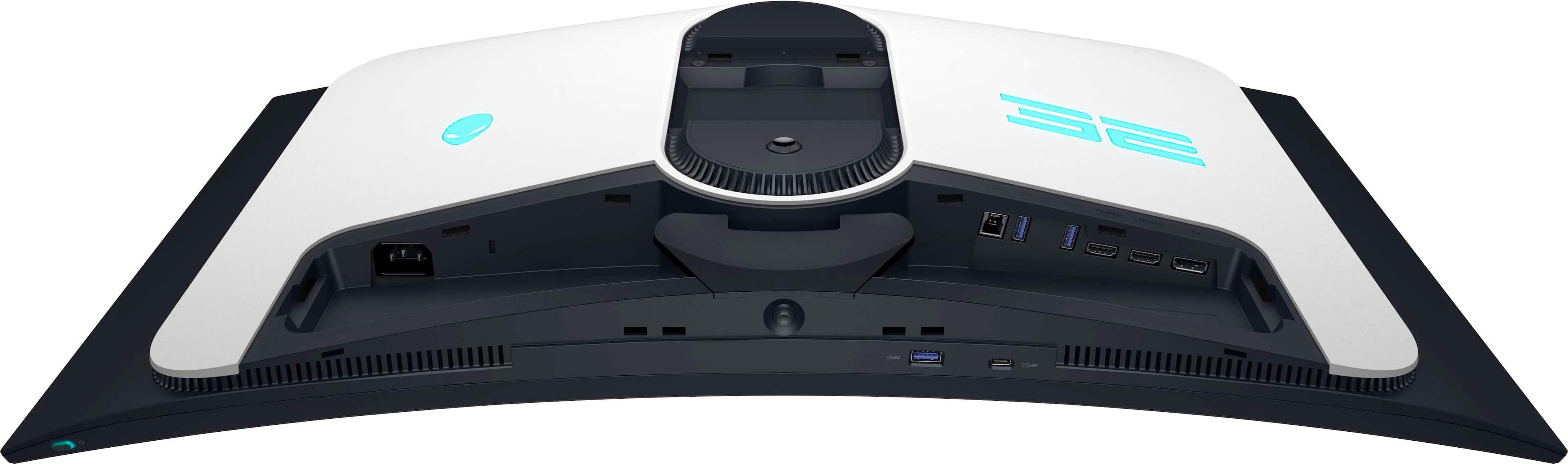
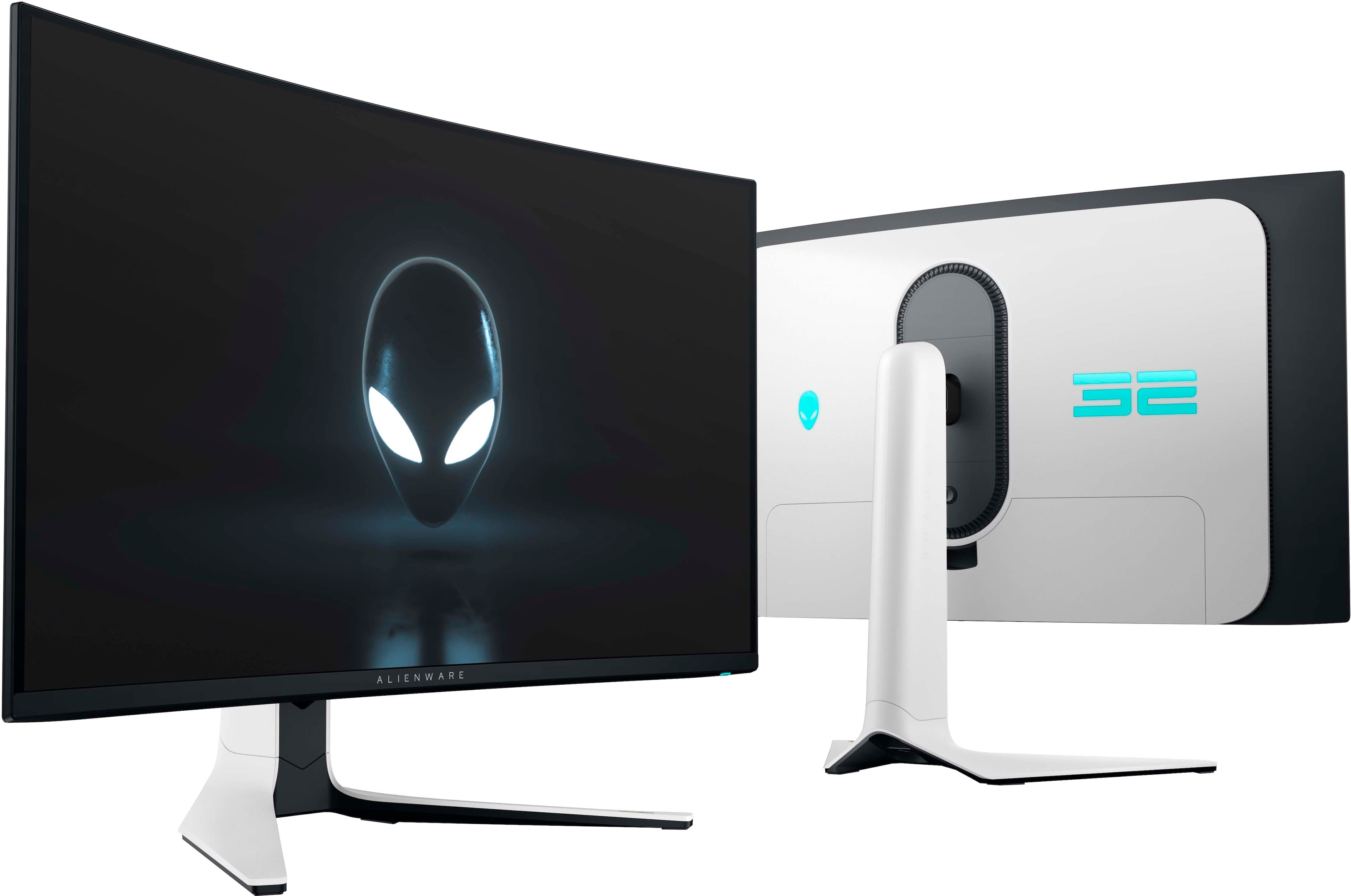
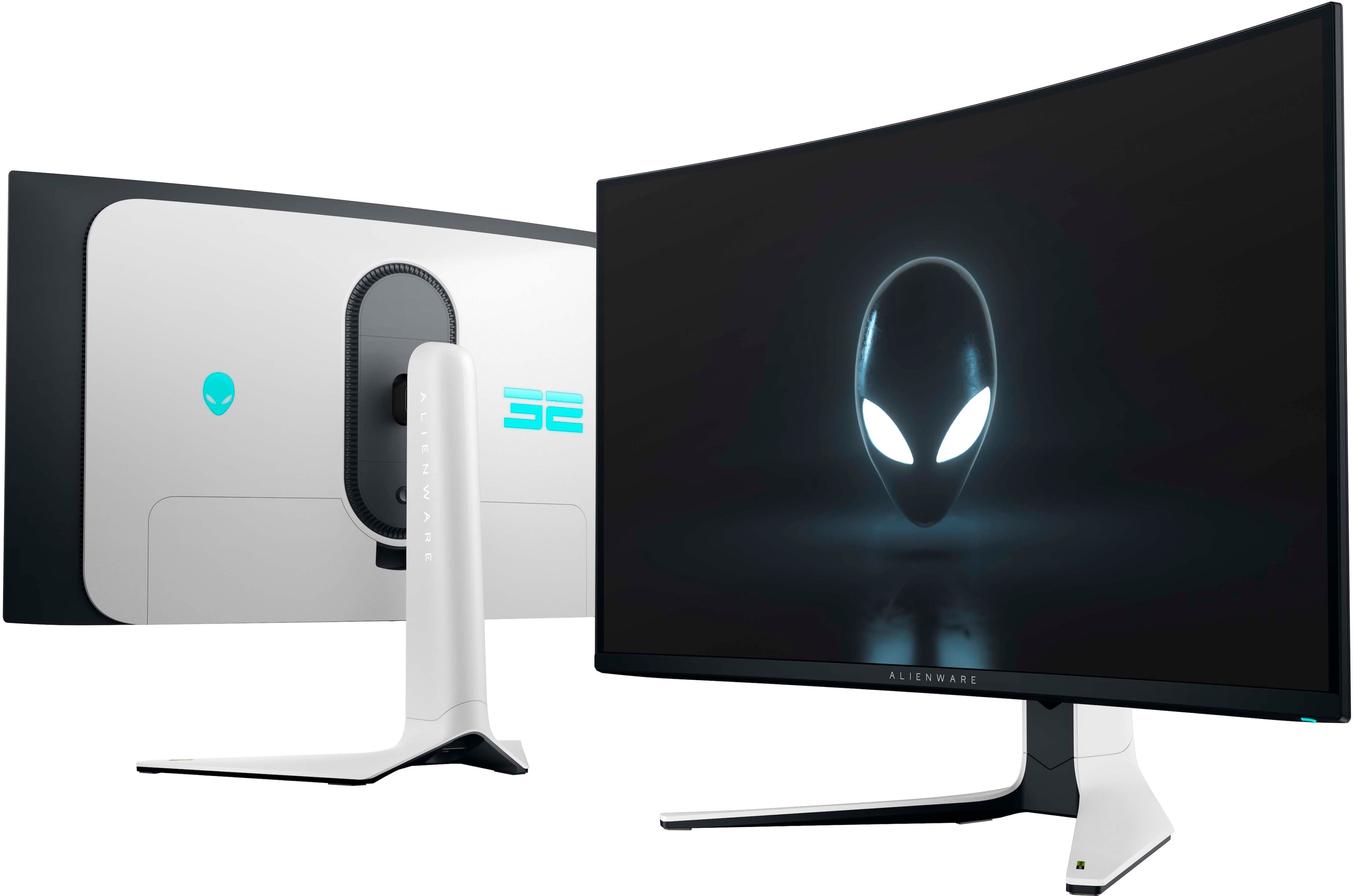
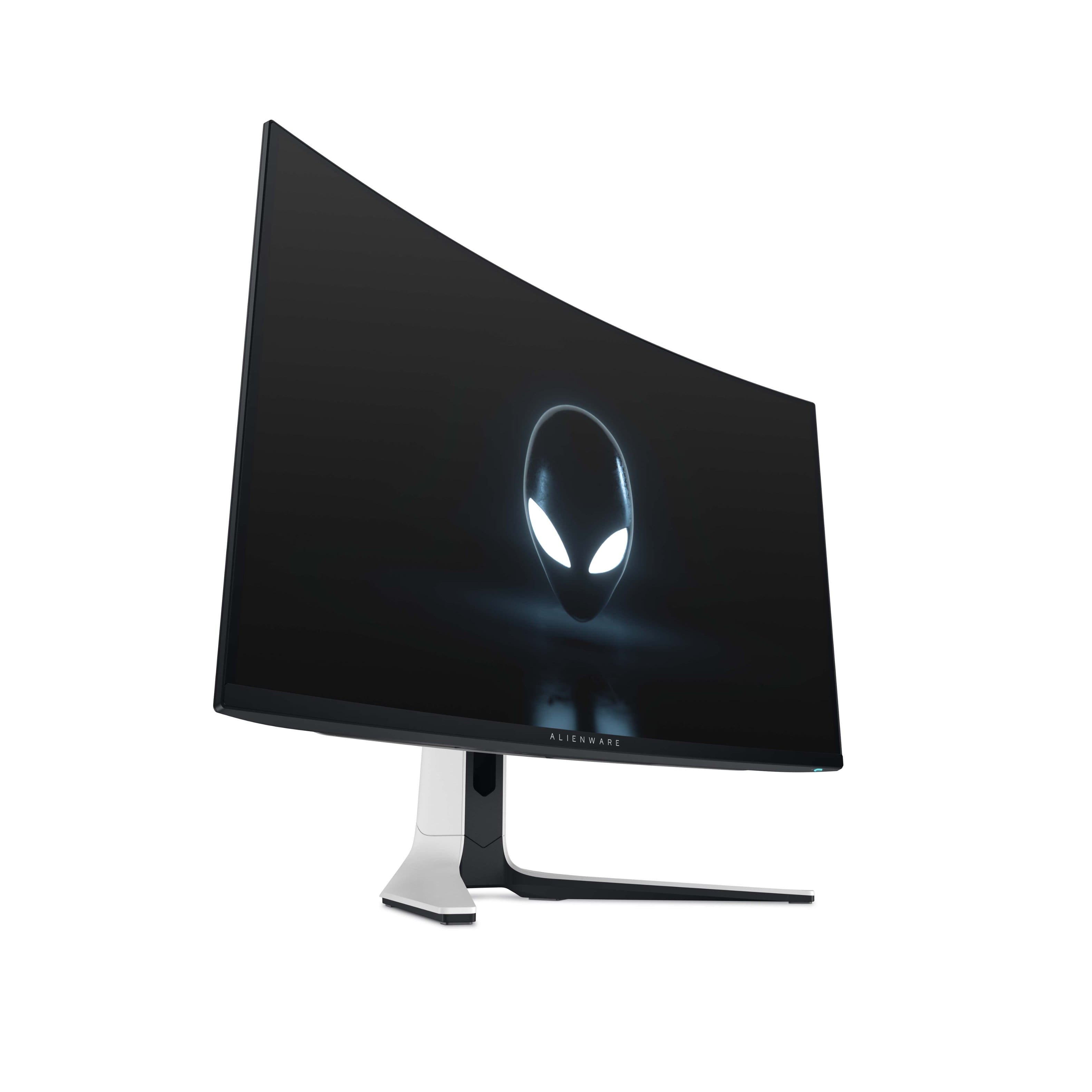
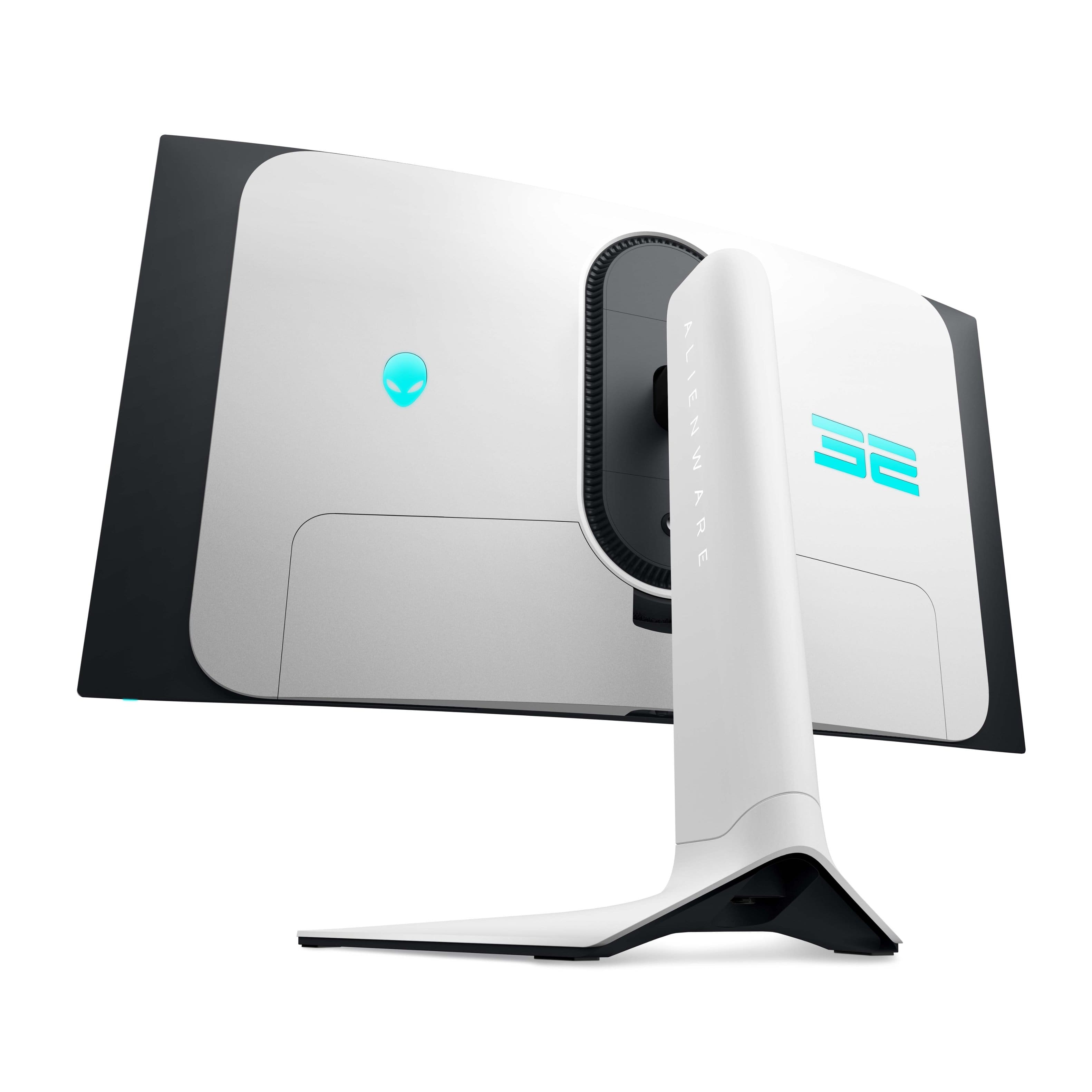
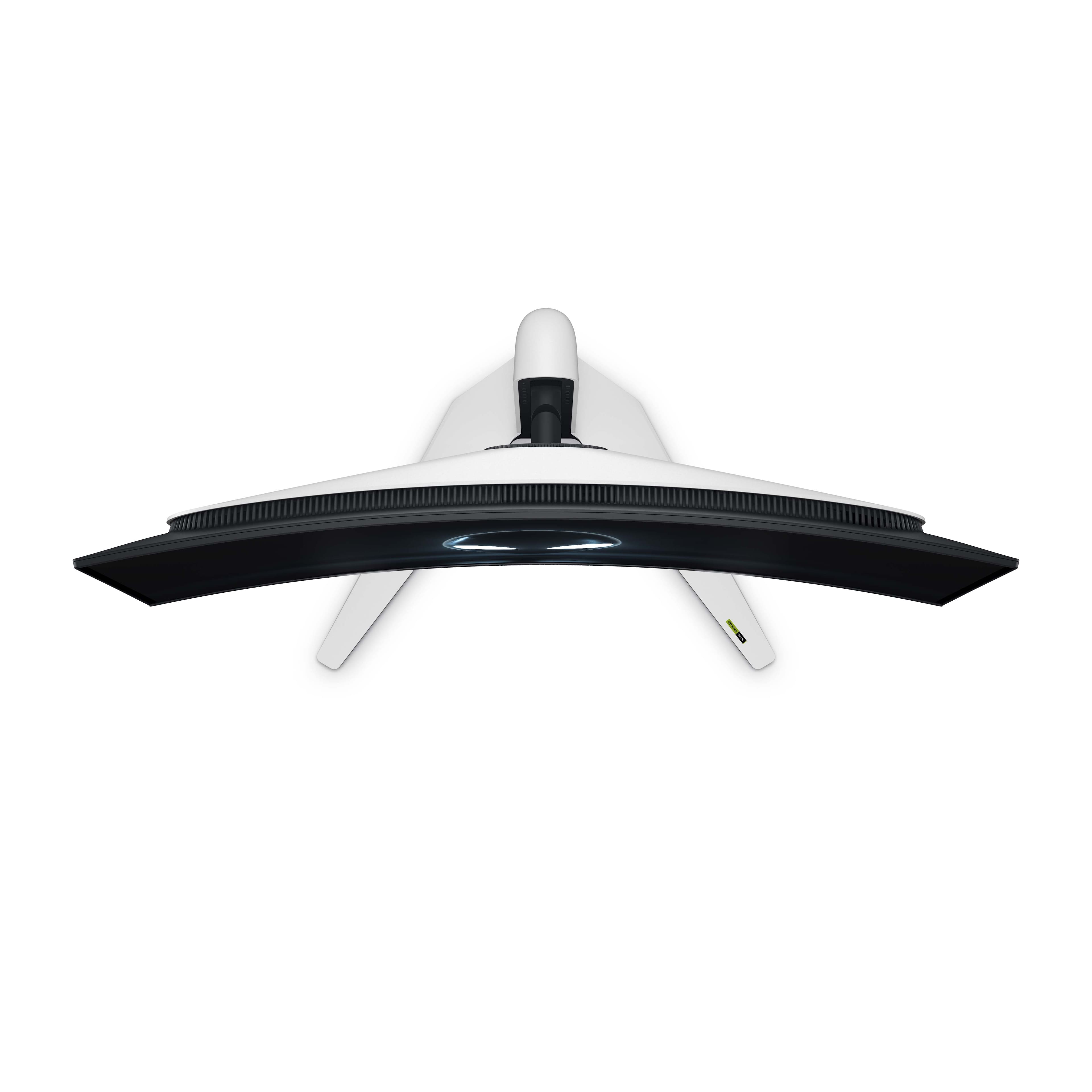
A:AnswerUse the monitor’s joystick (back underside):
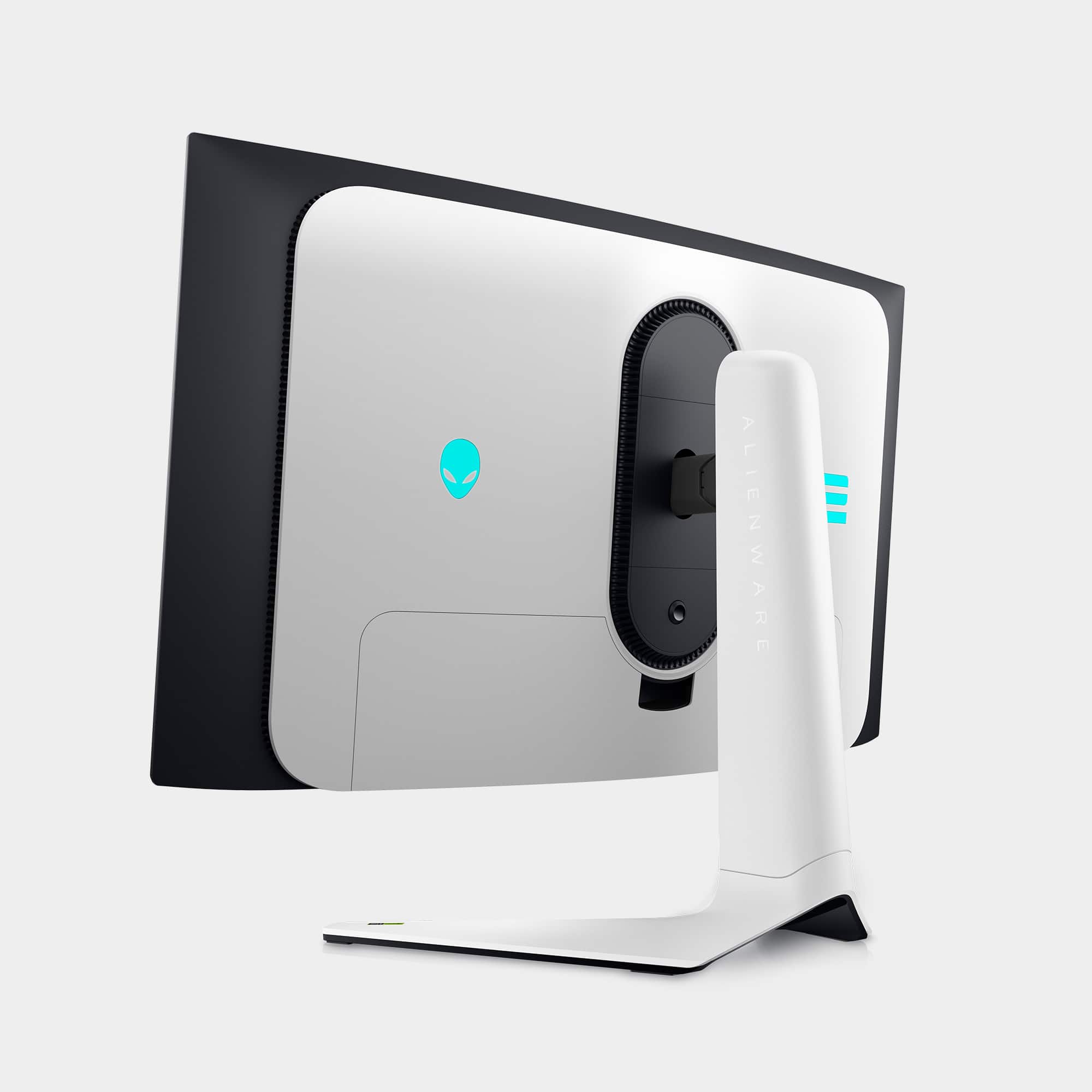
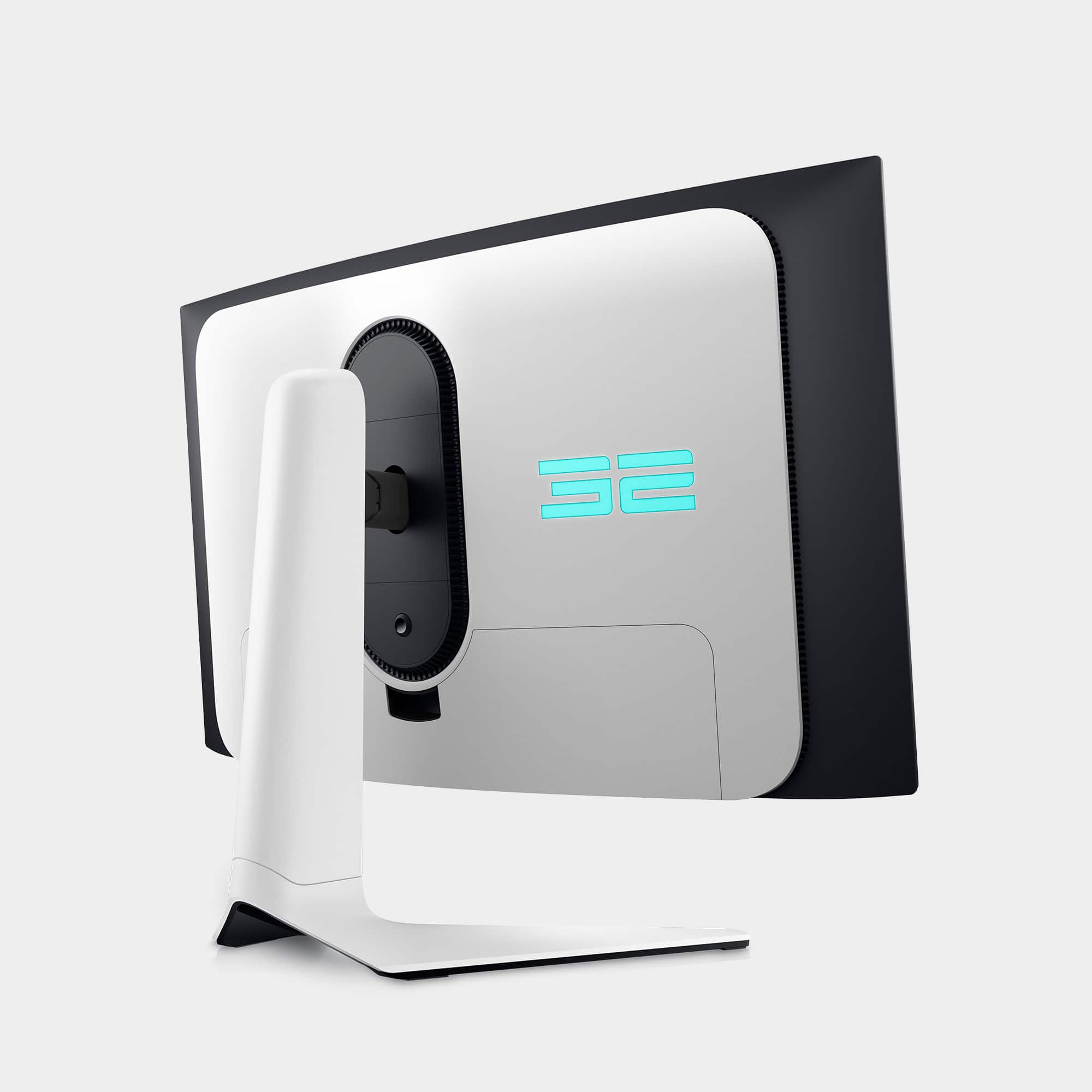
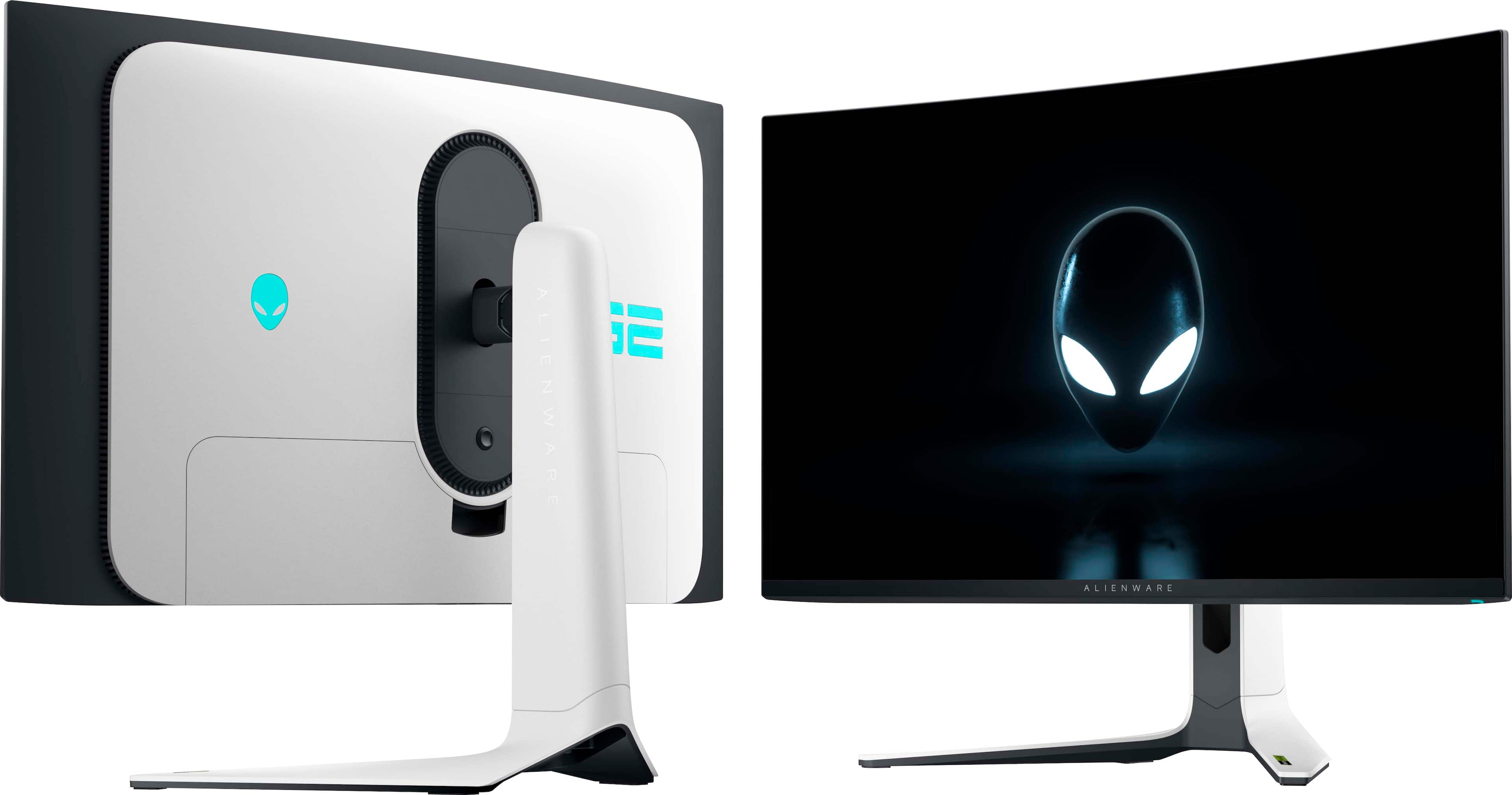
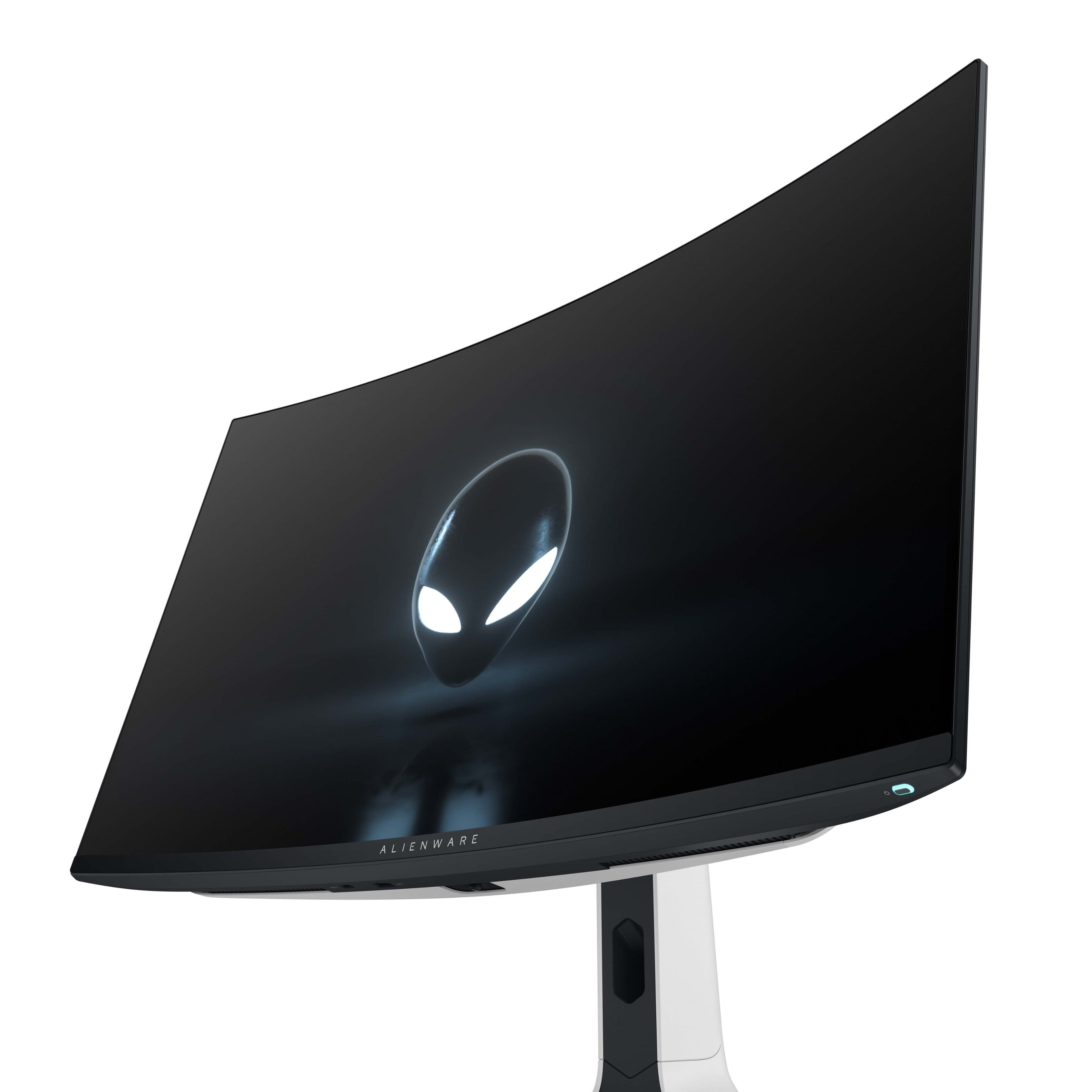
Press the joystick on the back of the monitor to open the On‑Screen Display (OSD),
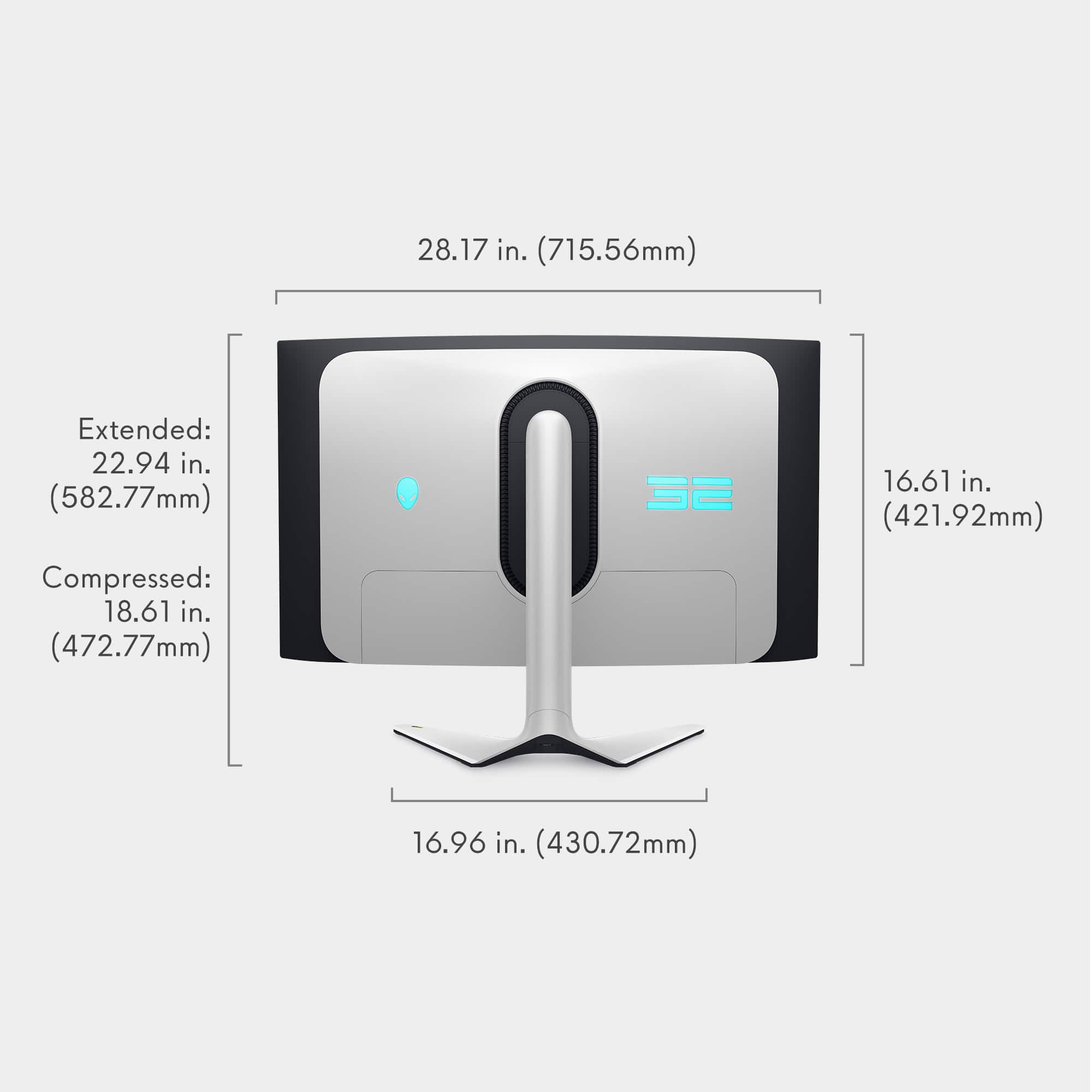
Go to Menu → AlienFX Lighting,
Choose the lighting zone:
Rear Alienware logo,
Rear ring / accent lighting.
Select:
Color,
Brightness,
Effect (Static, Breathing, etc.).
Exit and changes apply instantly.
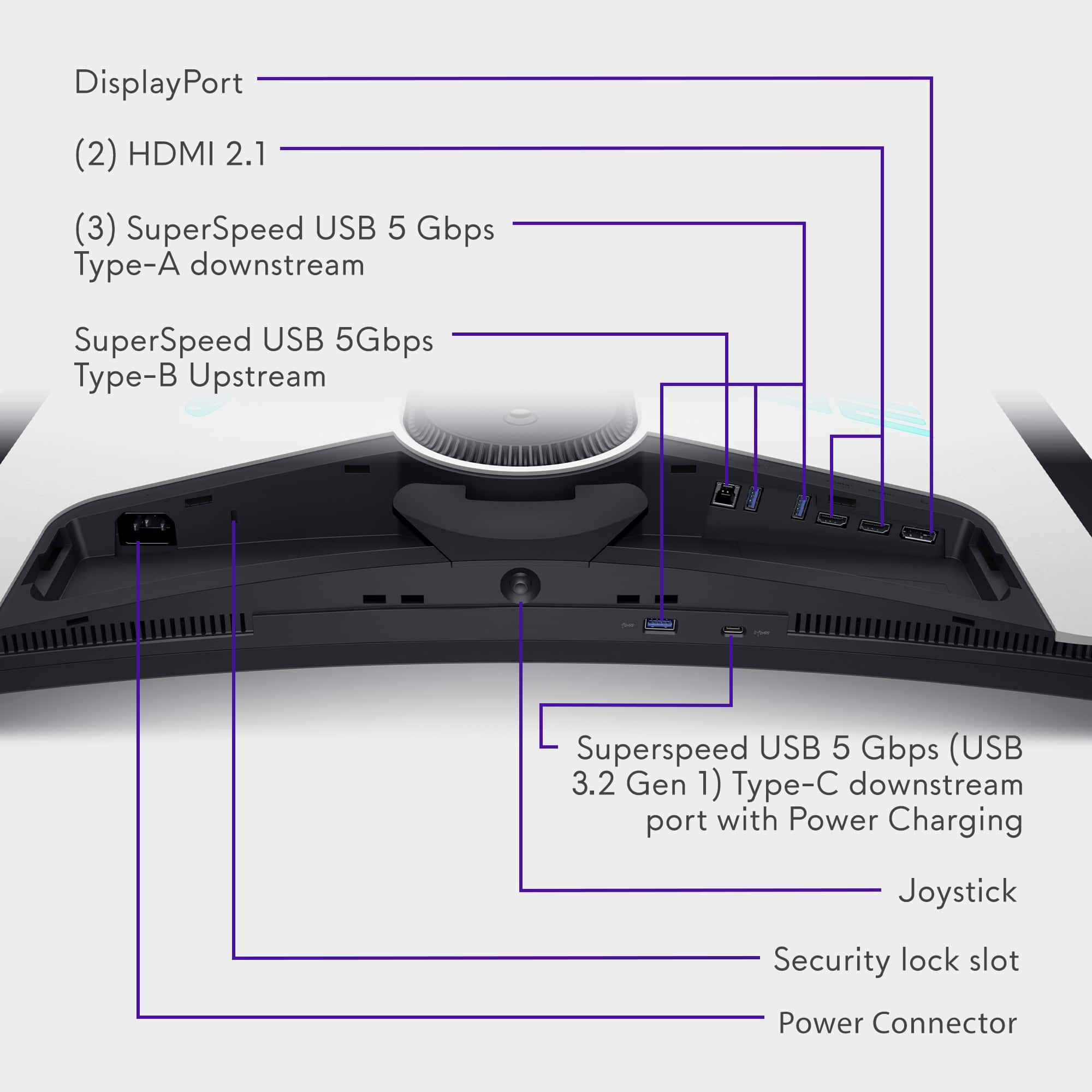
A:AnswerThe monitor does not support video input via its USB-C downstream port.
🔌 USB-C Port Functionality:
The USB-C port on this monitor is a downstream port, which means it is intended for data and power delivery to peripherals, such as:
Charging a phone or tablet,
Connecting USB devices like keyboards, mice, or flash drives (via the monitor’s USB hub)
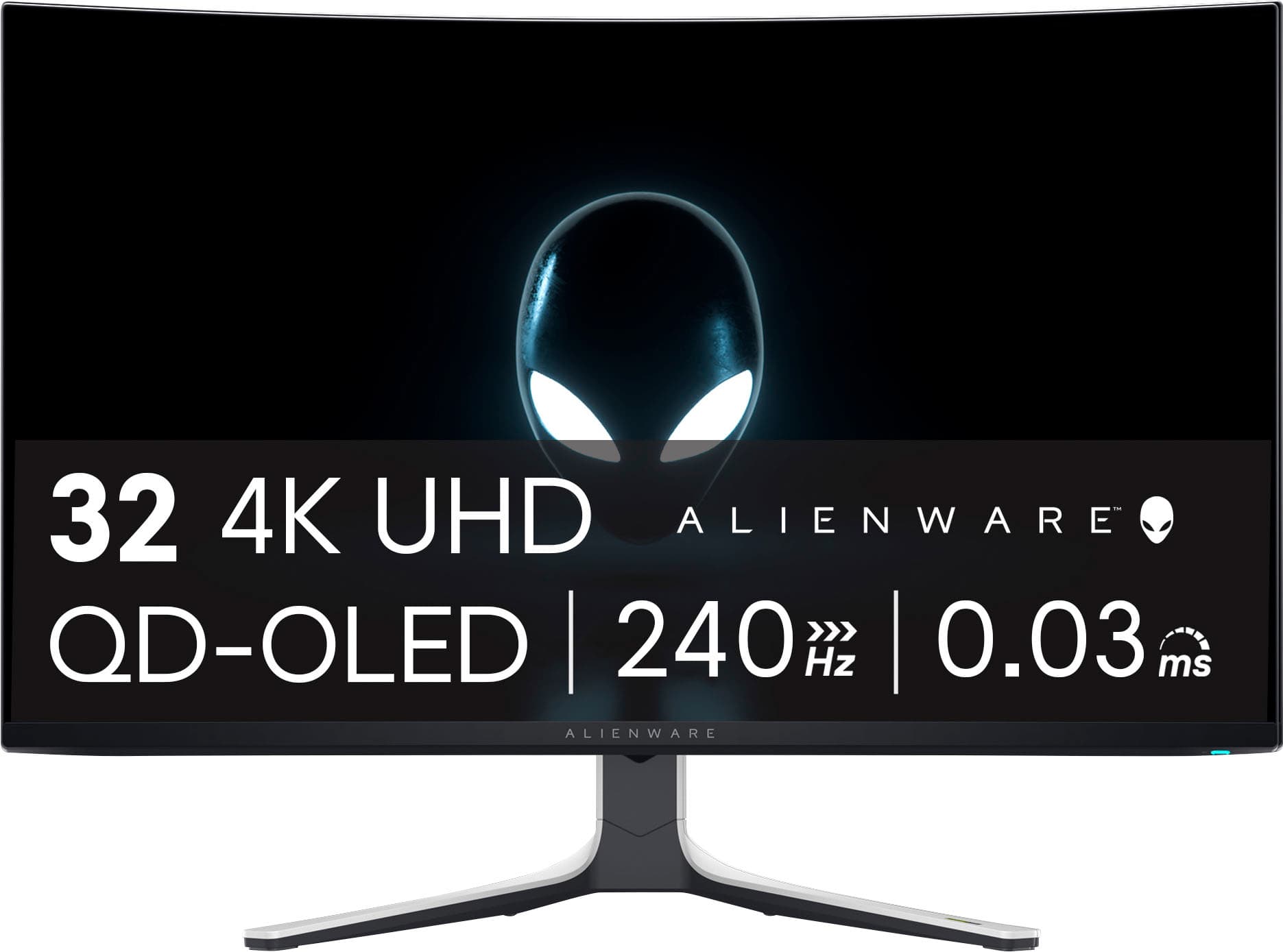
A:AnswerThis display is a true power monster. A simple USB C connection is not enough to drive it properly. Because it is an OLED panel, every single pixel emits its own light, which naturally demands more power. That extra power is exactly what enables the incredible brightness, contrast, and color depth that make this monitor stand out.
A:AnswerNot much at all. Obviously there's going to always going to be a little bit but with a matte screen surface. It's much lower than your average shiny monitor.
A:AnswerIt does not have a remote. There is a button to access the menu on the display or you can change settings in the Alienware command center after downloading on your pc
A:AnswerNot sure. Your bluetooth connection would depend on your pc. The monitor does have a HDMI Arc connector that allows you to connect a soundbar directly to the monitor.
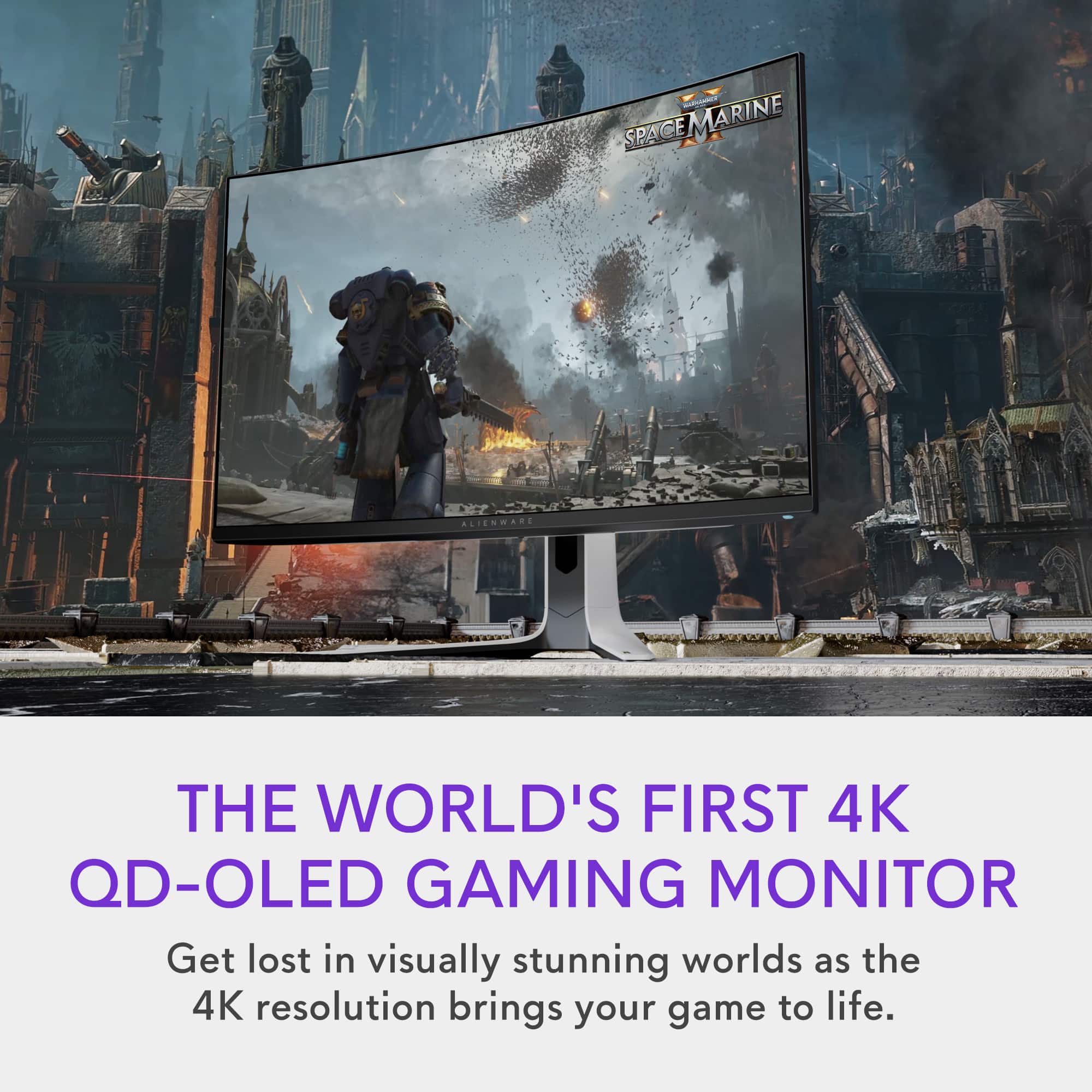
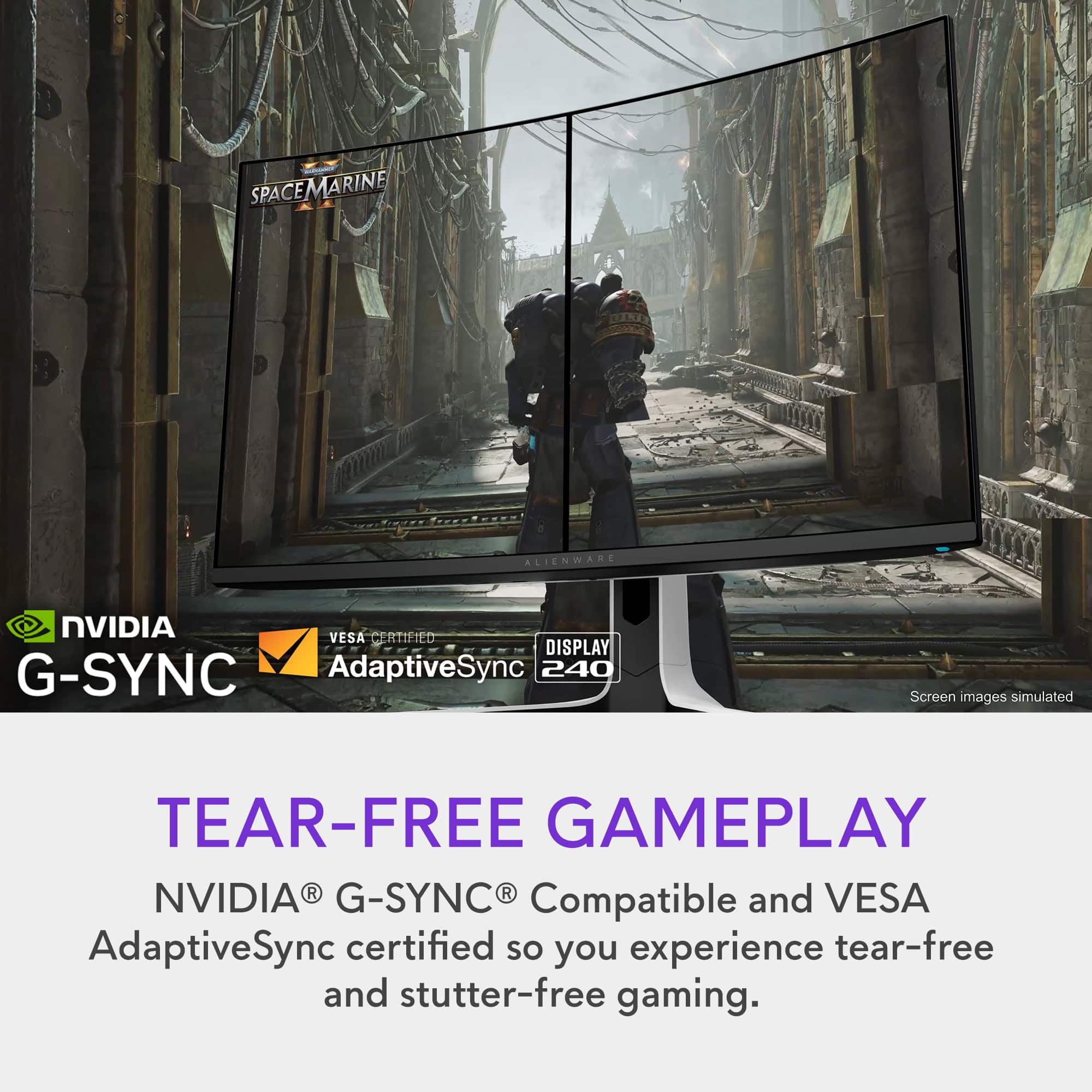
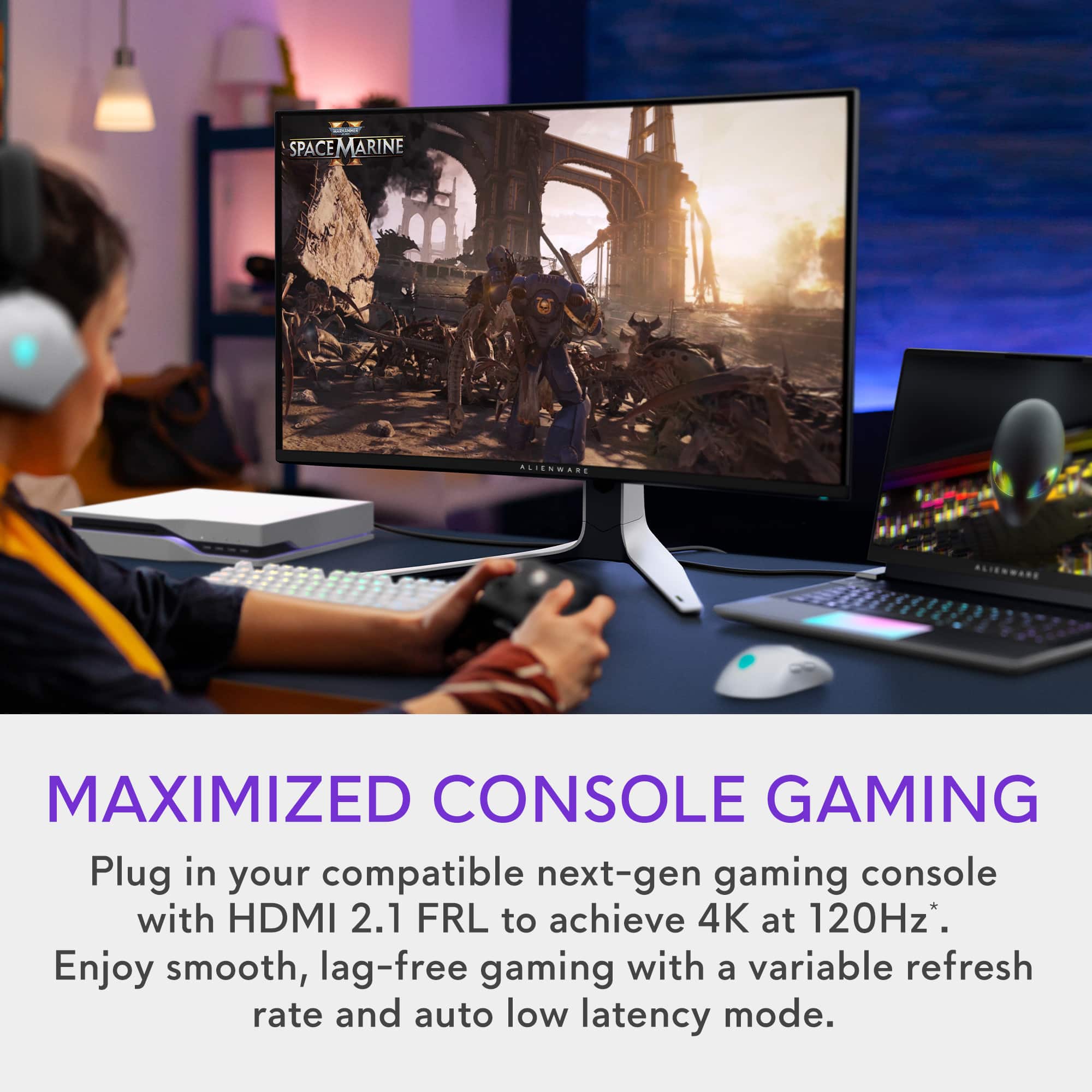
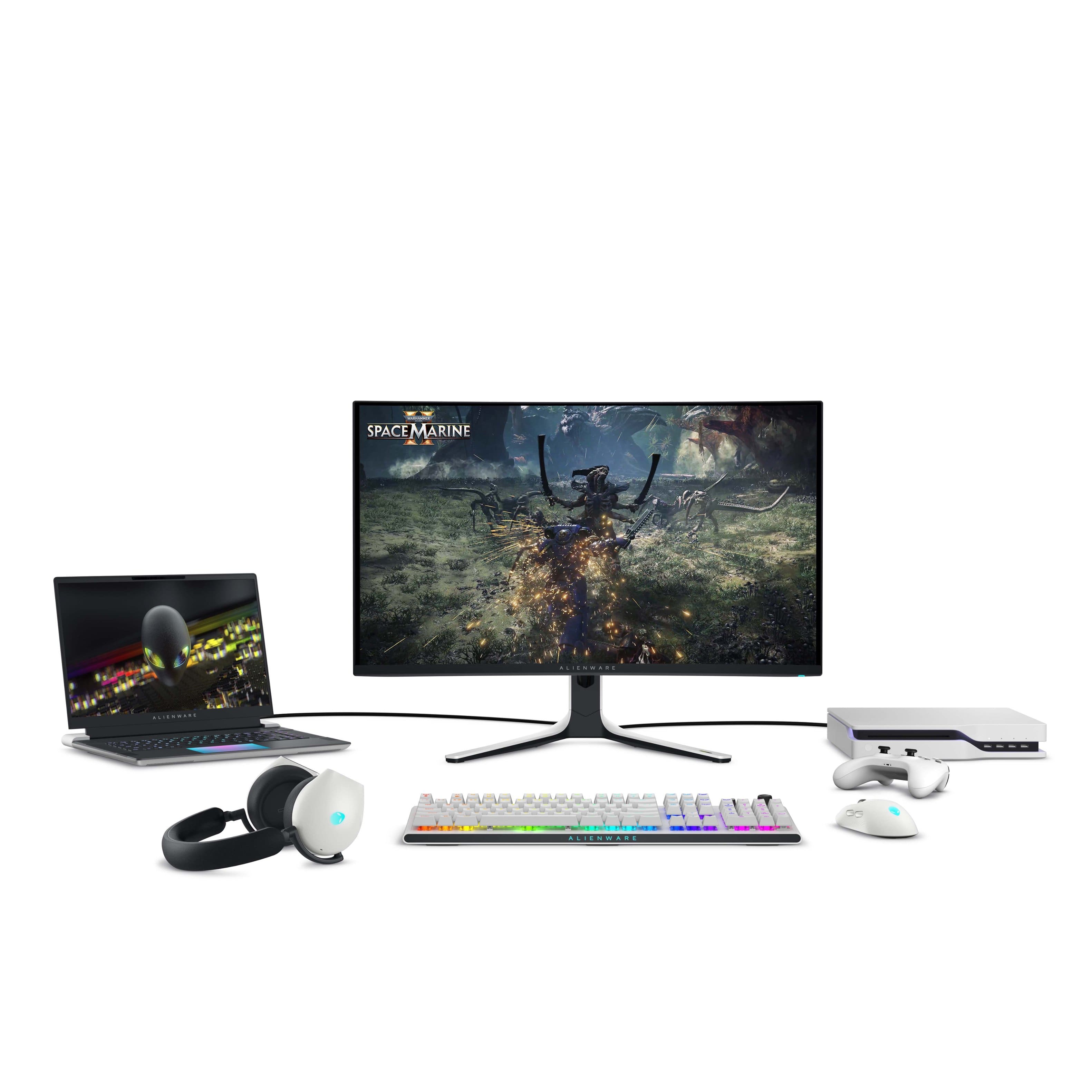
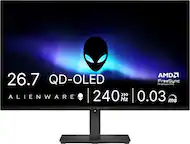
A:AnswerIt runs 4k up to 240fps (as indicated by the 240Hz in the picture). I think a somewhat recent model of HDMI cable (like HDMI 2.1 standard) for the PS5 would be a good idea to fully support 4K at high refresh rates. The monitor features multiple HDMI connections to allow it to hook in to a console, PC, and even Blu-ray player or whatever and easily switch between them. It has a single DisplayPort that is meant more for a desktop PC connection for gaming purposes.