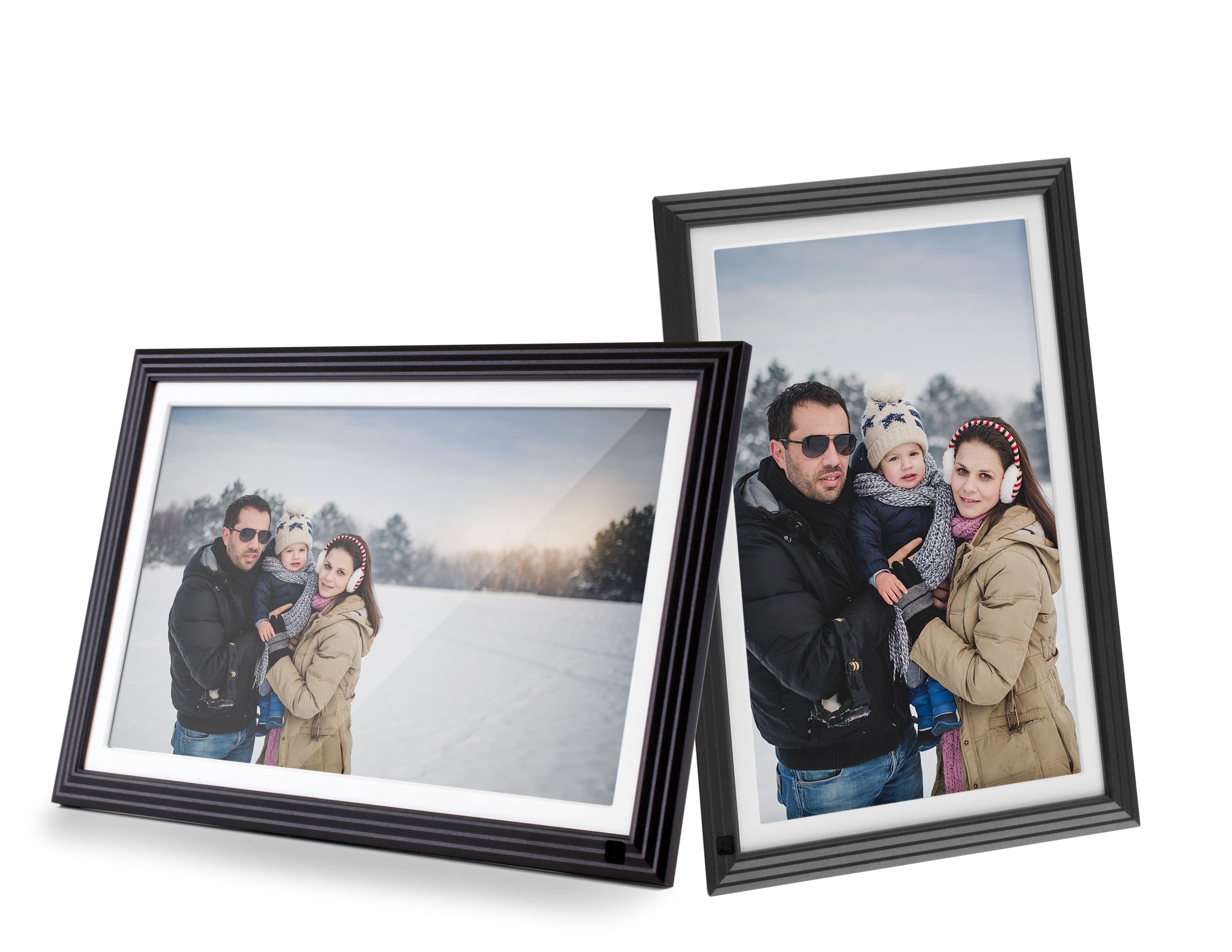
A:AnswerYes, the frame will do the best it can to determine the size and orientation of your .jpg photos. Sometimes it's best to turn full screen mode to OFF. This puts the frame in auto mode and it will do it's job of determining the orientation and scale of the photos. For more info or tutorials contact support@aluratek.com.
A:AnswerMost of our frames can use 32GB or smaller USB thumb drives or SD cards. Photos should be in .jpg format.
Some frames can import and export to these cards, others will only show the photos off the memory card.
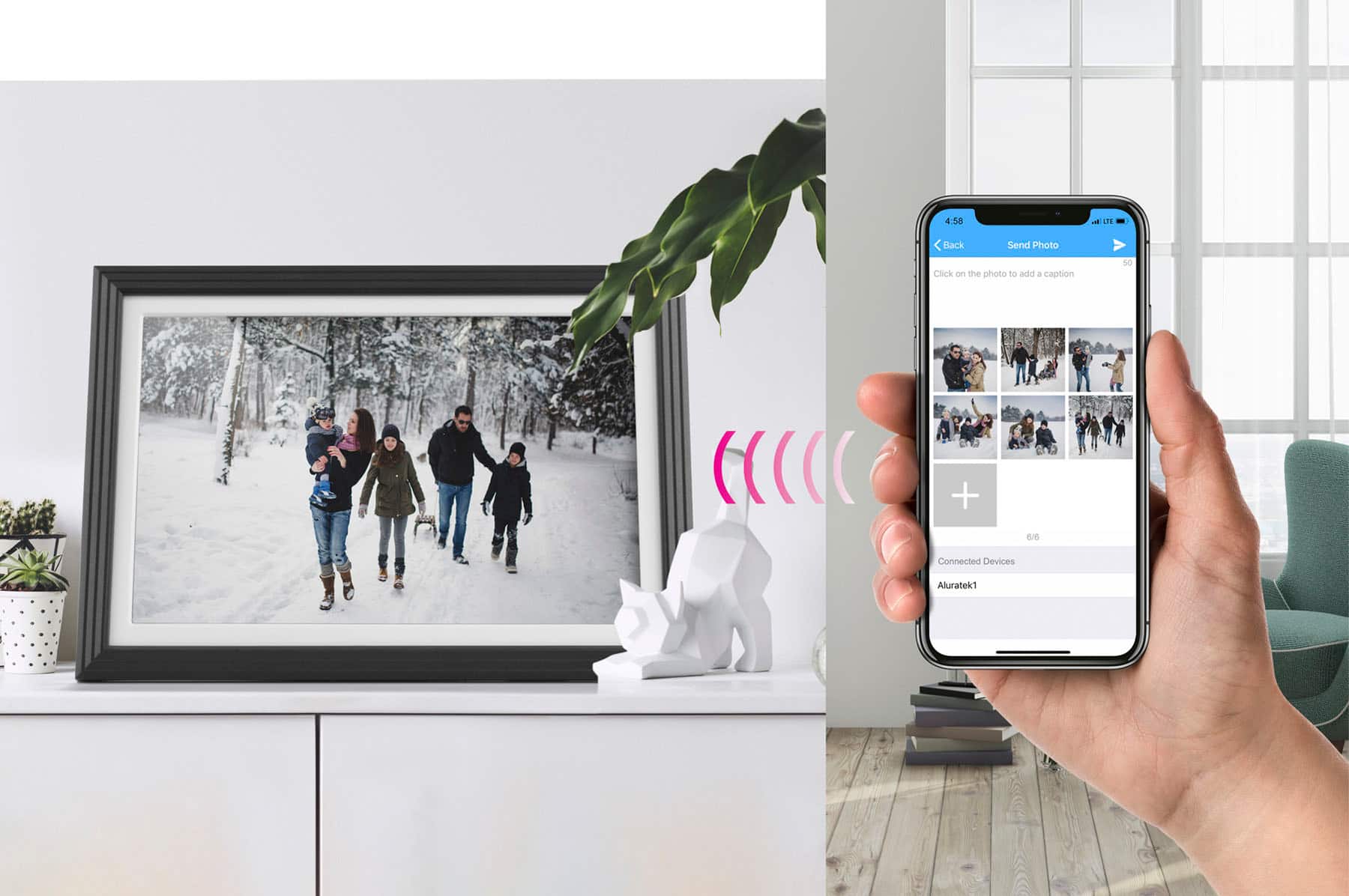
A:AnswerYes. You can send .jpg photos to the frame using your phone app, a 32GB memory card (USB / SD), or by directly connecting to a computer using USB cable. Contact support@aluratek.com if you need setup instructions, tips, or other assistance.
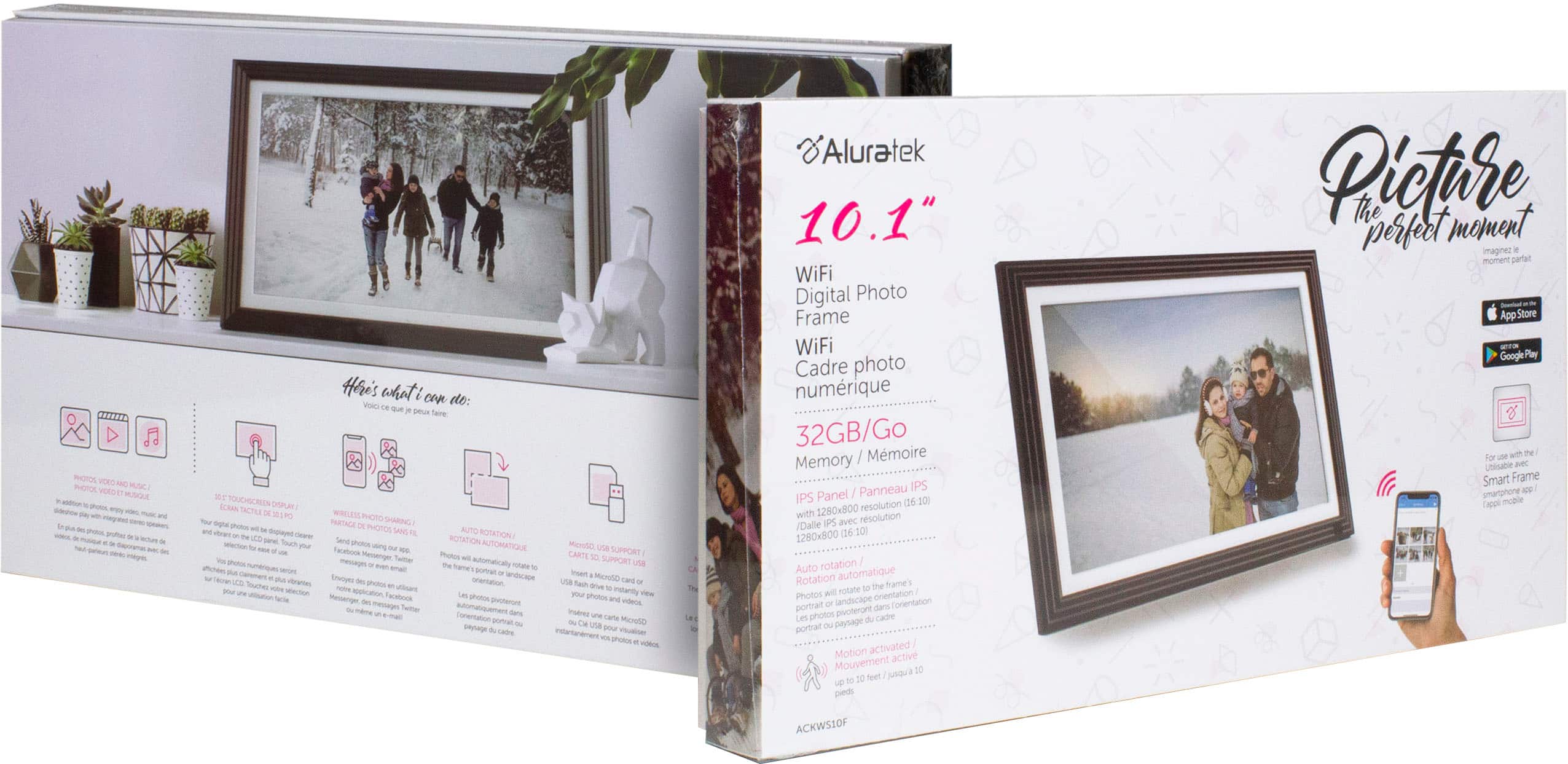
A:AnswerThe AWS10F will mostly look for .jpg photos. You can use FTP in the Settings > PC Control tab (if you are familiar with FTP transfers) and copy photos directly from the computer into the frame wirelessly. All .jpg photos go to the Internal Storage folder. From there the frame will play all the photos in a slideshow. I don't think this unit will just play a specific folder. Our ACKWS10F and some of the other AWS series frames allow you to create folders once you have the photos uploaded. Maybe check out those models at our website, www.aluratek.com.
A:AnswerYes. They aren’t great, basically what you would expect from a tablet’s speakers. They do work though, and it can play music and videos with sound.
A:AnswerYes, all of our WIFI frames can operate without WIFI turned on. Photos can be loaded a variety of ways. USB or SD drives (32GB or smaller) with .jpg photos. Some will do direct to computer link via USB. And once photos are sent via WIFI to the frame those photos are loaded into the internal storage. For more info contact support@aluratek.com.
A:AnswerThe device needs to be connected to a WiFi network. I’ve tested on two college campuses and public networks also don’t work. A home router or a subnet work best.
A:AnswerNo, you can use the app to easily upload pictures (50 at a time for this model). You may be able to email pictures to the frame but I have not tested this functionality yet.
A:AnswerYes, you can email pictures to this photo frame, once you register it or you can load pictures to a micro SD card and insert it into the frame micro SD slot.
A:AnswerThis amazing photo frame allows you to download your audio and photos. So, while her picture is on display you will turn up the volume so the audio recording will be playing.
My dog passed a month after my mom, and we have a recording whereby she is talking to our dog while she is barking. Really help with the grieving process and fills our hearts with so much joy.
A:AnswerYou need to use WIFI. The Smart Frame app uses WIFI on your phone to send photos to the frame. The frame itself must be connected to WIFI. Contact support@aluratek.com for more info.