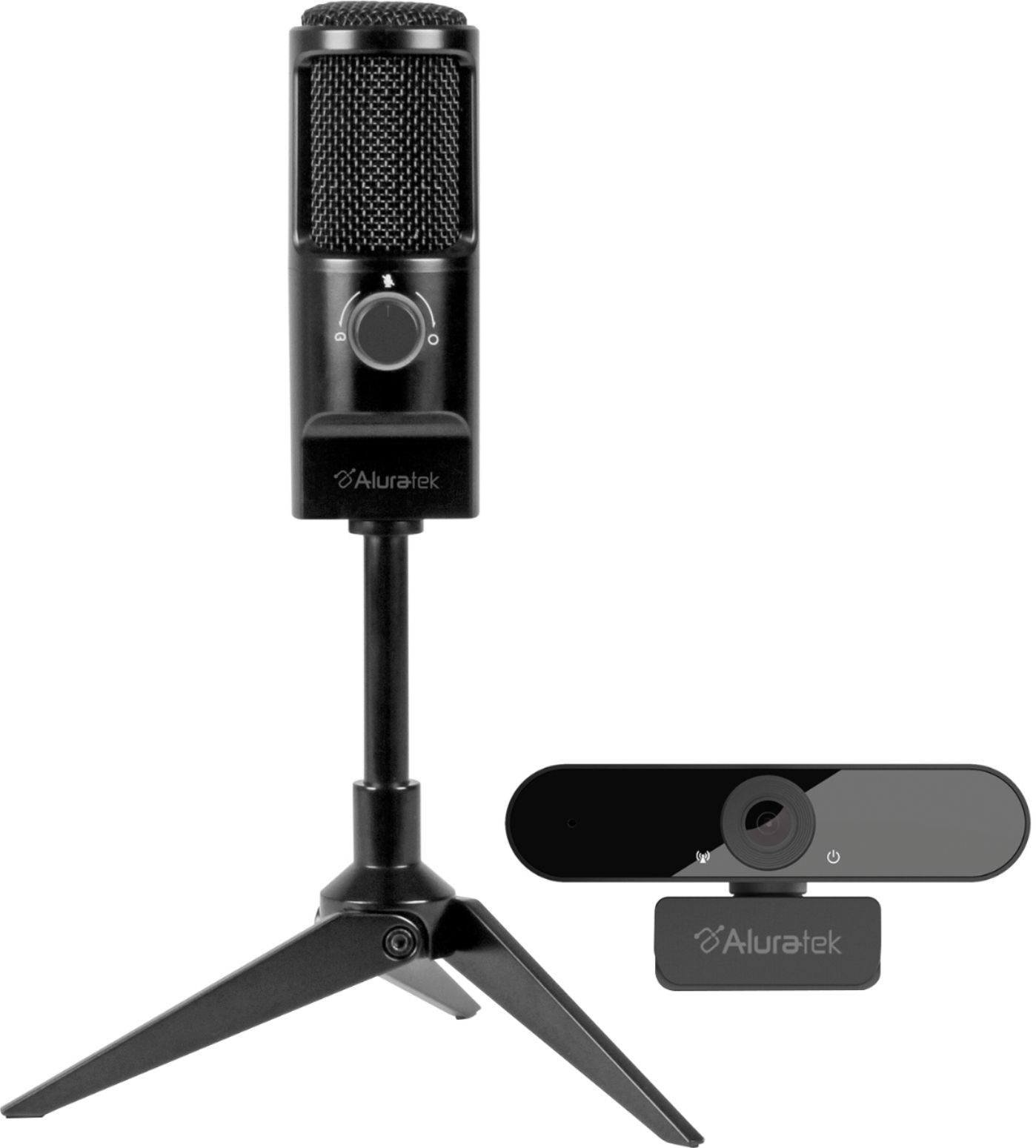
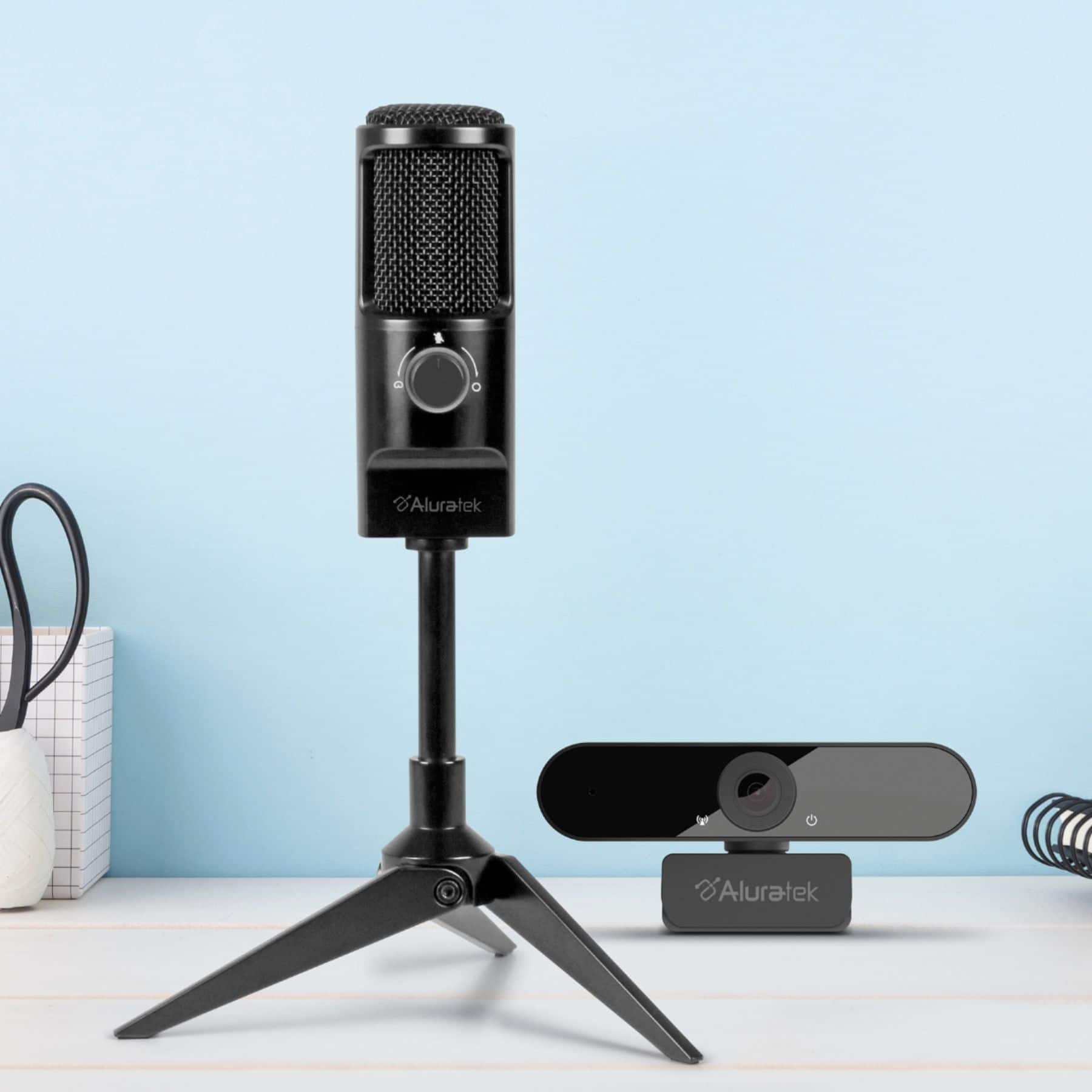
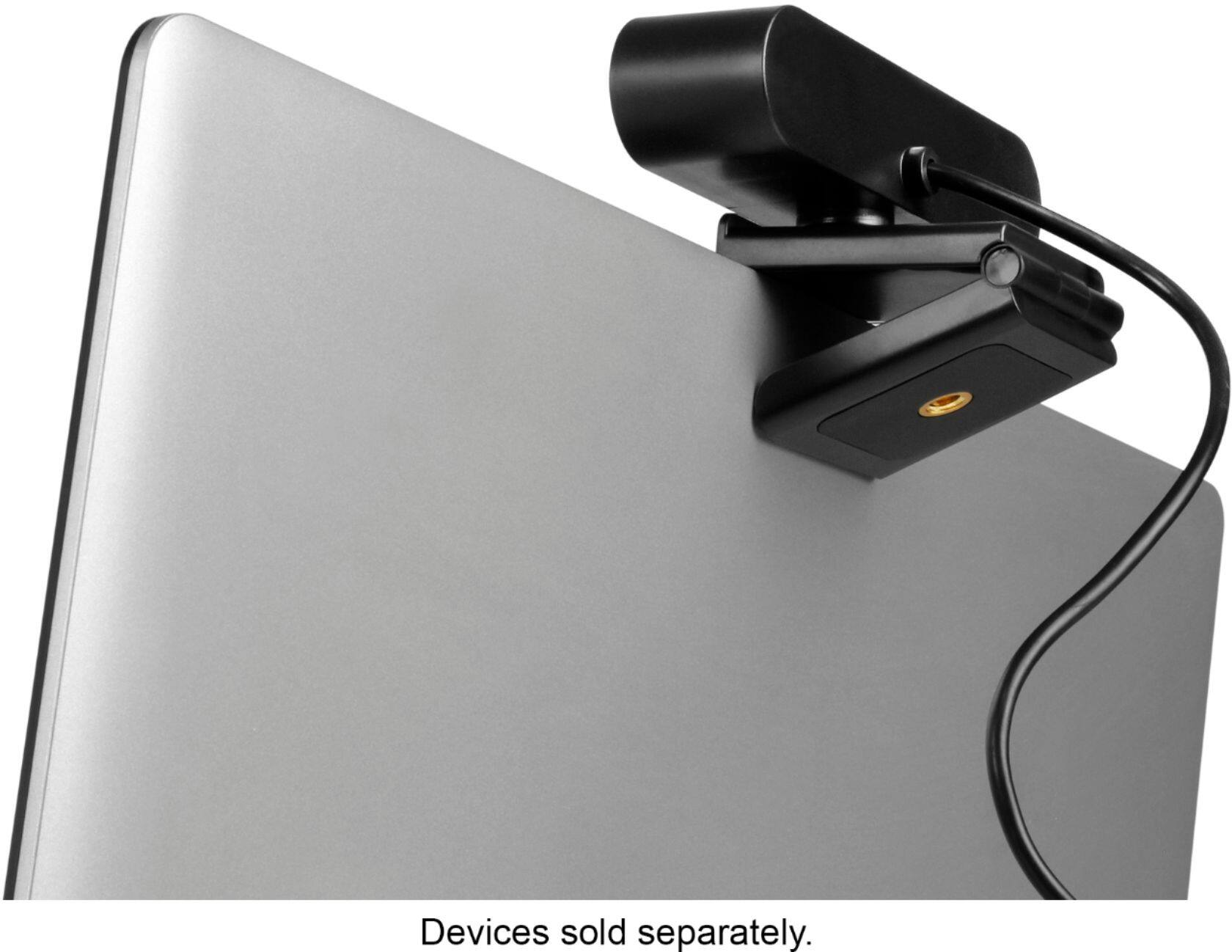
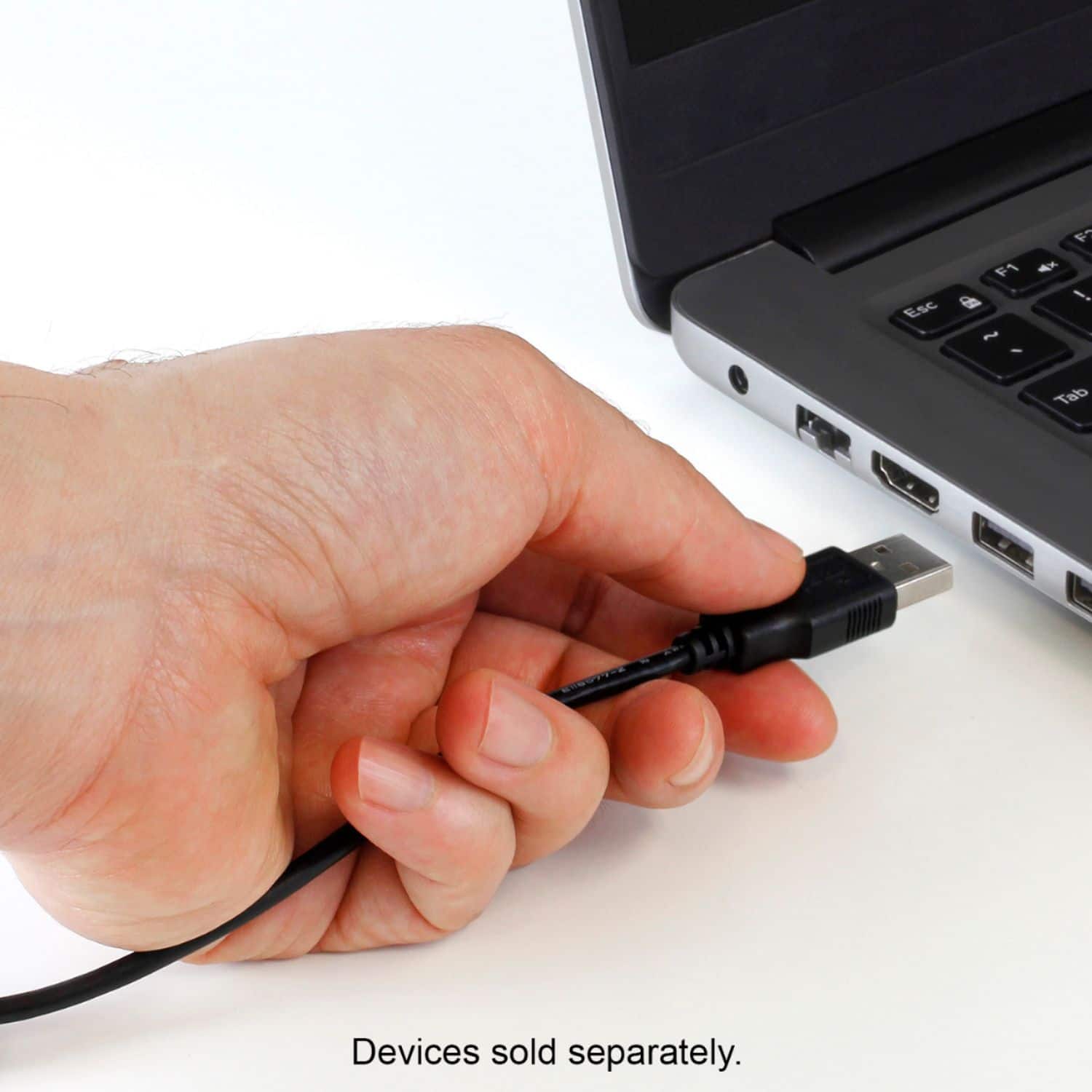
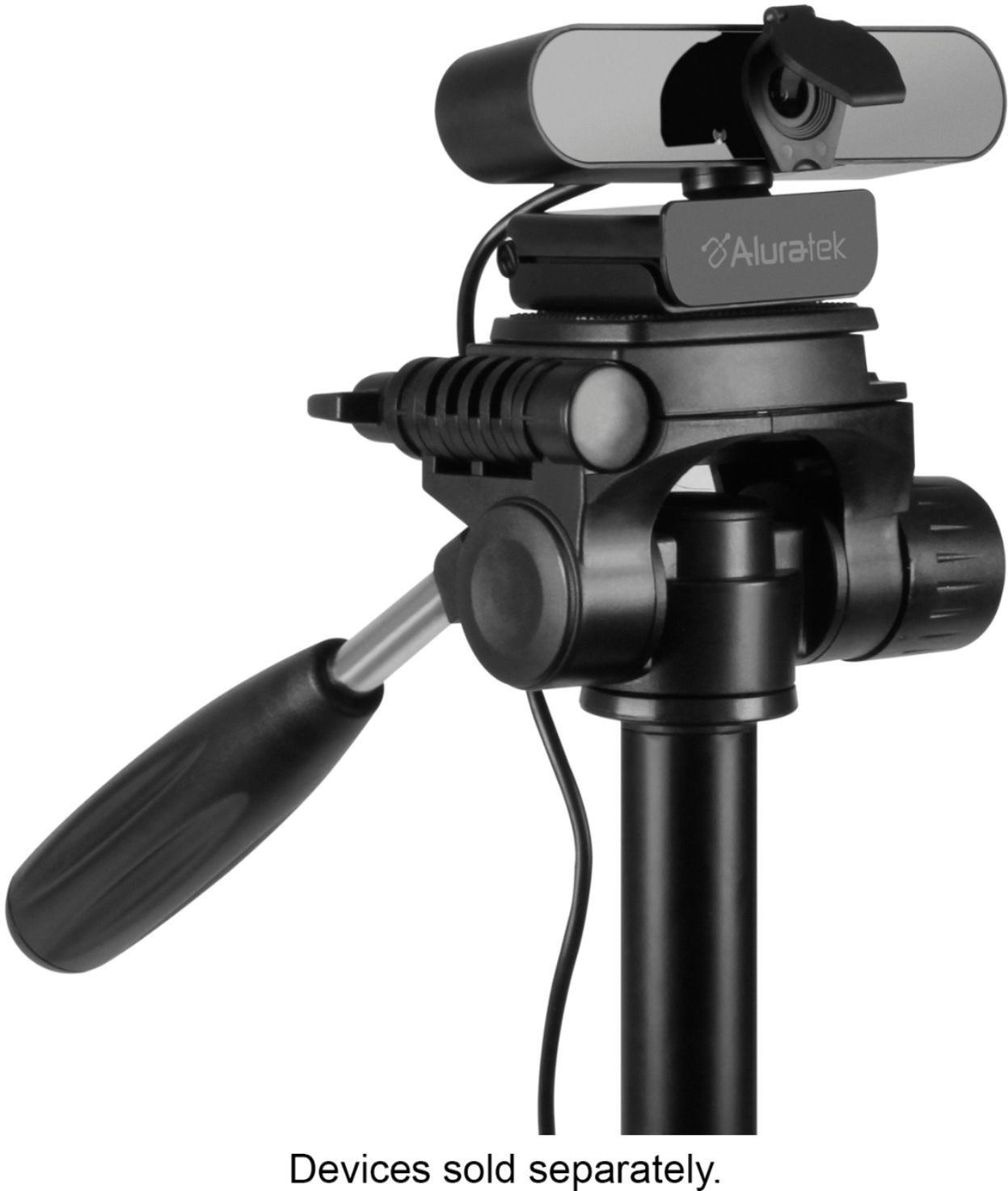
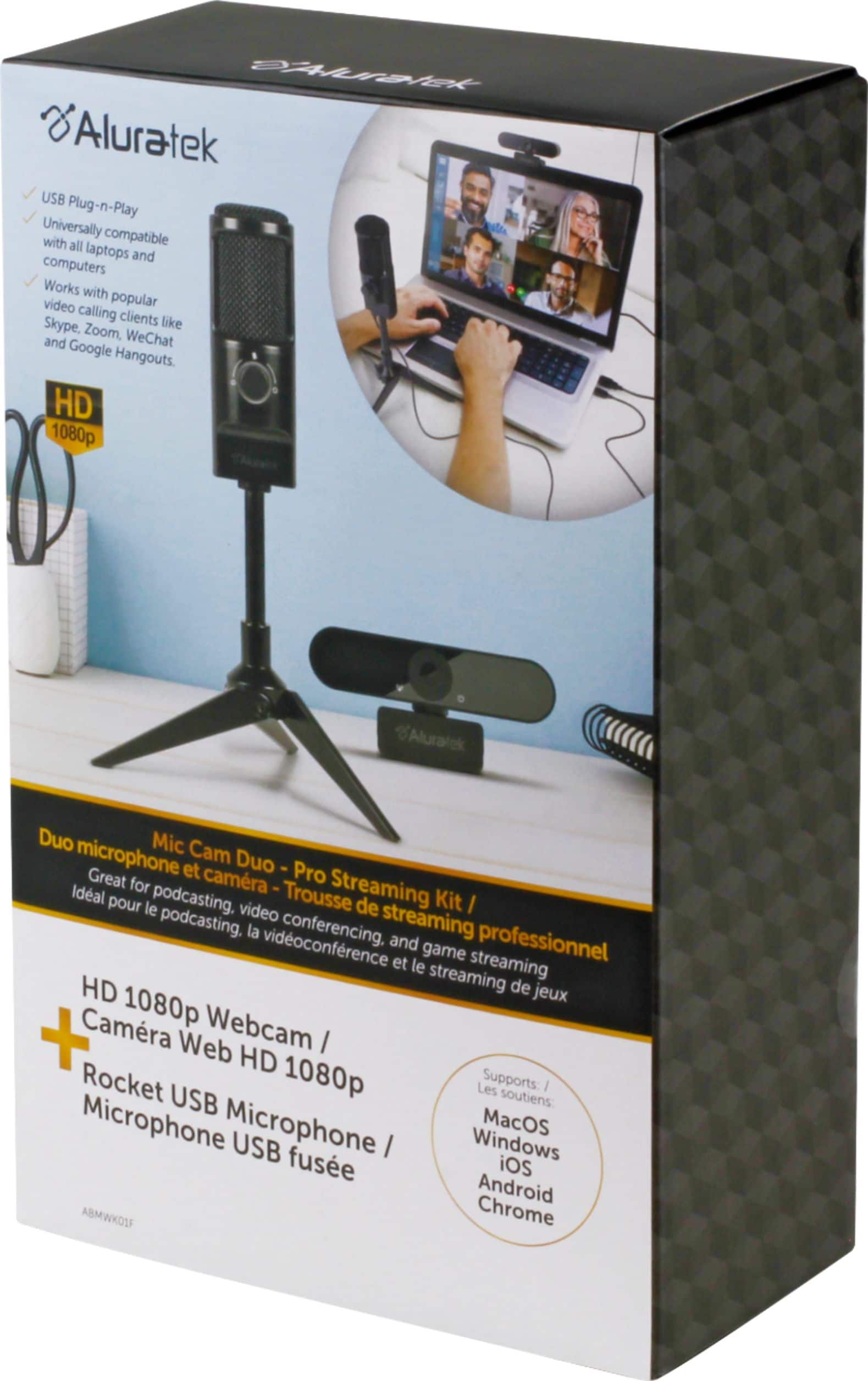
A:AnswerYes, it can be mounted to a tripod, but the tripod is not included. It also can mount to a monitor easily. There are two cables, and each is about 4 ft. long.
A:AnswerYes, you can use this to record your pianist. However, it does not come with any software to do this. There are many free & paid options for video capture. Simply do a search for video capture and find a product that will be suitable for you.
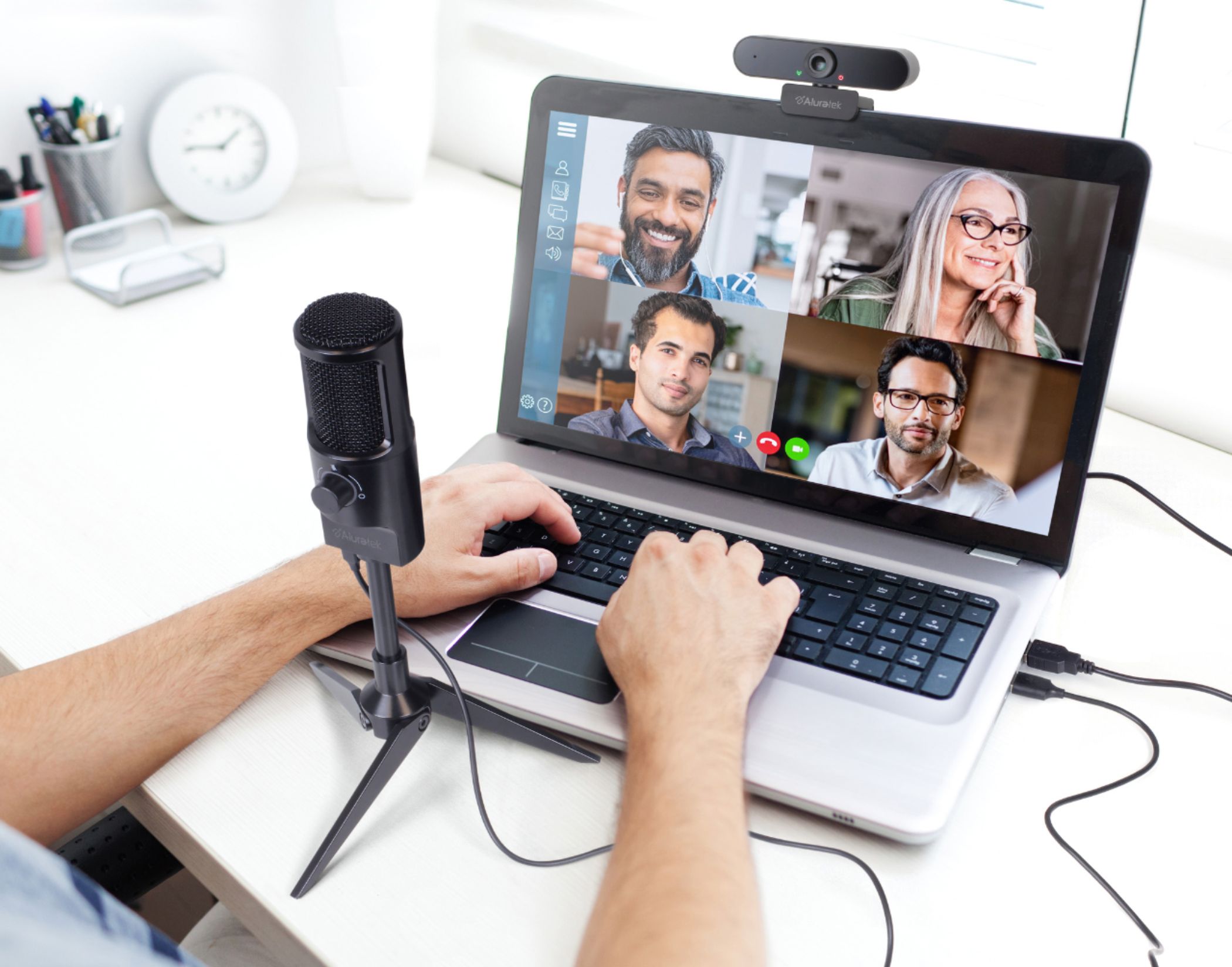
A:AnswerYes. You may need to check privacy settings. Connect directly to the computer's USB port. Go into Settings > Privacy > Camera and here you can make settings that allow you to use the external USB webcam. Be sure that Desktop App Web Viewer is set to ON.
Go into Settings > System > Sound and check the INPUT settings. Here you should be able to check see the audio driver in the pull-down menu and you can monitor audio input. Use the DEVICE PROPERTIES link to set levels. I typically keep the settings of our unit in the office between 75 and 80. But you should adjust to your preferences. Open your Windows CAMERA app and do some recording to check the mic.
A:AnswerNot sure! It's for computers so it connects via USB ports -- if you are able to put USB ports into your TV or buy a converter that will connect it, it may work. Check out your TV and see if it allows you to change the settings for microphone and camera inputs. I would also call your TV company to ask, since they would be able to tell you if your TV supports accessories like this!