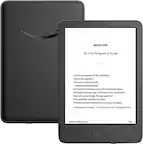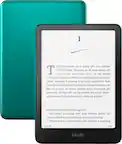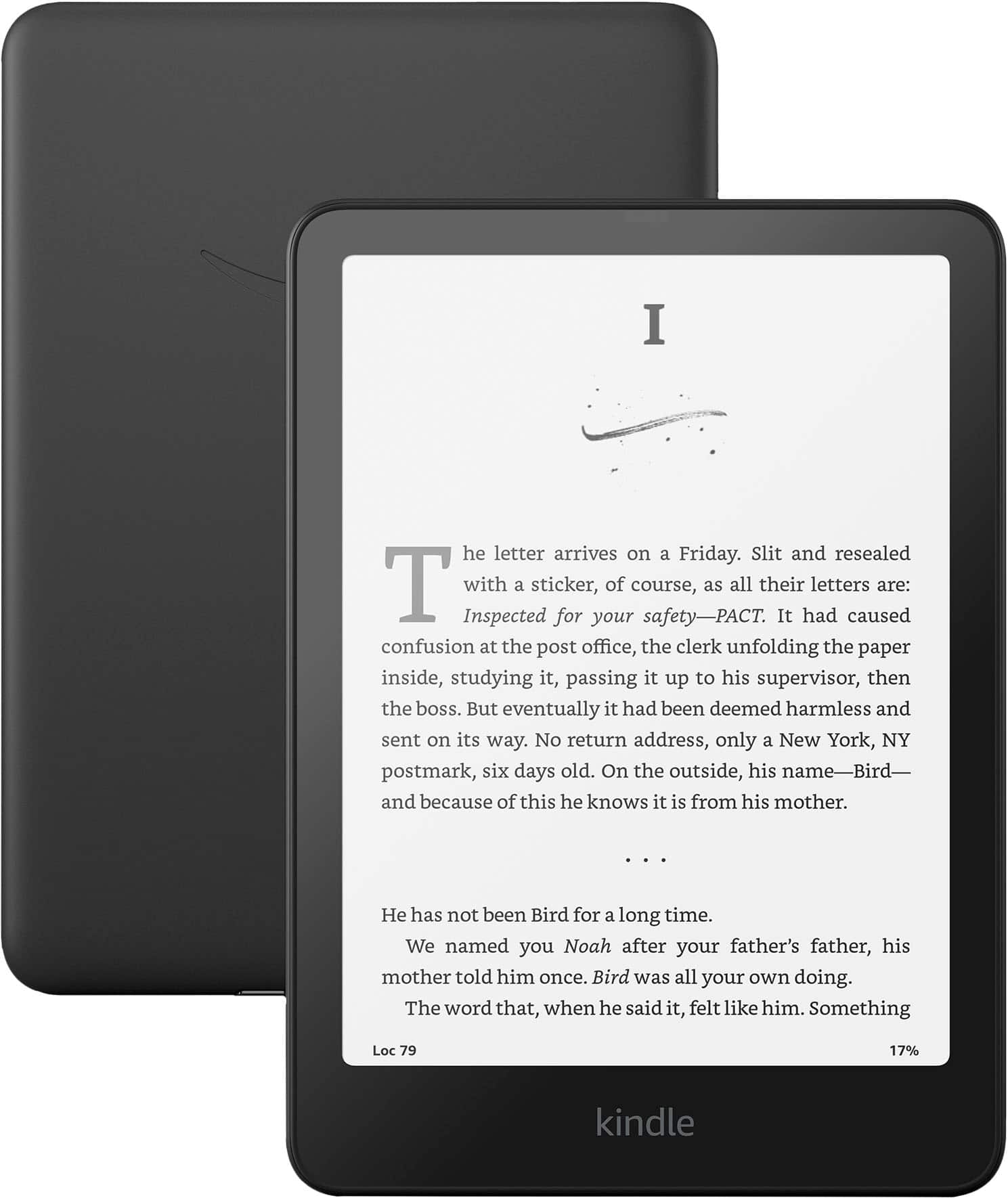
A:AnswerHi Sydney! This version does come with special offers on the lock screen, however they can be removed for a one time fee. If you are looking for a device that comes without any ads out of the box, the Kindle Paperwhite Signature Edition features 32GB of storage, has the ability to wirelessly charge, and always comes without lock screen ads. I hope that helps, have a great rest of your day!
A:AnswerHi Lockscreen-
Thanks for reaching out. The fee to remove ads (also called "Special Offers") from a Kindle device is $20. This is a one-time payment, not a subscription, and it permanently removes advertising from your device's lock screen and home screen. You can make this payment through your Amazon account's "Manage Your Content and Devices" section. I hope this helps, have a great day!
A:AnswerHello Peto, all of your purchased books are saved to your Amazon account. Once you log into the new Kindle Paperwhite you will see all of your purchased content. You can select which books you want to download onto your new device.
Have a great day!
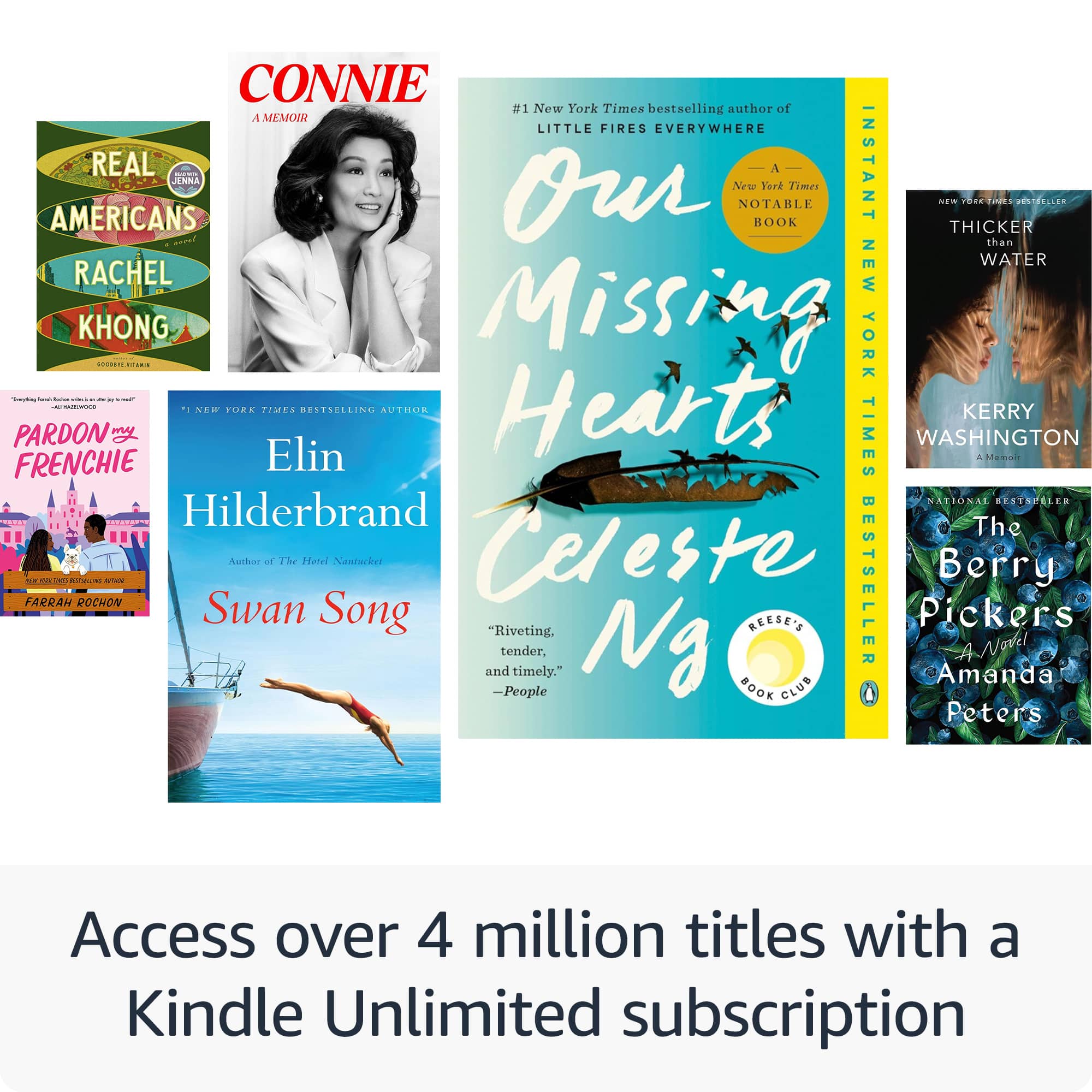
A:AnswerHi Interested! You can absolutely borrow books from your local library! The exact method is going to vary depending on who your local library works with, so I would reach out directly to them for the instructions. Many libraries work with Libby which provides a smart phone app to easily manage your holds and books on loan, and allows borrow books to be immediately delivered to your Kindle. I hope that helps, have a great rest of your day!
A:AnswerHello! Thank you for reaching out. The Kindle Paperwhite has a built-in text-to-speech feature called VoiceView that can read text aloud. Open the book you want to read, press the “Menu” button and navigate to the “Settings”. In the “Settings” menu, select “VoiceView” and turn on TTS. Once the function is enabled, you can start and stop narration by pressing and holding the “Play/Pause” button. Hopefully this helps! Have a great day!
A:AnswerHello and thank you for asking this question. Kindles do not have access to iBooks, however if you have files of Ebooks that you own on your Mac they can be transferred to the Kindle via a USB cable. I hope this answers your question and that you have a great day.
A:AnswerHi Bobbie! Kindle e-readers are designed to work with Amazon's ecosystem and primarily support books purchased from Amazon in specific formats. However, it is possible to convert Nook books to a compatible format, making them available for download on your Kindle Paperwhite device. I hope this helps. Have a great day!
A:AnswerYou can use Libby from your local library for free but you have to do it on your smartphone then click read with kindle
Or you can go to the kindle store from the device and pay between $3-$5 per book for non-audio format
A:AnswerHello Raspberry,
It's difficult to say the exact number of books that 16GB will hold with each book making up different sized files depending on the length of the book or any additional features that go along with the file. With that being said, 16GB will hold several thousand books. For example, a 300 Page Kindle Book will take up roughly 2.5 MB. You can also save your books on to your Kindle Library and download them when you would like if you feel you are running tight on space as well.
I hope this answers your question!
A:AnswerHi Terry! Yes, you can download Audible audio books on a Kindle Paperwhite. Follow these steps to do so;
- Open the Audible app and sign in
- Select Library
- Select All Titles
- Choose the title to download
- After downloading, you can listen offline
Hope this helps, have a great day!
A:AnswerHello Oksana!
Yes, you can change the language on your Kindle Paperwhite. You can do this by going to your device's settings and selecting the language you want to use.
How to change the language on your Kindle Paperwhite
Tap the Menu button in the upper right corner
Select Settings
Select Device Options
Select Language and Dictionaries
Select the language you want to use
Tap OK or Next
Your Kindle will restart in the new language
I hope this information helps, have a great day!
A:AnswerHello J4ua, you are having issues with your Amazon Kindle Paperwhite (16GB) not staying connected to your Amazon account after the registration process. The Amazon Kindle Paperwhite (16GB) connects to Wi-Fi 2.4 GHz, it is possible that your Wi-Fi router at home might have both the Wi-Fi 2.4 GHz and 5.0 GHz enabled. The Amazon Kindle Paperwhite might connect to your Wi-Fi 5.0 GHz which will cause it to continually disconnect, you can verify your network in the settings of your router (can be different for all router brands). Hope this addresses your concern. Have an amazing day!
A:AnswerHello Black! Kindle content belongs to your account so register your new Kindle to the same amazon.com account that your content is on. The compatible content will be in the cloud/archive sections of the new Kindle. Tap on an item to download it. I hope this answers your question. Have a great day!
A:AnswerHello and thank you for your question! The amazon Kindle Paperwhite comes with a USB-C cable and a wall adapter to charge the device. Hope this helps! Have a great day!
A:AnswerHello Inesello,
There is an easy way to remove the advertising from your Kindle Paperwhite as well as any other Amazon reading or tablet devices you have. The current charge to remove advertising from an Amazon Kindle or Tablet is $20. This can be done by going to the Amazon Website and following the directions I have posted below;
- Navigate to Amazon.com
- Sign in to the account in which the Kindle is registered
- Navigate to the page called "Your Account"
- Click on "Content and Devices"
- Select your Kindle Device you would like to remove the adds from.
- Select the "Special Offers" Section
- Click "Remove Offers"
- A Pop Up window will appear showing the one time payment cost to remove adds.
- Select "End Offers and Pay Fee" and you are all set to go!
I hope this helps!
A:AnswerHello Jackson and thank you for your question! No, unfortunately the NOOK books can not transfer to the Amazon Kindle Paperwhite. Hope this helps! Have a great day!