A:AnswerBecause they falsely advertise higher hz than they can provide. I have a 27” nitro monitor that states it’s 120hz but I’m locked at 60hz on my ps5 despite the PlayStation being capable of 120hz. Buy a different brand.
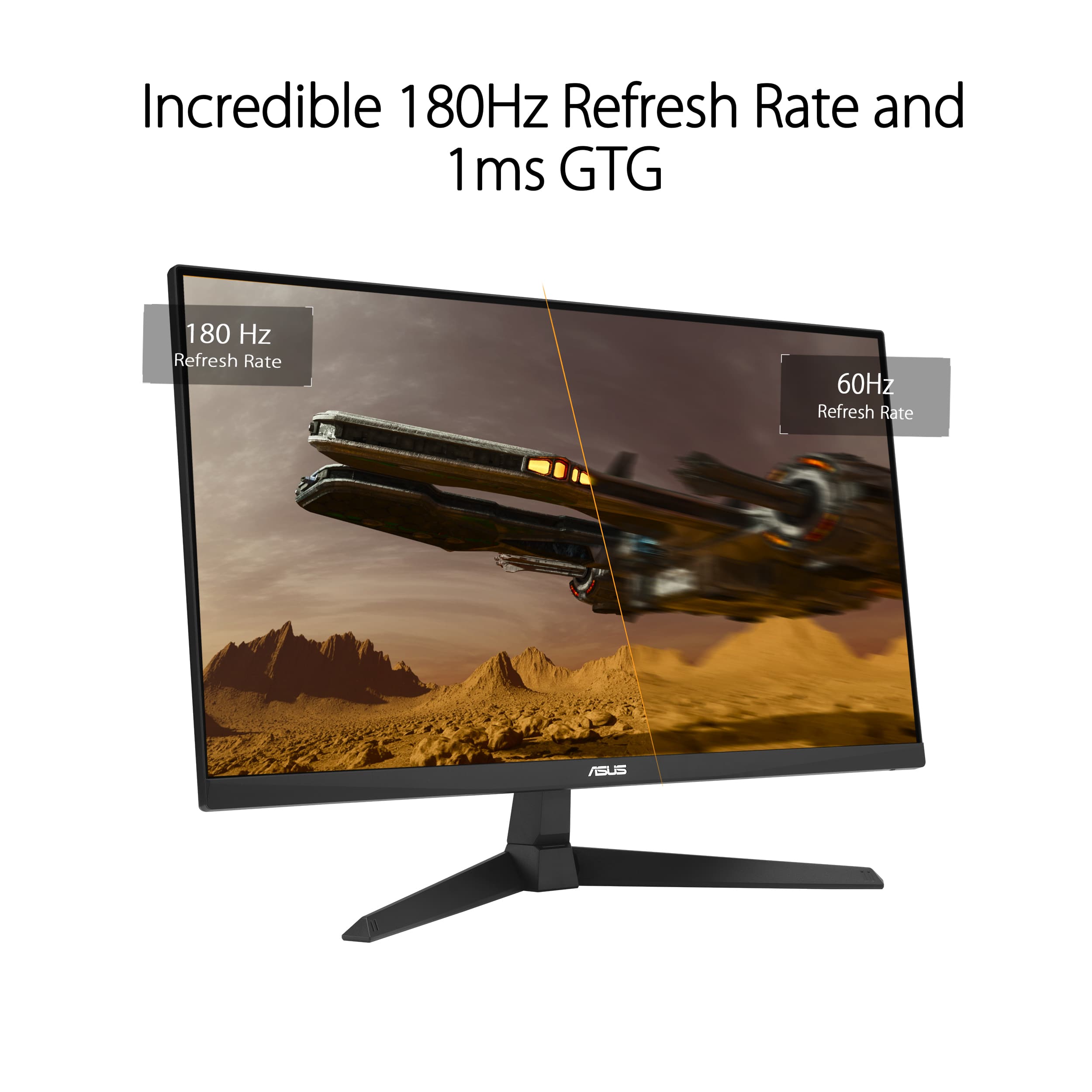
A:AnswerTo change your monitor refresh rate to 180Hz, go to Windows Display settings, navigate to "Advanced display settings," and then select "180Hz" from the refresh rate dropdown. However, ensure your PC meets the system requirements of the monitor and the GPU supports 180Hz.
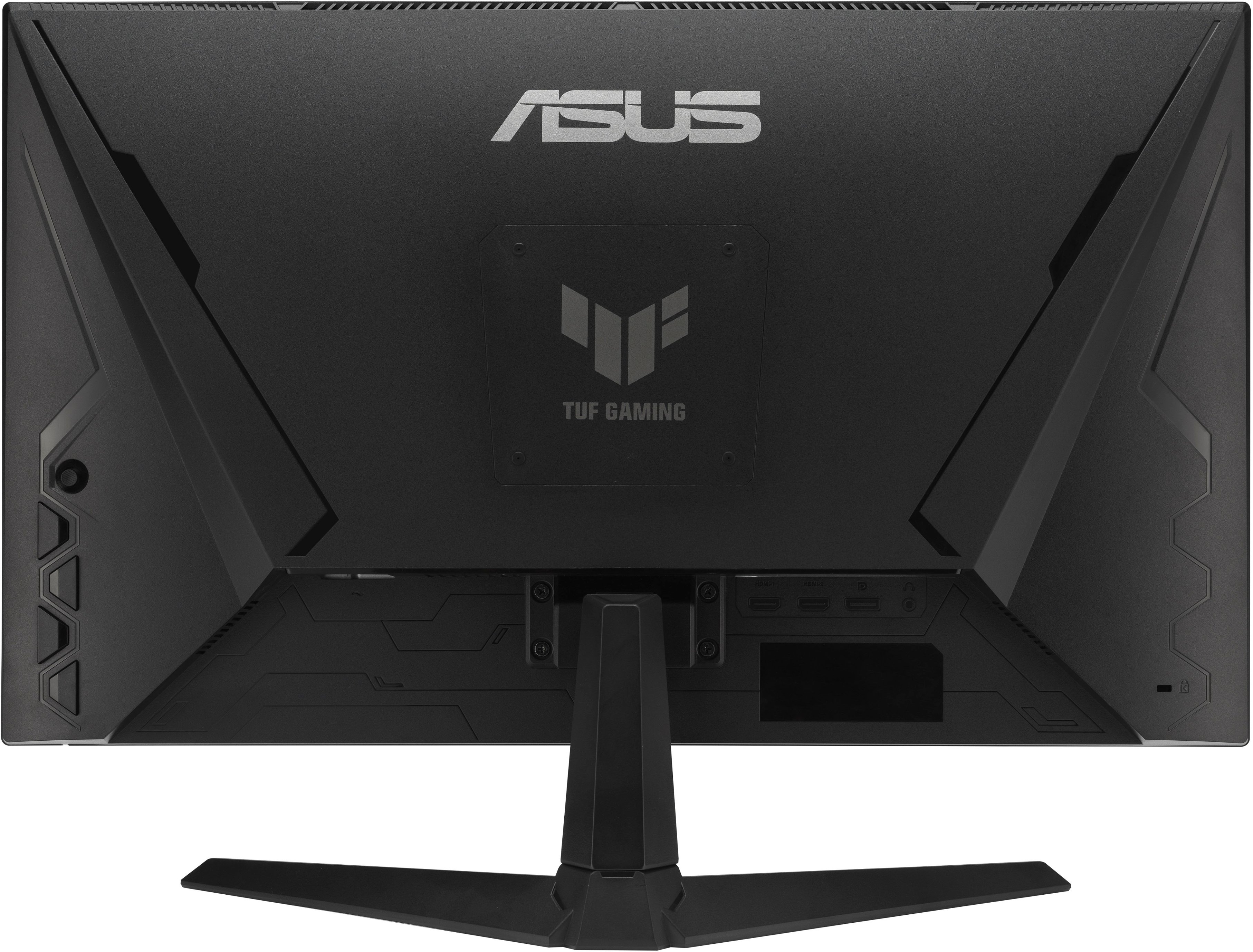
A:AnswerClick the navigation nub on the back of the monitor (press it in the center, not in a direction) to bring up a big menu.
Move down 5 times until you're on "System Setup" (a gear icon)
Move right to enter the list one column over
Move down once to "Sound"
Move right once to "Volume"
Click on "Volume"
Move up and down to change the volume.
Press the triangle button just under the navigation nub to set the volume and close the menu.
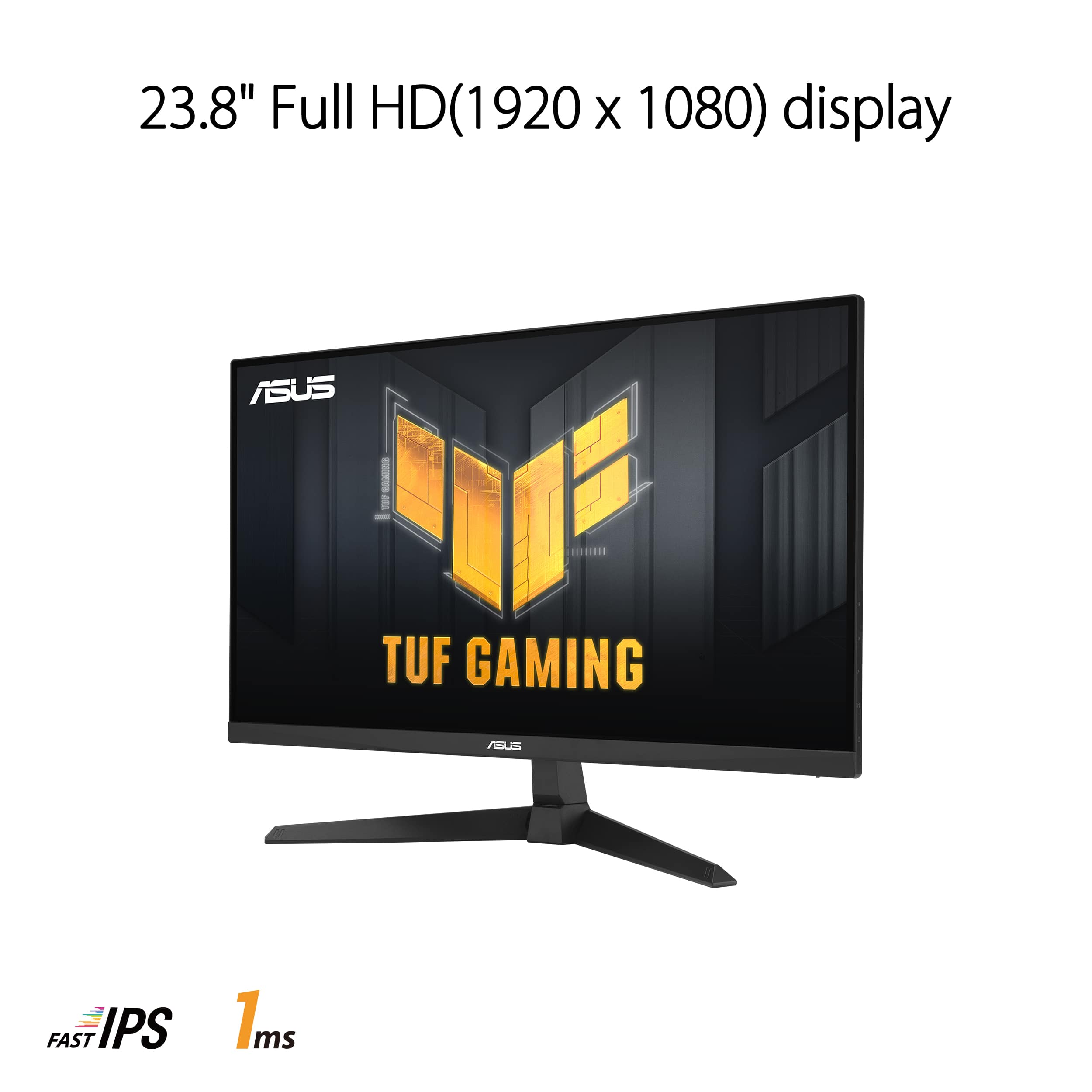
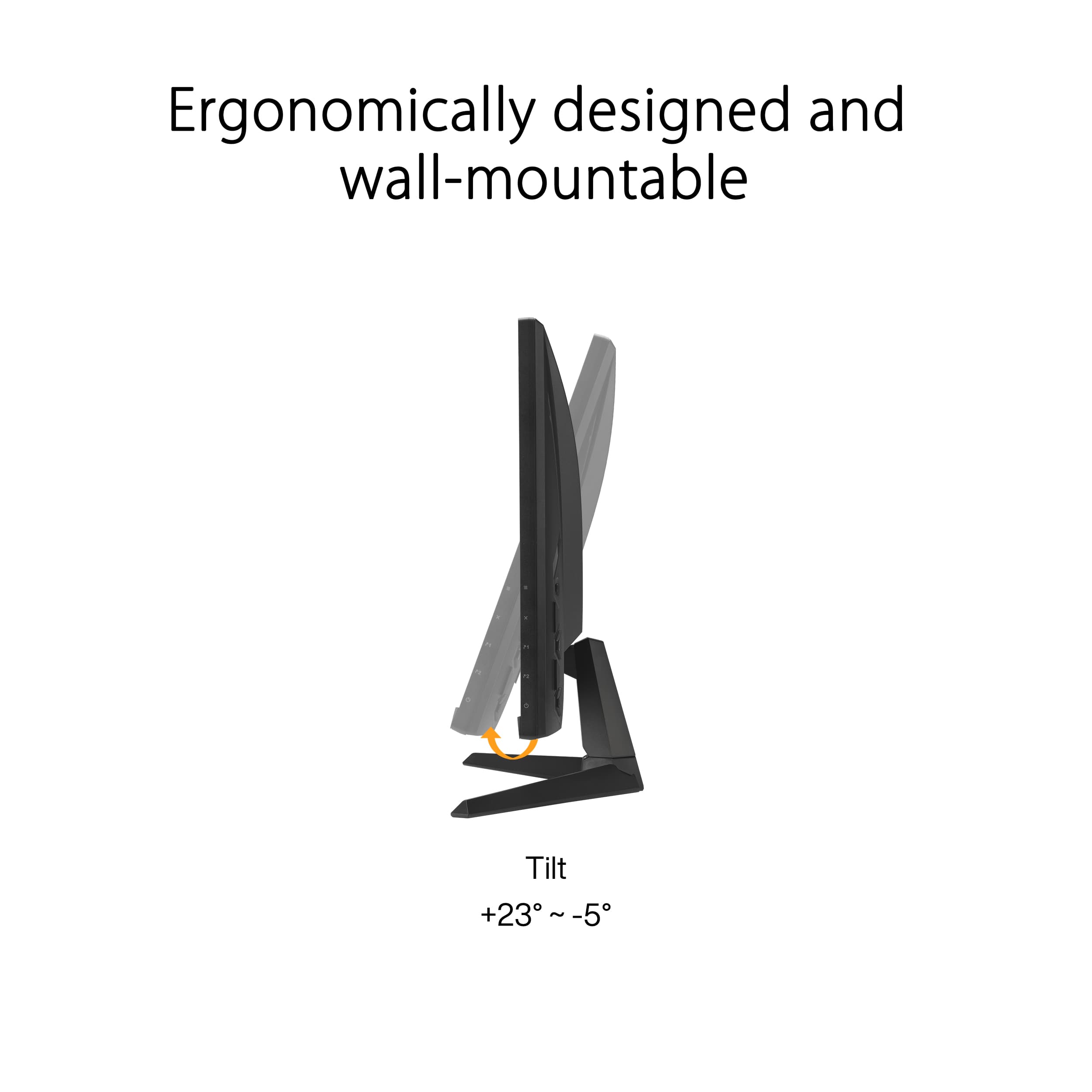
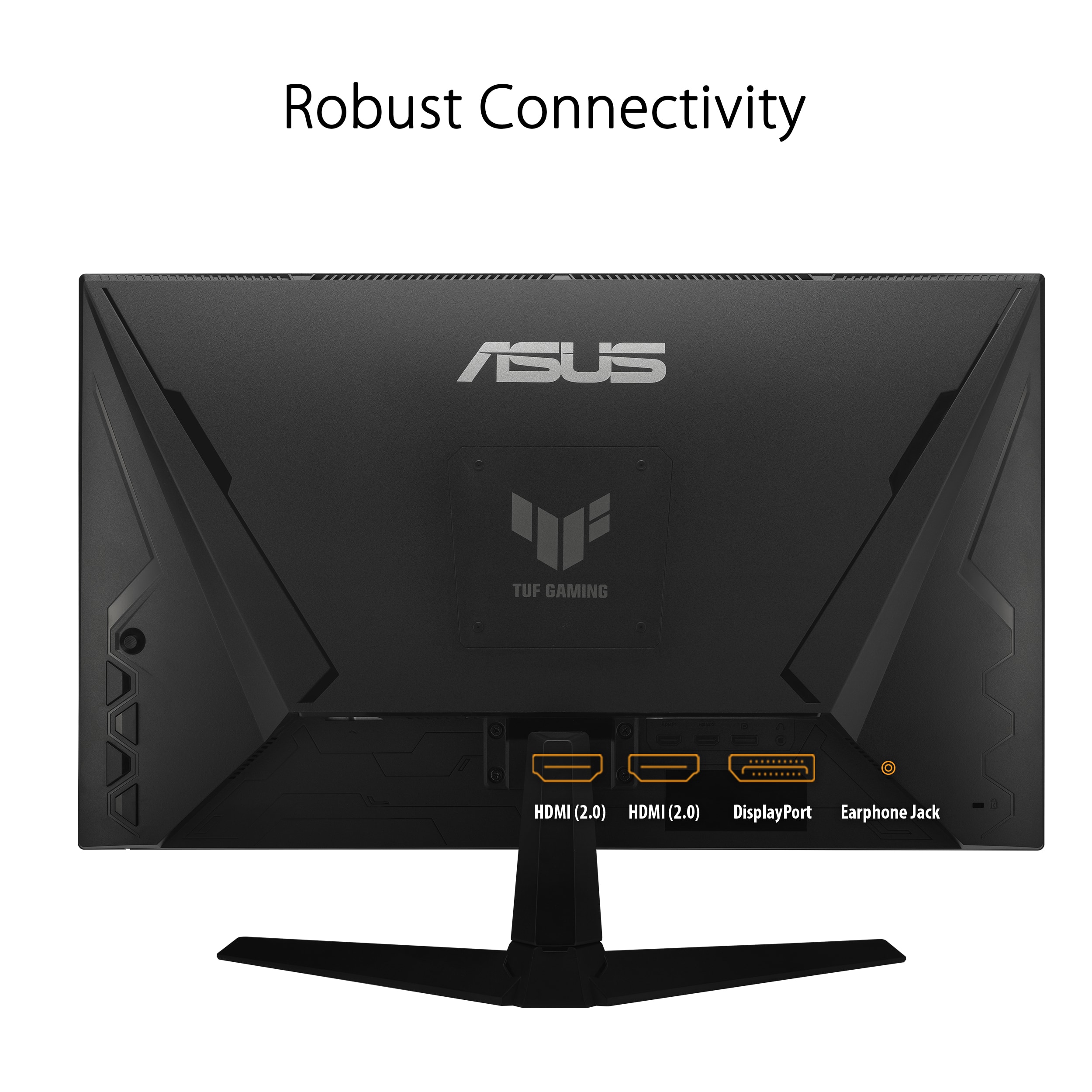
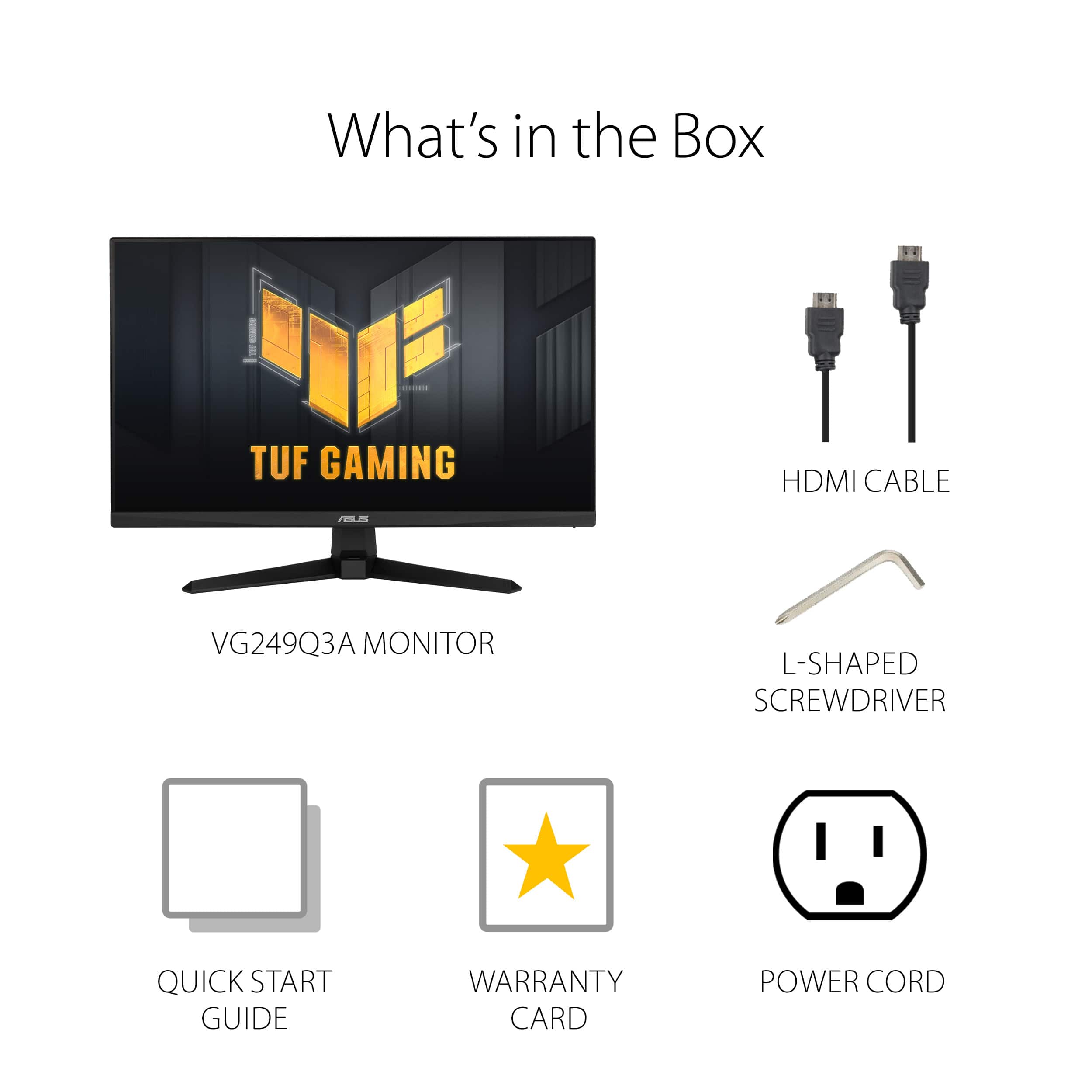
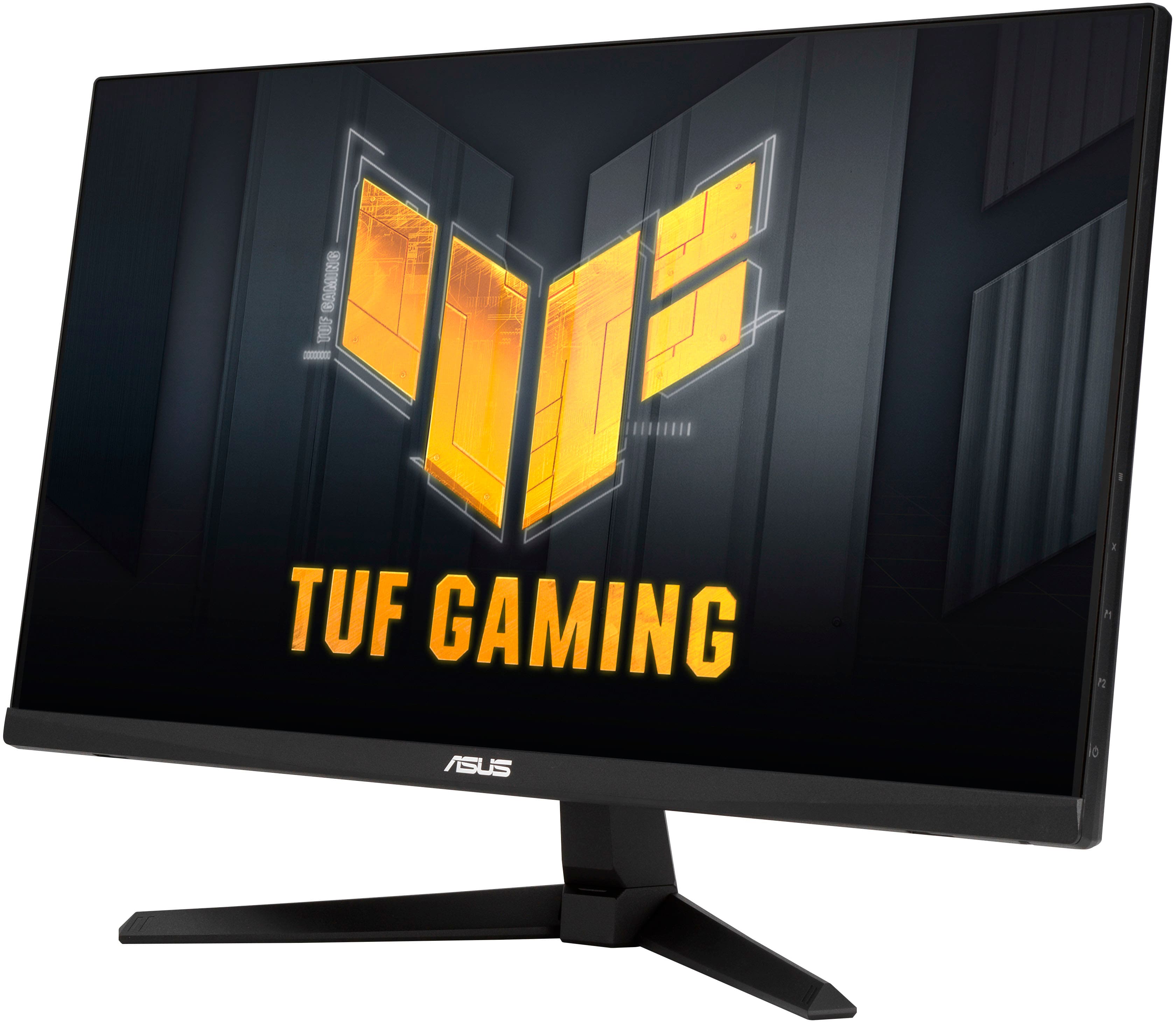
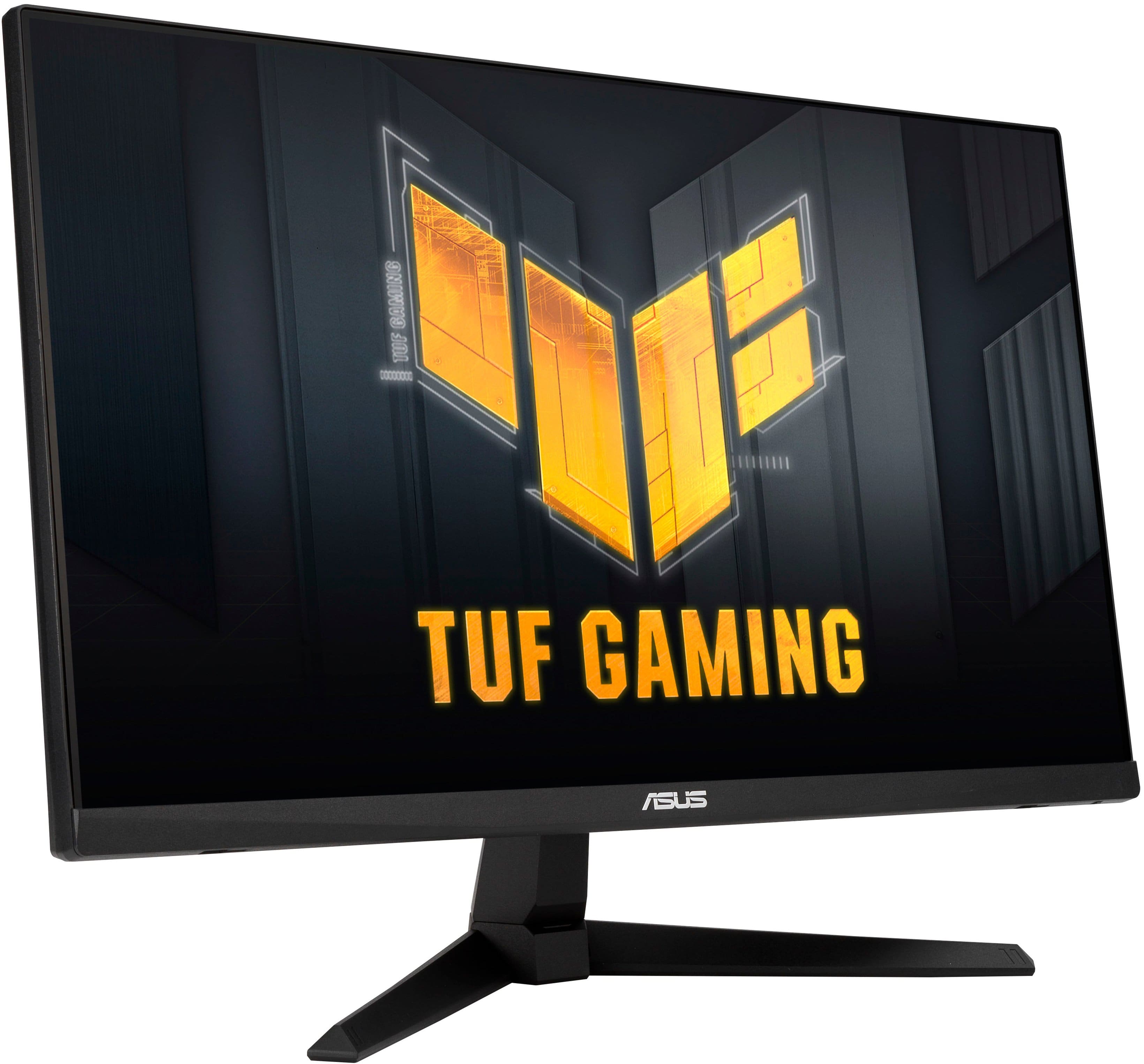
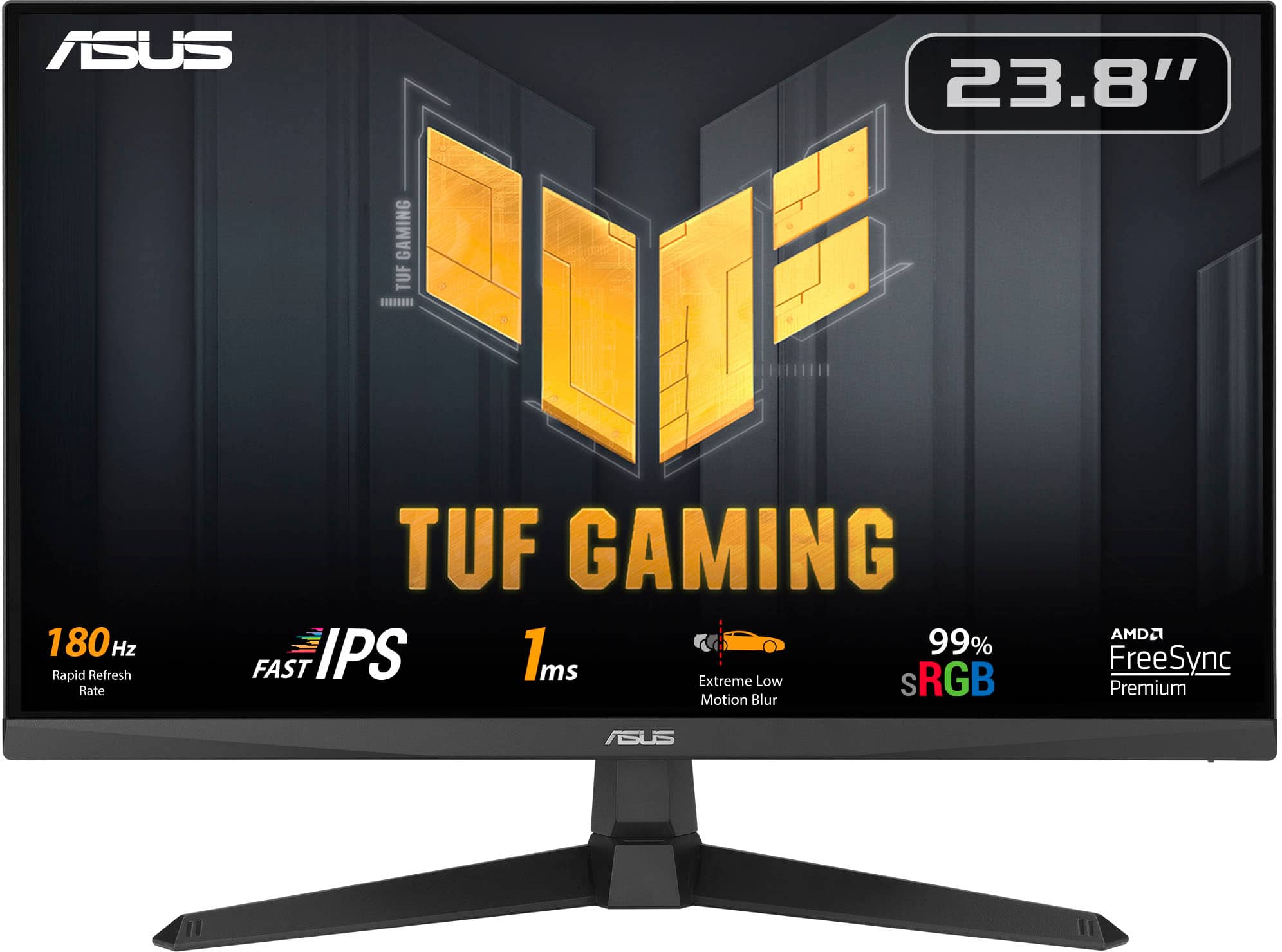
A:AnswerThe ASUS VG249Q3A monitor does not support height adjustment but can be detached from the arm/stand for VESA wall mount. This means you can mount it vertically if you wish. In the link below, you can learn more about the monitor.
https://www.asus.com/displays-desktops/monitors/tuf-gaming/tuf-gaming-vg249q3a/techspec/