“Can someone give more detail explanation how to connect this router with Verizon Fios I have Verizon Fios TV and Internet. I want to improve Wifi speeds with this router. Previously someone here already answered that it can be done, but I would need more details on how to do this connection. Should I use verizon router as bridge or just disable wireless section on verizon router and connect this Router on Ethernet line? Any documentation on this would be appreciated.”
Answer This Question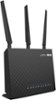
1-1 of 1 Answer
There are probably many solutions but here is a simple solution. Normally the Verizon FIOS modem/gateway uses 192.168.1.1 as it's default IP address for DHCP. Therefore you need to change that before you connect the Asus router to the Verizon router or it won't work properly... Connect a PC via Ethernet cable to the Asus router Ethernet port or connect via wireless device and log into the router as administrator with your log in password (or use default Asus log in if its a first time setup) so you can change the Asus router's settings. The default address of the Asus router should be 192.168.1.1 unless you changed it previously. The Asus router at this time should NOT be connected via WAN port to the Verizon LAN port of the modem/gateway yet. When you are logged in to the Asus router go under the LAN settings for the Asus router and change the starting DHCP IP address to 192.168.2.1 and then click the APPLY button to change the settings. The Asus router will reboot itself as it applies these new settings so wait a minute or two. Next you will need to log into the Asus router using 192.168.2.1 from now on instead of it's default IP. Then just plug the Asus into your modem/gateway into one of its Ethernet ports. Use Cat 6 or better cables for interconnect between the two devices. If you want more advanced setup help for the Verizon FIOS router settings see the Verizon forums for more information. You might want to turn off the 2.4Ghz and/or 5Ghz wireless broadcasting in the Verizon modem/router (but don't have to) to free up channel bandwidth for the Asus wireless router after you have it working the way you want.
Sorry, there was a problem. Please try again later.