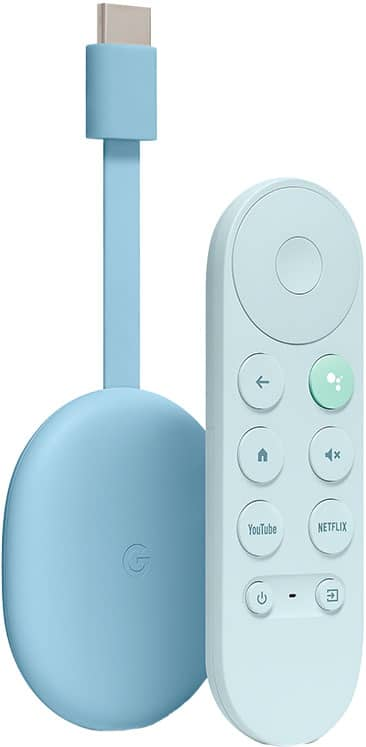
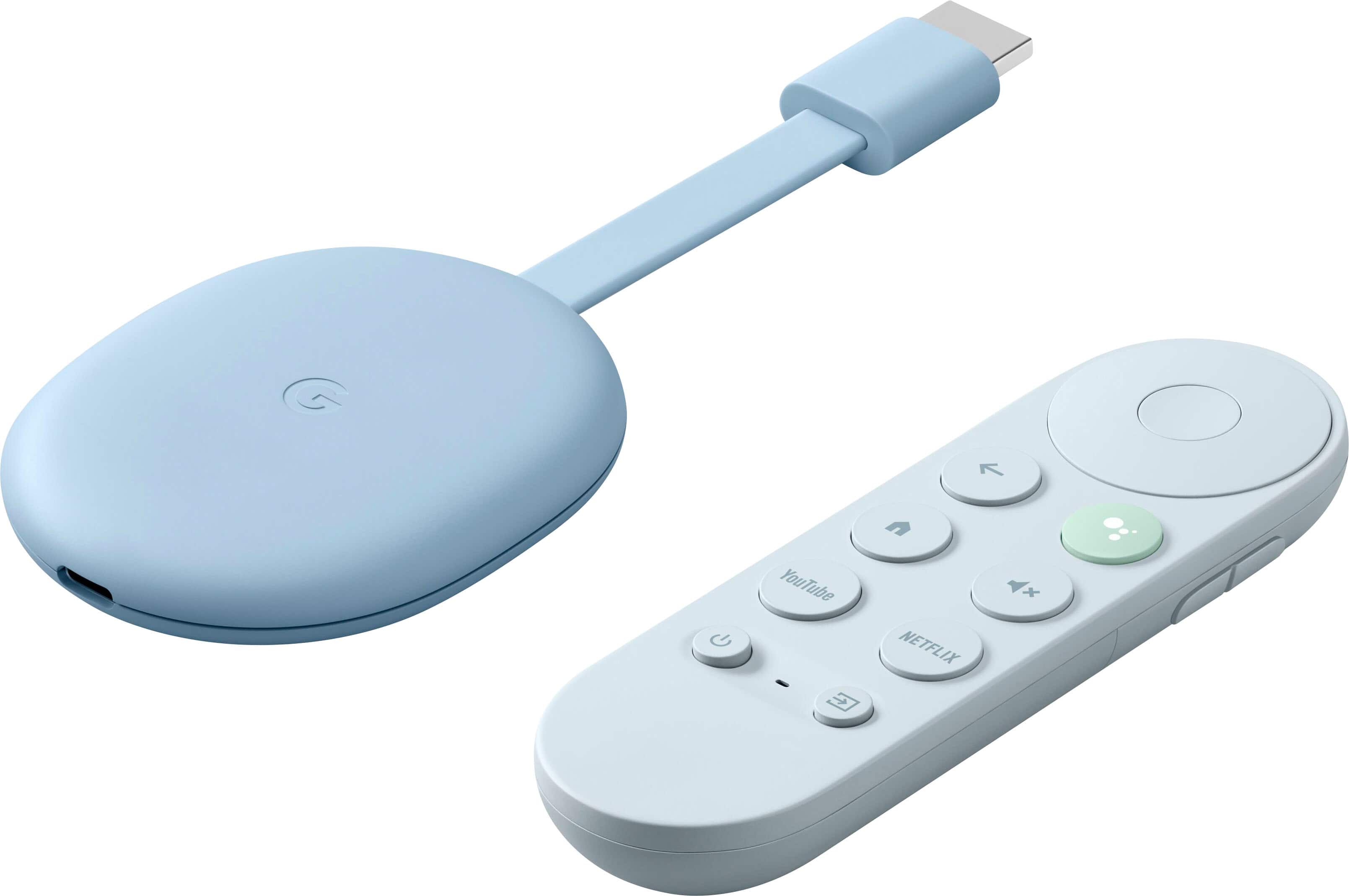
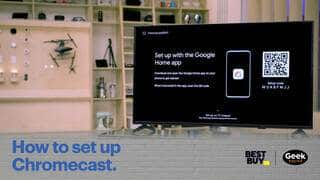
A:AnswerNo. Its not like other Chromecast devices where you cast from a phone or computer. Google TV has its own interface where you add all your apps. All you need is the Google Home App on phone for the initial setup.
A:AnswerIf your TV has a USB 3 it will work, other wise it won't. USB 2 will give a wall outlet error, 1 -1.4 amp will give a boot loop, 1.5+ will work
A:AnswerWe have three iPhones and to ipads in the house. It functions just like any other Chromecast for devices connecting to it. So yes Apple devices work with the Casting feature. The Google TV feature is explicitly for TV sets and the experience is like AppleTV in that regard. But the nice part about this product is you get both.
A:AnswerIf your Television has two unused HDMI ports, you may attach a Chromecast and Roku player on the same screen; one device per HDMI port. You can watch content on the screen one streaming player at a time, but 99% of TVs do not allow the user to watch content from two streaming players at once. It's like asking if you can utilize a Blu-Ray player and a Roku at the same time; you can use them one at a time, but you can't watch both devices at once. Honestly, most people don't need to have two streaming players on one TV.
If you are new to streaming players, either one is great unless you want to watch HBO Max. In that case, Chromecast can show HBO Max, not Roku. Roku does have ads on its screen, but they are not that bothersome. The voice assistant on Chromecast is definitely better than the one on Roku. I personally use Roku, and it fulfills my expectations already.
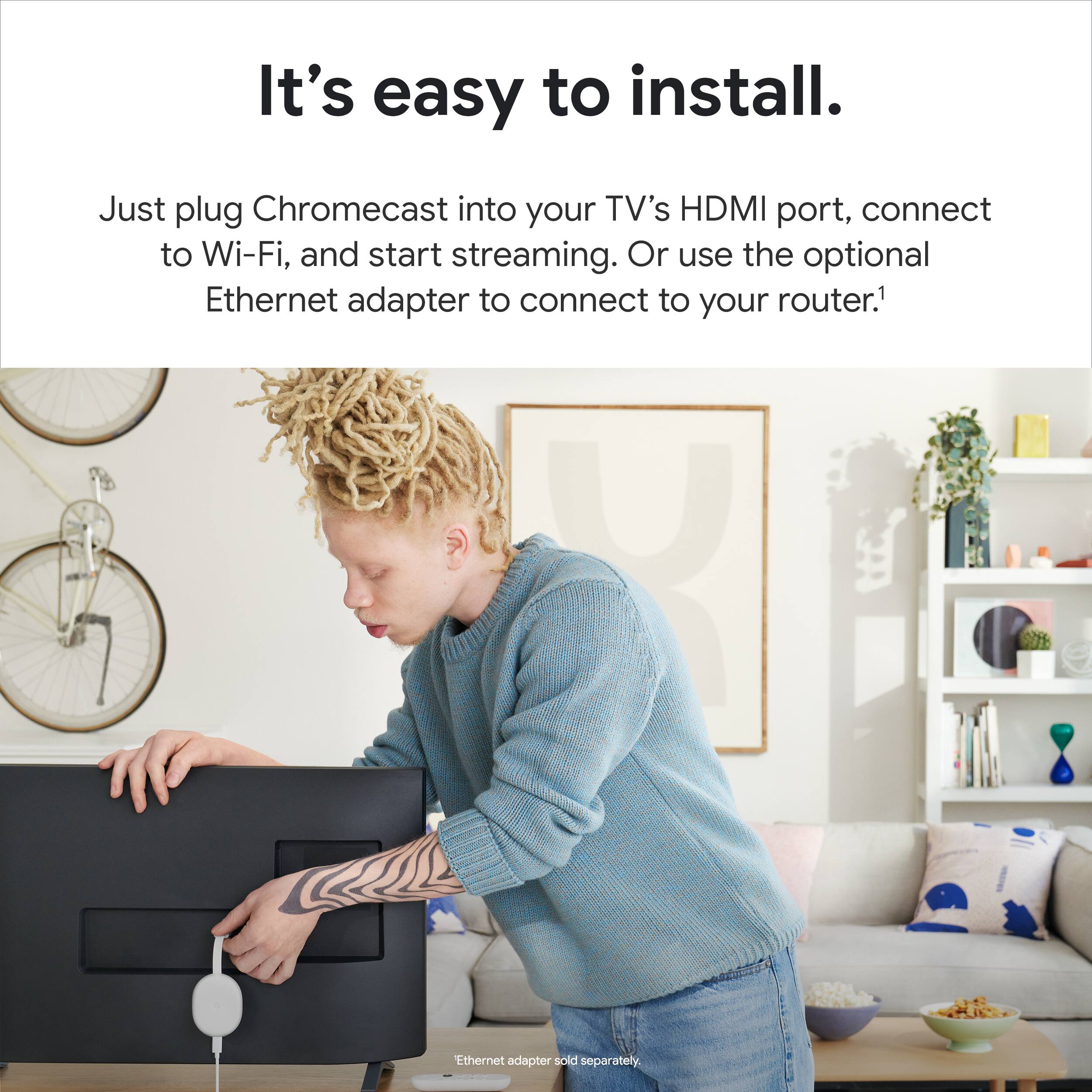
If you have a Roku TV, the Chromecast will work with Roku TV. Just attach the Chromecast to the Roku TV via an HDMI port.
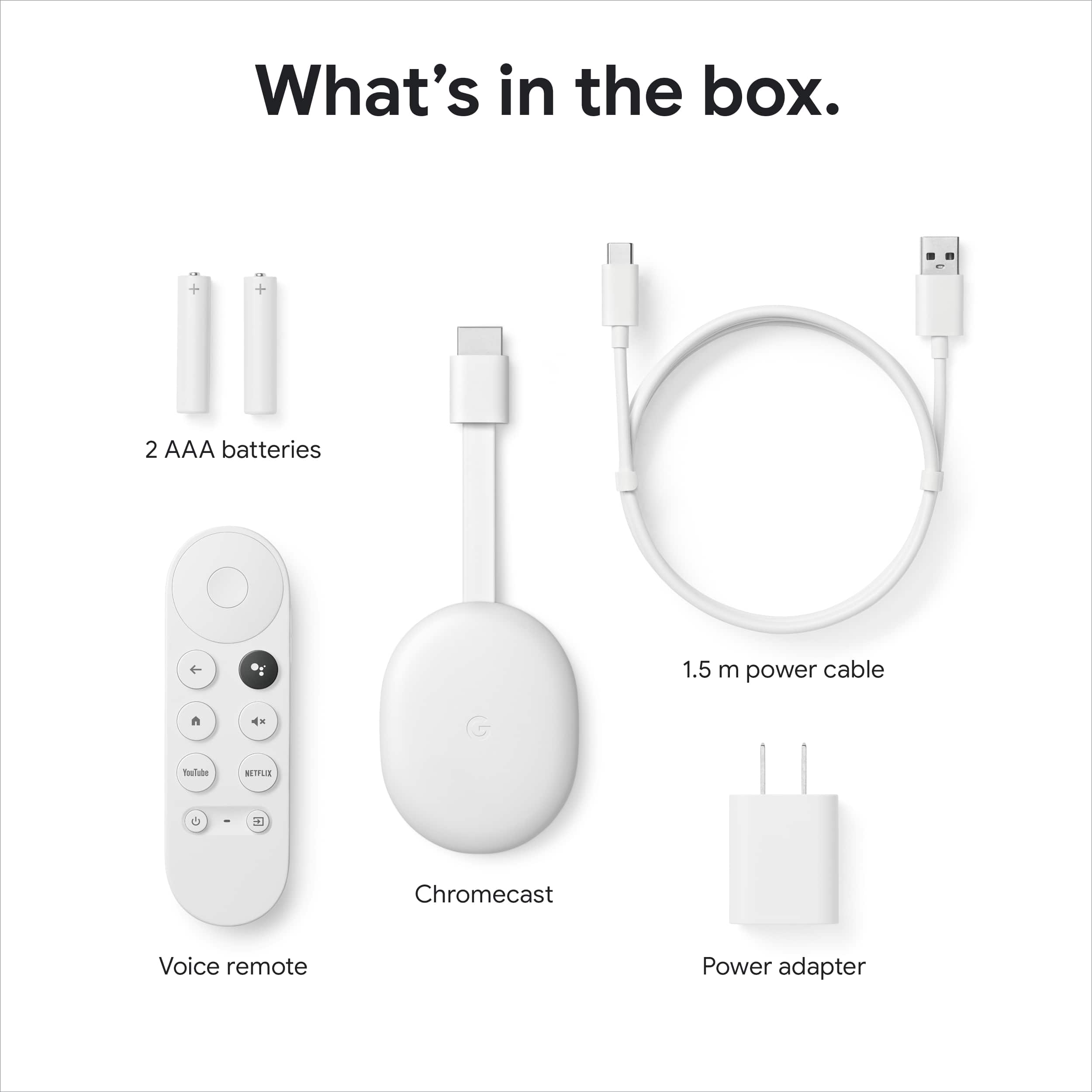
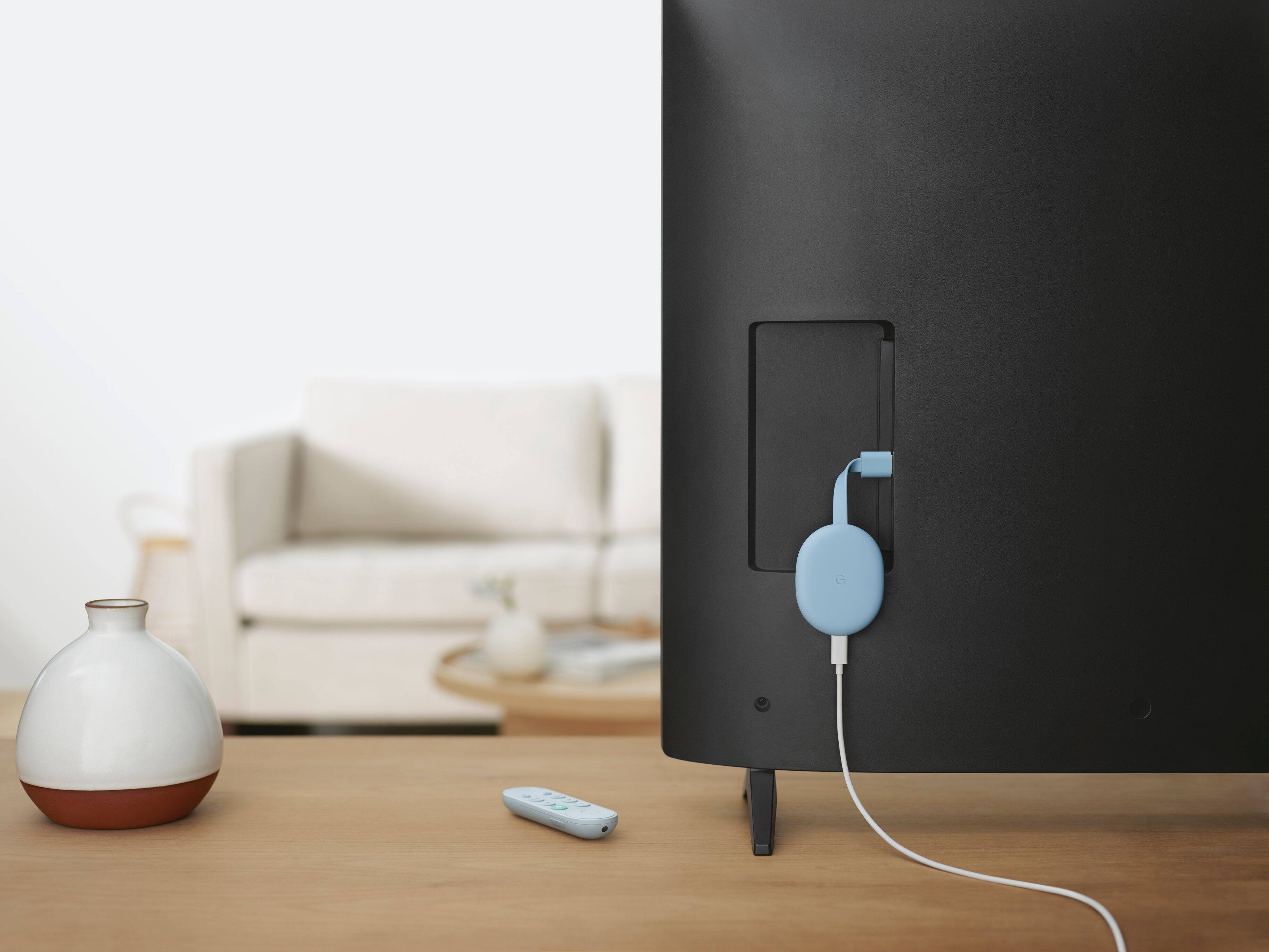
A:AnswerYes the main device does need to be plugged into a power supply that is plugged into the wall that has a 5 foot cord included. The included batteries are for the remote only.
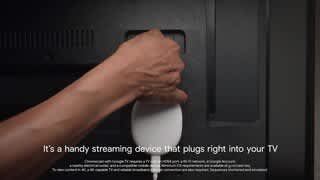
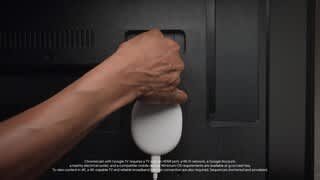
The plug is a little large so if on a power strip you may need to skip the plug next to it. The main reason for this is to get unrestricted power that the back of your TV might or might not offer on a USB. Some TV's do not supply power to the USB outlets when the TV is off and the power output can also very so to make sure the unit is always powered they have you plug into a wall outlet so you can ask any Google Assistant device around the house to play something on the TV and it would Turn ON the TV and play.
Here is how it works you say to a Google Hub or Google Assistant device "Hey Google play Fargo on Livingroom TV" Google will say back "Here's is Fargo on Netflix on Livingroom TV". What will happen is the TV will turn ON (because it gets info over the HDMI to not only turn the ON the TV if it is Off but also change to the correct HDMI input that the device it plugged into) and the show Fargo will start playing on Netflix Living room TV.
I should say wile all this works great in some areas there a still a number of problems. If you want to watch the newer Fargo on Hulu, not the older Fargo on Netflix you would have to say "Hey Google play Fargo on Hulu on Livingroom TV". This should be the end of story but the new 2020 Google Chromecast with Google TV does not respond on Hulu to play but only brings up the show and you would then have to walk across the room pull out the remote select Play to play the show Fargo on Hulu. This is not true for the now discontinued Google Chromecast Ultra 4k, that device will play Fargo on Hulu all by voice, in part because that device did not come with a remote. But back to your point the older Chromecast Ultra 4k also is designed to be plugged into a wall outlet for the same reason, to work even if the TV is Off. Some of the dongles like Roku plug into the back of the TV but will not always turn the TV on if it has been off for a wile.
A:AnswerThere's no browser built in though you can download browsers from Google Play store. Few of them are optimized for Android TV. Even so, the experience is not great because of limited input control. I'd rather use browser of cellphone and cast phone screen to it.
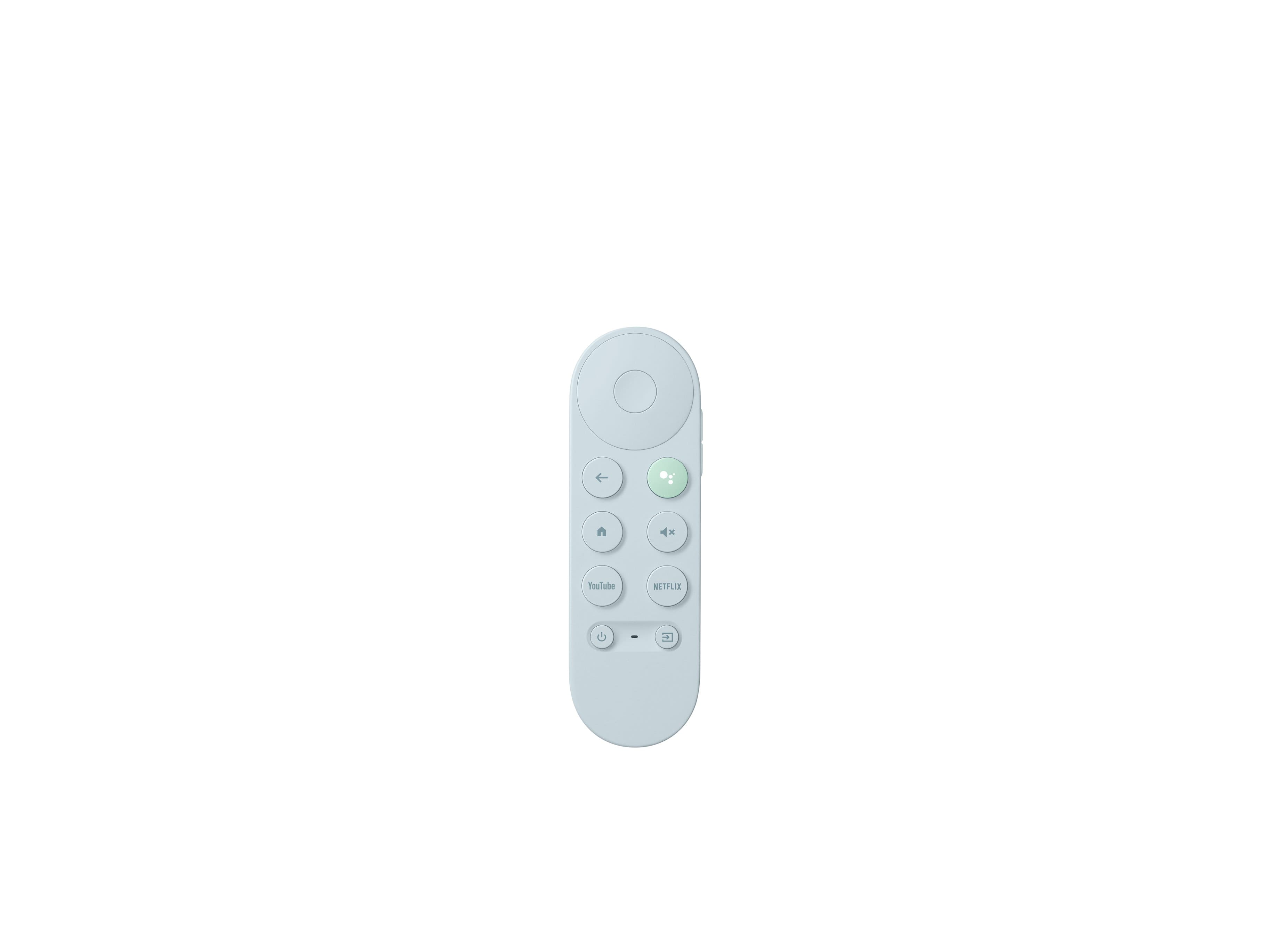
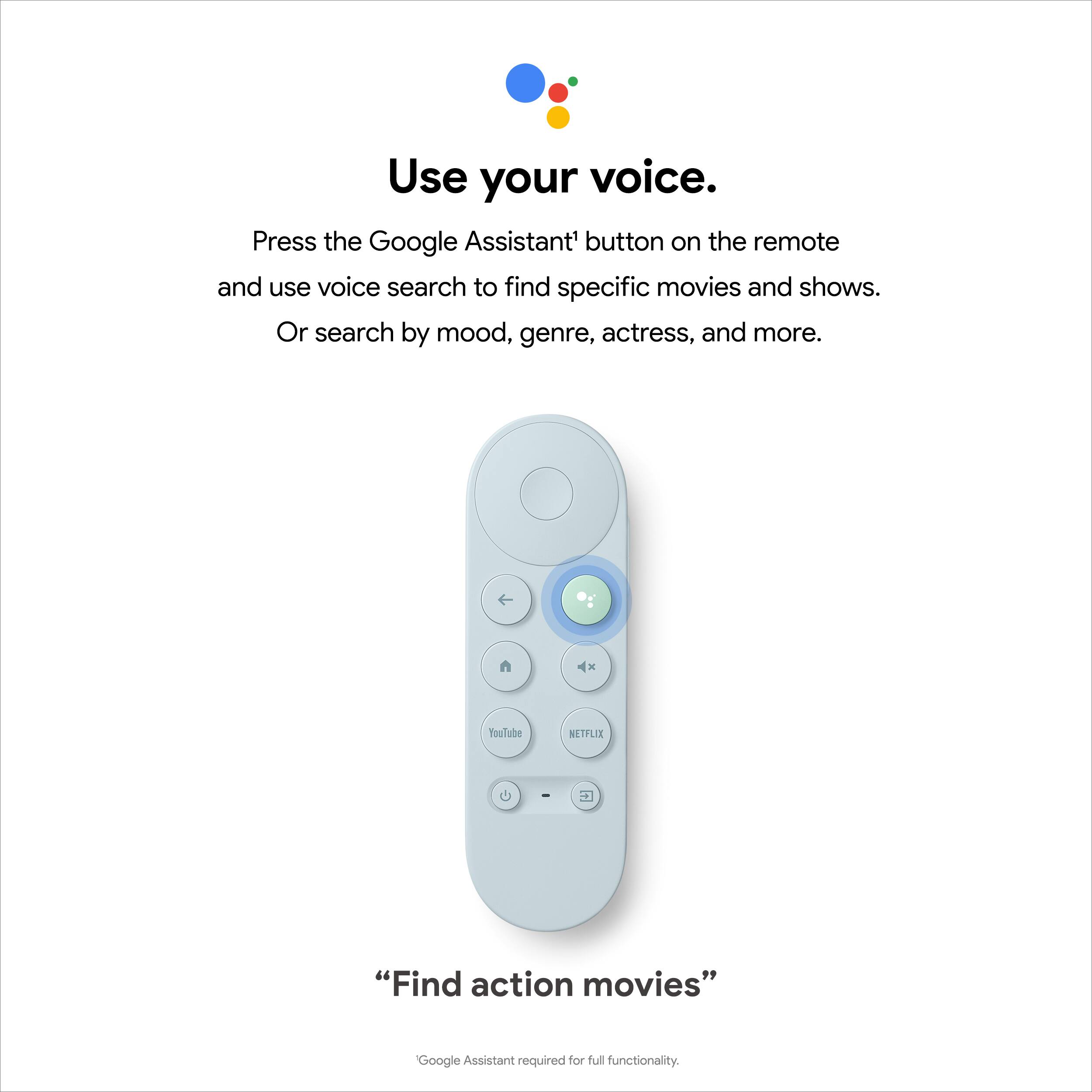
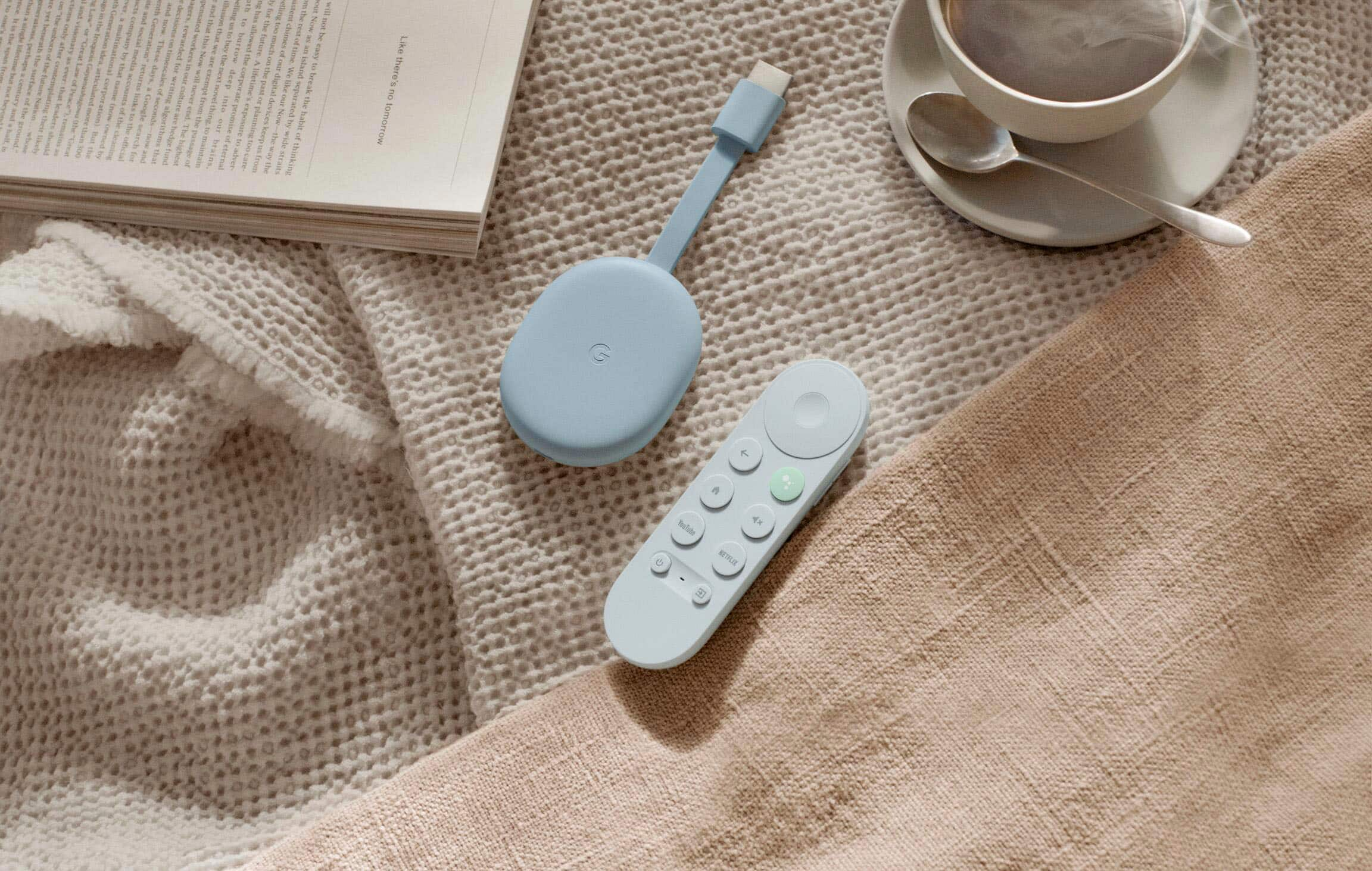
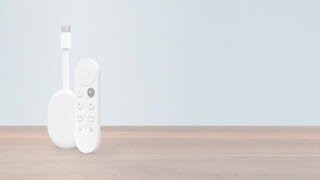
A:AnswerYou use the upper circle part of the remote to control all you basic functions like Pause, Rewind, Fast Forward. Quick touch 10 seconds or hold for FF or RW.
The center of the circle is pushed to Pause and Resume Play as well as enter for other things, wile the left side of the circle is used to Rewind and the right side of the circle is used to Fast Forward the show. The lower and upper part of the circle is used to see actors names, time left and total time of show as well as Rating for show like PG-13 during a show but used for movement to navigate around the screen at other times.
Your voice can control can also control these functions depending on what app you are using and how you started to watch that app. If you start watching something on Netflix all works perfect any way you want, however if you watch something on Prime Video it depends on how you started the show. For example if you start to watch something on Prime Video using the Voice control or the remote basically using the Chromecast to play the show you can use voice to Pause, Play, or Stop ONLY. But in this case you can not Fast Forward or Rewind by voice on Prime Video. However if you watch the same Prime Video show but this time it was started and cast from a phone or iPad using a Prime Video App on that device you would then be able to Fast forward or Rewind by voice as well using the same Google hub used earlier that would not control FF or RW would now work when started from iPad app. Confusing I know, Google Google Google.
With all that the voice is great when it works for Fast forward, and Rewind because you can say anything from Hey Google Fast forward 23 seconds to fast forward 1 hour 6 minutes or rewind in the same way. Google should know the room you are talking from and control that room without saying the room name. This is why you need to name the correct rooms for each device you install.
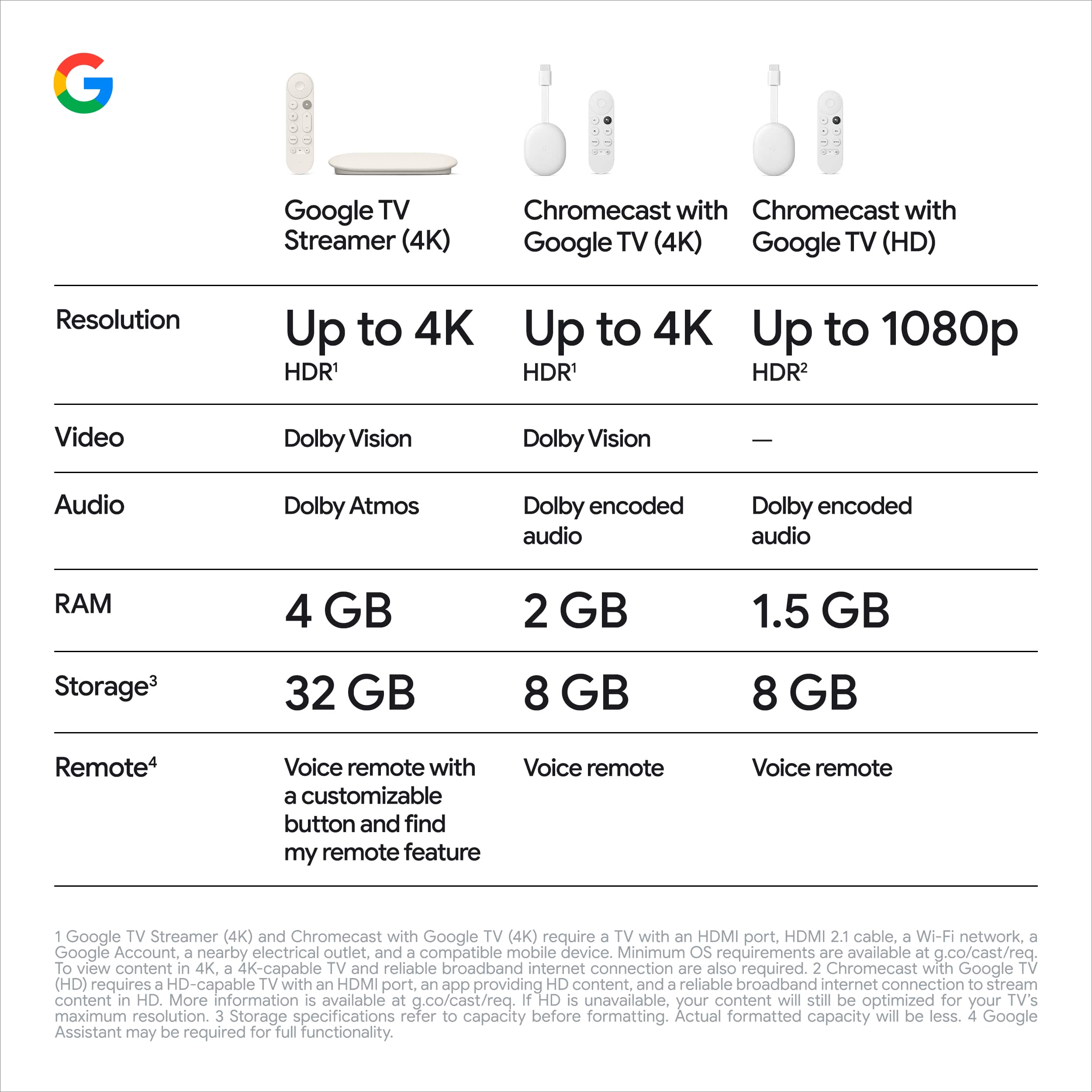
A:AnswerChromecast with Google TV was designed, exactly, to make your non-smart TV a smart one. It works with any regular TV or a computer monitor that's having an HDMI port. And, together with the Voice Remote, you can play your favorite videos using your voice command with the Google Assistant. You can come visit our Google Chromecast help page to learn more about Chromecast with Google TV here: https://support.google.com/chromecast/answer/3046409
A:AnswerWhile you can still cast to this like the original chromecast the new chromecast TV is more like a fully integrated viewing platform. It puts all your subscriptions in one place once you do the initial setup. For me I have Youtube, Netflix, Prime TV, and some Local TV apps (but so much more to choose from if you subscribe to them). When I turn on the remote power it powers up the tv and goes to the Chrome TV homepage where it shows your apps, and what you watched on them. You can talk into the remote to search across all platforms for a specific movie and show who has it and if its free or $. Its much more than just a casting device.
A:AnswerYes, you can pair Chromecast with Google TV on Bluetooth-enabled headphones, headset, or speakers to listen to the audio of the video content you're streaming.
A:AnswerThe power adapter of Chromecast with Google TV has an input of 100 - 240V AC, 5V output and frequency of 50/60 Hz. You may visit this page to get more information: https://support.google.com/chromecastkb/answer/9188703?hl=en
A:AnswerYes I have this plugged into a Marantz Sr6014. You can see my review which I just posted. You will note that I had to use an HDMI extender cord to get it far enough away from my receiver to be practical. Since this has no Ethernet connection adapter (yet) that can present some issues if you don't think out WiFi signal. I just got a long enough extender to run it up to my TV where I could hang it over a cable. Because of the relationship between the short HDMI cord and power cable which are on either end of the device, you have to put a little more thought into how you will arrange it.
As for how it works, it's on par with Firestick and Roku which I also have plugged into my AVR although they are Ethernet wired. I have an Eero mesh system and generally don't have issues with WiFi reception in my house so I can't comment on how well this device performs in that arena. A problem I have run across is not being able to get Dolby surround to play on Vudu or Peacock which work fine from my Roku Ultra. Where the fault lies there is beyond my comprehension. If you have large hands, like my husband does, you may find the remote difficult to operate. I have had occasional trouble with receiver switching streaming channels within this device than when using the Roku or Firestick but it has been minor. You can get more of my thoughts from the review.
Personally, if someone's receiver and pocketbook can handle it, I recommend at least 2 streaming devices. There are a myriad of reasons, differences in streaming services covered, audio codec (compatibility with receiver), device service being down, carriage disputes, video resolutions (compatibility with receiver), remote features, voice control devices like Alexa/Nest ... etc. My husband likes using the Firestick, we use Roku for it's audio capabilities with Premium content and I use the Chromecast for YouTube TV. I would not trade one for the other. They all have their ups and downs so it's really up to personal preference but, if you can, try more than one out.
Hope that helps a bit.
A:AnswerWhile you can't install Spectrum TV app on Chromecast with Google TV, you can still watch it on your TV by mirroring your Android mobile device using the Google Home app. Just follow these steps:
- Make sure the mobile phone or tablet is on the same Wi-Fi network as the Chromecast device.
- Open the Google Home app.
- Tap the device you want to cast to.
- At the bottom of the screen, tap Cast my screen.
- Tap Start now.
For a list of supported apps for Chromecast with Google TV, you may visit https://tv.google/#for-you
A:AnswerIt outputs on a standard HDMI port so it will work directly into a TV, receiver or projector. There is no audio out other than through the HDMI port so that would have to come out of the projector if needed. The Chromecast needs to be powered by a USB port, 1.5A min. or from the supplied (110V) USB power supply.