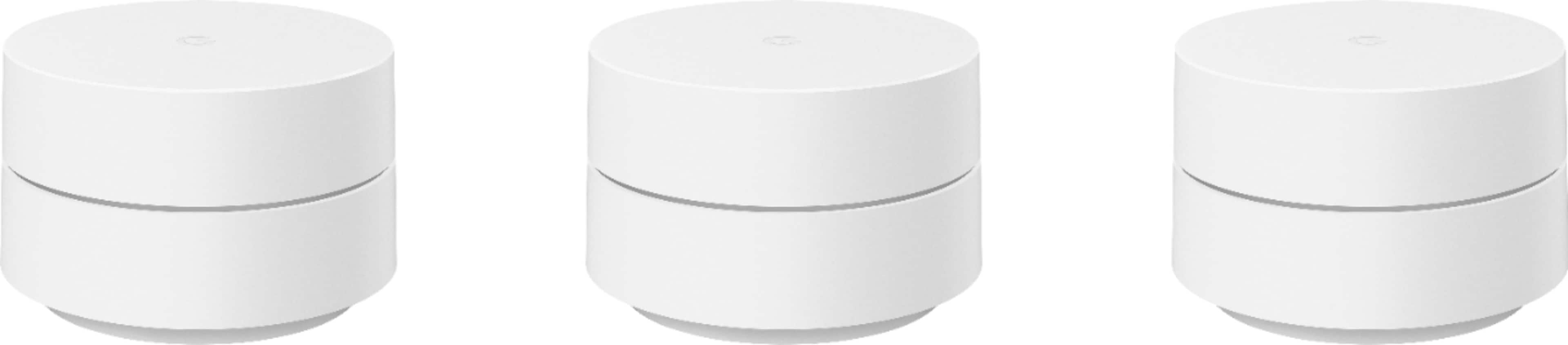
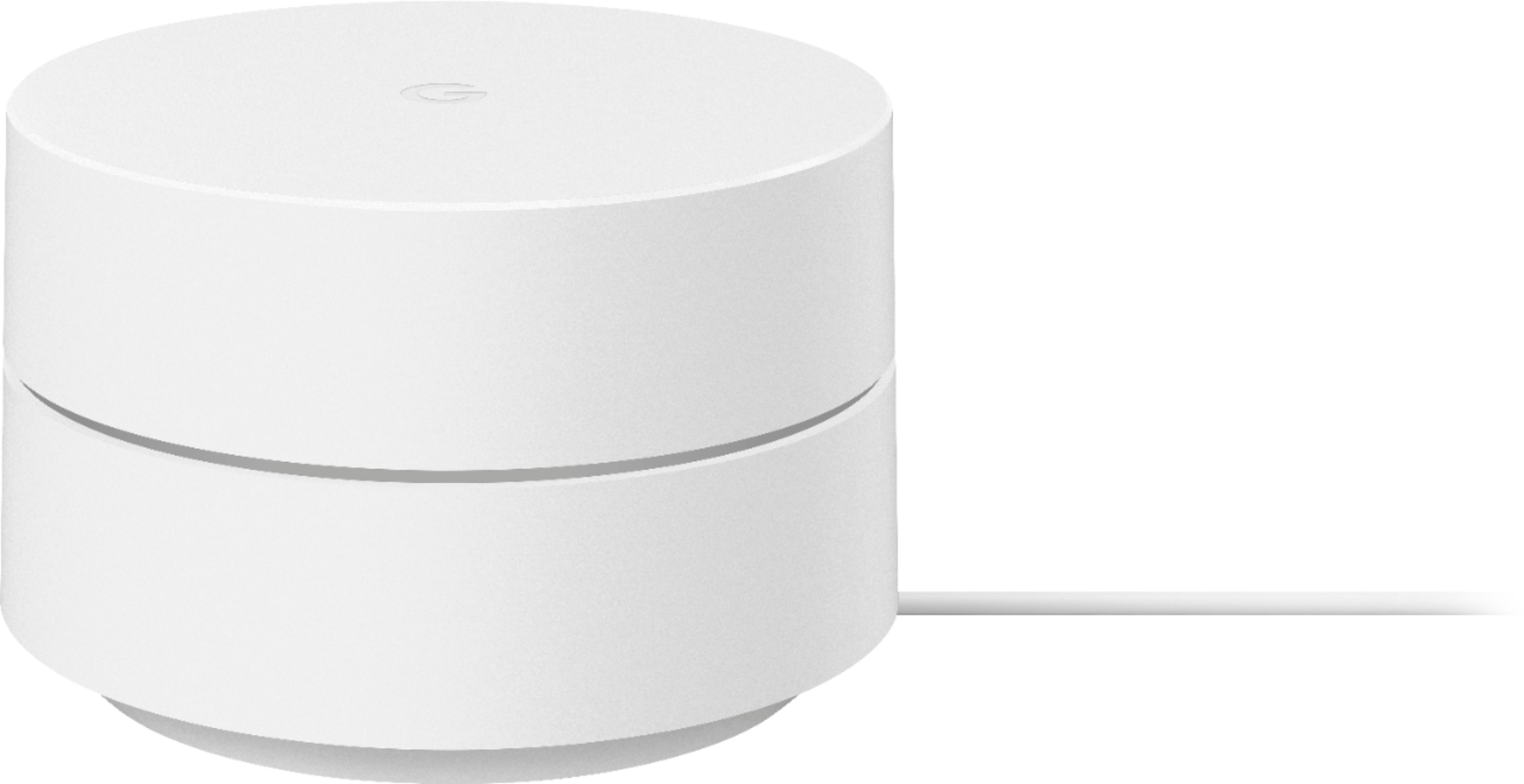
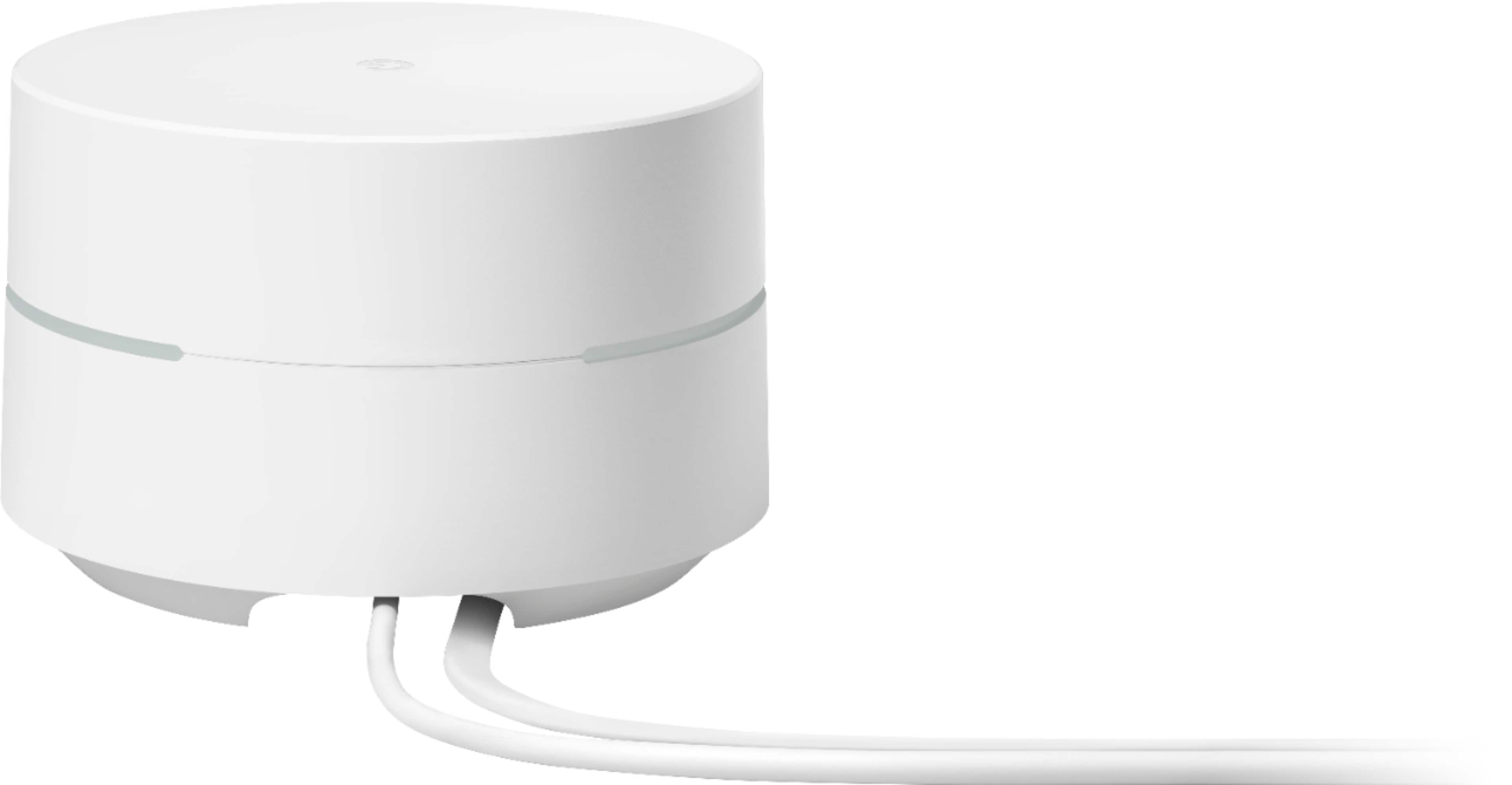
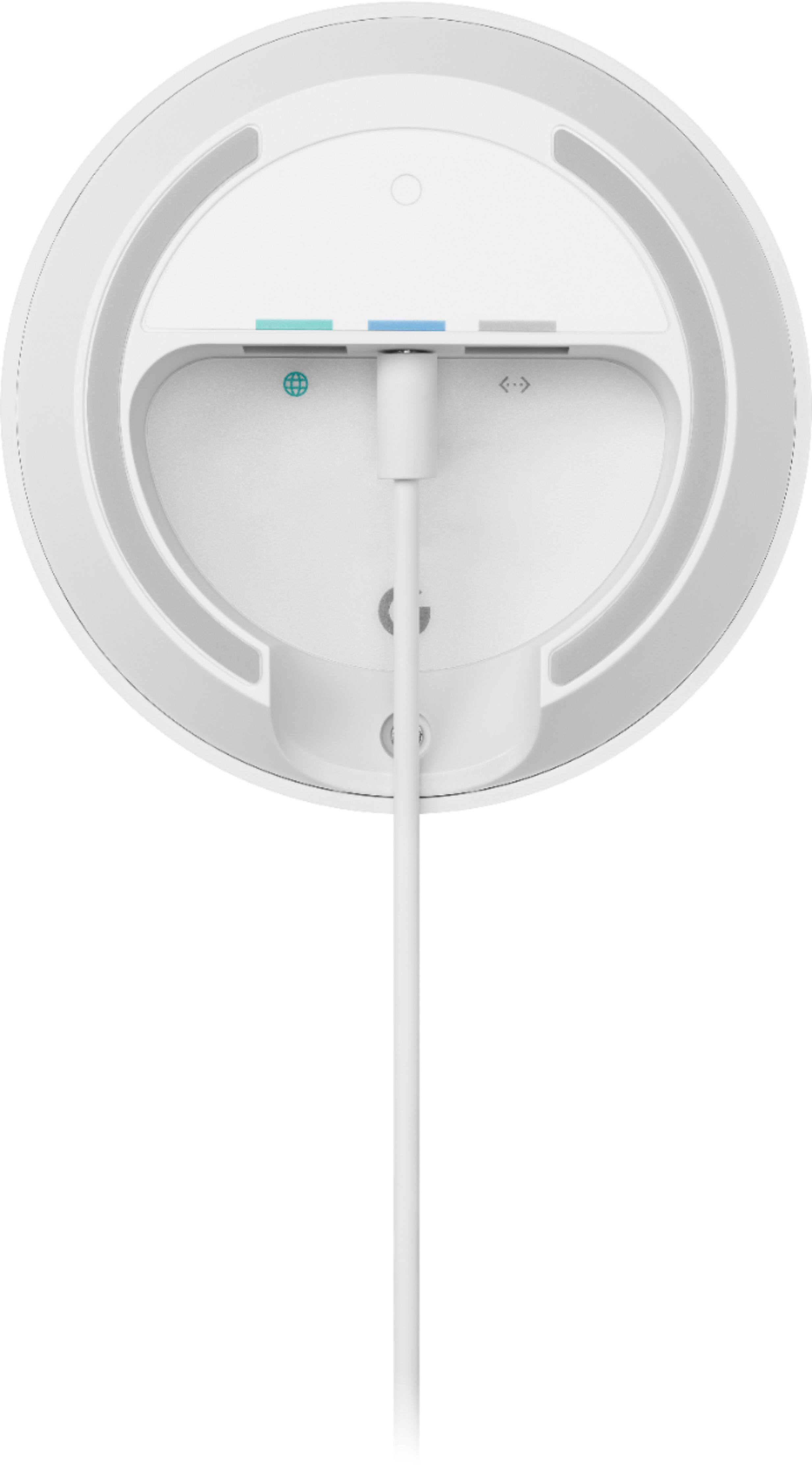
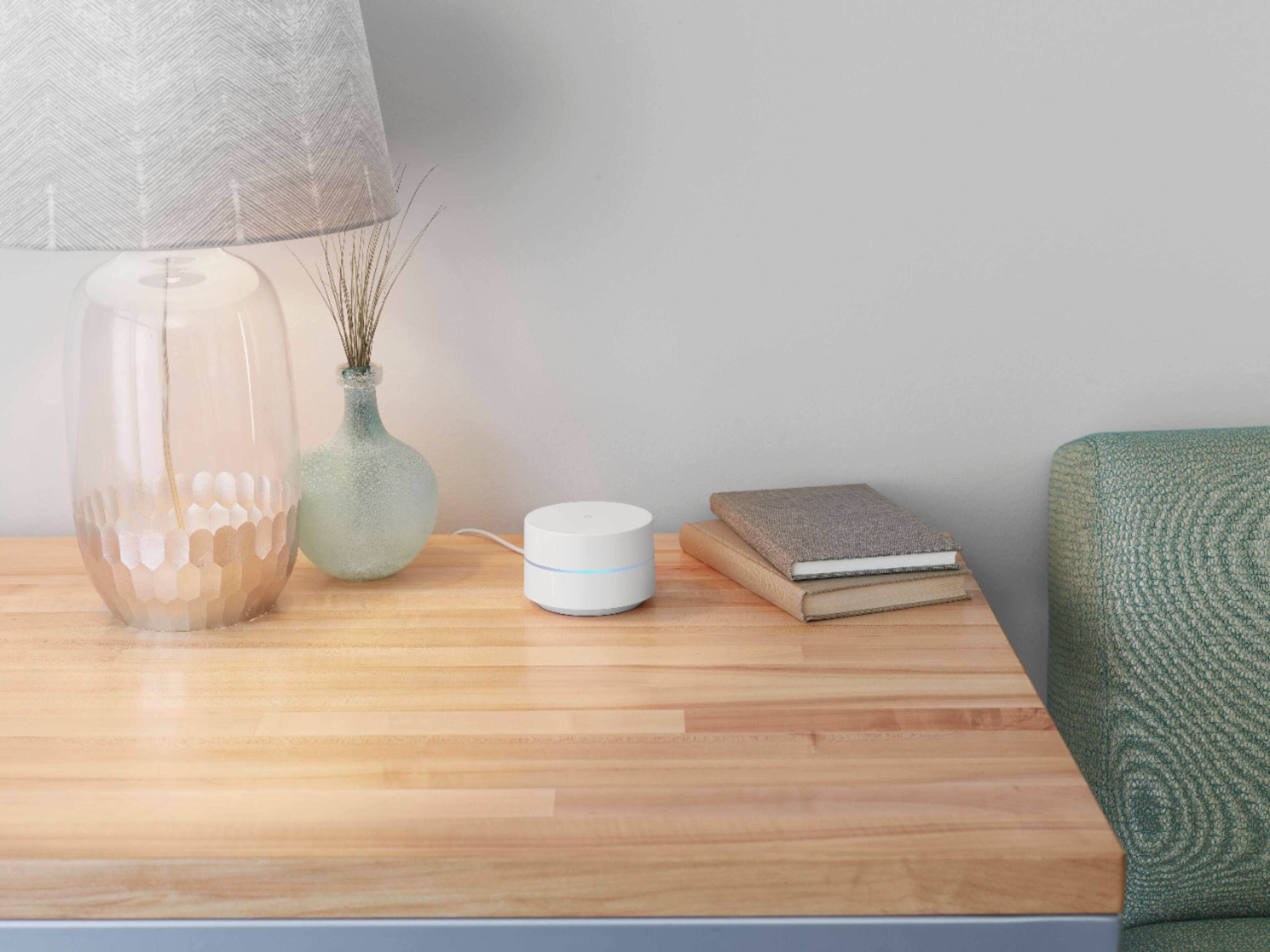
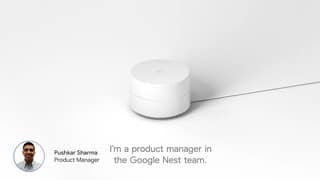
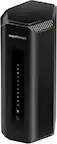
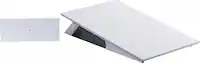
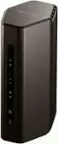
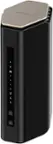
A:AnswerAll Google Wifi points has routing capabilities with 2 Ethernet ports, you can choose to set up any unit as your primary router and connect it to your modem via Ethernet. Then, add the other Wifi points as your child point wirelessly to create a whole Wi-Fi mesh setup.
A:AnswerI used these instructions for set-up:
https://support.google.com/googlenest/answer/7183148
And this video helped too:
https://youtu.be/wG4levqWSsM
Hope this helps!
A:AnswerI am not sure but it works perfectly. It was sent to me from a Best Buy warehouse. Nothing was missing but it was an open box. The cables were not as neatly bundled. Big savings on my side and I recommended it to friends. Really helped my wifi coverage through my house. Hope this helps.
A:AnswerYes. I have several switches downstream from the main router. I use ethernet backhaul for my mesh system. So switches are needed if you need to plug in more than 1 device.
A:AnswerAll three devices are the same. You choose one to setup as the primary point and connect it to your modem. The other two devices can be setup and connected to the primary point, then placed wherever you need WiFi extended.
A:AnswerAbsolutely! All Google Wifi (2016 and 2020 models) and Nest Wifi devices are compatible to create a mesh system. You can simply add additional Wifi points to your existing Google Wifi mesh system. We recommend a maximum of 6 Wifi points in a single mesh setup including the primary router. For an estimate of how much Wi-Fi coverage you’ll get with Google Wifi and a guide to how many Wifi points you need check here: https://support.google.com/googlenest/answer/7182840
A:AnswerGoogle Wifi is designed to replace traditional routers to provide seamless, reliable Wi-Fi coverage throughout your home. It works with most modems and internet service providers (ISP). You can connect Google Wifi directly to your modem with the Ethernet cable to set it up and broadcast your Wi-Fi network.
A:AnswerYou would plug these into your modem to create a mesh network for your home WiFi. It extends your range that can be utilized to connect your devices to the internet. I used mine to replace my router so I could stop paying the charge every month but you should be allowed to connect it to your router and extend your network that way also.
A:AnswerHello there, dovendaven! We appreciate your interest in getting an extended warranty for Google Wifi. We encourage you to contact your retailer to inquire if the device protection plan is offered for the refurbished devices. If you have additional questions, please feel free to contact us on our Google Help Page here: https://support.google.com/googlenest/gethelp
A:AnswerWell it’s been a year since you asked but since they asked me to answer I will. I connected these straight to my modem so I could get rid of my router so I didn’t have to keep paying for mine monthly. I’m sure you could connect it to the router to expand your internet channels but mine works just fine using these with only my modem and I have a lot of things connected at once.
A:AnswerI had the same problem with mine until I looked into it further and realized that it was a connectivity issue. Where i had it located was causing some interference and made the connection glitchy. I first had to bring it closer and reconnect it to the access point then I was able to move it to another spot in my home that didn’t have that problem. All my devices connect without an issue now. Hope this helps!
A:AnswerYes they do. I am the one who asked this question and I contacted Google before purchasing these. Now that I have installed them, I can say that they work fine with my earlier version of these.