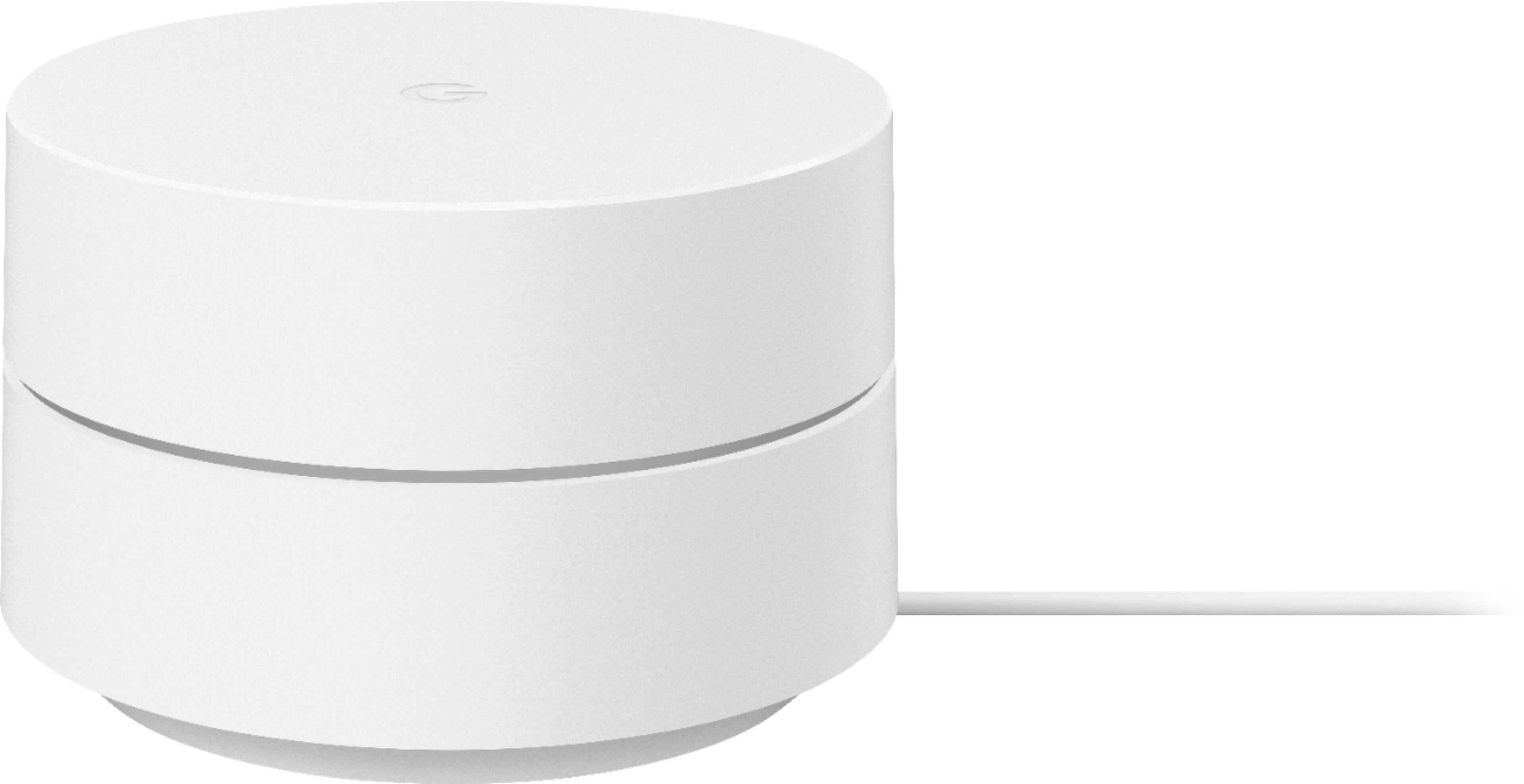
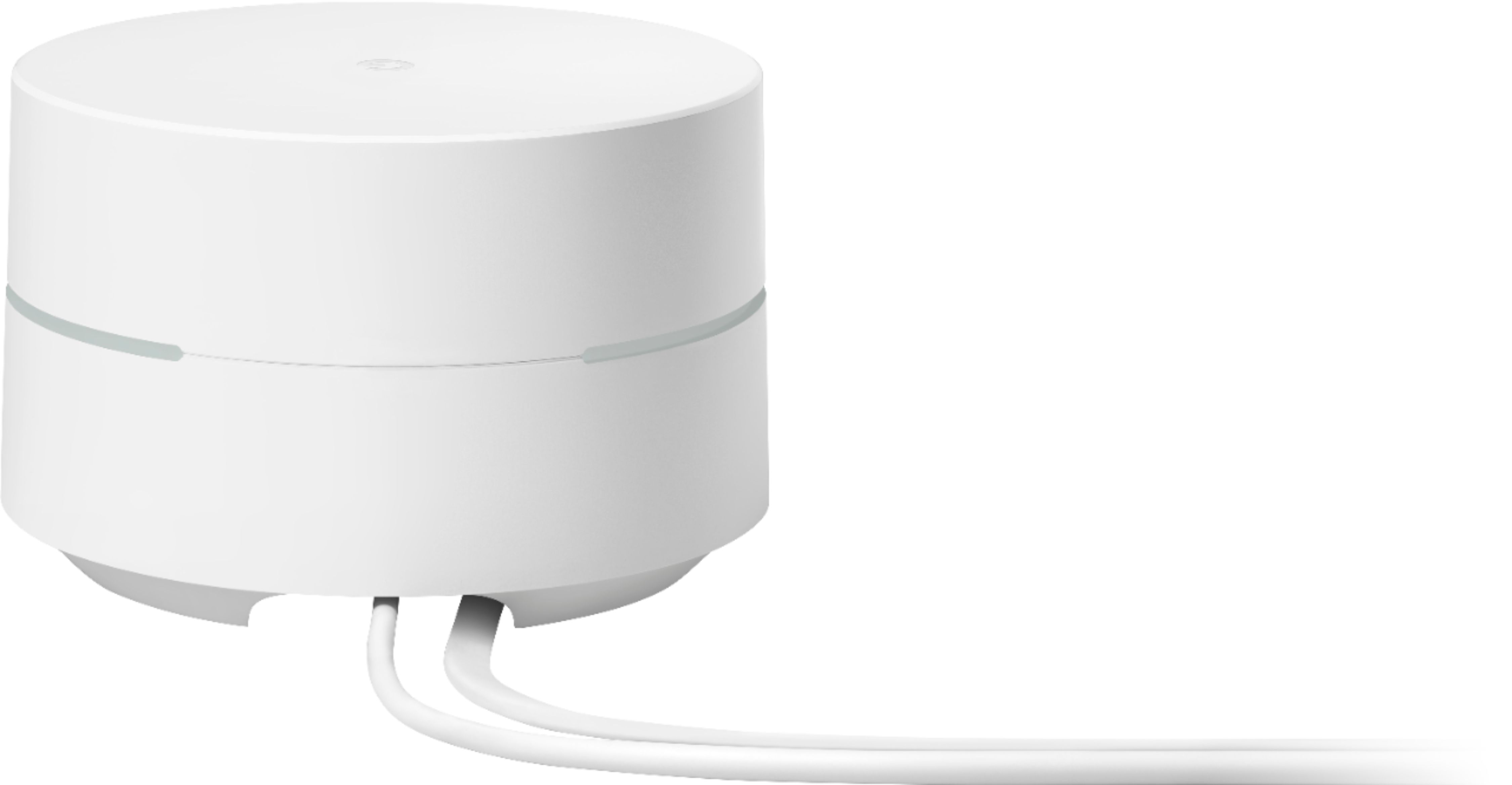
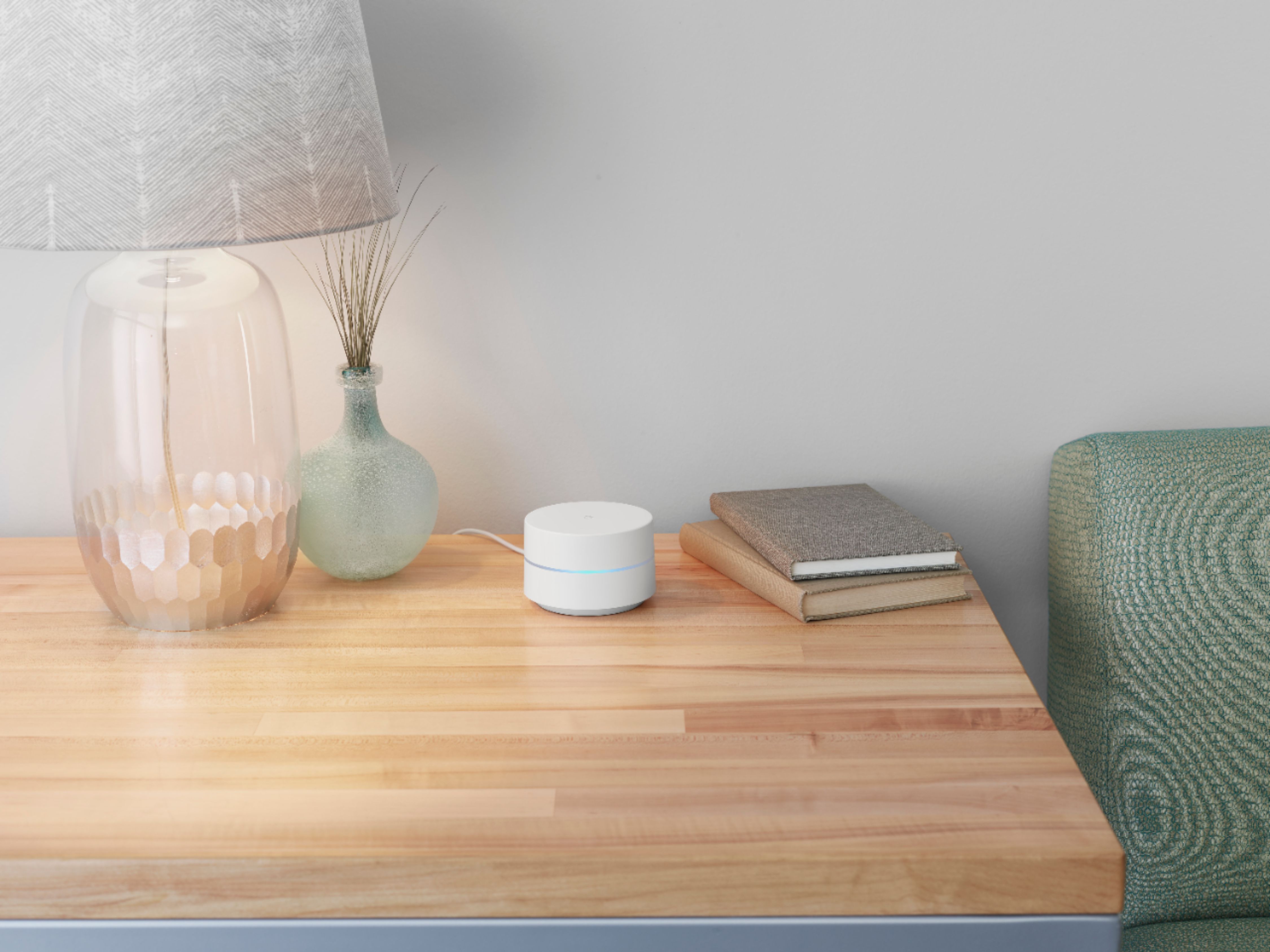
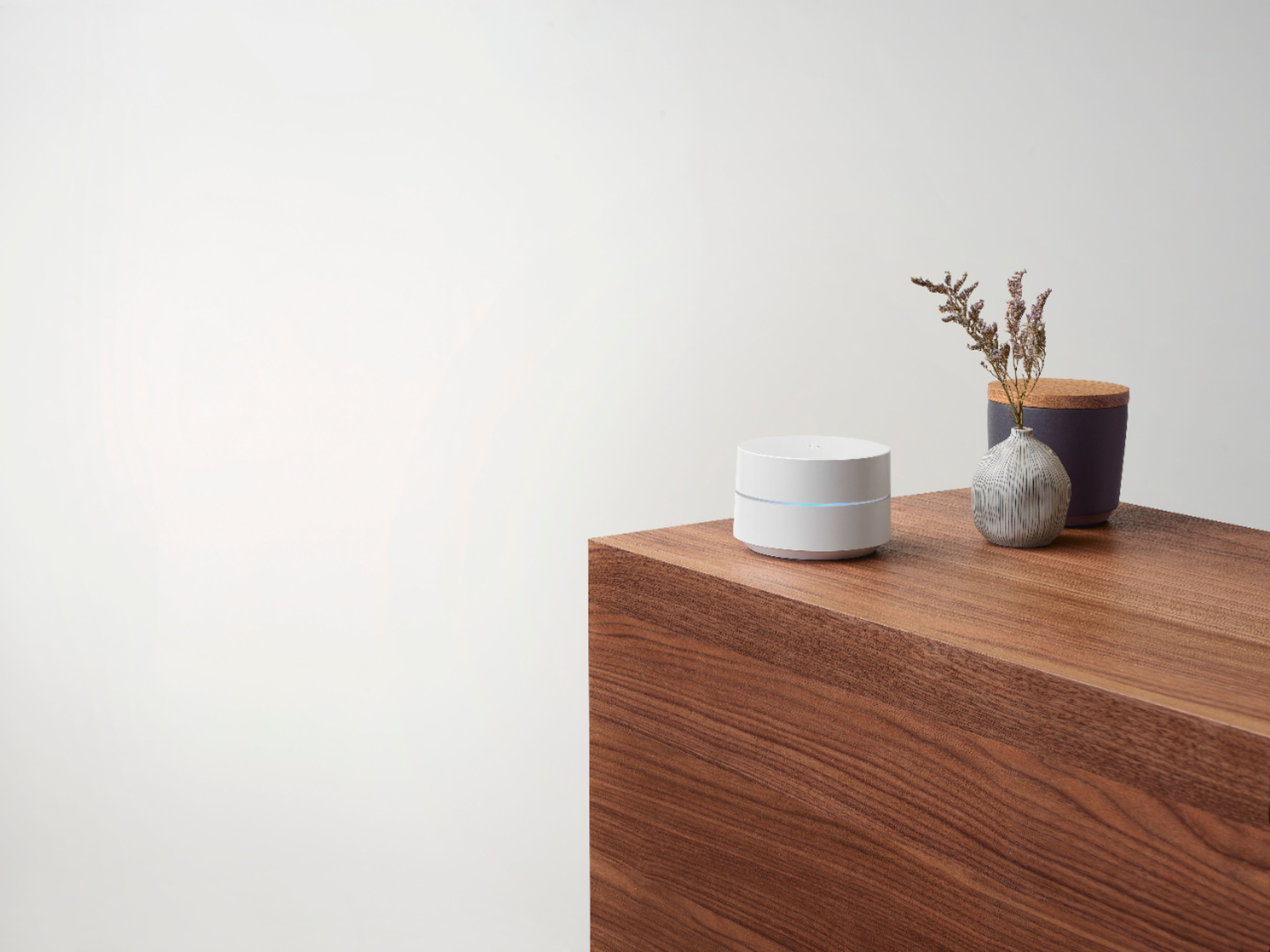
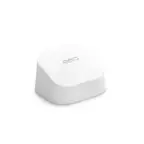
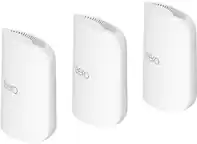
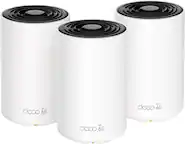
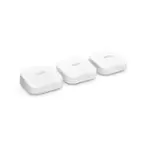
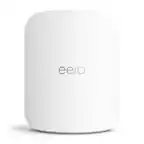
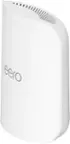
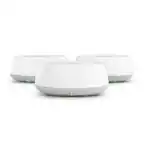
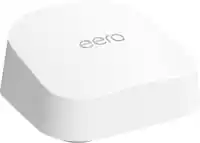
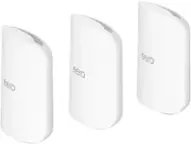
A:AnswerThis mesh system is used as a replacement for your router. You still need to use a modem, which is not supplied. Connect one of these units to your modem and the other two around your house, setup is a breeze.
A:AnswerI'm not sure the question is really answerable because there are way too many variables, including the quality of the WiFi receiver in the testing device and differences in the testing procedure between apps. But, just to give you an example from my house, I am sitting upstairs from the hub about 10 feet from a mesh point, that on Google's test gives 950 down and 50 up, and using my Google Pixel 4a 5G cellphone on my Wifi network and the Speedtest (which selects a different node for testing) I get 65.4 down and 47.5 up.
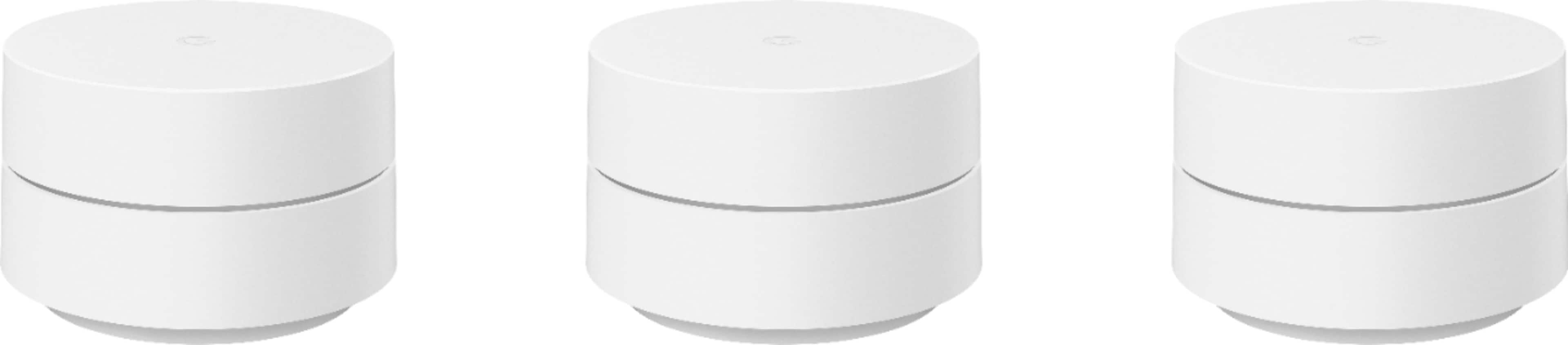
A:AnswerThese don’t make your wifi any faster. They simply make it so there are no dead zones in your house. If you are experiencing the buffering the further you get away from your router, they will help. If you are experiencing it right in front of your current router, they won’t. Hope this helps!
A:AnswerTechnically, you can have the modem/router combo and the Google Wifi system running at the same time but it will be a networking nightmare for you. Your best bet (assuming this is possible) is to log into the Fios modem/router combo, disable the wireless in that device, and configure the Google Wifi to handle the wireless for your home.
https://www.verizon.com/support/residential/internet/home-network/settings/turn-off-wifi-access
Assuming you can do that, it is very easy to set up. You can also request a modem only from your internet provider and use that instead. I had to do that with Comcast a few years ago because they removed some of the configuration options for my modem/router combo.
A:AnswerDefinitely! You can expand your Google Wifi mesh system by adding more Google Wifi or Nest Wifi devices. Ideally, we recommend a maximum of five Wifi points in a single mesh set up. You can check this support article help you with an estimate of how many Google Nest or Google Wifi points you need: https://support.google.com/googlenest/answer/7182840
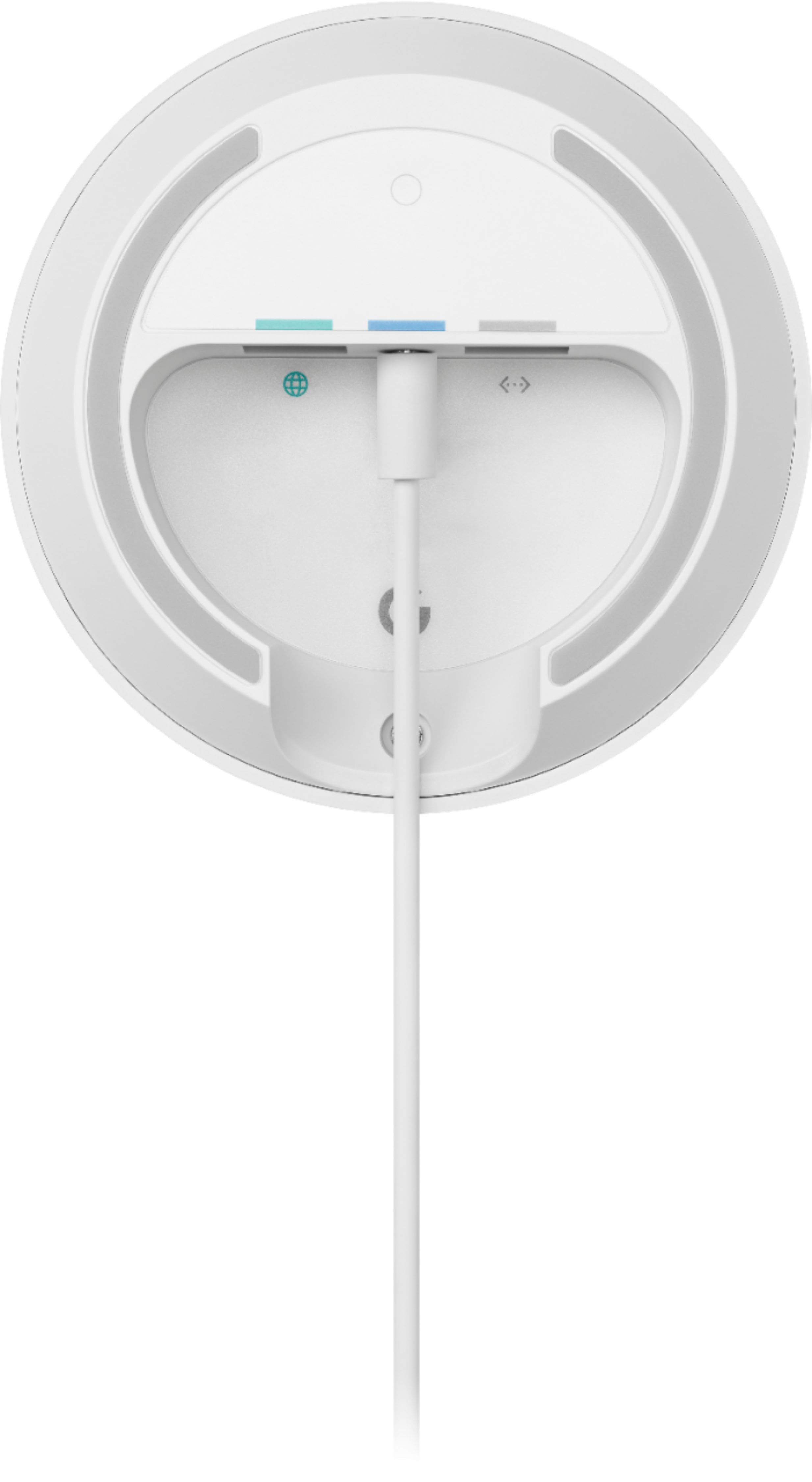
A:AnswerYou can use this system with a cable-supplied modem, which is what I do. I have Spectrum internet and the setup was easy. Simply plug the ethernet cable from the modem to one of the units (doesn't matter which), and then place the other two units anywhere in the house. Hope this helps.
A:AnswerNo. they do not. WiFi points only. The advantage is that each of these also has an ethernet port. With the Nest WiFi only the router has an ethernet port and is NOT a virtual assistant/speaker.
A:AnswerIt depends on the brand of phone. I know Google has a list of compatable outdoor cameras and it works great with Nest cameras both indoor and outdoor.
A:AnswerI think you are mistaking this product for the similar google nest wifi. This system is not equipped with google assistant and therefore does not have any microphones on any of the nodes.
A:AnswerTwo Google Wifi points or a mix of Nest Wifi router and a Wifi point should cover the needed Wi-Fi signal coverage for your 2500 sq ft home as a standard layout. However, the thick shear walls in your home can cause a lot of interference to your network's Wi-Fi signal. You may strategically place Google Wifi points no more than 2 rooms away from each other as a general rule, and within a clear line of sight to your connected devices to get the best signal coverage and optimal performance. To check the number of Google/Nest Wifi points needed, click here: https://support.google.com/googlenest/answer/7182840
A:AnswerThe most distant node, in my four node network, is about 35 feet horizontally and one floor vertically away from the central node and shows a good connection when I run the Google mesh test.
A:AnswerGoogle Wi-Fi is setup from the Google Home app. This app is normally associated with your Gmail account.
After setup of the system, you would have to give someone access to make any changes to the network name and password. Google Wi-Fi does not use a website login with a default admin name and password to make changes.