A:AnswerNo, Steam is a Windows product. There is work being done to use the linux version of Steam on a Chromebook as Chrome is linux based. But it is not available yet, and is not a practical thing to do.
A:AnswerThe battery life for this Chromebook is up to 10 hours. Battery life will vary depending on various factors including product model, configuration, loaded applications, features, use, wireless functionality, and power management settings. The maximum capacity of the battery will naturally decrease with time and usage.
A:AnswerBecause this is a Chromebook, it's meant to do most of its work online. And with having only 32 gigabytes of storage, you'll struggle to install all of the software that you want. A conventional Windows 10 Home laptop would be a better fit for what you want to do.
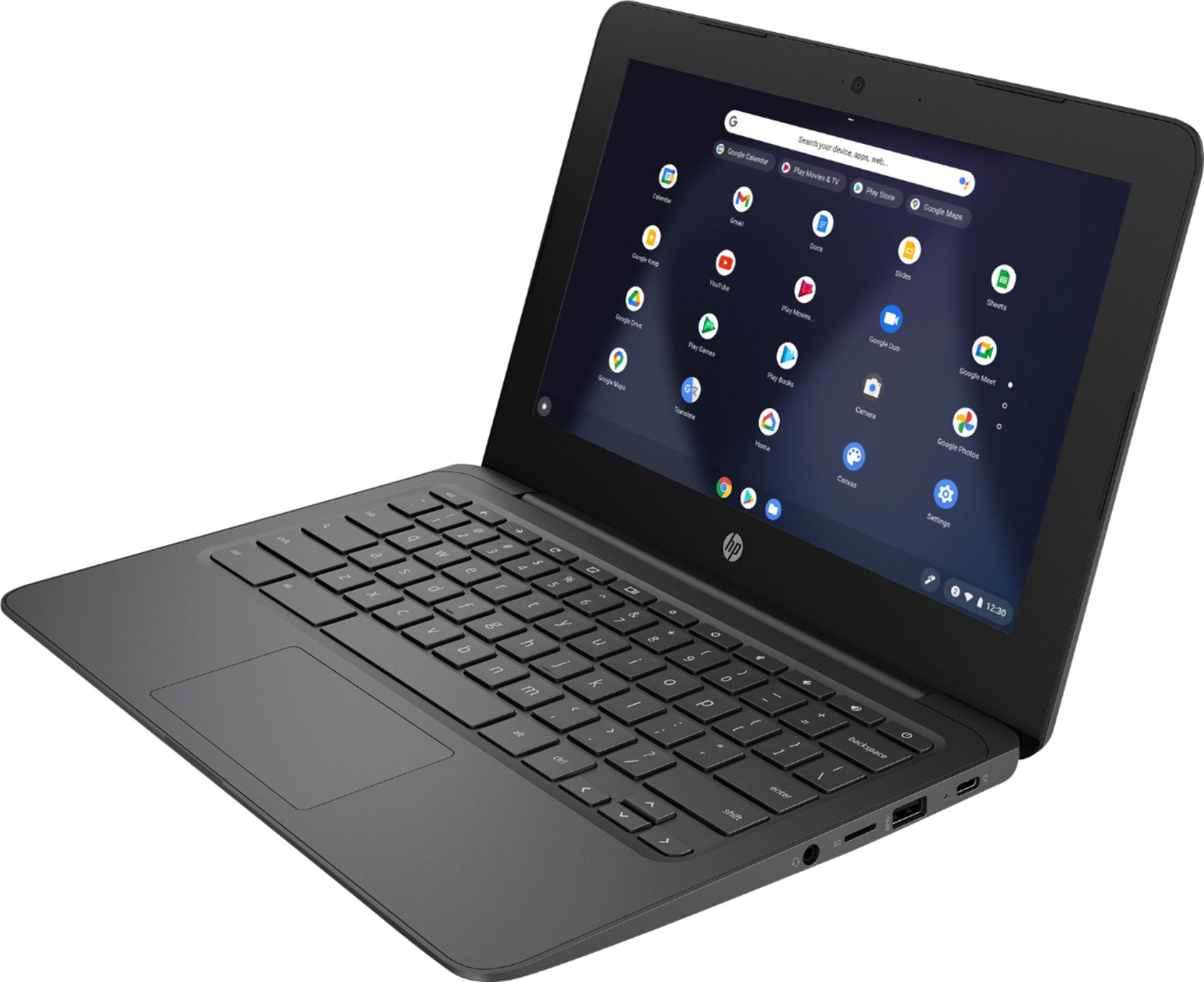
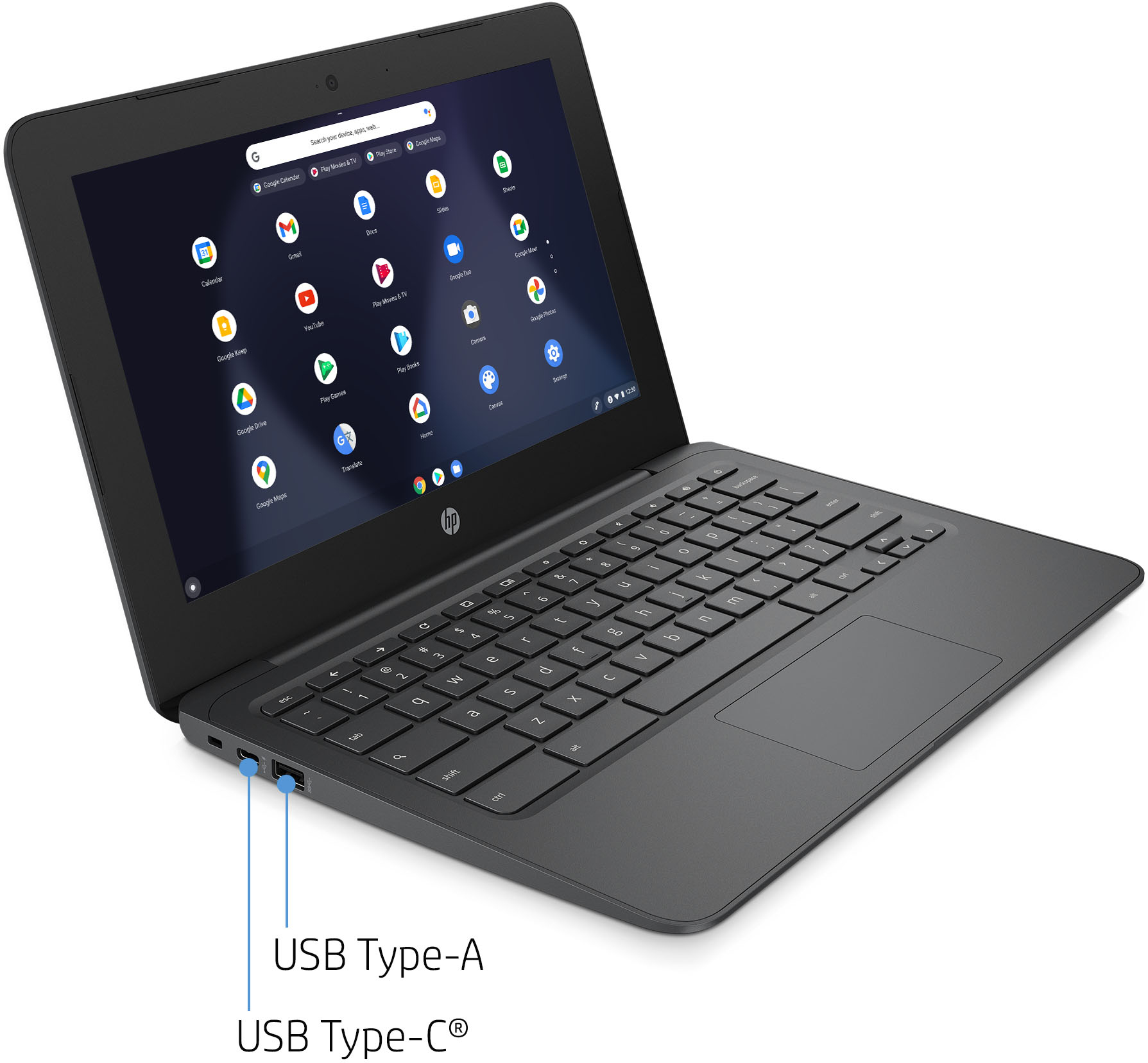
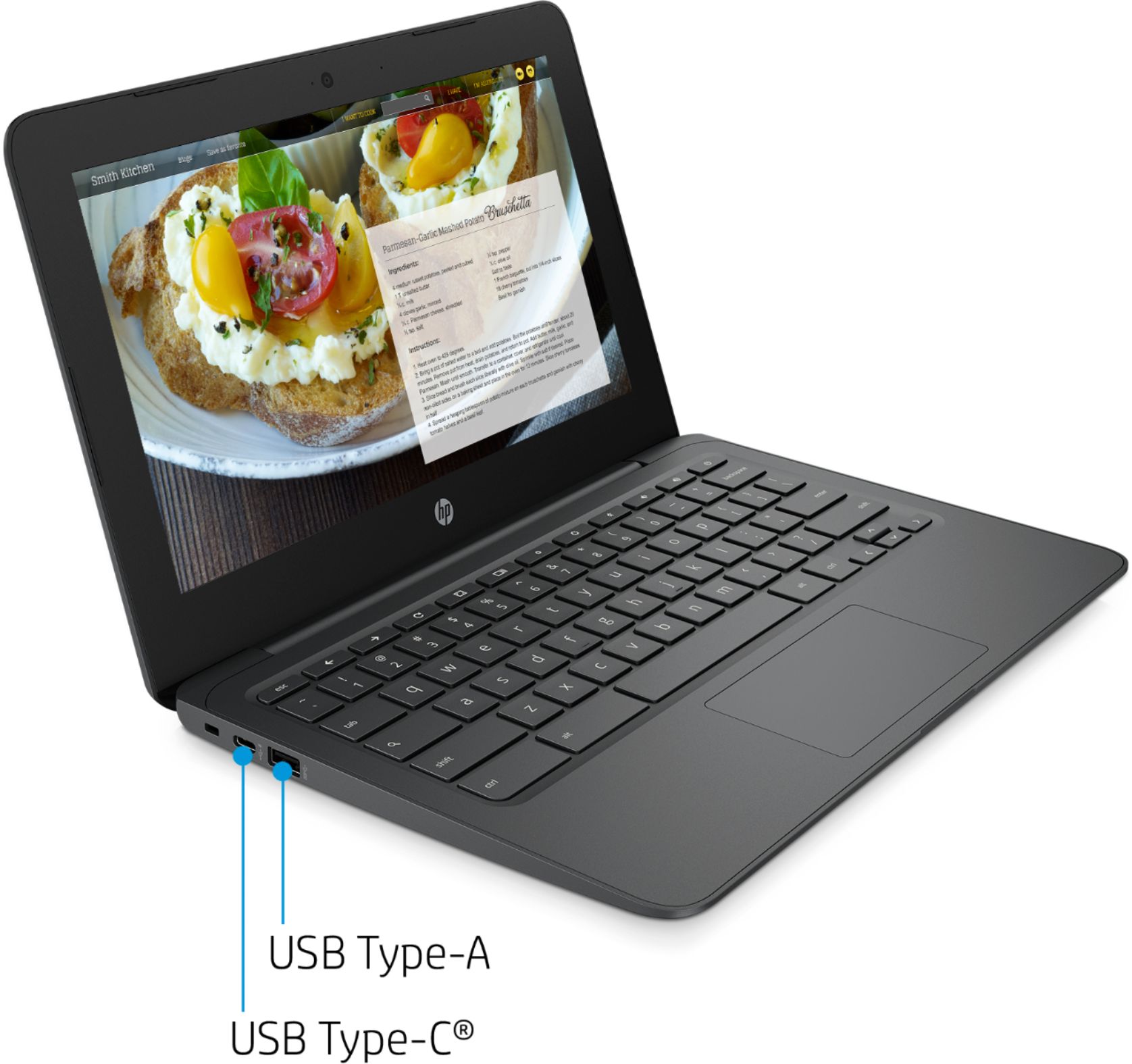
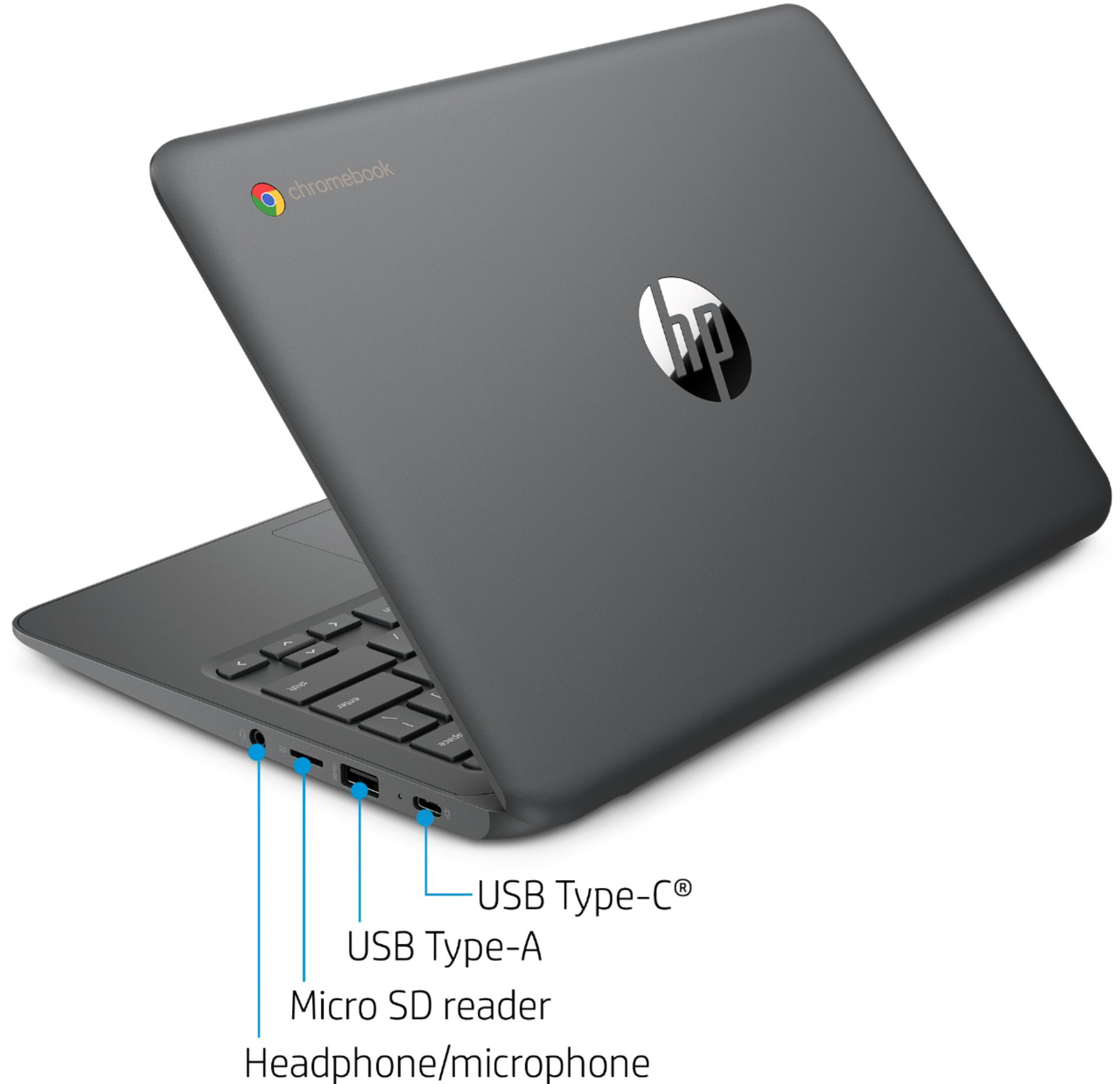
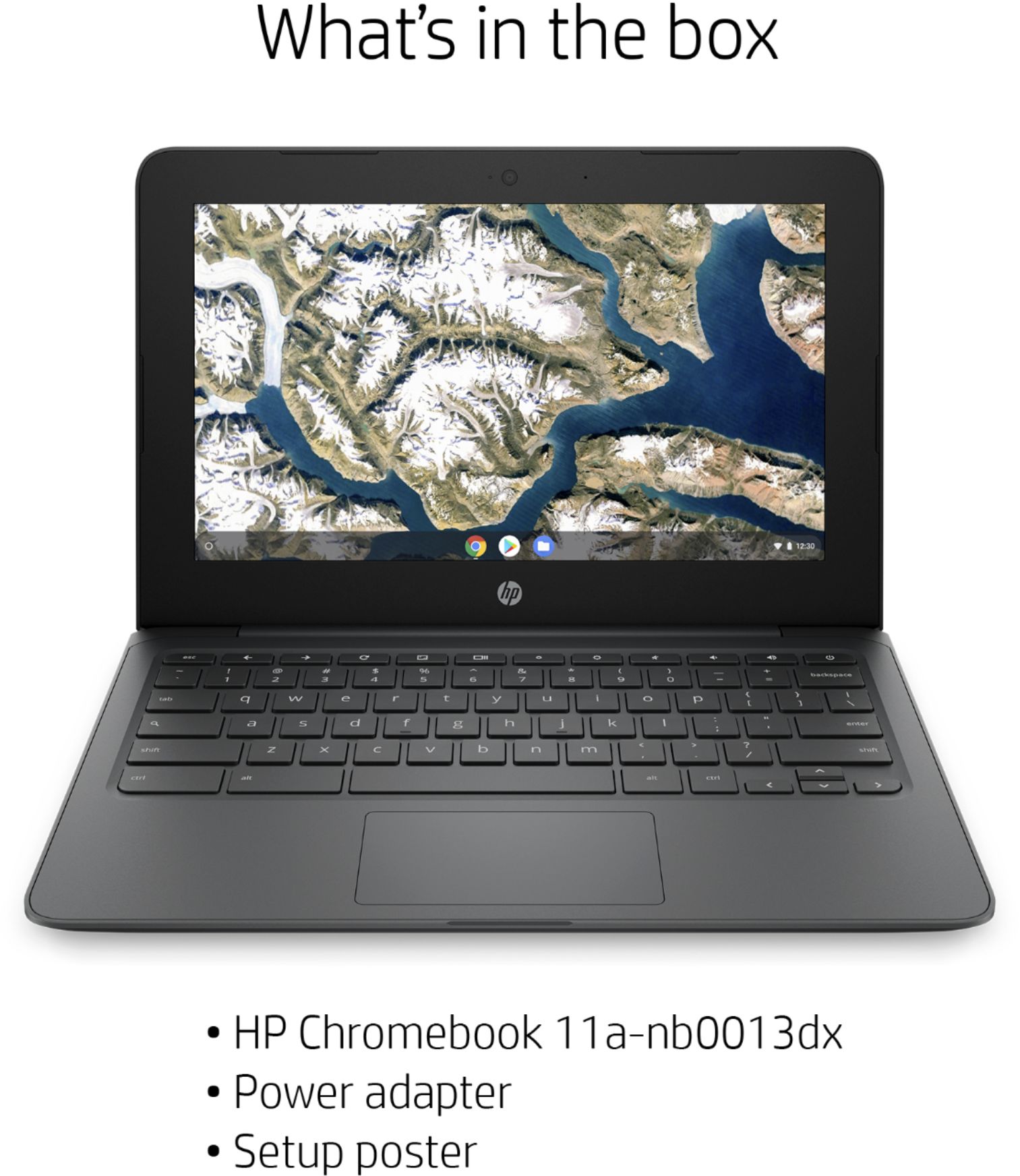
A:AnswerThe HP Chromebook 11A-NB0013DX does not have an HDMI port. You would need to use a USB-C to HDMI adapter to connect it to an external display using an HDMI cable.
A:AnswerYes, there are android versions of these games that you can download from the Google Play store. You wont need antivirus software on a Chromebook. No you cannot upgrade the memory. You can use a micro SD as storage or a USB flash drive.
A:AnswerIt runs the full Chrome browser, so yes. But, Adobe is discontinuing support of flash this year, so flash in general will not probably be supported by anyone past 2020, ChromeOS, Windows or otherwise.
A:AnswerSo basically, there are two ways you can play the game. The following are both methods explained and analyzed, so you don’t confuse yourself when it comes to the actual downloading part on your side.
Option #1: Just Google It
So, if you type in Solitaire on Google’s homepage, your first search result will be nothing but the game solitaire.
Next, click on Play, and you’ll see the game loading and starting up. Choose your AI’s difficulty to get the fun rolling. Here’s a screenshot that lets you know how it looks in the final
Option #2: Play Store to the Rescue
Furthermore, we have the trusty Play Store with more than 2 million apps at our disposal, so not going any wrong from there. Fire it up using your Launcher and follow the steps ahead to download the card game and enjoy it with friends and family.
1) After you’ve opened the Google Play Store, you should see a search bar that’s meant for you to look for the app you need to download. Type in “Solitaire” here without the connotations.
2) You should be seeing many search results now after you type Solitaire in the bar, like the screenshot below. Press enter to continue.
3) After you’ve pressed enter, click on the first search result to continue downloading Solitaire on your Chromebook.
Installing Solitaire
4) Click on “Install” to begin the download. A card game like Solitaire doesn’t take up too much space, so this will be reasonably quick. First off, a prompt will appear to confirm that the process has begun, and the application will install shortly.
Installing Solitaire Part II
5) Now that the game is finally installed, go to the Launcher to find it on your Chromebook. Click on it to start the game and let the thrill take over from
How to Uninstall Solitaire
The game not being of interest anymore, and you feel like it shouldn’t remain in your Chromebook? No worries- because you can uninstall it in an instant. The following steps elaborate on the process and clear you of any doubts while getting rid of the game.
1) Go to the Launcher and double click on the Solitaire app by tapping on your touchpad with two fingers simultaneously.
2) Click on Uninstall to delete the app from your Chromebook. It’s as simple as that.
A:AnswerMine I have to hold the power button for like 15 seconds until I see a flash on screen. My sound went out 2nd time to use it. Best buy won't even answer a question. because I had to stored in box and never used it. The thing was a gift from my wife. now warranty is out,