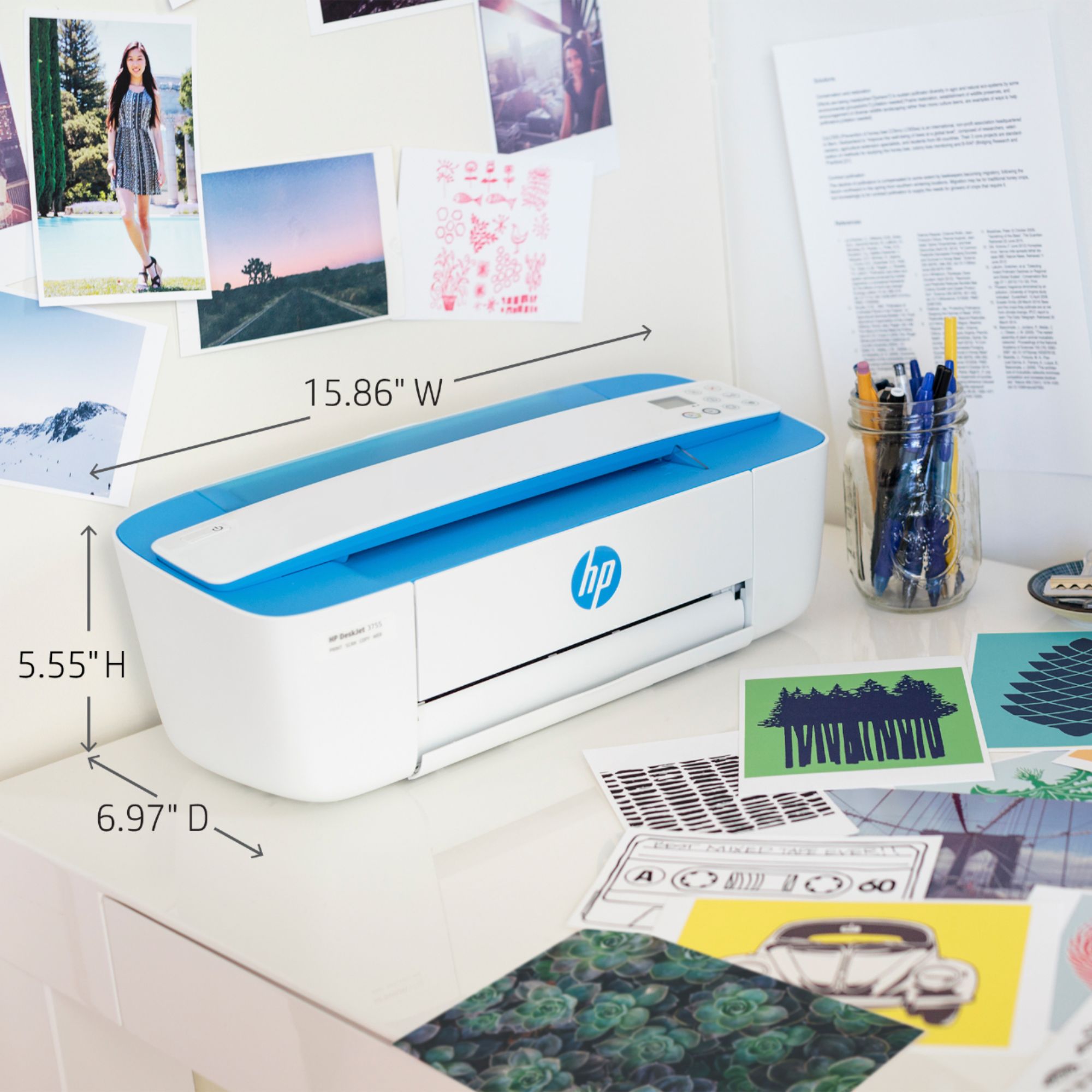
A:AnswerHi Paul, thank you for the question. The DeskJet 3755 prints up to legal size (8.5 x 14"). For 11 x 17", you'll need a large format printer, like the OfficeJet Pro 7740. See it here: https://www.bestbuy.com/site/hp-officejet-pro-7740-wireless-all-in-one-inkjet-printer-white/5536900.p?skuId=5536900
A:AnswerHello, Linda. This HP Deskjet 3755 printer cannot connect to the 5 GHz WiFi band. That just means you need to connect to the 2.4 GHz WiFi band. One thing you can try is the HP Print & Scan Doctor for Windows to see if it can diagnose the issue for you. Here is a YouTube video: https://youtu.be/KpjzDW1udIw Or you may need to look at your wireless router settings to see if what you need to change so you can see the different WiFi bands. You may have different ones already up, they would look like WiFi network name and WiFi network name 5G. The WiFi network name may be 2.4 GHz. The WiFi network name 5G would be the 5 GHz. If you need further assistance with your WiFi router, we recommend reaching out to their tech support.
A:AnswerI would say that that will depend on the strength of your wifi connection. You should be able to, but it will require a 'solid' wifi connection.
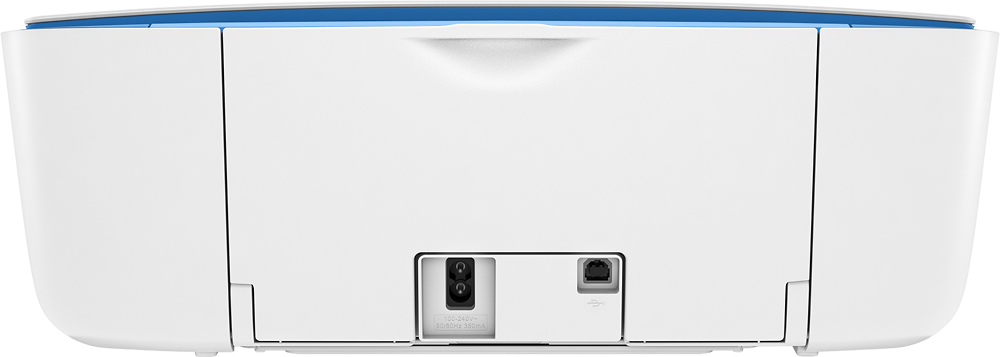
A:AnswerThank you for your question! You can connect to this printer with a USB cable, however the initial setup process requires an internet connection (without USB) to update firmware and install drivers. The easiest way to set up and connect to this printer will be with the HP Smart app, so please make sure you can access this app from your operating system first.
A:AnswerYou should have no problem. The computer should grab the Big Sur drivers during the installation process. If it doesn't, you can get them from the HP website.
A:AnswerThank you for reaching out! If your device has Windows 10, an internet connection, and 2GB of hard drive space for the software, it should work. Try connecting with the HP Smart app if you have not yet: https://123.hp.com. If that does not work, please contact HP Support here: https://support.hp.com/us-en/contact-hp.
A:AnswerHi AJ, apologies for what you're experiencing. If you've removed the tape from the cartridge (without touching the metal plate), check to be sure that the cartridges are installed correctly, with a "click". The easiest way to check for "ready" status it to use the HP Smart App. It will also tell you the ink levels. If the ink level is zero, or you don't have a "ready" status, there's a problem. Please reach out to support.hp.com for assistance. Please review this HP Support video: https://www.youtube.com/watch?v=zOUZFbOj7Jg