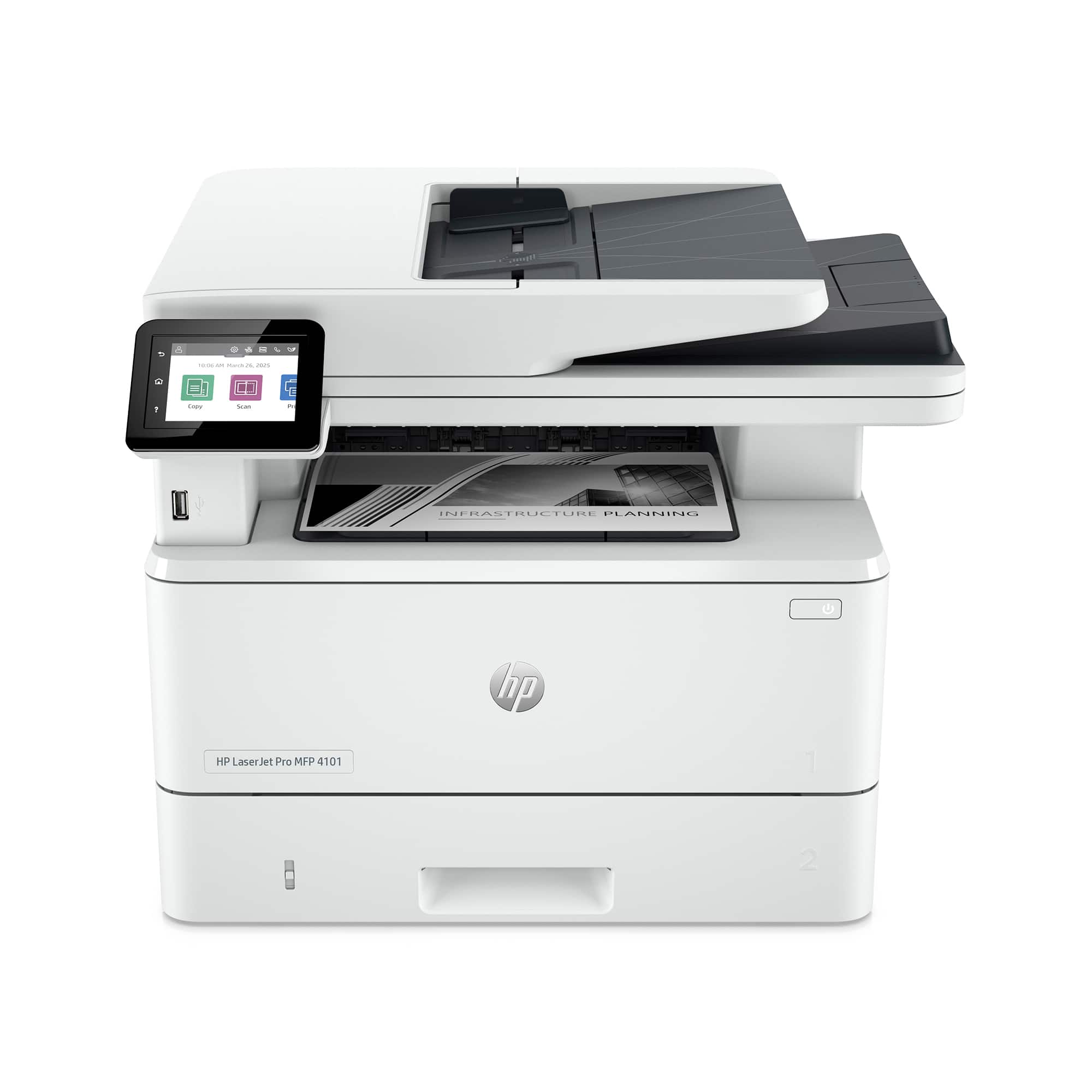
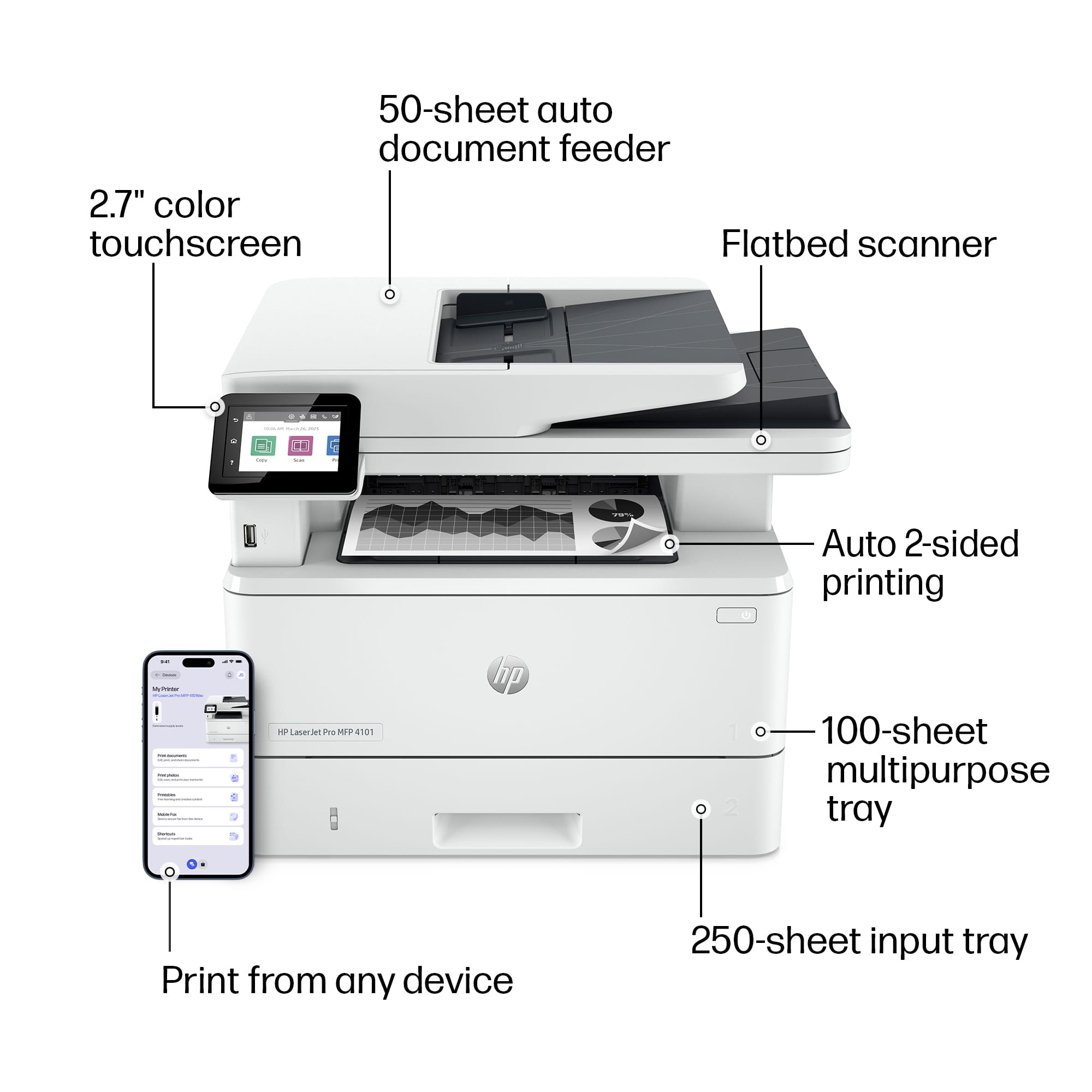
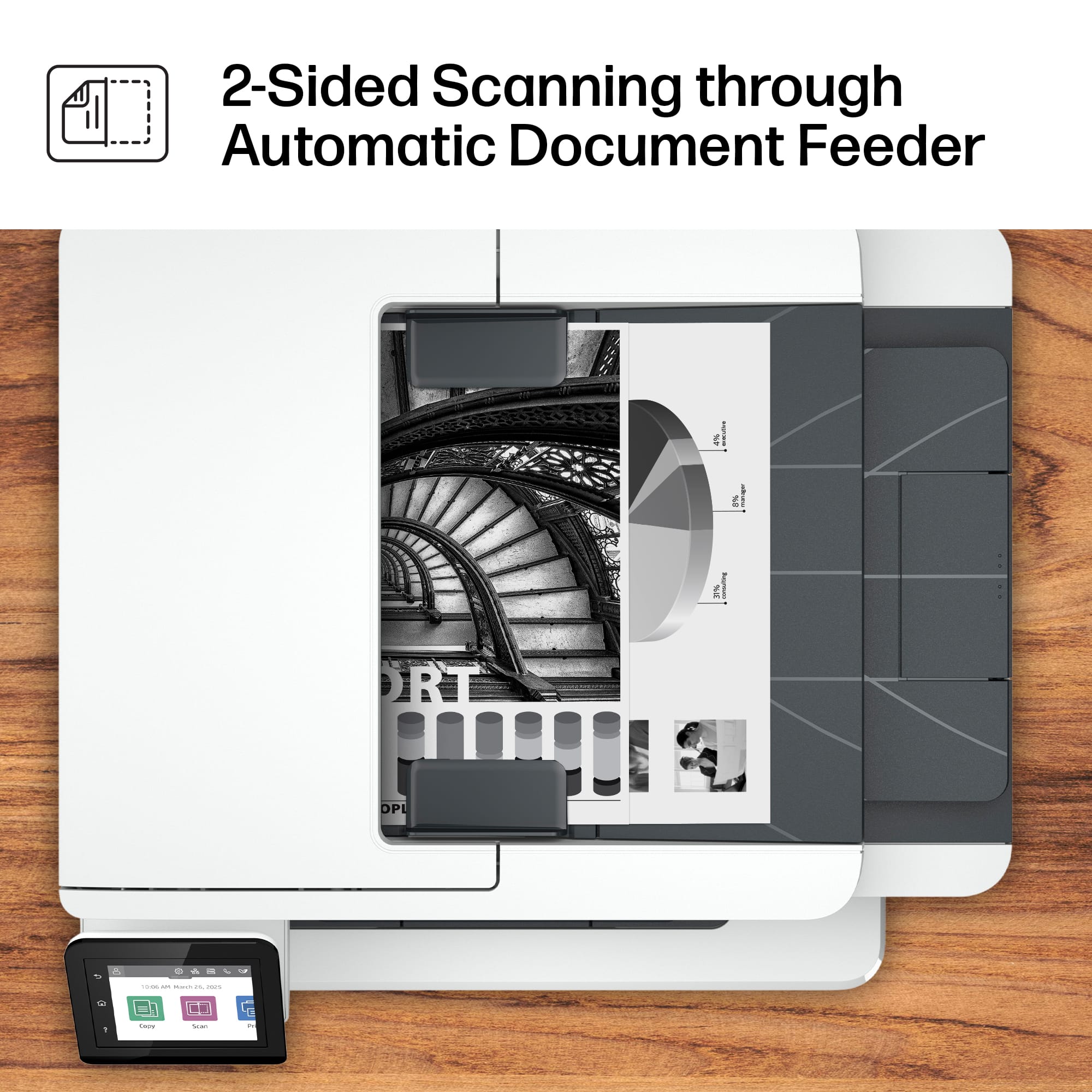
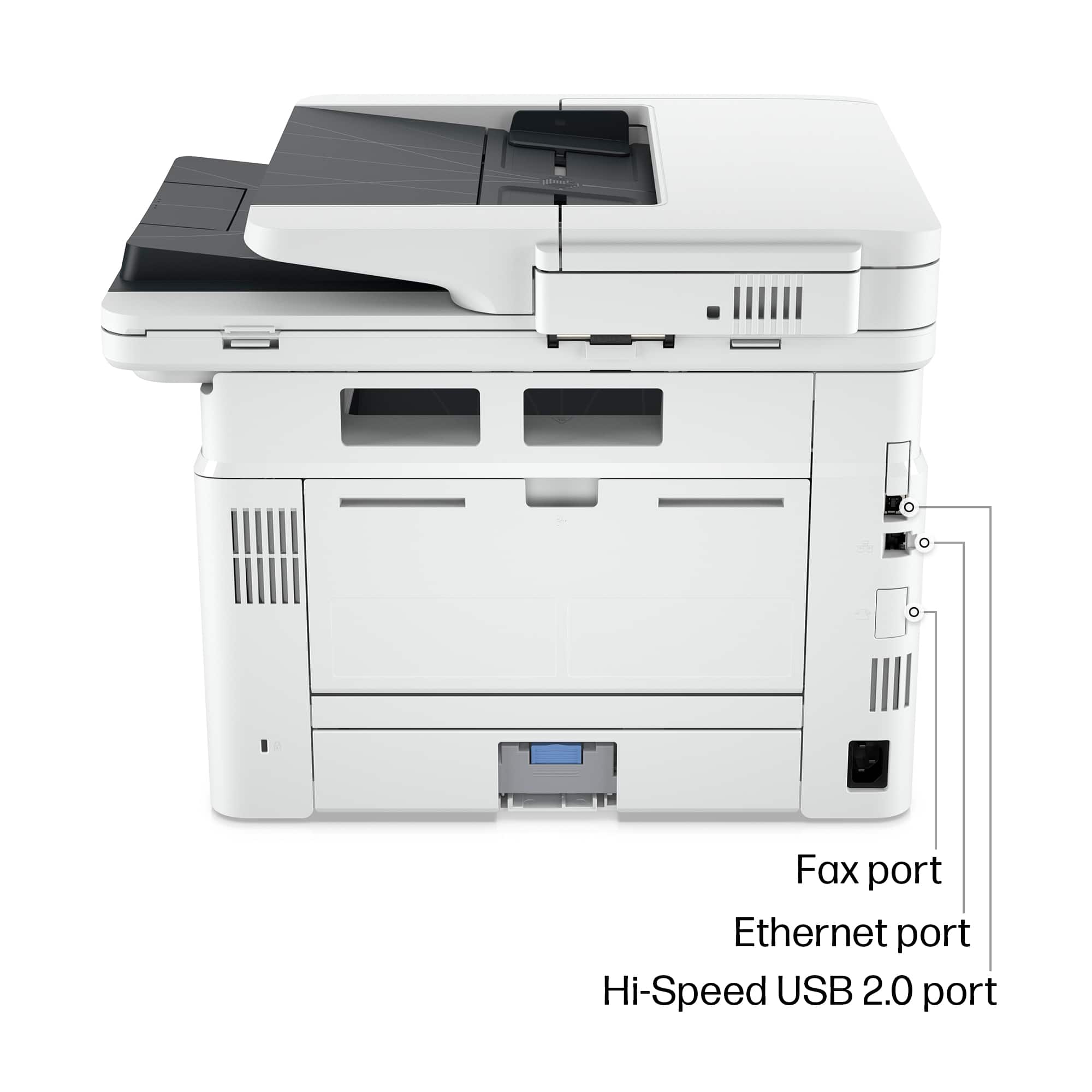
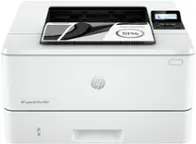
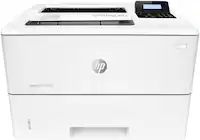
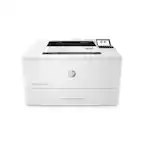
A:Answer Thank you for the question. Paper jams can occur in the automatic document feeder, in the paper input path, or the paper output path. While you can find explicit instructions in the User Manual available from HP Support online (and available to download), the gist is this: Turn off the printer.
Unplug it from the power source. Wait for a few seconds to allow the printer to cool. Remove any loose paper from the input and output trays. Do not pull jammed paper from the front; always pull it in the direction of printing. Open the front toner access door. Carefully remove the toner cartridge and set it on a clean surface. Check for jammed paper inside and gently pull it out.
Reinstall the toner cartridge properly. Open the rear access door. Look inside for any jammed or torn paper. If stuck, pull the paper out slowly and evenly. Close the rear access door. Plug in the printer and turn it back on. Print a test page to ensure everything is working. To prevent future jams, use high-quality paper that meets HP’s specifications, keep the paper flat and dry (avoid damp or curled paper). do not overfill the paper tray and regularly clean the rollers with a lint-free cloth.