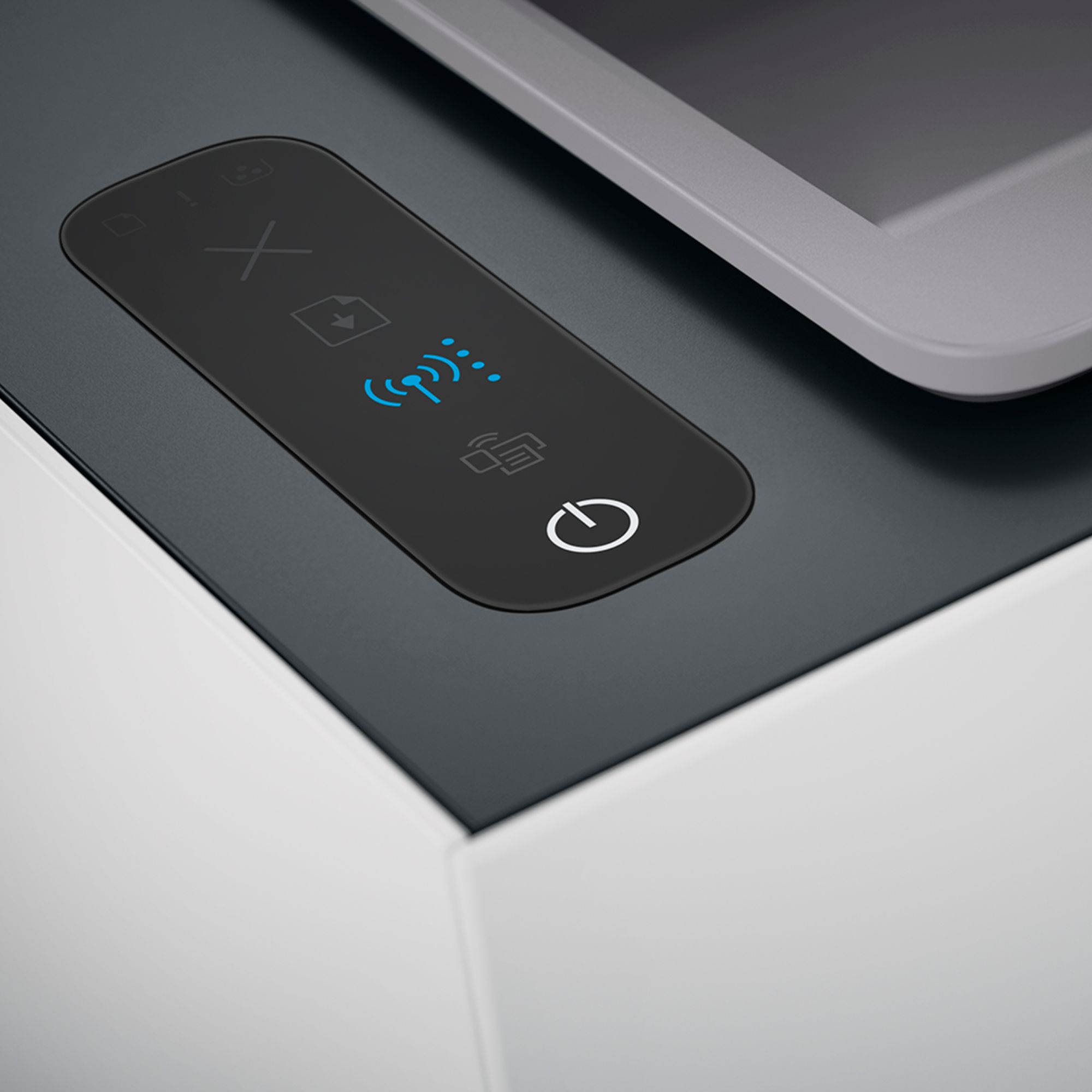
A:AnswerHey @Zoner, nope, all you need is to add paper, it's Super Duper easy to be up and running within minutes, literally. I pressed the WPS button on my router and *POOF* it was like magic, no screens or configuration, just showed up on my devices as an available printer.
A:AnswerThank you for the question. Yes, you can adjust the print quality to draft, general or best quality on the print menu - that's what comes up when you click "print".
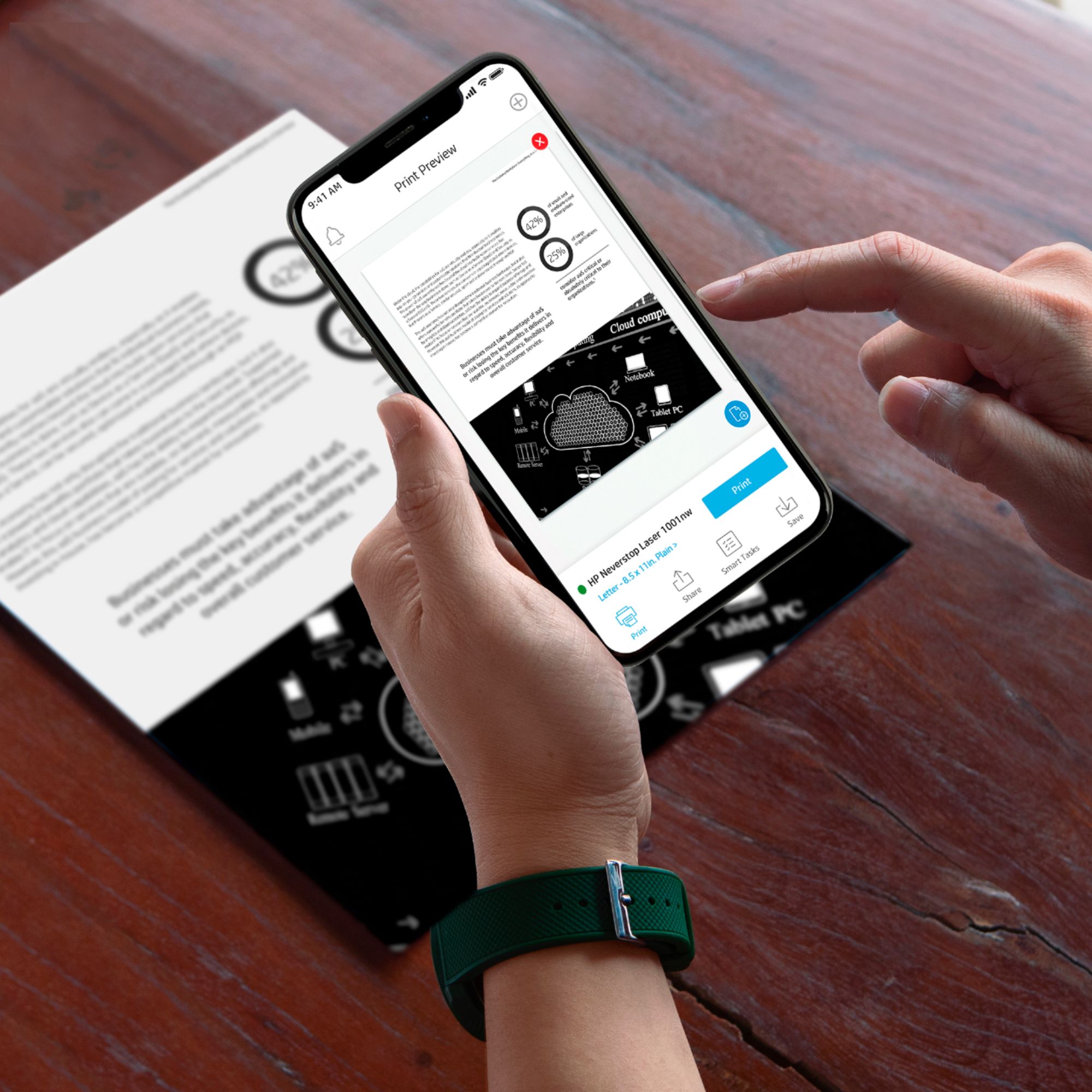
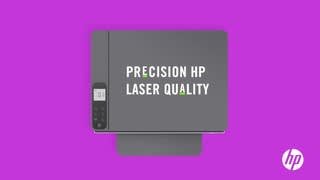
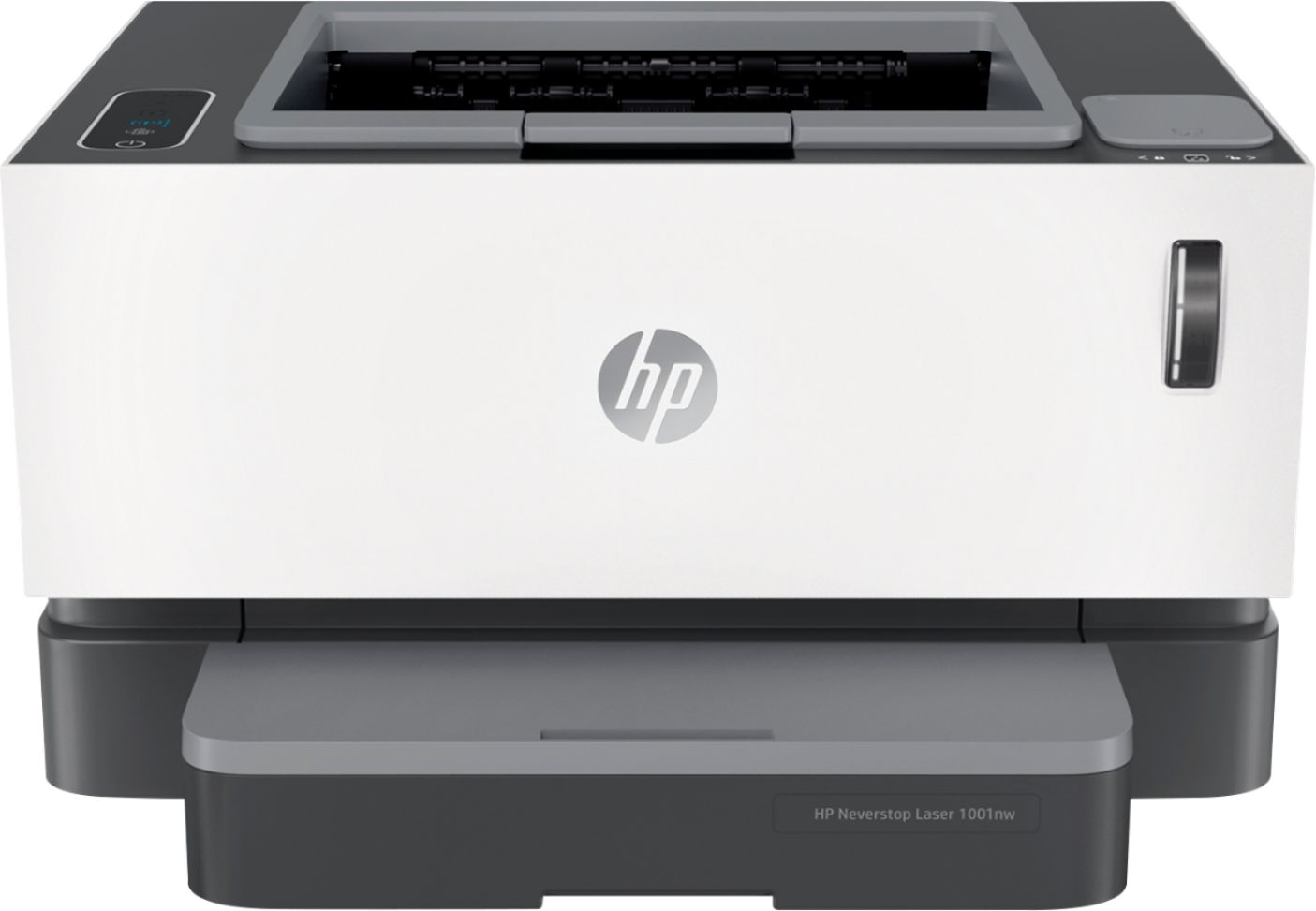
A:AnswerHi Ann, thank you for the question. Yes, the Neverstop 1001nw is compatible with Chromebook. For more flexibility, connect to your WiFi network. The HP Smart App can assist with the initial installation, Smart Tasks, and sending scans to the printer. Use a direct connection to your computer if you do not wish to share the printer with all users on your network.
A:AnswerIt should. I have 2020 MacBook Pro (one version before M1 chip) and it worked with latest macOS. It worked with my iPhone, iPad and Windows Surface.
A:AnswerHello, when you go to your settings in Windows and add printer this should be recognized. If it doesn't you can download and add the drivers easily from HP.com or through the HP Smart app you can download from the Windows store. Thank you for being an HP customer!
A:AnswerThis printer can handle heavier papers up to 120 g/m2 (44 lb) but is not designed to print on thicker cardstock. However, many of our LaserJet Pro and OfficeJet Pro printers are capable of this type of printing!
A:AnswerThank you for your input. I am glad to know you have had a good experience with this printer. We finally took the printer back to Best Buy and they exchanged it for the same model. The new printer works beautifully so far!! We are now very pleased with both Best Buy, their personnel and the functioning hp model 1001nw printer.