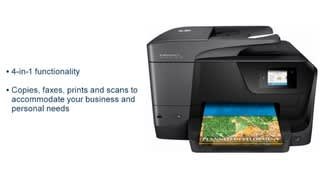
A:Answer What do you mean by "locked"? The printer I bought does not have a lock on the Fax feature.
If you can get the IP address of your printer (available on the printer from the settings menu->network), then you can look at the settings for your printer in a web browser. Record your IP address for the printer, and then open a web page to that address.
For example, I see that my printer has an IP address on WiFi as 192.168.10.51. If I open my web browser and enter "https://192.168.10.51" (no quotes, and ignore any errors you may get on the browser, you will open a page to all the settings on the printer. Looks something like Picture 1 below. then just click on the FAX tab to set up your fax functions. The Setup Wizard for Fax functions are available there. See Picture 2