A:AnswerHi Brian, thank you for asking. The HP Global Warranty covers HP products at the level of standard warranty offered in the country in which it is used. For example, a product purchased in country "A" and moved to country "B" receives the current warranty coverage provided by country "B" (if that product is marketed or supported in country B).
A:AnswerThank you for your question, MKU! This laptop does not have any slots for hard drives, only one for the existing NvME solid state drive. This laptop is upgradable and HP has the service manual on its support site.
A:AnswerYes, although the actual terms of the warranty will depend on the details of the warranty in India if and when they have a problem with the computer.
A:AnswerCLONE, thank you for your question! The power draw on the RTX 4060 mobile chipset is 115W, which requires the proprietary charger/power supply.
A:AnswerThank you for the question. Are you referring to raw materials or installed components? Please clarify what you are asking and resubmit, and this forum will be happy to assist.
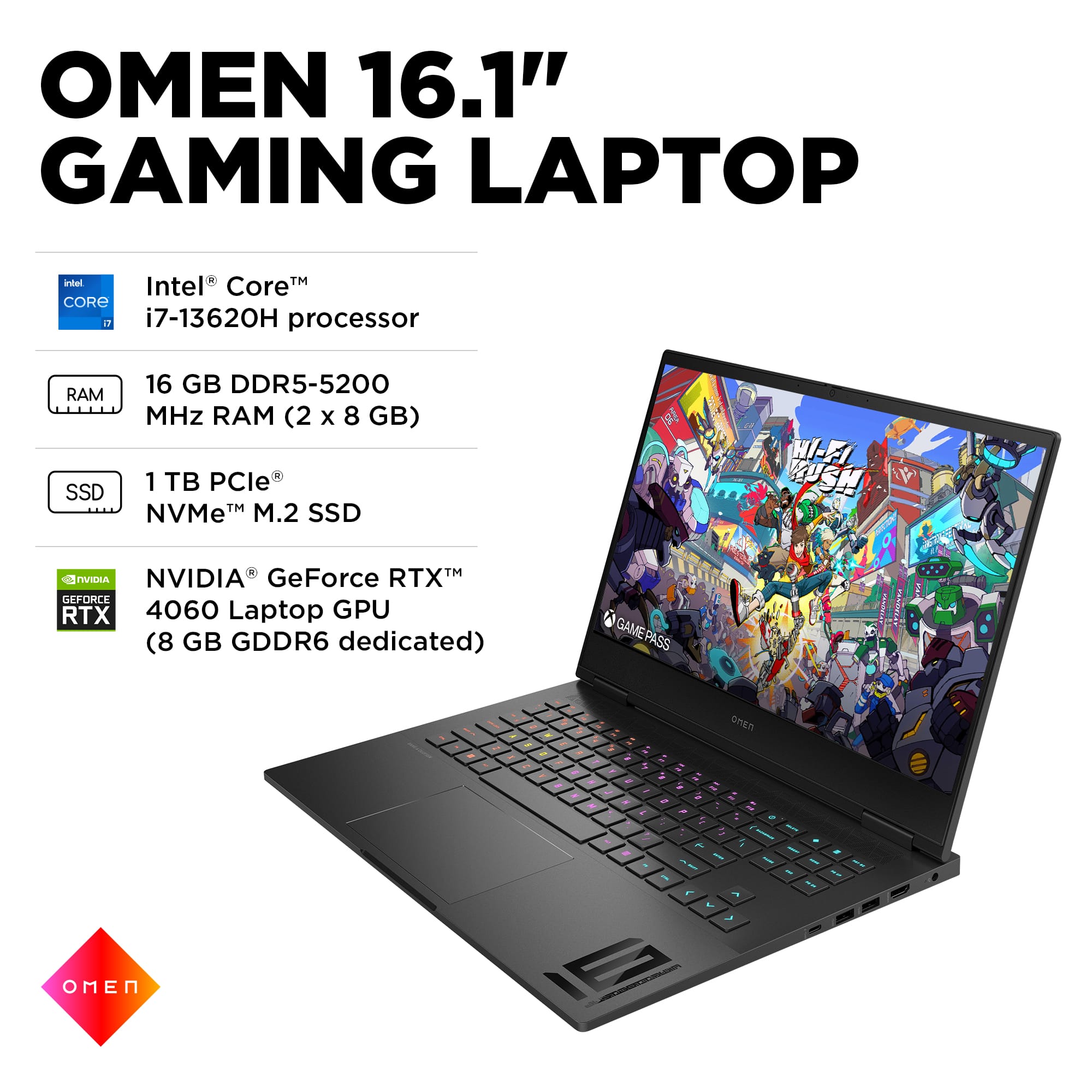
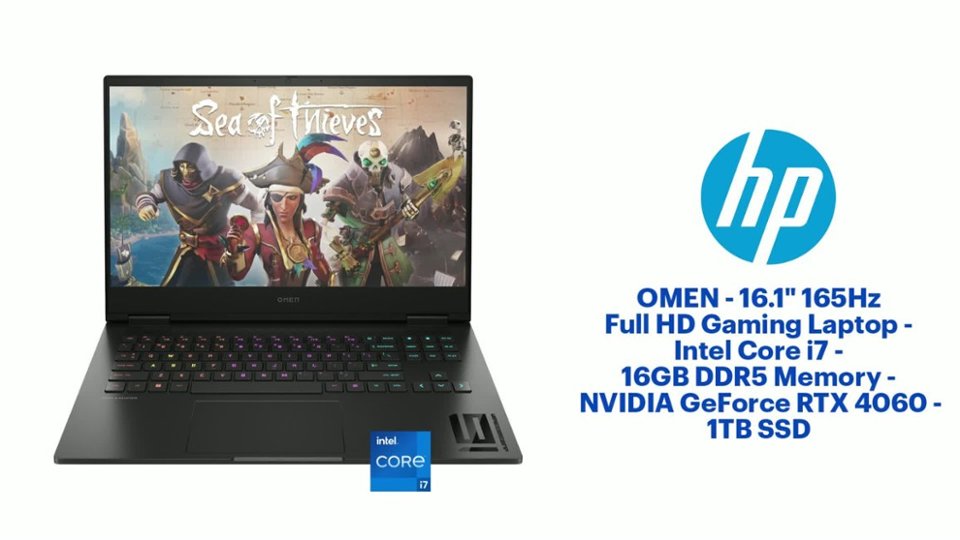
A:AnswerHello and thank you for asking. The HP Omen 16-wd0073dx uses an NVIDIA GeForce RTX 4060 Laptop GPU (8 GB GDDR6 dedicated). NVIDIA says that GPU has a TDP of 115W.
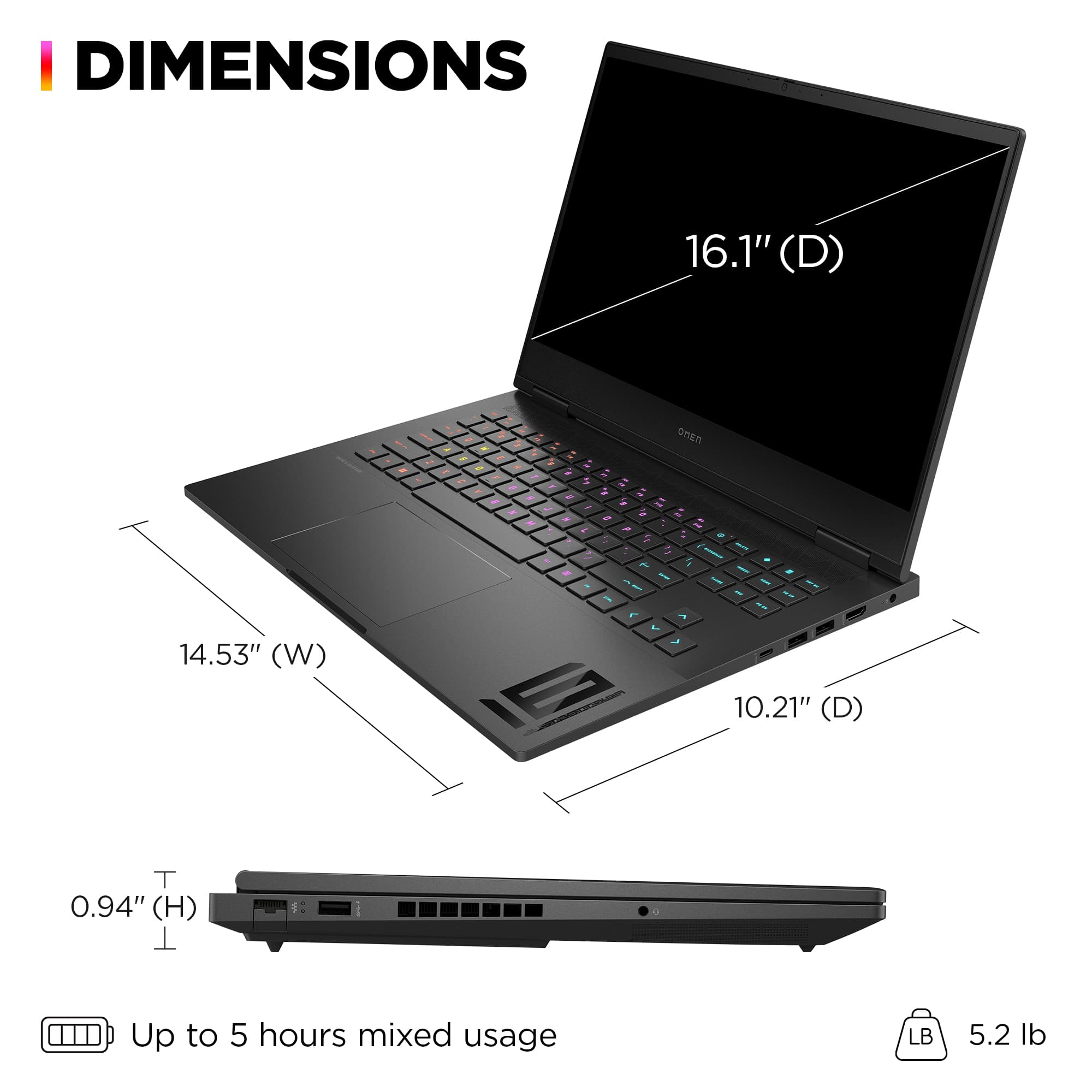
A:AnswerThanks for your question! The HP OMEN 16.1" 165Hz Full HD Gaming Laptop with Intel Core i7 - 16GB DDR5 Memory has a battery life rated up to 6 hours 45 mintues, and results can vary depending on game, video, and settings.
For coding with this laptop, as system requirements for software constantly change, we are unable to answer questions about coding software compatibility or performance. What is compatible today may not be in the future. Please check the software manufarcuter's website for the most current minimum and recommended requirements.
A:AnswerThanks for your question! This HP OMEN 16.2" 165Hz Full HD Gaming Laptop with Intel Core i7 comes with a 1-year limited hardware warranty. Additional information is available at www.support.hp.com. There is also a 1-year limited technical support for software and initial setup, from date of purchase.
A:AnswerTo limit battery charge on HP laptops, you can usually access settings within the BIOS/UEFI or through HP's software utilities like HP Command Center. The most common method is to use the "Battery Health Manager" feature, which often allows you to limit the maximum charge level to 80%.