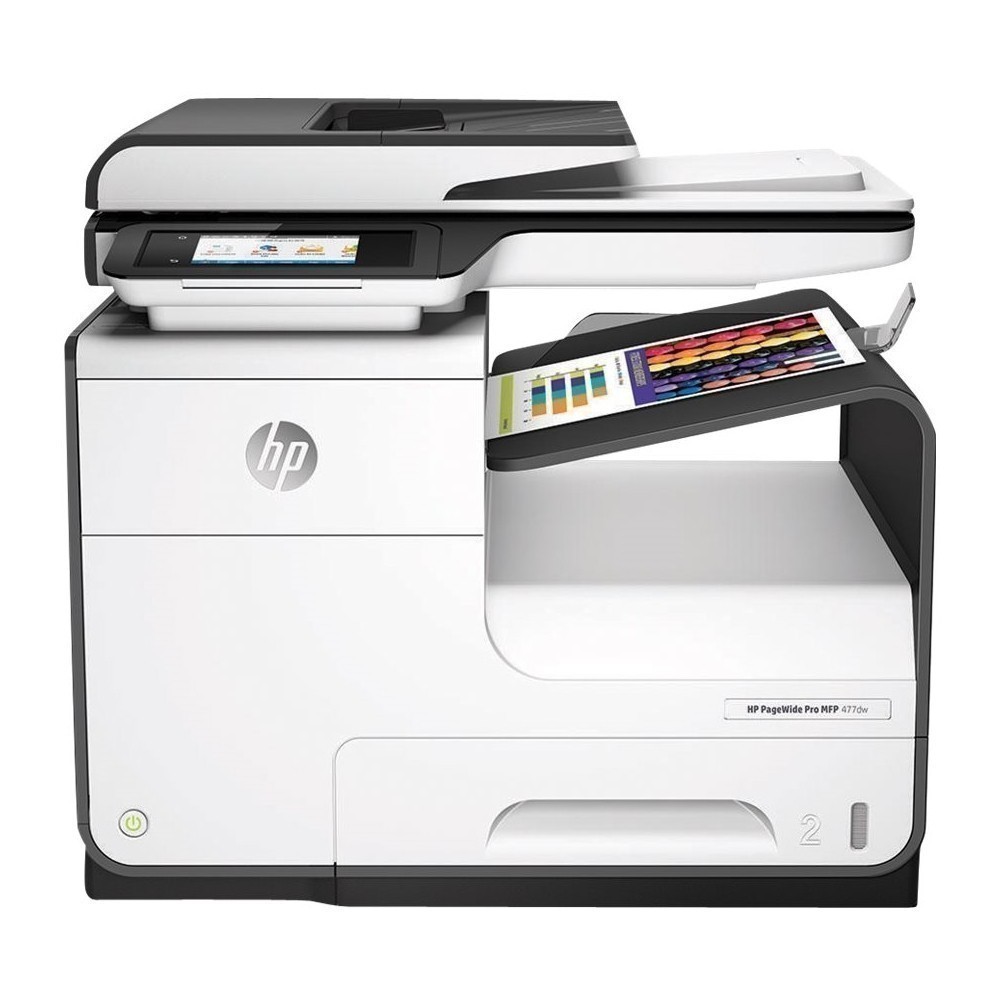
A:AnswerYes, it will feed custom sizes through the priority tray on the side, you just need to make sure when you print that the printer is expecting paper with the dimensions of the single check.
A:AnswerThank you for your question. You will want to use check-printing software and set your paper tray to the correct dimensions for the paper you use. Please note that this printer does not use MICR ink, which may be required by some financial institutions.
A:AnswerThe HP PageWide Pro 477dw printer can handle the following media weights: Tray 1: 16 to 32 lb (plain paper); 33 to 80 lb (photo); 20 to 24 lb (envelope); 32 to 48 lb (brochure); 90 to 110 lb (card); Tray 2: 16 to 32 lb (plain paper); 33 to 66 lb (photo); 20 to 24 lb (envelope); 32 to 48 lb (brochure); 90 to 110 lb (card); Tray 3: 16 to 32 lb (plain paper); 33 to 66 lb (photo); 32 to 48 lb (brochure); 90 to 110 lb (card).
A:AnswerISO print speeds are not based on "draft" mode. 40ppm is full quality printing. The specs on that page are primarily ISO speeds. Draft speed (55ppm) is also supplied as a maximum.
A:AnswerThank you for the question. You'll need all cartridges in place to print with a PageWide Pro 477dw. Printing without the color cartridges could damage the printheads.
A:AnswerThe printer supports duplex scanning through the automatic document feeder on top of the printer. Load the document in the document feeder, select "scan" from the printer menu, and you should have an option for double-sided scanning.
A:AnswerHello. Thanks for your question. Yes, you can add 1-HP PageWide Pro 500-sheet Paper Tray, D3Q23A, to this HP PageWide Pro 477dw Multifunction Printer.
A:AnswerHello. We are sorry to hear about your issues. We recommend making sure the paper guides in the ADF (Auto Document Feeder) tray on top are almost snug to the paper. If you are still having issues, visit https://support.hp.com for further assistance.