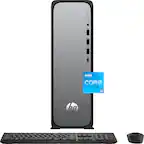
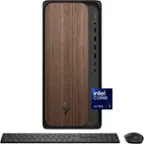
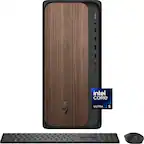
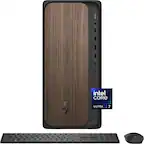
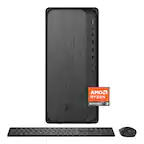
A:AnswerYes, it does. It has a PCIe X16 slot on the motherboard. Please be aware that the computer has a 180 watt power supply, so you'd need to upgrade that if you wanted to add a high-powered video card.
A:AnswerI Upgraded to 32 gig ram.
It will not work at full speed just by installing.
However, ryzen master software easily got it to full speed.
Hope that tip helps anyone looking to max the ram and get full speed.
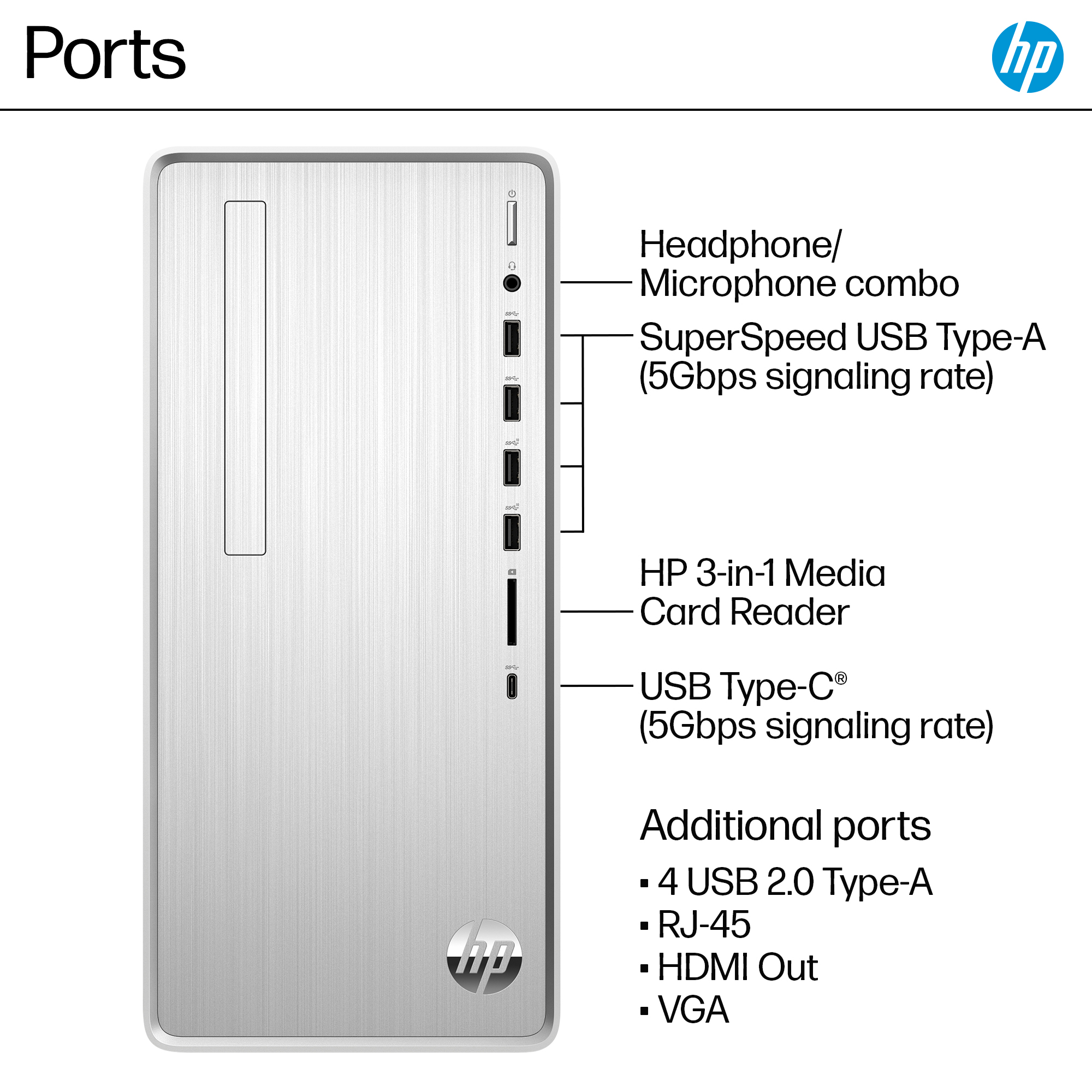
A:AnswerThank you for the question. Connect the printer to the computer's USB Type-A port with a cable that has a USB Type-A connector on one end and a USB Type-B on the other end, which will connect to the printer. These re typically called "USB printer cables".
A:AnswerThank you for reaching out. If you have connected the unifying USB connector for the mouse and keyboard, please replace the batteries in each. If this does not solve the problem, please reach out to HP Support to assist.
A:AnswerGo to one of the main sites for RAM, like Kingston. They list all possible combinations that can be installed in any machine, searchable by manufacturer and model. I believe they also list more and less expensive choices, all compatible.