A:AnswerHi there,
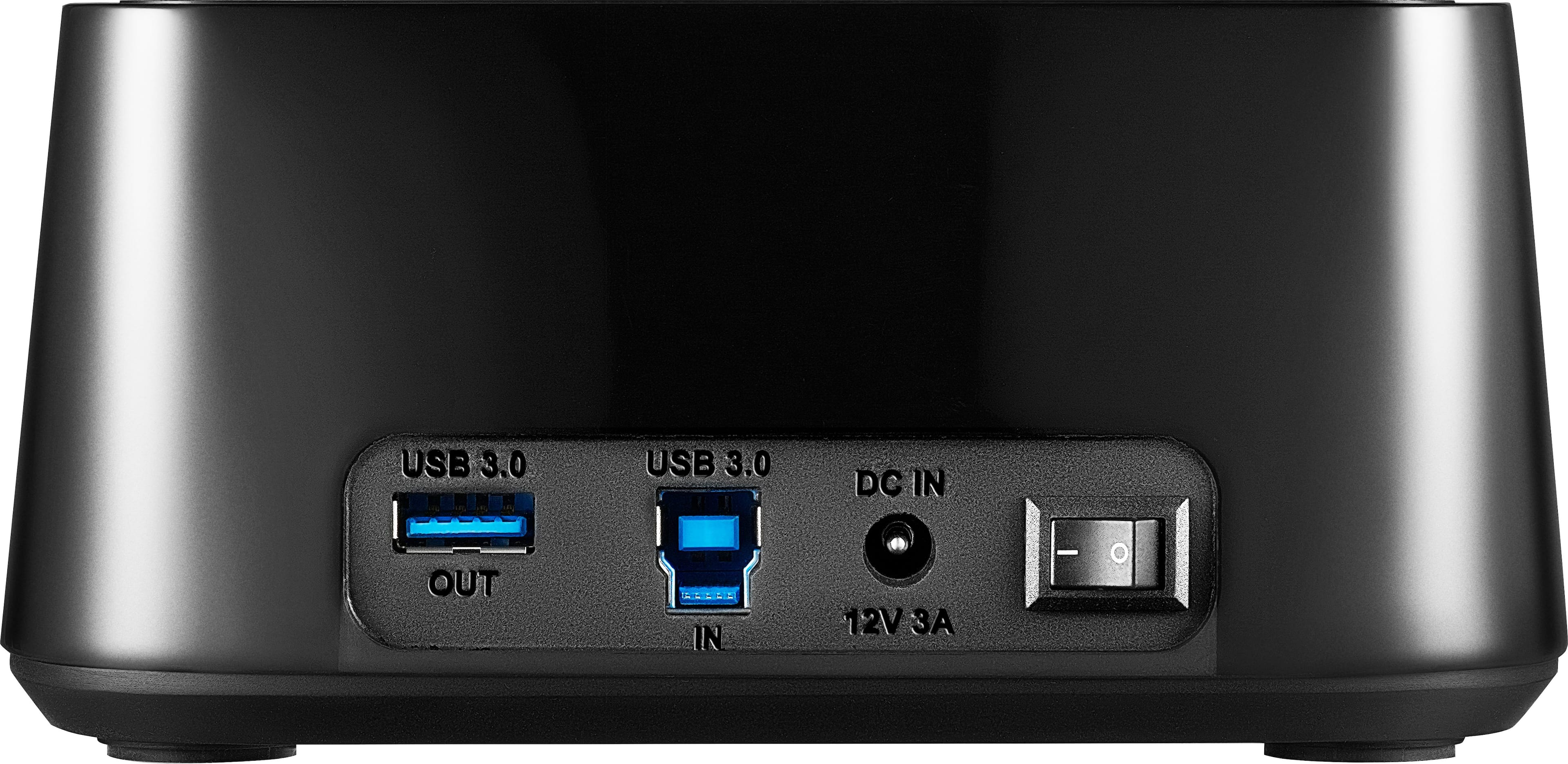
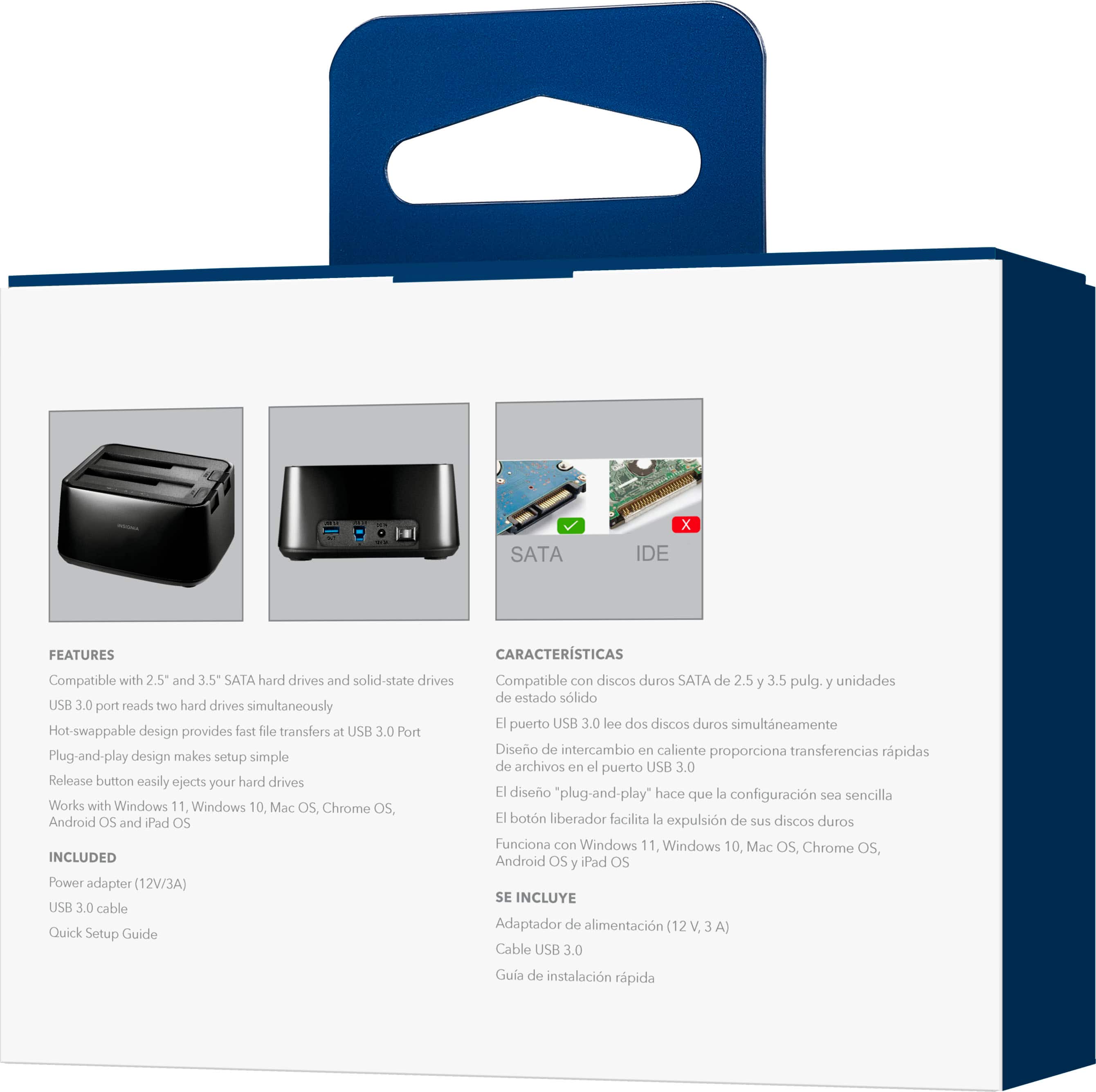
You can use the USB 3.0 OUT port to connect USB devices. This jack provides two-way transmission between the USB device and an HDD, an SSD, or a computer.
- Janína G. | Insignia Support | https://www.insigniaproducts.com/contact-us
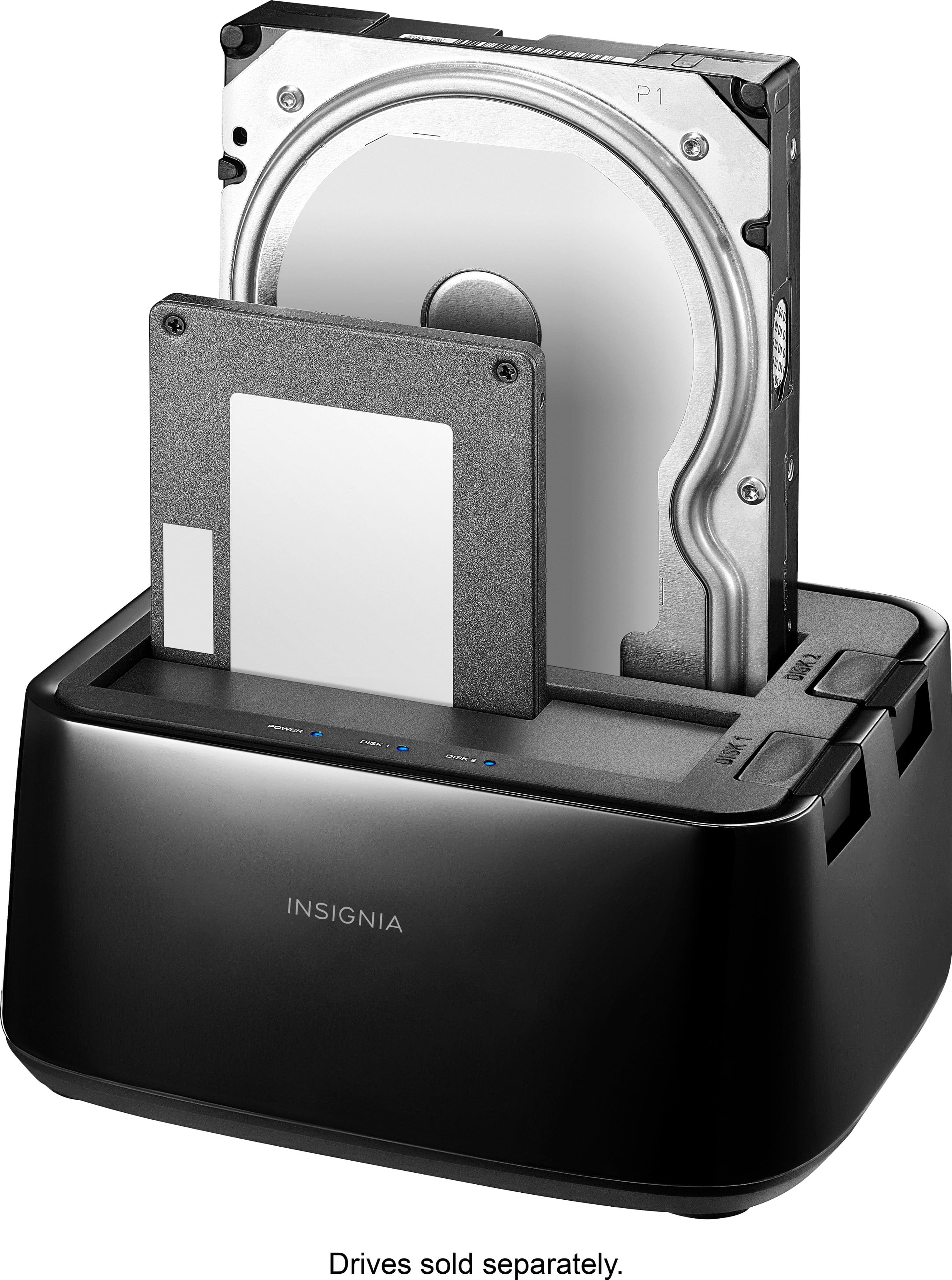
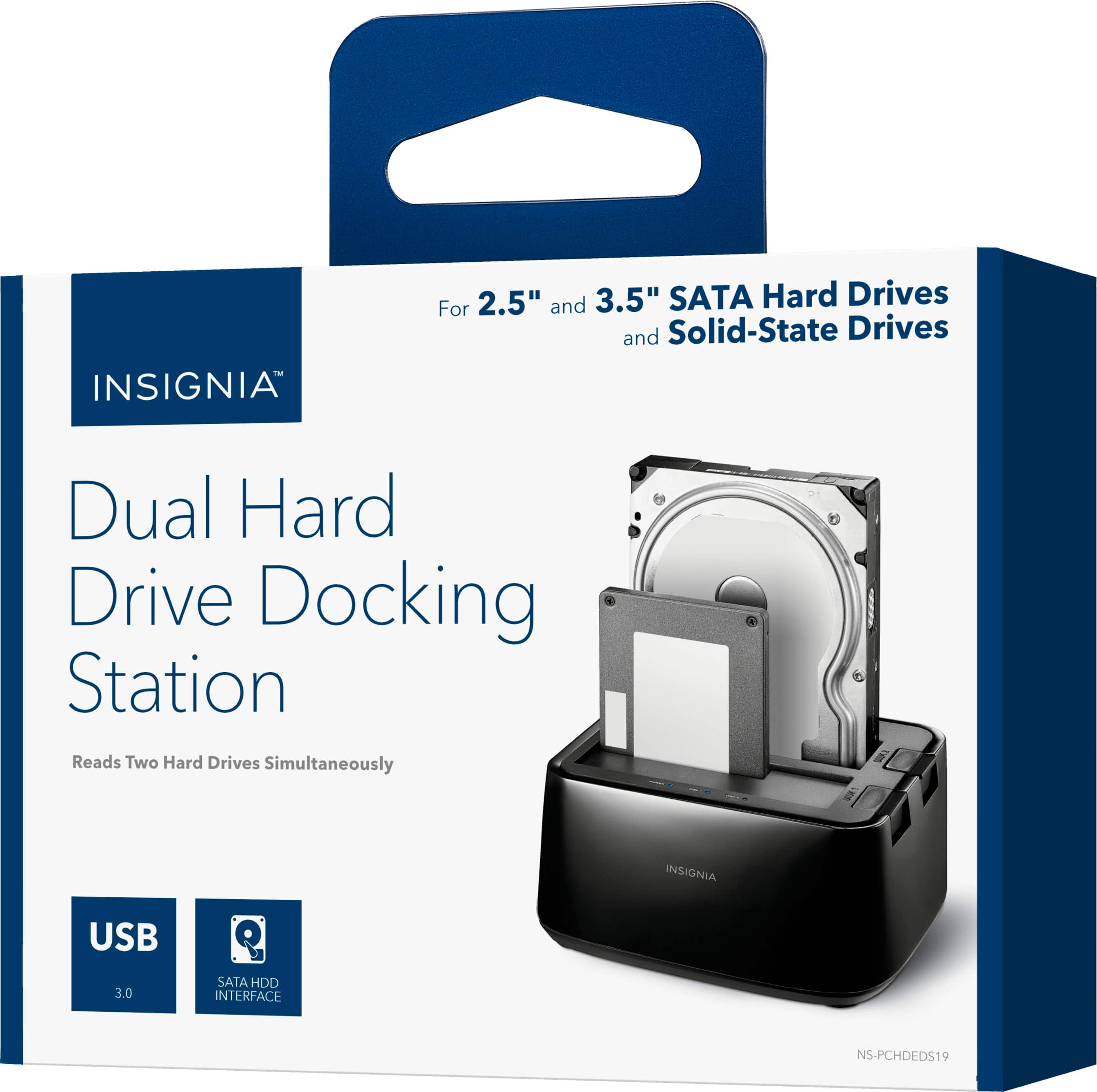
A:AnswerThe docking station will support 2.5 inch laptop drives or 3.5 inch desktop drives as long as they have the SATA connections on them. The photo for the product does not show that the docking station slot covers will push aside when a 3.5 inch drive is inserted. Looking at your included photo, those appear to be 66 pin IDE drives and not SATA connections. There are USB to SATA converters available. The Seagate Barracuda drives may require a higher wattage power supply than normal if they are the high performance 10,000 RPM drives. Hope this helps.
A:AnswerHi, Rob.
I am sorry to read about this situation. I would really love to provide you with alternatives for your product. This is why I kindly as you to reach us at https://www.insigniaproducts.com/contact-us so we can properly assist you.
Alexander G. - Insignia Support
A:AnswerYou may not be using the correct dock, you don’t show the doc image the dock I have is a SATA dock, and the drive you show is SATA flip the doc tab down on the dock, look inside see if you see the reciprocal connector, if so insert the drive firmly into the dock, and it should detect it, if it doesn’t it may be the drive, NOT the dock.
The drive will connect as a typical USB if you have a SATA dock matched with a SATA drive.
A:AnswerIf your Insignia 2-Bay HDD Docking Station is not showing up in Windows File Explorer, here are several steps you can take to troubleshoot and resolve the issue:
1. Check Disk Management:
- Right-click on the Start button and select Disk Management.
- Look for your drives in the list. They may not be assigned a drive letter or might be uninitialized.
- If they appear with no drive letter:
- Right-click on the volume and select Change Drive Letter and Paths.
- Click Add to assign a new drive letter.
- If the disks are uninitialized:
- Right-click on the unallocated space and select Initialize Disk. Follow the prompts to initialize the drive.
2. Check USB Connection:
- Ensure that the docking station is properly connected to the USB port on your laptop.
- Try connecting to a different USB port or even a different cable if possible.
- Confirm that the docking station is powered on (if it has an external power supply).
3. Update Drivers:
- Press Windows + X and select Device Manager.
- Look for entries under Disk drives and Universal Serial Bus controllers.
- Right-click on your docking station (if listed) and select **Update driver**.
- Also, check for any issues (yellow exclamation marks) in the device manager.
4. Run Hardware and Devices Troubleshooter:
- Open Settings (Windows + I) and go to Update & Security > Troubleshoot.
- Click on Additional troubleshooters and select Hardware and Devices to run the troubleshooter.
5. Check File System Compatibility:
- Ensure the drives in the docking station are formatted with a file system that Windows can recognize (like NTFS, FAT32, etc.).
- If the drives are formatted with a Linux-specific file system (like ext4), Windows won’t recognize them unless third-party software is used.
6. Try Safe Mode:
- Boot your computer into Safe Mode to see if the drives show up there.
- If they do, there might be a conflict with drivers or other software in the normal mode.
7. Windows Updates:
- Ensure your Windows is fully up to date. Go to Settings > Update & Security > Windows Update and check for updates.
8. Third-party Software:
- You might need third-party software (like Disk Internals Linux Reader or Ext2Fsd) if the drives are formatted for Linux use.
9. Check Power Settings:
- Modify power settings to prevent USB ports from turning off:
- Go to Control Panel > Power Options > Change plan settings > Change advanced power settings.
- Find USB settings and set USB selective suspend setting to disabled.
After trying these steps, if the drives still do not appear, it could indicate a problem with the docking station or the drives themselves. If possible, test the docking station with a different set of drives or another docking station with the drives to isolate the issue further.