A:AnswerI have a small house, only 1100 Sq feet, so until you get a better answer from someone else,
It cover the whole upstairs with issue. Wireless connection one one end of house in Livingroom (desktop router), and Insignia all the way in the back main bedroom. No issues whatsoever
A:AnswerI wanted to do the same thing but from what I understand Google assistant is not open for third parties to make announcements through it and only way you can do that right now is have some kind of server running that would use the Google assistant api to send broadcast to the speaker. I could be wrong and if you do find a way to do this natively with smartthings without some relay server in the middle please let us know here.
Thanks.
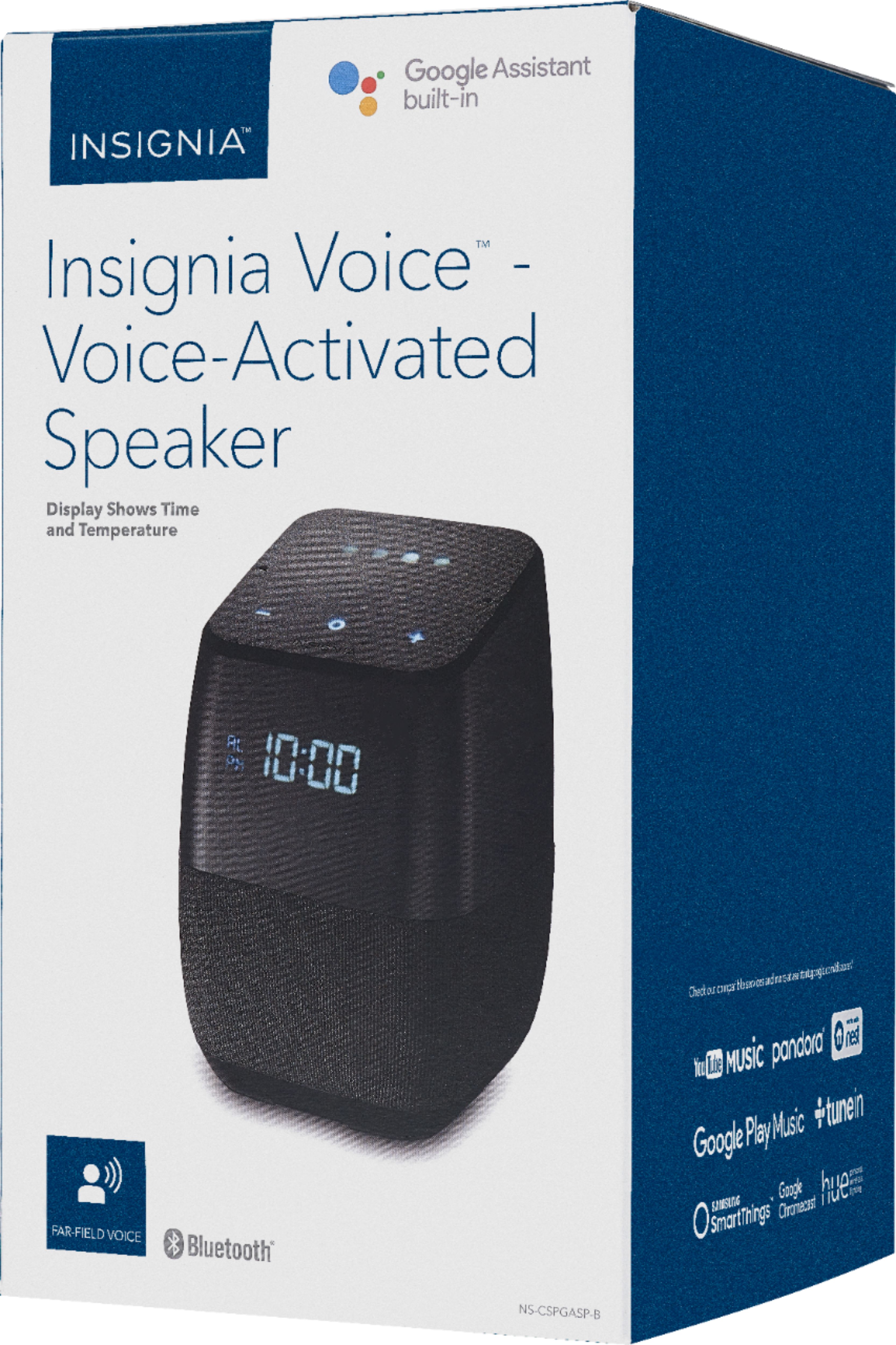
A:AnswerI just purchased one of these speakers. I found it humorous that the product packaging is in English and Spanish and says on the feature list:
El Asistente de Google actualmente no está disponible en español en los EE. UU.
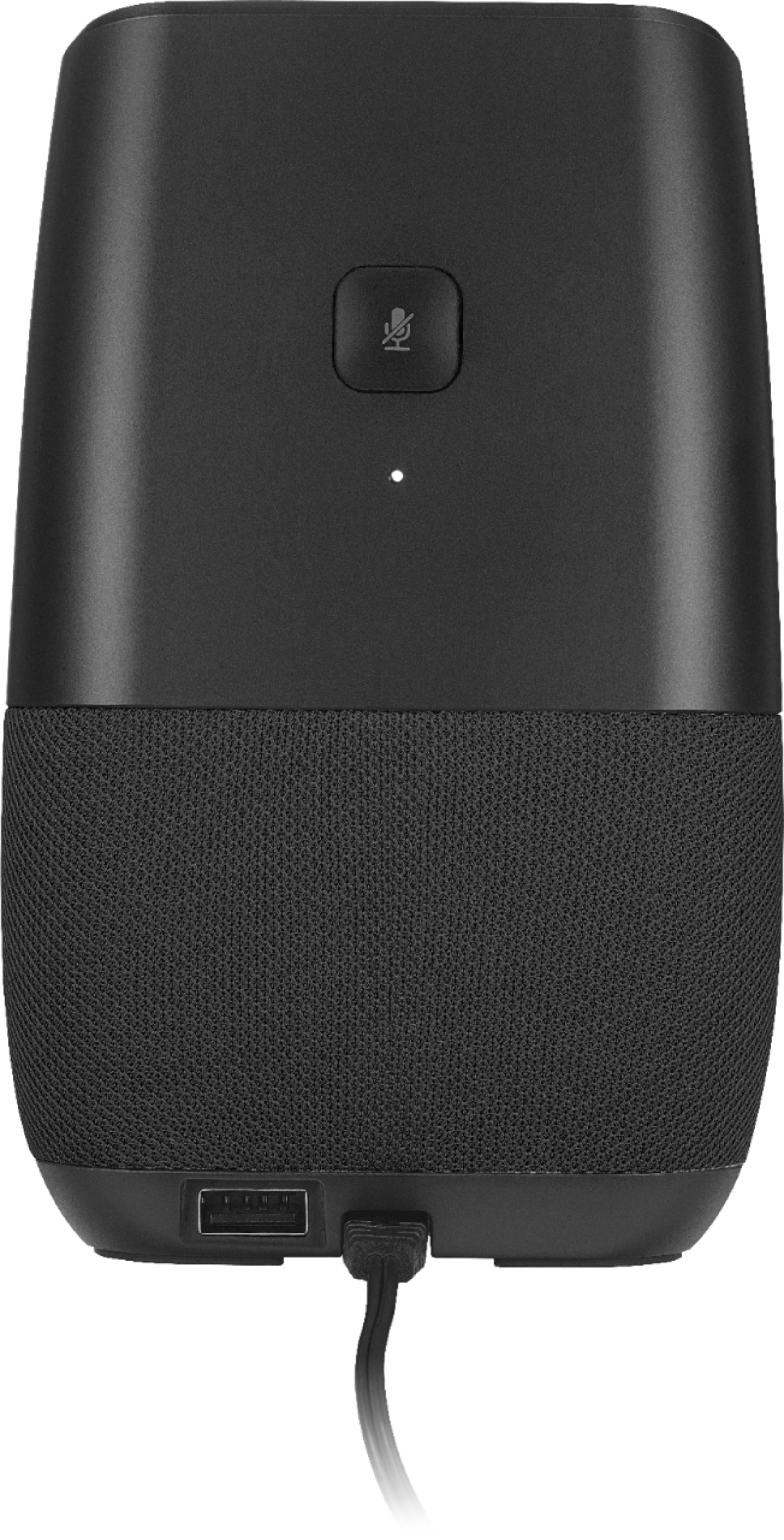
A:AnswerFrom the manual Page 6: https://files.bbystatic.com/cipgbD6T8SG66b2yRZjqxw%3D%3D/NS-CSPGASP2_NS-CSPGASP2-C_18-0056_WEB_V3_ENG_Final%2Blr.pdf
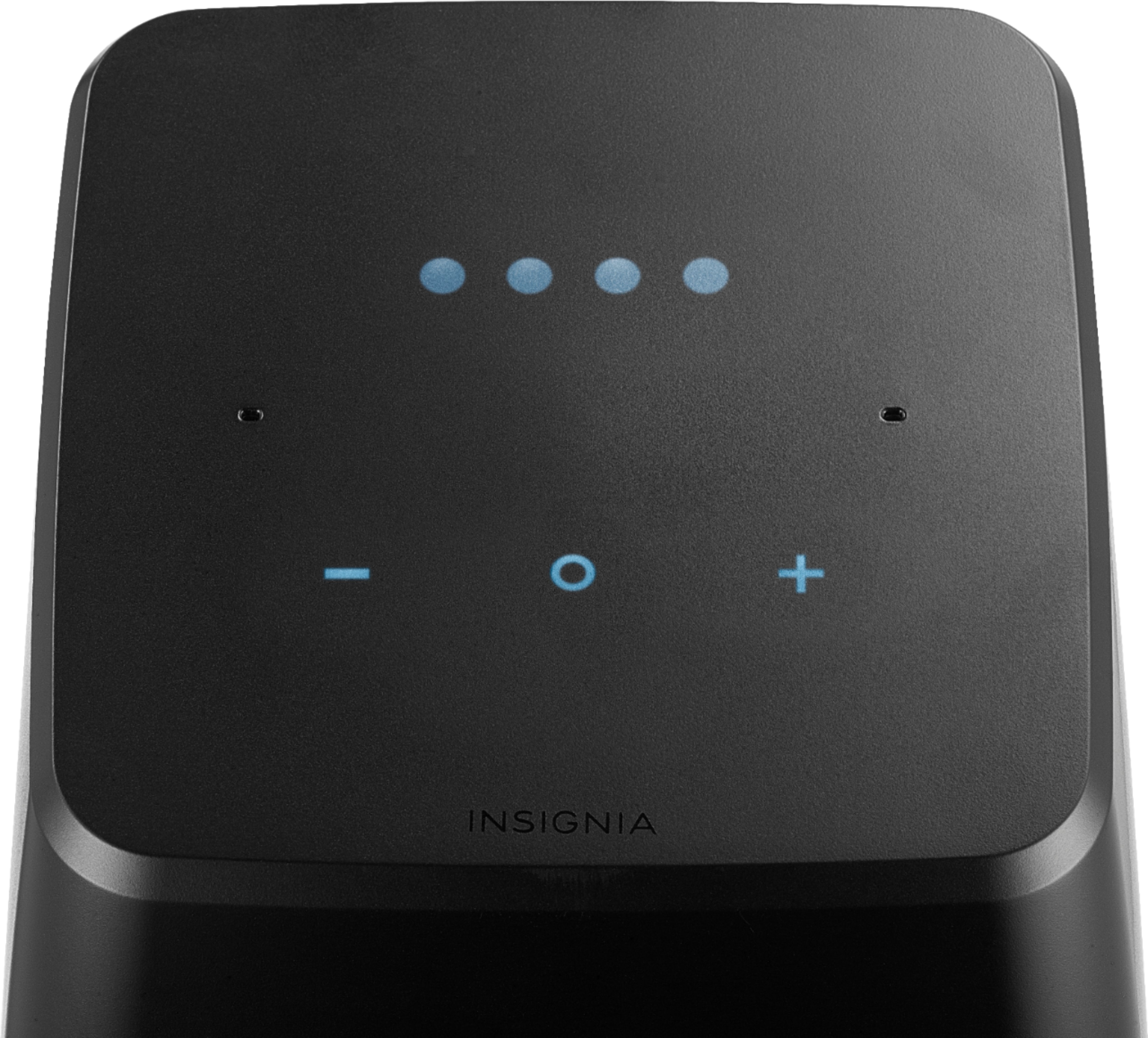
Functions of the power button/microphone on/off button:
• Short press (~ 1 second) to turn the speaker on, or turn the microphone on
or off.
Note: The LEDs on the top of your speaker turn orange when the
microphone is muted.
• Press and hold for 4 seconds to turn your speaker off.
• Press for 12 seconds to reset the product.
A:AnswerGo into your Google Home app and make whatever changes there. The unit must be connected to your home network as is your device using the Google Home app.
A:AnswerThem telling you that you need the Wifi address registered to connect to the wifi sounds like putting the cart before the horse to me, and may not be a realistic statement.
If you can get the IP, give it to them and see if it works out. Try: https://tools.keycdn.com/geo or IPchicken. I have never dealt with something the size of a campus, but what that statement means to me is the IP address (IP address is numeric vs URL, which is whatever link you enter or open to a site and can be formatted differently, not just numeric)(plus, there is more than one type of IP address or URL, there are local ones that you use within your network and commonly assigned by the network, and then there are IP addresses that you can to external sites), anyway, your device doesn't get an IP address until it is connected to something, which it will not have until it is connected to the internet, and will vary when you change network connections. SOOOO, ask the tech for an example of the format. I suspect they meant you must register the MAC address of your devices. When I log into my router, I can allow connections and disallow connections based on the MAC address. This unique "machine address" is assigned to all devices before we ever buy them, individually and separate from the networks they use. MAC address of a device usually appears printed on the device or a sticker (kind of like a serial number, just a specific format). I would try the campus IT dept again, hoping for someone else, until you get what you need. Stay calm and polite and any decent human being will likely do their best to help you. If they don't, then ask to speak to their boss. If you don't have the MAC address for this device, Call the MFR.
A:AnswerYou must connect to wifi. Go to the Google home app and follow instructions .Once connected the time will be displayed .when you ask.Google to tell you the weather the current temperature will display for a short time.
A:AnswerNo it can't be used as an intercom yet. That feature is not available on Google Home devices yet. But you can broadcast back and forth. Awkward but it works.
A:AnswerOpen Google home app, open the menu, tap more settings, scroll down to devices, find the old device (what it was before factory reset) and tap it.
Then go all the way to the bottom where it says "unlink device" and hit the "x" there
Then try setup again