A:AnswerWe'd like to work with you directly so we could do some troubleshooting with your JBL Quantum 400. Please contact our Customer support at https://support.jbl.com/us/en/
A:AnswerPlease check if the mic monitoring feature is enabled with your JBL Quantum Engin. You may check this setting by going to the JBL Quantum Engine App on your computer. We'd like to work with you directly to try some troubleshooting steps, please reach out to our Customer Support.
A:AnswerThanks for your inquiry. You can connect our JBL Quantum 400 to an Android device through an AUX connection using a 3.5mm cable. If you need more help, please contact JBL Customer Support.
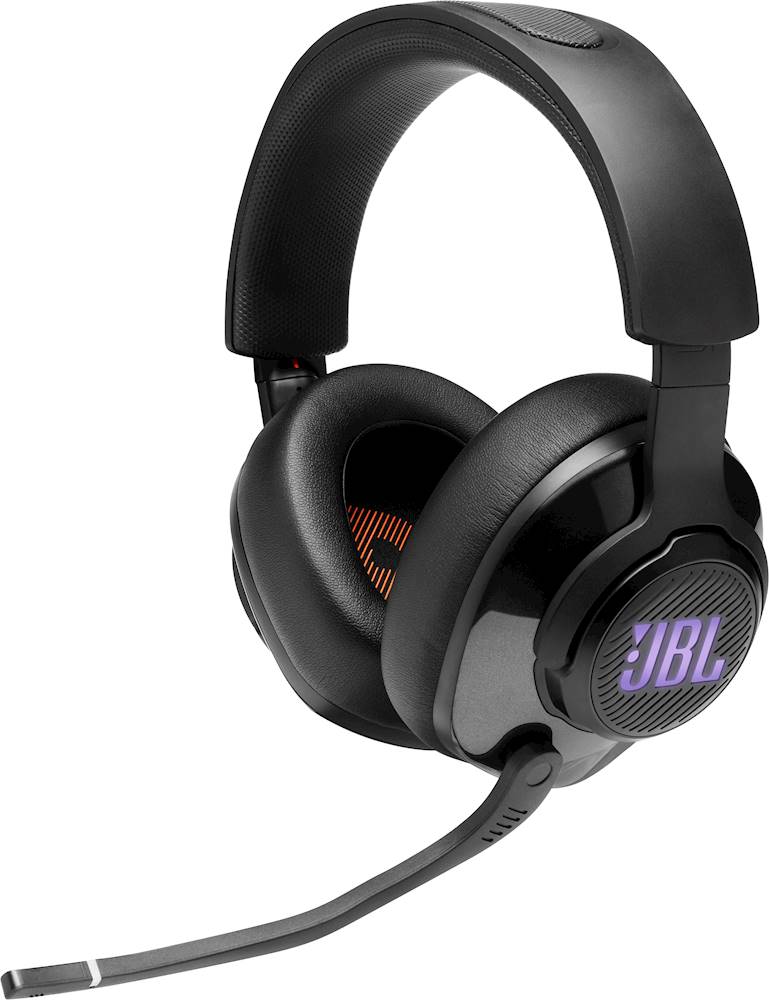
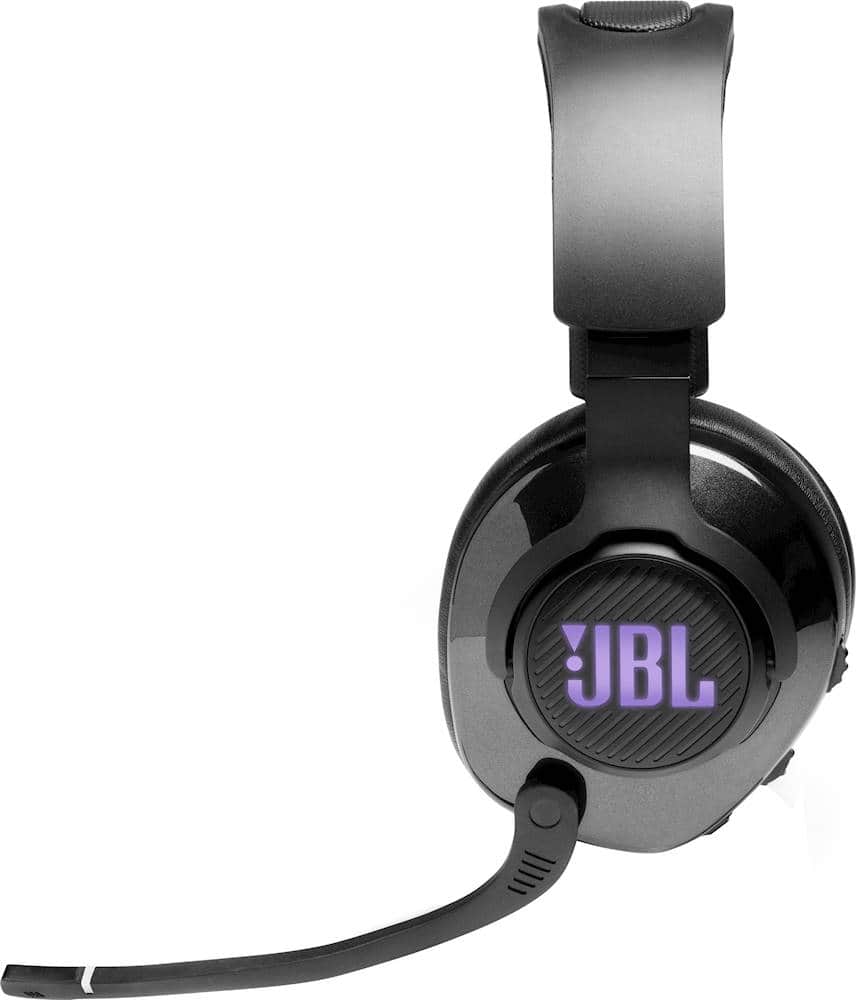
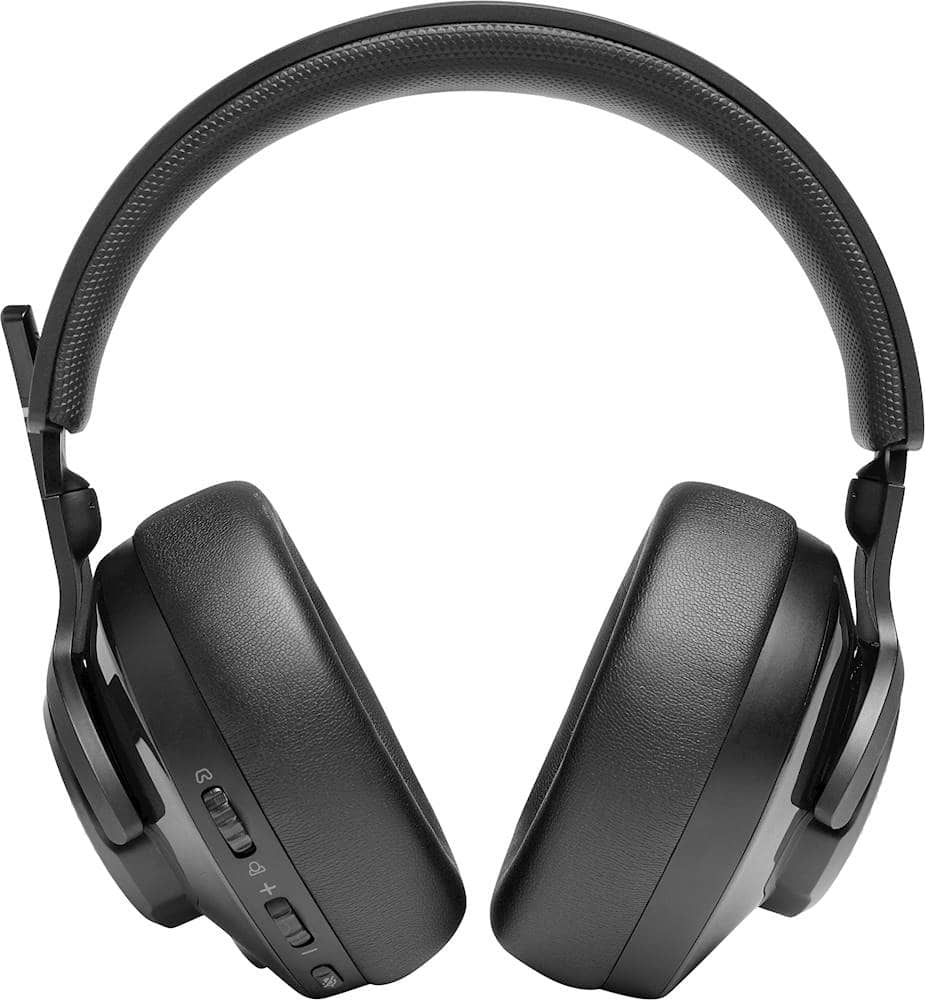
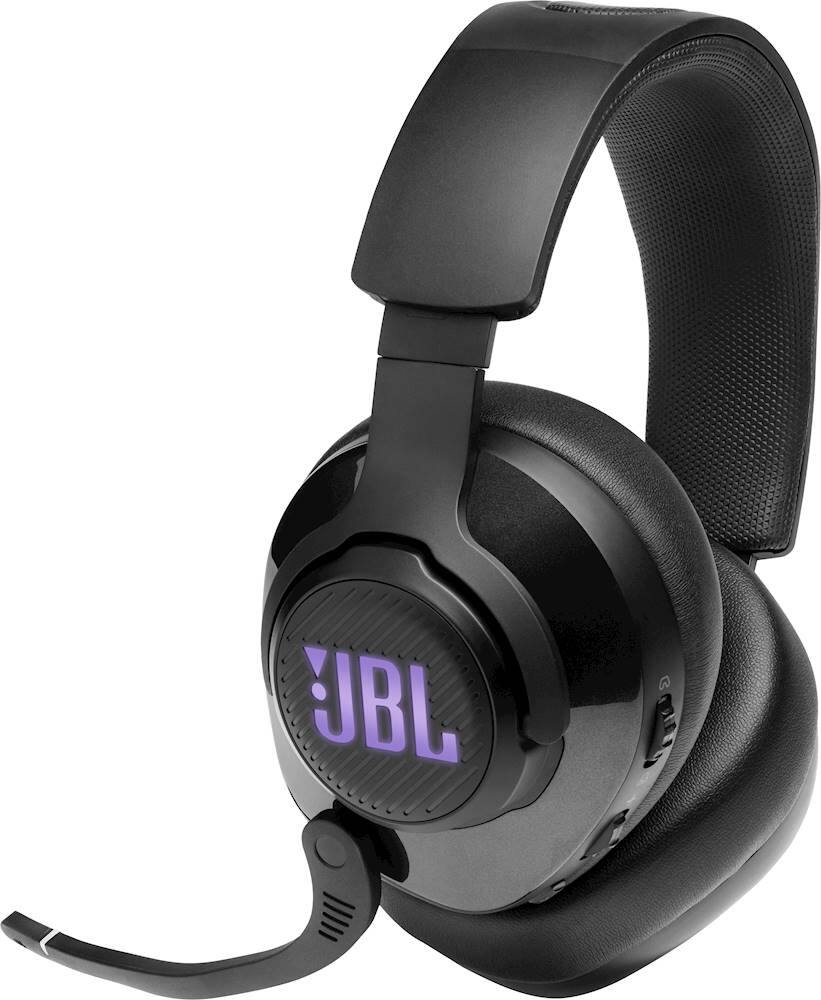
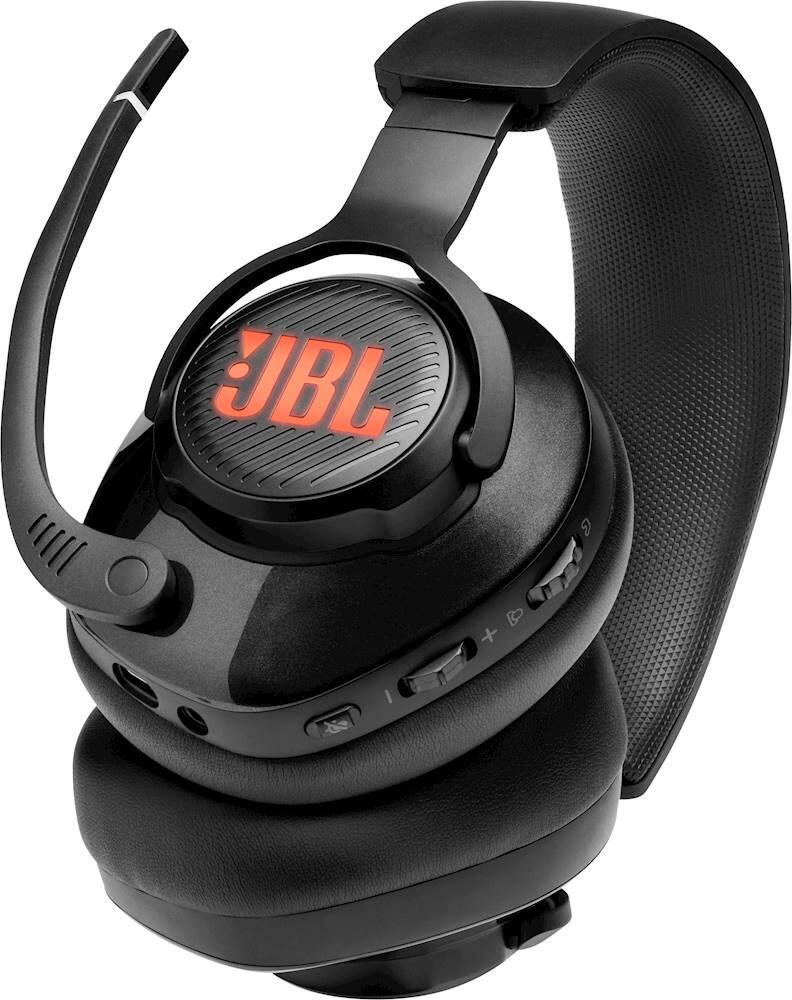
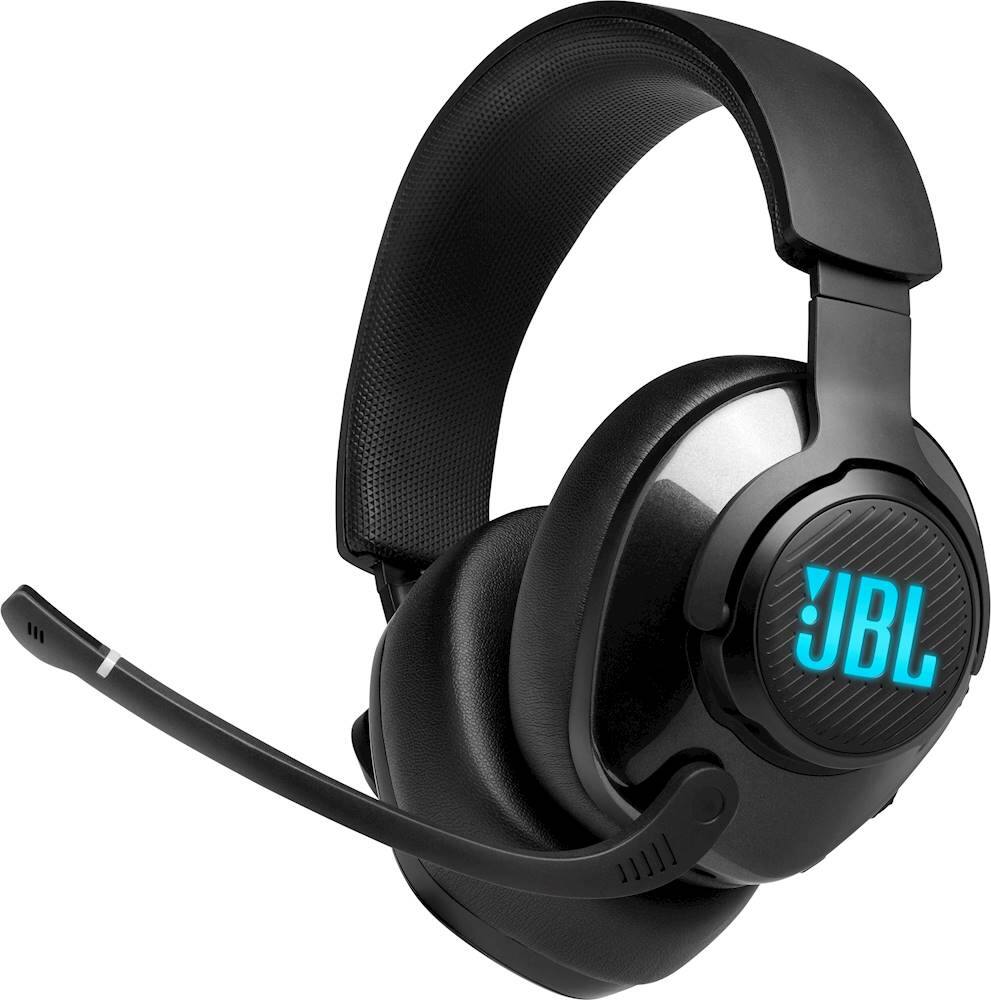
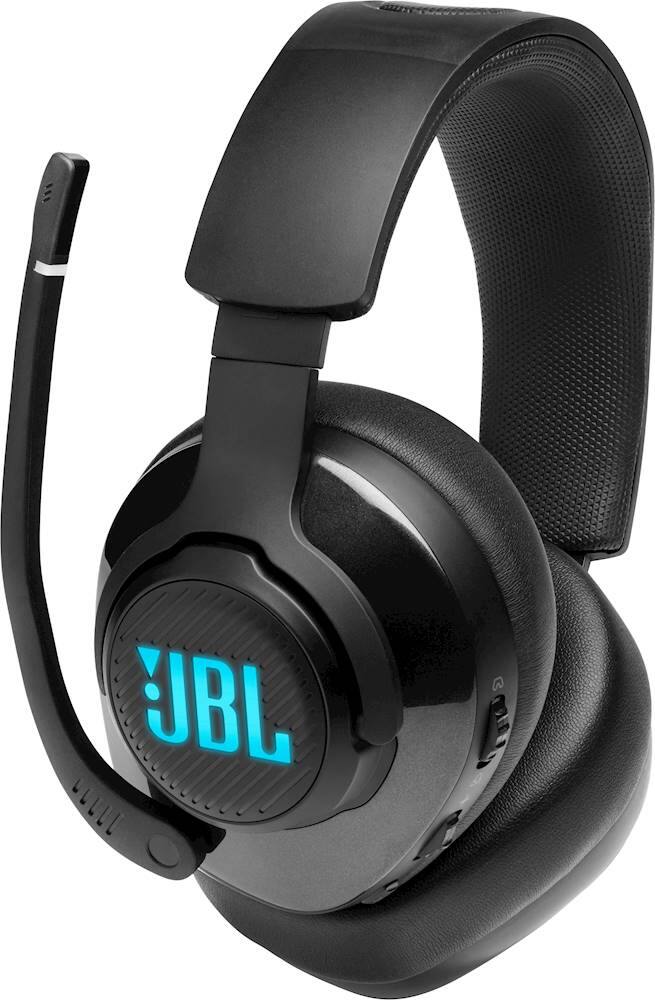
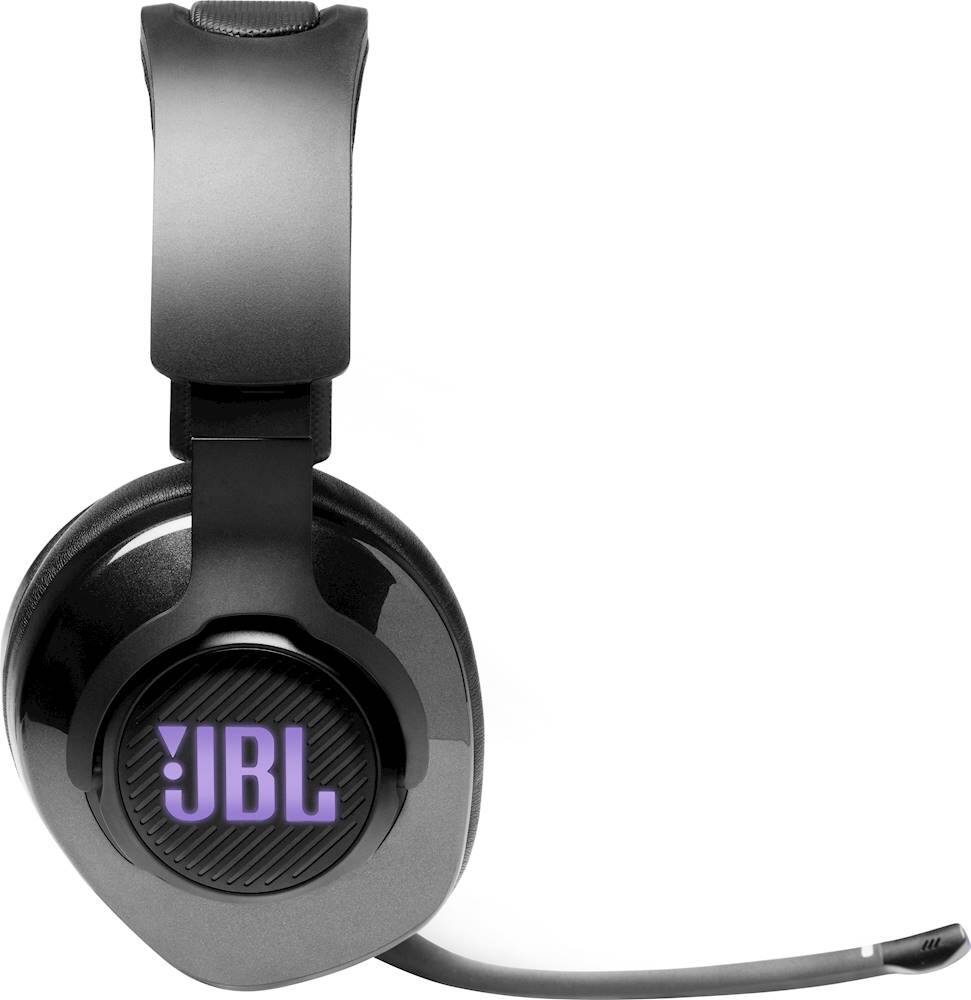
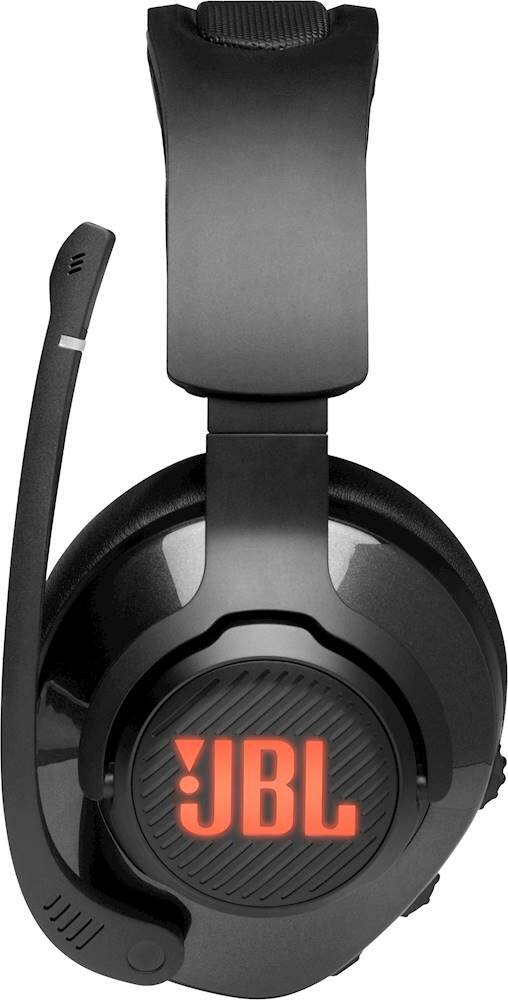
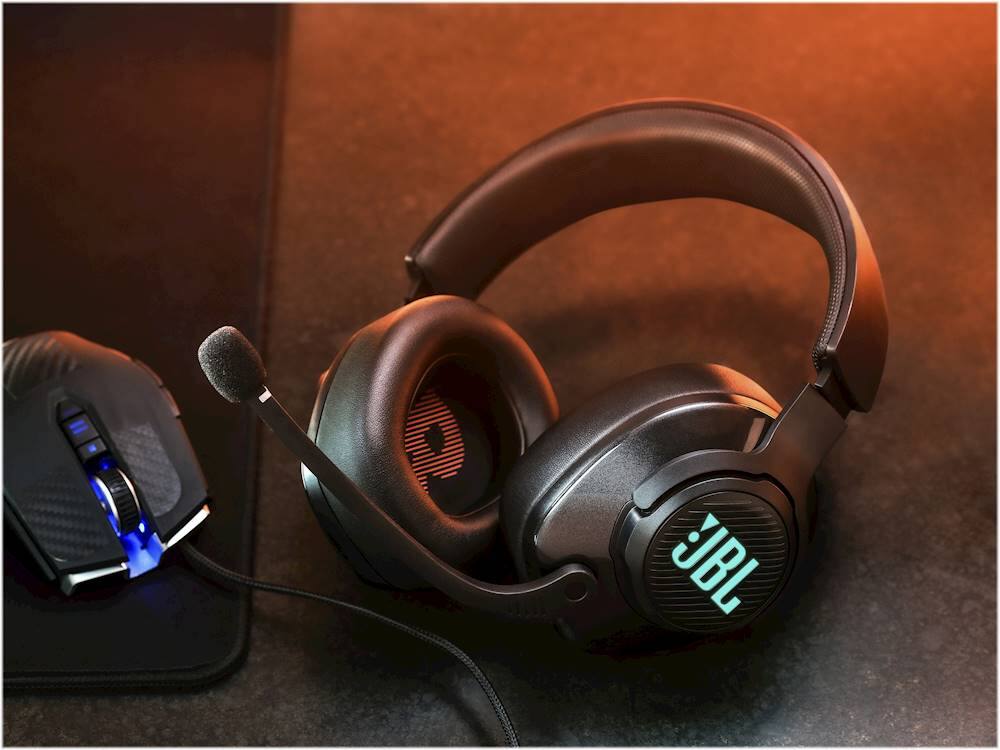
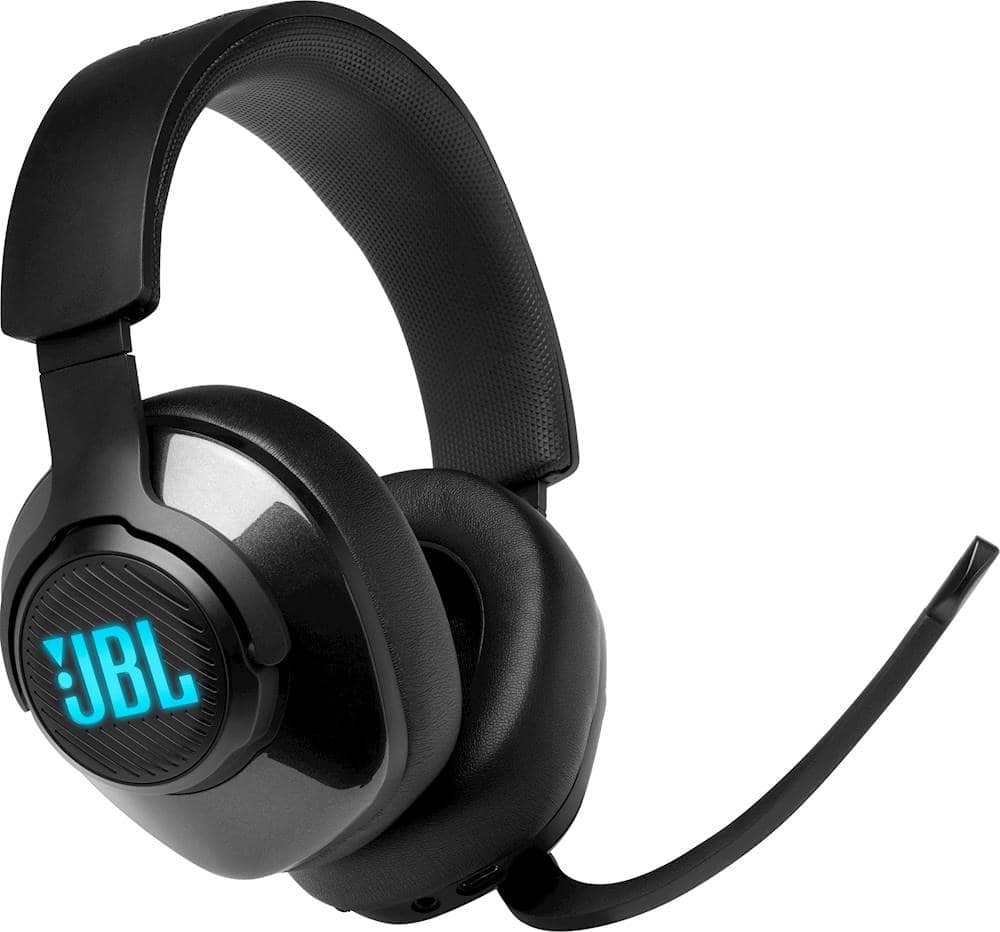
A:AnswerOur JBL Quantum 400 has an RGB-Lit JBL logo on the earcups. The colors and style of lights can be modified by downloading the JBL Quantum Engine Software on your PC. If you need the software to be downloaded, please visit our website or reach out to our Customer Support.
A:AnswerThanks for your inquiry. If you'll be using a 3.5mm connection to link our JBL Quantum 400 to the Woojer Vest, the ANC feature of the headphones won't be available, as ANC requires power from a USB connection. Similarly, the DTS headphone:X 2.0 feature and the RGB lighting also require the USB connection to be used and the JBL QuantumENGINE software to run. Regardless of these feature limitations, you should still be able to enjoy high-quality audio from the headphones.
A:AnswerThanks for reaching out. The mic mute/unmute button on our JBL Quantum 400 does not work in a 3.5mm audio connection. If you need more help, please contact JBL Customer Support.
A:AnswerWe're here to help. Our JBL Quantum 400 will operate when connected to your console via a 3.5mm or USB connection one at a time. If you need more help, please contact JBL Customer Support.
A:AnswerThe mic mute / unmute LED, button and RGB-lit JBL logo on our JBL Quantum 400 do not work in a 3.5mm audio connection. If you need more help with your unit, we'd like to work with you directly, please contact JBL Customer Support.
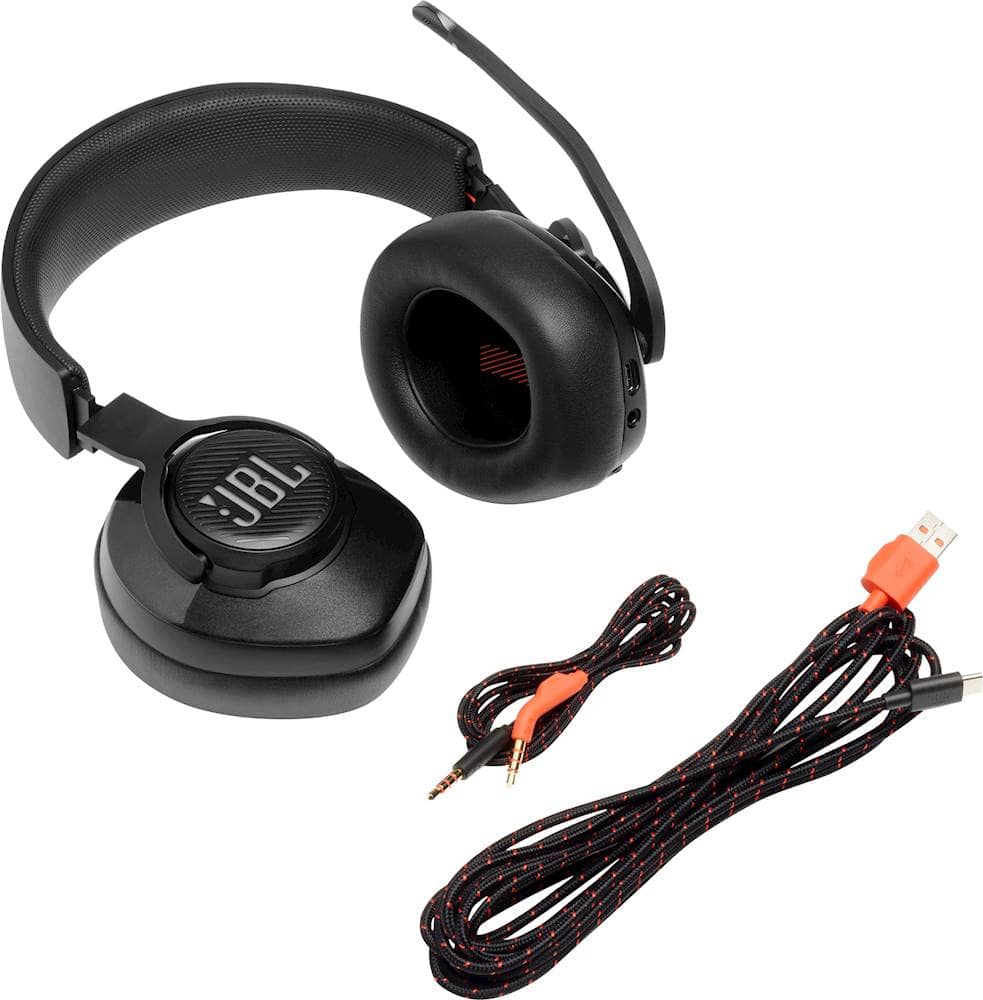
A:AnswerThank you for bringing this to our attention. We'd like to assist you with the missing aux cord of your JBL Quantum 400. Please contact our customer support via our official website or toll-free number.
A:AnswerThe settings that you've modified on our JBL Quantum 400 can be retained when you use the headphones via a USB connection. The equalizer settings you've saved will not be enabled when you're using a 3.5 mm aux connection.
A:AnswerYou may try to uninstall the software and download the latest version from our website and try installing the software again. If the issue persists, please contact our customer support service via our official website or toll-free hotline
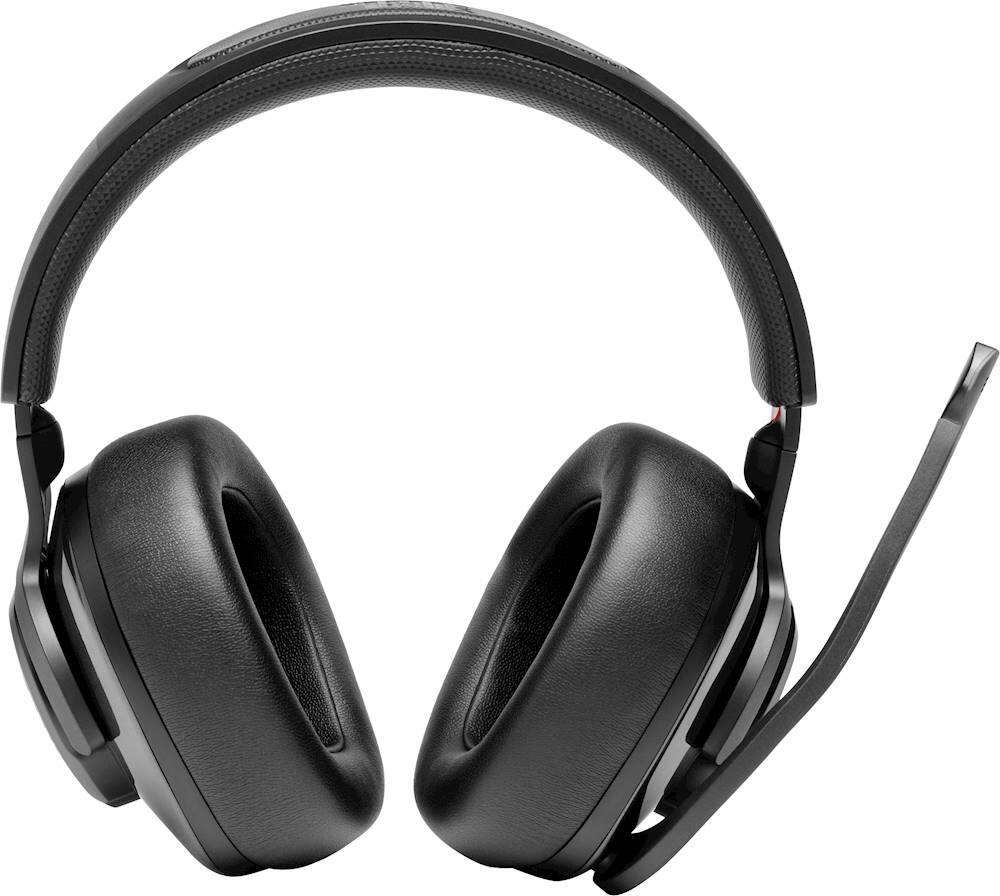
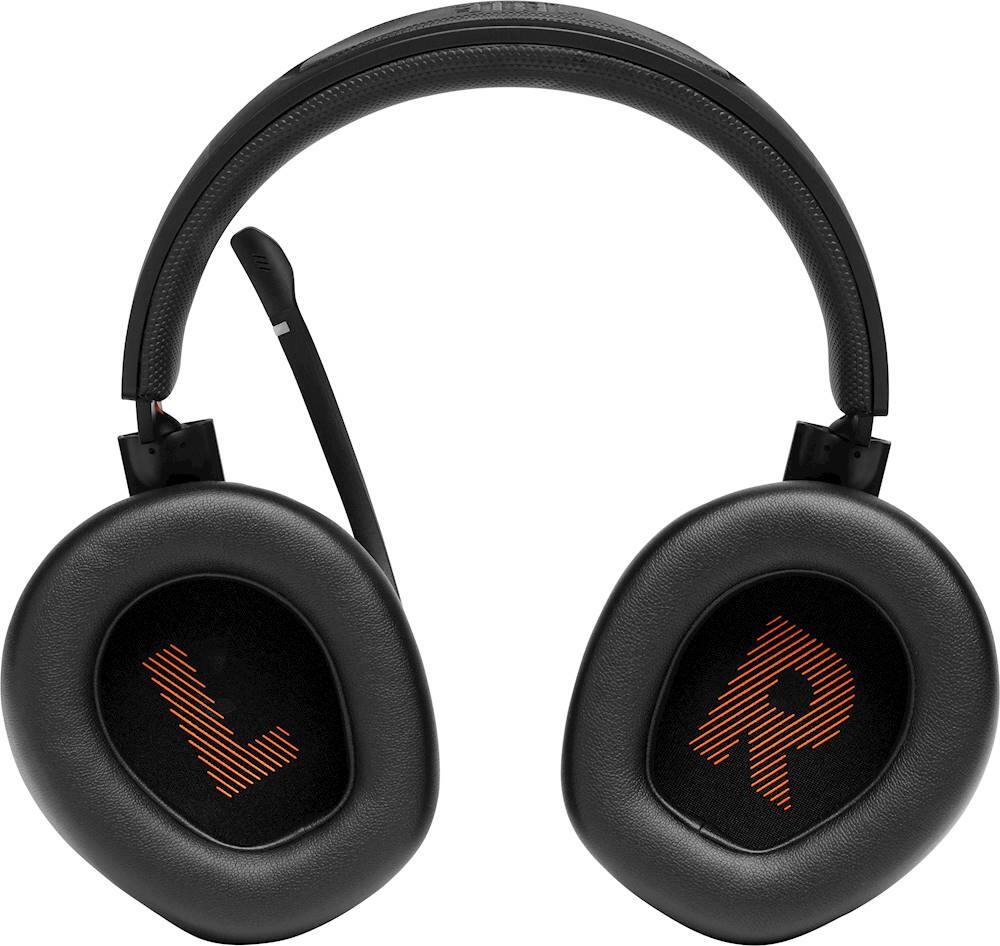
A:AnswerEnsure that only one voice chat application is in use while in-game. Be sure you hear a click when the microphone is flipped down. The microphone will only function when it is flipped down fully. If you see a red LED on the microphone, it is muted.
Check that the PC is using the correct recording device.
1. Go to Control Panel
2. Select Sound
3 Select Recording
4. Make sure to select the proper recording device.
Right-click on it Quantum headset.
Now select "Set Default Device" or "Select Default Communication Device"
5. Check the microphone levels by right-click on your Quantum headset.
6. Go to Properties
7. Choose Levels and adjust accordingly
If you need more help, please contact us, so we can assist you.
A:AnswerYou may use any kind of Type-C to Type-A cable for the JBL Quantum 400. You may also purchase a replacement cable by reaching out to JBL Customer Service for technical support and assistance at (800) 336-4525 Mon - Fri: 9:00 am - 11:00 pm (EST), Sat-Sun: 9:00 am - 5:00 pm (EST).
A:AnswerOur JBL Quantum 400 can connect to PS4 through USB Connection. Please ensure that only one voice chat application is in use while in-game. Be sure you hear a click when the microphone is flipped down. The microphone will only function when it is flipped down fully. If you see a red LED on the microphone, it is muted. If you have more questions, please reach out to our Customer Support. https://bit.ly/2zwFkYM