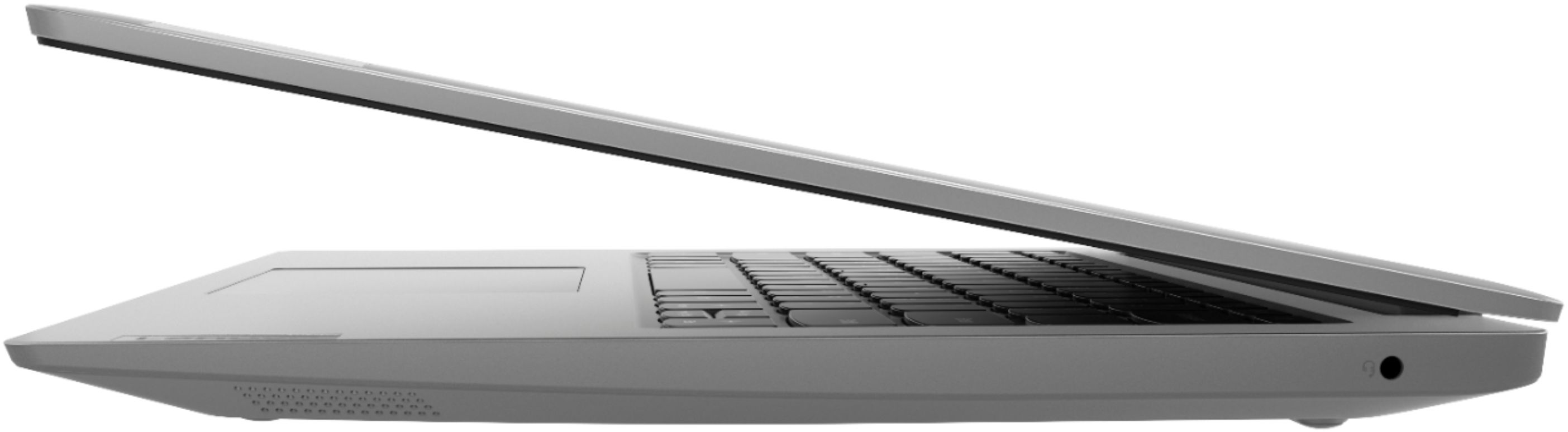
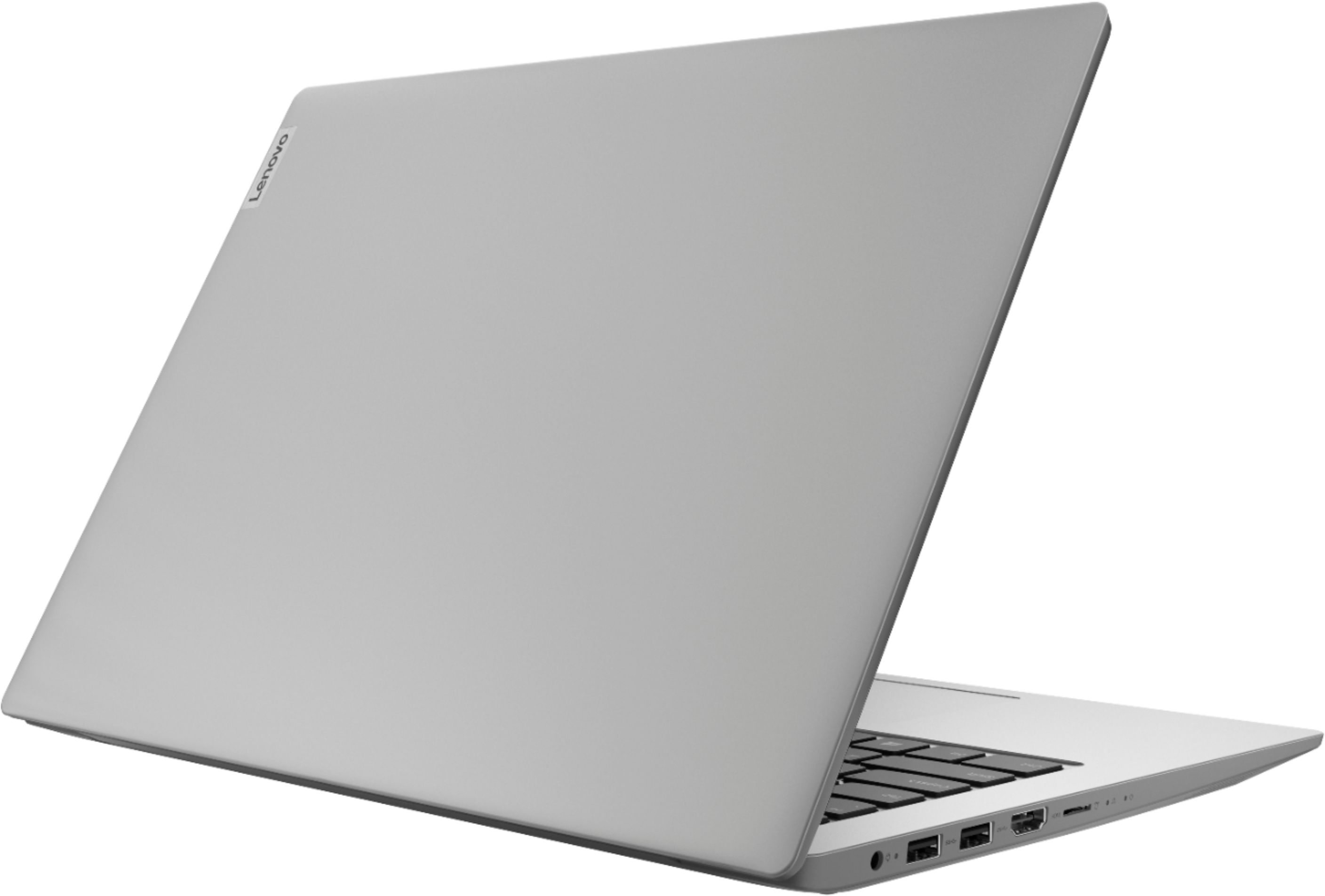
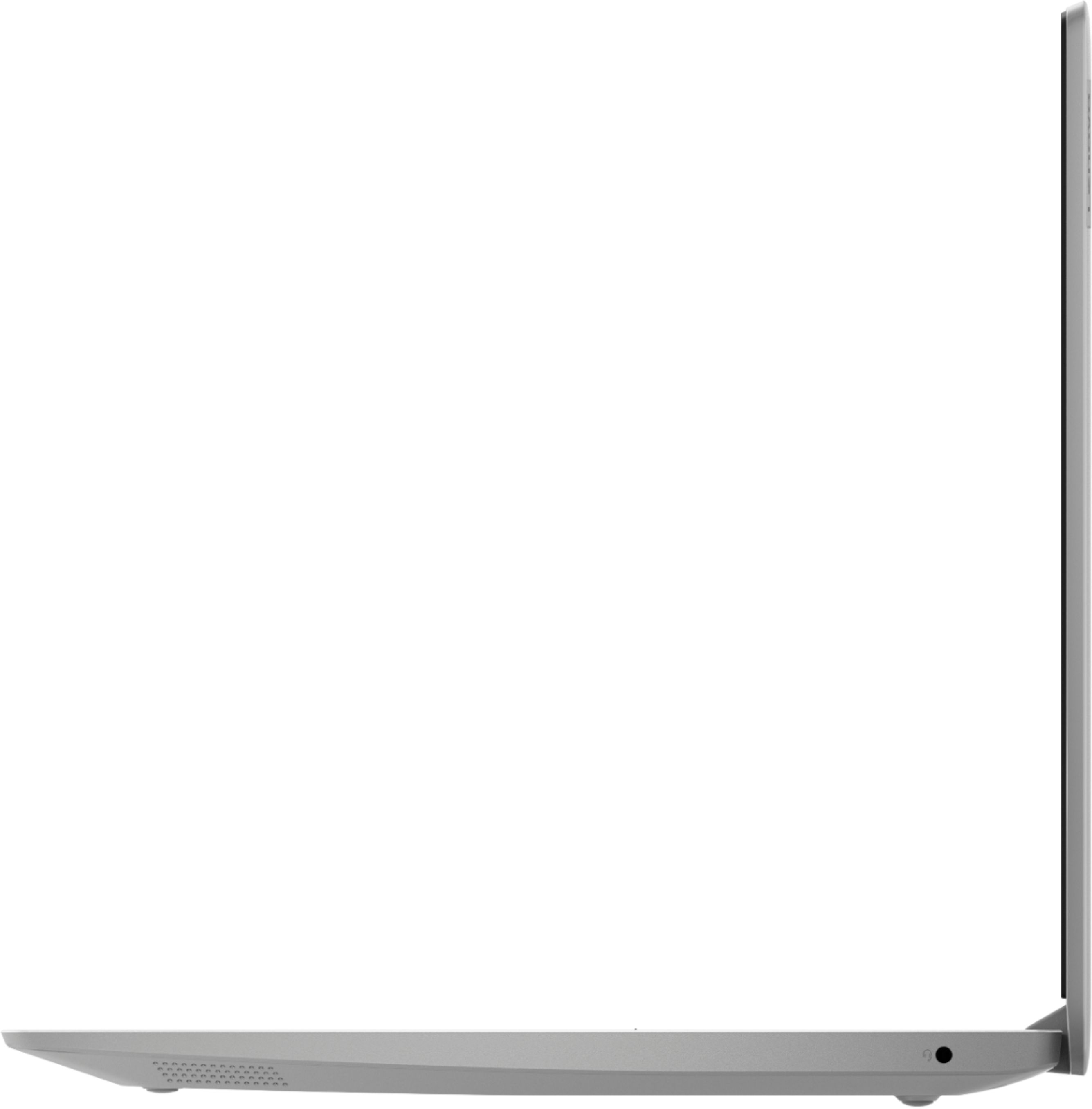
A:AnswerNo. The 64GB eMMC solid state hard drive is soldered to the motherboard. If you need additional storage space, there is a full size SD card slot on the IdeaPad 1 14-inch and of course, you can use any USB-based external hard drive and/or a Cloud-based Storage Account for more storage space.
A:AnswerShould be great for that. I got mine mainly for scanning all my sheet music into. I have an electronic piano and I got a foot pedal hooked up to the computer by bluetooth so I can turn the pages with my foot instead of turning them by hand.
A:AnswerI purchased two Dells with the same processor (9220e) two months ago and installed openSUSE 15.1 on them. They work great for the computer classes I teach in the mtns of Central America. The Dells only had 32 GB SSDs, but that is plenty of space for Linux and multiple students. You might want to put /var and /tmp in RAM. For what I do, they fly. I didn't have any problem with drivers, but I haven't used the sound or camera.
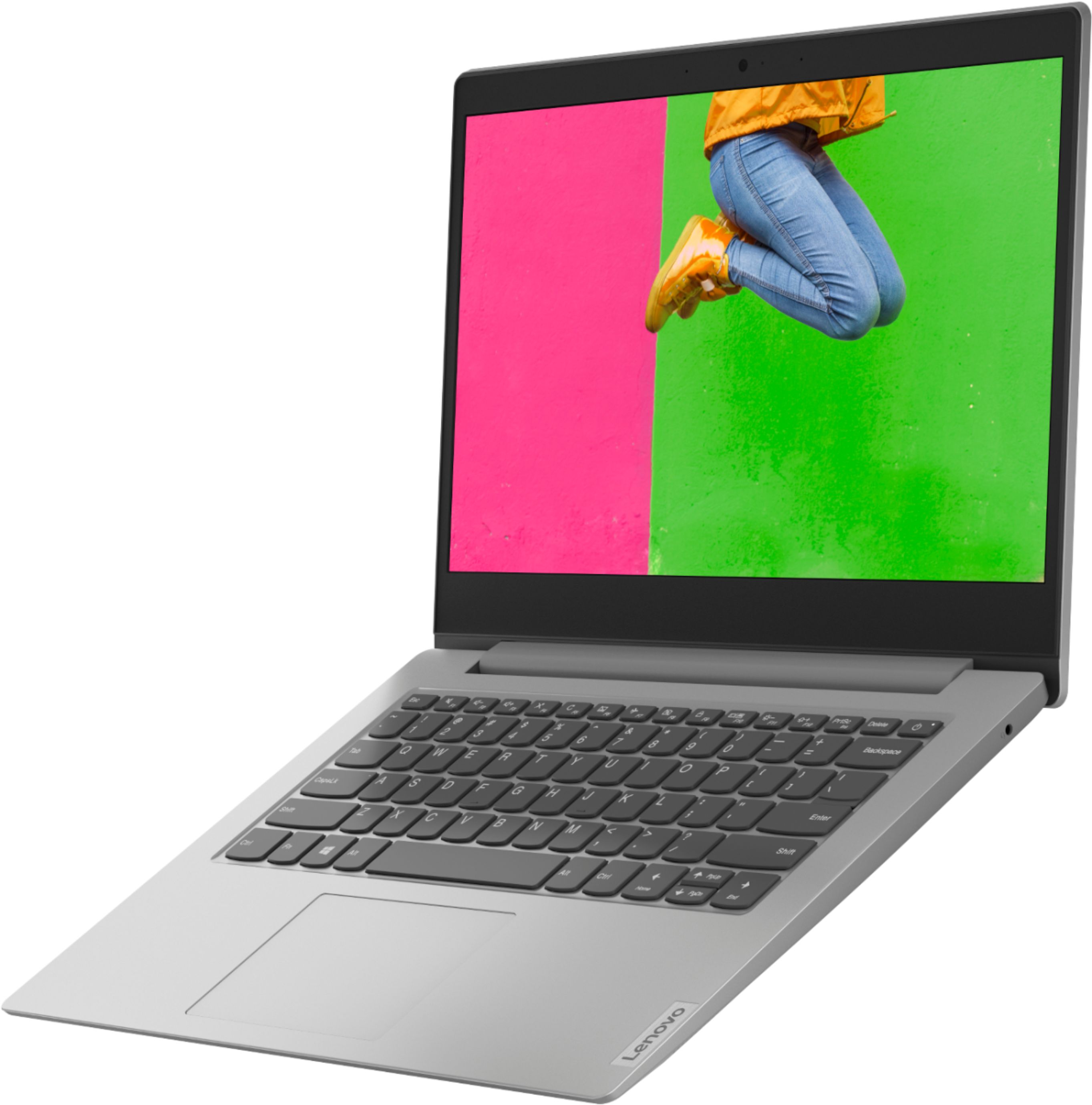
A:AnswerThe Lenovo IdeaPad S150-14, model number 81VS0001US ships with the Dual Core AMD A6-9220e processor with a base speed of 1.6GHz and a boost speed of 2.4GHz. The computer weighs 3.08 lbs.
A:Answerhi,
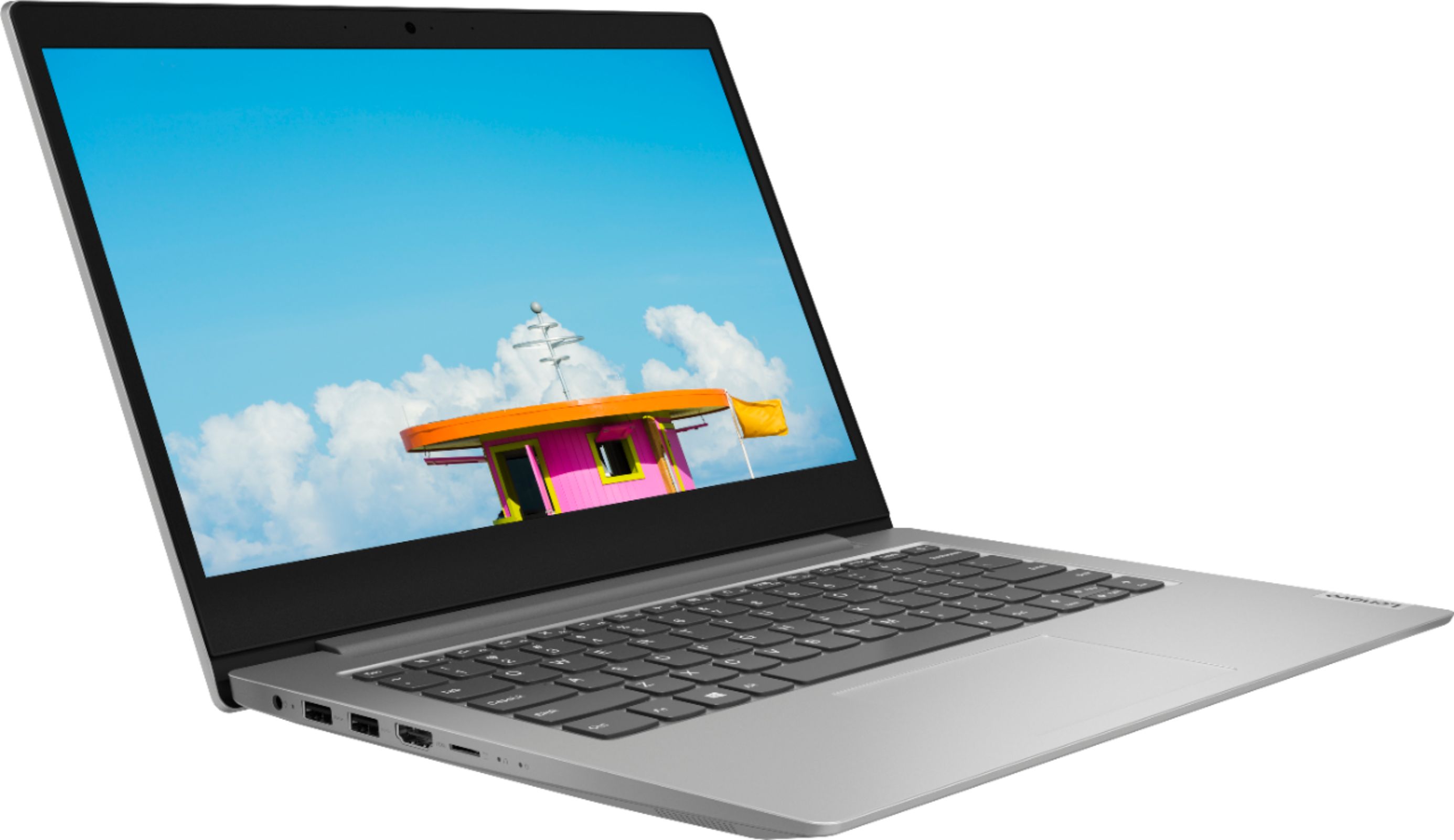
it has USB ports showing in the pictures.
Windows 10 Home in S mode is Microsoft's "secure" version of Windows 10 Home. you can only install programs from Microsoft's online application store.
You can take it out of "secure" mode, but then you can never put it back into "secure" mode, so it would become a normal Windows 10 Home operating system. S Mode is Microsoft's way of competing with Google Chrome OS and Chrome OS's built-in security.
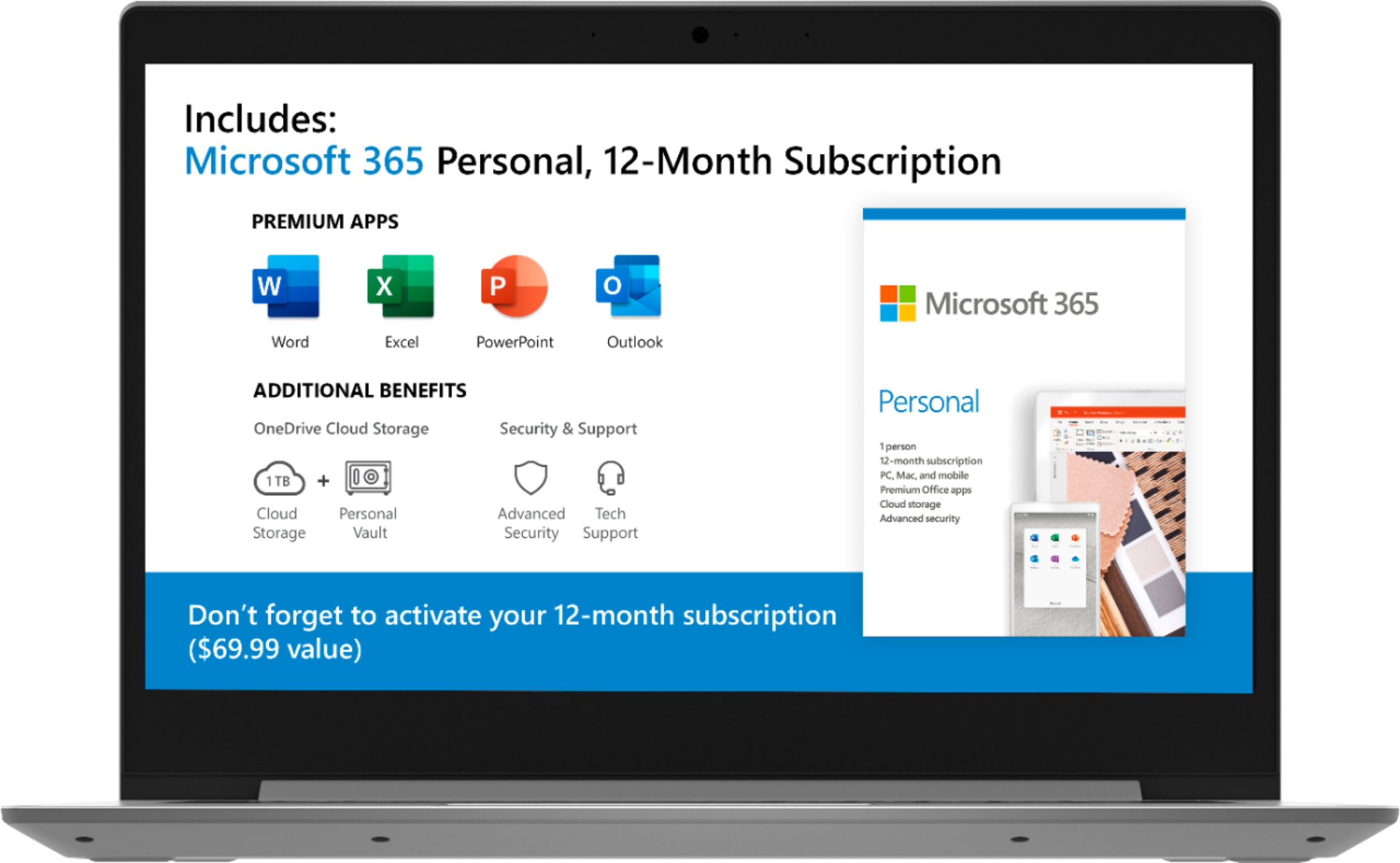
A:AnswerYes, the Lenovo IdeaPad 1-14 laptop ships with a free 1-year subscription to Microsoft Office 365, already installed on the computer. Just open the Microsoft Office 365 program. Upon your first use, the software will have you activate the software. Just follow the onscreen instructions and instead of a 30-day trial, with this computer you will now have a full 1-year subscription to Office 365.
A:AnswerYes. This model ships with Windows 10 S-Mode Operating System. Windows 10 S-Mode provides added security by only allowing APPs available ( and therefore certified by Microsoft) at the Microsoft Store. If you don't need the added security or you need to install APPs not available at the Microsoft Store, you can switch to standard Windows 10 Home 64-bit Operating System, at no additional cost. Be sure the software you plan on installing is compatible with Windows 10 (you will need to switch from S-Mode to install programs not available through the Microsoft Store), and this device configuration. There is a 64GB eMMC solid state hard drive with approximately 40GB of storage space available to the user.
A:AnswerWe are sorry to hear that you are having issues with your Lenovo IdeaPad 1-14 laptop, model number 81VS0001US. It is possible that restoring the computer back to original factory settings may fix the issue. Since you can not boot the computer to the Windows 10 Desktop, This system is equipped with OneKey Recovery System. There is a very small pin hole on the left side of the device, right near the Micro-SD card slot on the device. You will need a pin to push this reset button. Plug the device in. Let the battery charge for about 15 minutes. Push the reset button. The system should boot to a choice screen where you can choose "Restore To Factory Default". Select this. It will delete everything from the hard drive except the original factory install of the operating system. You will need to reinstall all programs and files after the reset. If you don't have copies of the files, try to make one before you restore by selecting "Boot to desktop" and trying to back up your files. Once you have restored the computer back to original settings, be sure any software you installed is compatible with Windows 10. There is no need to install Microsoft Office software. The software is already part of the operating system, you just need to activate the software with a purchased product key. If you have installed a copy of Microsoft Office, this is conflicting with the existing copy on the system and this will slow your system down. If you have installed a 3rd party anti-virus program, be sure that Windows Defender is turned off and that the trial version of McAfee Anti-Virus software is uninstalled. There can only be one anti-virus program on the system. You may need to restore your system to original factory default settings if any of the programming errors have occurred. You can do that by typing "restore" in the Cortana search window. Just click on the magnifying glass icon at the bottom left of your Windows 10 Desktop. Click on "Reset This PC" Then click on "Get Started" and follow the on screen directions to restore to factory defaults. If the problem persists, we recommend you contact Lenovo Tech Support at: 877-453-6686.